
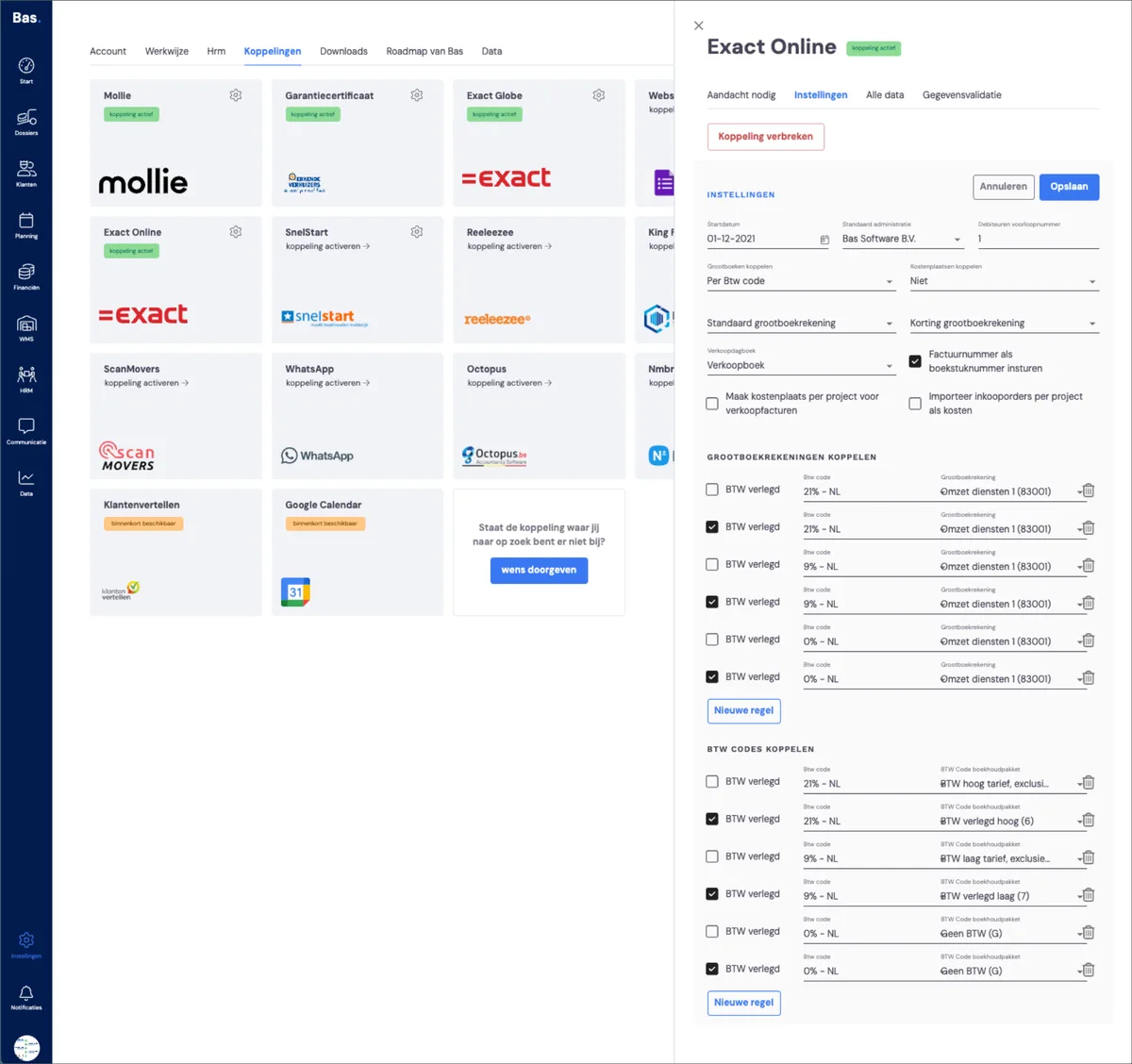
If you want to adjust the settings of the integration with Exact Online, you do this under ‘Settings > Integrations > Exact Online > Settings’. Click the pencil icon in the top right to adjust the settings.
Settings
Start date
This is the date on which synchronisation between Bas and Exact Online starts. Choose the date on which you start using Bas to record and synchronise invoices and other accounting data. Please note: invoices or data with a date before this start date will not be synchronised automatically.
Default administration
If you have multiple administrations in Exact Online (for example for different companies or business units), choose the administration Bas should synchronise with here. All invoices, customers and other data are sent to this administration by default.
Debtor prefix number
Use this field if you want to give new customers from Bas a unique number that’s recognisable in Exact Online. By using a prefix number (e.g. 10000 or 50000), you can easily recognise customers created via Bas. Existing customers in Exact keep their original customer number.
Linking general ledger accounts
Choose how you want to link general ledger accounts from Exact to Bas. You can set this up: per VAT code – useful if you want to split revenue based on the VAT percentage – or per revenue group – useful if you work with different types of revenue categories (e.g. transport, storage, assembly).
Linking cost centres
Choose here whether to link these to a revenue group in Bas, or choose not to.
Default general ledger account
If an invoice has no specific link via VAT code or revenue group, it’s booked to this default general ledger account. Please note: this account must be of the type “Revenue” in Exact Online.
Discount general ledger account
If you want to book discounts on invoices separately, you can set up a general ledger account for discounts here. For example: “8090 – Revenue discounts”. If this field is left blank, the discount is processed within the normal revenue lines.
Sales journal
Select the sales journal in Exact Online in which sales invoices from Bas are booked. By default this is often something like “Sales book” or “VHB”. Make sure this journal is active and available within the selected administration.
Send invoice number as document number
If you enable this option, the invoice number from Bas is also used as the document number in Exact Online. This makes it easier to recognise and find invoices in both systems. If you leave this option off, Exact determines the document number itself.
Create cost centre per project for sales invoices
This lets you automatically create a cost centre per case file. This allows you to record costs per case file, so you can later determine which costs and revenues relate to the case file.
Import purchase orders per project as costs
This lets you import purchase orders from Exact that are linked to the case file into Bas. This gives you an overview in Bas of the purchase costs you’ve incurred on the case file.
Linking general ledger accounts
Link the revenue groups you’ve created in Bas to the general ledger accounts as read from Exact Online here.
Linking VAT codes
Link the VAT percentages created via the packages to the correct VAT code in Exact Online here.
Linking purchase costs
Link the cost types in Bas to the correct general ledger account in Exact Online here. This allows costs to be linked to a case file, so the actual returns on a case file can be determined.