Invoices for removals and storage are generated automatically based on the quote that was issued.
Invoices for removals are automatically prepared as a draft once a removal has been completed.
Invoices for storage are automatically prepared as a draft on the 1st of every month.
The draft invoices can be found in two places.
On the dashboard under the heading "Invoice action list"
Under "Finance".
Editing invoices
On the dashboard, click "draft #" under "Invoice action list"
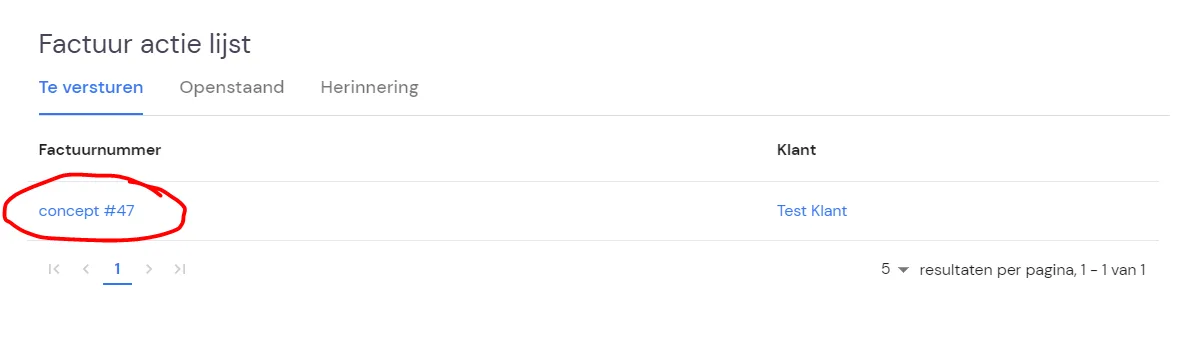
You will then see the draft invoice.
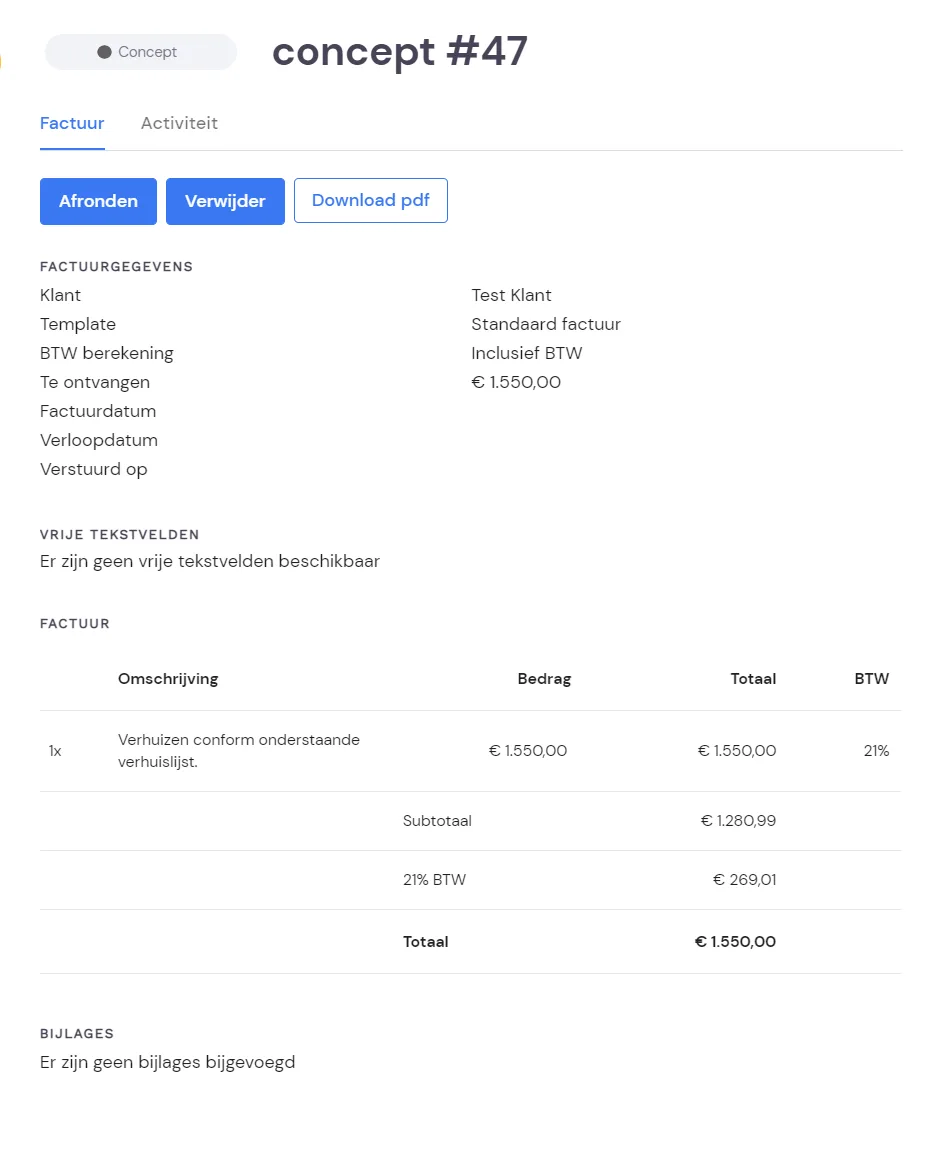
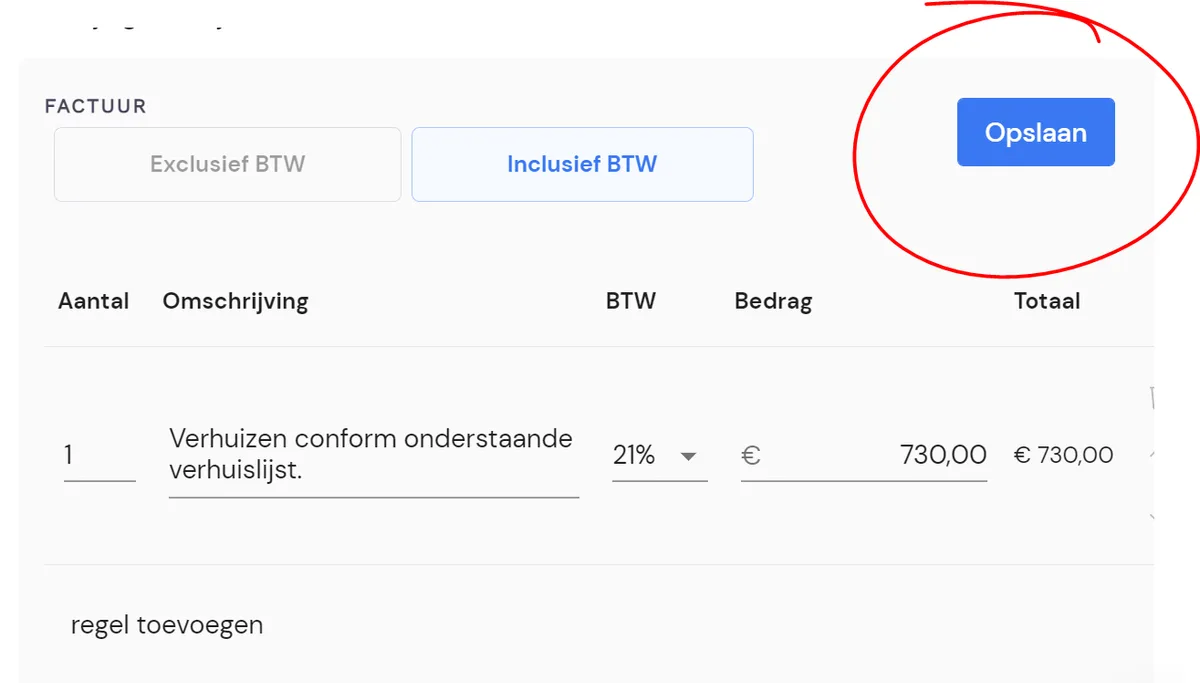
When you hover your mouse over the invoice lines, you'll see a "pencil icon" on the right-hand side. Clicking this lets you edit and/or delete the invoice lines.
Once you have edited the invoice as required, don't forget to click "Save" before clicking "Finalise".
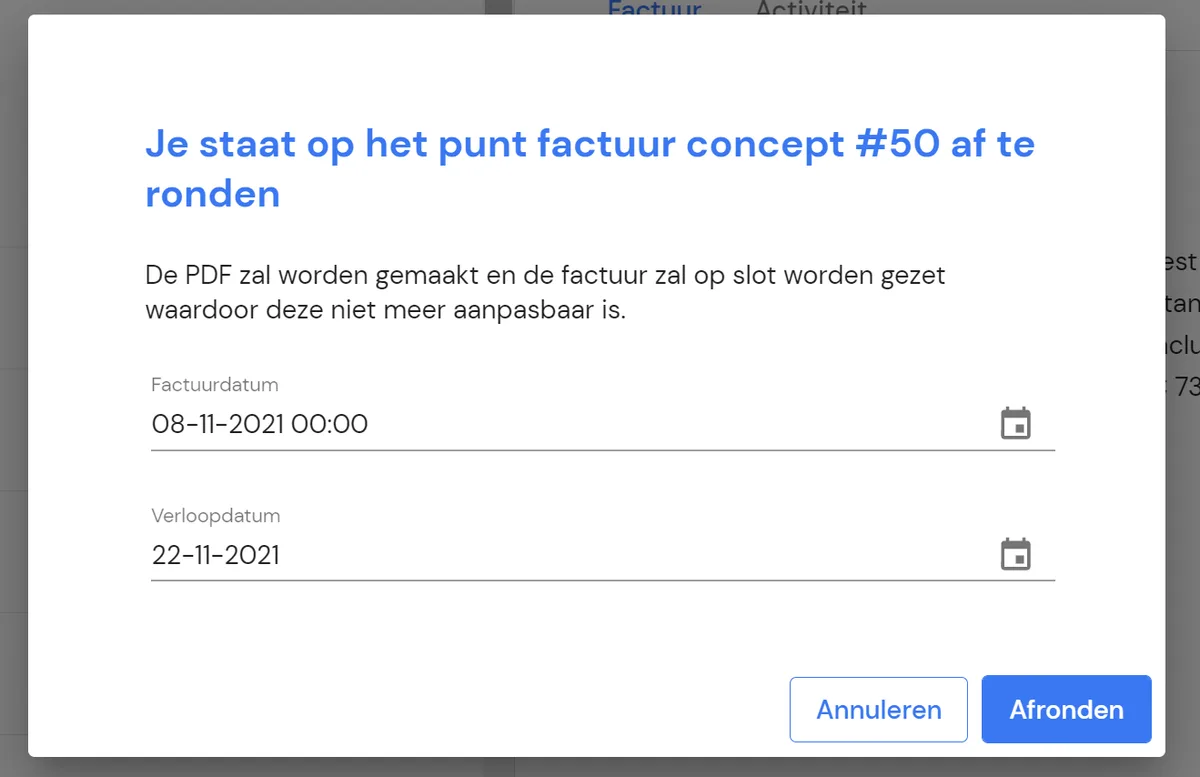
Then click "Finalise" to make the invoice final.
Here you can also adjust the invoice's "Expiry date" if needed.
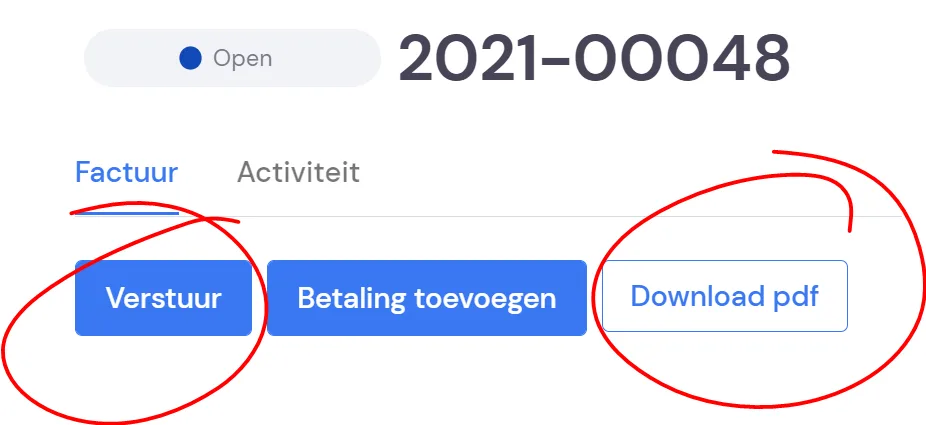
The invoice is now ready to be sent. You can do this by clicking "Send", or by downloading the invoice to send it by post.