1. Once a job has been fully completed and the removal crew have submitted their hours, Bas immediately gives you an overview of the costs incurred, provided you've set this up correctly during onboarding. To enter all the correct values, see:
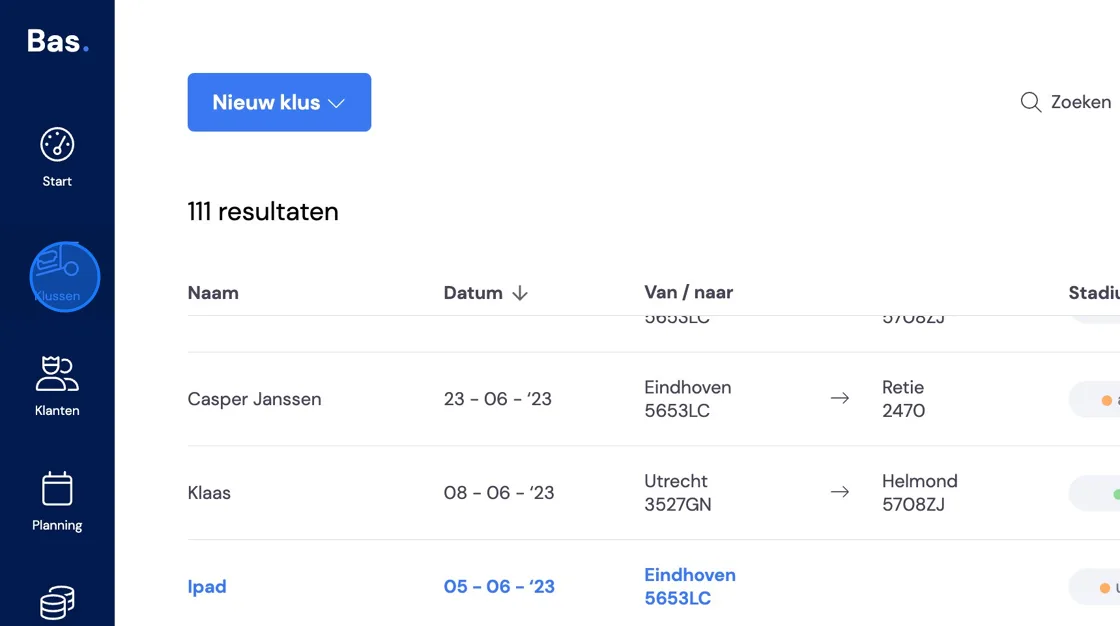
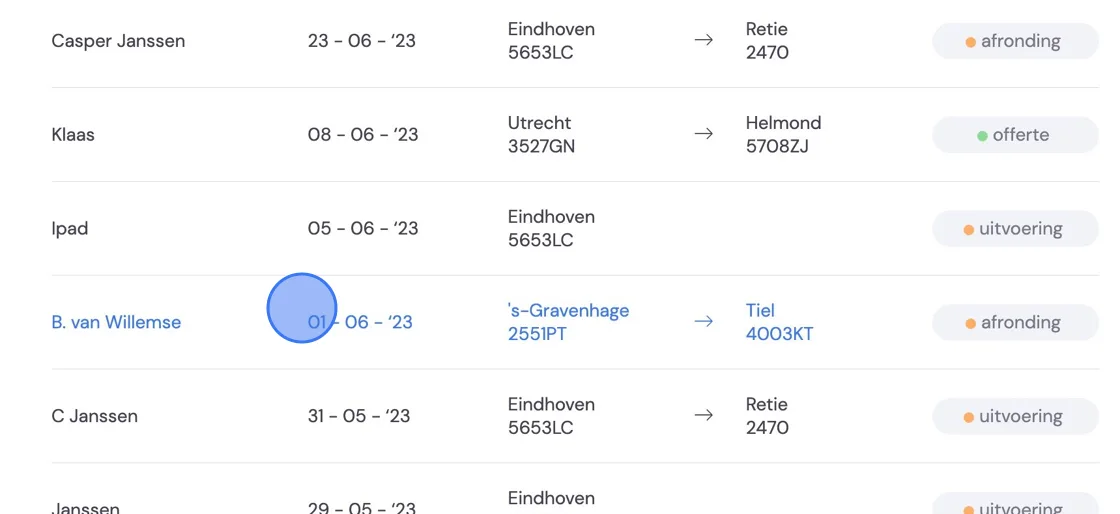
2. Search for the "Job"
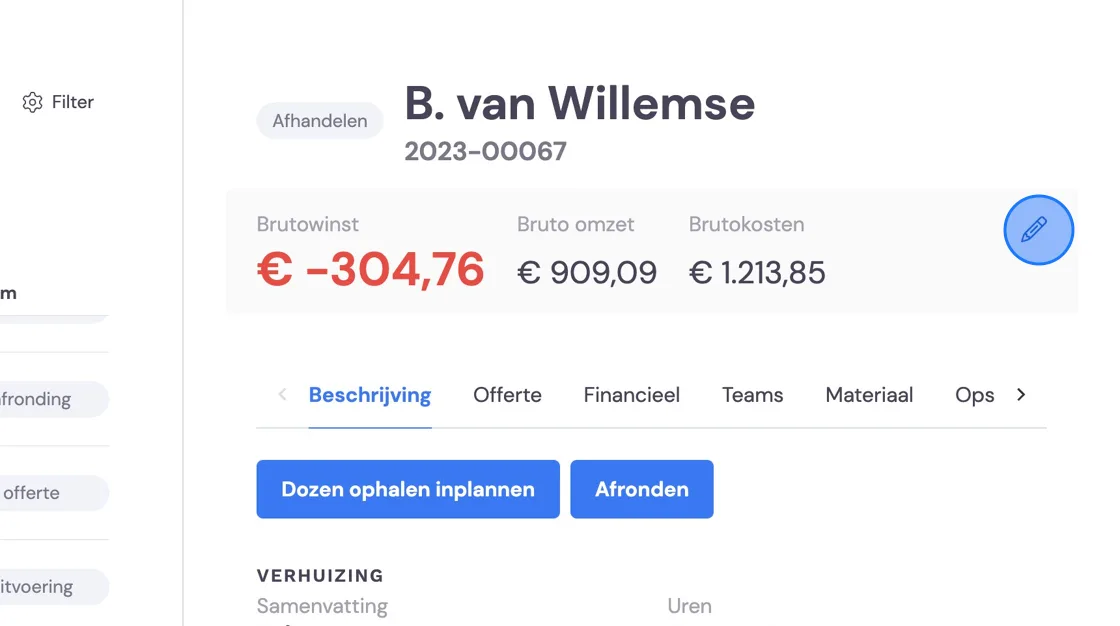
3. Here you'll see an overview of what the job has cost you, the invoice you've sent, and the difference between the two. If you want to send an extra invoice or an invoice based on post-calculation, you can base a price on this. Any extra invoice will not be added here automatically. You can add this manually by clicking the pencil icon in the top-right corner.
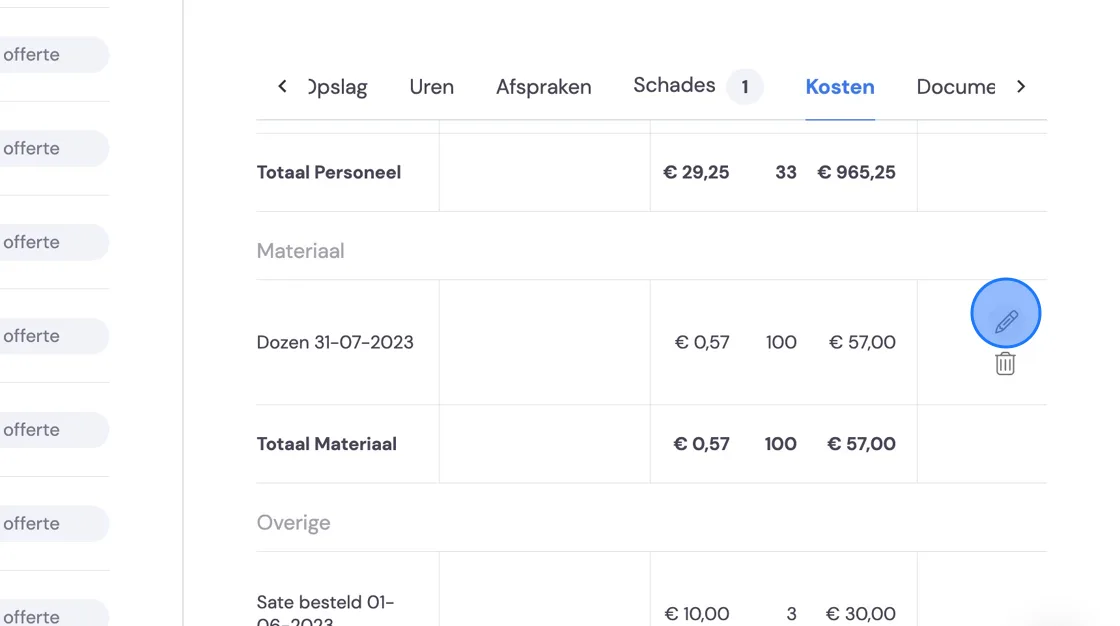
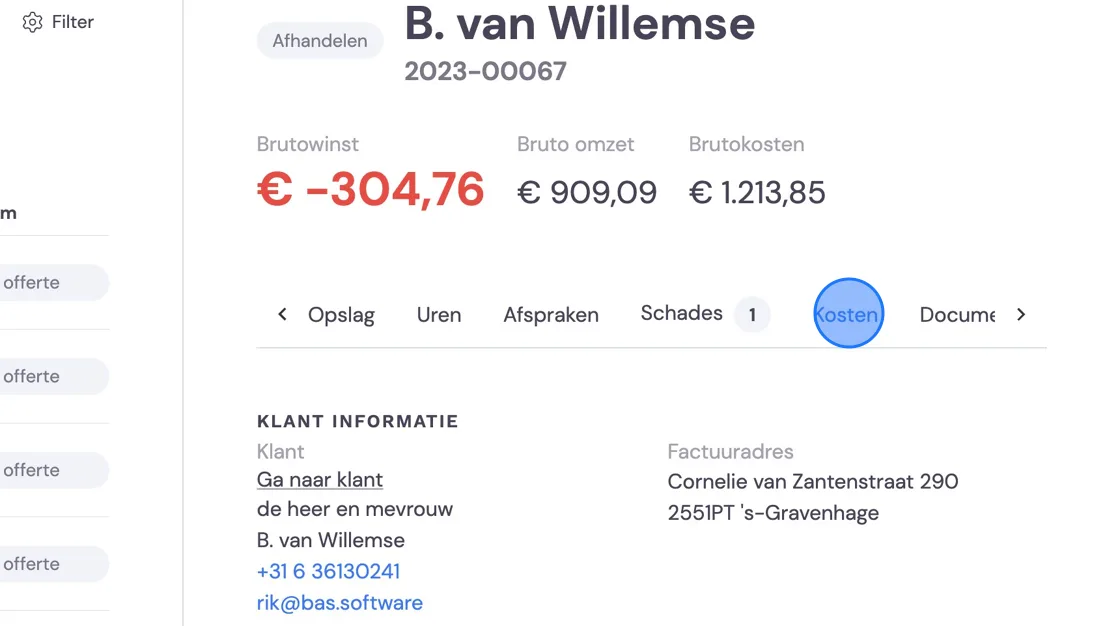
4. You can add any material costs under "Costs".
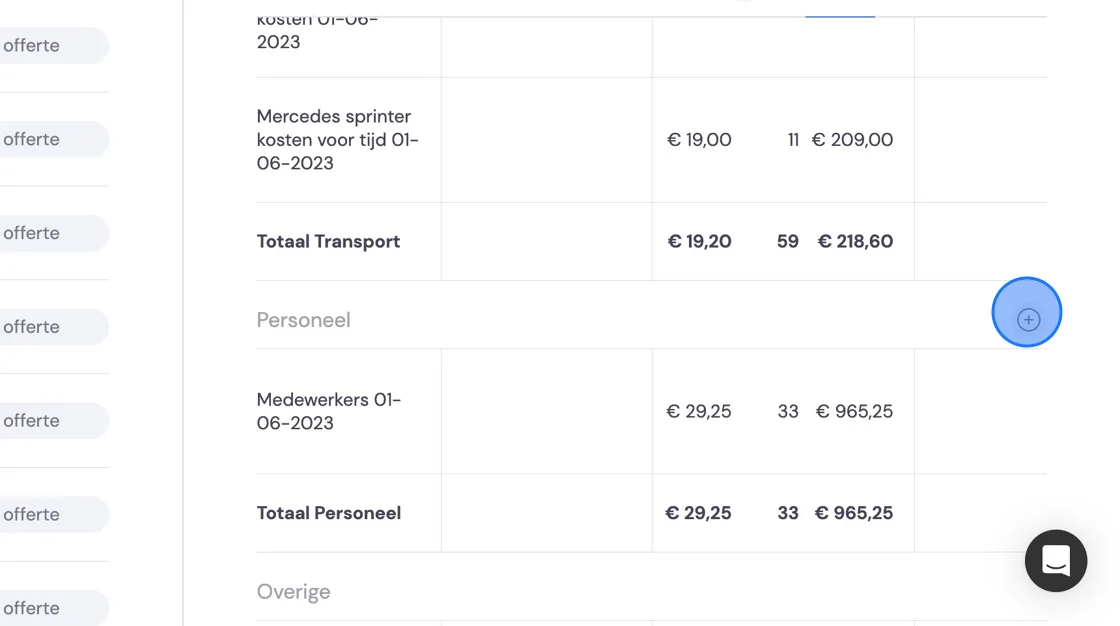
5. Click this icon.
6. Enter your material costs.
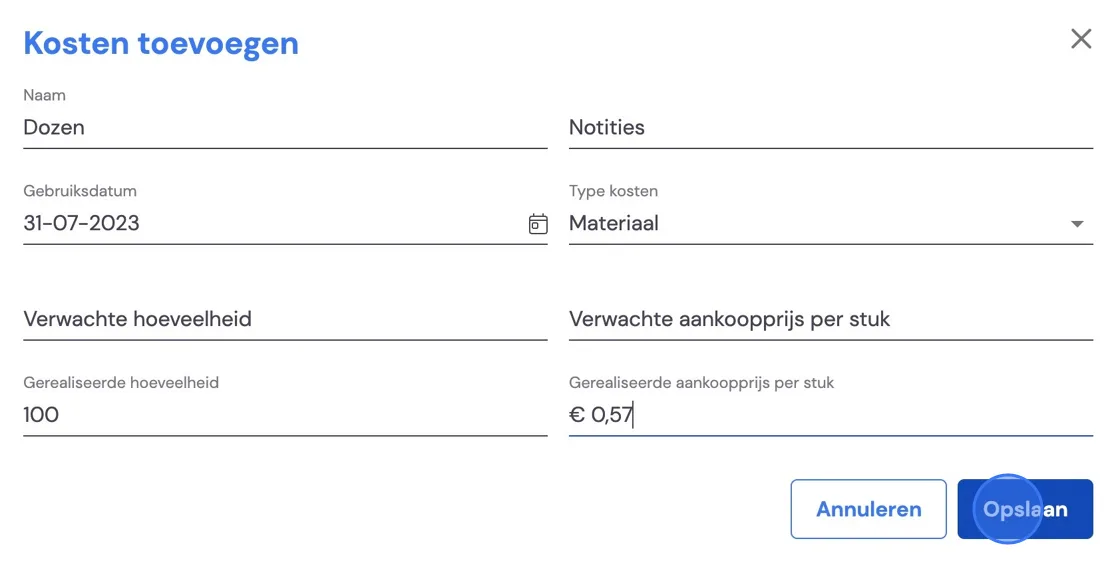
7. You can always make further changes here wherever you consider it necessary. The total amount of costs you've adjusted this way doesn't currently get added automatically to the post-calculation at the top. You'll need to enter this manually in the same way as in step 3.