
You can set up the integration with Exact Online yourself. What you’ll need:
an Exact Online environment
an Exact Online account with sufficient permissions
insight into the general ledger accounts you want to link from Bas
revenue groups in Bas, so you can link these to general ledger accounts
Activating the integration
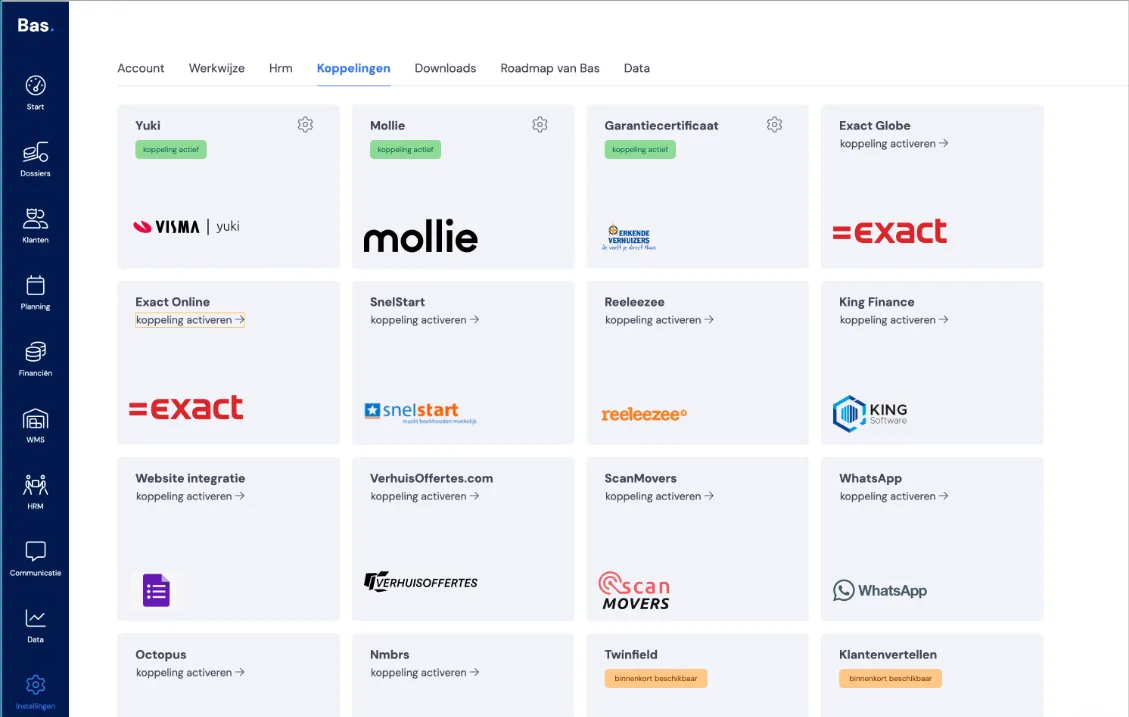
Go to ‘Settings’ and then to ‘Integrations’. Click ‘Activate integration’ here.
Linking Exact Online
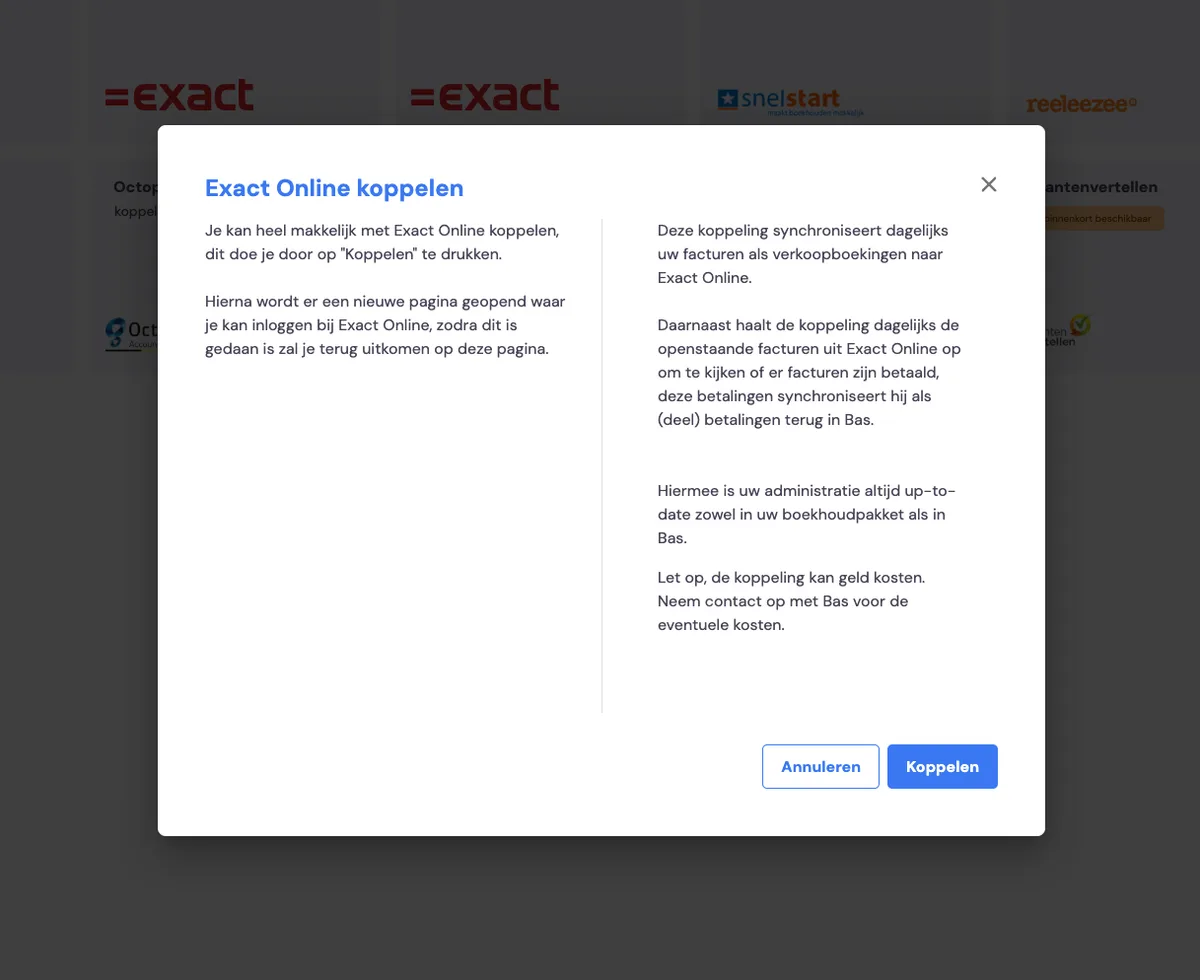
Click ‘Link’ on this screen. You’ll then automatically be redirected to Exact Online. The linking process is handled in Exact Online. After the integration has been created, you’ll return to Bas to link the revenue groups to the desired general ledger accounts here.
Logging in to Exact Online
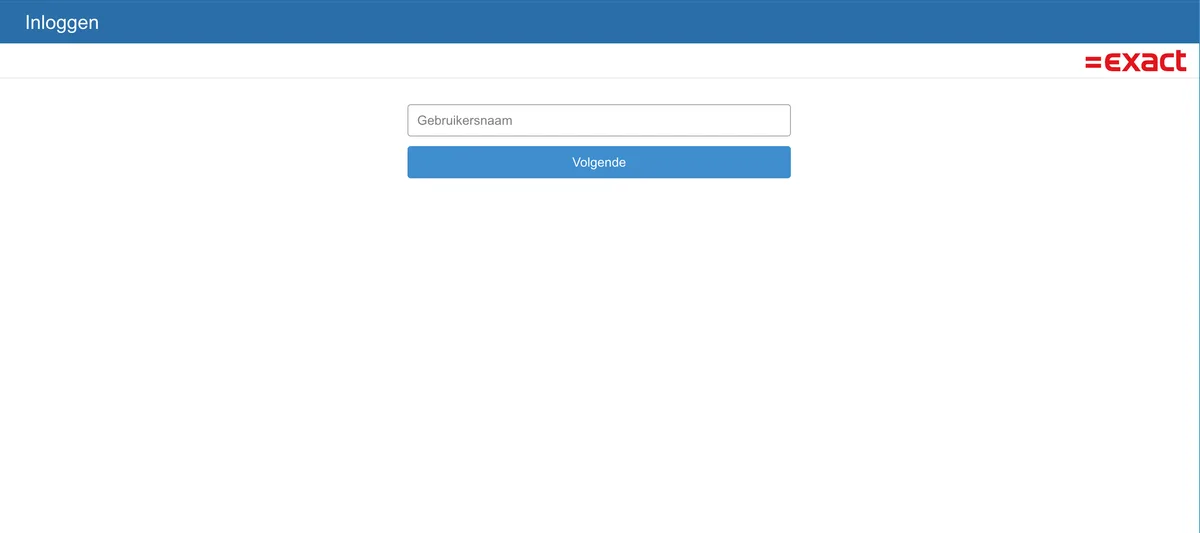
You log in to your Exact Online environment. You can do this with your own account, or you can create a new account for it if you prefer.
You need to activate the following permissions for this account:
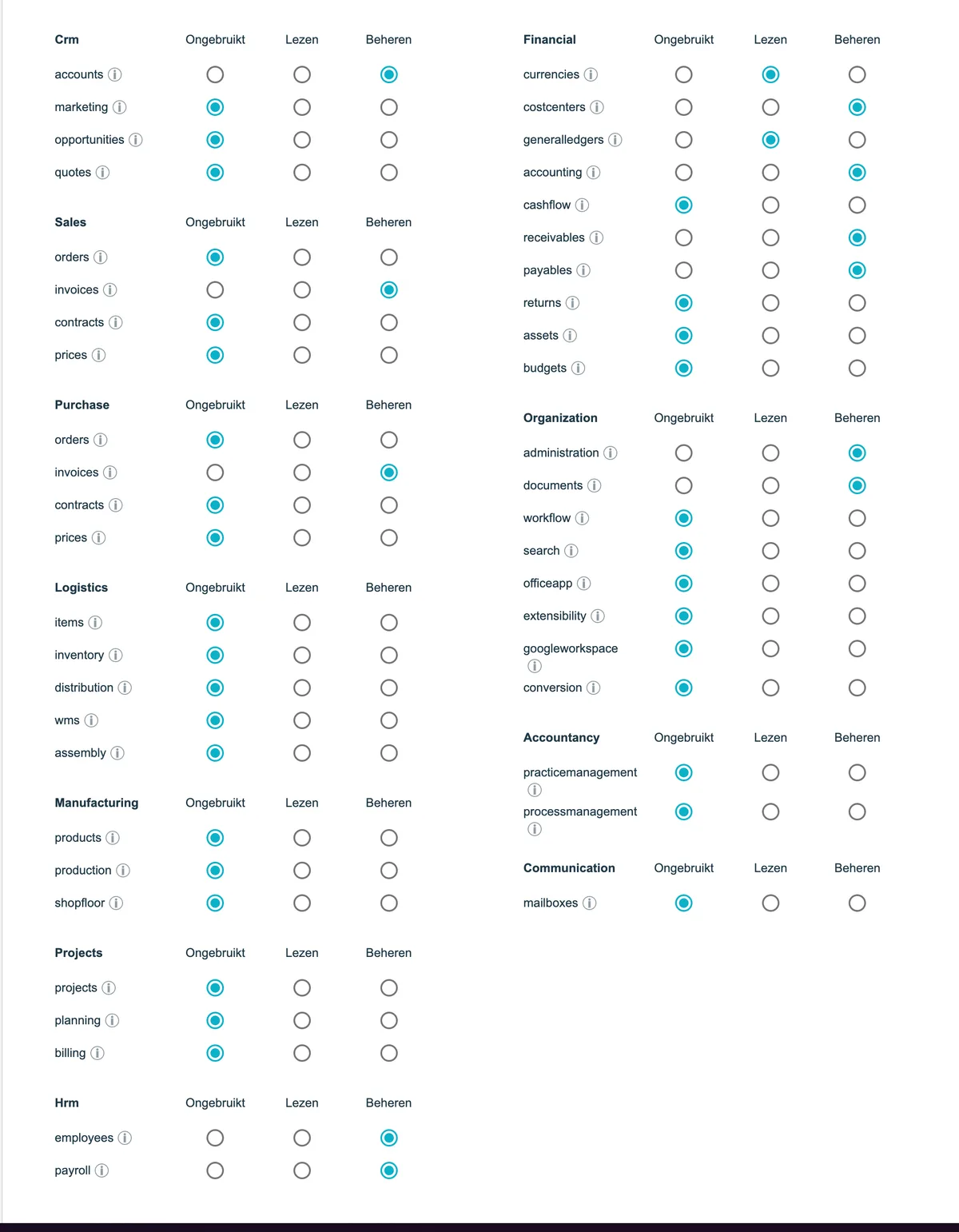
CRM | Manage accounts | To be able to create customers in Exact Online from Bas |
Sales | Manage invoices | To be able to create invoices |
Purchase | Manage invoices | To be able to import purchase invoices into Bas; costs can be linked to case files so that the profit can be determined in Bas |
HRM | Manage employees | This will (in future) allow employees to be created (in connection with payroll) |
Manage payroll | This will (in future) allow payroll data to be entered | |
Financial | Read currencies | For processing invoices in the correct currency |
Manage cost centres | To be able to read cost centres, so purchase invoices can be imported as cost items | |
Read general ledgers | To be able to read existing general ledger accounts and make them linkable in Bas | |
Manage accounting | For creating invoices | |
Manage receivables | Access to open items in order to retrieve the payment status of invoices | |
Manage payables | For processing purchase invoices | |
Organization | Manage administration | To be able to select the correct administration |
Manage documents | For storing invoices in PDF format | |
Settings and mapping
Next you’ll set up the mapping. You’ll link the revenue groups you created earlier to your general ledger accounts, and you’ll map your VAT.
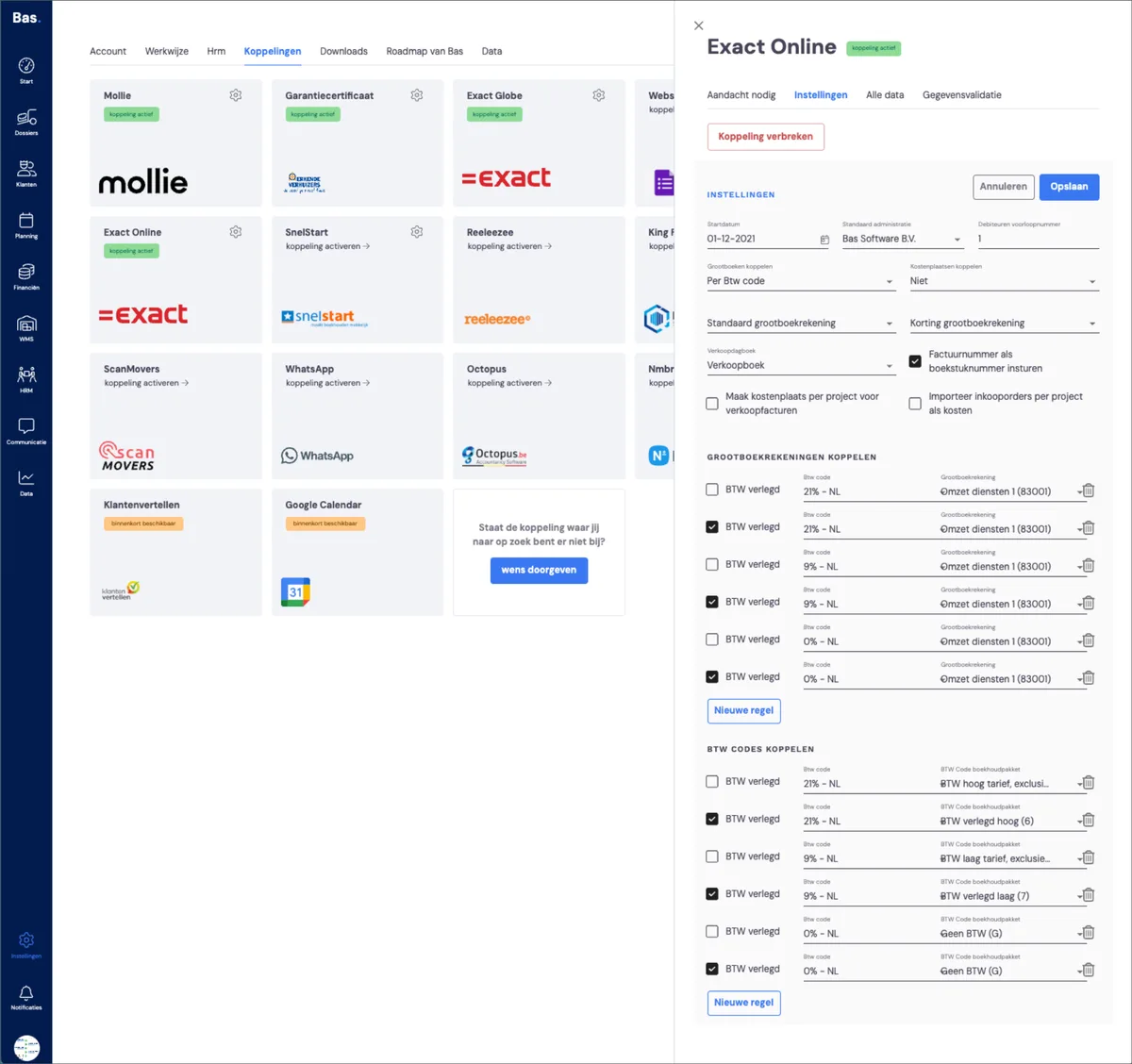
Start date
This is the date on which synchronisation between Bas and Exact Online starts. Choose the date on which you start using Bas to record and synchronise invoices and other accounting data. Please note: invoices or data with a date before this start date will not be synchronised automatically.
Default administration
If you have multiple administrations in Exact Online (for example for different companies or business units), choose the administration Bas should synchronise with here. All invoices, customers and other data are sent to this administration by default.
Debtor prefix number
Use this field if you want to give new customers from Bas a unique number that’s recognisable in Exact Online. By using a prefix number (e.g. 1), you can easily recognise customers created via Bas. Adding this number also makes it easy to de-duplicate debtors in Exact Online later on.
Linking general ledger accounts
Choose how you want to link general ledger accounts from Exact to Bas. You can set this up: per VAT code – useful if you want to split revenue based on the VAT percentage – or per revenue group – useful if you work with different types of revenue categories (e.g. transport, storage, assembly).
Linking cost centres
Choose here whether to link these to a revenue group in Bas, or choose not to.
Default general ledger account
If an invoice has no specific link via VAT code or revenue group, it’s booked to this default general ledger account. Please note: this account must be of the type “Revenue” in Exact Online.
Discount general ledger account
If you want to book discounts on invoices separately, you can set up a general ledger account for discounts here. For example: “8090 – Revenue discounts”. If this field is left blank, the discount is processed within the normal revenue lines. If you work within a franchise such as Topmovers and work with a levy per case file, you can also use this field to record the amount of that levy.
Sales journal
Select the sales journal in Exact Online in which sales invoices from Bas are booked. By default this is often something like “Sales book” or “VHB”. Make sure this journal is active and available within the selected administration.
Send invoice number as document number
If you enable this option, the invoice number from Bas is also used as the document number in Exact Online. This makes it easier to recognise and find invoices in both systems. Turn this option on — otherwise invoice numbers in Bas and Exact won’t be easy to match, which makes it difficult when you want to look up an invoice in both systems.
Linking general ledger accounts
Link the revenue groups you’ve created in Bas to the general ledger accounts as read from Exact Online here.
Linking VAT codes
Link the VAT percentages created via the packages to the correct VAT code in Exact Online here.
Linking purchase costs
Link the cost types in Bas to the correct general ledger account in Exact Online here. This allows costs to be linked to a case file, so the actual returns on a case file can be determined.
Optional: if you use ‘purchase invoices’
Create cost centre per project for sales invoices
This lets you automatically create a cost centre per case file. This allows you to record costs per case file, so you can later determine which costs and revenues relate to the case file.
Import purchase orders per project as costs
This lets you import purchase orders from Exact that are linked to the case file into Bas. This gives you an overview in Bas of the purchase costs you’ve incurred on the case file.
Day-to-day use of the integration with Exact
Read what to do in day-to-day use of the integration