
Once the integration with Exact Online is set up and the mapping is configured, you’ll have no day-to-day tasks related to the integration.
New debtors in Bas are automatically added to Exact
All invoices are automatically synchronised with Exact, and if you create a new customer in Bas, they’re also automatically created at the moment the invoice is sent.
De-duplicating newly created debtors
When you start working with Bas and you have business customers, these customers are recreated in Exact the moment you send an invoice to that debtor. You then need to merge this new debtor — when doing so, pay attention to the prefix number you entered in Bas: you must keep the debtor with the prefix number when merging! If you don’t do this, synchronisation will stop working and you’ll get an error message saying the debtor doesn’t exist!
Payments are processed automatically
When an invoice is paid, the status of the invoice in Bas is updated automatically. If a partial payment is made, the remaining amount is shown automatically in Bas — until the full amount has been paid.
Viewing the status of invoices
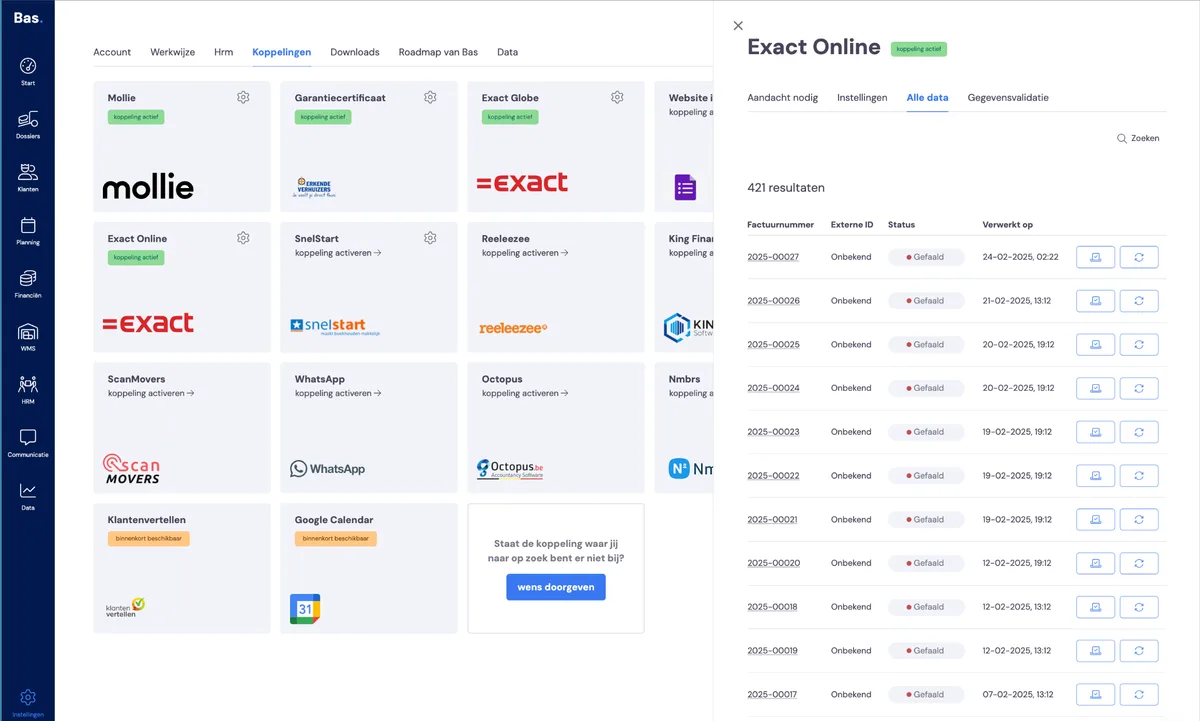
You can view the status of an invoice via Settings > Integrations > Exact Online > All data.
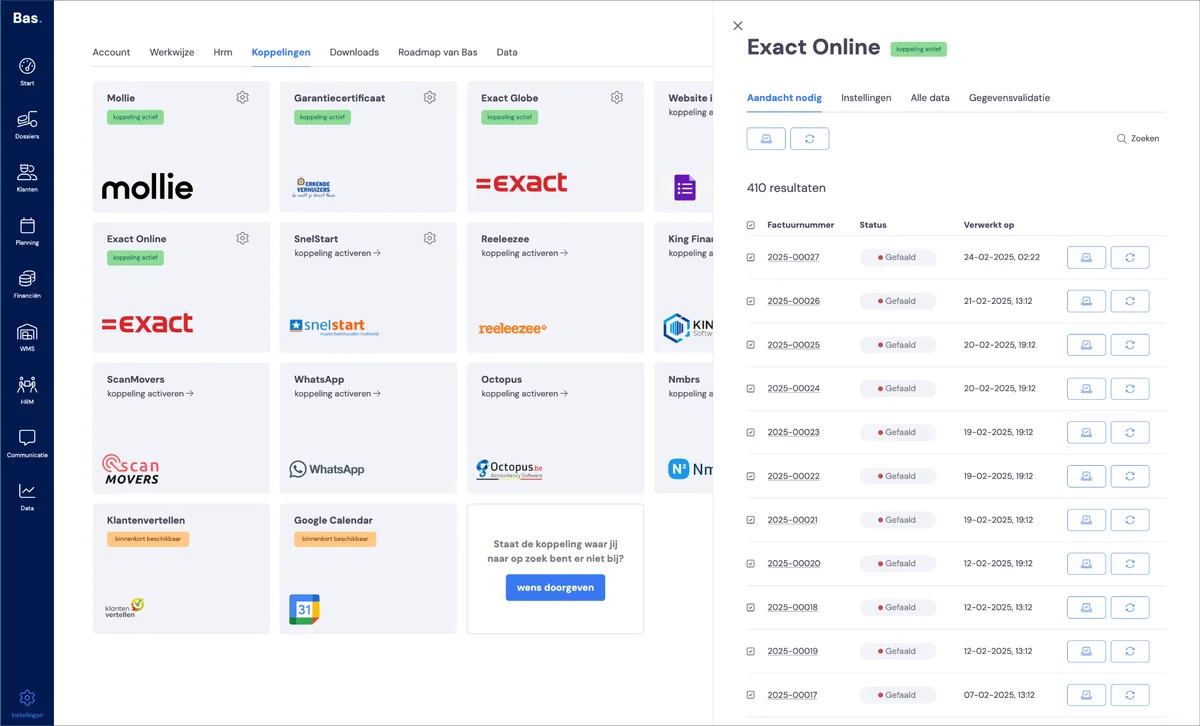
Attention needed
You can find all invoices with a problem under ‘Attention needed’. Here you’ll find the invoice numbers and status, along with an error message if applicable.
Errors during synchronisation
If an error occurs during synchronisation, a task is automatically created for it. If you open the task and click the link, you’ll go straight to the integration.

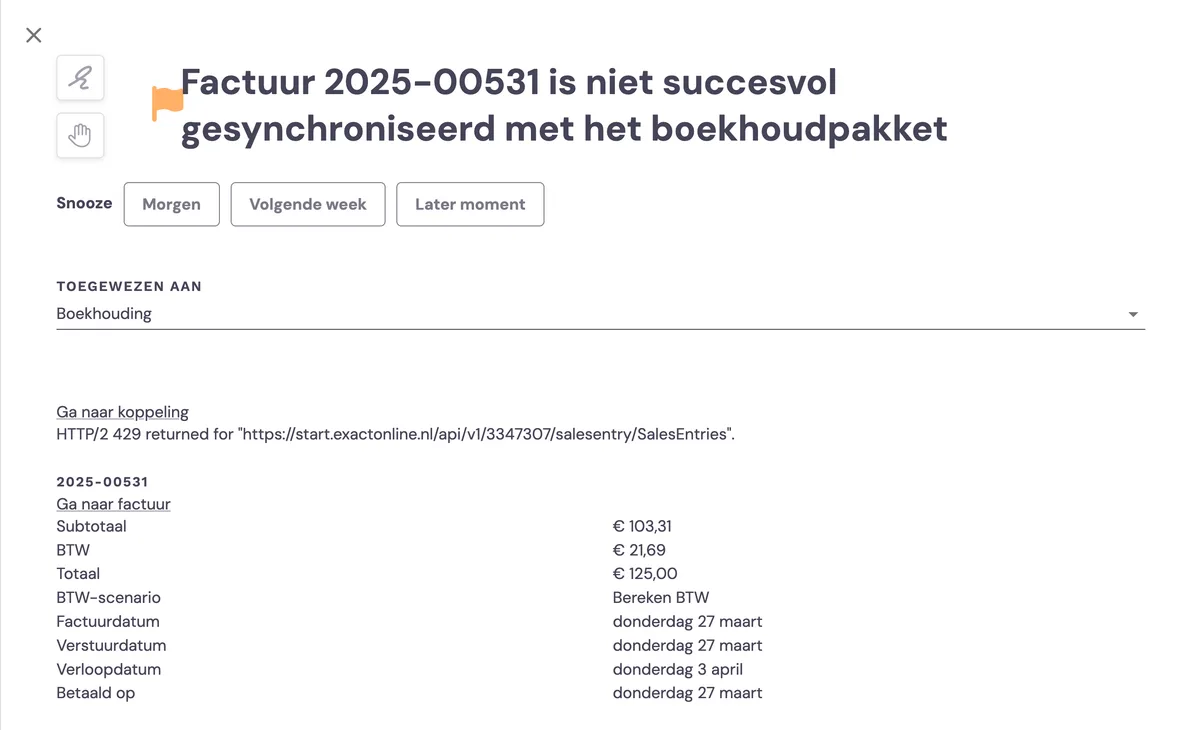
Go to the overview of error messages and their solutions to resolve this issue; you can also enter the error message directly into the support bot for an answer.
Credit invoices
Credit invoices are also processed automatically. You create a credit invoice in Bas.
Specific situations
Would you like to know more about certain specific matters such as sending a credit invoice or how to send an invoice to a period, then read more about these specific situations