
Sending an invoice to a period in Exact Online
You can send an invoice to a specific period in Exact Online so that you can record your revenue in the desired month. You can do this per invoice or in bulk.
Sending a single invoice to an Exact Online period
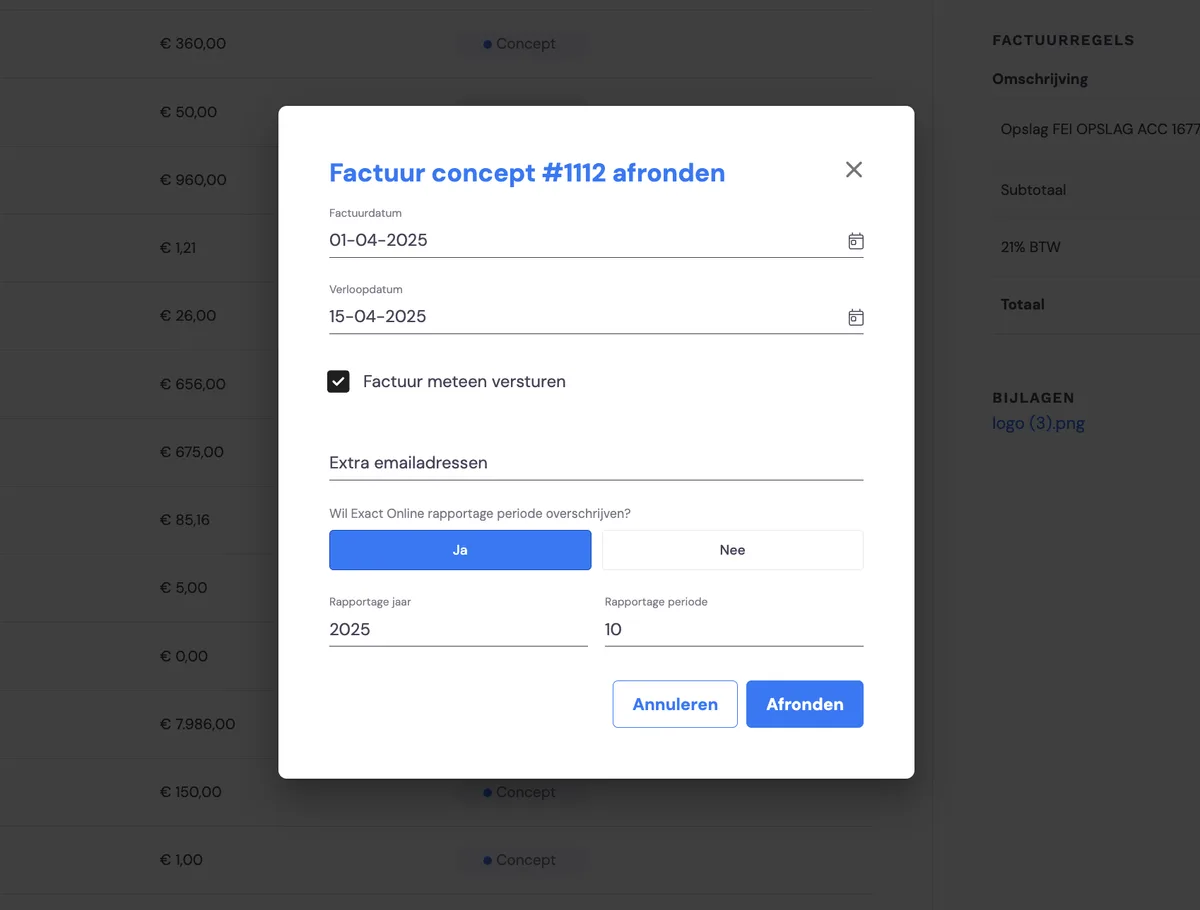
When finalising and sending the draft invoice, choose 'Yes' for the option 'Do you want to override the Exact Online reporting period?'. Then enter the desired period, and finalise and send the invoice.
Sending invoices in bulk to an Exact Online period
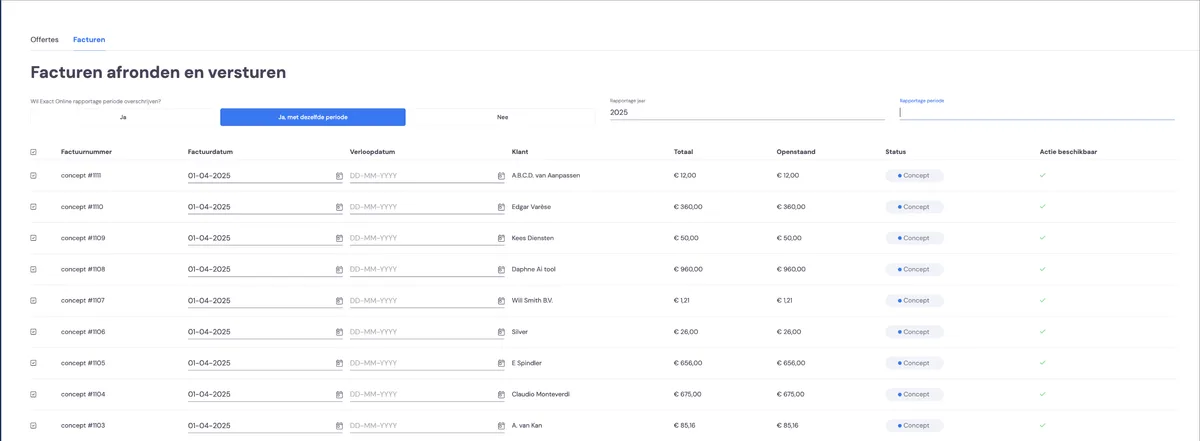
If you select multiple invoices and then choose 'Finalise and send', you'll see the option 'Do you want to override the Exact Online reporting period?'. Choose 'Yes' here, and you can select the period per invoice. Or choose 'Yes, with the same period'; then enter the desired period and send.
Sent invoice has the wrong invoice date
If you've given an invoice the wrong date and sent it to the customer, it has also been submitted to Exact Online. You can no longer withdraw this invoice, because it's already with the customer. Below is the step-by-step plan to resolve this mistake.
1. Create a credit invoice in Bas for the incorrect invoice
Create a credit note with exactly the same details as the original incorrect invoice.
This reverses the incorrect entry in the accounts.
2. Create a new, correct invoice
Create a new invoice in Bas with the correct date. Make sure the content and amount match (unless adjustments are needed). Send this invoice to the customer.
Creating and processing a credit invoice
If you need to credit an invoice, go to the original invoice. Choose 'create credit invoice' here.
Error messages
Running into an error message? Read how you can resolve this error yourself in most cases