
If you're starting with Bas and managing leave through Bas, the starting balance needs to be entered for all employees. There's a simple process for this, which you'll find under HR > Leave requests. Once you have all the balances available, you can enter them all in bulk in Bas in a single step.
Entering the leave balance
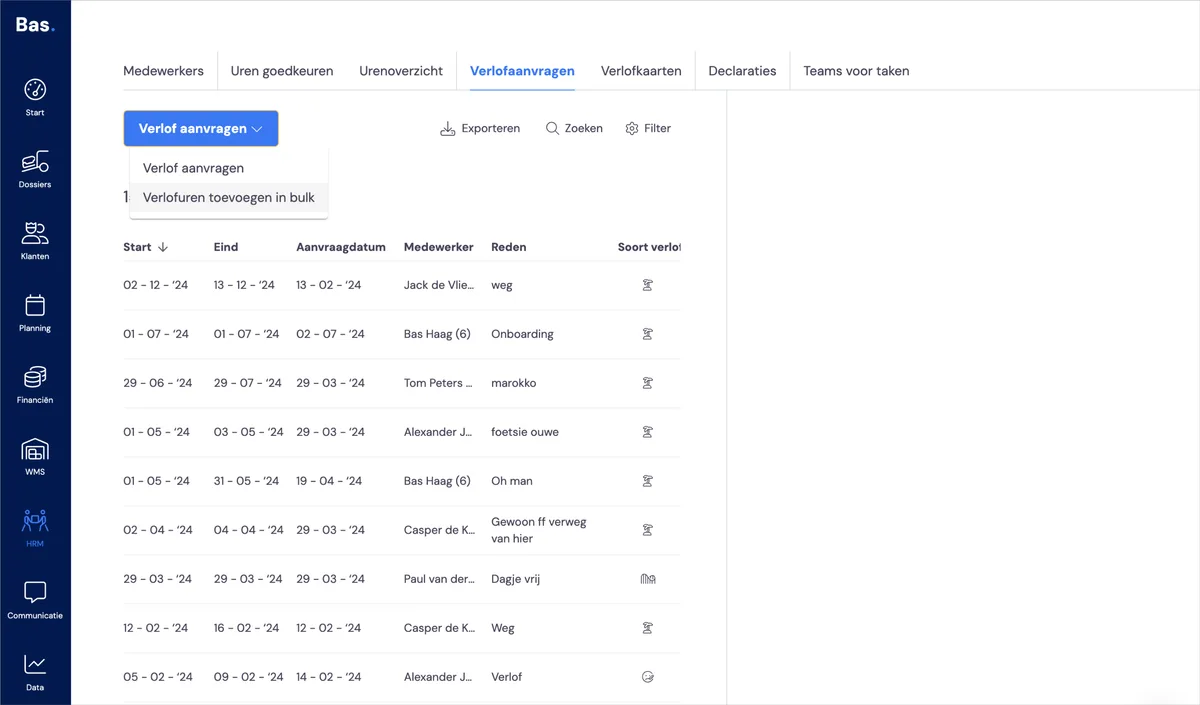
Go to HR > Leave requests. Select 'Request leave' there, and then select 'Add leave hours in bulk'.
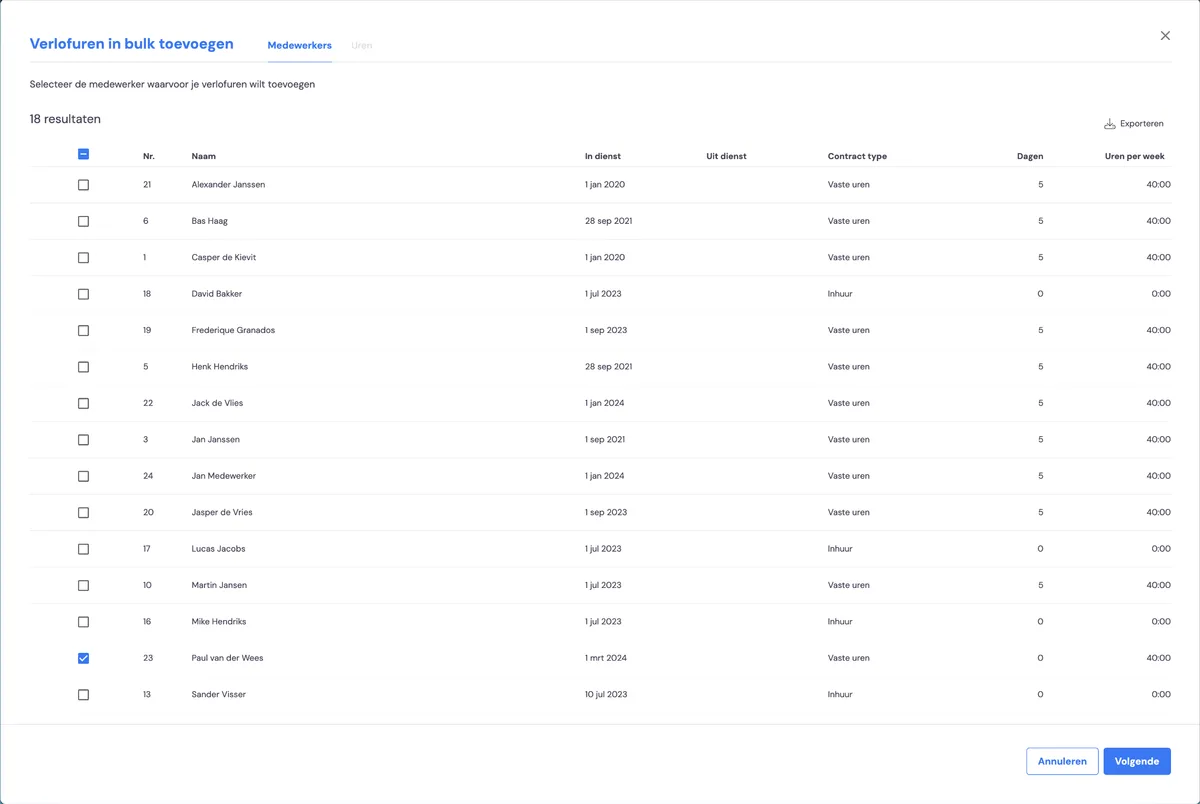
You'll then see an overview of all employees. Select the employees for whom you want to enter the balance, and click Next.
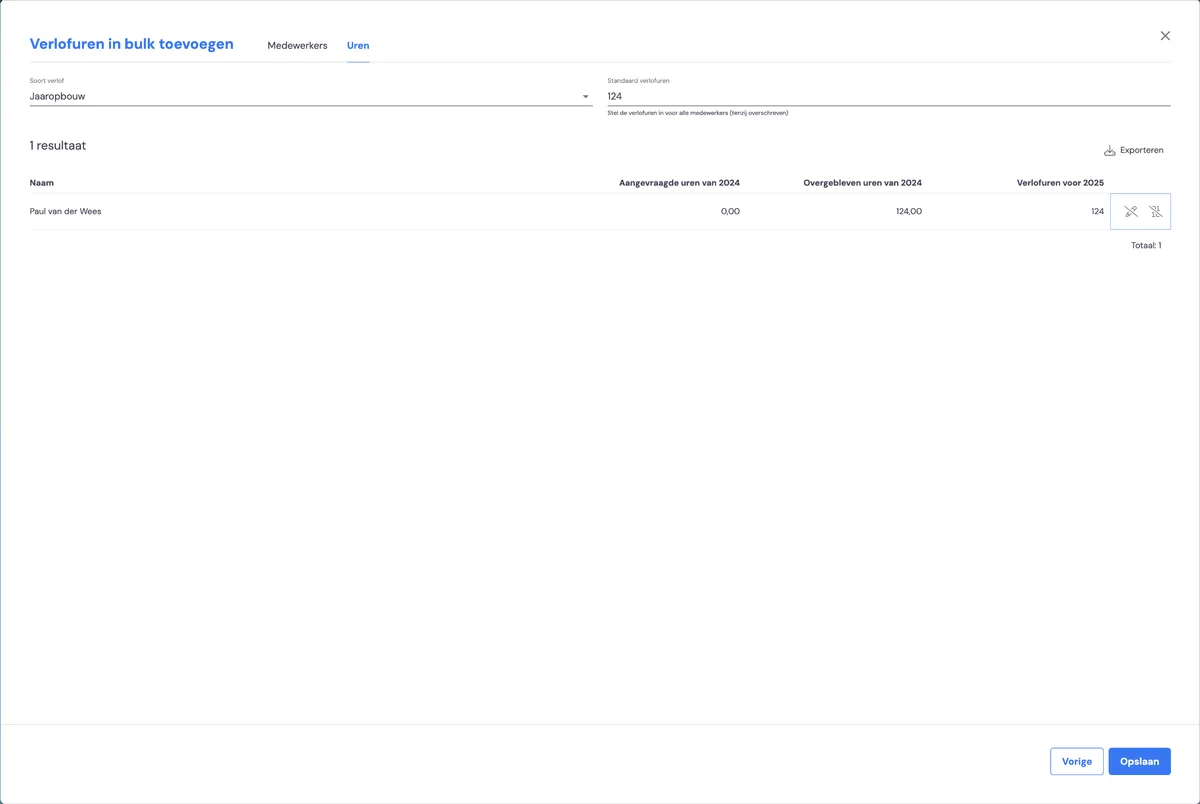
In the top right corner, you can enter a balance that will be filled in for every employee under 'Leave hours for 2025'. You can only enter the hours for the following year. If you want to deviate from this standard balance, or enter it per employee, click the pencil icon on the right-hand side of the row where the employee is listed.
After this, click 'Next' and you'll return to the overview of employees. The balances are updated immediately.
Next step
The HRM section is now complete. You can now start adjusting the standard working methods in Bas to match the way you work — covering the handling of your jobs in the steps of sales, scheduling, execution and invoicing. On to invoicing moments, signing moments, standard rules and discounts.