
Immediately after logging in, you arrive at the start page. The start page consists of two parts:
your tasks
shortcuts
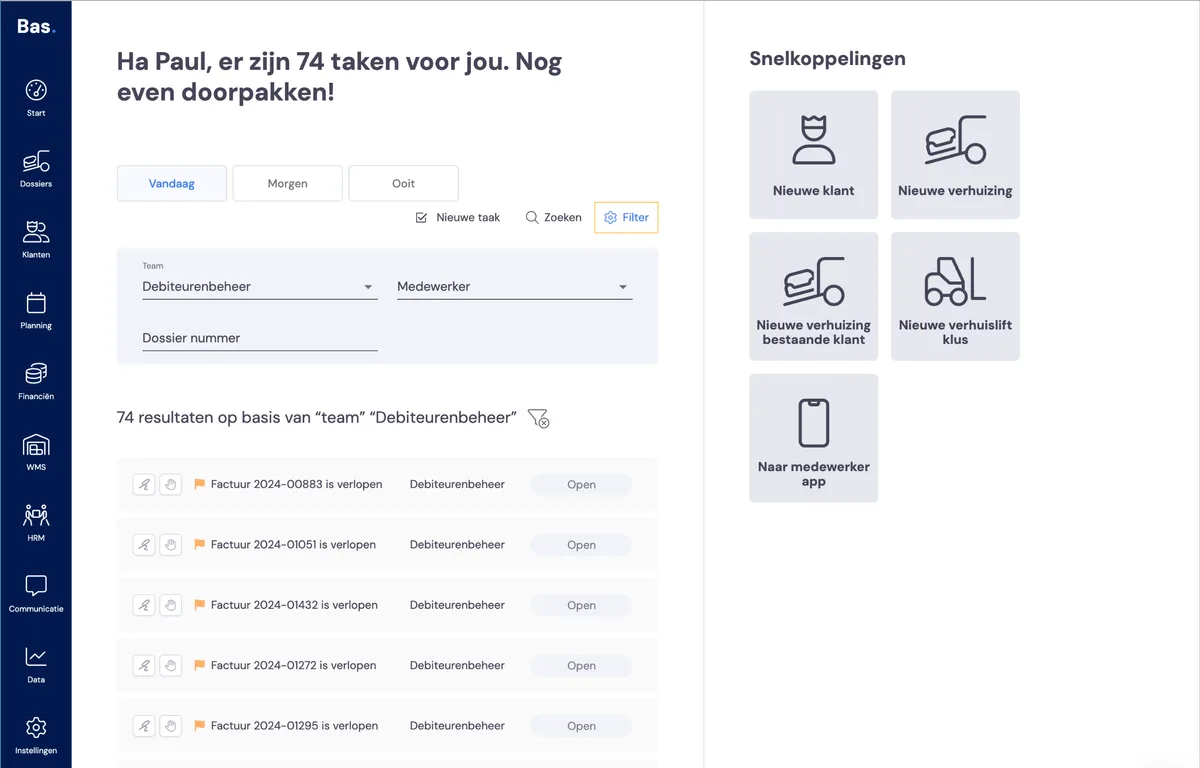
Tasks
On your start page, you'll find an overview of all the tasks you should carry out. If you use the task system consistently, you'll always be up to date with your work.
Automatically generated tasks
Tasks are created for the work that arises from working with Bas. A task is, for example: following up by phone on an expired quote you sent earlier.
Setting up task generation
Under settings > workflow > tasks, you configure which tasks are generated automatically. You can activate or deactivate these tasks and you can link them to a team or to a person.
Teams and tasks
You can organise teams under HRM > Teams for tasks.
Creating a task yourself
With the 'new task' option, you can create a task yourself. You can then link this task to yourself, to a colleague or to a Team. This self-created task will also appear on the task list of the employees concerned.
Handling a task
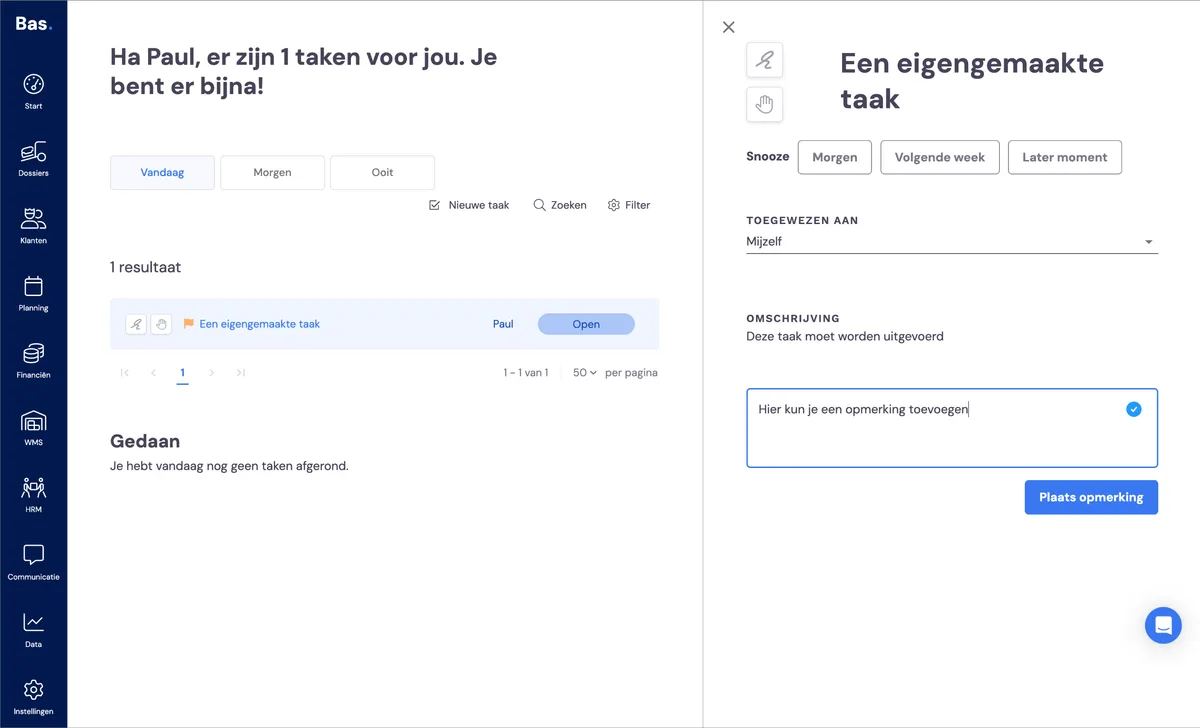
When you click on a task, the detail screen appears on the right-hand side. Here you can complete the task, pick it up, postpone it, assign it to an employee or team and add a comment.
Completing a task
You can complete a task by clicking the 'tick'. The task is then done and is removed from your start screen.
Picking up a task
You can pick up a task by clicking the little hand. The task then moves to the status 'in progress'.
Assigning a task
You can assign a task to yourself, another employee or a team. This way, you can give the right person a task at the right time, for example to hand over your work during your holiday.
Adding comments to a task
You can add a comment to a task; it is then saved and can be viewed by your colleagues.
Ticking off tasks yourself
Please note: you always have to tick off the tasks yourself! A created task is not closed automatically. For example, if you get a task for a quote that has expired and you've cancelled the quote, it will not be closed. You then click the tick and the task is done.
Jobs and tasks
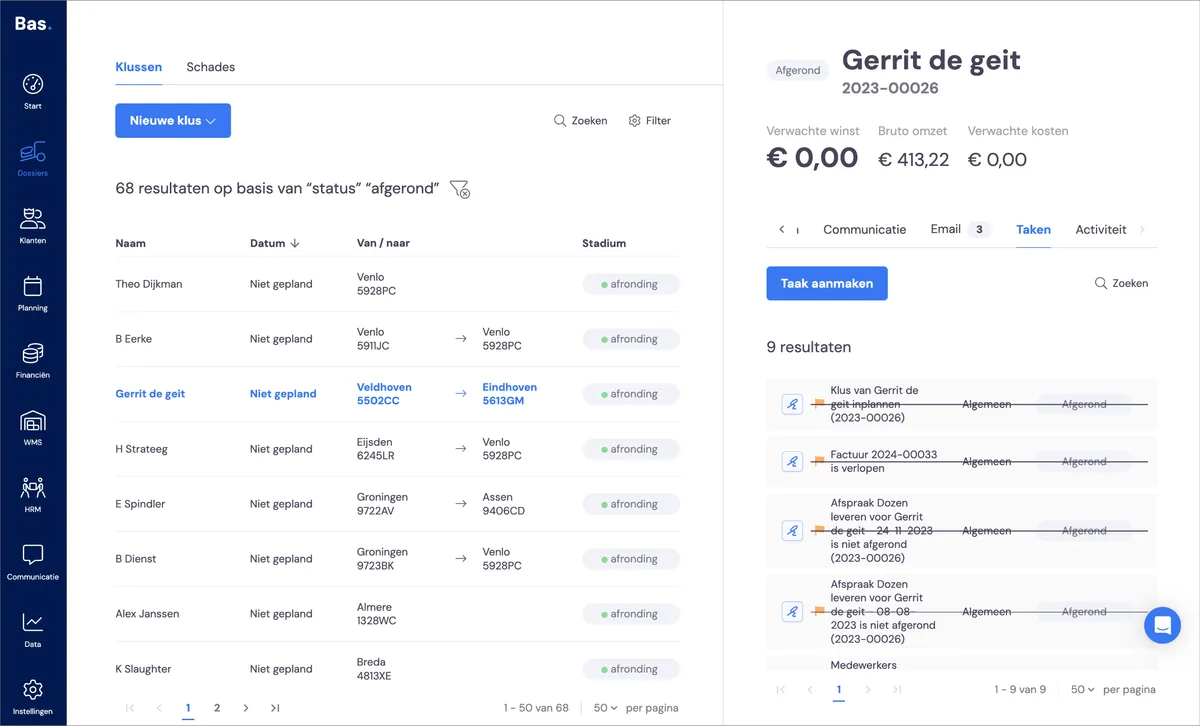
Tasks that arise automatically from a job are always shown with the job. This way, you also keep an overview of the outstanding tasks per job.
Shortcuts
On the start screen, you'll find shortcuts to actions that need to be carried out often and quickly:
New customer
With this shortcut, you go directly to the form to create a new customer.
New move (for a new customer)
With this, you create a new case file. When creating it, you'll be asked to create a new customer. This is the most used option: for example, if you have a (potential) customer on the phone, you quickly add a new job via this shortcut.
New move for an existing customer
With this, you create a new case file for an existing customer. You'll mainly use this if you have business customers for whom you carry out jobs more often.
New furniture hoist job
With this, you directly create a new furniture hoist job.
To the employee app
With this shortcut, you can go to the employee app. You do this, for example, if you want to check what the employee sees with regard to their planning.