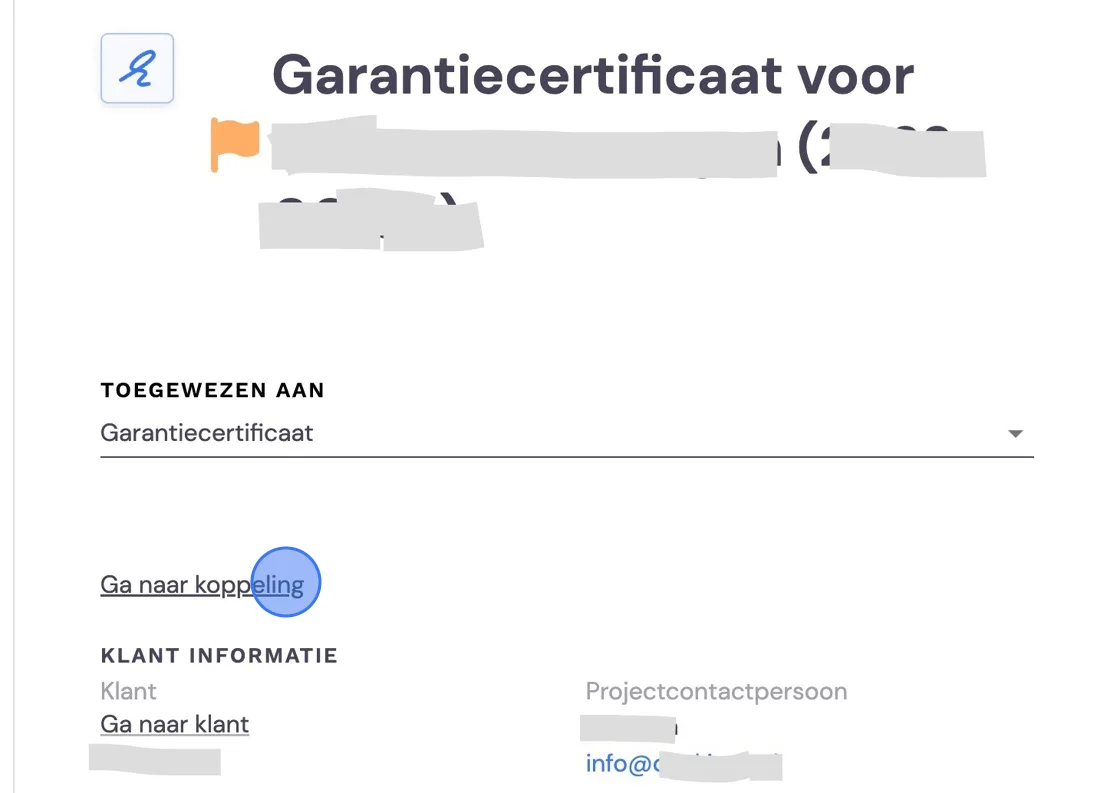
Once you've activated the integration with Schouten en Zekerheid for the warranty certificate, the request and handling are largely taken care of in Bas.
Automatic request to Schouten en Zekerheid
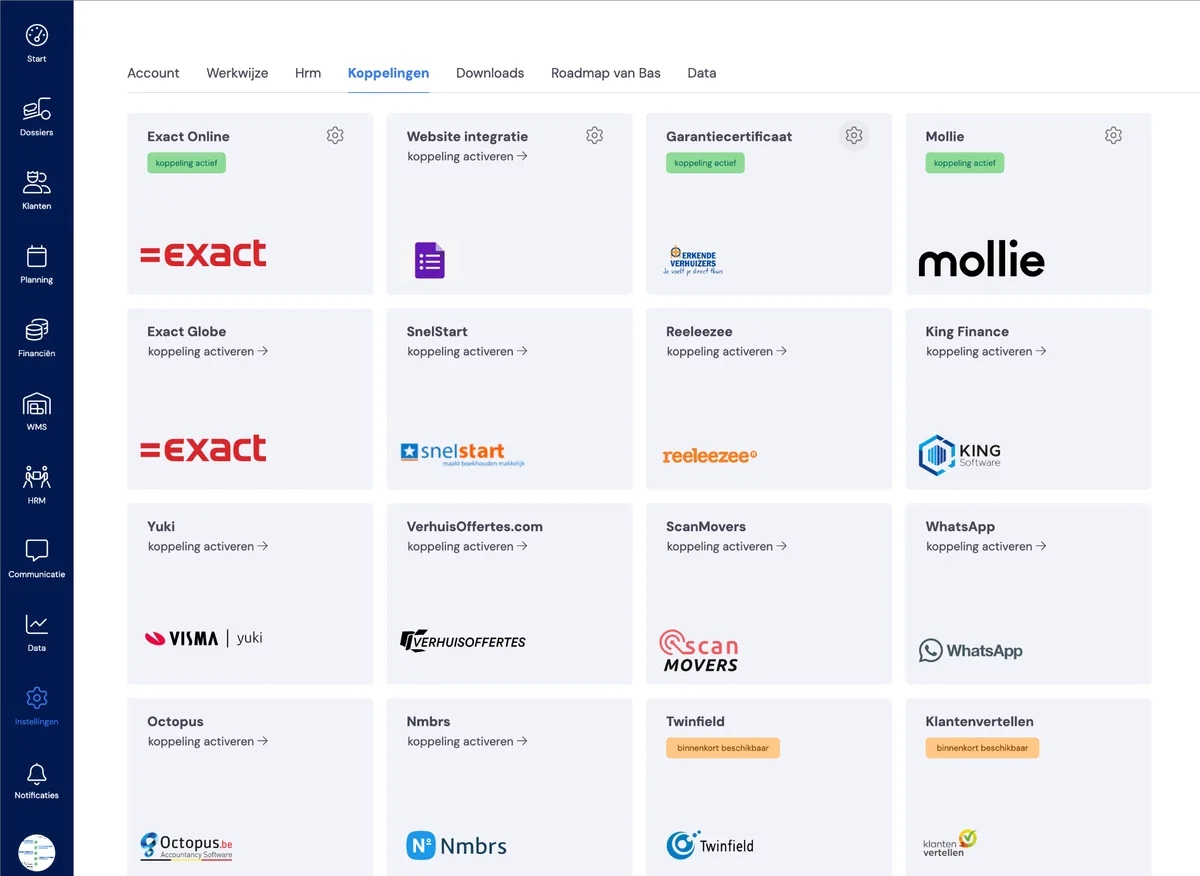
A request for a warranty certificate is prepared for every job. You'll find these requests under 'settings > integrations > warranty certificate'.
Approving or declining the request first
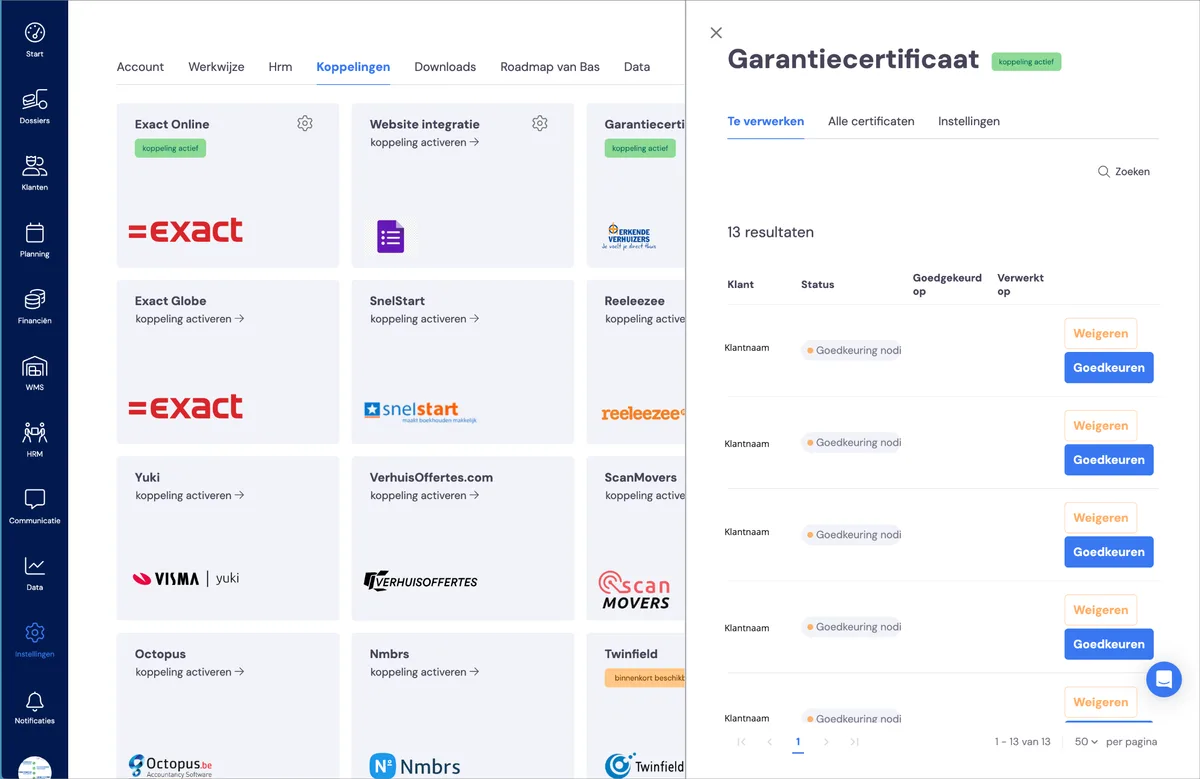
If you want to forward a request, you first need to approve it. You only do this for the customers for whom you actually need a warranty certificate. So for your private customers, not for your business customers. For business customers, click 'Decline'.
Forwarding the request to Schouten en Zekerheid
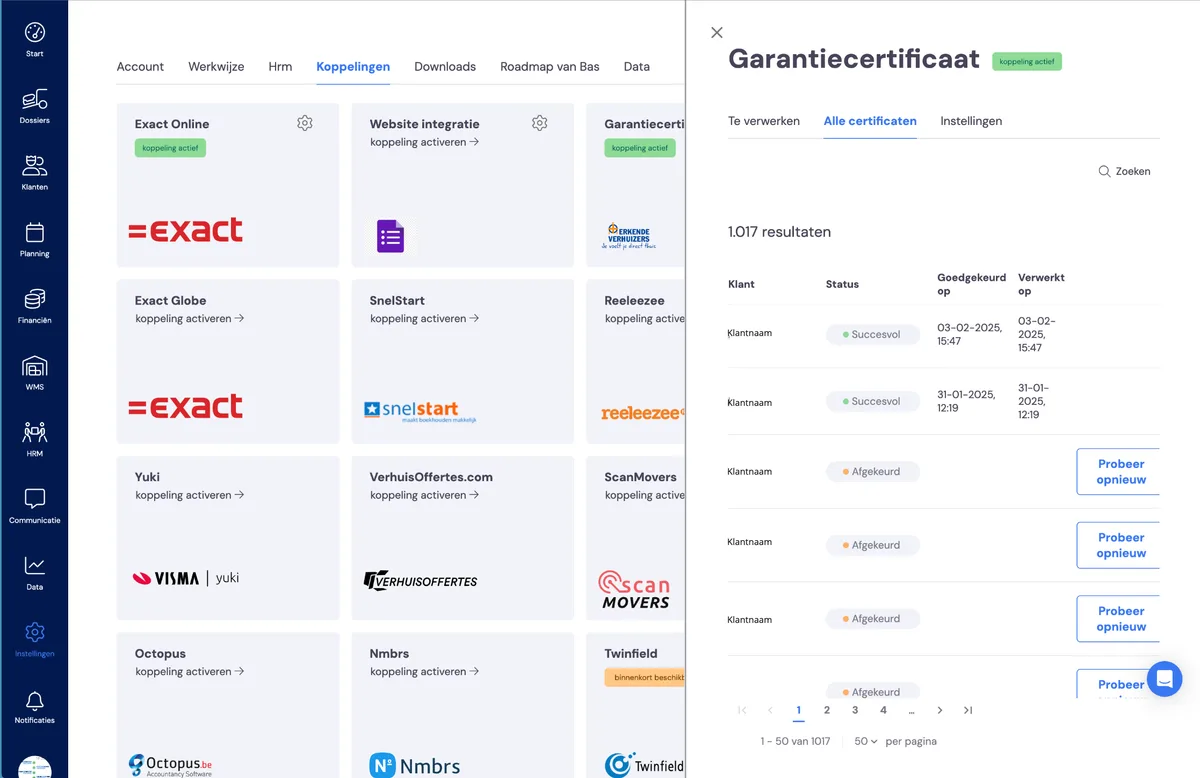
After approving, the 'complete' button takes you to the Schouten en Zekerheid environment. The request is ready for you here, filled in and complete. Create the warranty certificate here.
The warranty certificate is shared with the customer from Schouten en Zekerheid. In Bas, you'll see the status as successful. You won't find the warranty certificate as a document in Bas.
Ticking off the warranty certificate
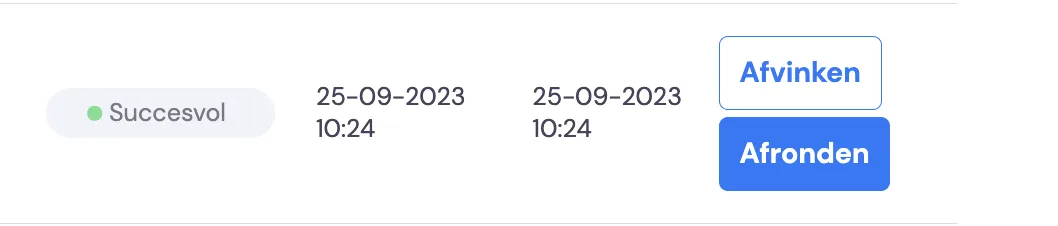
Once you've requested the certificate there, you can then tick off the certificate, and it will disappear from the list of certificates to process.
Automatic task for every warranty certificate
For every job for which a request for a warranty certificate has been prepared, a task is automatically created. The link in the task takes you directly to the list of pending requests, where you can approve and complete them directly, or decline them.