
Job and workflow
Just like a move, a case file in Bas goes through a number of fixed steps. From sales, via planning and execution, to storage and invoicing.
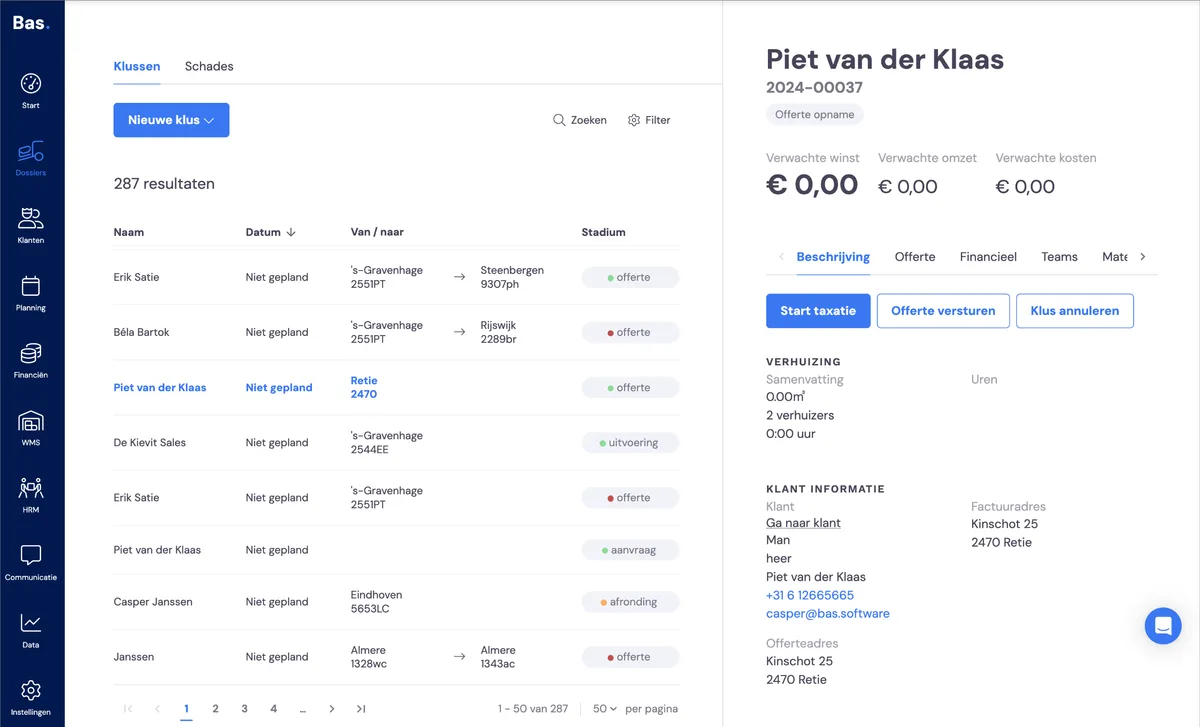
In this standard workflow, the work is made easy for you, because the most logical and most common option is already prepared for you.
Two examples:
If you've created a case file and scheduled the survey, the next step is carrying out the survey. You'll see that this option is the first option in the detail screen on the right-hand side. See the screenshot above.
Once you've carried out the survey, the next step is sending the quote. You'll therefore find this option in the detail screen on the right-hand side.
This way, every step in the move is conveniently prepared for you.
A brief overview of all phases
The main phases in the workflow are: sales, planning, execution and completion. In each phase there are subphases. Within sales, for example, you have 'first contact', when you've created a case file without having done a survey. Another example is 'quote sent'. In each subphase, you get the logical next option on the right-hand side of the detail screen.
Sales
A job starts in the quote phase. It may begin with a lead request via your connected website, through a connected lead generation website, or by you creating a job based on initial customer contact.
All phases within sales:
First contact
Quote survey
Quote calculated
Quote created
Quote sent
Quote declined
Negotiation
Customer accepted
Deposit sent
Deposit received
Deposit skipped
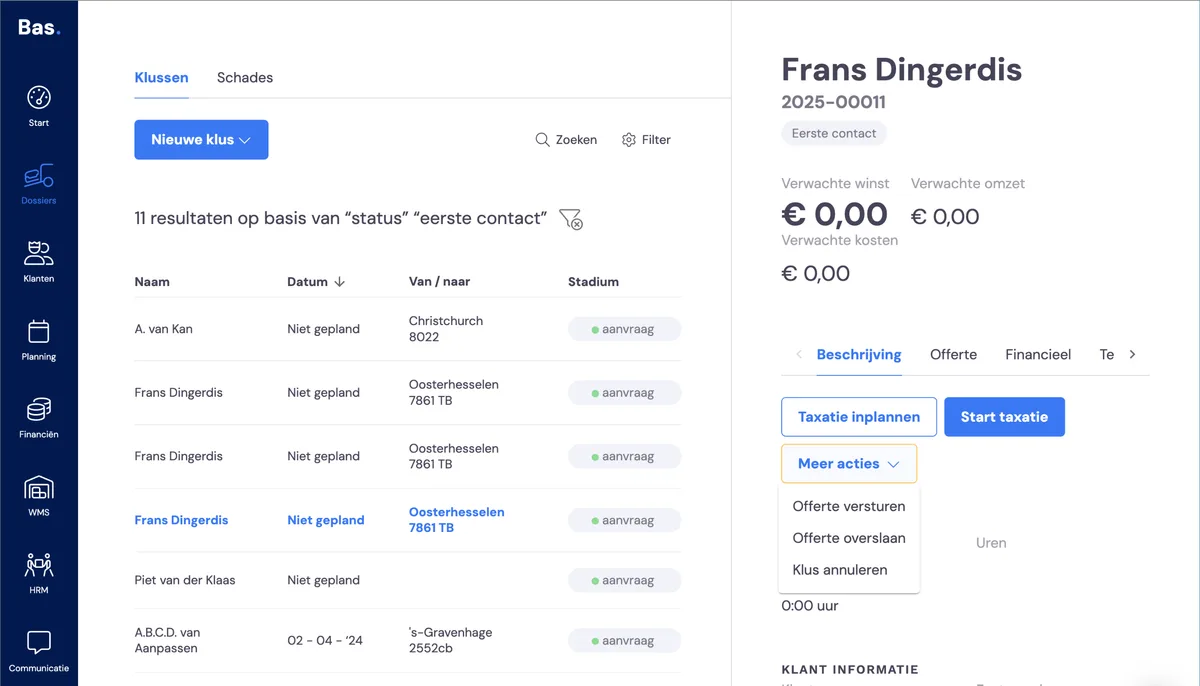
First contact
For a new case file in the sales phase and the subphase 'first contact you get the following options:
schedule survey
you schedule the survey and the surveyor
start survey
with this, you carry out the survey straight away
send quote
with this, you create a quote and fill in the work yourself
skip quote
you skip the quote phase; the job is then immediately commissioned, so you can start the planning
cancel job
you cancel the entire job, which removes it from your overview
Planning
After the customer has accepted the quote, the job enters the planning phase. The 'schedule move' button then automatically becomes available to you.
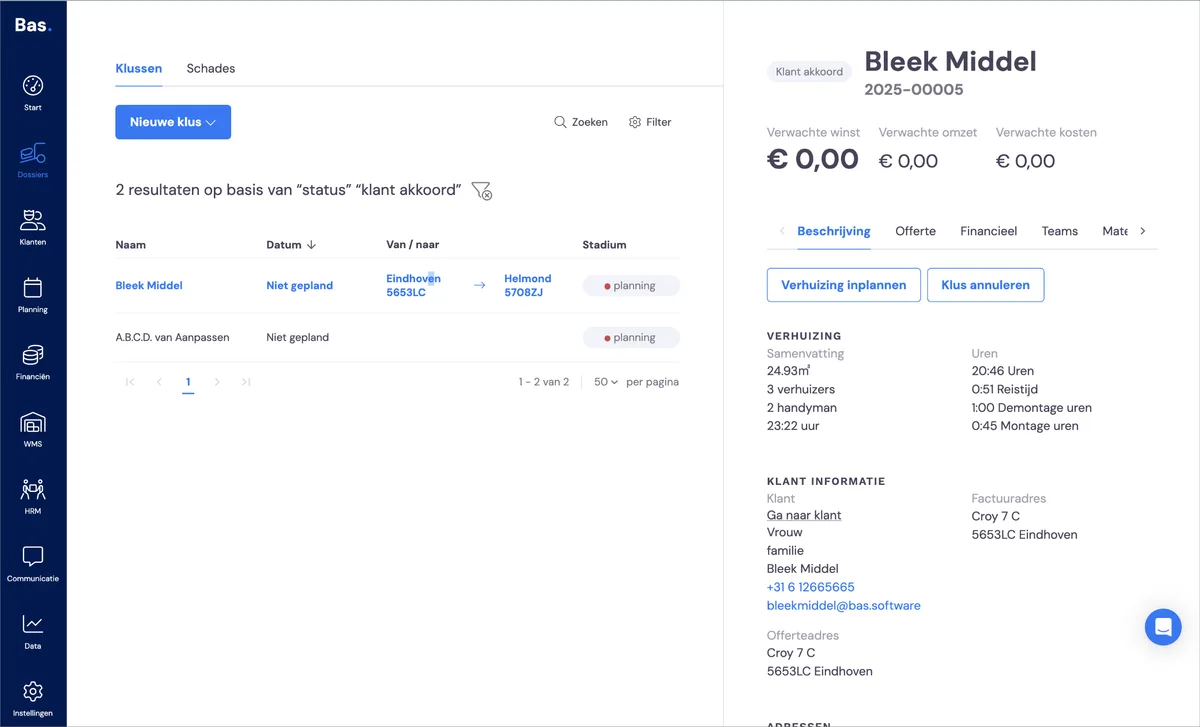
When you use this button, you're automatically taken to the planning screen. On the planning screen, you drag the employees with the right skills and the required vehicles onto the appointment.
Please note: you cannot schedule employees and vehicles before a job has been commissioned!
Execution
Scheduled
Deliver boxes
Move
In storage
Aftercare
Pick up boxes
The scheduled employees automatically receive the right information in the employee app. There they see the
During execution, the foreman records the billable hours.
If damage occurs during execution, this can be recorded with the employee app. The handling of the damage can be arranged in the back office.
Completion
Completed
Cancelled
Every appointment in the job is completed. Once the last appointment has been completed, you can draw up the invoice and send it.
Filter by phase in the workflow
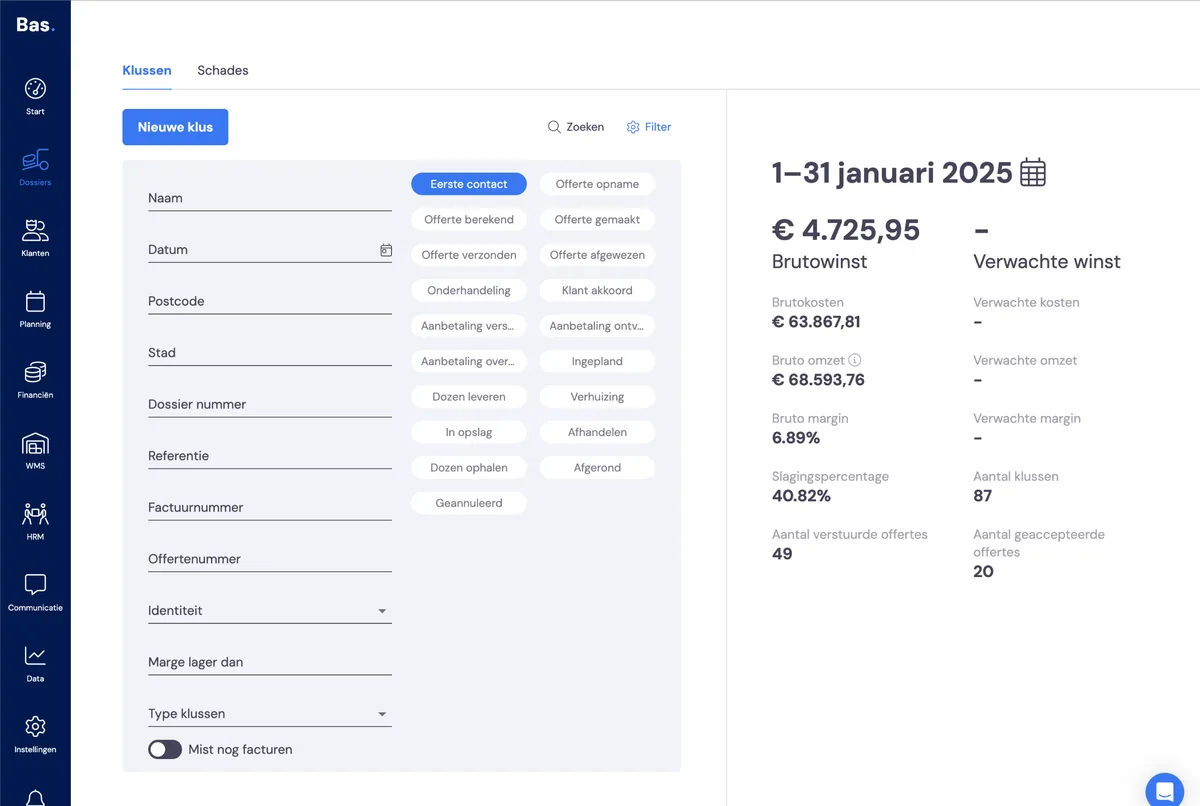
You'll find all phases in the filter for jobs. All phases and subphases are shown here. For example, if you want to see which case files have quotes that can be sent, choose the phase 'quote created'. You can then send the quote per case file.