
Scheduling vehicles and employees via the planning board
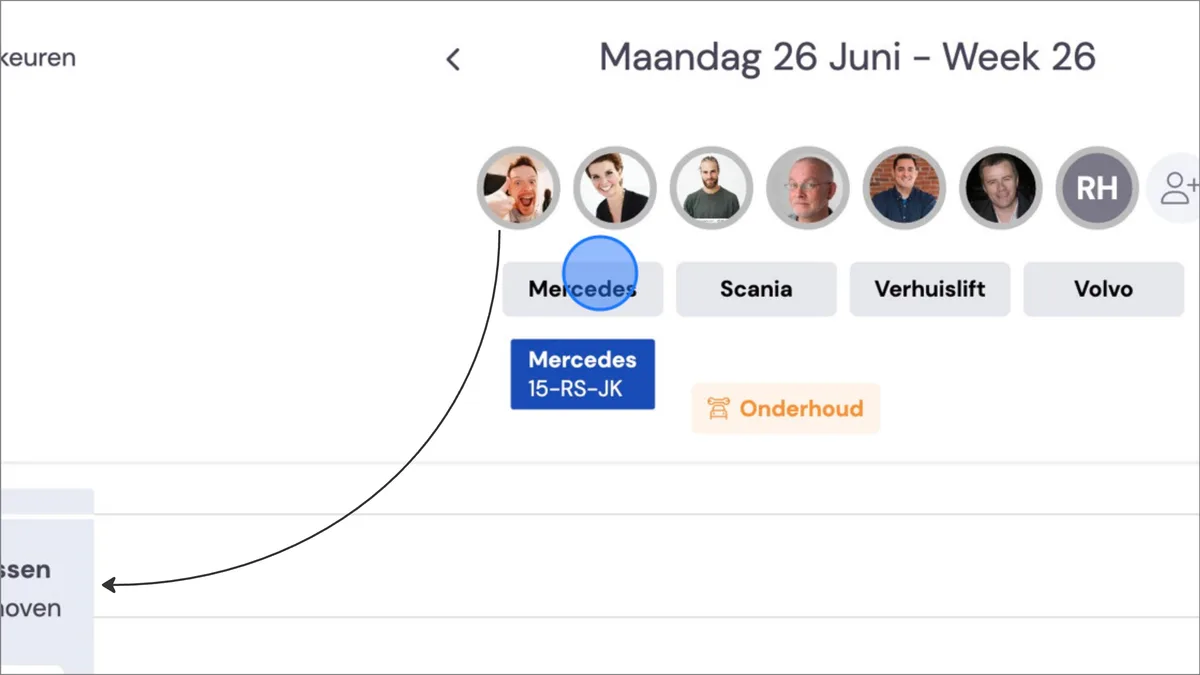
Go to Planning. Drag the desired vehicle or employee to the relevant job. You do this by clicking once and holding.
Removing an employee from the planning
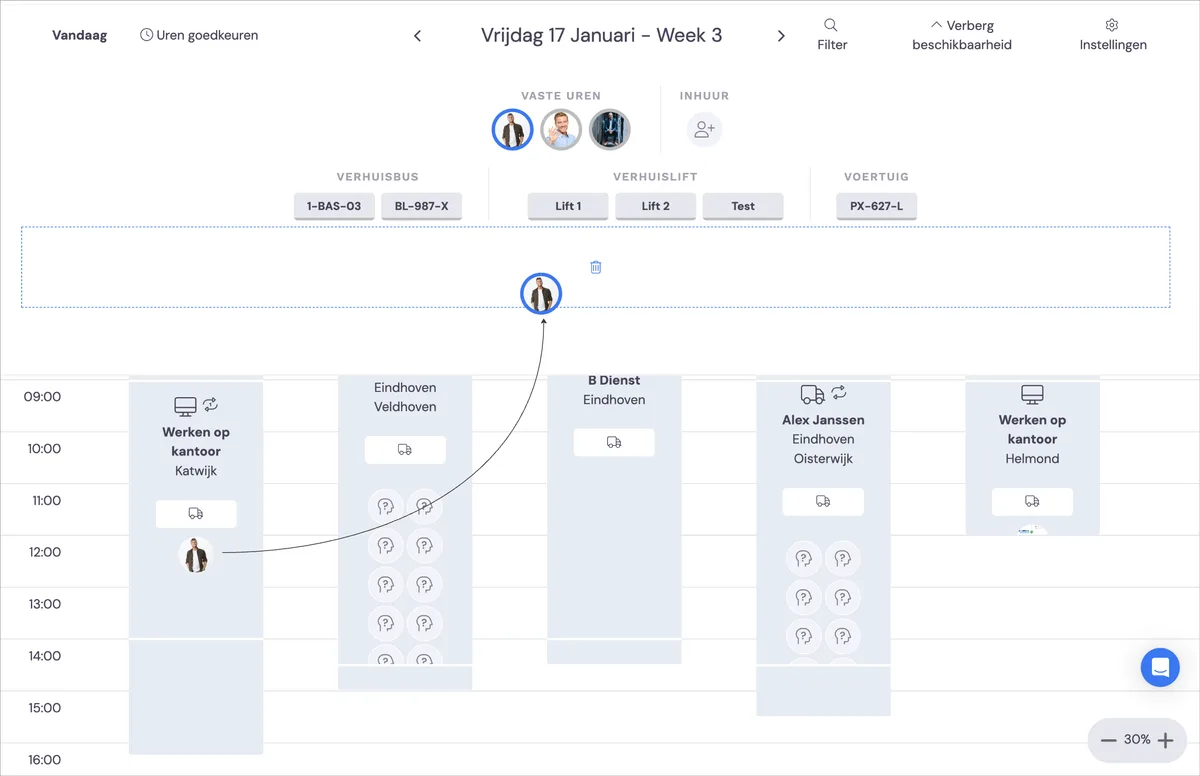
If you want to remove an employee from the job, drag the person from the appointment upwards and into the bin. This appears automatically, directly below the availability.
Scheduling vehicles/employees via the case file.
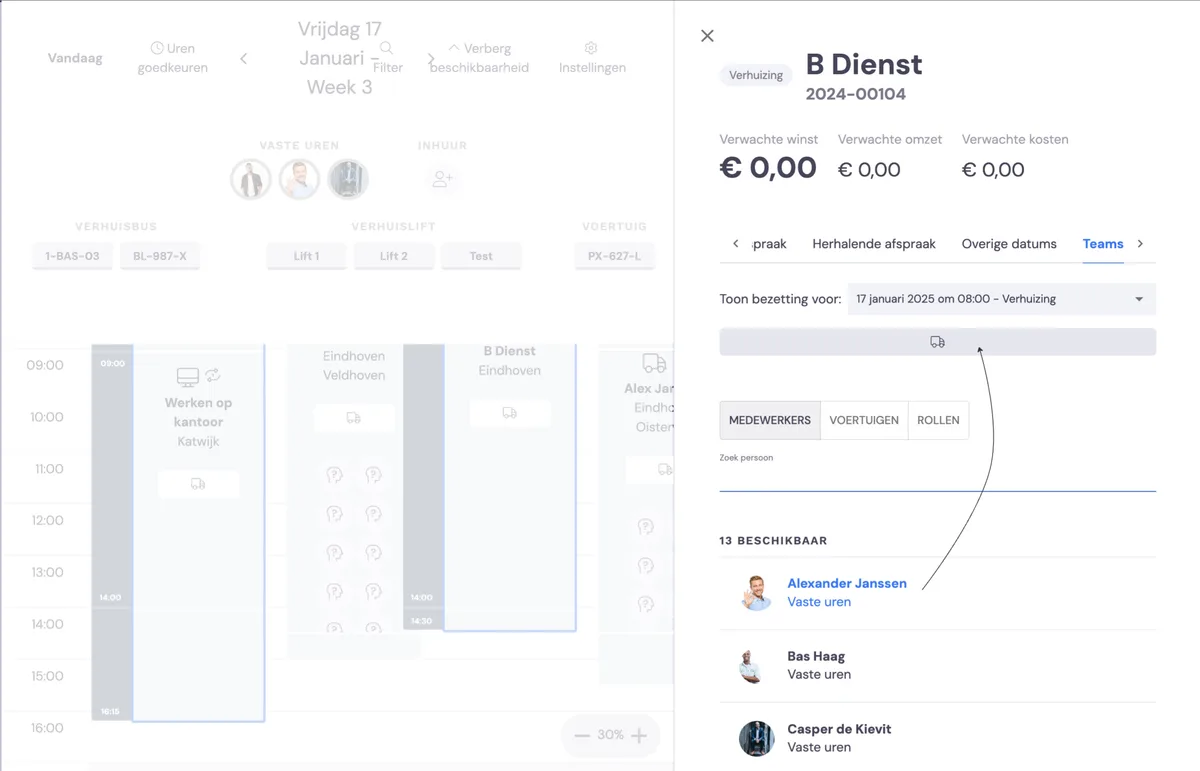
You can also add employees from the planning and then the case file.
Double-click the appointment to open the detail screen. Click the 'Teams' tab in the navigation at the top right of the screen.
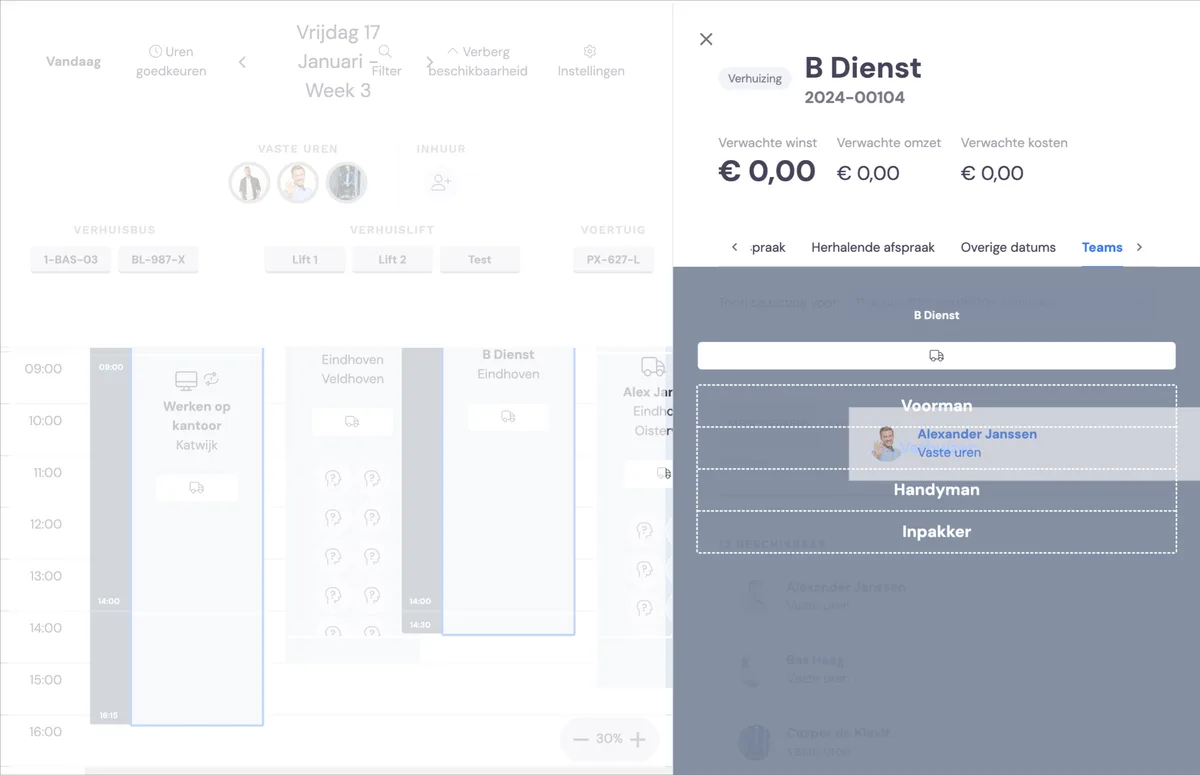
Then drag the desired vehicle or employee to the appointment. Drag the employee to the required skill that the employee will fulfil.
Removing a vehicle or employee from the planning via the case file
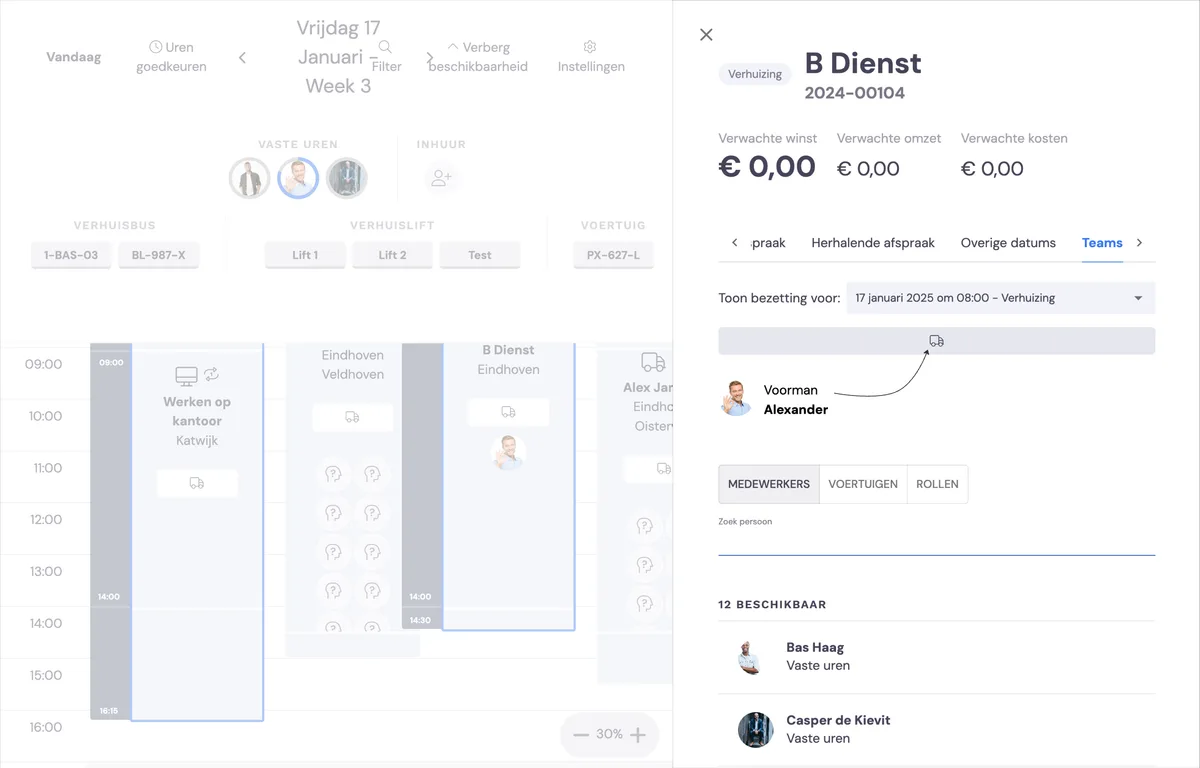
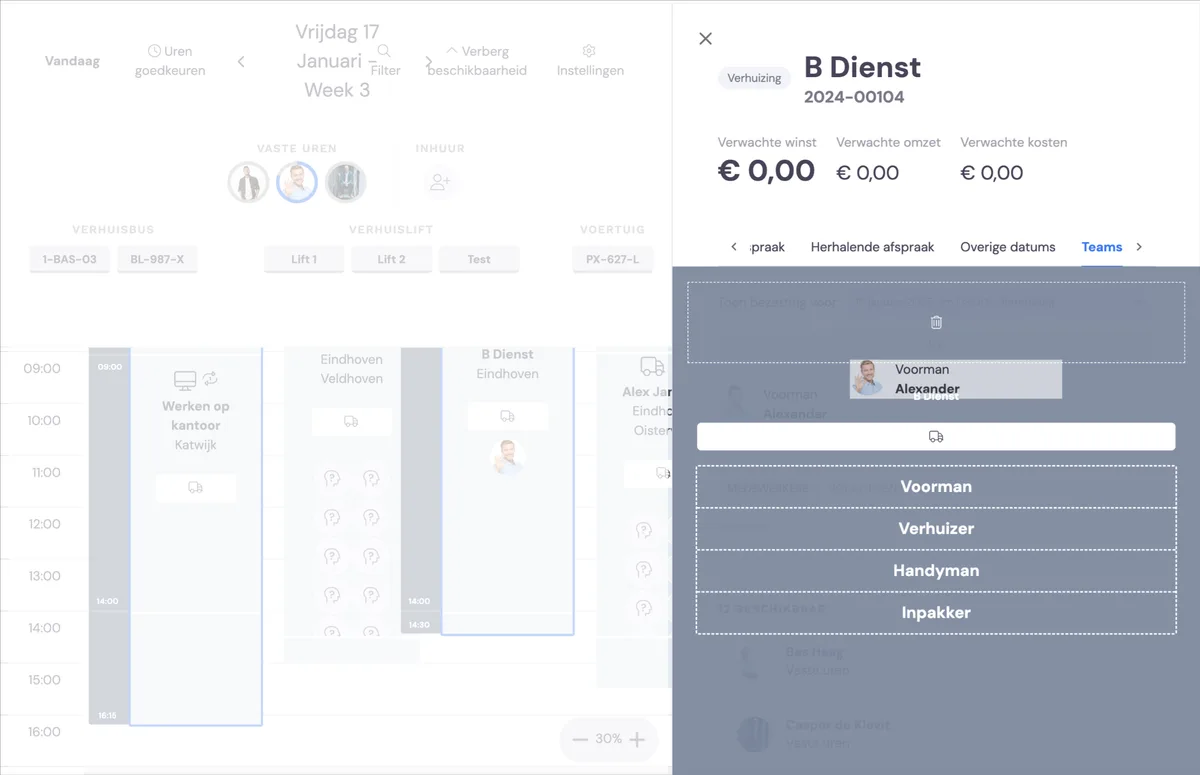
To remove a vehicle or employee from an appointment, drag them upwards. A bin will then appear. By dragging the vehicle or employee from the planning to the bin, they are removed from the planning.