
When an employee is off sick, this naturally has a direct impact on your planning. In Bas you can easily record the sickness and quickly unschedule an employee.
Reporting an employee sick via the planning
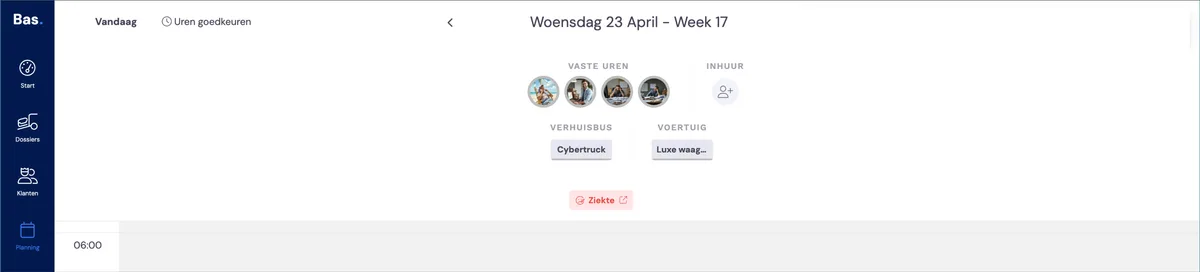
In the planning you can quickly report an employee sick. You do this by double-clicking on the employee's photo.
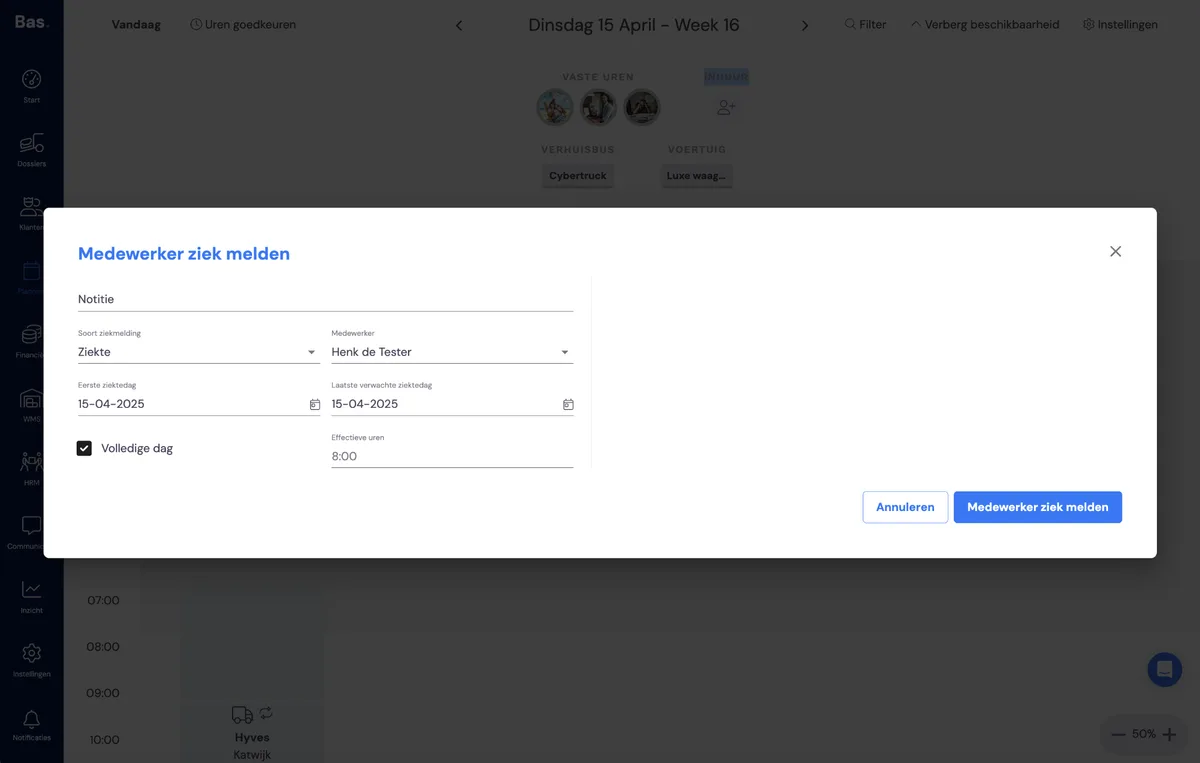
The screen above appears. Enter the required details here and the sickness is recorded.
You enter the following details:
Note
Here you can make a note about the sick report.
Please note: you must not enter any medical information hereType of report
This is always 'sickness'.Employee
Select the employee you want to report sick here
First day of sickness
Select the first day on which the employee is sick
Last expected day of sickness
When do you expect the employee back?
Effective hours
these are calculated automatically
More about 'Last expected day of sickness'
When you report an employee sick, it is almost never certain when the employee will return to work. That is why you enter the last expected day of sickness here; in the planning, the employee is marked as sick from the first day of sickness up to and including the last expected day of sickness.
You can change the last expected day of sickness at any time. So if you have spoken to the employee on the phone and the employee expects to be off sick for longer, you can change it straight away.
If the employee knows when he or she will be better, you can also mark the employee as recovered from that date. This means the sick report is fully dealt with straight away.
Overview of sick employees
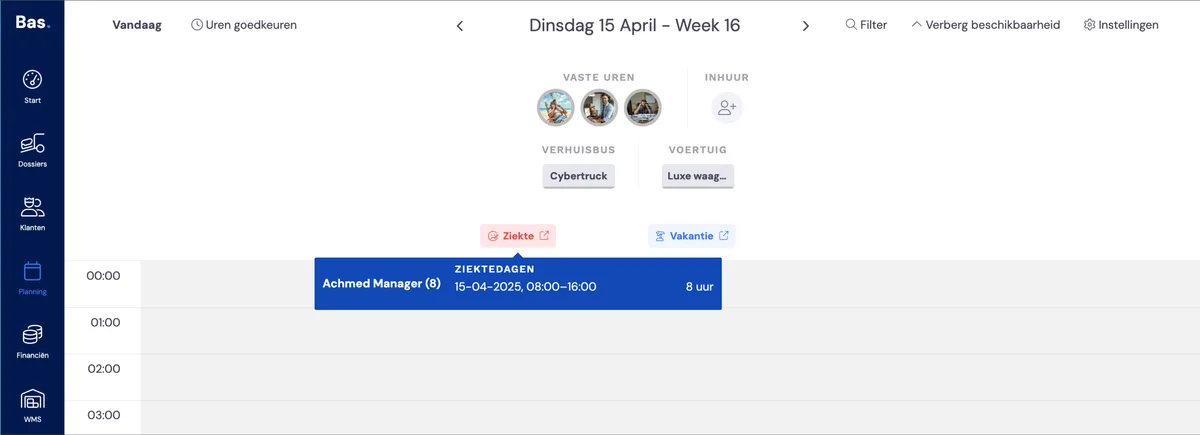
Under the 'Sickness' button you can see all employees who are off sick at that moment. By clicking the 'Sickness' button, you can also quickly remove employees from the planning. The screen below appears:
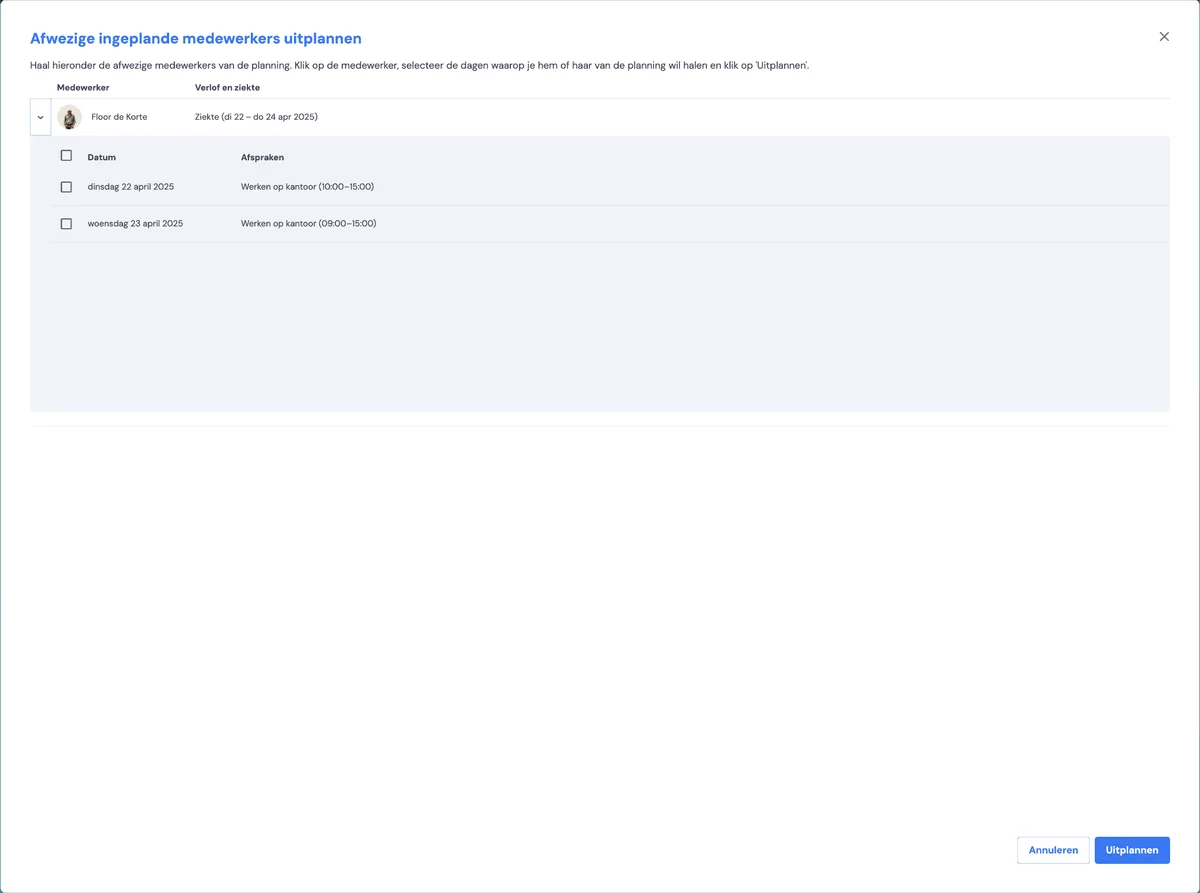
Click on the arrow in front of the employee; all appointments the employee is scheduled on will then be shown. Select the appointments from which you want to unschedule the employee and click the unschedule button. The employee has now been removed from the planning. You will still need to drag a replacement onto the appointment afterwards.
Sick reports via HR
If an employee has been reported sick via HR, he or she has not yet been removed from the planning. As the planner, you need to do that.
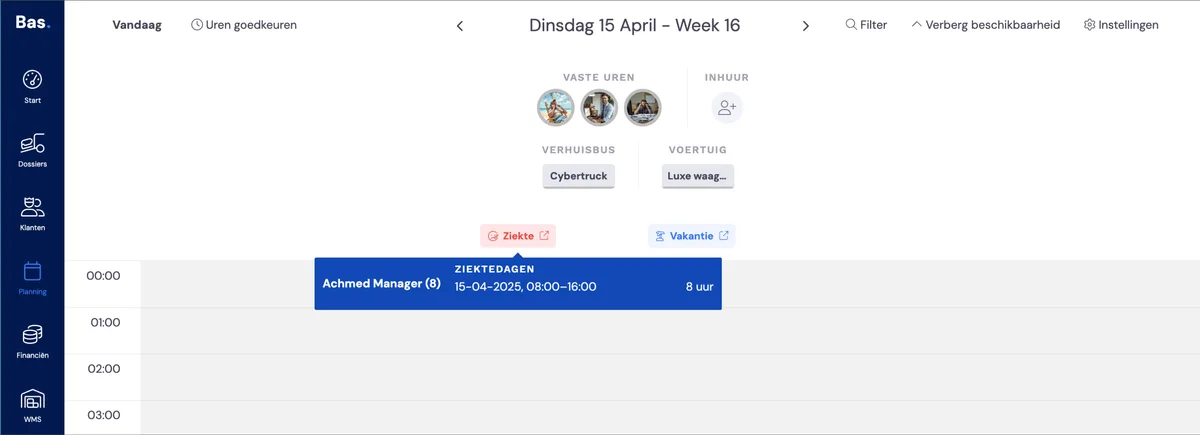
The employee does appear under the 'Sickness' button in the planning. Here you can unschedule the employee.
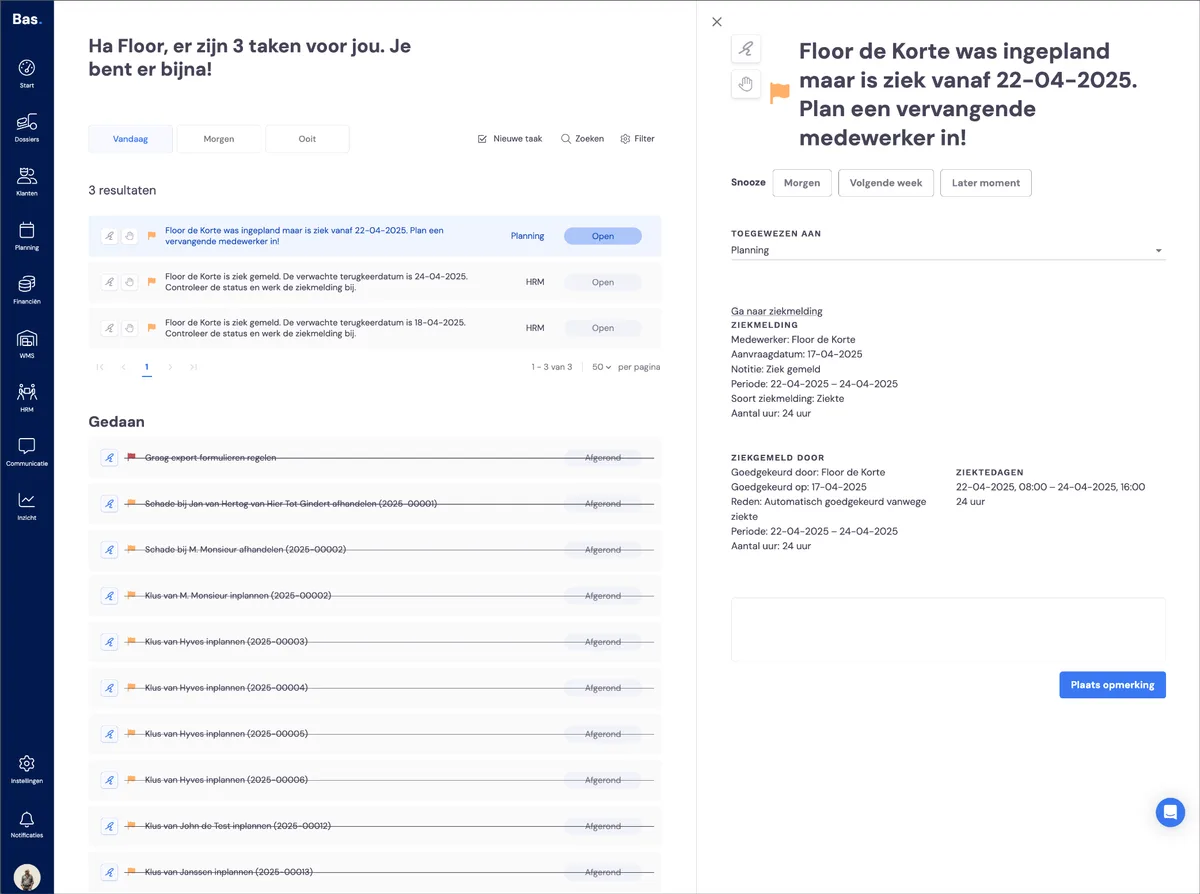
As the planner, you are notified of the sick report with a task on your dashboard. You only receive this task if the employee was scheduled during the period in which the employee is off sick.
Click on the task to see more information about the sick report. Go to the planning to remove the employee from the planning and replace the employee.