If you want to schedule employees and vehicles, go to 'Planning'. Here you'll see a day planning where all appointments for that day are visible.
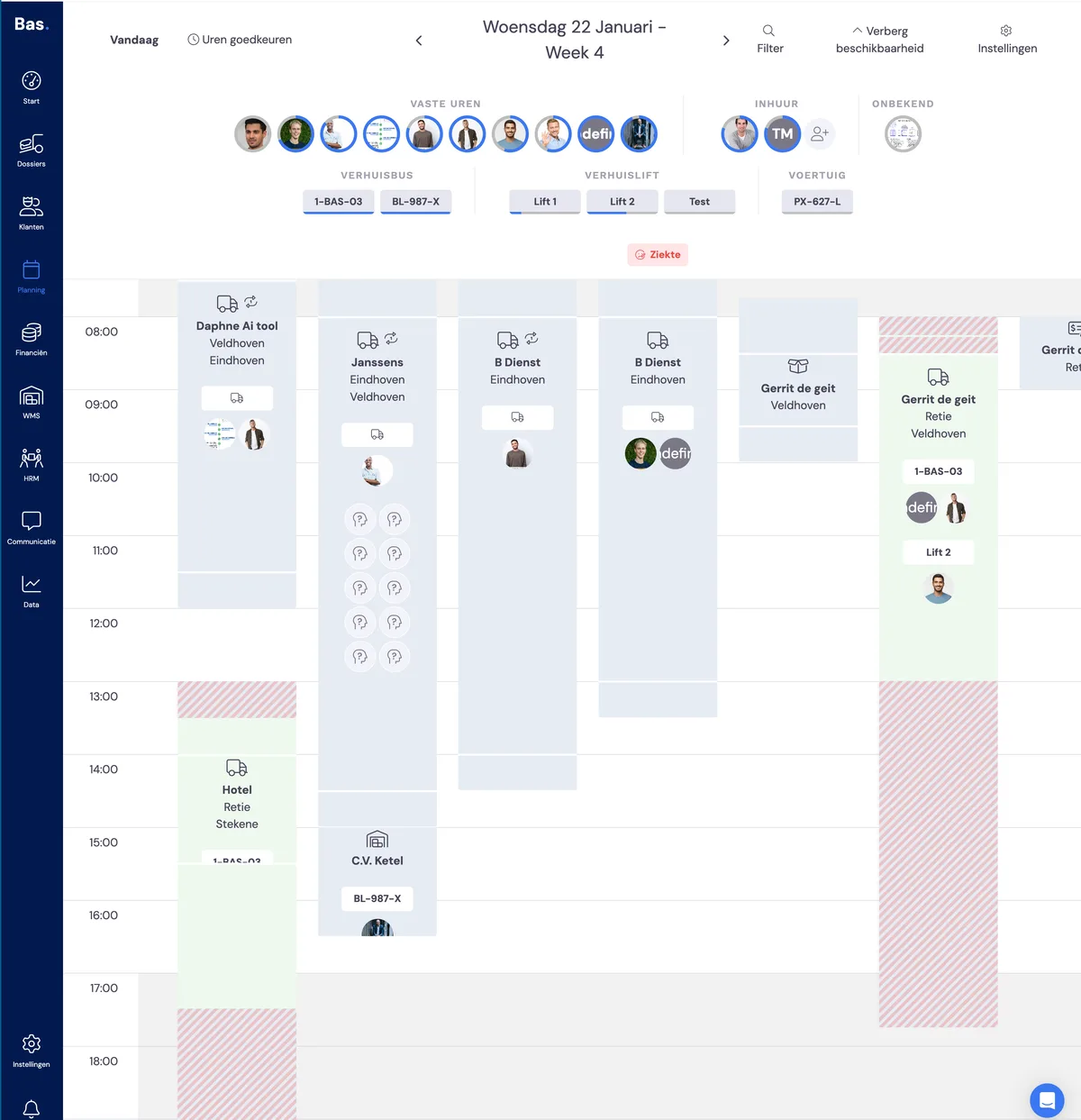
Types of appointments in the planning
reserved appointments (orange)
appointments belonging to a job that hasn't been commissioned yet
confirmed appointments (blue)
appointments belonging to a job where the job has been commissioned
completed appointments (green)
appointments that have been started by the foreman via the app, where you can also view the times
Date selector
At the top of the screen, you'll see the date and week number.
If you move your cursor over it, you get instant insight into the availability of employees.
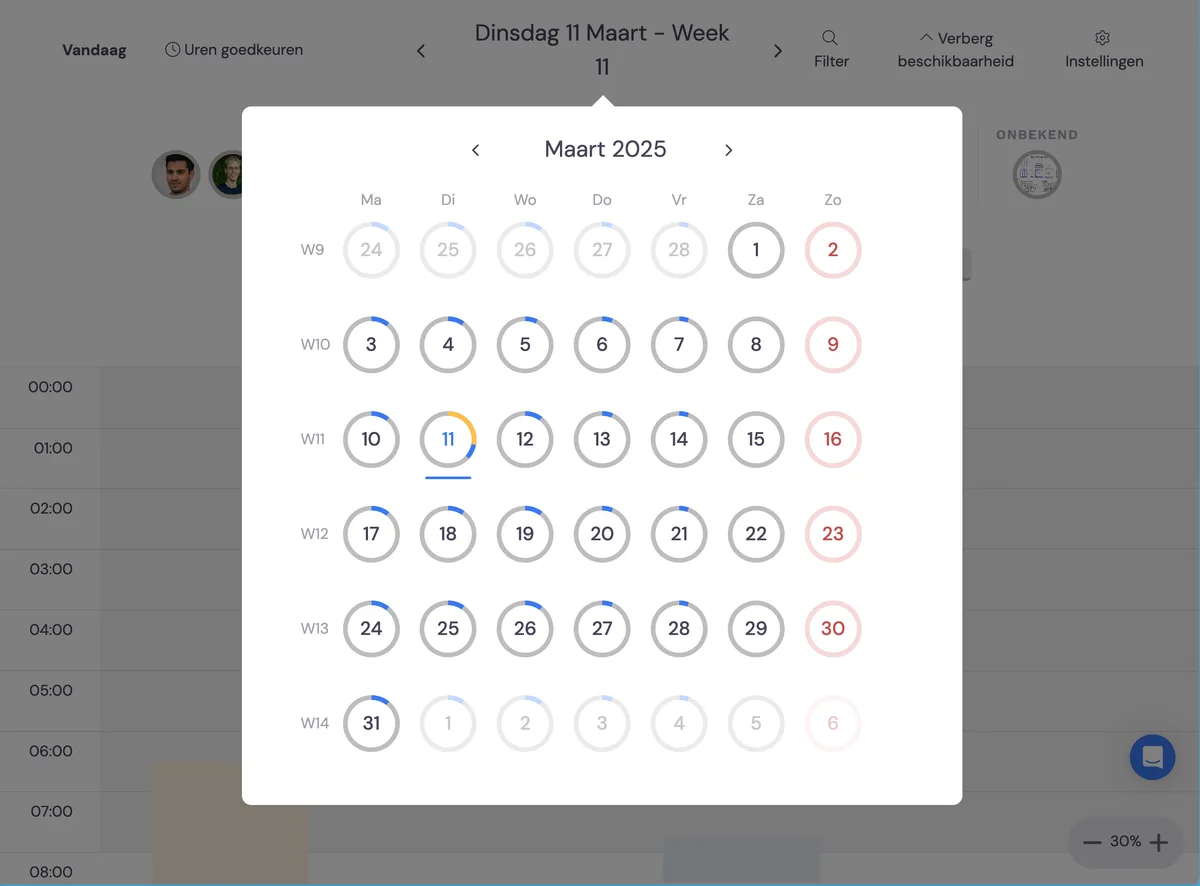
Click the date and week number to open the calendar.
The circles around the dates indicate whether employees have already been reserved (the orange-coloured part of the circle) and whether employees have already been scheduled (the blue part of the circle).
If the edge of the circle is completely coloured in, all available employees have been scheduled
Here you click a date to go to that date in the planning.
Planning display
Filter by employee
Click filter. Select an employee to view the planning of only this employee.
Filter by appointment type
Click filter. Select the appointment type you want to view. You'll then only see appointments of this type.
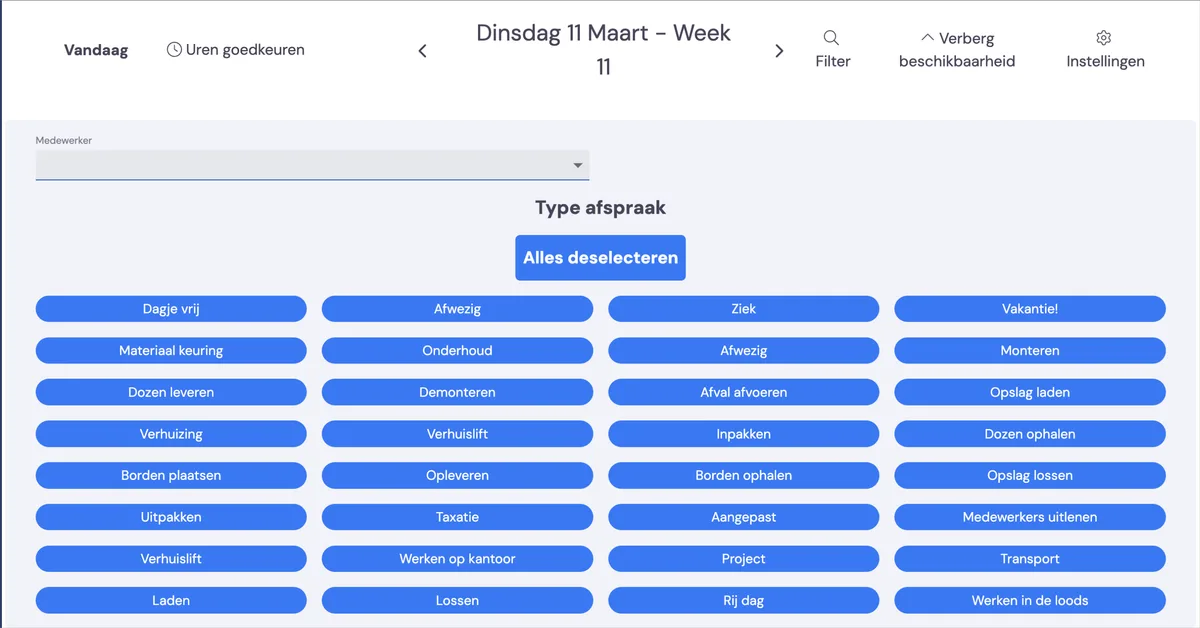
Filter by skill
If you only want to see employees with a certain skill, choose this skill in the settings.
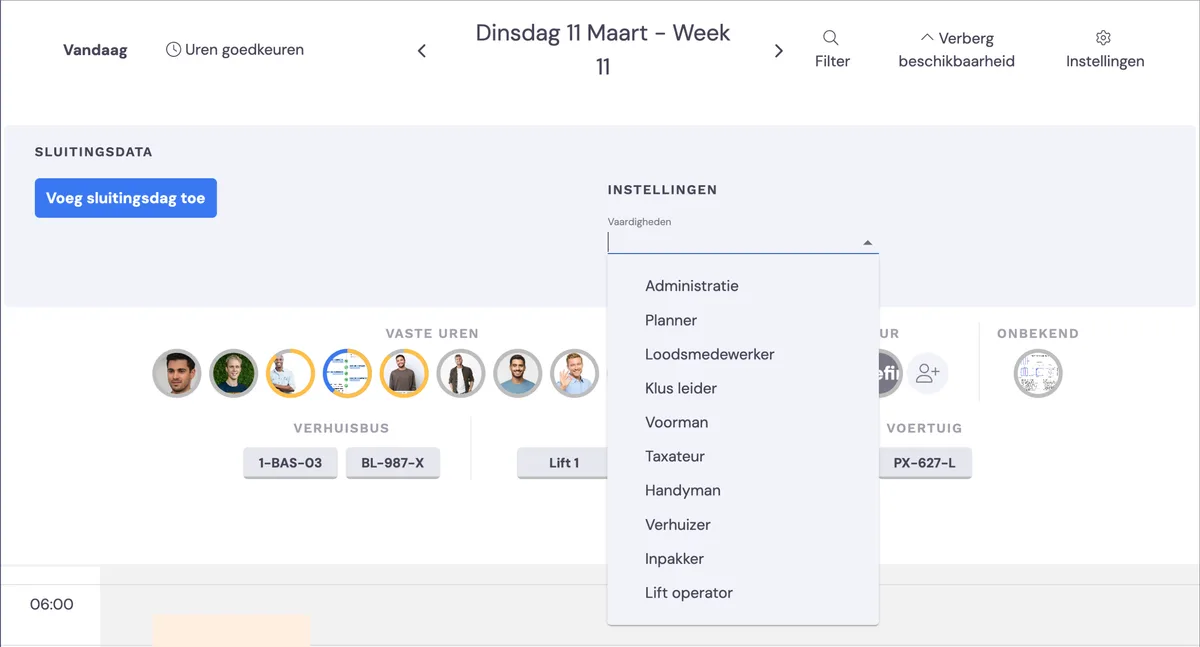
Execution: showing the start/end time of an appointment
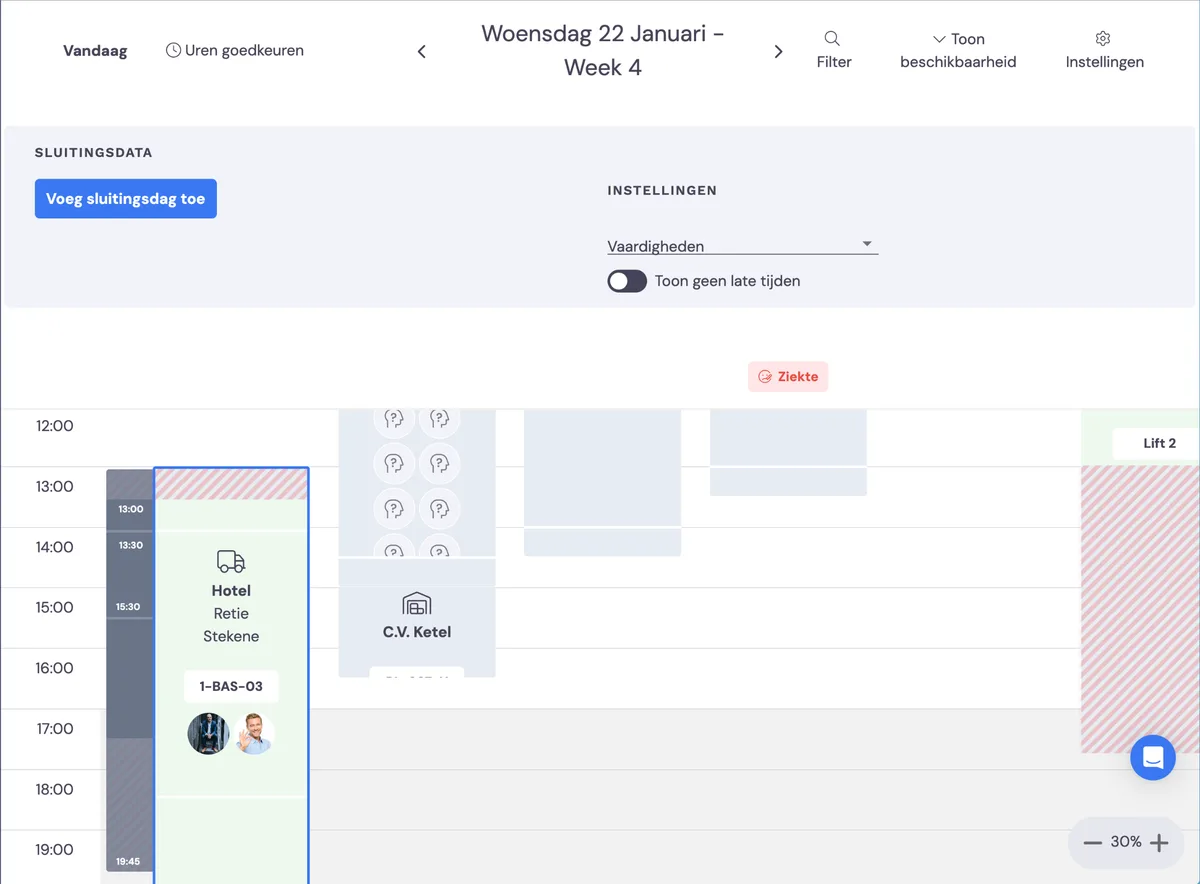
Don't want the times at which the foreman started and/or completed the appointment displayed in the planning any more? Then switch these off with 'Don't show late times'. The hatched section of the appointment is then no longer shown.
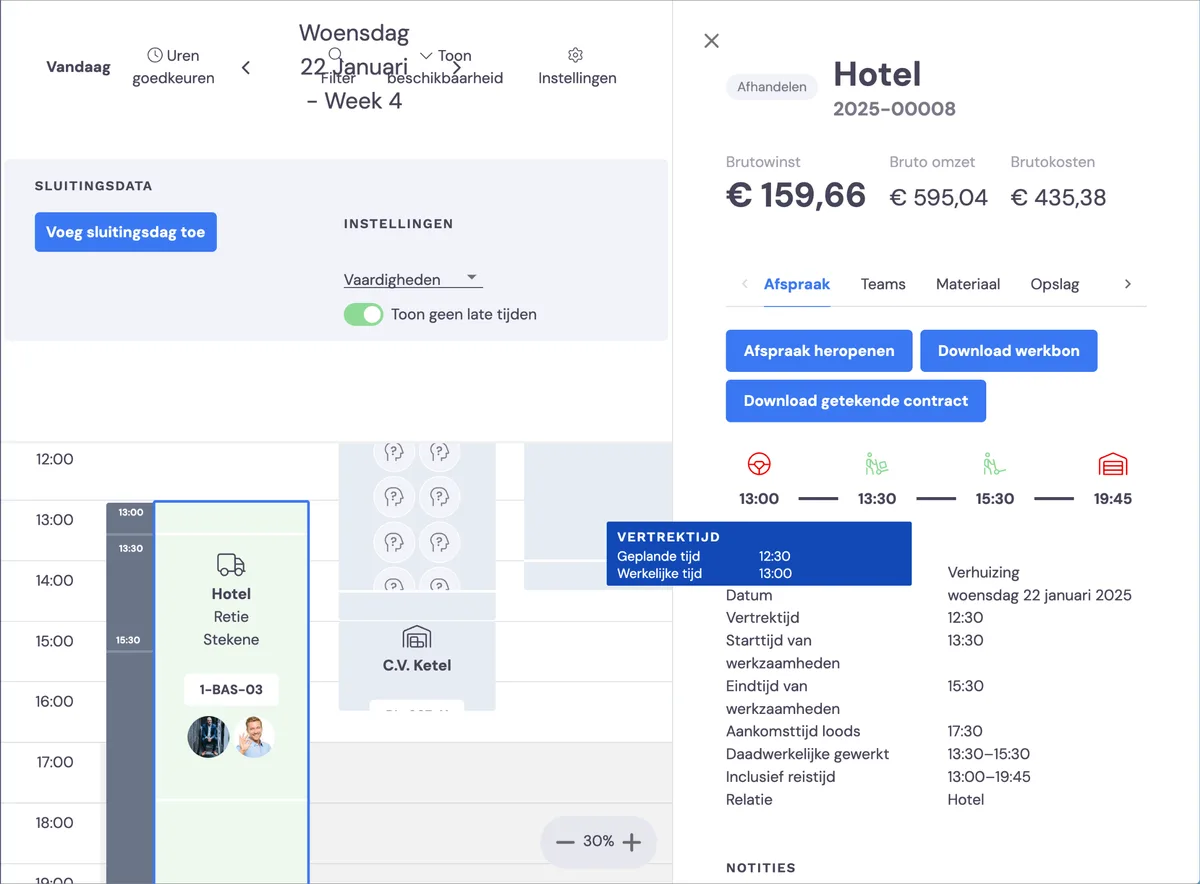
If you double-click an appointment, you'll still see the times of the appointment registered by the foreman.
Seeing the capacity of employees available for scheduling
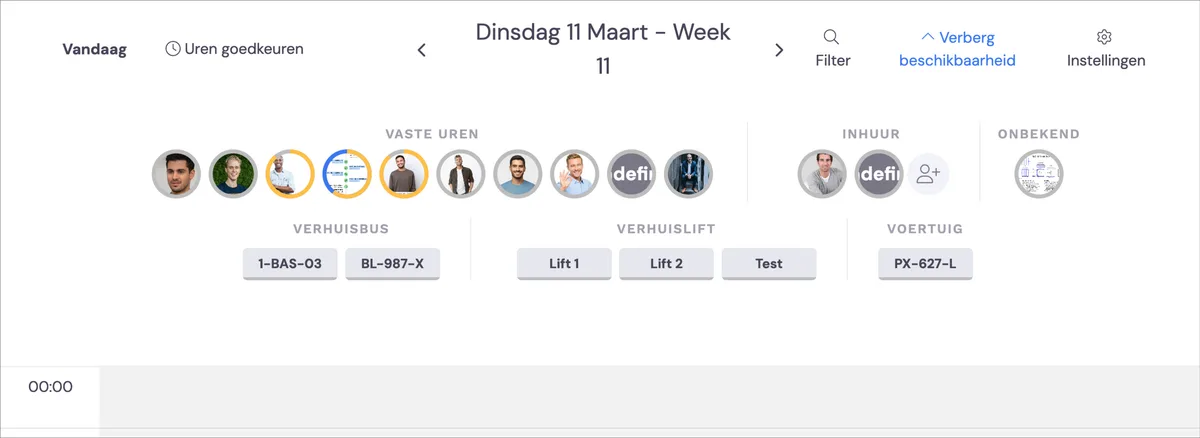
You'll then see all employees. For the employees who are scheduled, you'll see an orange or a blue circle. If the circle is grey, they are fully available.
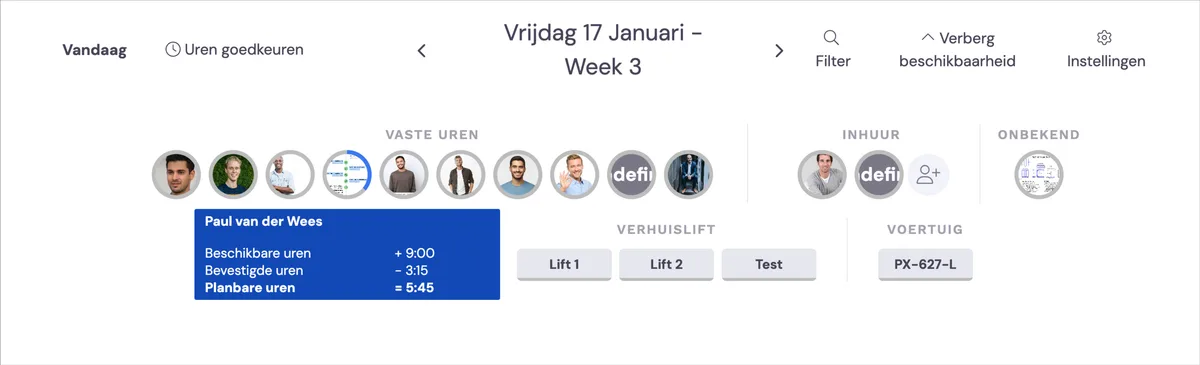
If you move your cursor over an employee, you'll see the number of available hours, reserved hours and scheduled hours. At the bottom, you'll see the number of hours the employee can still be scheduled for.
Times of an appointment
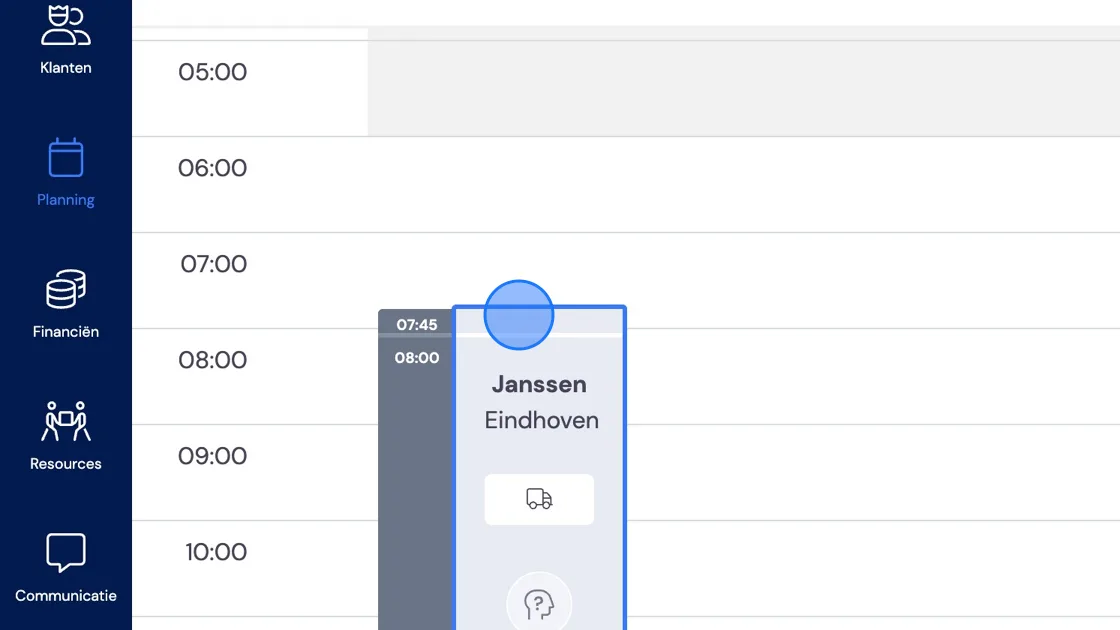
If you click the appointment, it fully expands with all the information. 1. The first time is the departure time from the warehouse/departure location 2. The 2nd time is the expected arrival time on site. 3. The 3rd time is the expected end time on site 4. If you still have return travel time, that is the expected arrival time at the warehouse.