
The job you've created has the status 'quote survey'. You've scheduled a survey and linked it to an employee with the 'surveyor' skill. The employee can carry out the survey in the app.
In this example, we carry out the survey via the desktop version, which matches the steps in the app 100%. You can carry out this survey at any time. Once you've completed a survey, the quote for the customer is prepared for sending based on the information.
Carrying out a survey
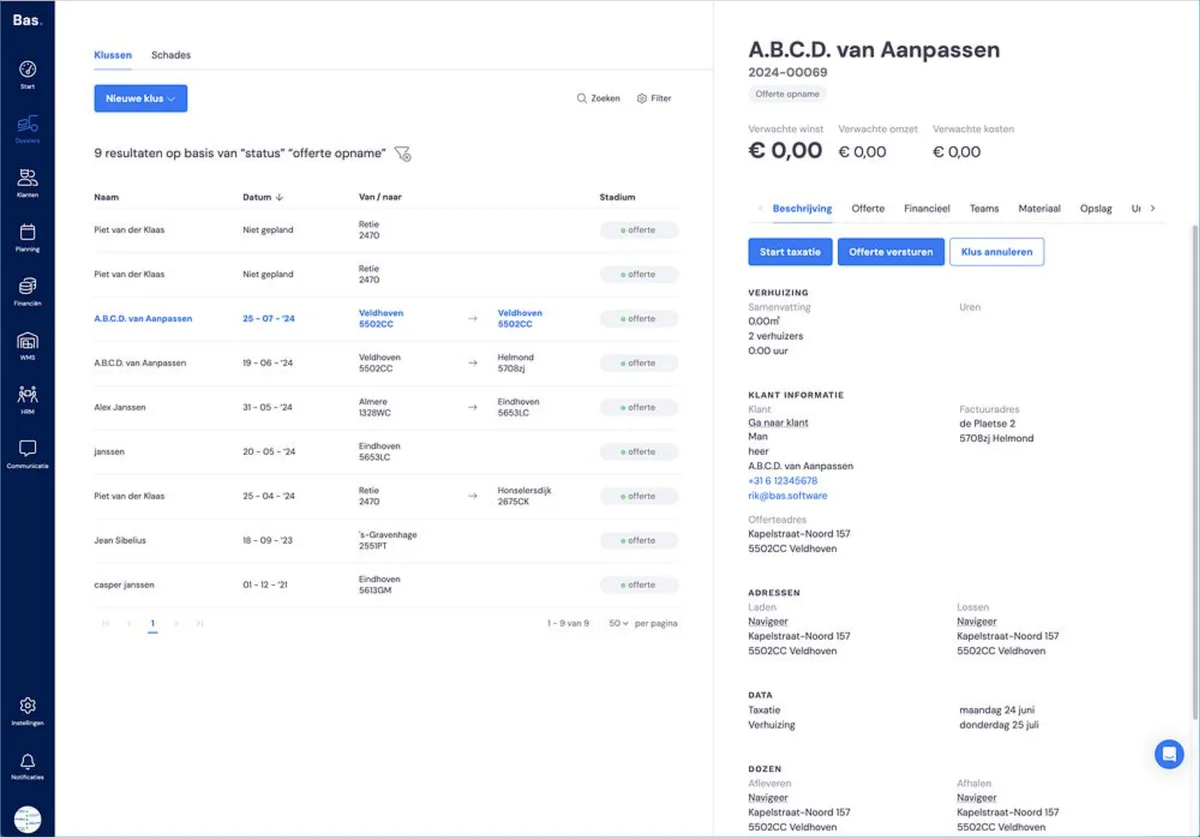
Click 'Start survey'. You'll then be guided through a wizard with which you carry out the survey. Not all steps are listed below, but the points to pay attention to are.
Step 1 - Addresses and location details
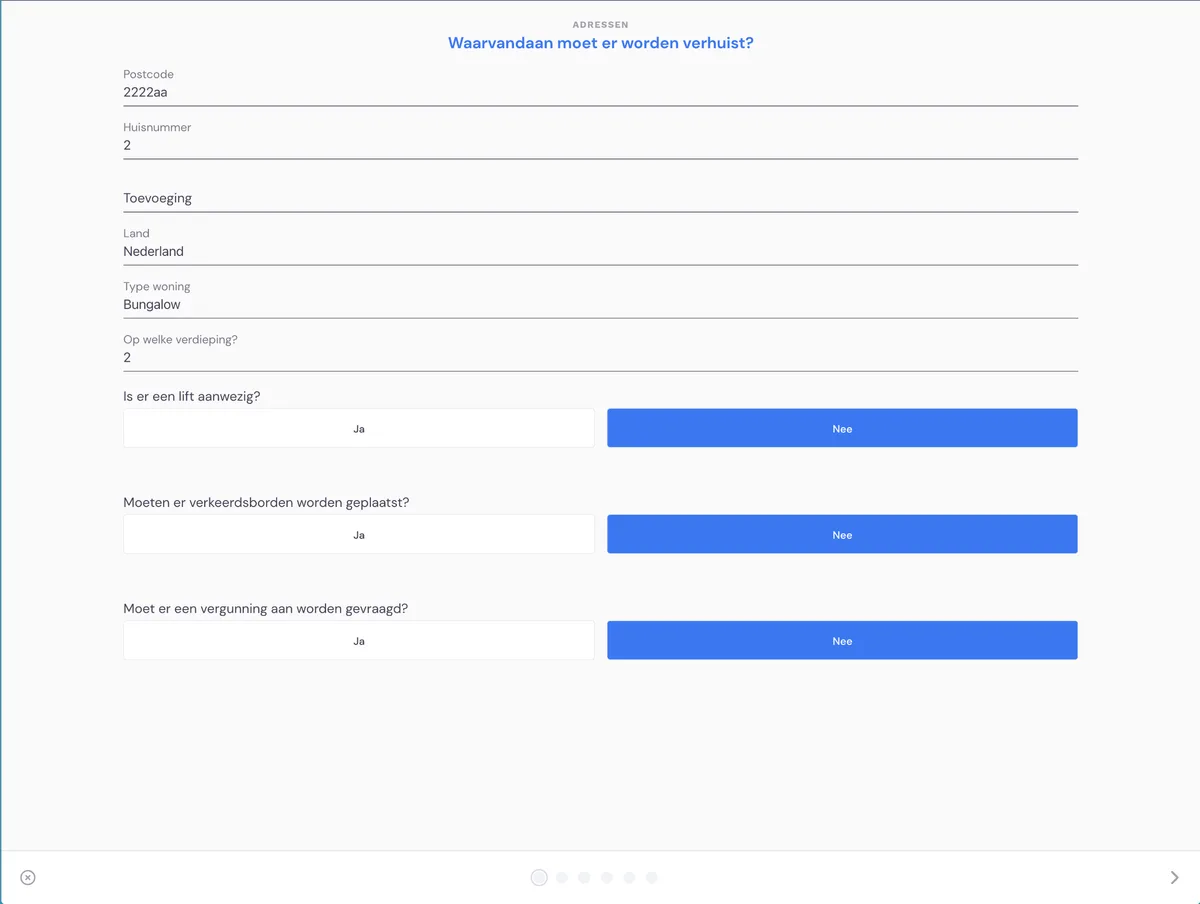
The details entered earlier are included in the survey. In the first step - addresses and location details - you only need to check whether these details are correct.
Step 2 - services
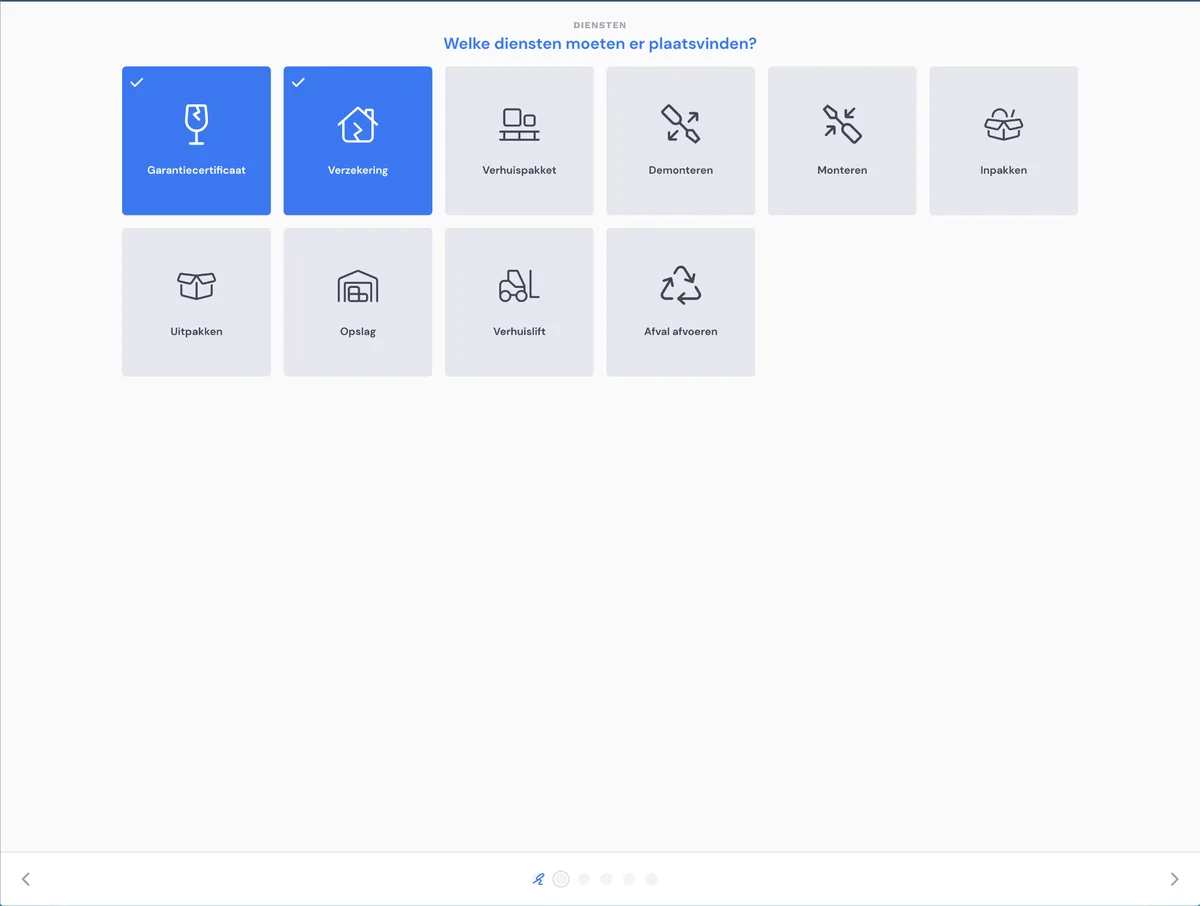
In this step, you choose the services you want to add to the jobs:
Some services are easy to add, such as a warranty certificate, insurance or packing supplies. These are included in the quote as a cost item.
For other services such as reassembly, disassembly, packing, unpacking and storage, the survey asks which furniture you want to offer this for.
Step 3 - surveying rooms
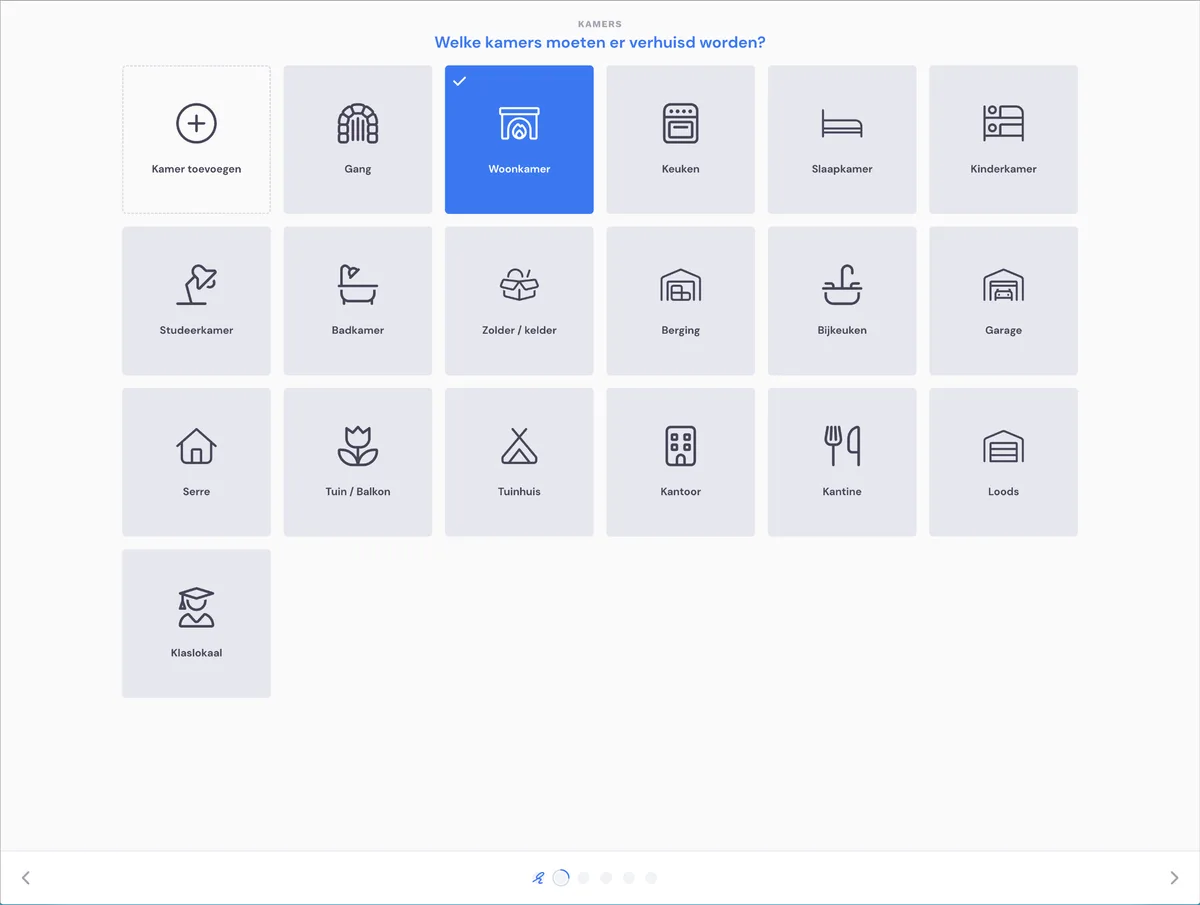
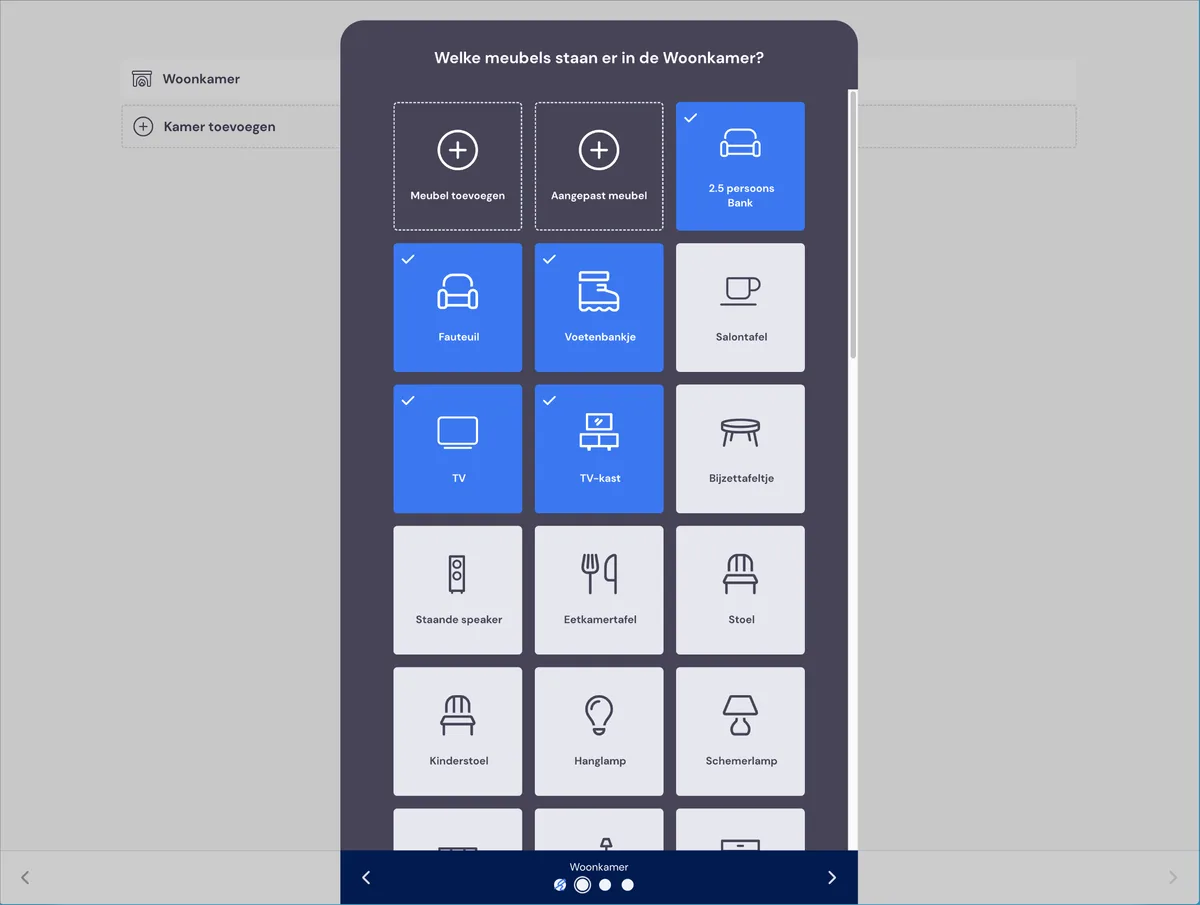
First, choose the rooms containing items that need to be moved. In the next step, choose per room which furniture needs to be moved.
Step 4 - materials
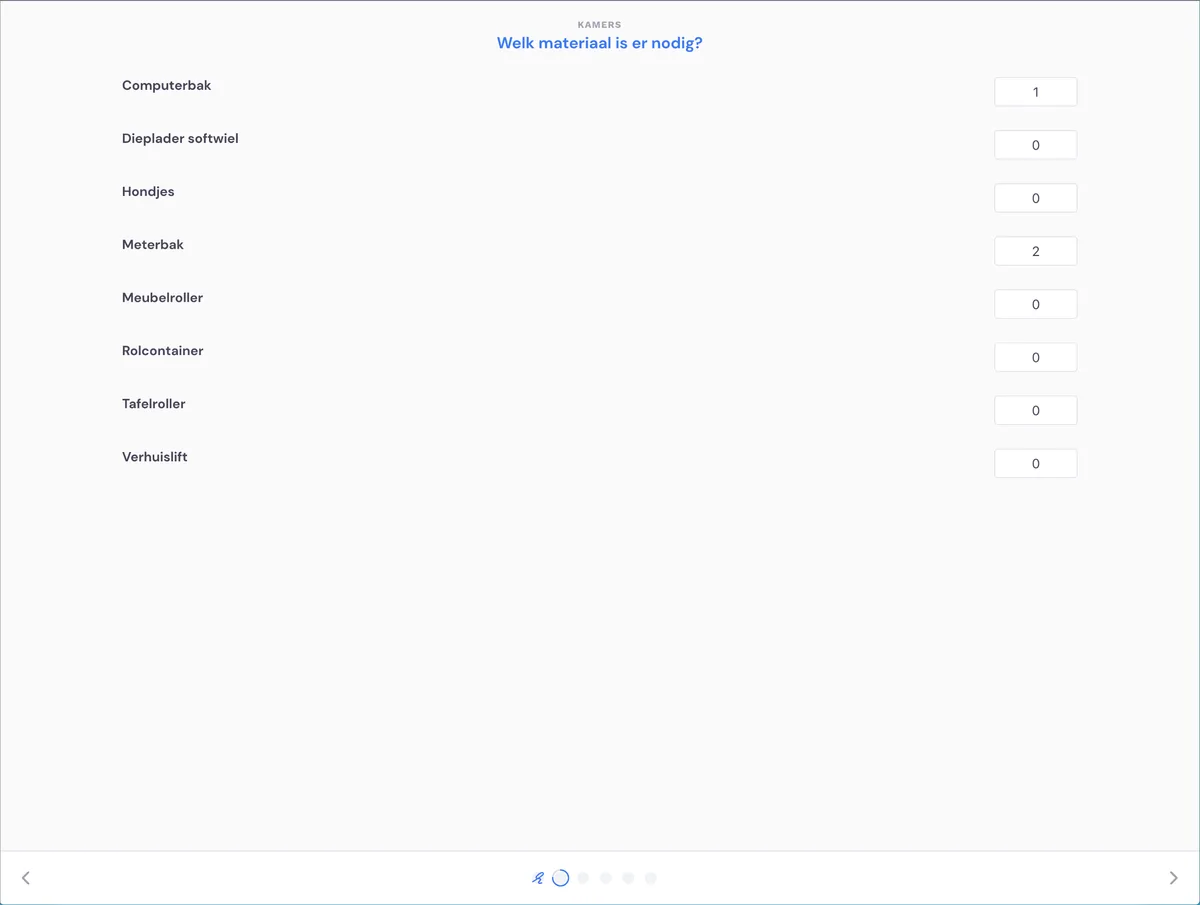
Under materials, choose which materials should be used for this job. This list is added to the job, so that the removal crew ultimately knows which materials to bring on moving day.
Step 5 - notes
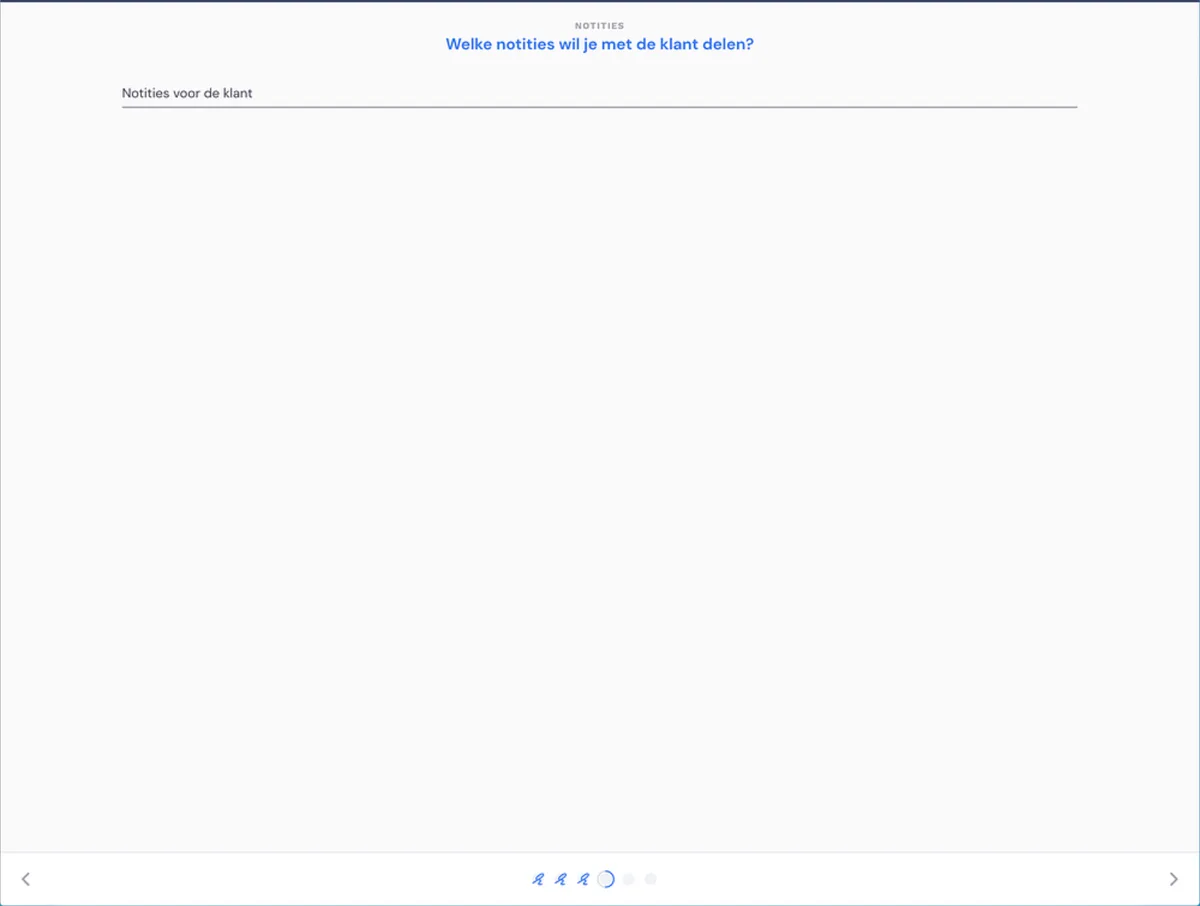
Add notes in this step. You can add notes for internal use, or notes for the customer. The latter are included in the quote.
Step 6 - payment arrangements
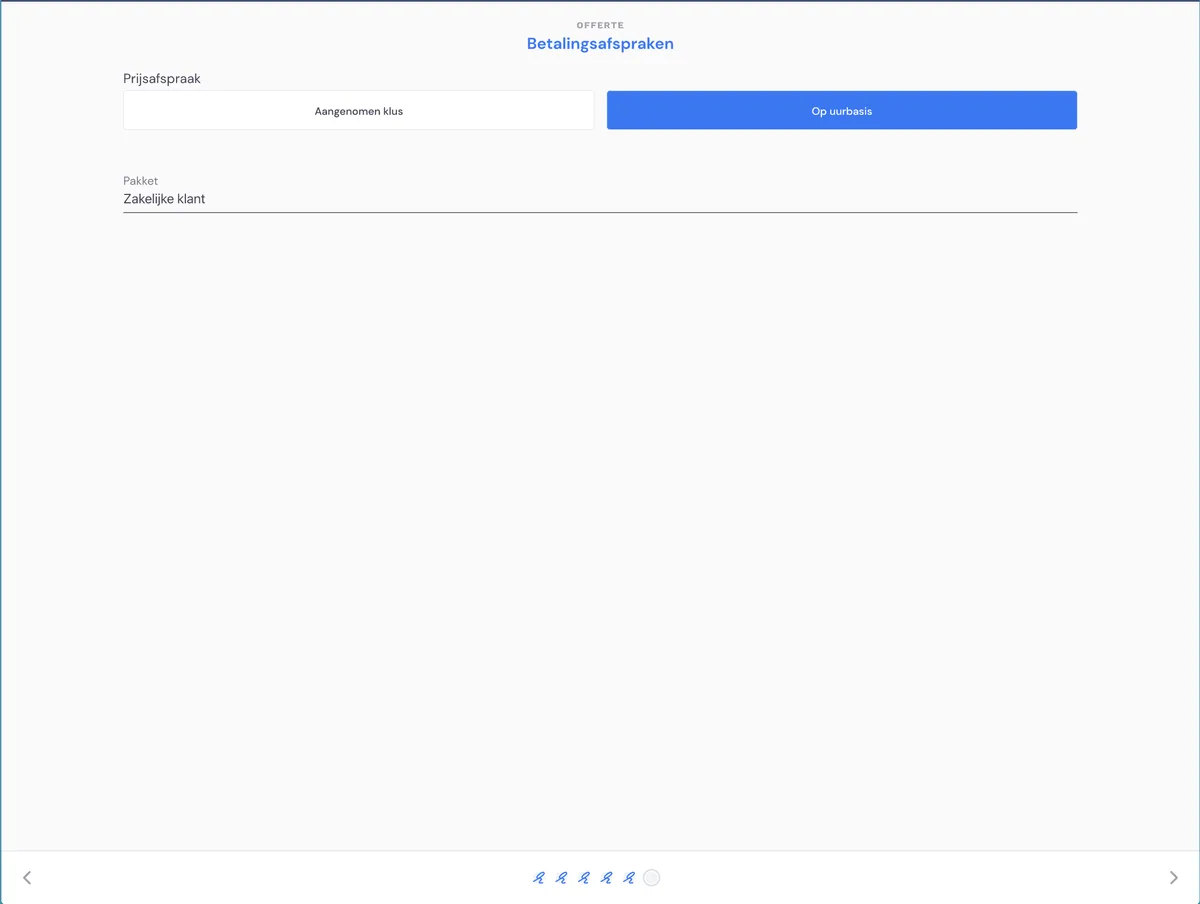
In this step, choose the pricing arrangement (fixed-price job or on an hourly basis, i.e. based on actual costs). Then choose the package (this determines the document templates, invoicing moments, customer messages, etc.).
Step 7 - estimate
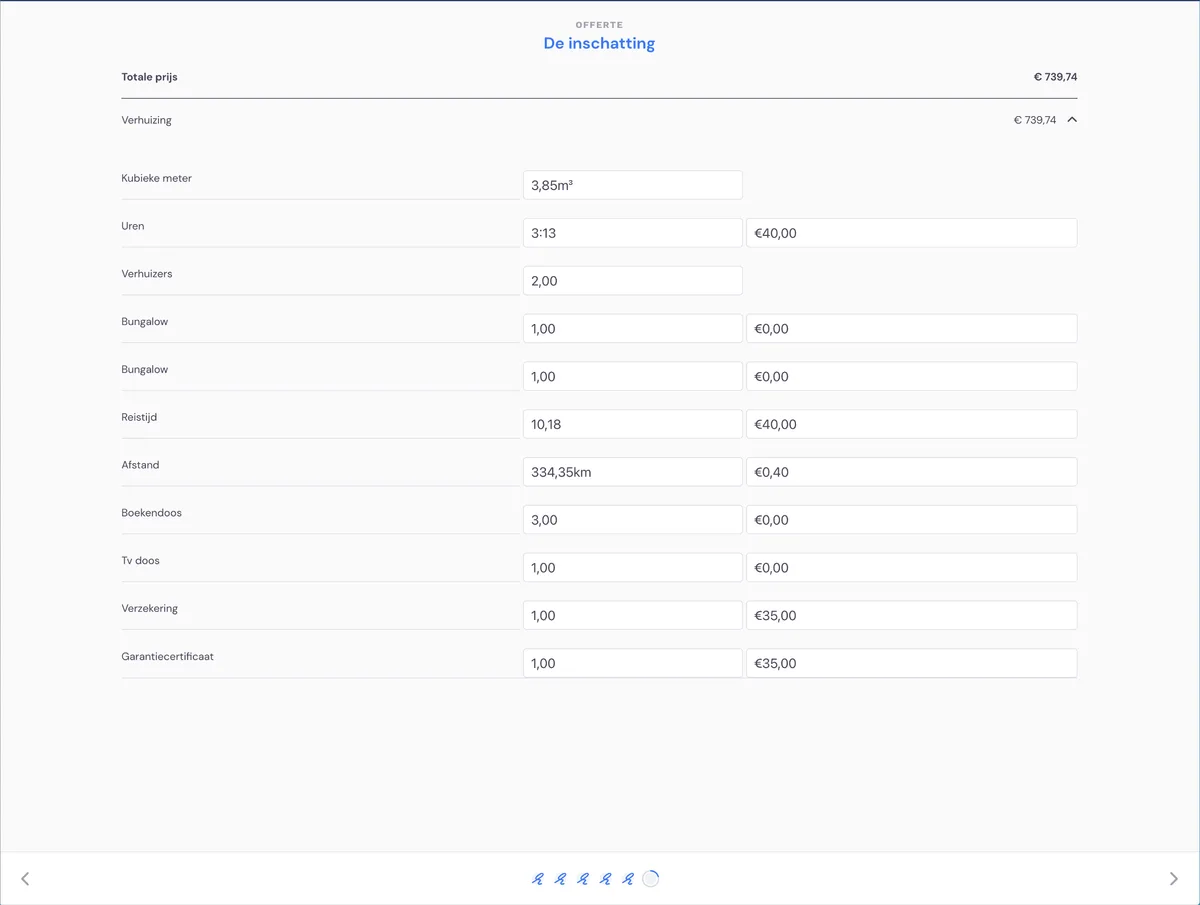
In the estimate, you see the estimated cubic metres and costs based on the survey. You can adjust these if you wish, so you always have control over the contents of the quote.
Step 8 - the quote
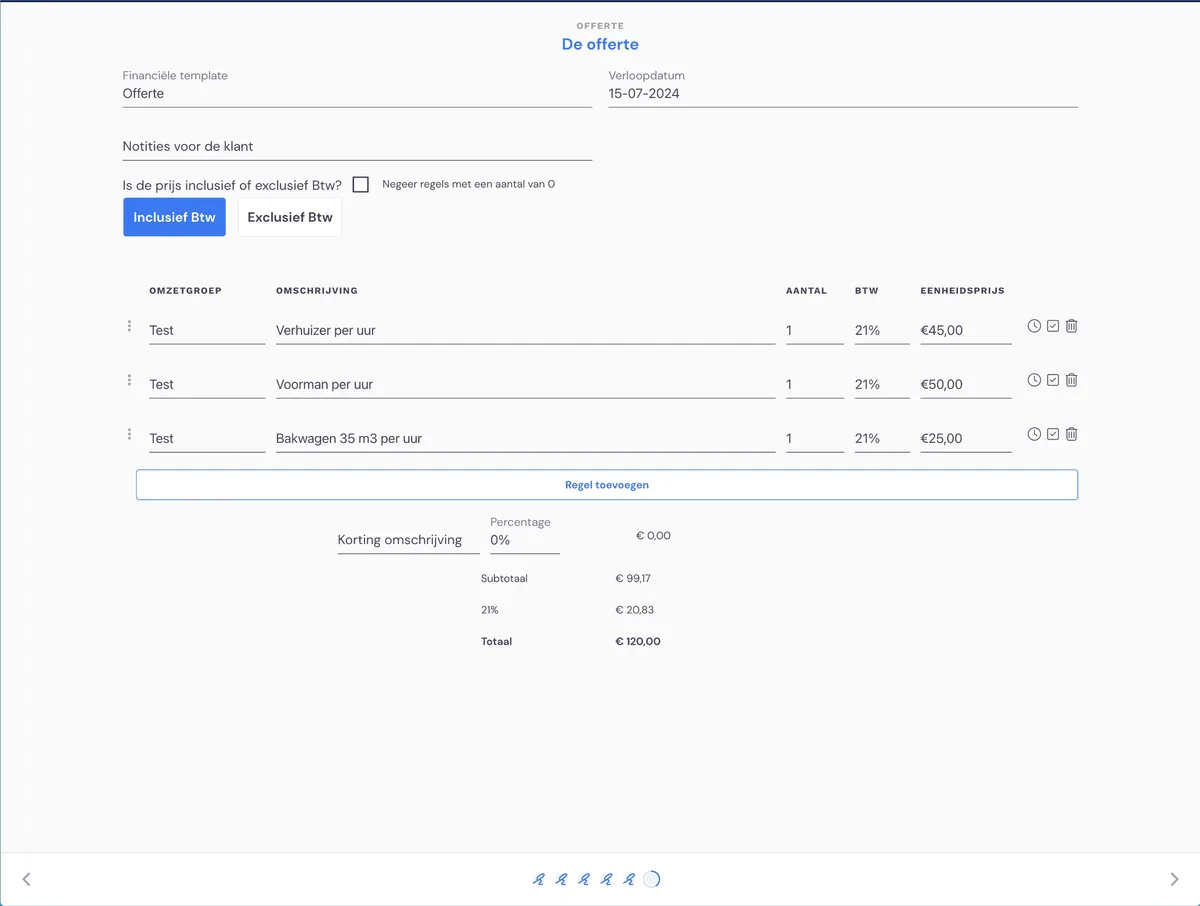
After checking the estimate, the costs are listed in lines one below the other. These can be adjusted, and you can also add lines. You can also give the customer a discount here.
Step 9 - sending
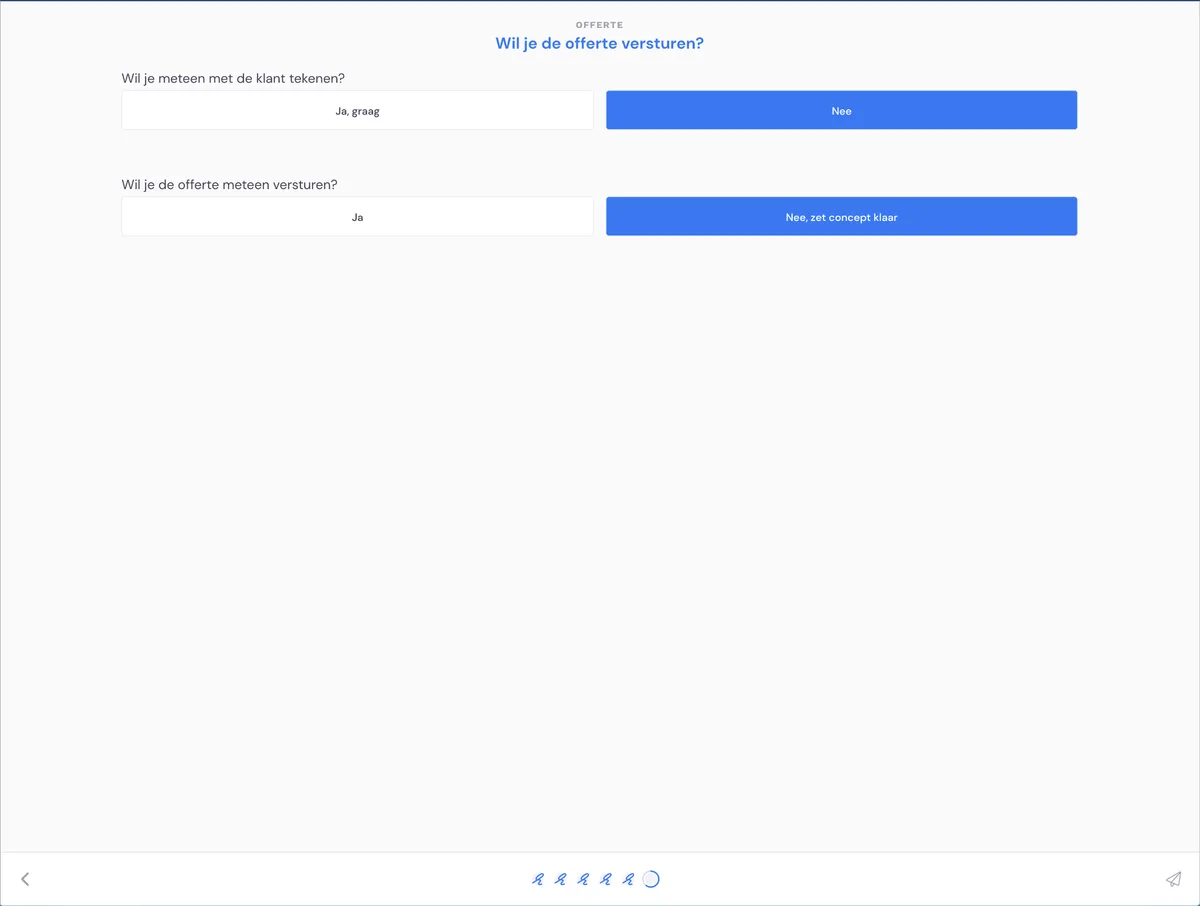
In the final step, you choose how to handle the quote. You can:
have the customer sign straight away (this is only possible with the app)
send the quote immediately (to the customer's email address)
save the quote as a draft (so you can check it and send it later)
In this step, save the quote as a draft.
The survey is complete!
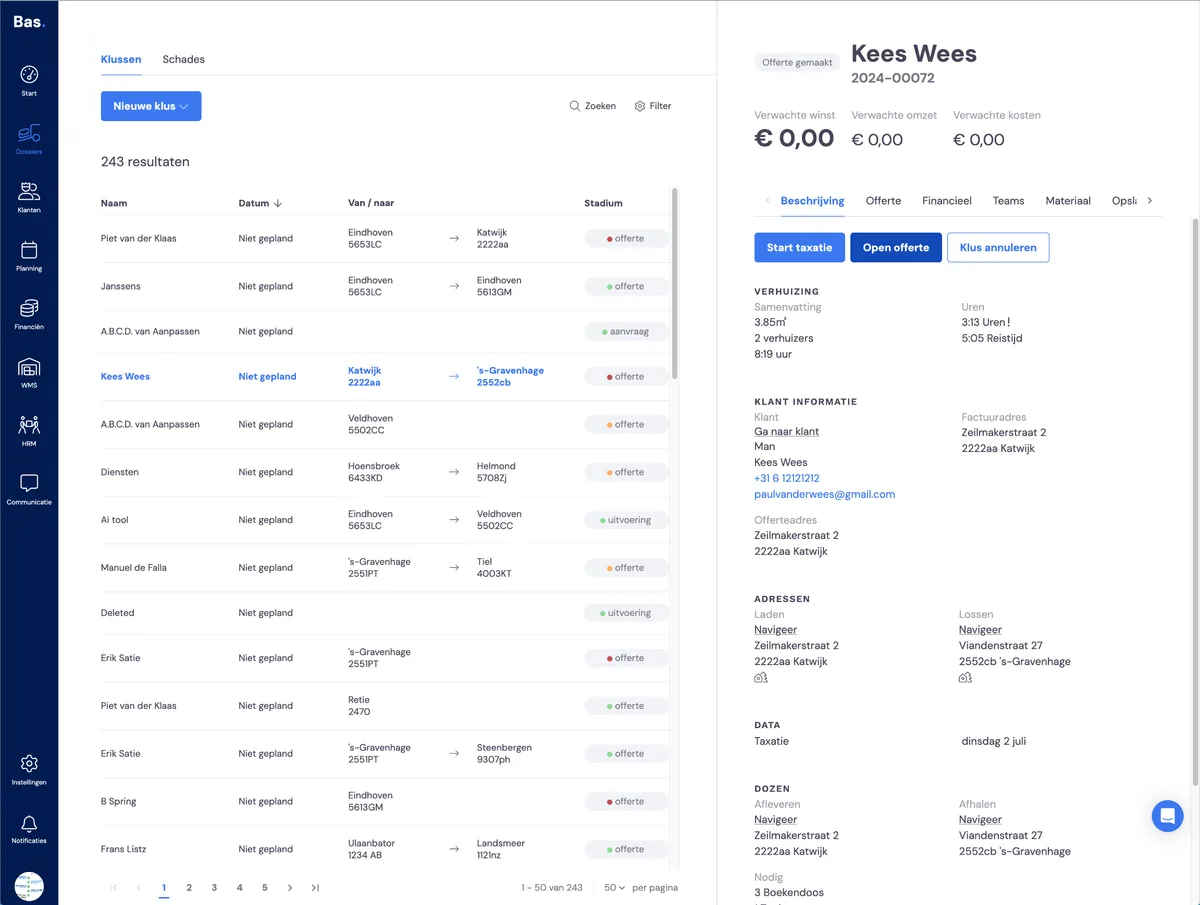
The quote is ready under the job. Click 'open quote'.
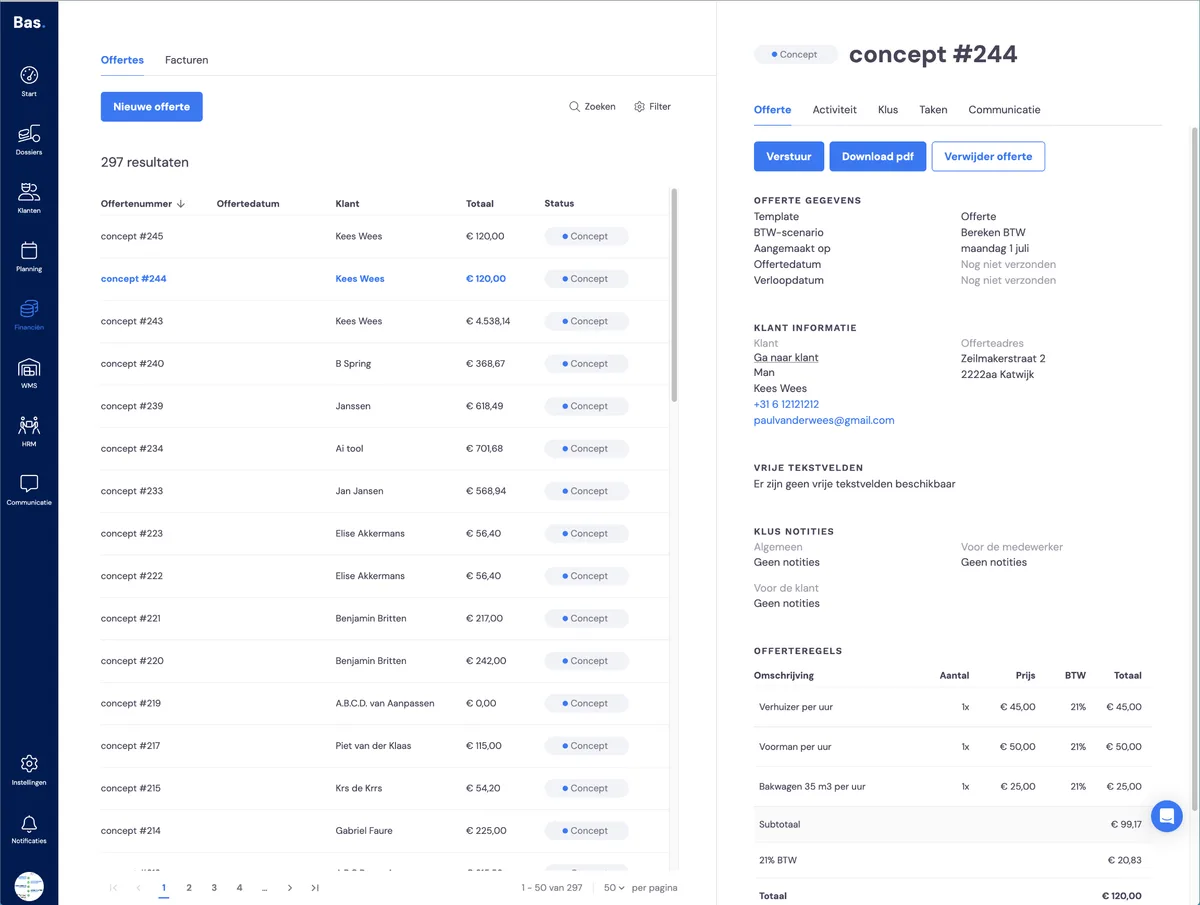
You can download the PDF here so you can check that it is completely correct, both the content and the layout.