
It happens that a customer has accepted a quote but still wants a change. Extra discount, an optional line that was commissioned by mistake, a misunderstanding — it happens more often than you'd like. Fortunately, you can still decline an accepted quote and send a new version.
Changing an accepted quote
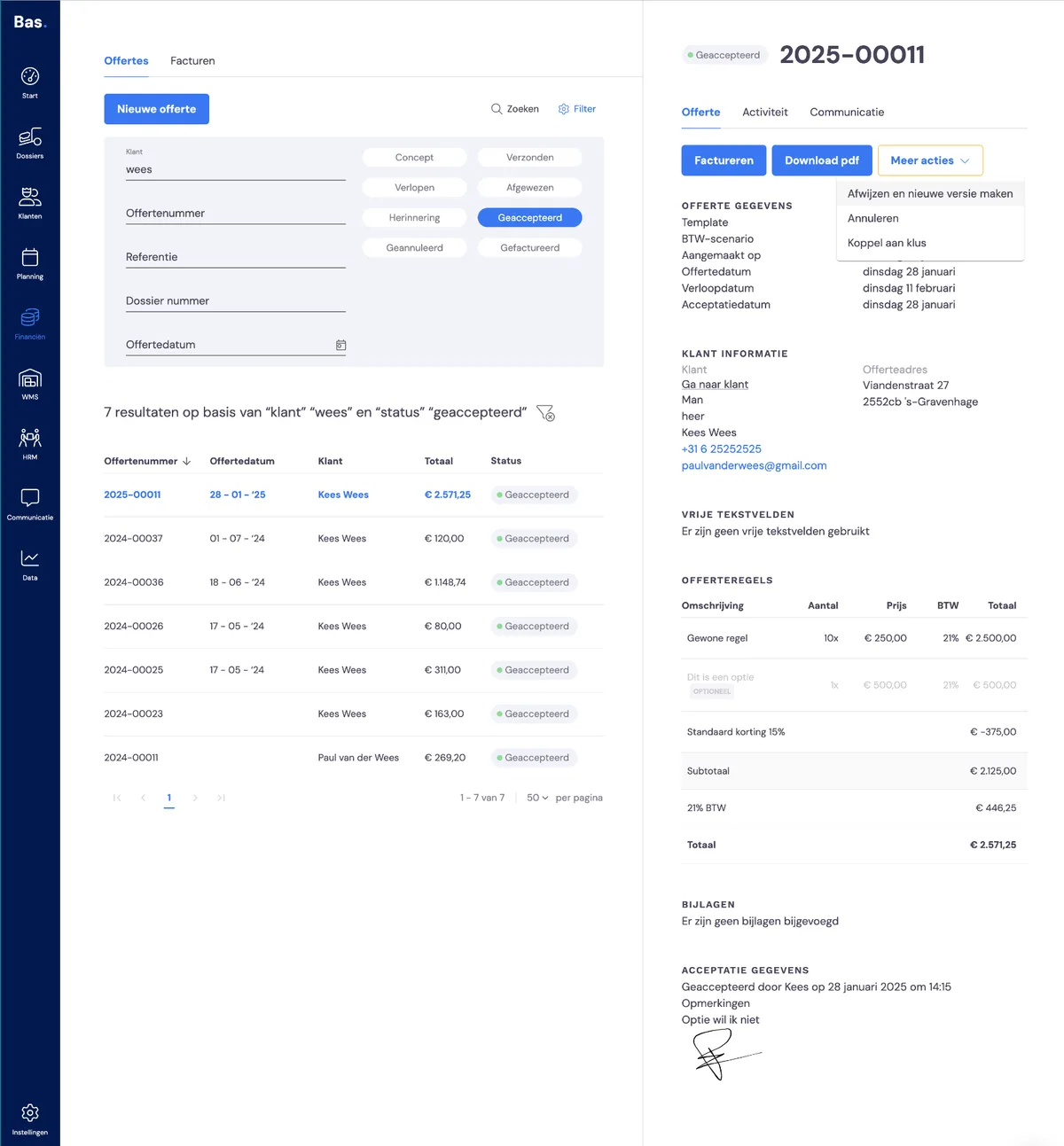
To change an accepted quote, go to the quote and choose 'More actions' and then 'Decline and create a new version'.
Creating the new version
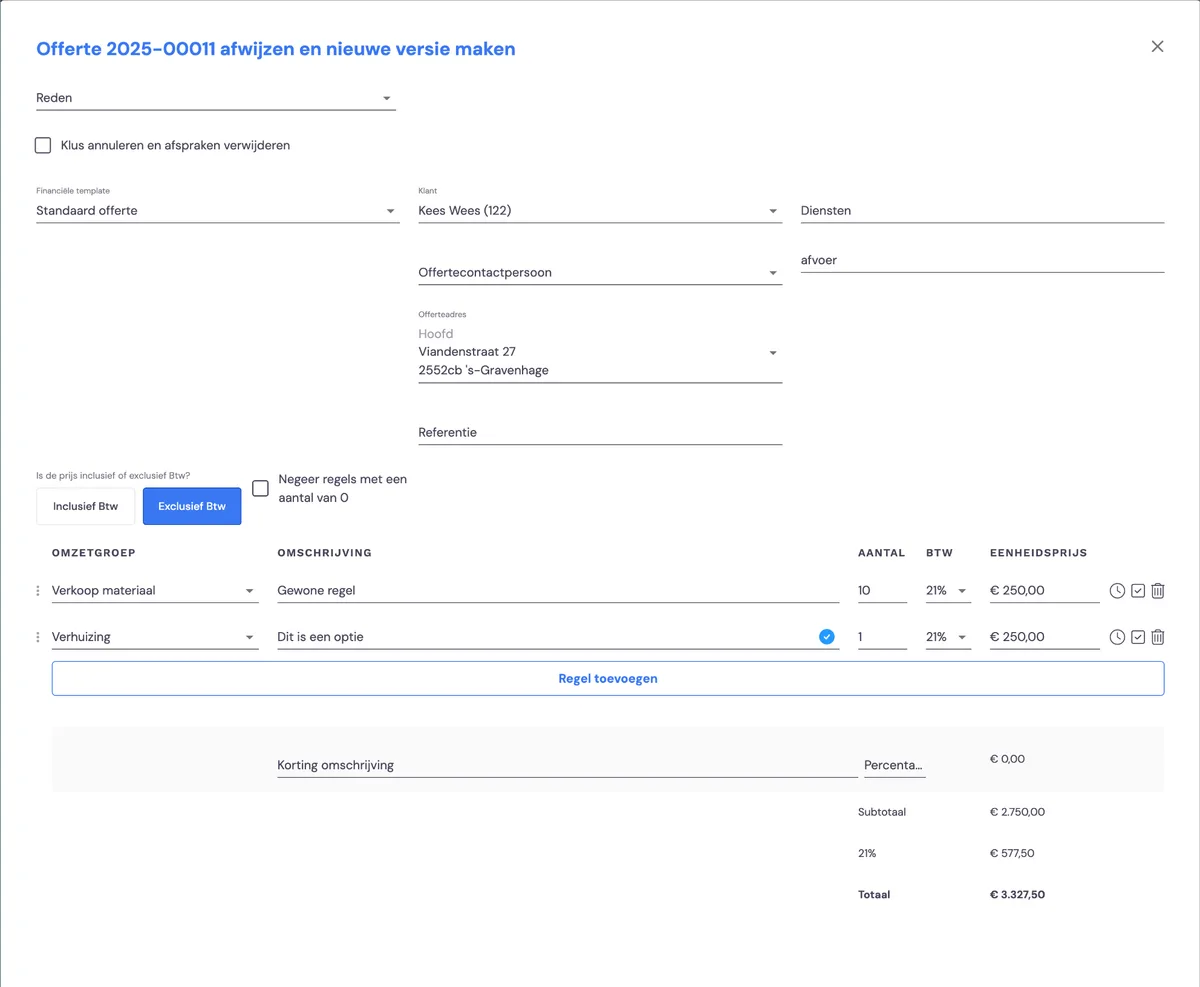
In the form that opens after 'Decline and create a new version', you'll see the original lines from the quote. Here you make the desired changes to the lines. Then click save.
Sending the new version
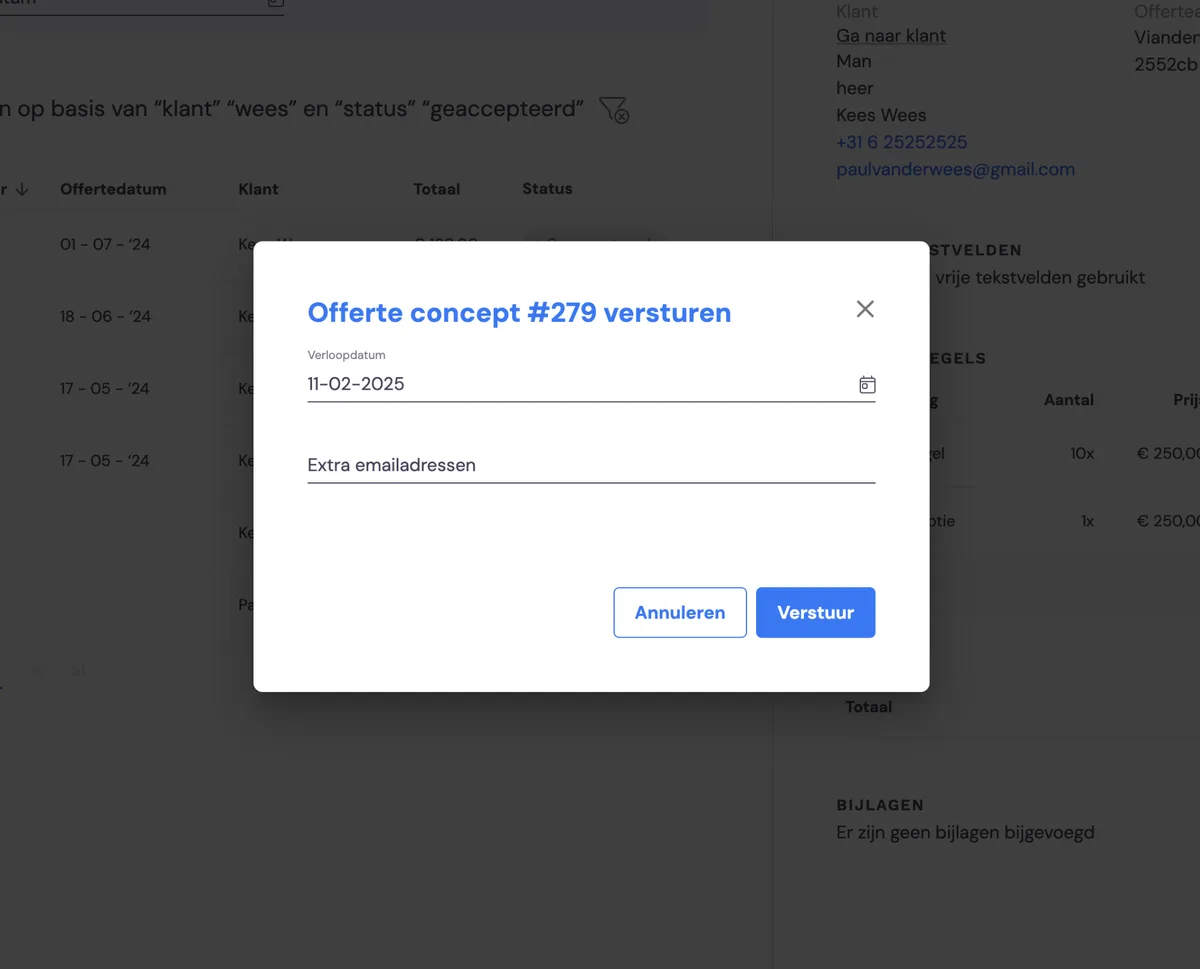
After saving, you'll be asked to send the new version to the customer. This puts the job back in the 'Quote sent' phase.
After acceptance, the job returns to the 'quote accepted' phase.
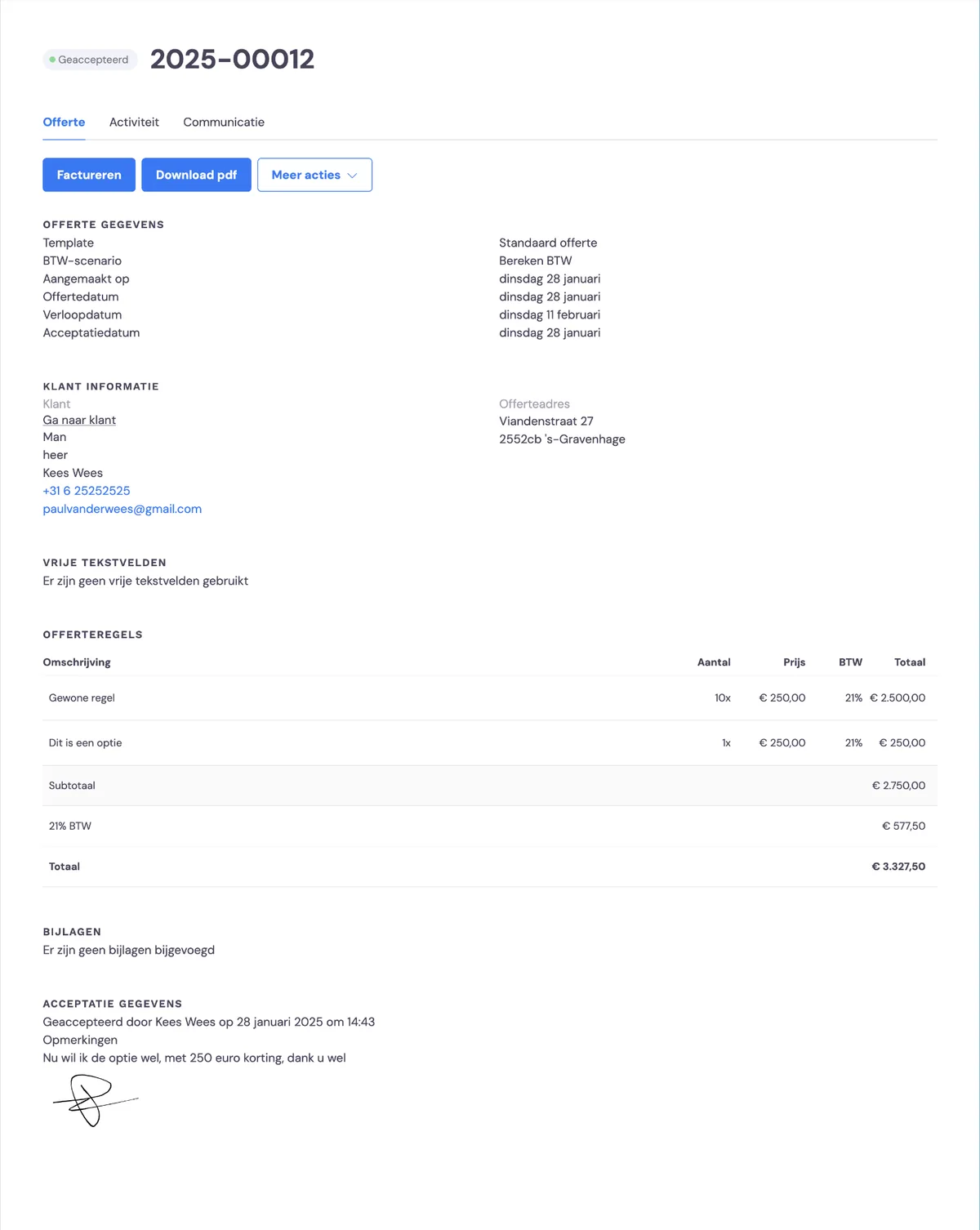
Once the customer has accepted the amended quote, the quote details are updated to the new situation. You can now take the next steps in organising the job.