
Introduction
With 'Customer messaging', you decide for yourself the layout and content of all e-mails sent to customers.
E-mails are automatically sent at the various steps of the removal process. For example, an e-mail is sent when you offer a quote to the customer. You can adjust this existing e-mail if you wish.
You can also create new customer messages that you link to a document template. Read more about this in the article working method.
When making changes, specific functions are also available such as 'accepting a quote online' and 'paying an invoice online'; if you want to use these options, you can activate them in customer messaging.
When to use it
You can create a new customer message if
you've created a new package for which you've created a specific document template and for which you also want to send a specific e-mail
You can adjust an existing customer message if
you want to adjust the content of an existing message
you want to adjust the layout of a message
you want to add options such as 'accept online' or 'pay online'
you want to adjust the salutation in the message
you want to make an adjustment to the standard times communicated to the customer, for example a time window instead of a specific delivery moment
you want to add e-mails in an additional language
Where do I find it
You'll find customer messages under settings > working method > customer messaging.
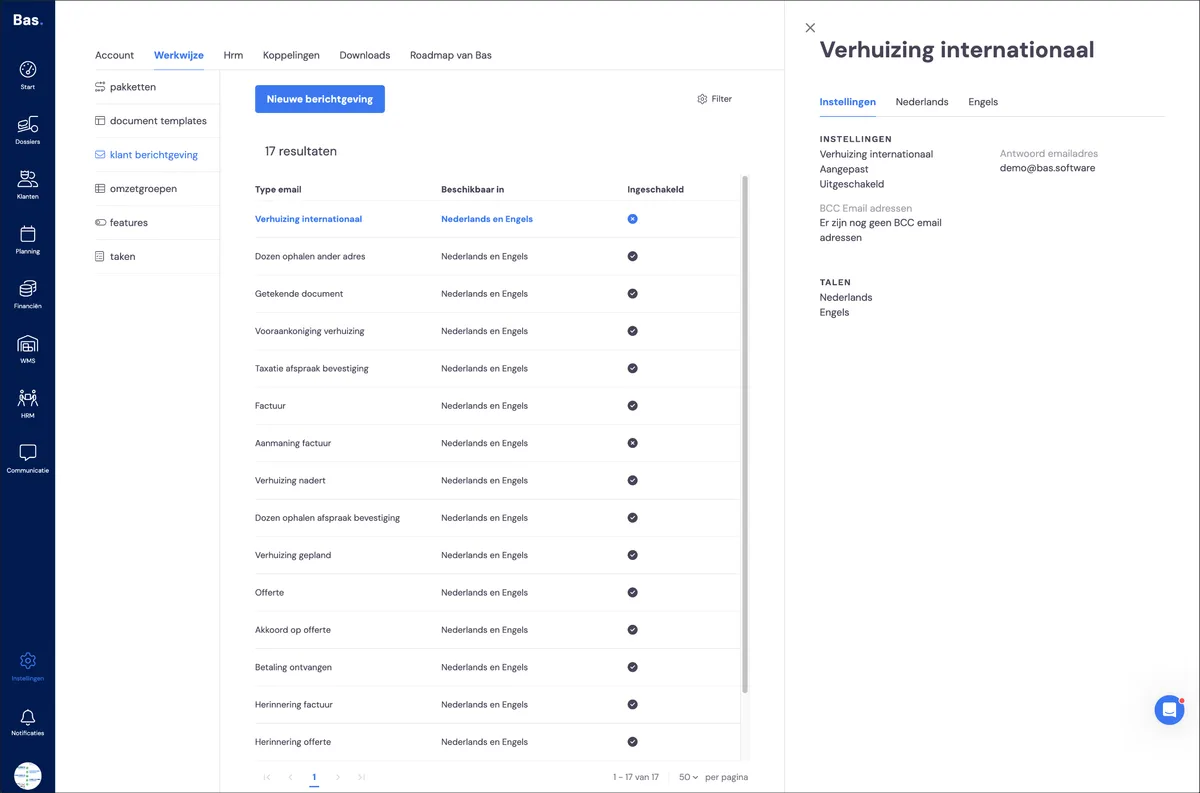
Here you'll find an overview of all previously created customer messages. You can also create a new customer message directly here.
How it works
You can adjust existing customer messages and create new customer messages.
Adjusting the characteristics of an existing message
You can adjust the characteristics of a customer message's settings using the pencil icon that lights up when you hover your cursor over the characteristics on the right-hand side.
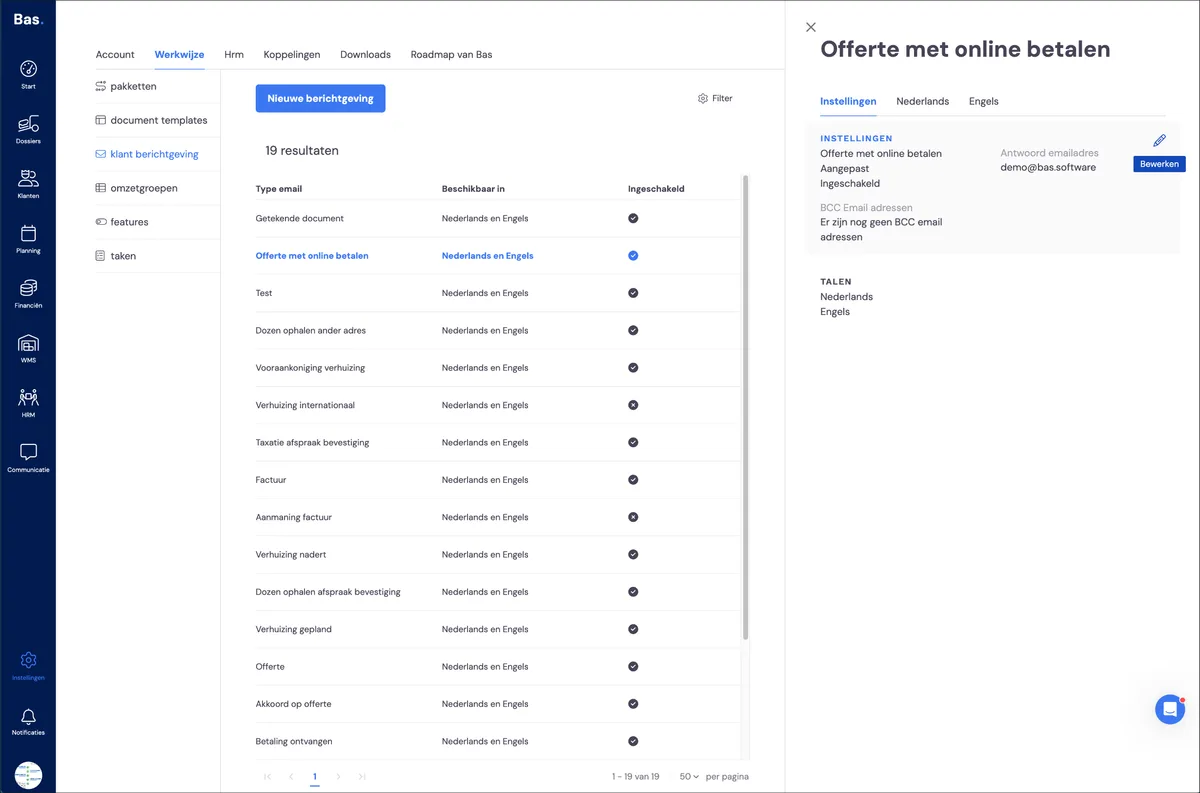
What you can adjust:
Enable/disable customer message
A customer message must be enabled in order to send e-mails. If you no longer want to send a customer message, you can disable it.
Adjust reply address
You can adjust this address if you want customers to be able to reply to the e-mail by sending it to the reply address.
Set default BCC
You can have a BCC sent for every e-mail. This can be useful if, for example, you want a BCC sent for every paid invoice
Adjusting the subject, layout and content of a customer message
Adjusting the subject of the e-mail
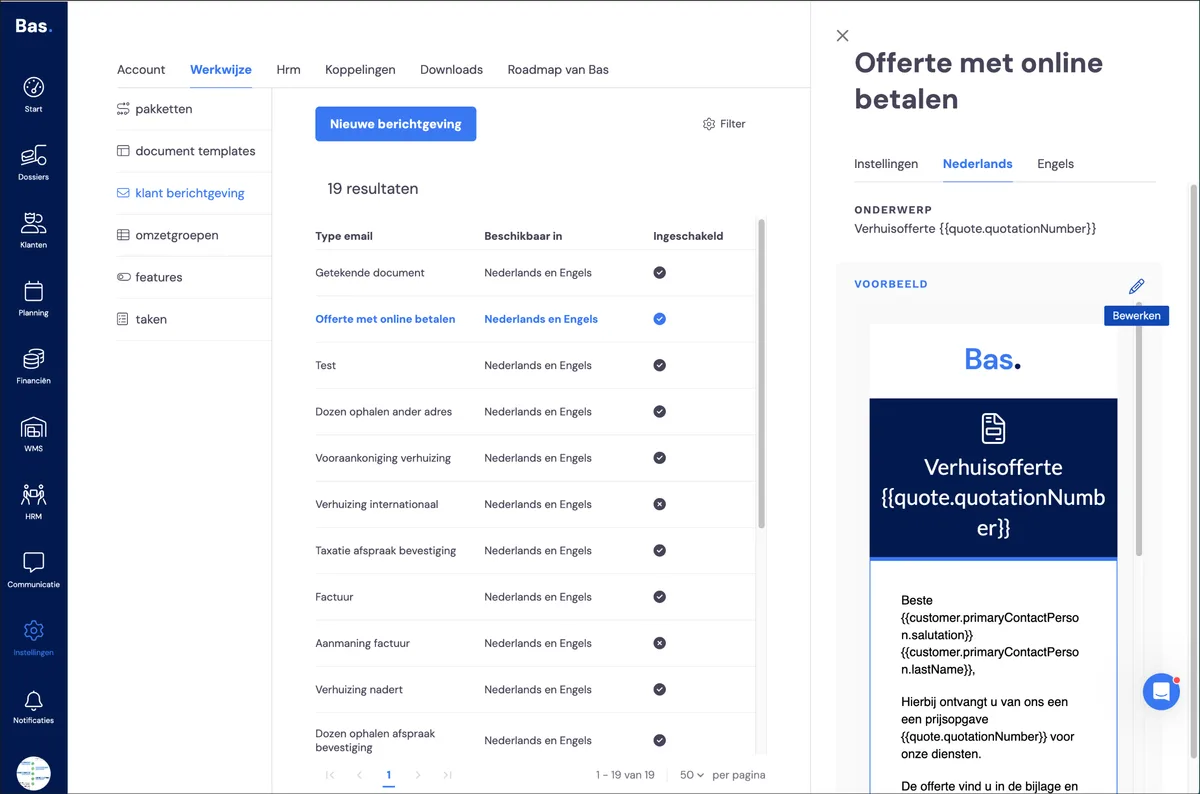
The name of the customer message is by default the subject as received by the customer. You can adjust the subject of the e-mail per language by clicking 'subject' and adjusting the text.
Adjusting the layout and content of the e-mail
You can adjust the e-mail using the e-mail editor. To open the editor, first select the language of the e-mail and then click edit:
The editor then opens:
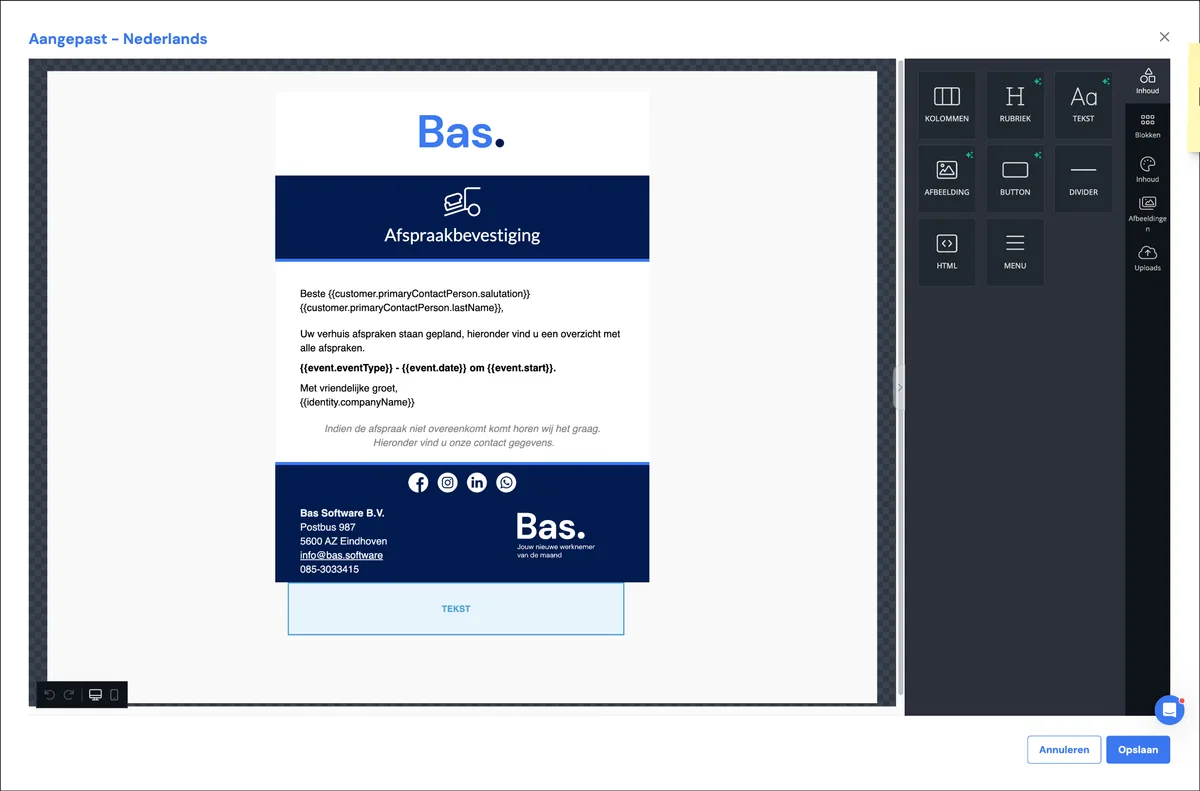
What you can adjust here:
Adjusting the content of the customer message
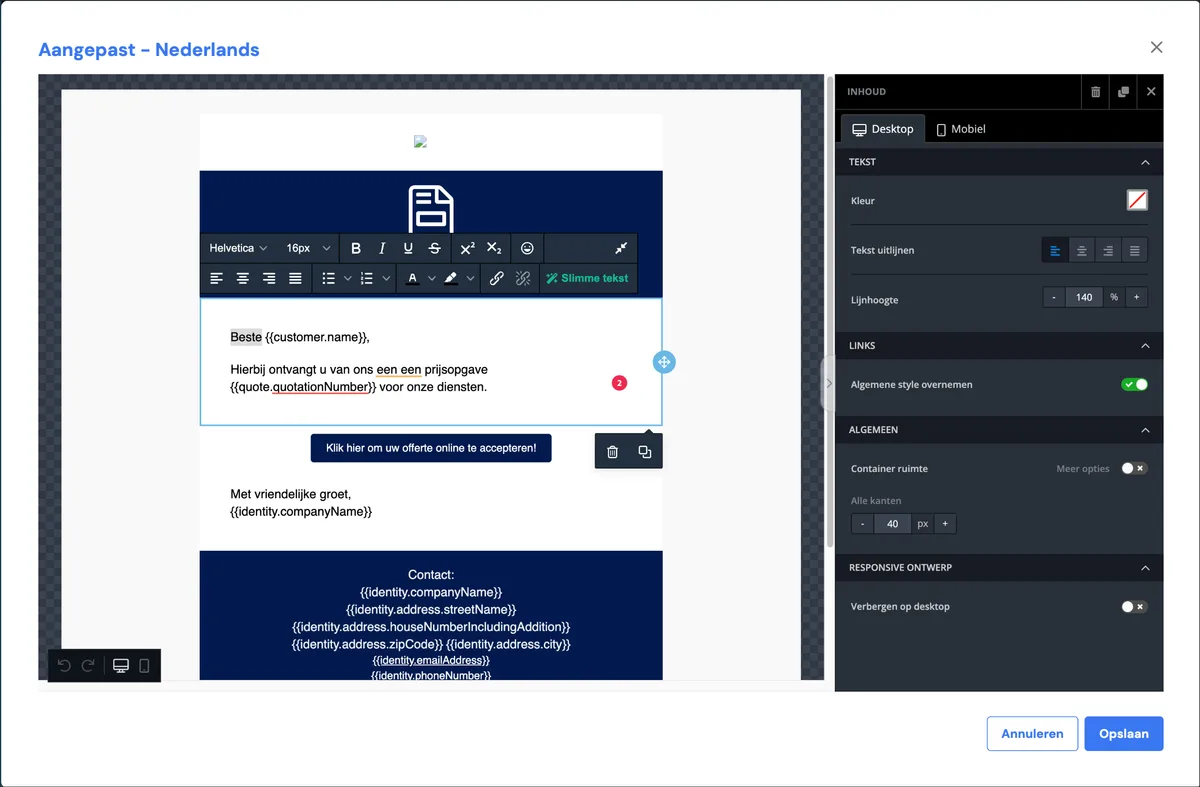
You can adjust the text of the e-mail by clicking on the text you want to adjust:
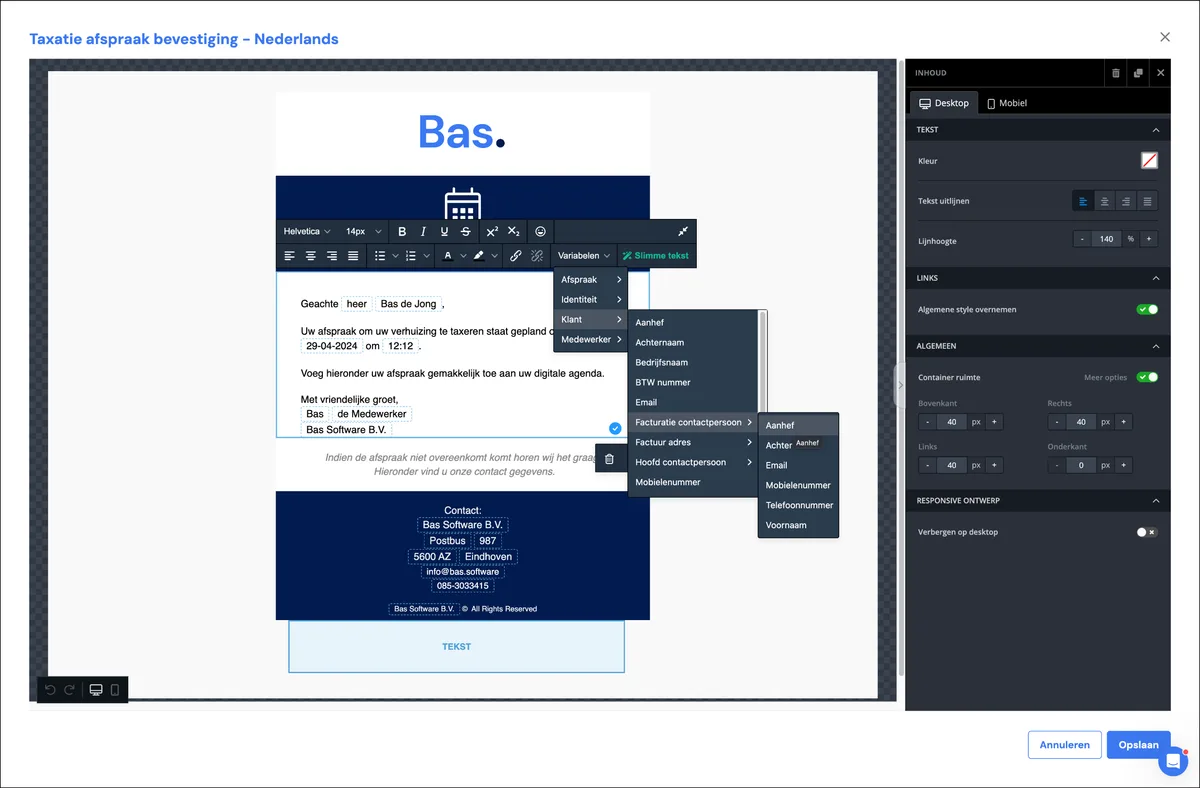
Working with variables
There are various variables available that you can use; select the desired variable based on category; clicking the desired variable adds it
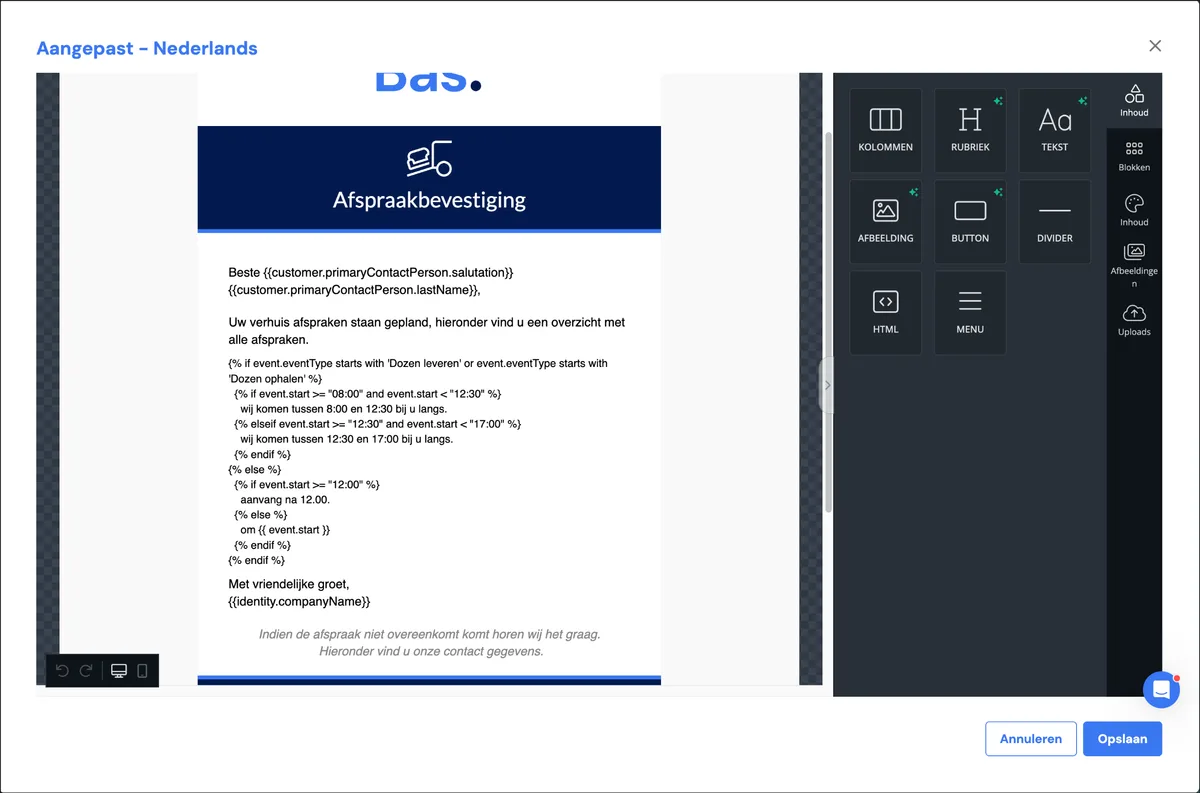
Working with twig codes: adjusting the salutation, adjusting dates and working with time windows
You can use these codes to create specific functions; you must then follow the twig format.
Example: you can adjust the salutation in a customer message so that it uses capital letters, with the following code in combination with variables:
{% if customer.primaryContactPerson.salutation == 'heer' %} Mr (variable surname){% elseif customer.primaryContactPerson.salutation == 'mevrouw' %}
Dear Mrs (variable surname)
{% else %}
(variable salutation) (variable surname)
{% endif %}
Example: you can indicate that a payment must be received five days after the current date. The code for this is:
{% set dateInFiveDays = "now"|date_modify("+5 days") %}#{{ dateInFiveDays|date("d-m-Y") }}
Adding online payment
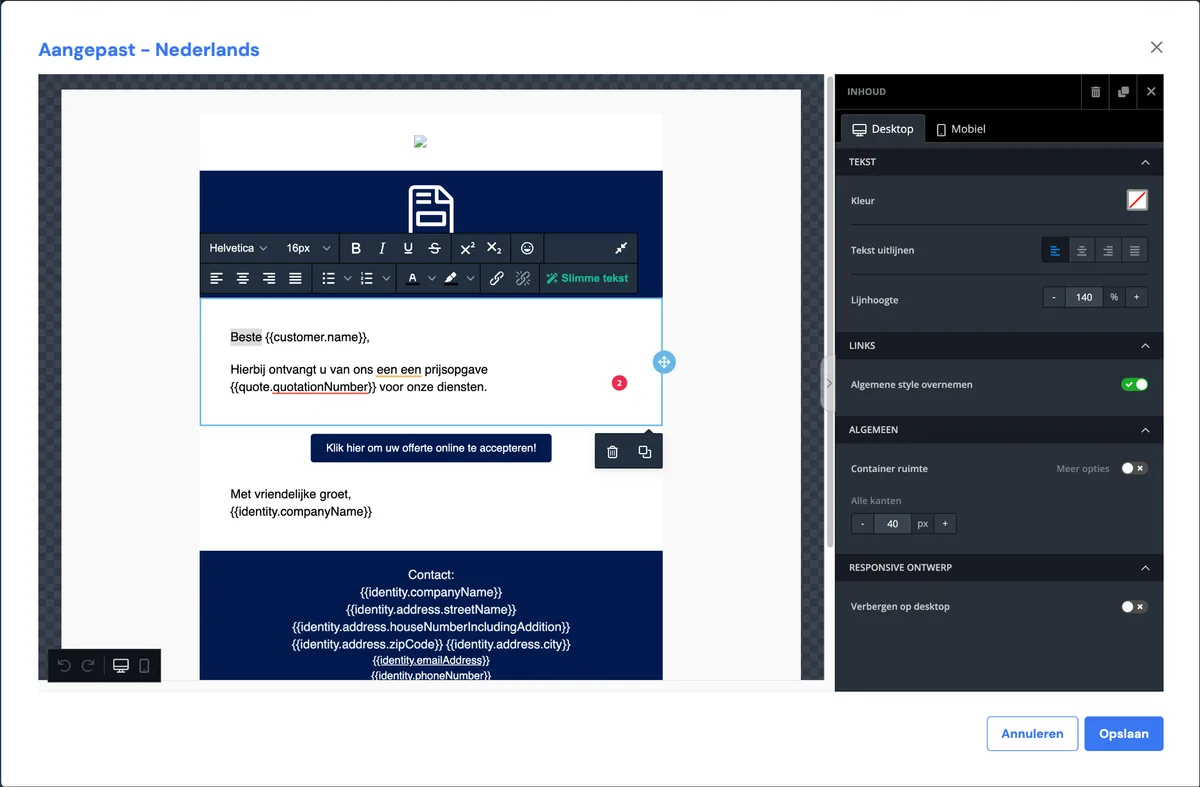
By adding the 'pay online' block, you make it possible to pay directly via the e-mail.
Frequently asked questions about customer messaging
Can I adjust the salutation in my e-mails?
Will my e-mail actually be sent?
You can check whether a customer message has been sent under 'activities' on the job or on the document you sent.
What if the e-mail is sent but doesn't arrive?
Then the e-mail probably ended up in the customer's spam folder.