
Introduction
With 'Document templates' you decide for yourself the layout and content of documents you share with your customers.
Documents are quotes, invoices and contracts. You send these documents manually, or they're sent automatically at the various steps of the removal process.
For example, a quote is automatically created based on the document template in the package after a survey, which you send when you offer a quote to the customer. It's sent using the customer message linked to the document template.
You can create new templates yourself or adjust existing templates. In addition to the layout and content, you can also add specific characteristics such as the expiry term for a quote, or the payment term for an invoice.
When do you use it?
You can create document templates if you want to make an adjustment to your process.
For example, if you want to set a specific payment term for business customers, you can create a package for this and link a document template with this payment term to it.
You can adjust templates if you want to change the payment term, adjust the layout of your documents, or add a standard cover page or back page.
Where do I find it
You'll find document templates under working method > document templates
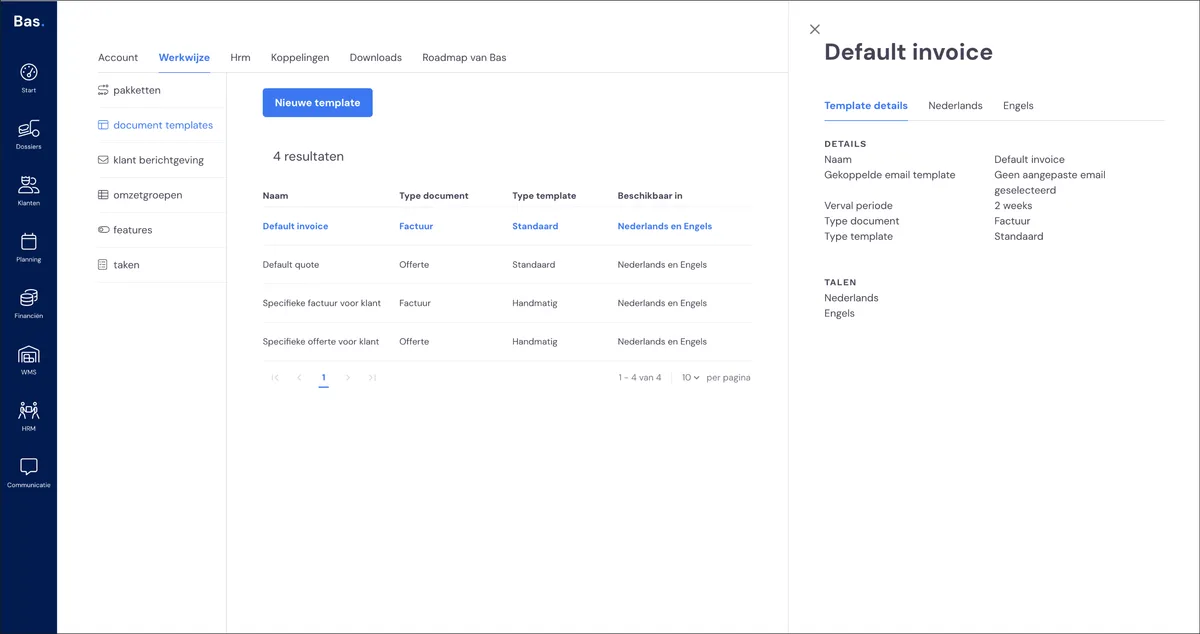
How it works
You can edit existing document templates and create new document templates for use in a new package.
Editing an existing document template
Go to settings > working method > document templates. Click the document template you want to adjust here
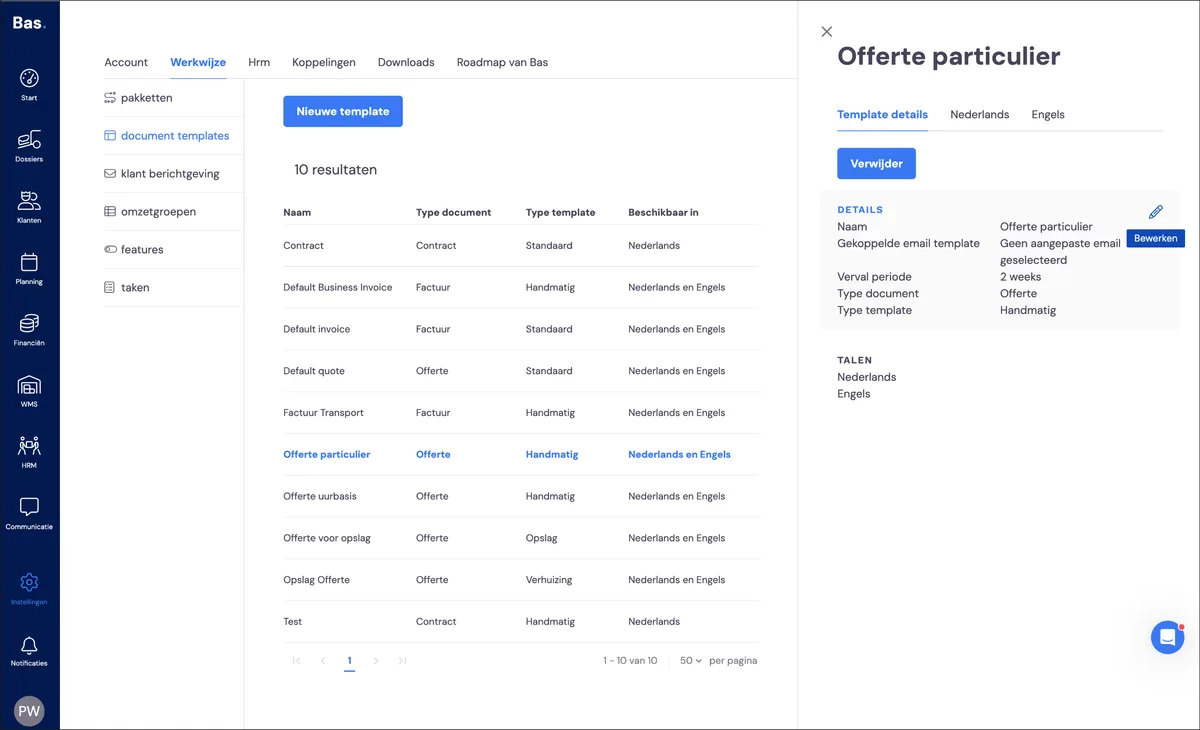
Adjusting the characteristics of the template
Name
Choose a descriptive name for the template so you recognise it when using the template for packages
Linked e-mail template
This is the customer message used to send the quote, invoice or contract to the customer
Expiry period
For quote templates, this determines the expiry term, and for invoice templates, the payment term; make sure you enter this in the correct format!Language variants
You can create document templates in Dutch, English, French and German
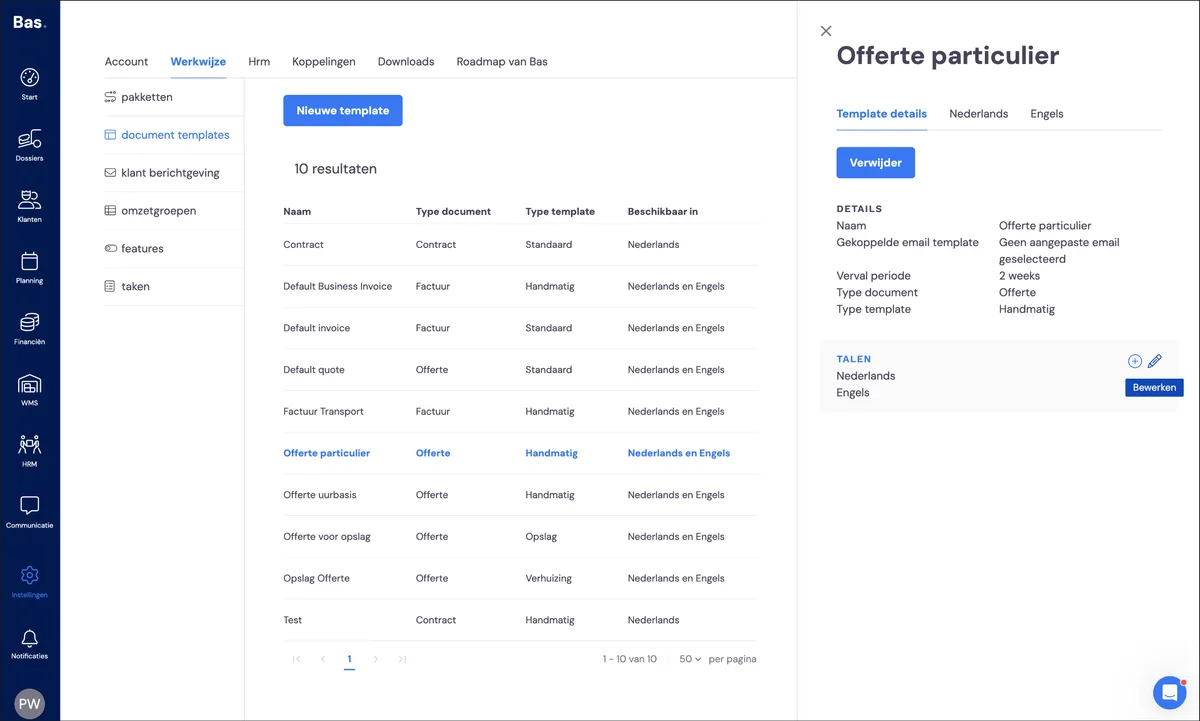
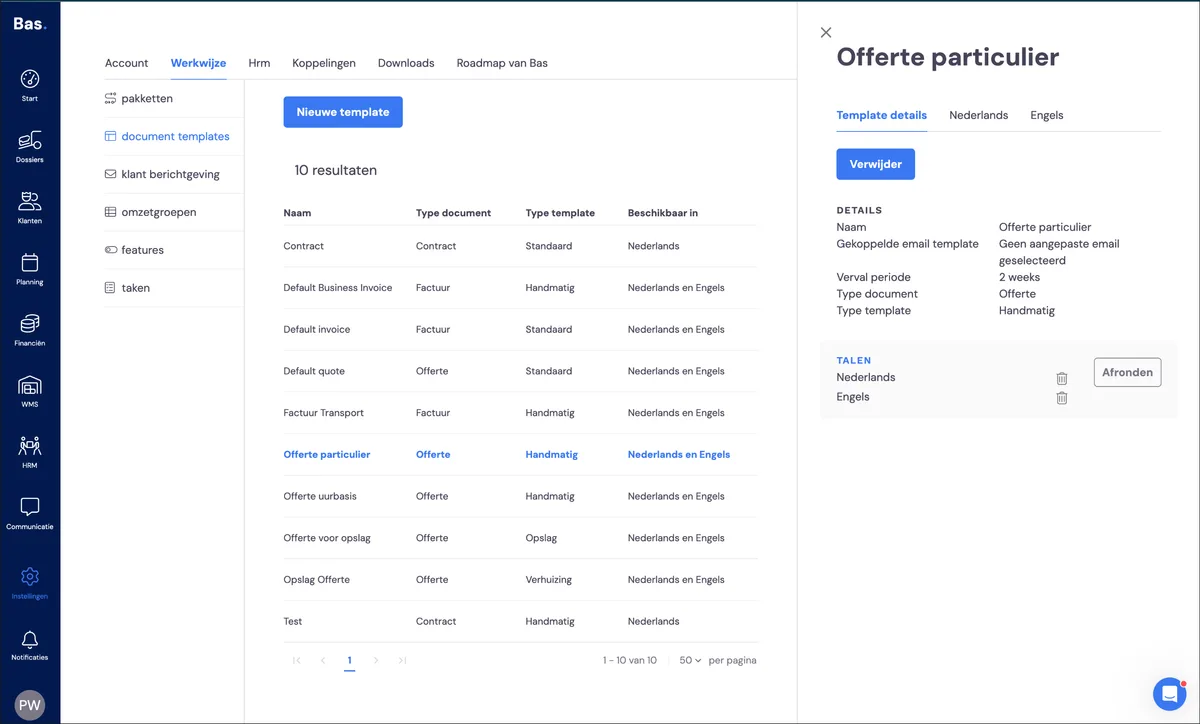
You can delete a language variant by clicking edit
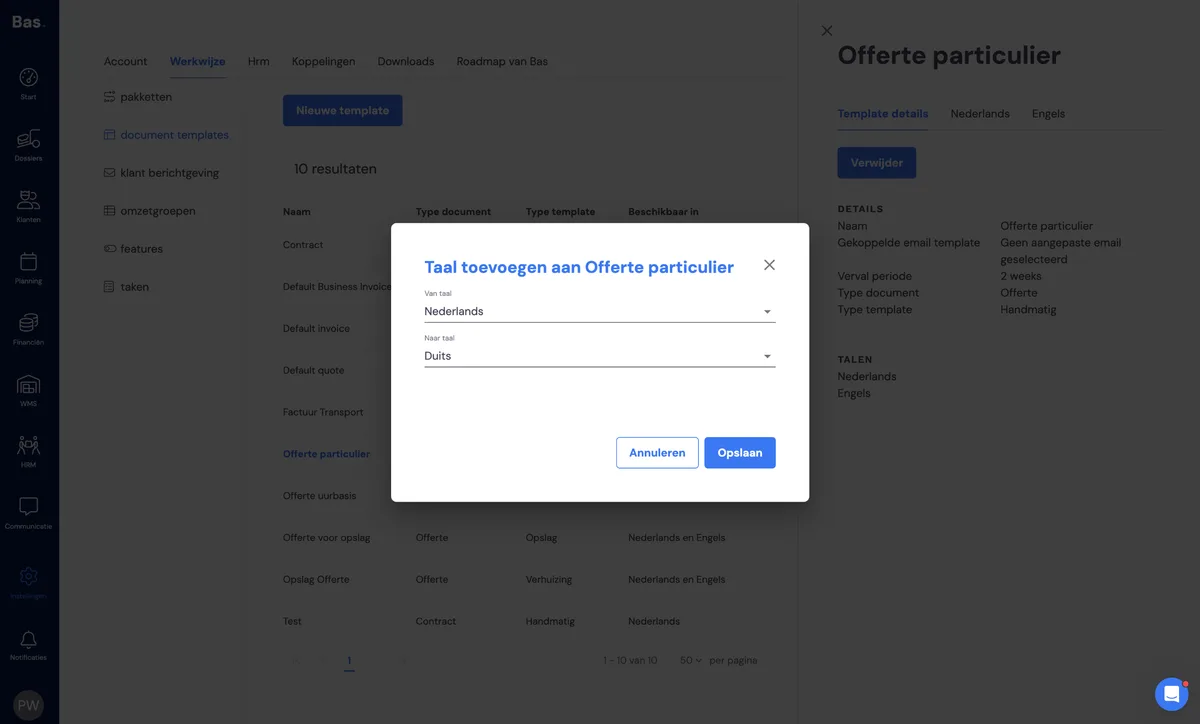
You can add a language variant by clicking the plus icon. Then choose the language on which the new, desired language variant will be based. Once the new language variant has been created, it's available for editing. Please note: the template is not automatically translated!
Adjusting layout and content
You can adjust the layout and content of a document template with the editor you get when editing the template. Below are a number of options:
Adjusting text
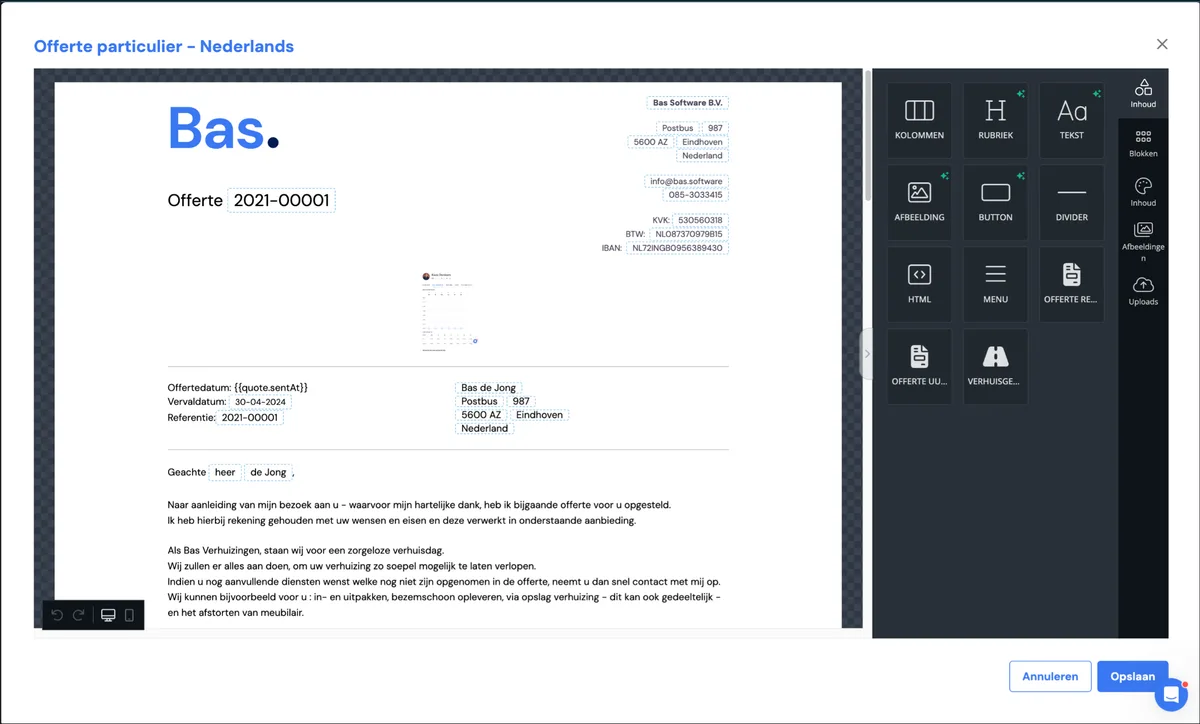
You can adjust the text in your template by clicking the text, adjusting it and saving the template.
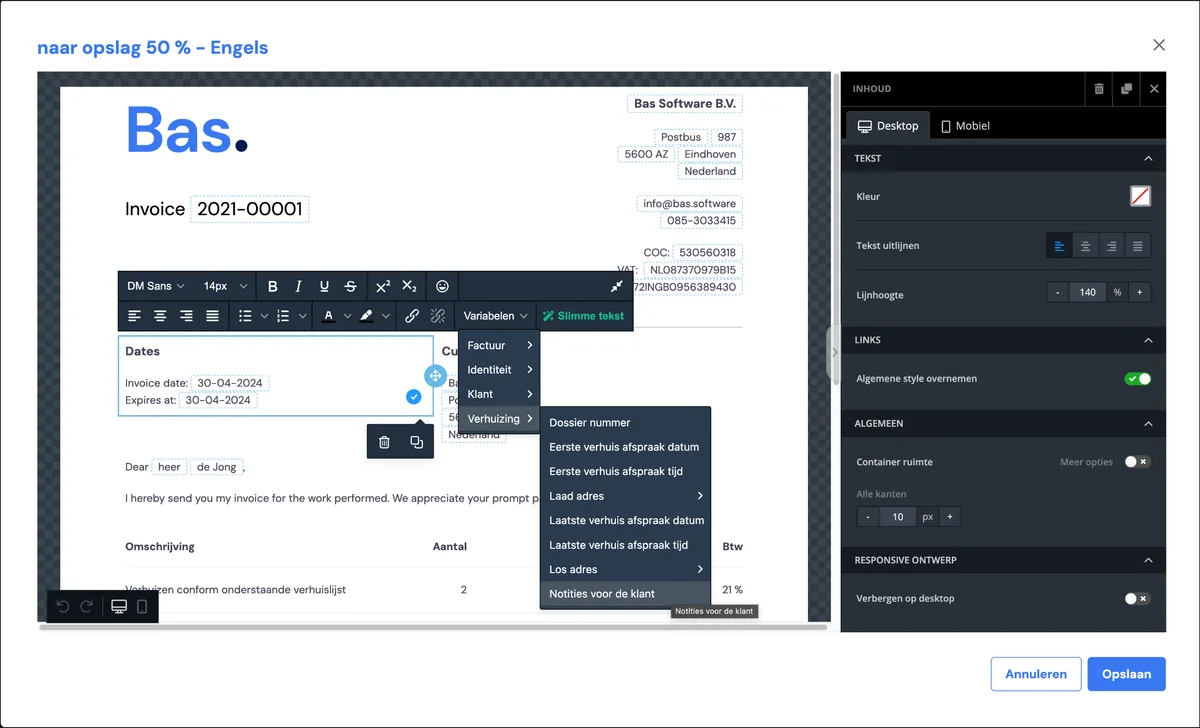
You can also use variables available in Bas for the text. For example, you can drag customer notes into the document template.
Adjusting images
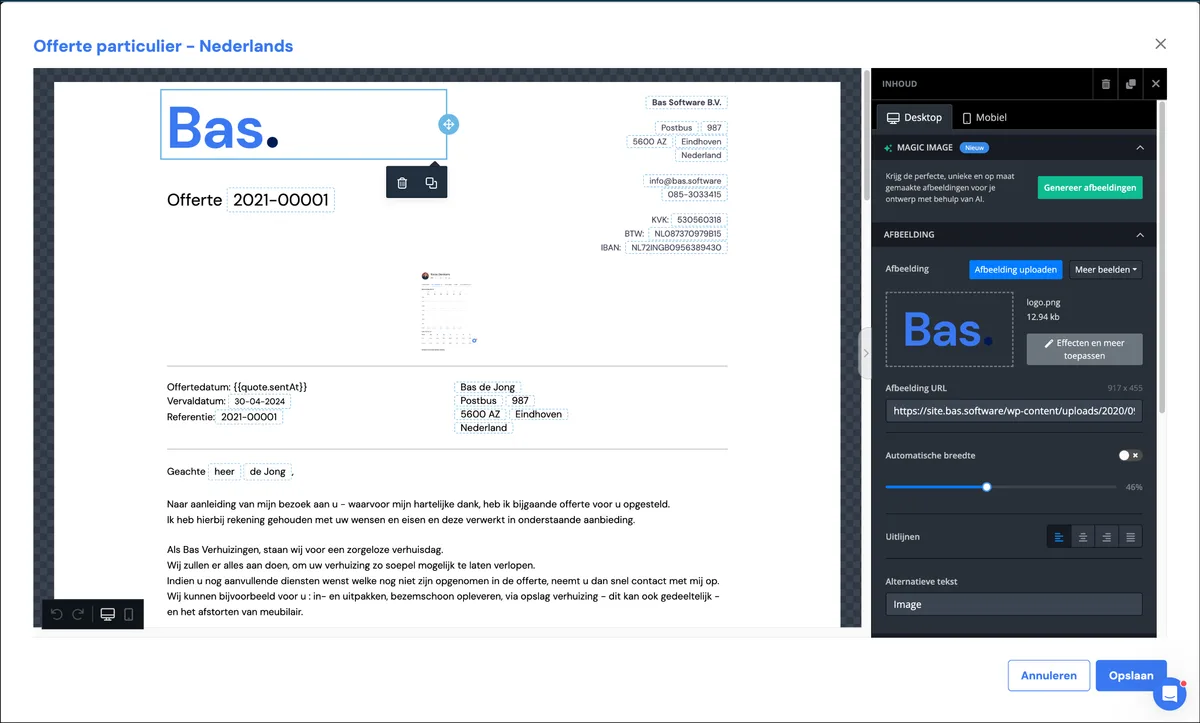
You can click on an image; the option to edit it or upload an image that replaces the existing one then appears in the editor.
Adding elements
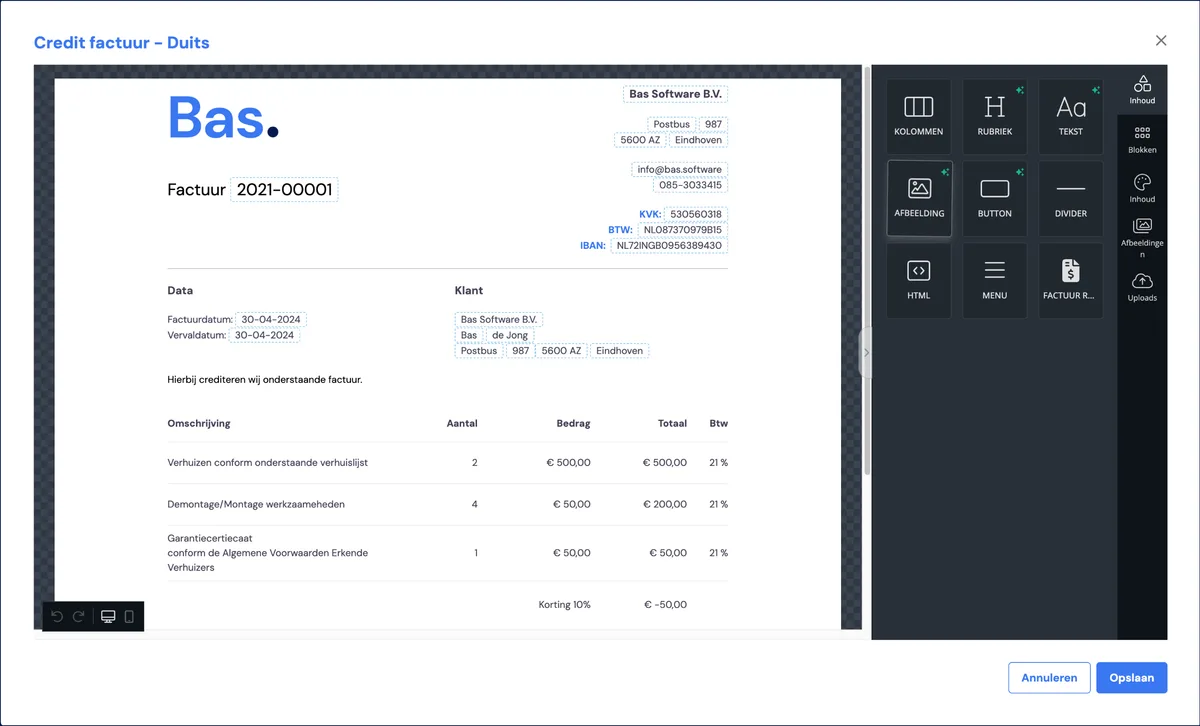
You can add elements to the template by selecting these elements from 'content' and dragging them into the template
Creating a new document template
You can create a new document template via settings > working method > document templates, and clicking new template there.
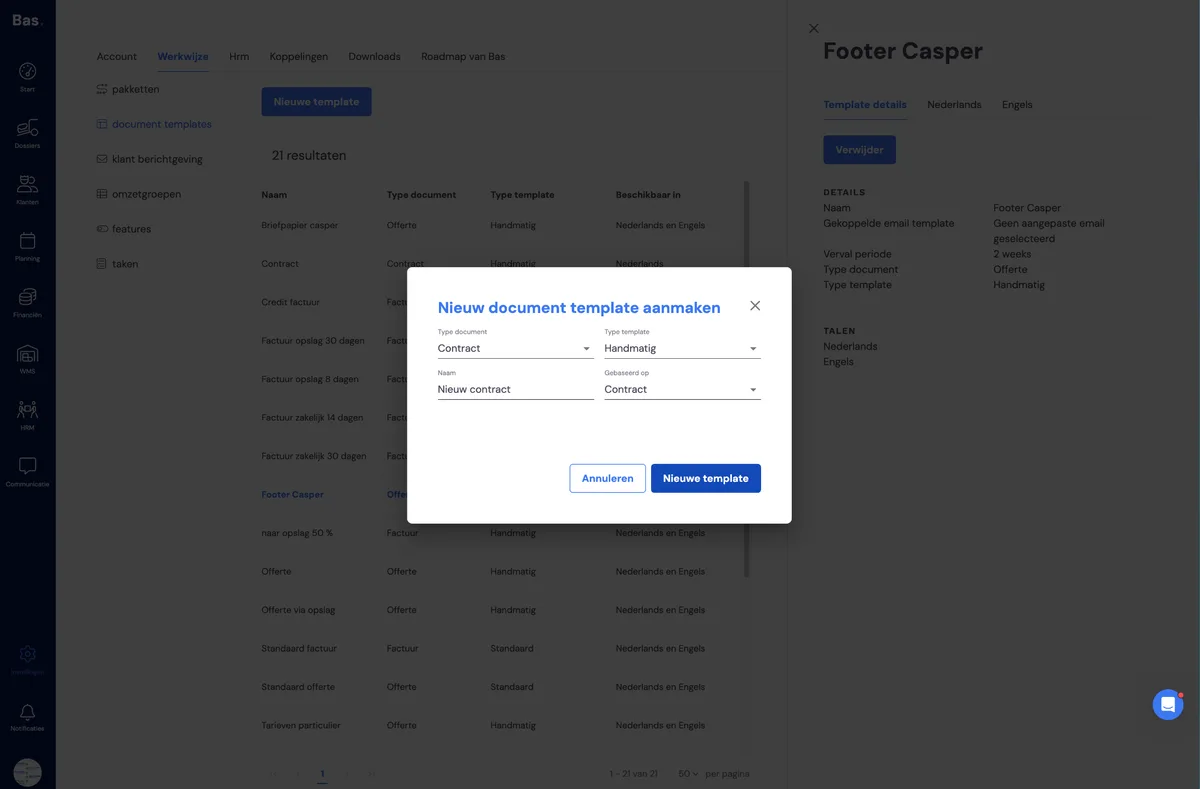
You can create new templates for the different document types (quote, invoice, contract). Choose the desired type, choose a name, and the job type it will be used for. Finally, choose the existing template on which the new template will be based.
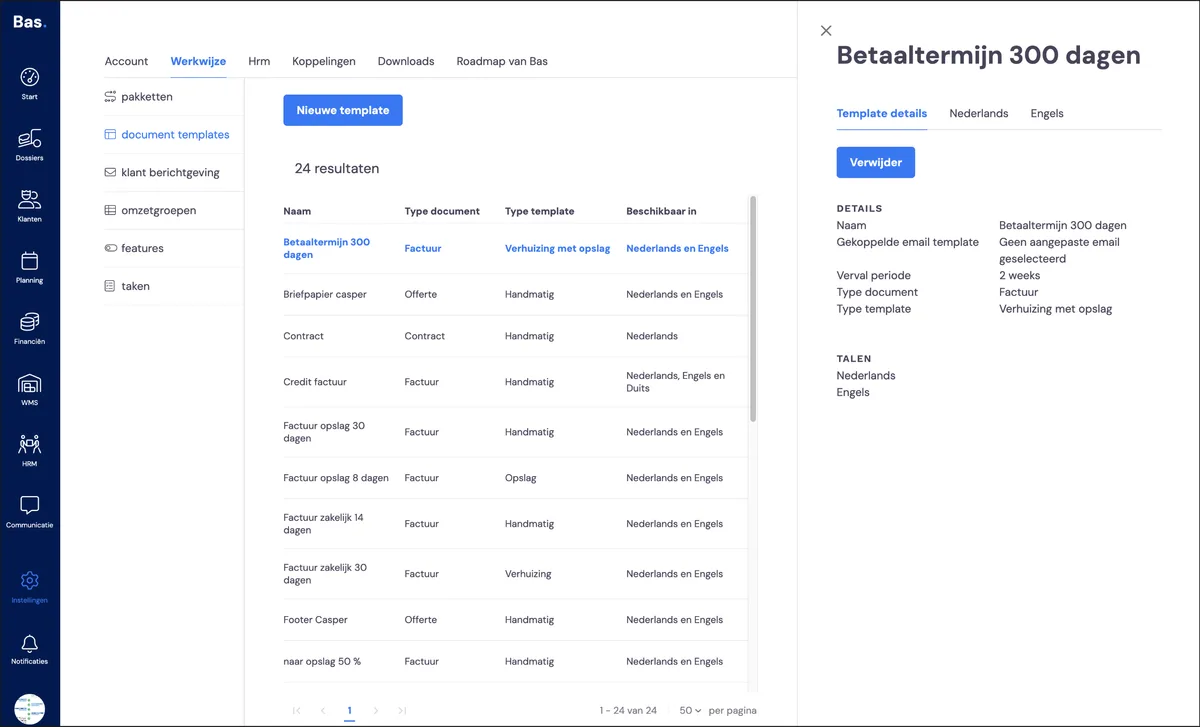
The new template is created and appears in the list of templates. After this, the template can be adjusted as desired.