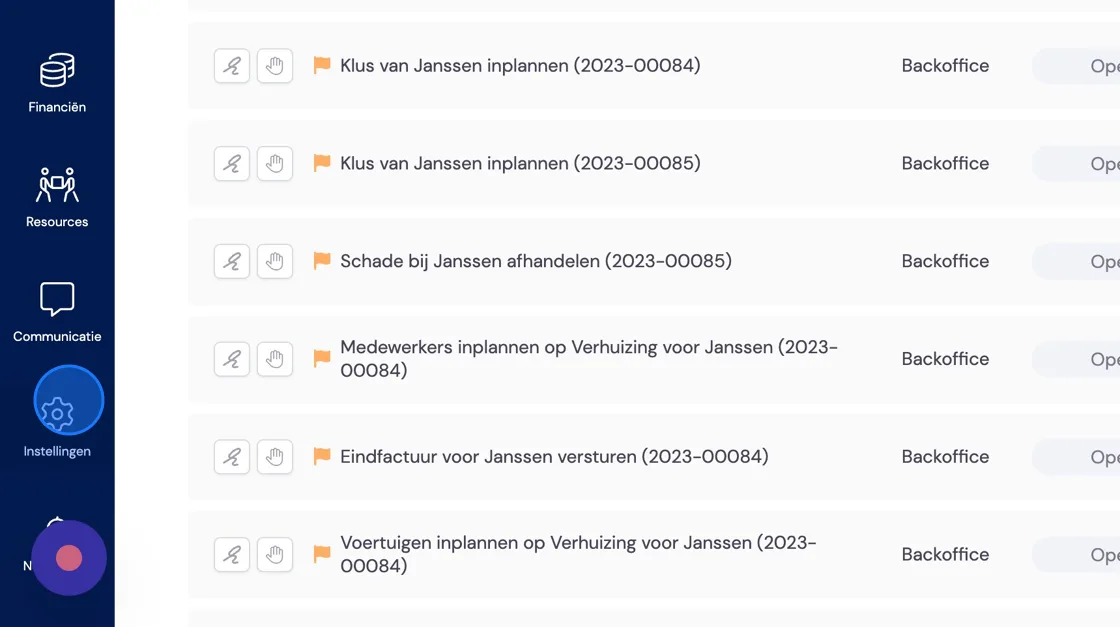
1. Creating a business package based on hourly rates works as follows: Go to "Settings".
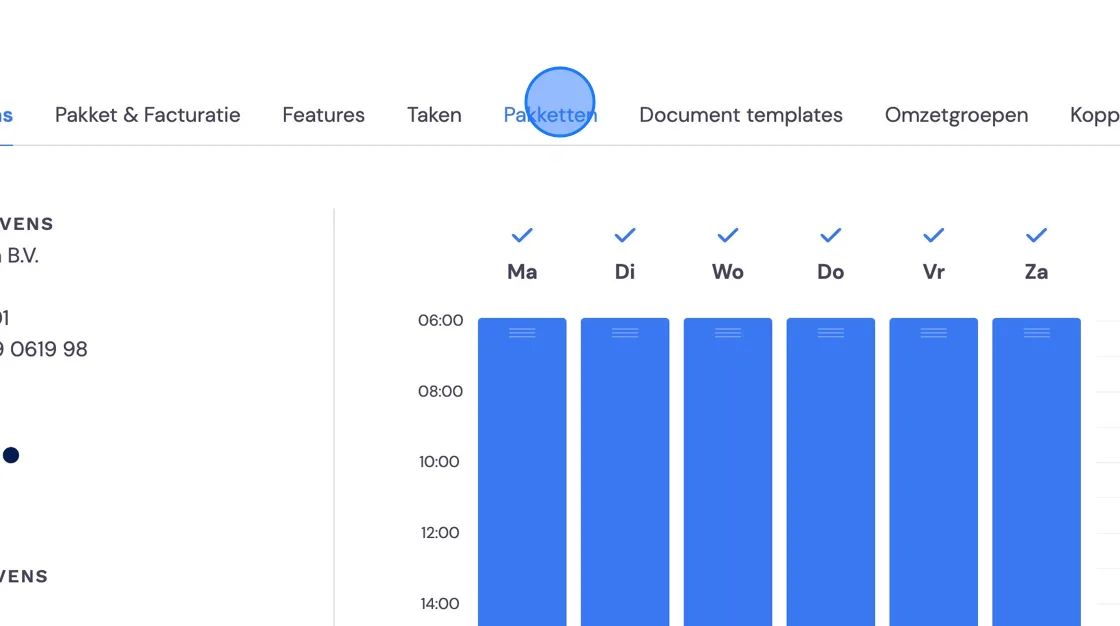
2. Click "Packages"
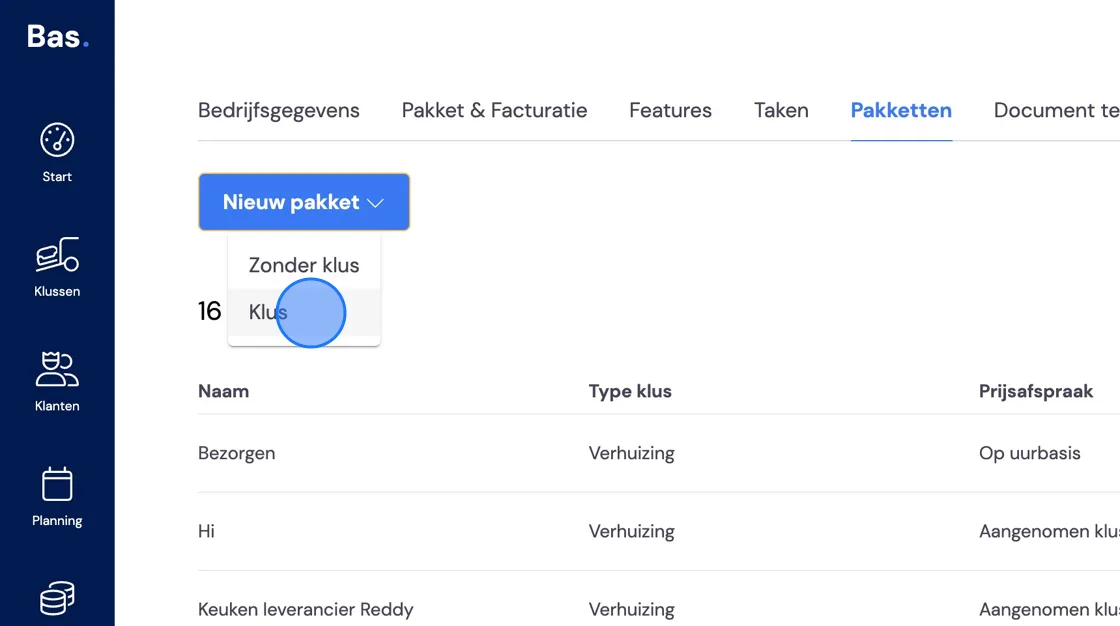
3. Here choose "Job" since work orders need to be created. For an explanation of creating a package without a job, we refer you to "Setting up a package without a job"
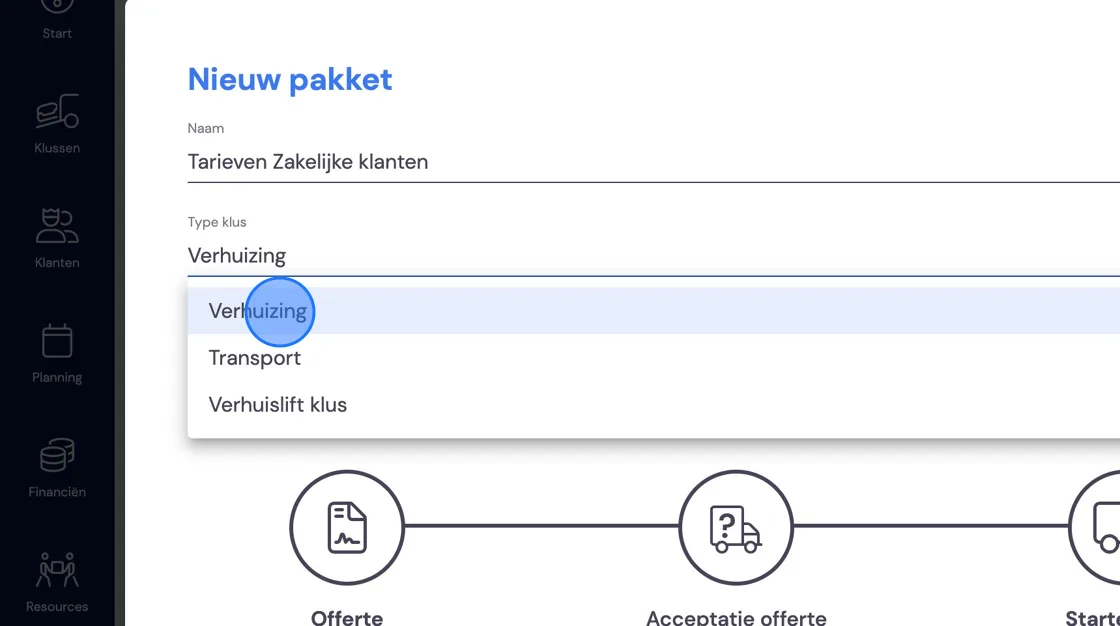
4. Give your new package a recognisable name. In this case you can give your package the name of a customer. Under "Job type" you choose "Move". "Transport" and "Furniture hoist job" are explained elsewhere.
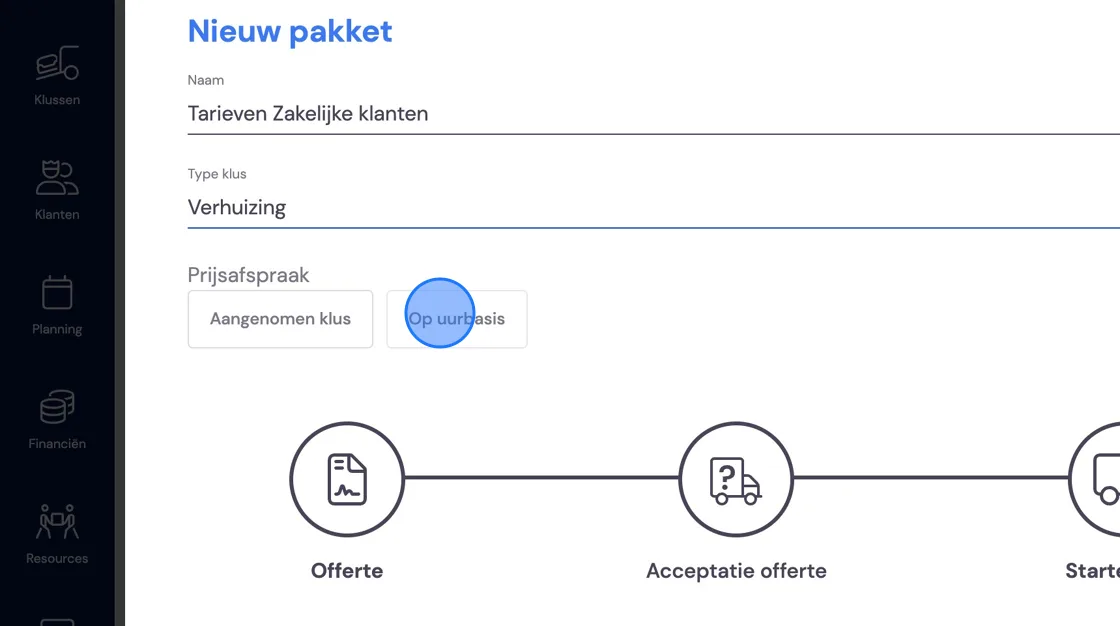
5. This time we're creating a package "On an hourly basis".
6. Do you want to use this package to hand potential business customers a price list with rates? Then choose a quote and set your rates there under fixed amounts. If you've only been given rates, then a quote isn't necessary and you set these under invoice moment. (This happens further on in this article. If you do draw up a quote, you'll still need to choose an invoice moment in order to be able to invoice the job later. You don't need to fill in rates there in that case, as happens below.)
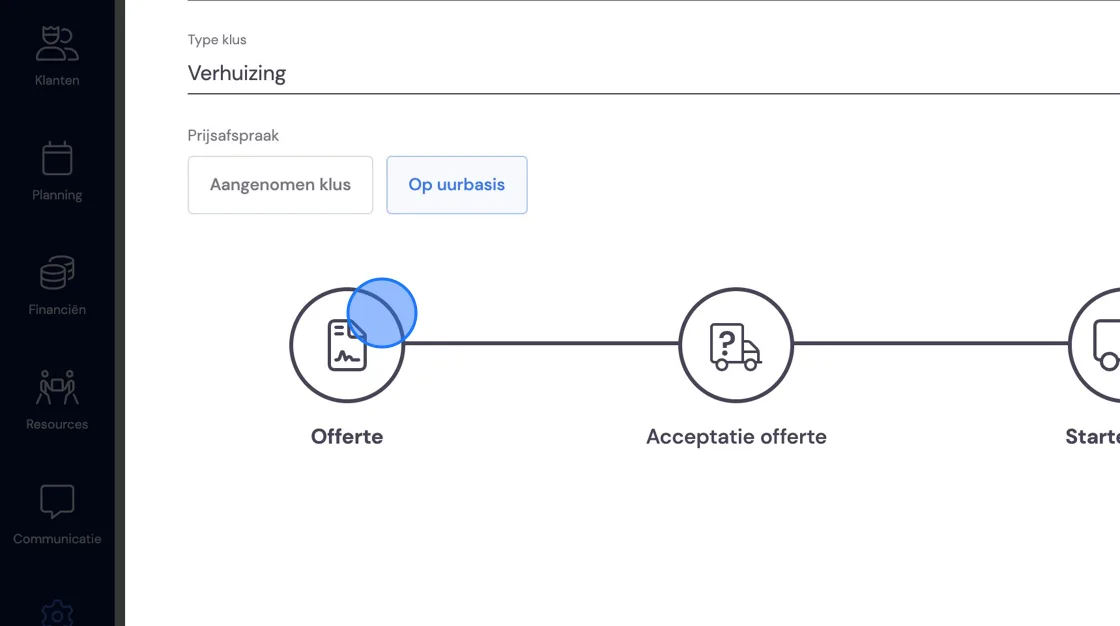
7. Now determine when the task "send invoice" is created. For business this is usually afterwards, but you can choose any moment.
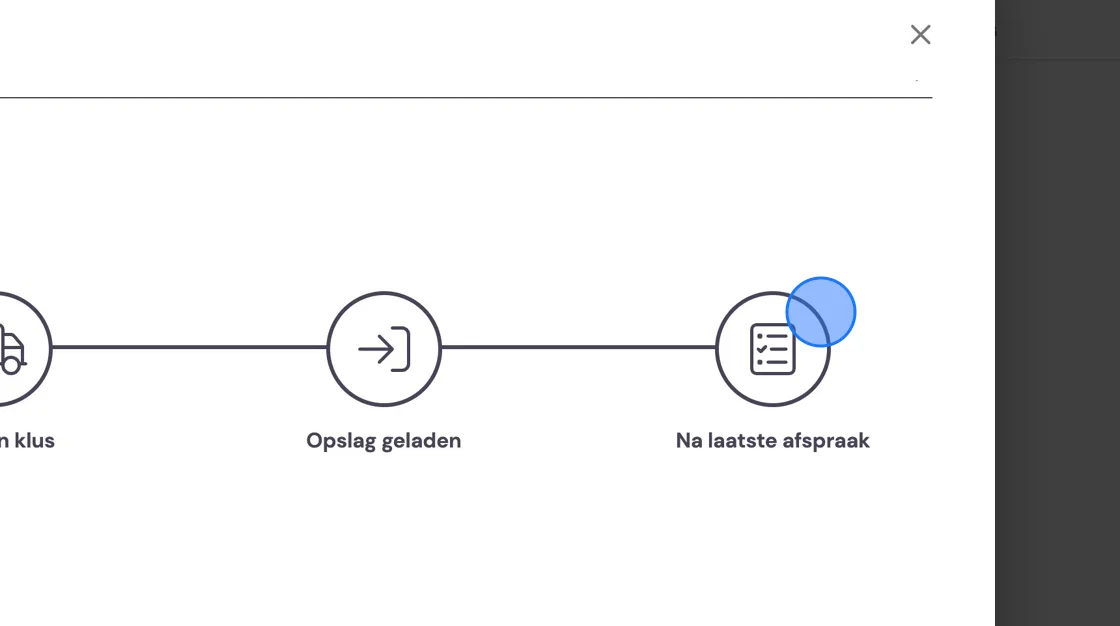
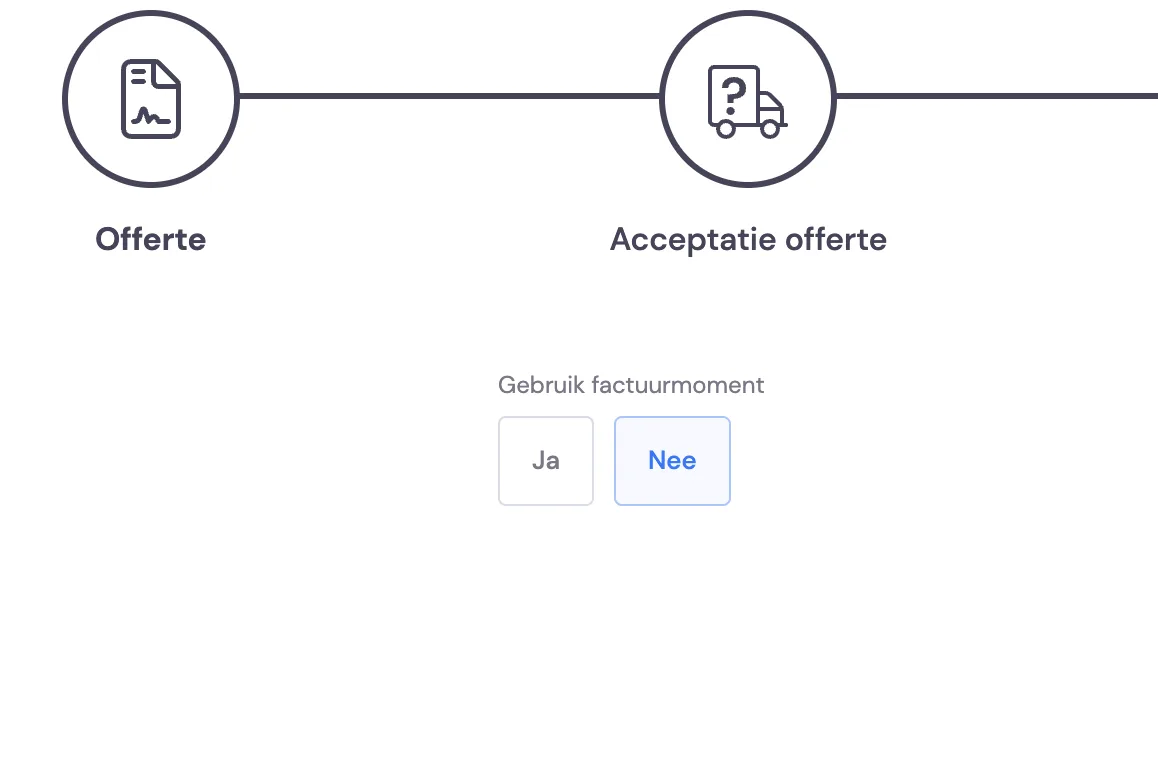
8. Say Yes at the chosen moment. After this you'll enter the rates.
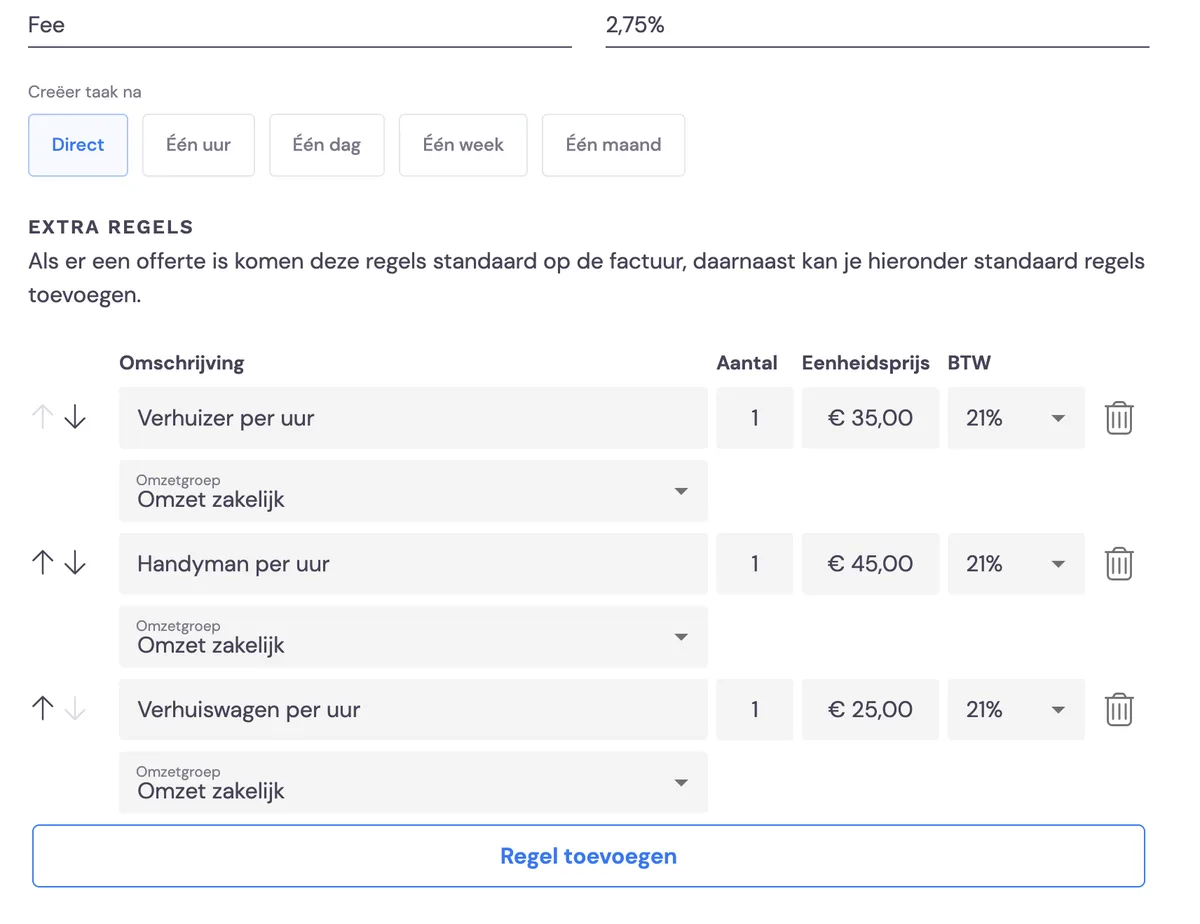
9. Set the invoice template you created beforehand here. Fill in how quickly you want the task for creating the invoice to come up. Say you obtained this customer or job via an umbrella organisation, then you can note the fee or commission you owe them under the discount line. Once you're happy, save the package by clicking "New package". But you're not done yet!
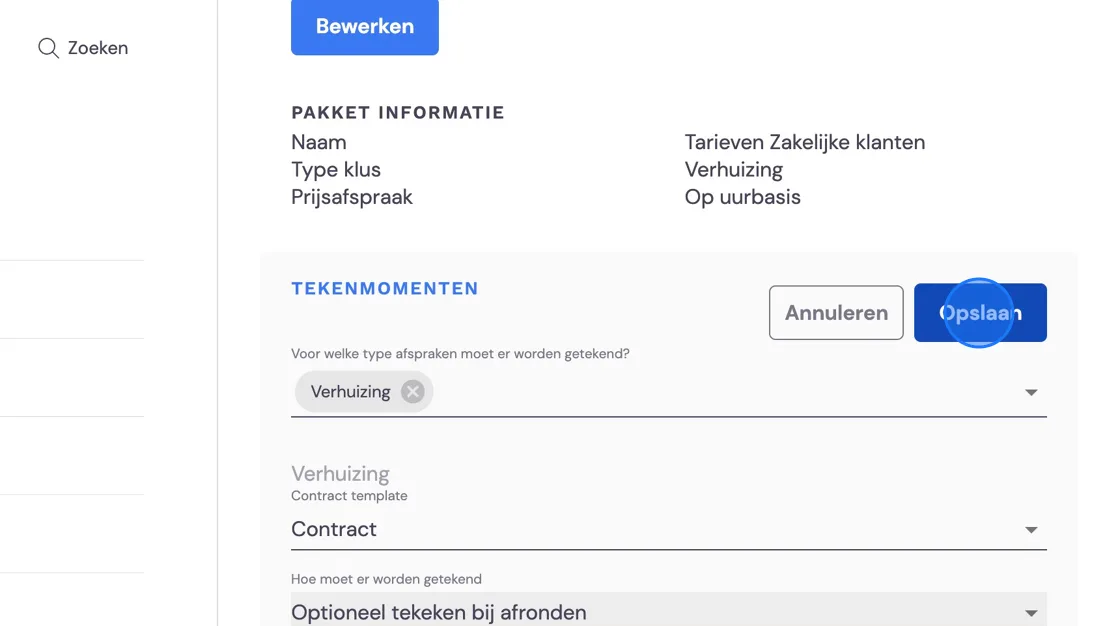
10. All that's left is whether you want the removal crew to ask for a signature at the end of the job.
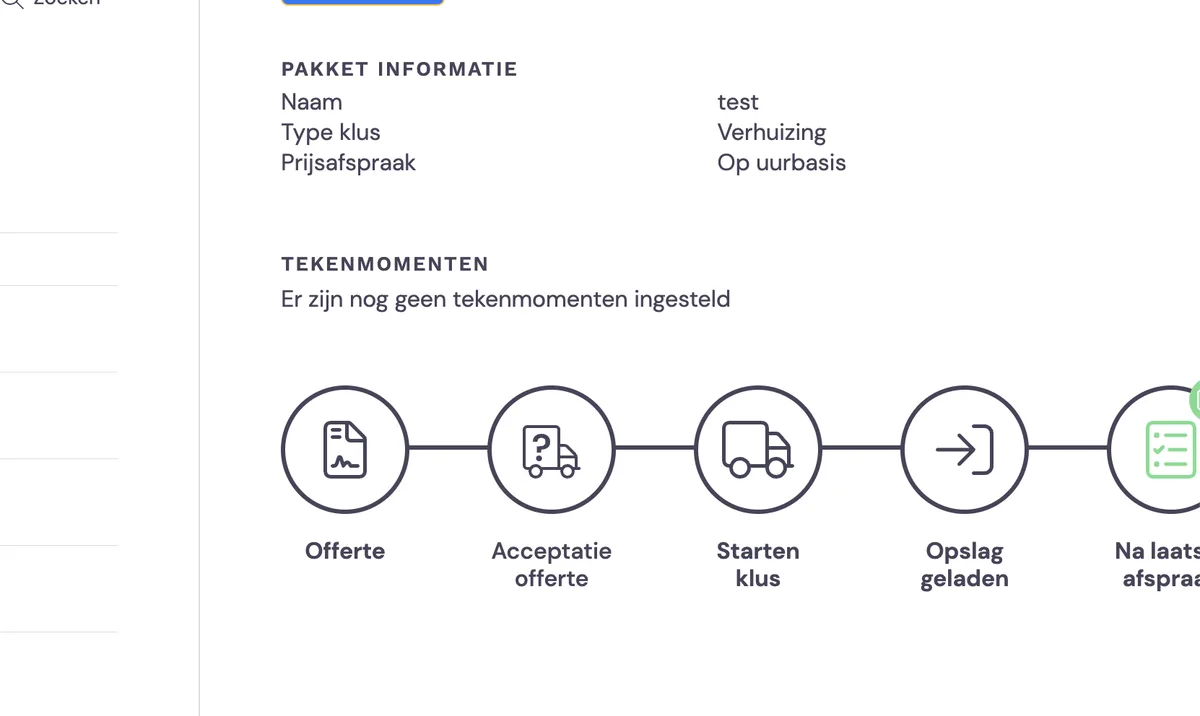
11. Just as with private moves, choose the moments here, a template as you like, and whether it's mandatory to ask for a signature or whether the foreman can proceed if there's no one there.