
In this section, you manage the vehicles you use for removals. You assign vehicles via the planning, where you can drag a vehicle onto an appointment so the foreman and the removal crew know which vehicle to use for which appointment.
Adding, editing or deleting vehicles
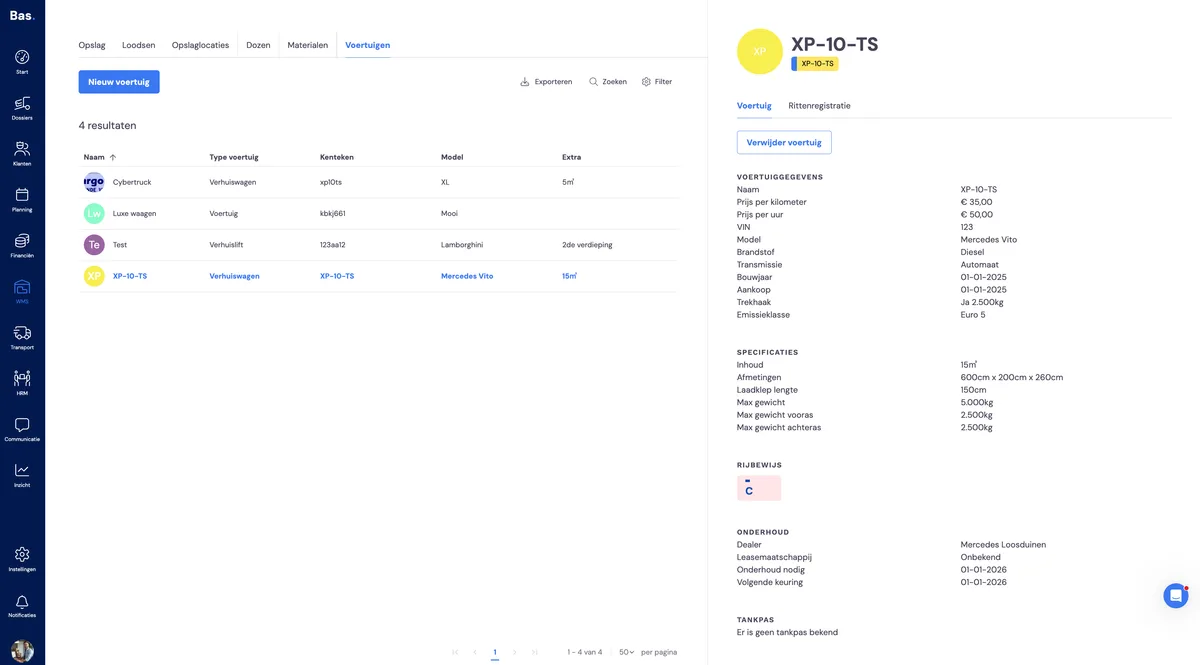
To add a new vehicle, go to the WMS and then to vehicles. Here you can add, edit or delete vehicles.
Adding a vehicle
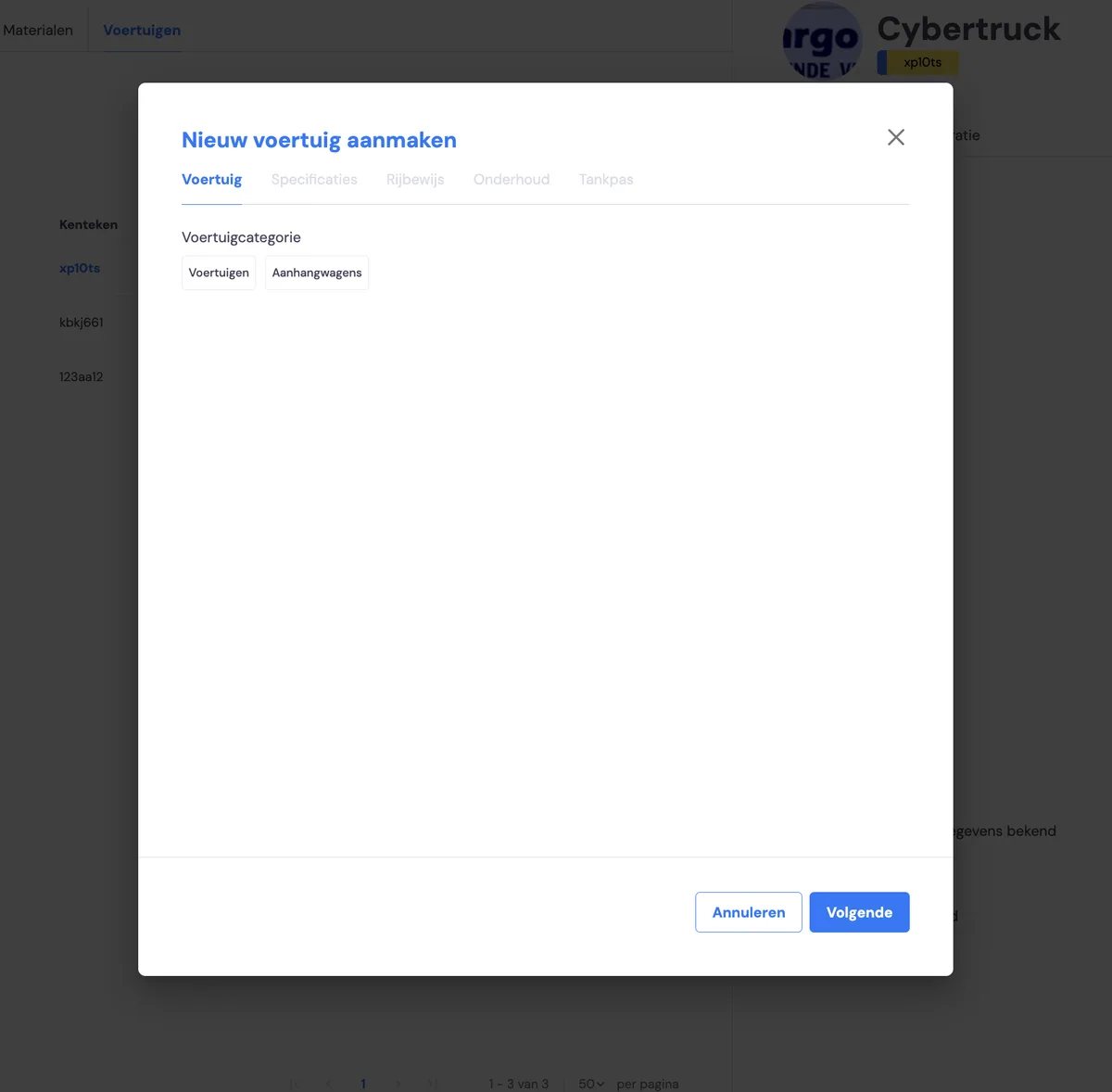
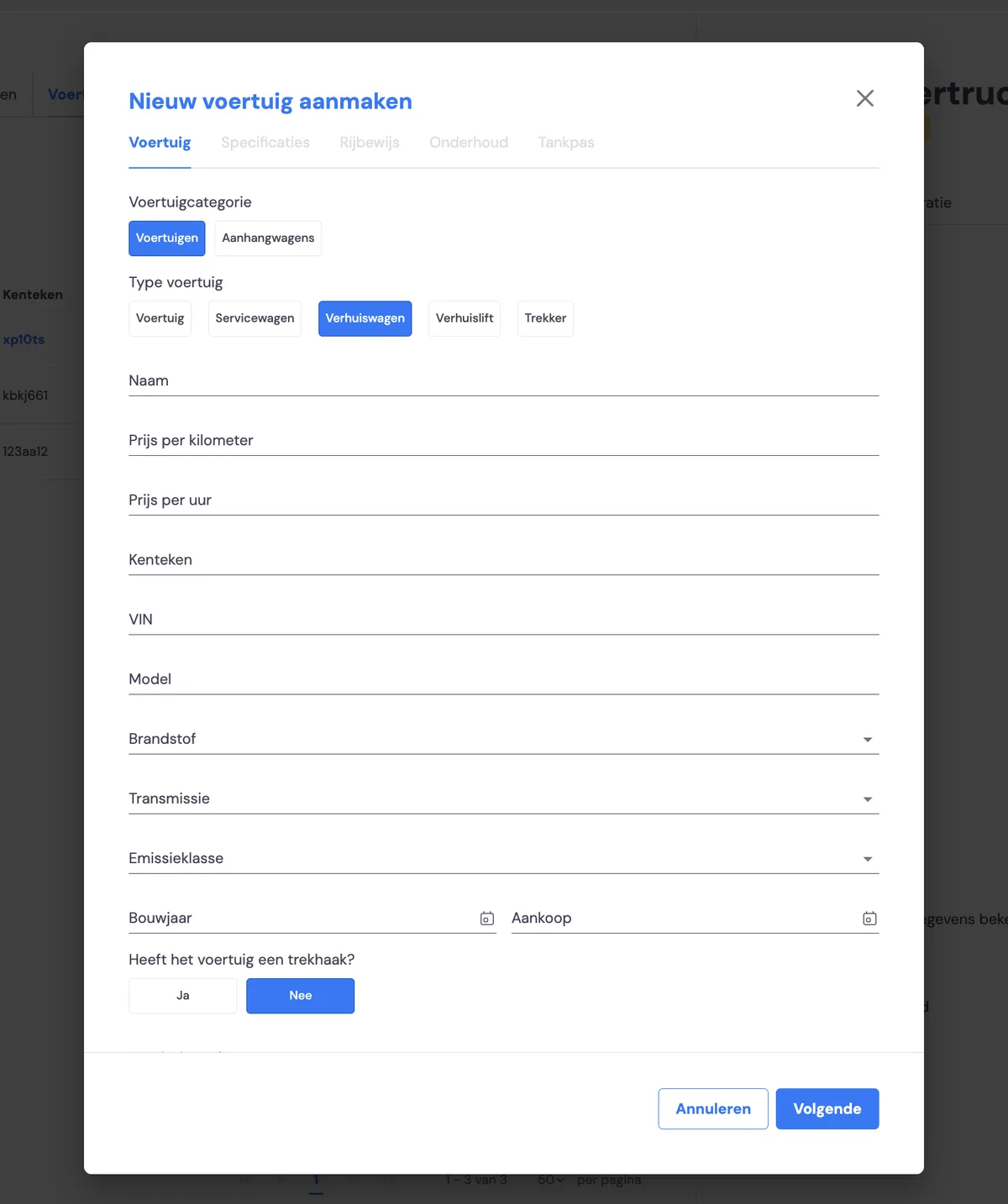
Click 'new vehicle'. Enter all the vehicle's details here. This also includes details such as costs, dimensions, the date for the next service, debit card details, etc.
Disabling a vehicle
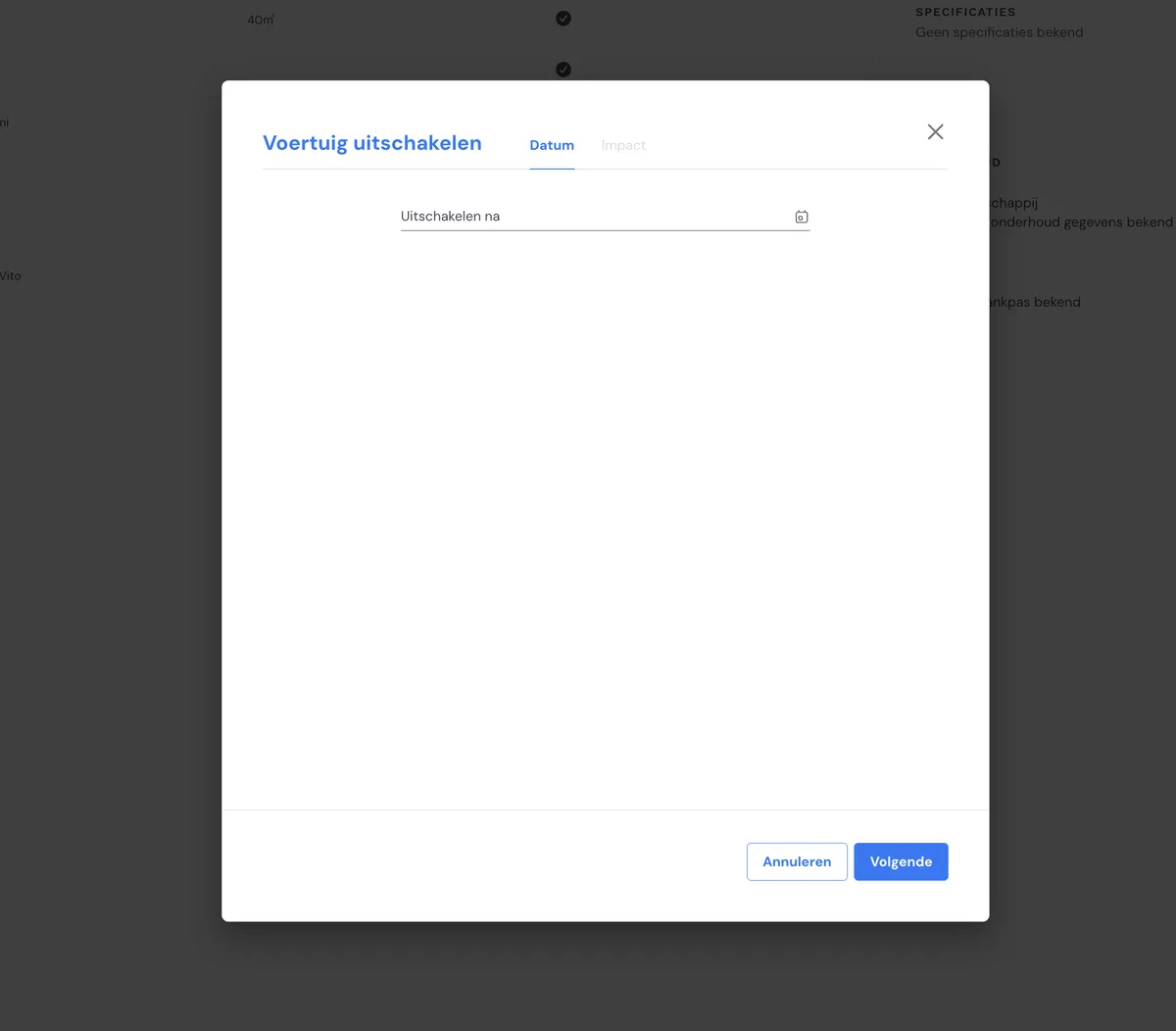
You can disable a vehicle from a specific date. This removes the vehicle from the planning, so you can keep a clear overview there.
Mileage log
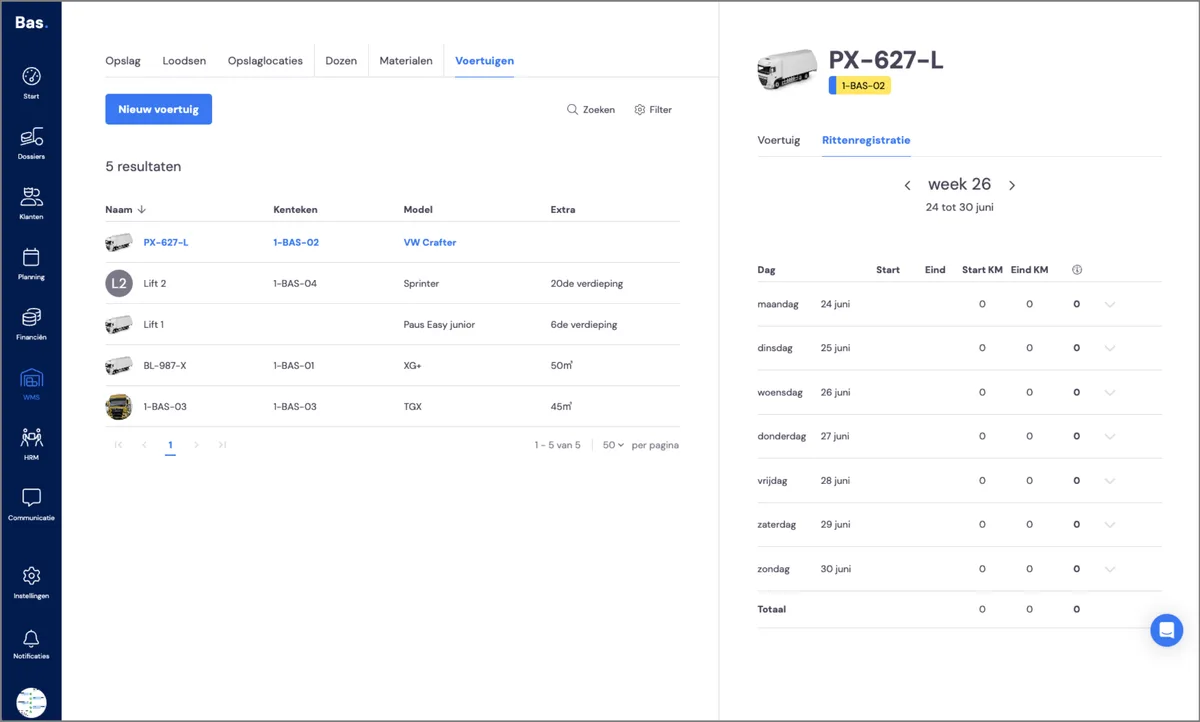
When a vehicle is assigned to an appointment, the foreman needs to record the mileage. Once this is done, it appears in the mileage log.