
In Bas, you can keep track of the stock of materials you use on your jobs. Think of furniture dollies, roll containers, computer crates, etc. Depending on how careful the removal crew are, you can even see exactly which customers still have materials left with them or whether they are in storage.
Managing materials
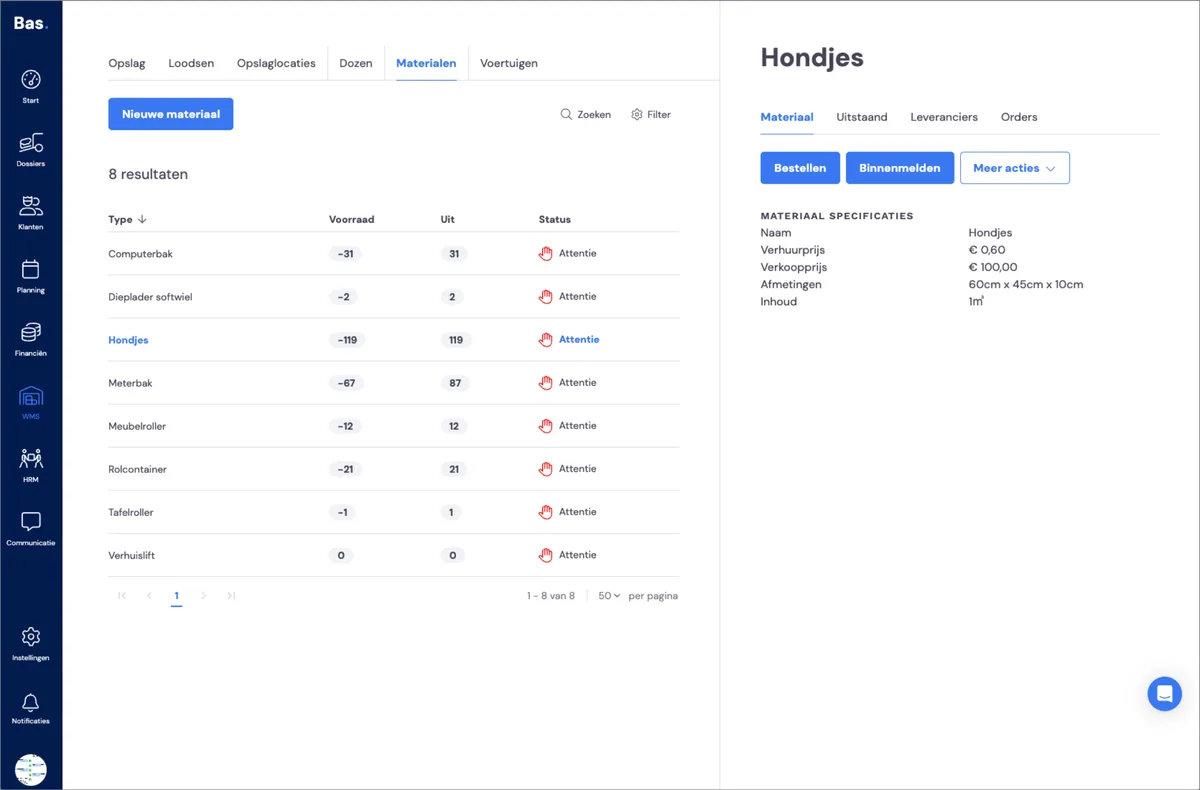
Go to WMS and then to Materials. Here you'll find an overview of all material types, how much stock there is of each material type, how many are out with customers, how many are used in storage, and what the status is.
Adding a new material type
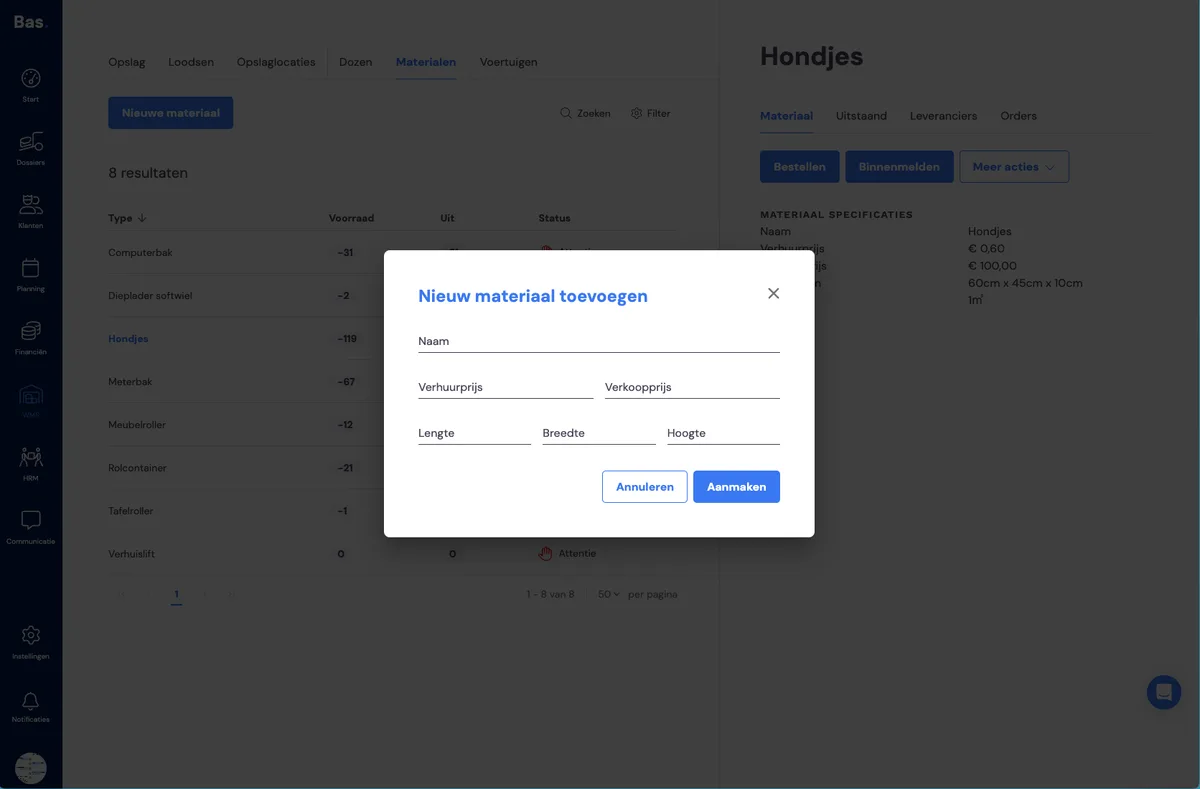
To add a new material type, go to WMS and then to materials. Then use the 'New material type' button.
Material supplier
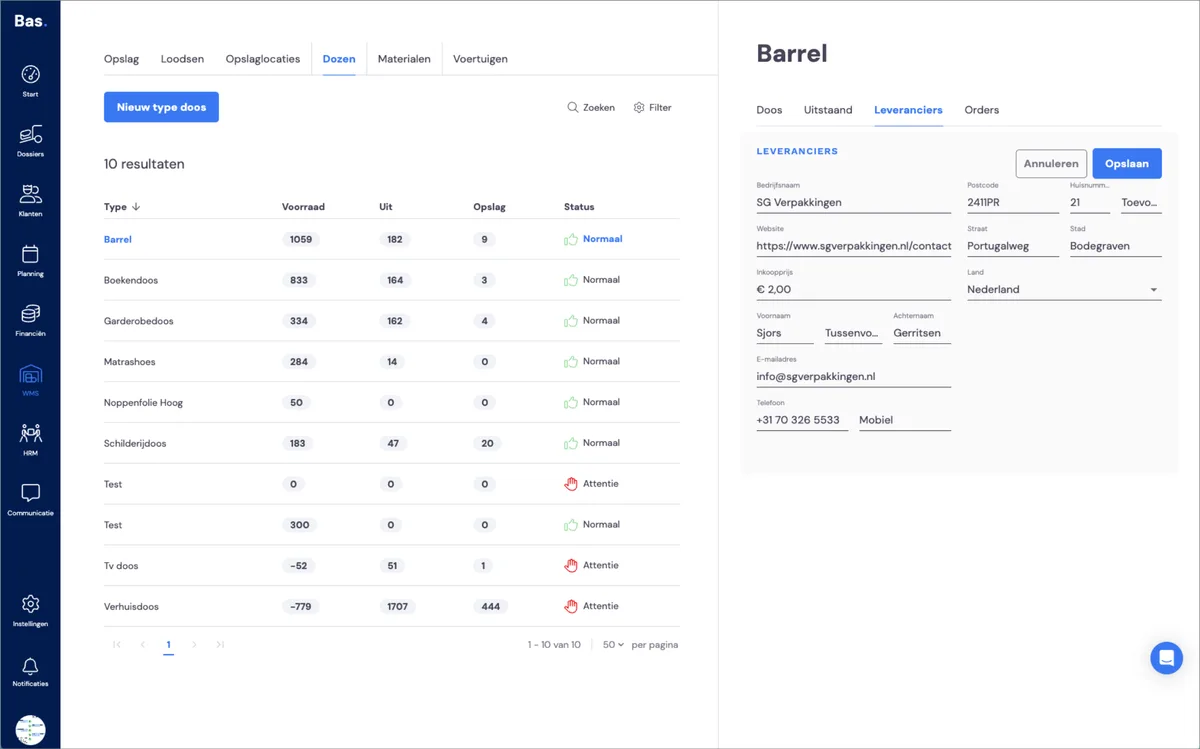
First add a supplier so you can manage the stock of the new material type. Click the 'Suppliers' tab on the right-hand side of the manage materials screen.
Placing a material order
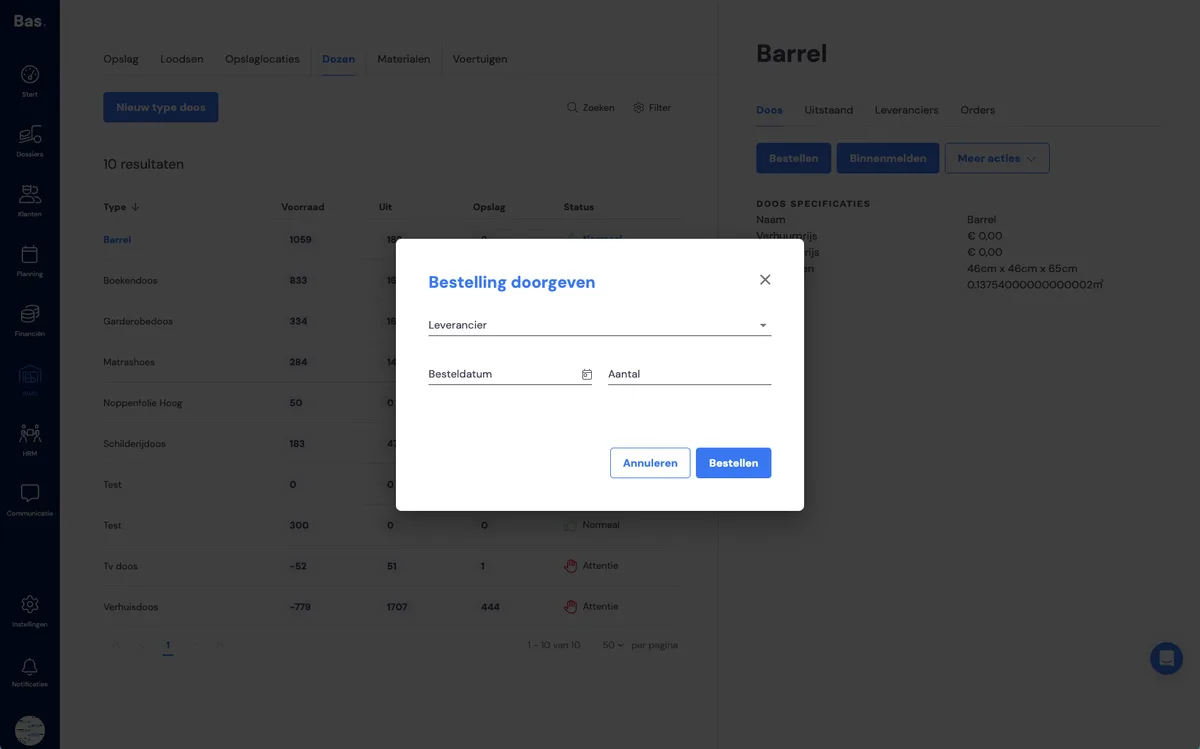
In Bas, you can record whether materials are on order. Please note: this is purely for record-keeping in Bas, you do not place an order with the supplier here! However, you can report the order as received in Bas, so the stock is up to date again.
Reporting an order as received
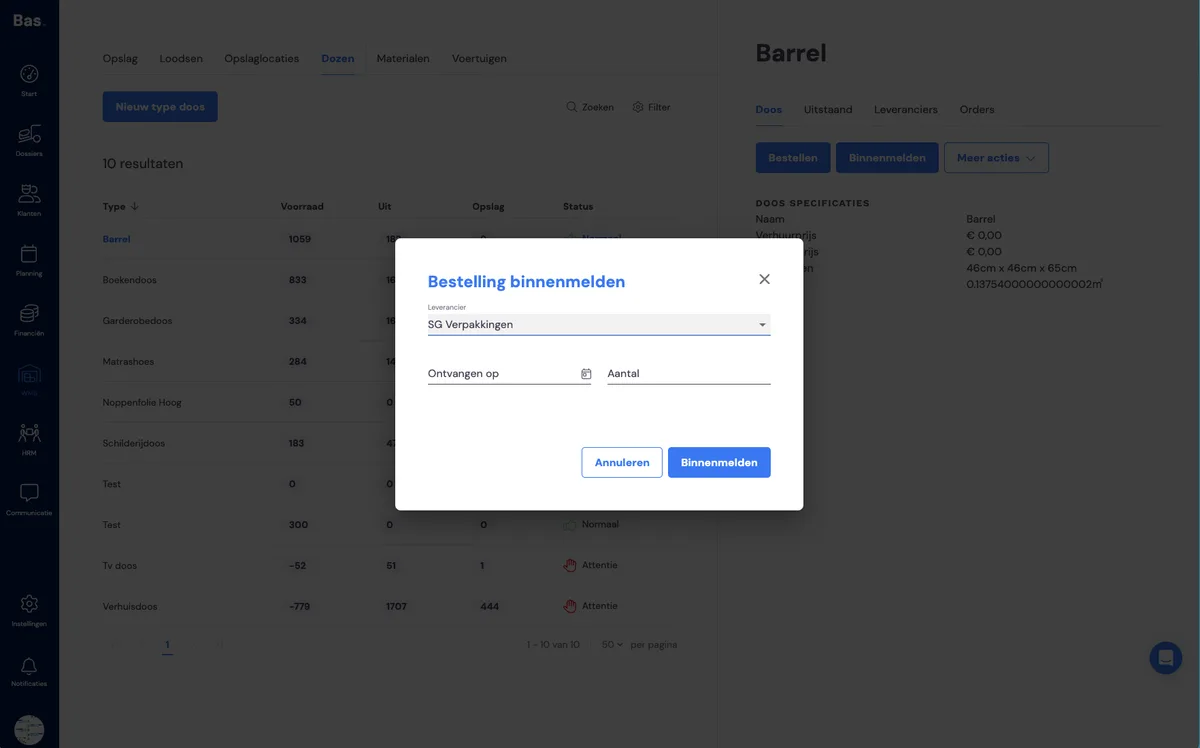
Once you've saved the supplier, you can report the order as received. For a new material type, that's immediately the first stock.
Registering materials as disposed of, sold, hired out and returned
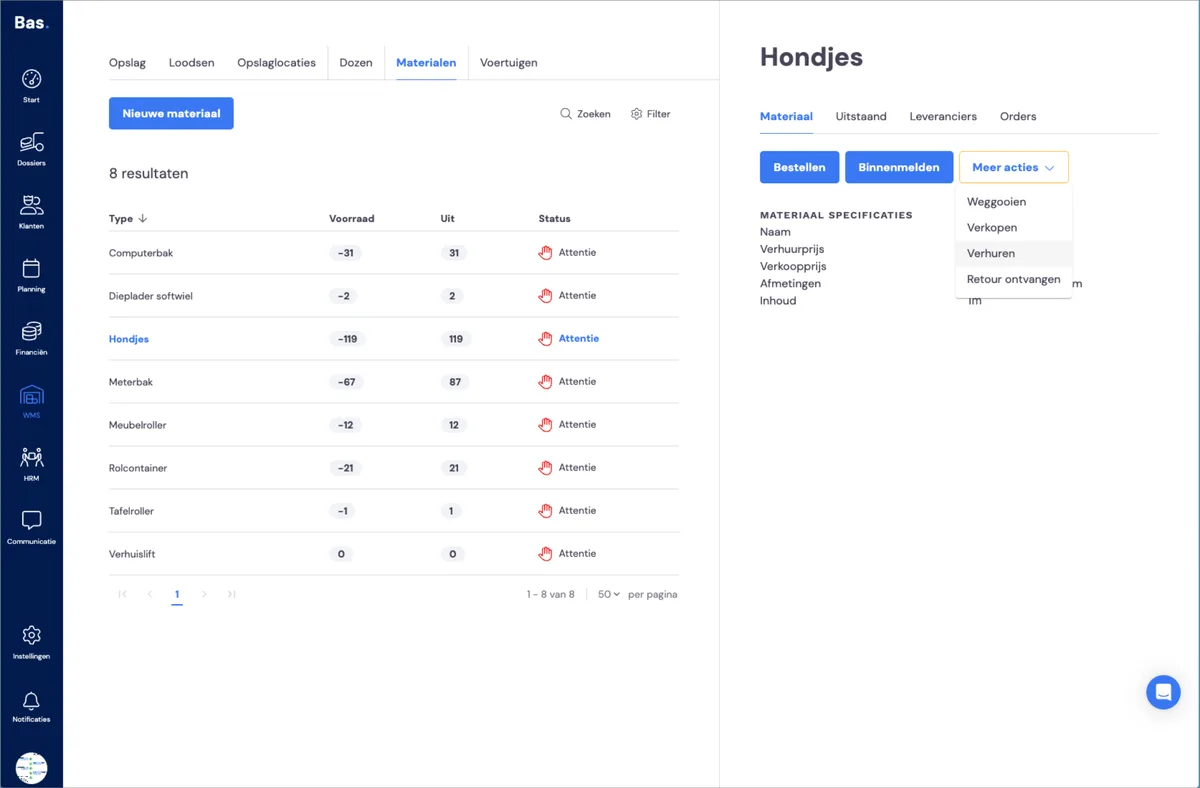
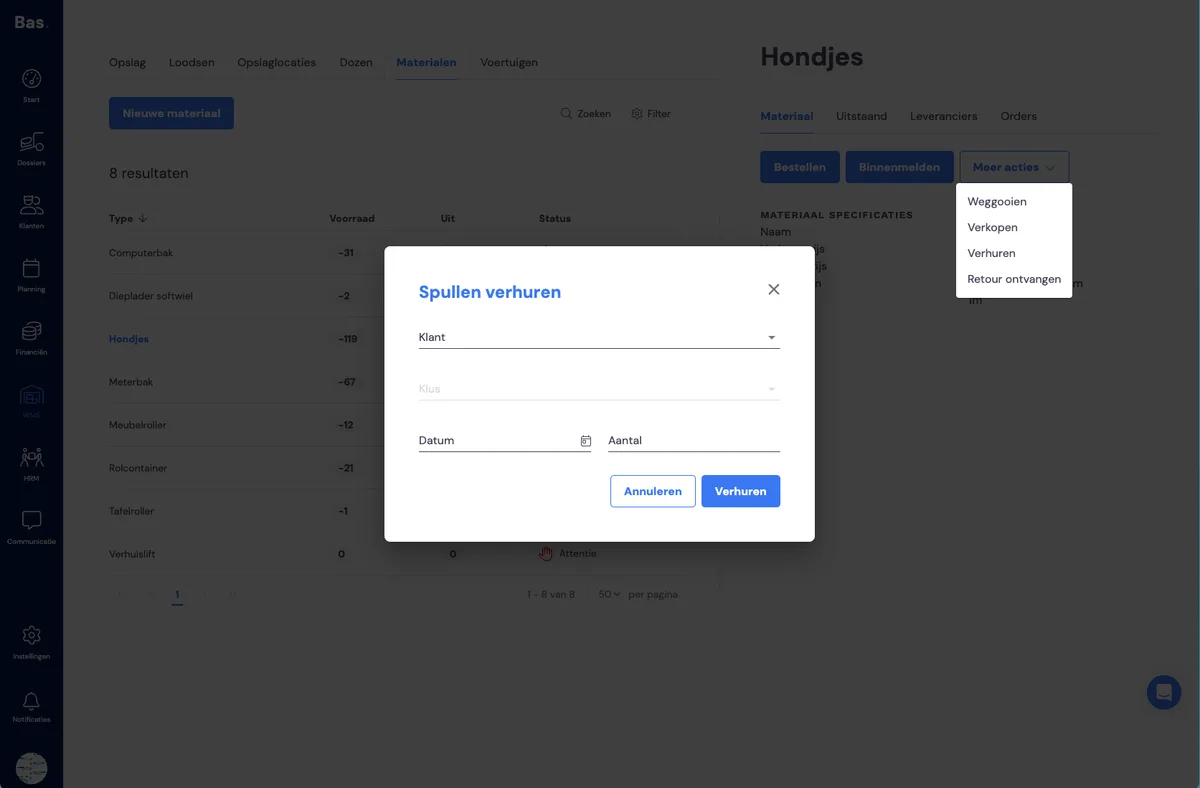
You may have changes in your material stock because you've had to dispose of materials (because they were worn out), because you sell materials, hire out materials, or receive returns at some point. You can easily do this via WMS > materials and then the options under the 'more actions' button.
Viewing material usage and status
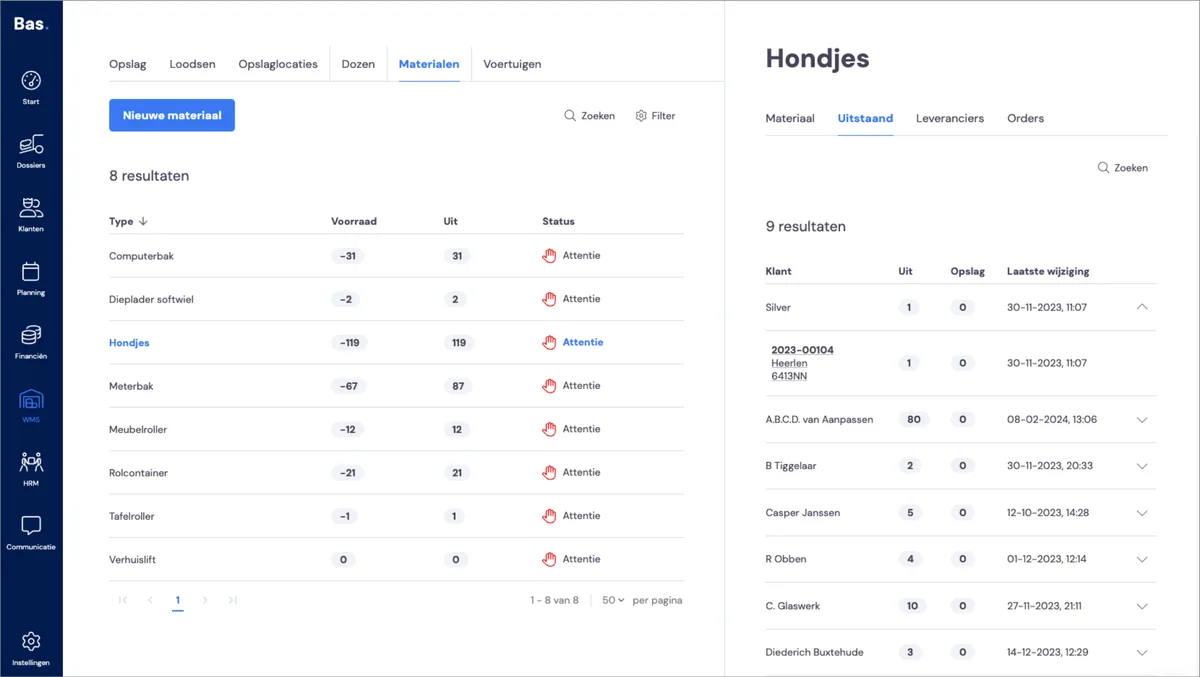
Under Materials, you can see under 'outstanding' which materials are out with customers.
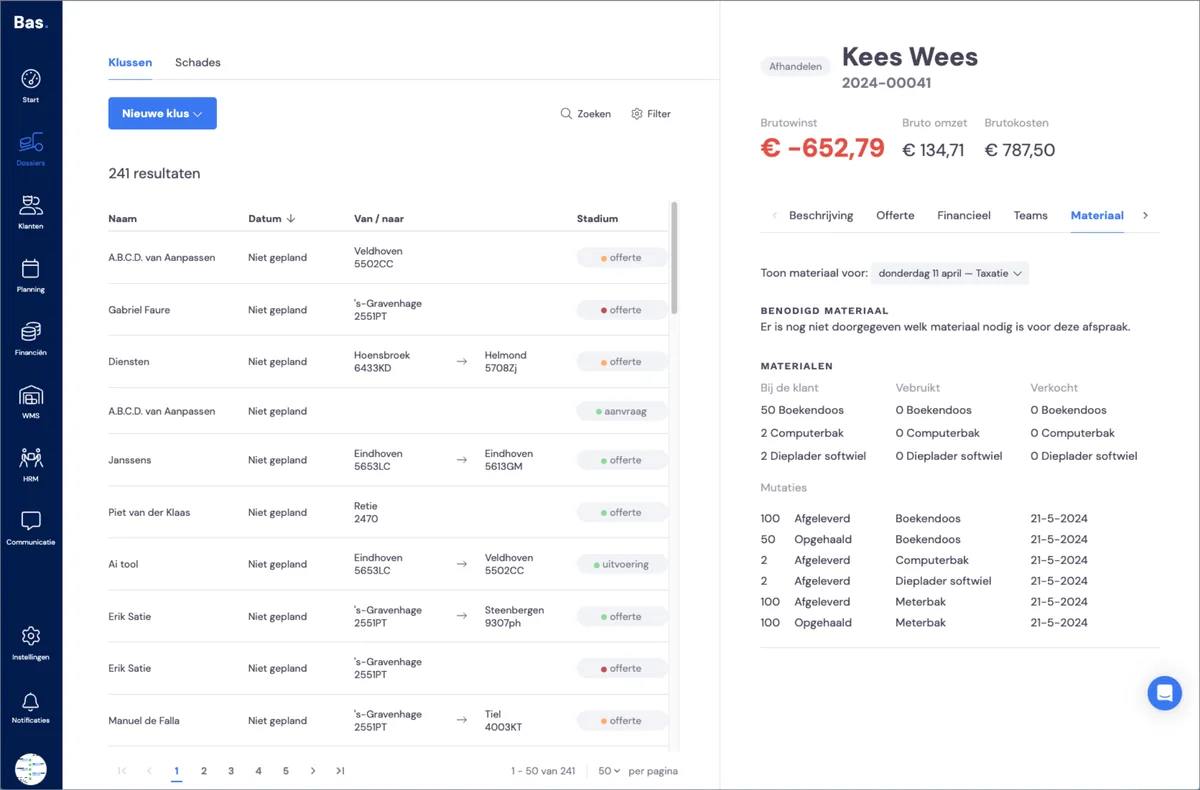
The materials you use on jobs are also registered there. You can see these changes under Case file > Material.