
About recurring appointments
With recurring appointments, you can schedule work of a recurring nature more quickly. Think of internal moves for a business customer where you deploy the same employees several days a week over a longer period.
With a recurring appointment, you can
schedule appointments of any type
based on fixed days and times per week
to which you can link employees and vehicles
A recurring appointment in combination with a job
If you want to use a recurring appointment for a job where you invoice periodically, we recommend creating a job per period and having the recurring appointments take place within that period.
A recurring appointment without a job (and without invoicing)
If you have a recurring appointment without a job, you can add it directly from the planning. Here, we recommend not choosing overly long periods, to keep things clear.
Creating a recurring appointment
Add a new appointment as you normally would. When creating it, choose 'Recurring appointment'.
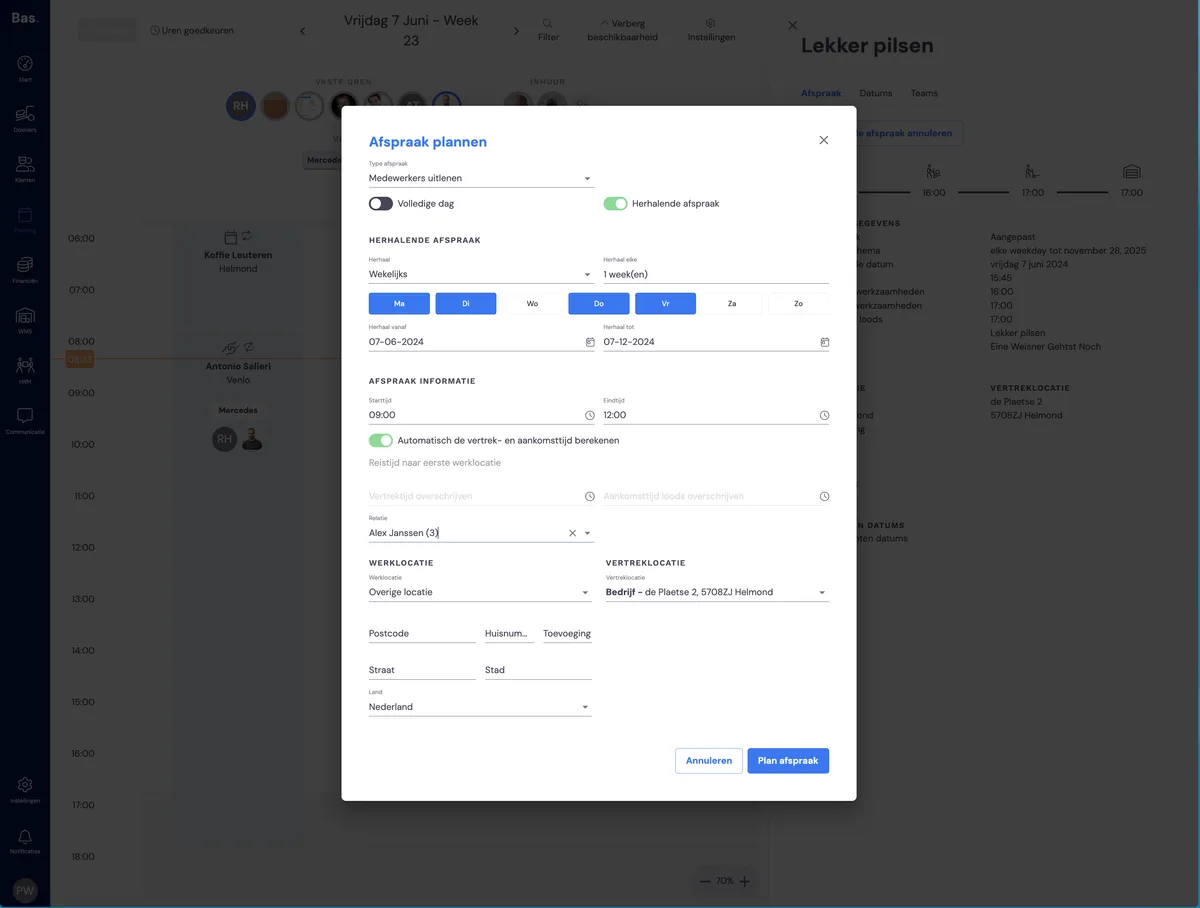
Then choose on which days you want the appointment to repeat. Enter the remaining details and choose 'Schedule appointment'. The recurring appointment has now been created.
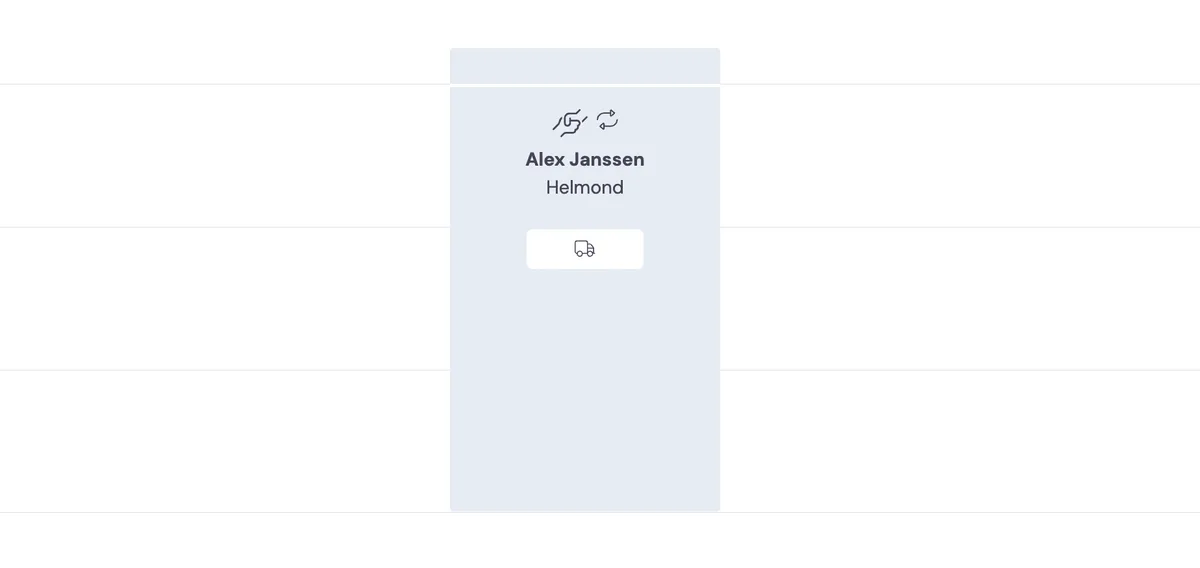
You can recognise the recurring appointment by the icon with the arrows to the right of the appointment type icon.
Adding employees and vehicles to the recurring appointment
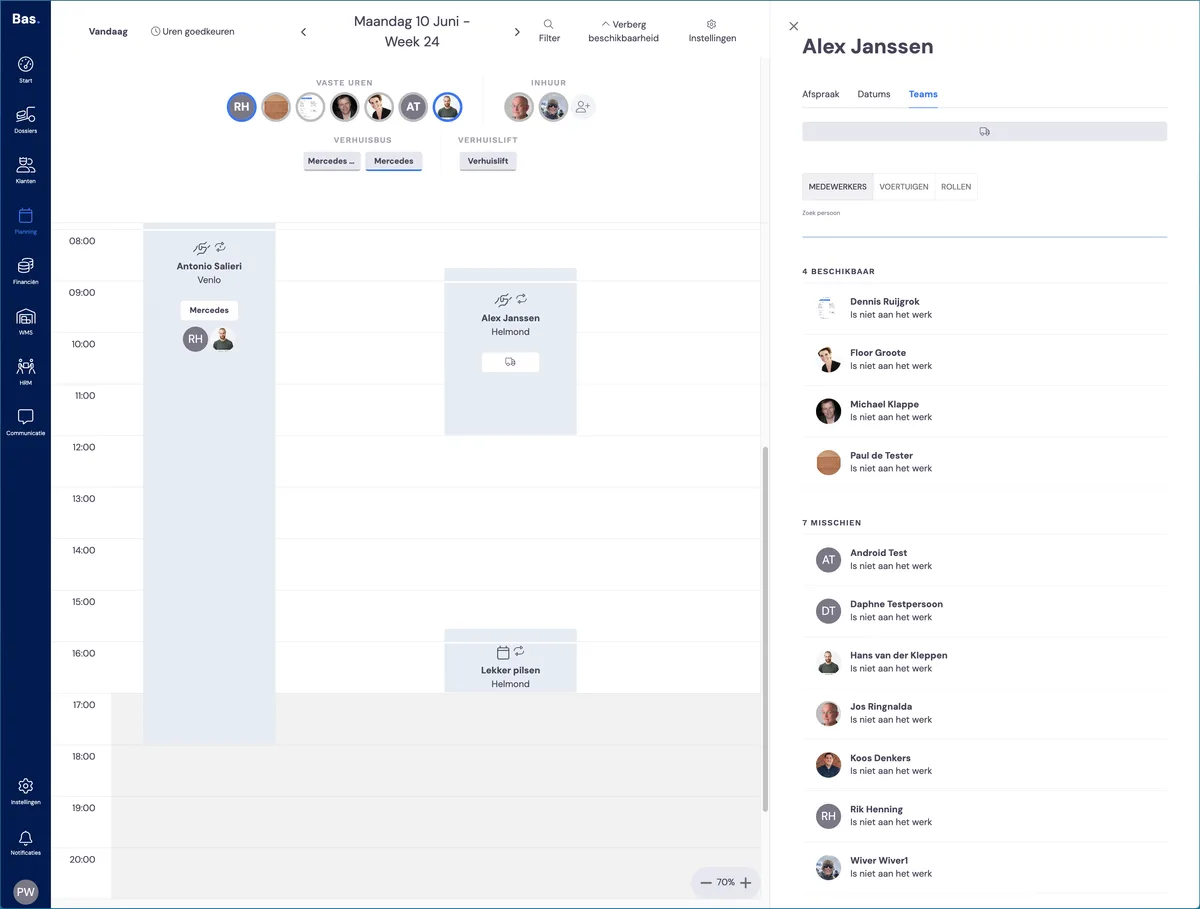
You can add employees and vehicles to the entire series of appointments at once. You can do this by double-clicking on the appointment and then dragging employees and vehicles onto the appointment via Teams.
Recurring appointments and leave, sickness, employment end dates and availability
An employee may be on leave, off sick, no longer employed or unavailable for one or more of the created appointments.
You will then automatically receive the task 'employee is scheduled, but not present'.
If it concerns a single case, such as an employee who has called in sick, you can go to the individual appointment and place another employee on the appointment there.
If it concerns a longer period, you can do this on the original appointment. You then place another employee on the appointment and indicate that you want to apply this in the future as well.
Editing a recurring appointment without a job
You can click on any appointment in the series to edit the appointment and to adjust the recurrence pattern
Completing or cancelling an individual appointment
After double-clicking on the appointment, you can complete or cancel the appointment on the right-hand side.
Adjusting the recurrence series
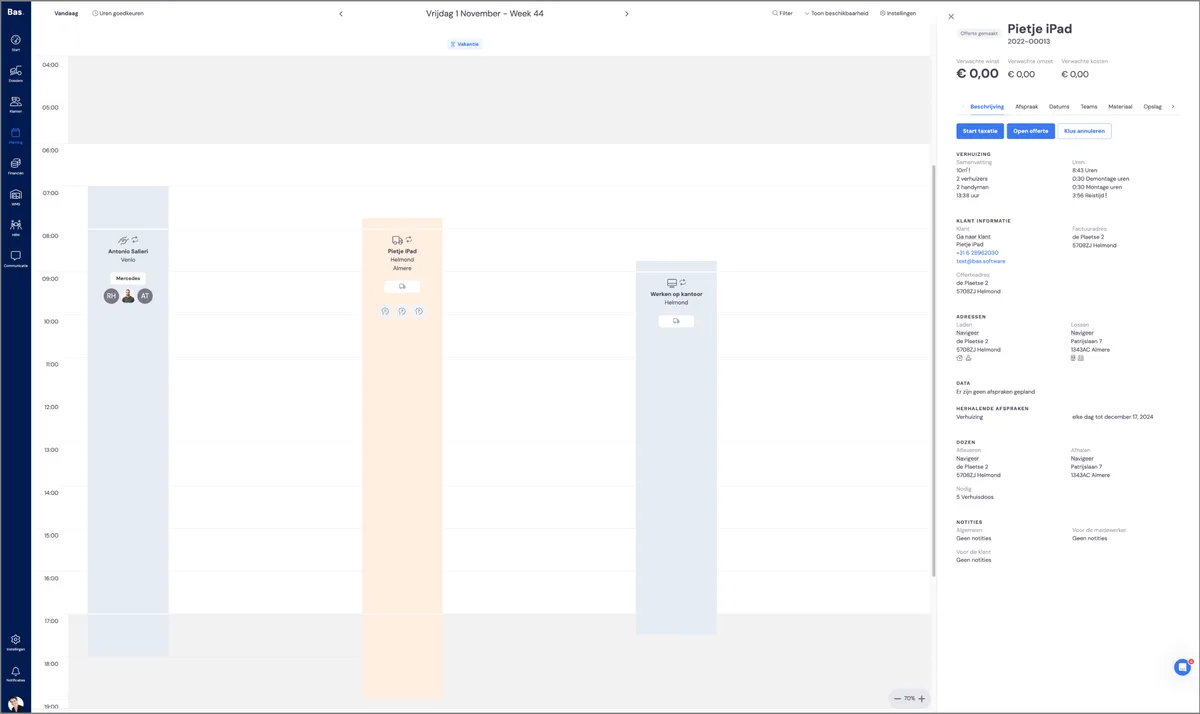
Via the second tab, you can adjust the recurrence pattern; move the cursor over the appointment details and click 'edit'
Editing individual appointments
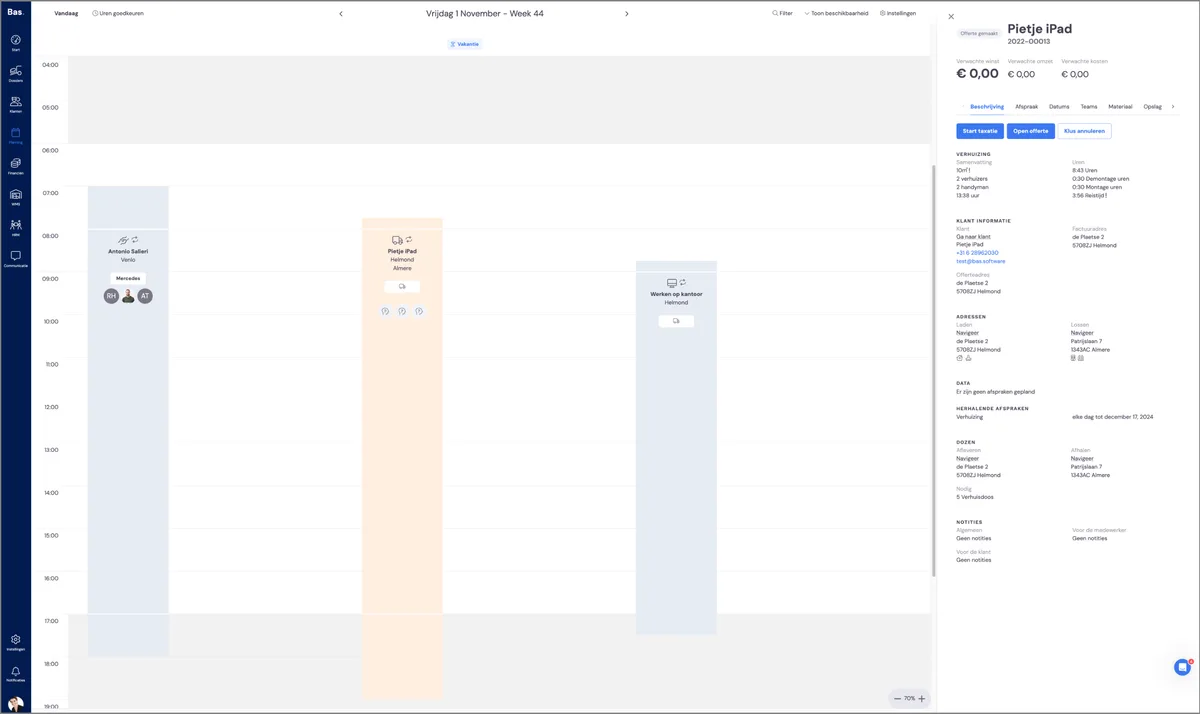
On the third tab, 'Other dates', you'll see all appointments in a list. Click the pencil icon of the appointment to edit the details.
Editing a recurring appointment with a job
You can click on any appointment in the series to edit the appointment and to adjust the recurrence pattern
Completing or cancelling an individual appointment
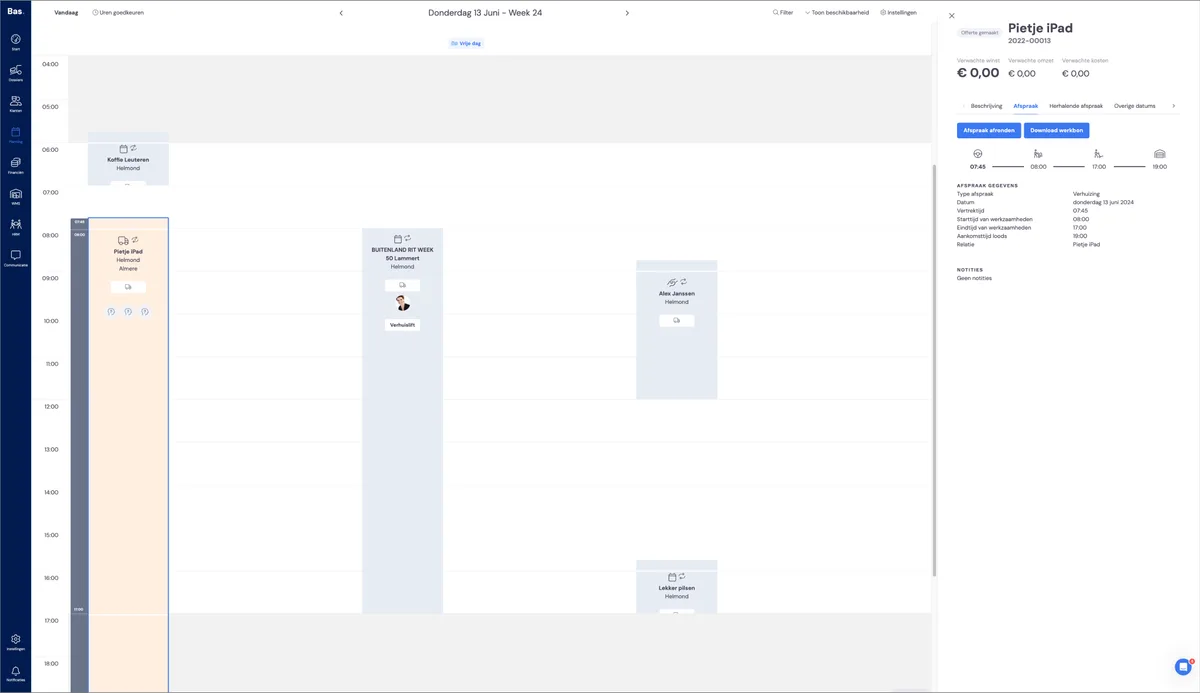
After double-clicking on the appointment, you can complete or cancel the specific appointment on the right-hand side via the 'Appointment' tab.
Adjusting the recurrence series
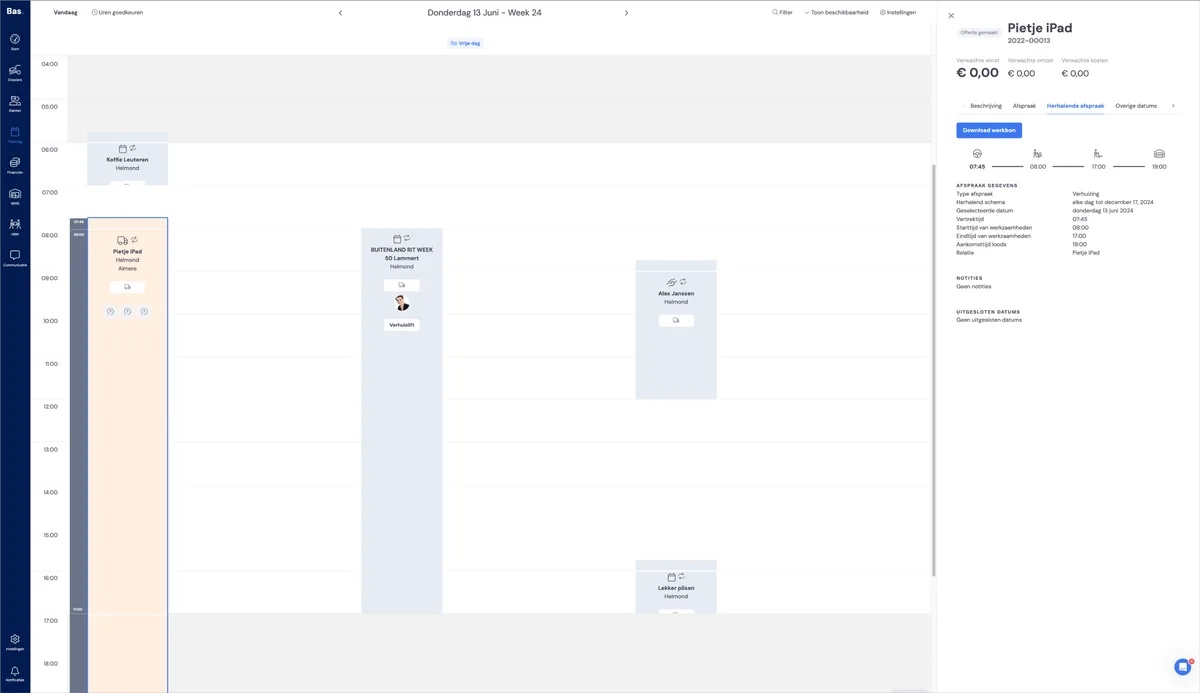
Via the 'Recurrence pattern' tab, you can adjust the recurrence pattern; move the cursor over the appointment details and click 'edit'
Editing individual appointments
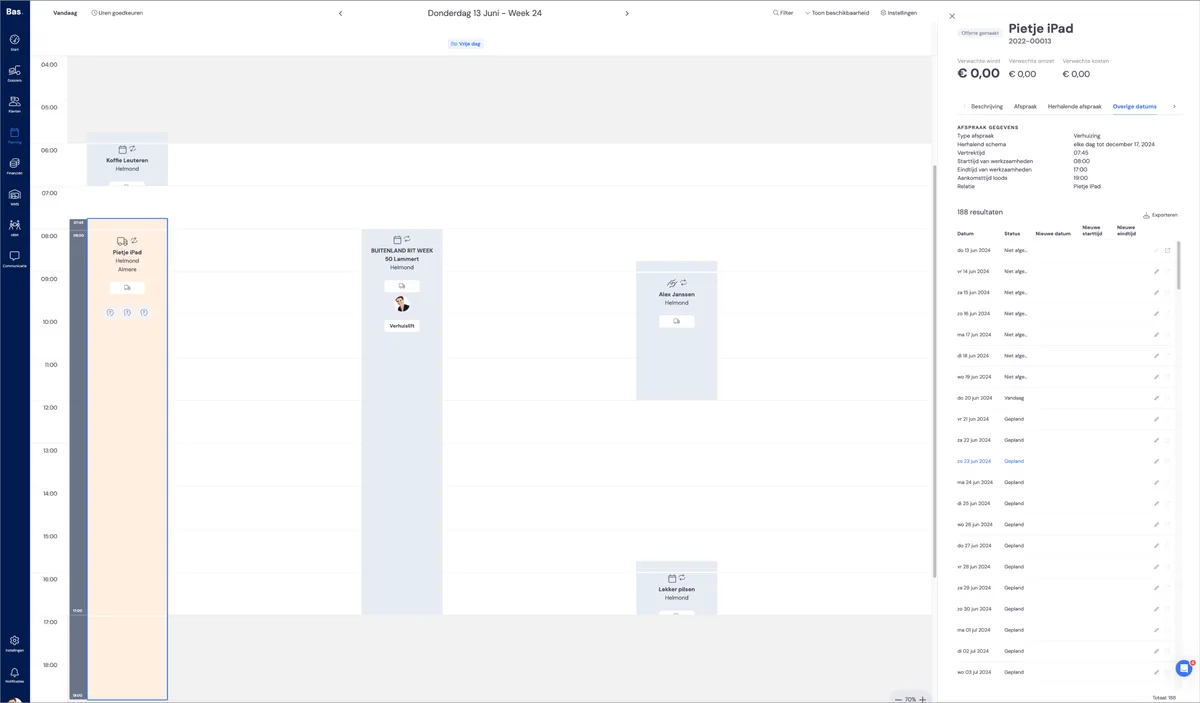
On the 'Other dates' tab, you'll see all appointments in a list. Click the pencil icon of the appointment to edit the details.