
You can easily register staff absence in Bas. In this step, you'll add and process a leave request via the backoffice.
Leave requests
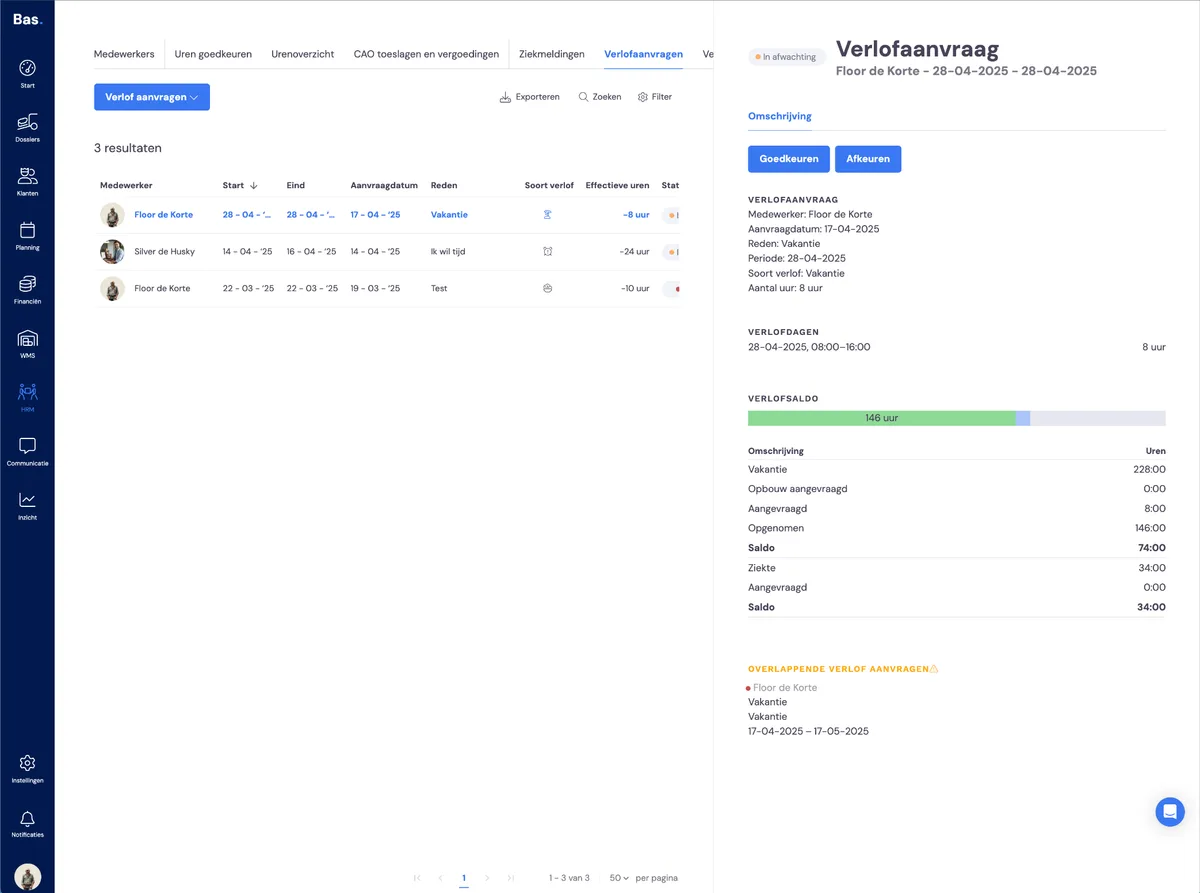
To process leave, go to HR and then to Leave requests. Here you'll see an overview of all outstanding requests. Once you start working with Bas, you'll see all staff leave requests here.
Request leave via the backoffice
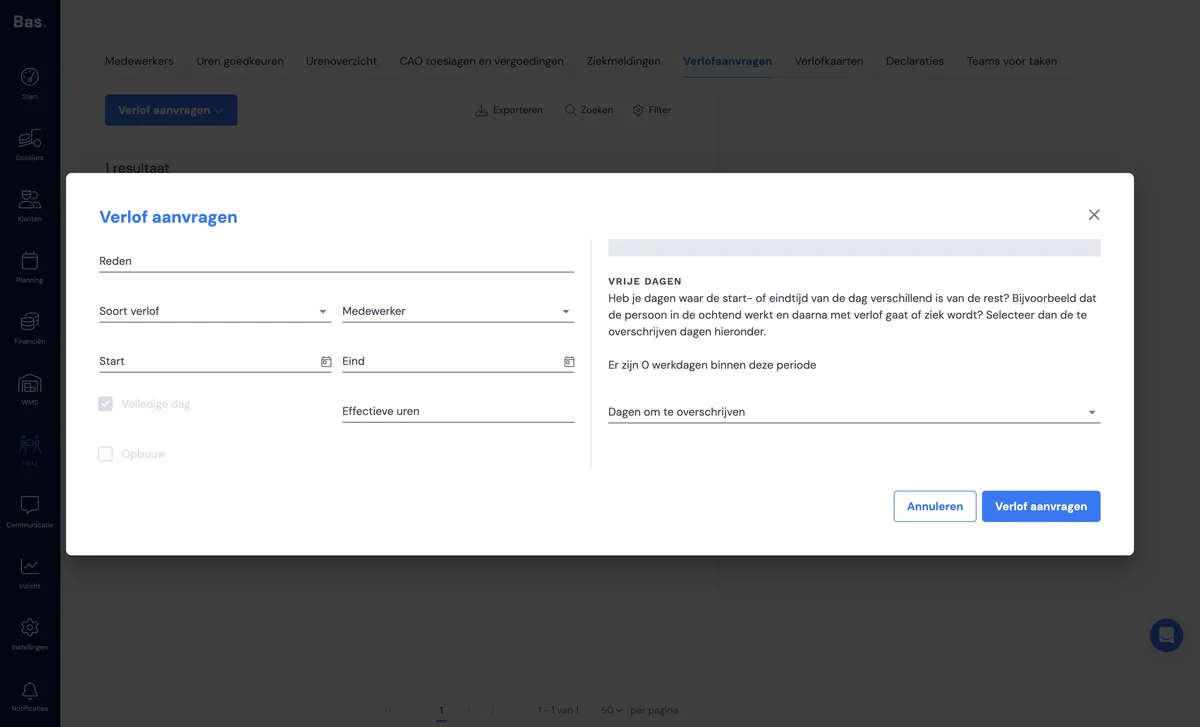
Request leave using the 'Request leave' button. Enter the details here and click 'Request leave'. The request has been created and is now available in the list of leave requests.
Request leave via the app
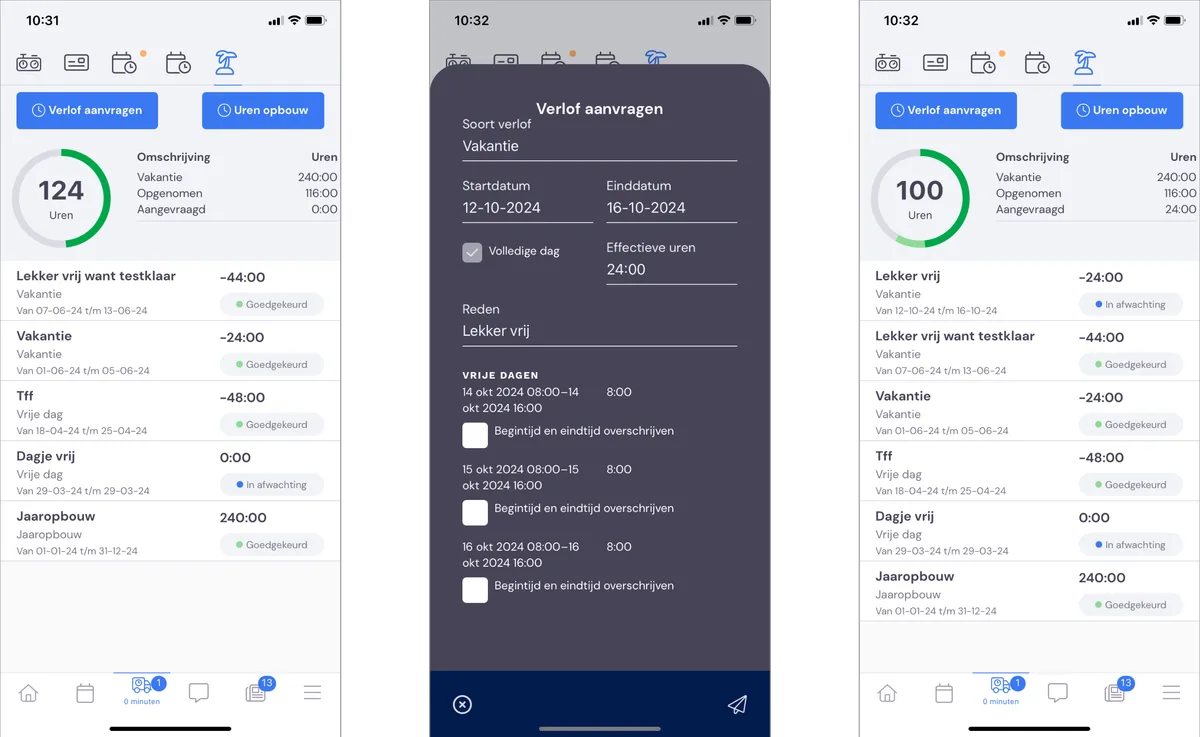
Request leave using the 'Request leave' button. Enter the details here and click 'Request leave'. The request has been created and is now available in the list of leave requests.
Approve the request
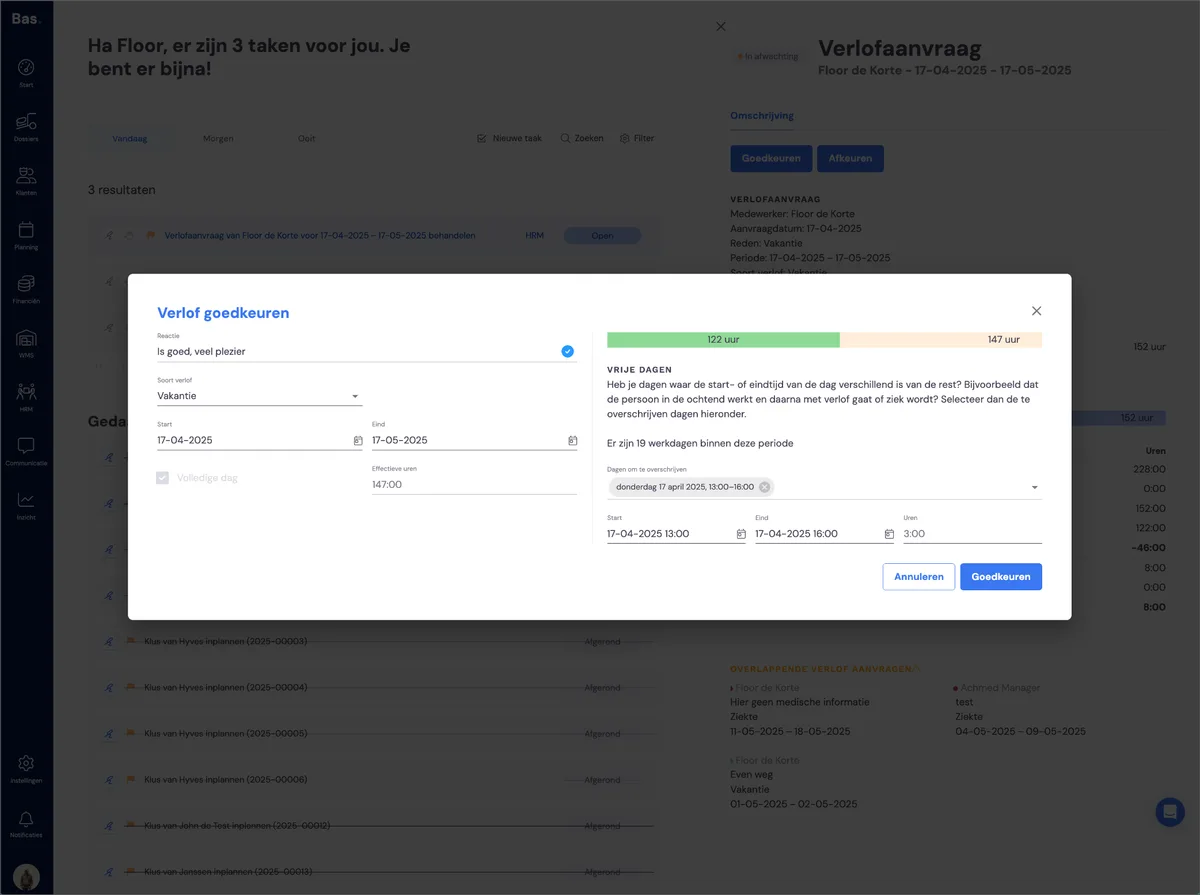
Click the leave request you just created. On the right, you'll see the details of the leave request. You can approve the leave request here. The request has now been approved and has disappeared from the list.
Use the filters
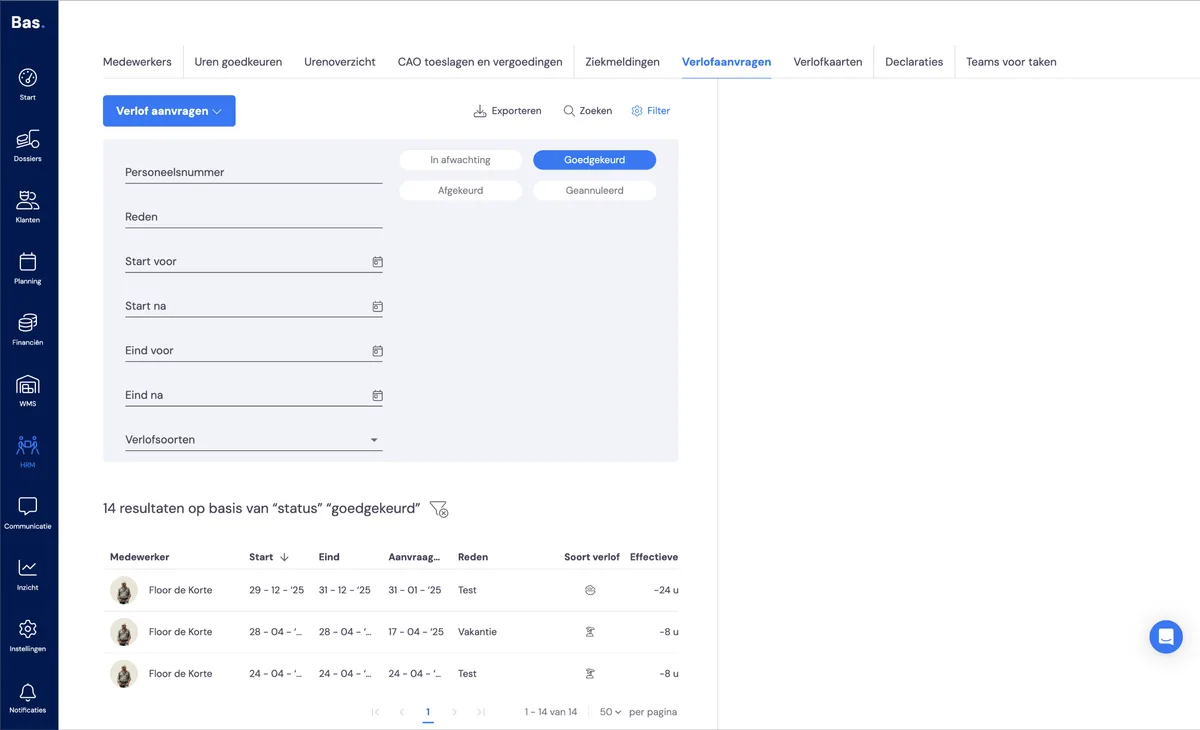
All processed requests disappear from the list, so you always have an overview of everything that's still outstanding. Want to see an approved request in the list again? Then adjust the filters.
View the leave overview
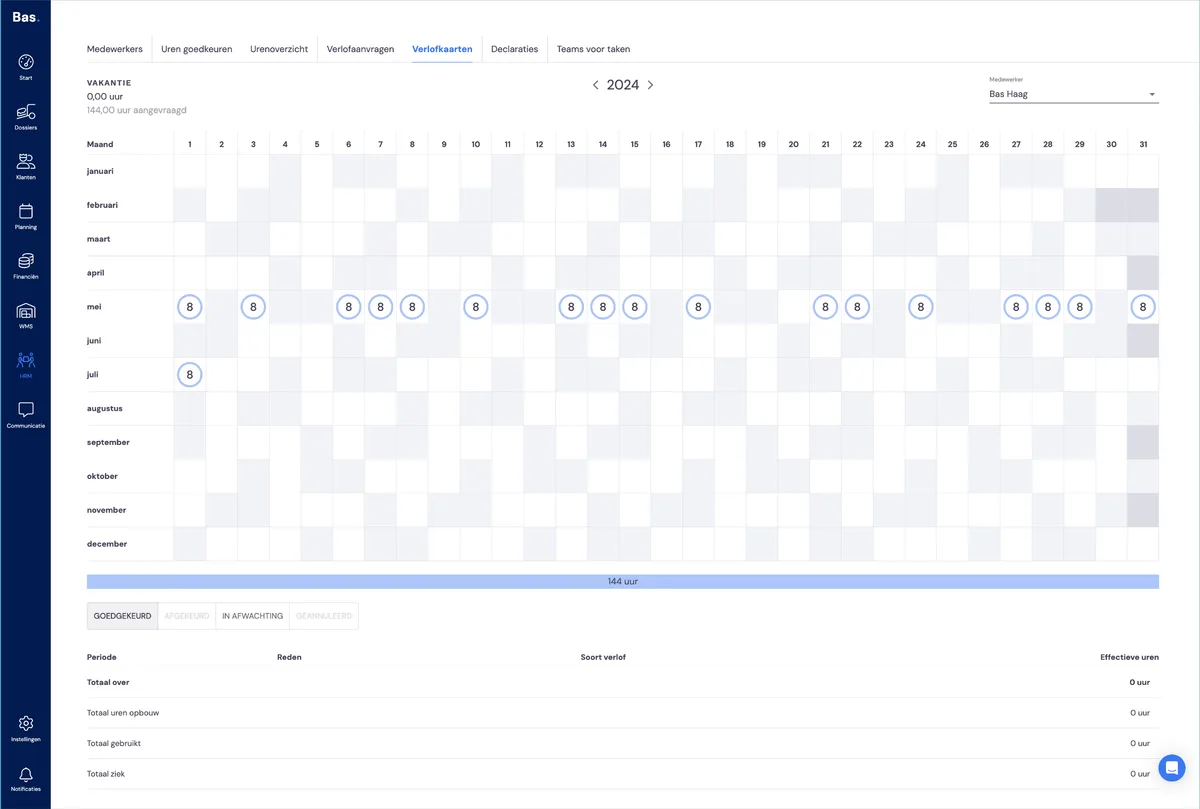
Now go to the leave overview. Here you'll see the result of your action. On the right, select the employee whose request you just processed to see it again.
Next step
In the next step, you'll register a sick leave notification >