
Under 'Customer messaging' you determine the layout and content of all emails sent to customers. You can also disable the sending of an email if you don't want a particular standard email to be sent.
Customer messaging
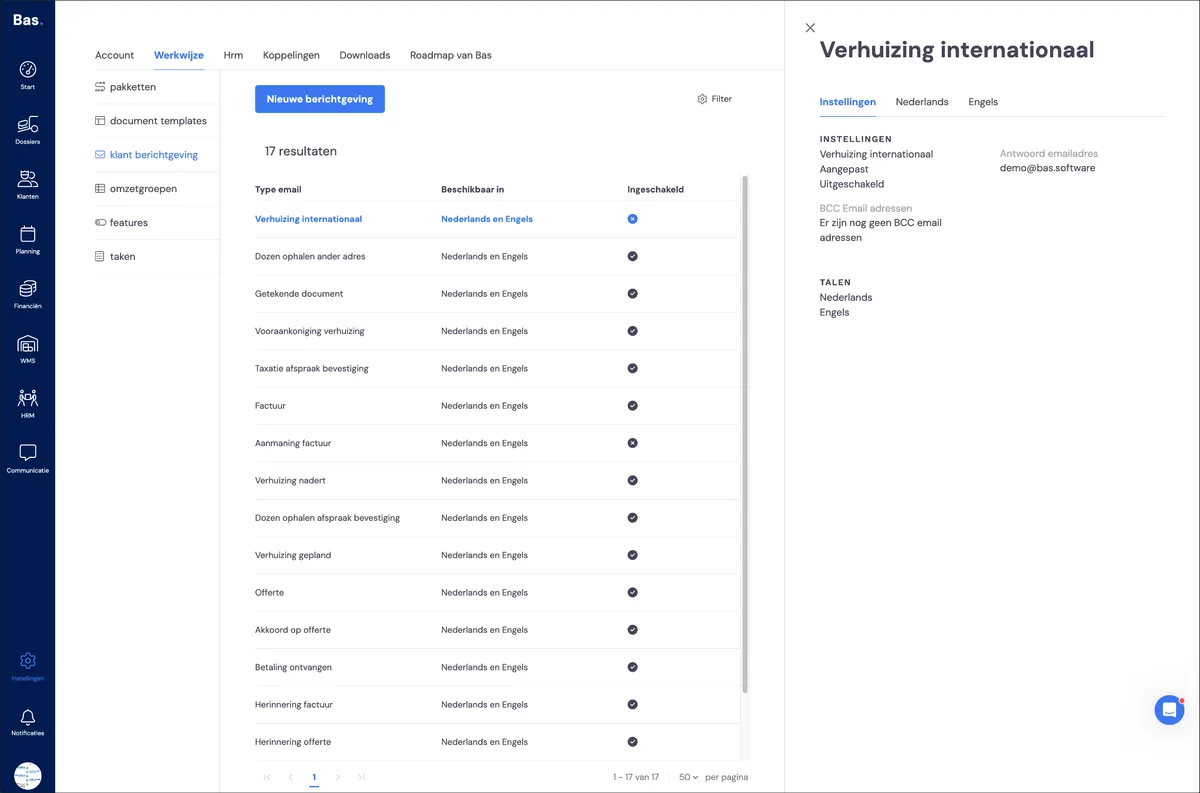
You'll find customer messages under settings > workflow > customer messaging. Here you'll find an overview of all previously created customer messages.
Adjusting the ('subject') of the email
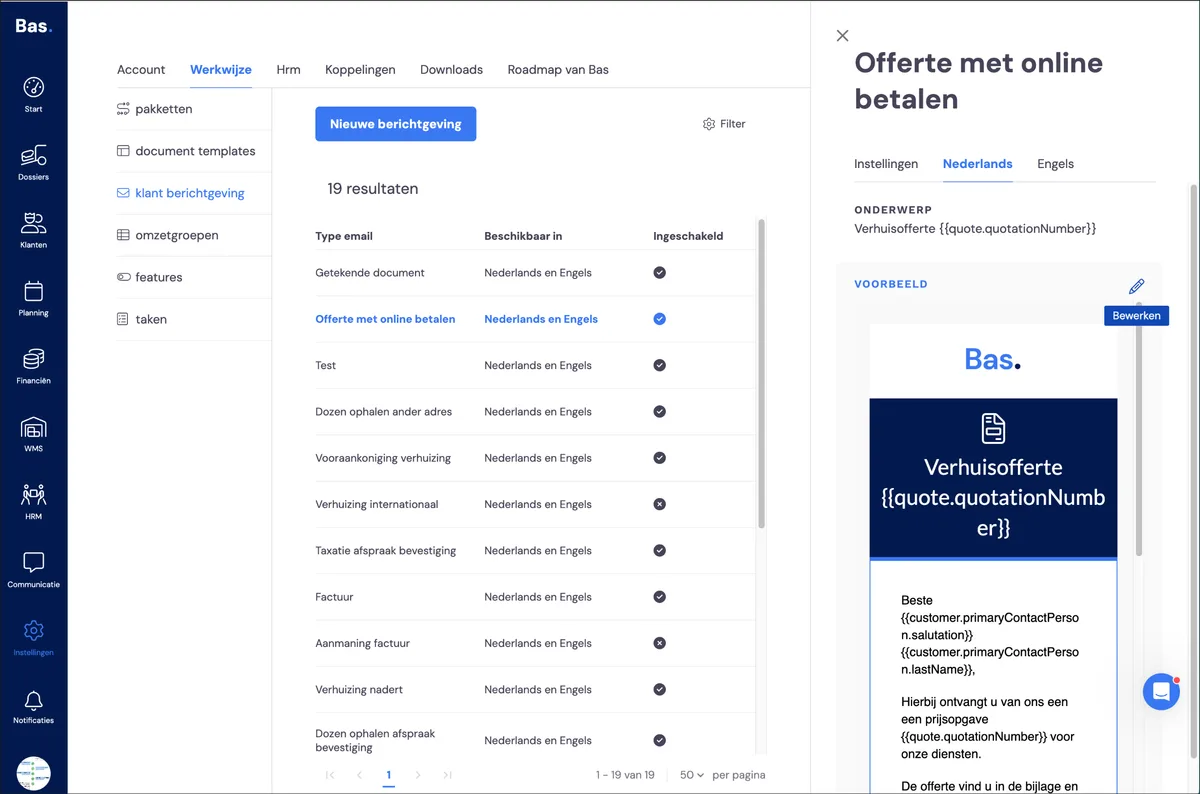
The name of the customer message is, by default, the subject as received by the customer. You can adjust the subject of the email per language by clicking 'subject' and adjusting the text.
Adjusting the layout and content of a customer message
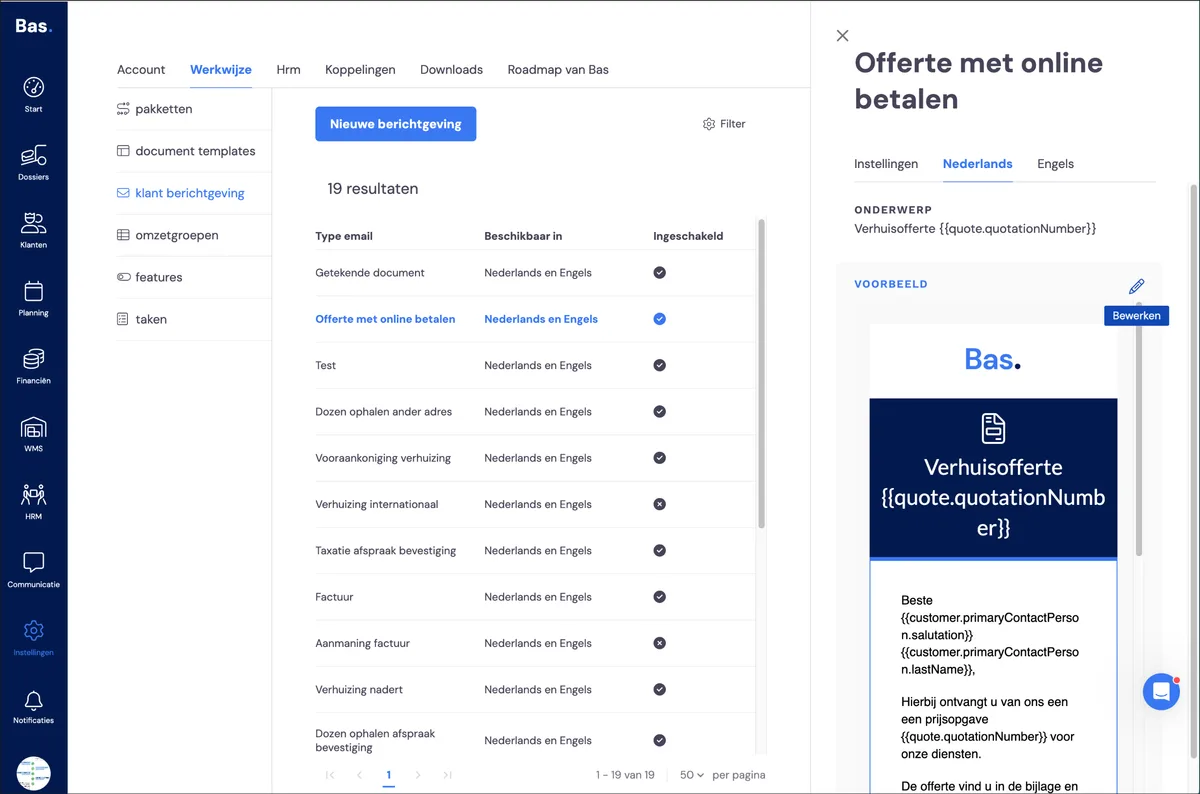
Move your cursor over the preview of the email message. Click the pencil icon if you want to adjust the message. The editor will then open. Below are a few examples of the options you have for adjusting the customer message, but this list is definitely not exhaustive.
Adjusting the layout of a customer message
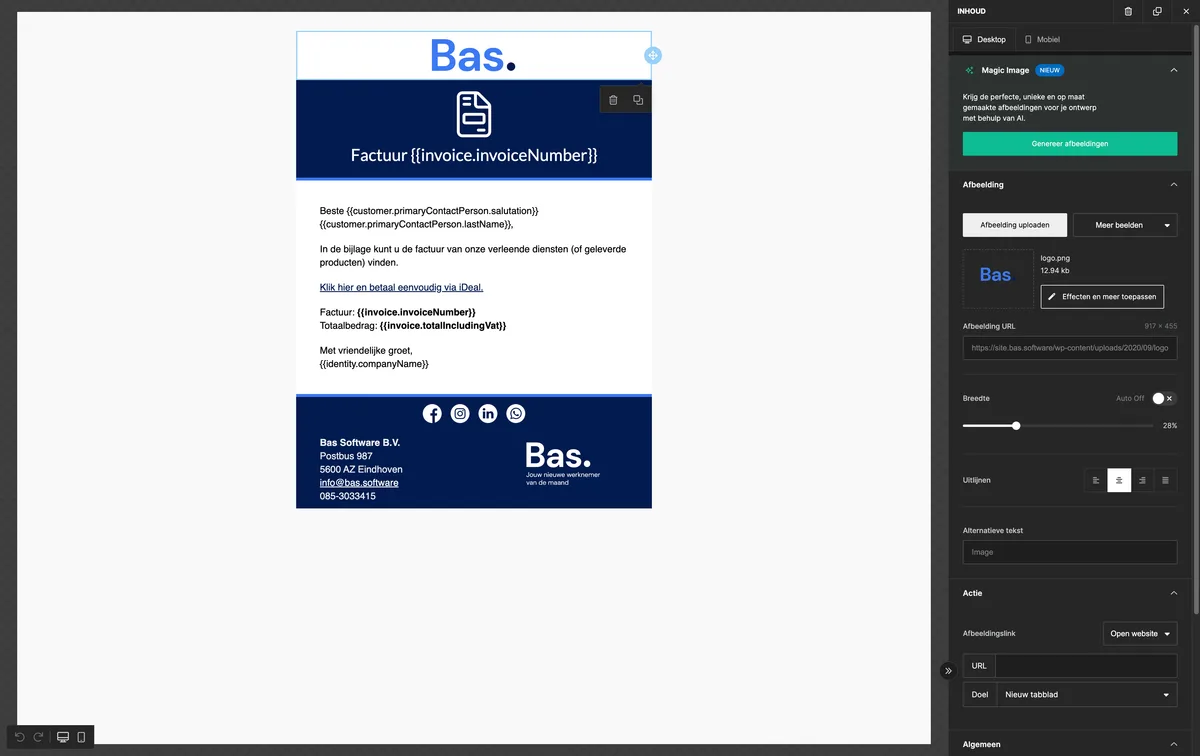
Click the element you want to adjust. The options you have for adjusting the element appear on the right-hand side. For example, if you want to change the logo, click on the image; on the right-hand side you can change the image using 'upload image'
Adjusting the content of a customer message
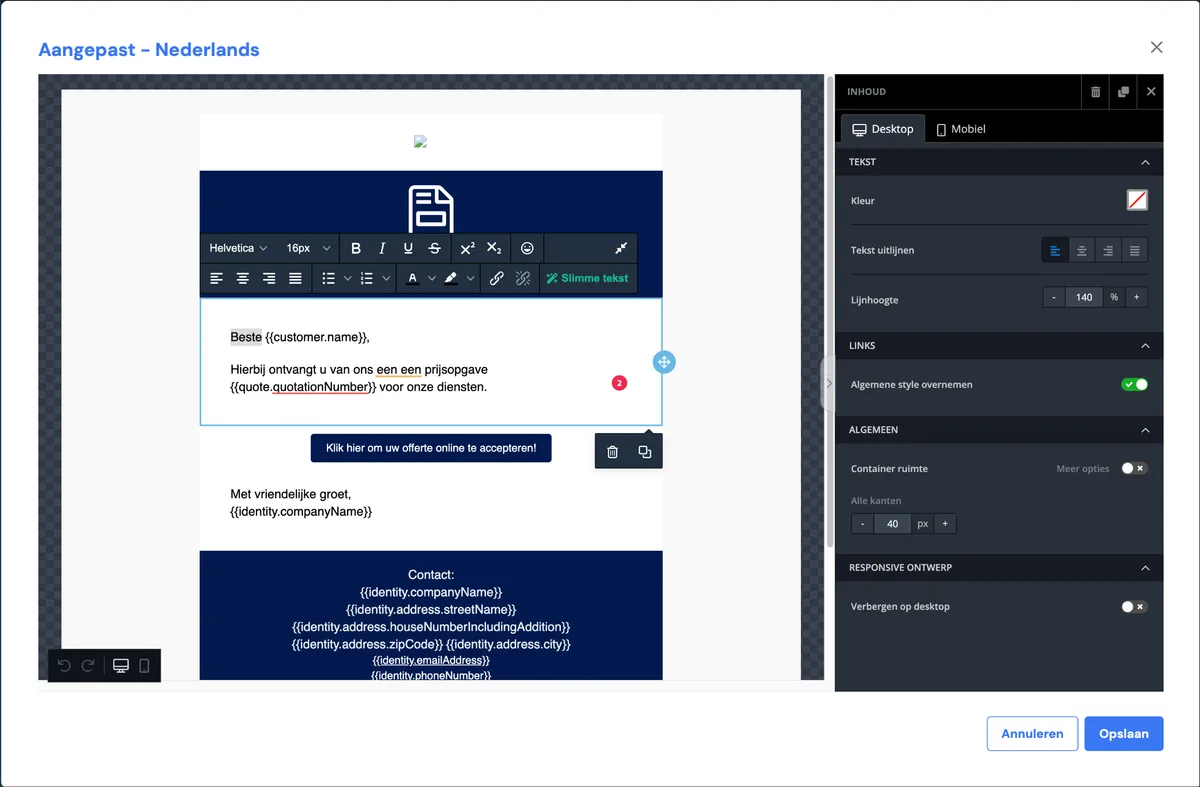
Click onYou can adjust the text of the email by clicking on the text you want to change. Enter the desired text and click save.
Working with variables
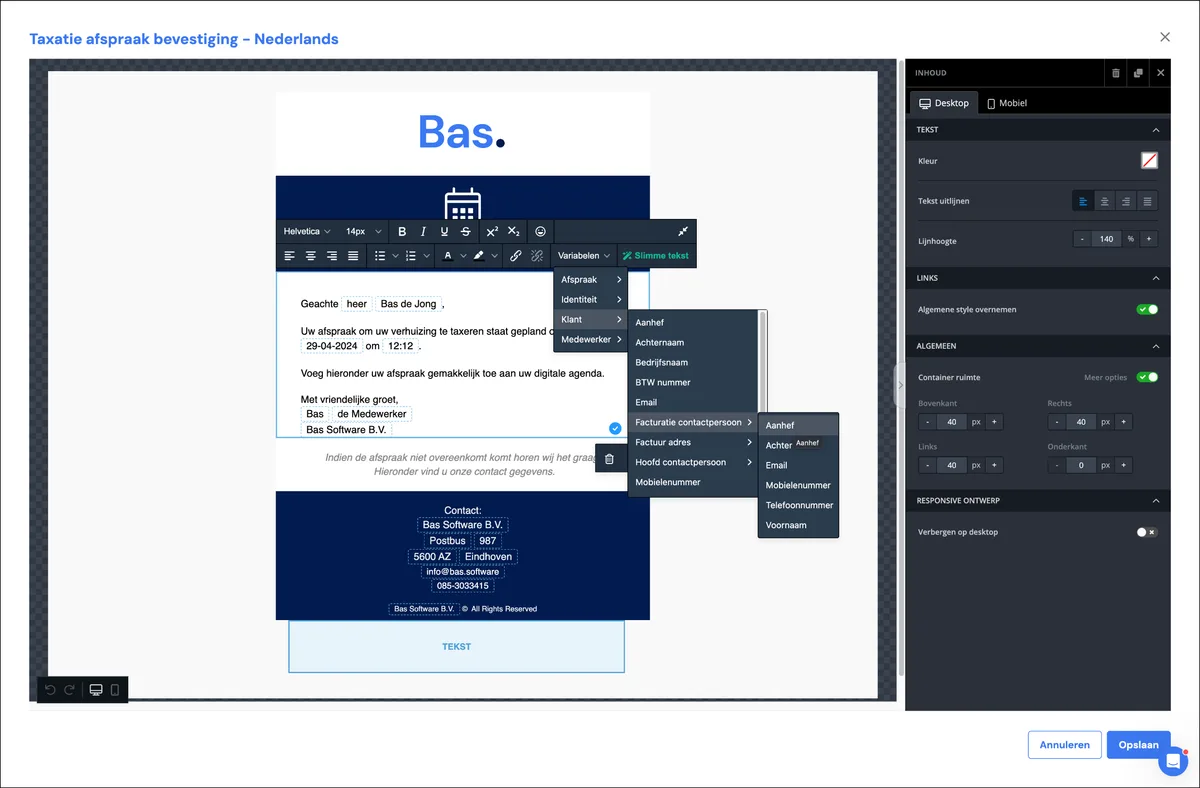
There are various variables available that you can use; select the desired variable based on category; clicking the desired variable adds it
Twig codes
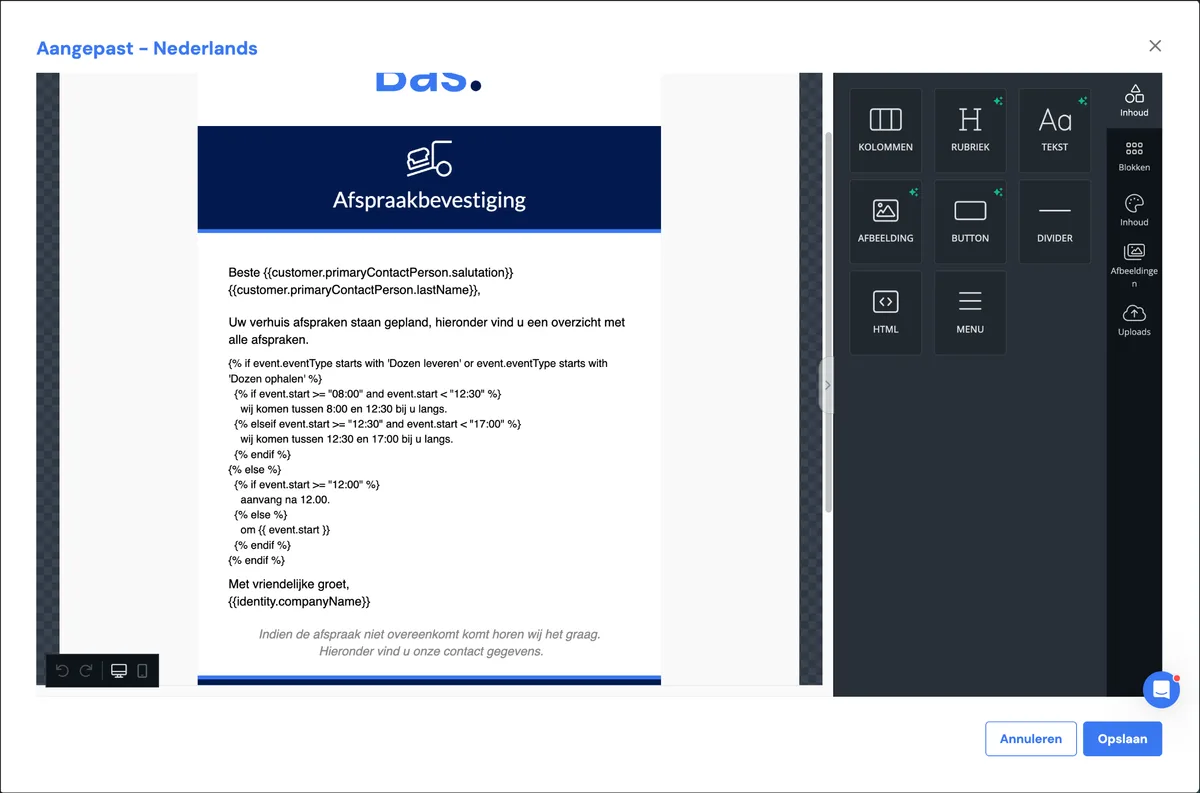
Working with Twig codes: adjusting the salutation, adjusting dates and working with time periods
With these codes you can create specific functions; you do need to follow Twig's format. Example: you can adjust the salutation in a customer message so that it's capitalised, using the following code in combination with variables:
{% if customer.primaryContactPerson.salutation == 'heer' %} Mr (last name variable)
{% elseif customer.primaryContactPerson.salutation == 'mevrouw' %}
Dear Mrs (last name variable)
{% else %}
(salutation variable) (last name variable)
{% endif %}
Example: you can specify that a payment must be received five days after the current date. The code for this is:
{% set dateInFiveDays = "now"|date_modify("+5 days") %}
#{{ dateInFiveDays|date("d-m-Y") }}
Not sending a standard customer email
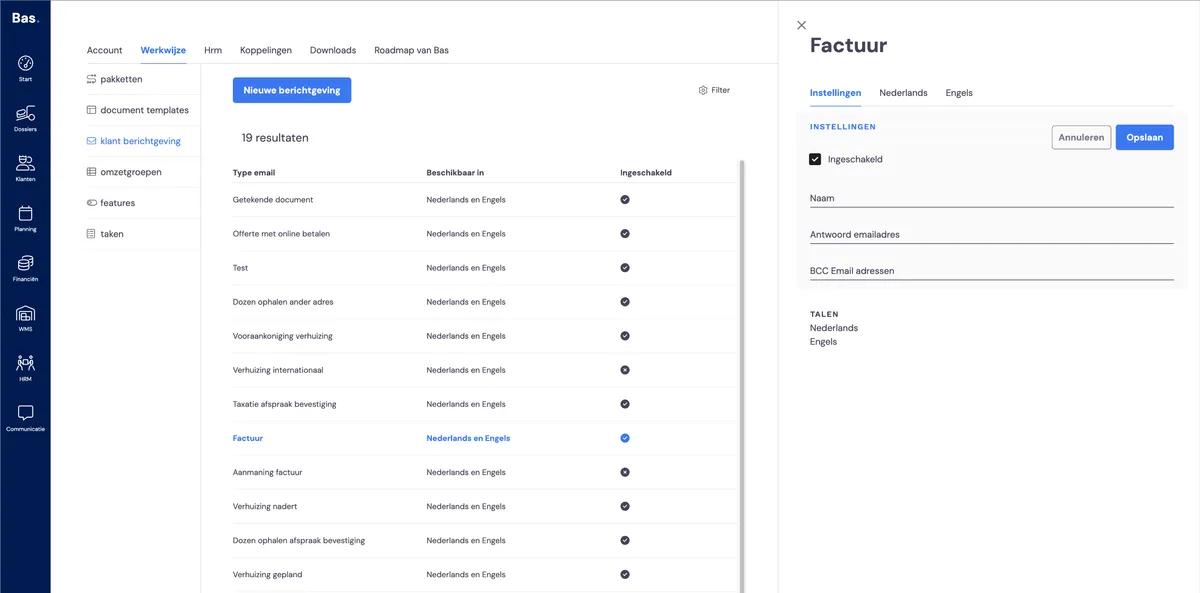
If you don't want Bas to send a particular standard email message, you can easily disable the message. You do this by clicking the customer message, and in the settings on the right-hand side, unticking the 'enabled' checkbox.
Next step
This section covers the layout and content of documents and emails - you're now finished with this. Go back to the overview >