
Once the customer has accepted, the status changes to "Customer accepted" and we can start planning the "Job". On the dashboard, the "Job" is listed in the "Jobs action list" under the "Customer accepted" tab.

Click the "Schedule move" button. A pop-up window appears to schedule the move.
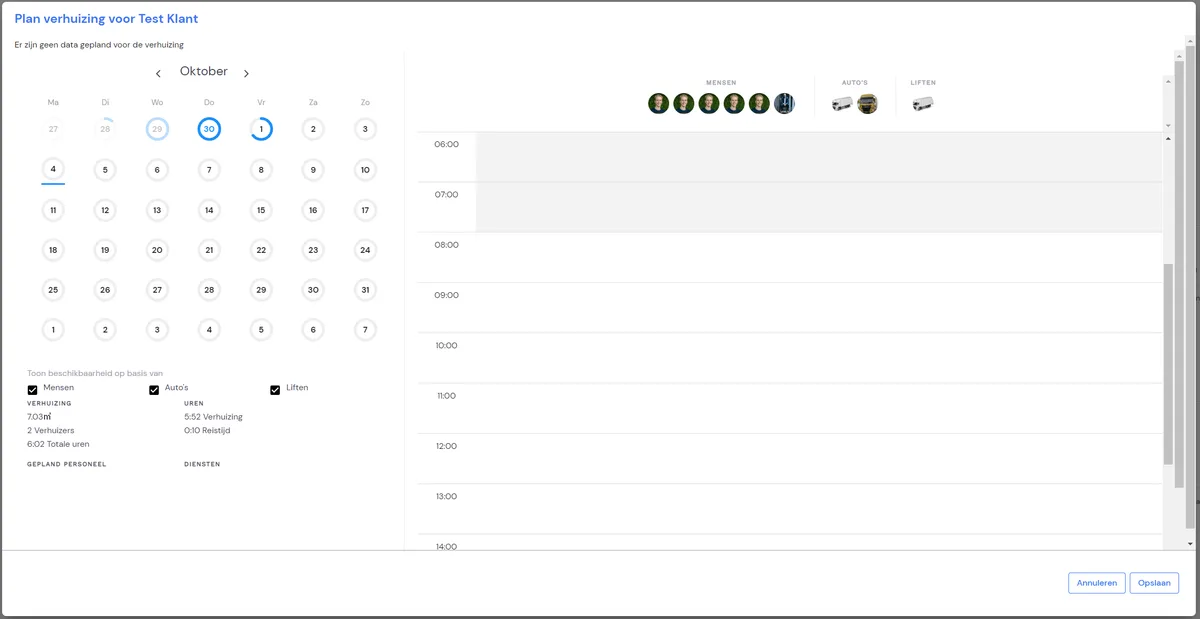
If a preferred date has been entered, you'll see it automatically. If no date is known, you can now select a date.
Click on a date and then on a start time. You'll get a pop-up window.
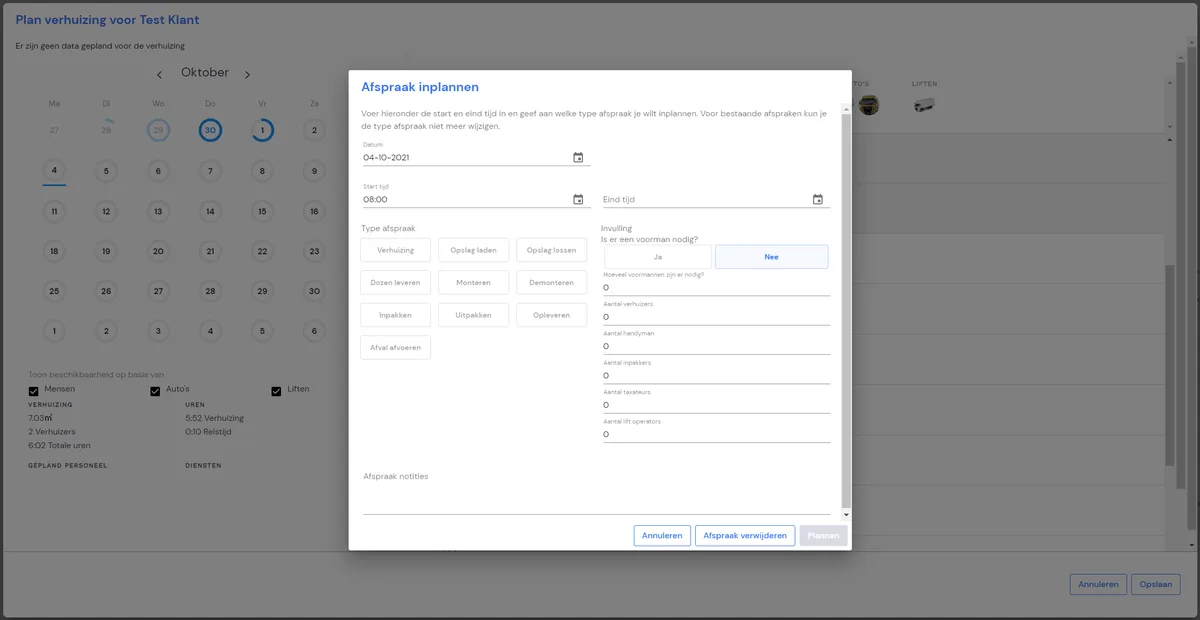
Then choose the right type of appointment (Move, deliver boxes, load into storage, etc.). Select an "expected" end time and fill in the staffing. At the bottom right, you can optionally add an extra note for the removal crew (doorbell broken, bring extra ..., etc.). You can then repeat this step for other kinds of appointment types. Think, for example, of scheduling the delivery of packing boxes and scheduling the move. Then click "Schedule" and then "Save".
As soon as you've clicked "Save", the customer automatically receives an appointment confirmation by email.
The job has now been scheduled. It's now up to the planner to link the removal crew to the job.
Go to "Planning".
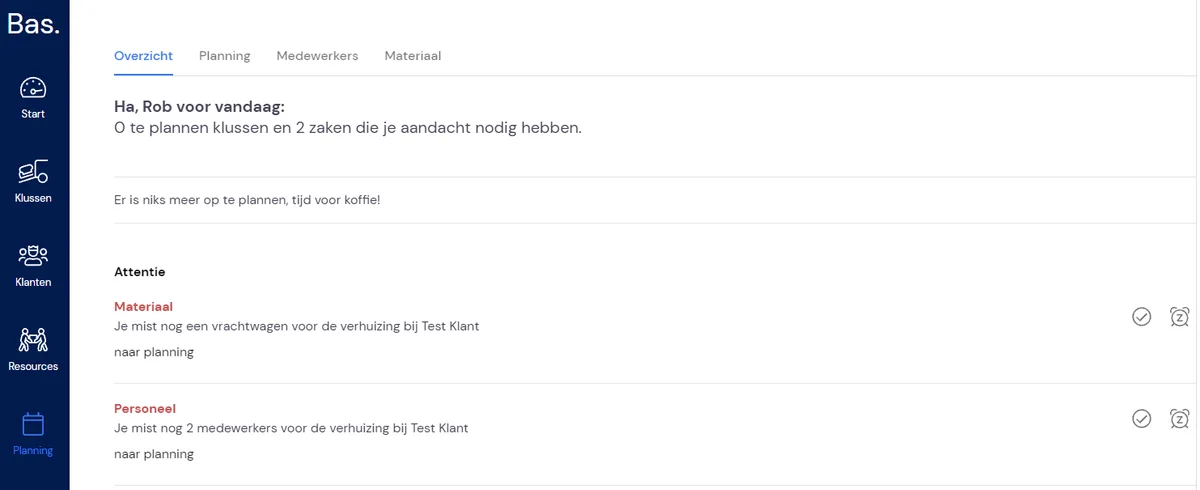
Here, Bas gives alerts to the planner. When you click "to planning" on the alert, you'll see the case file on the right-hand side. Click the "People" tab to link employees to the job.
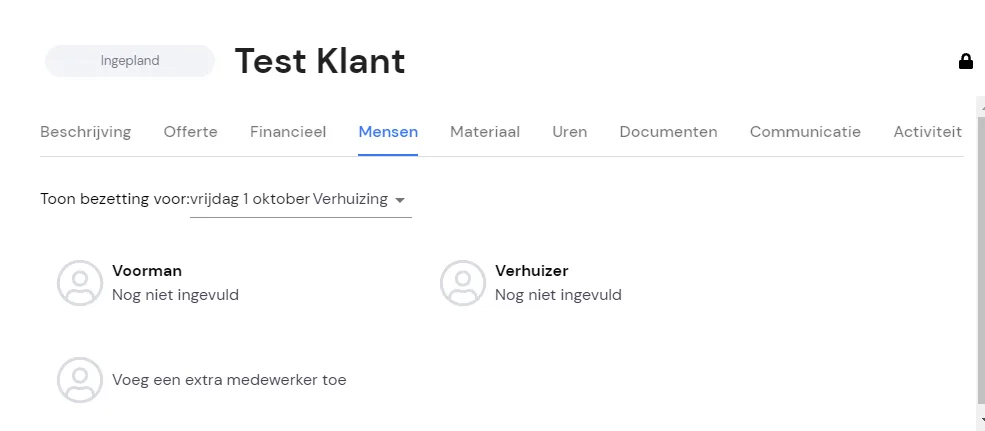
When you click "Foreman", you'll see a list of employees.
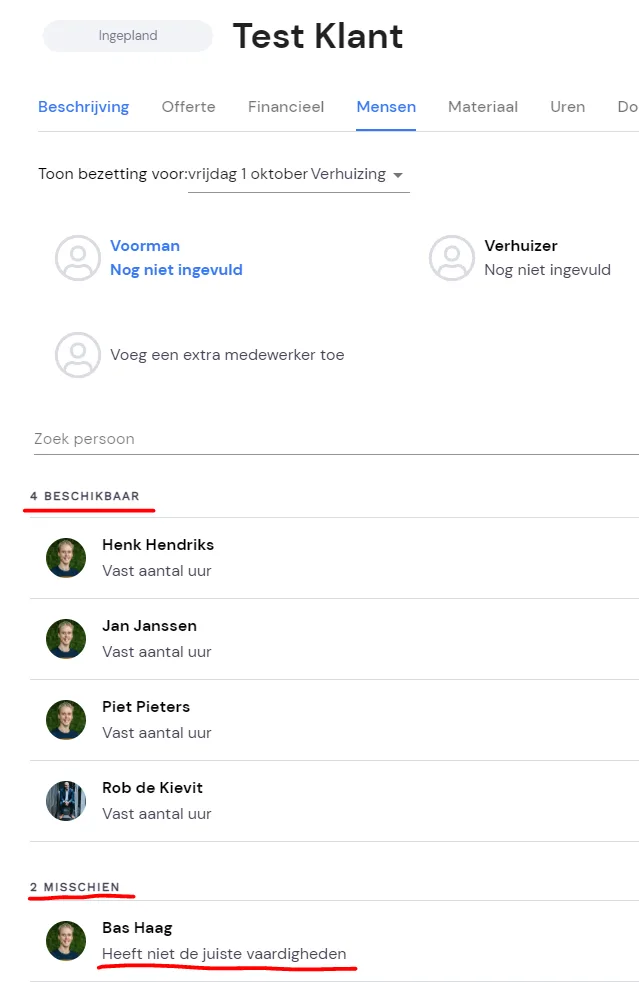
Under "Available", you'll see the available employees with the "Role" foreman. If you don't have an employee available, you can also select an employee under "maybe". These are the employees who don't have the "Role" "Foreman". So you can always override this.
When you click on an employee, they are automatically linked to the job and the employee will see in their employee environment that they've been assigned to it.
You then do the same with equipment.
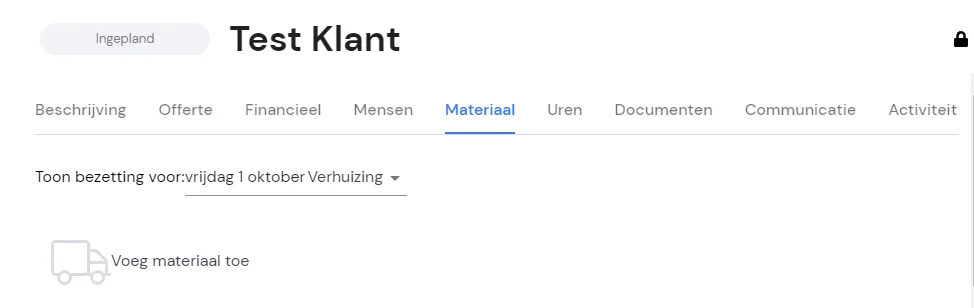
Click the "Equipment" tab and click "Add equipment".
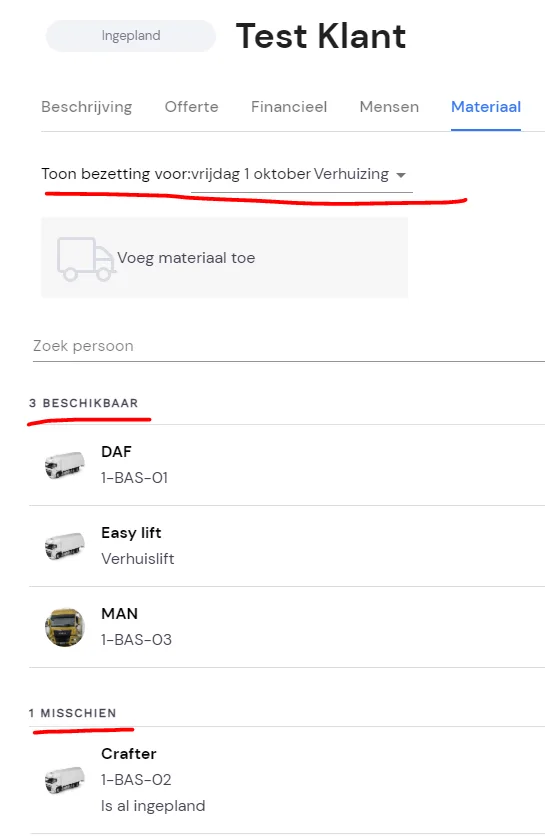
Click on the equipment you want to link to the job. Saving happens automatically.
You've now linked employees and equipment to the job.
Now you can "Tick off" the alerts by clicking the "tick".
If you click the alarm clock, you can snooze the notification until tomorrow or the end of the day.
