
You can easily add new employees in Bas. It works as follows: you create a new employee, enter all the relevant details and save. After this, the employee is invited by email to create an account.
Creating and inviting a new employee
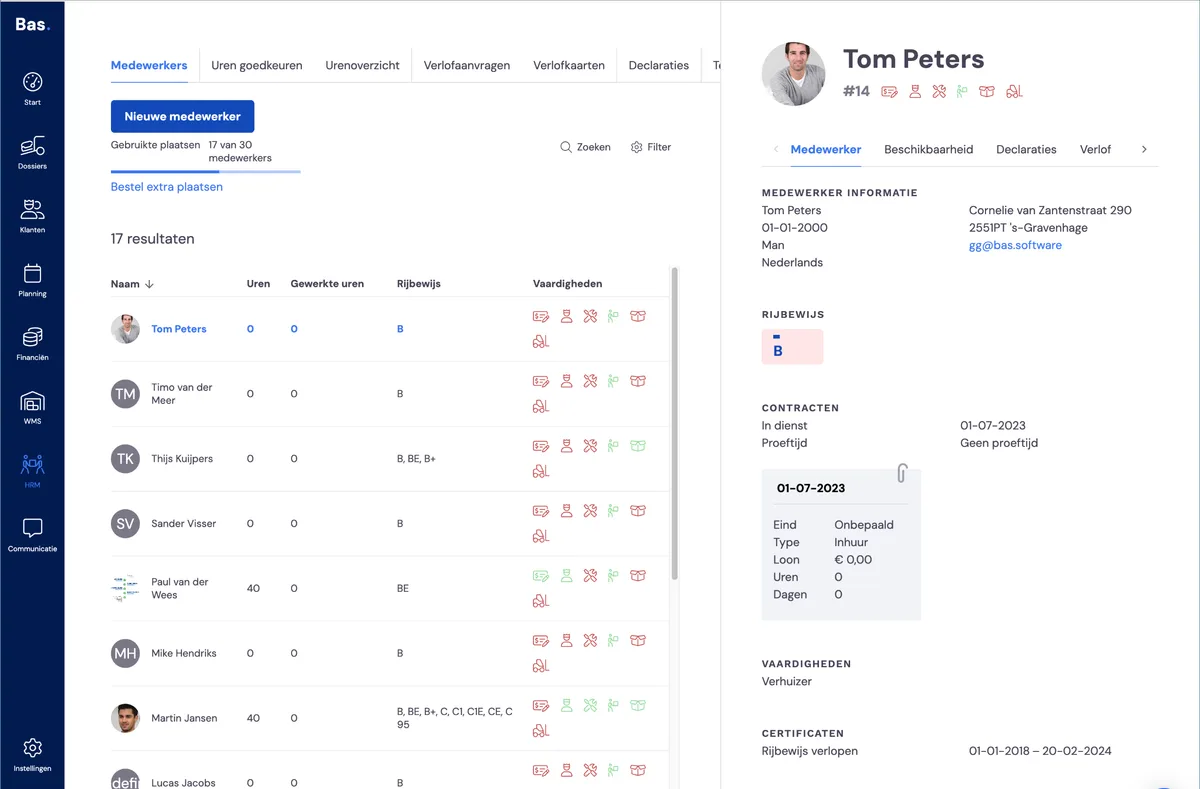
Go to HRM. The screen opens on the employee overview. To create and invite a new employee, use the 'New employee' button. You then enter all the relevant information in a number of steps. After saving, the employee is automatically invited.
Below are a number of important points to note.
Start date
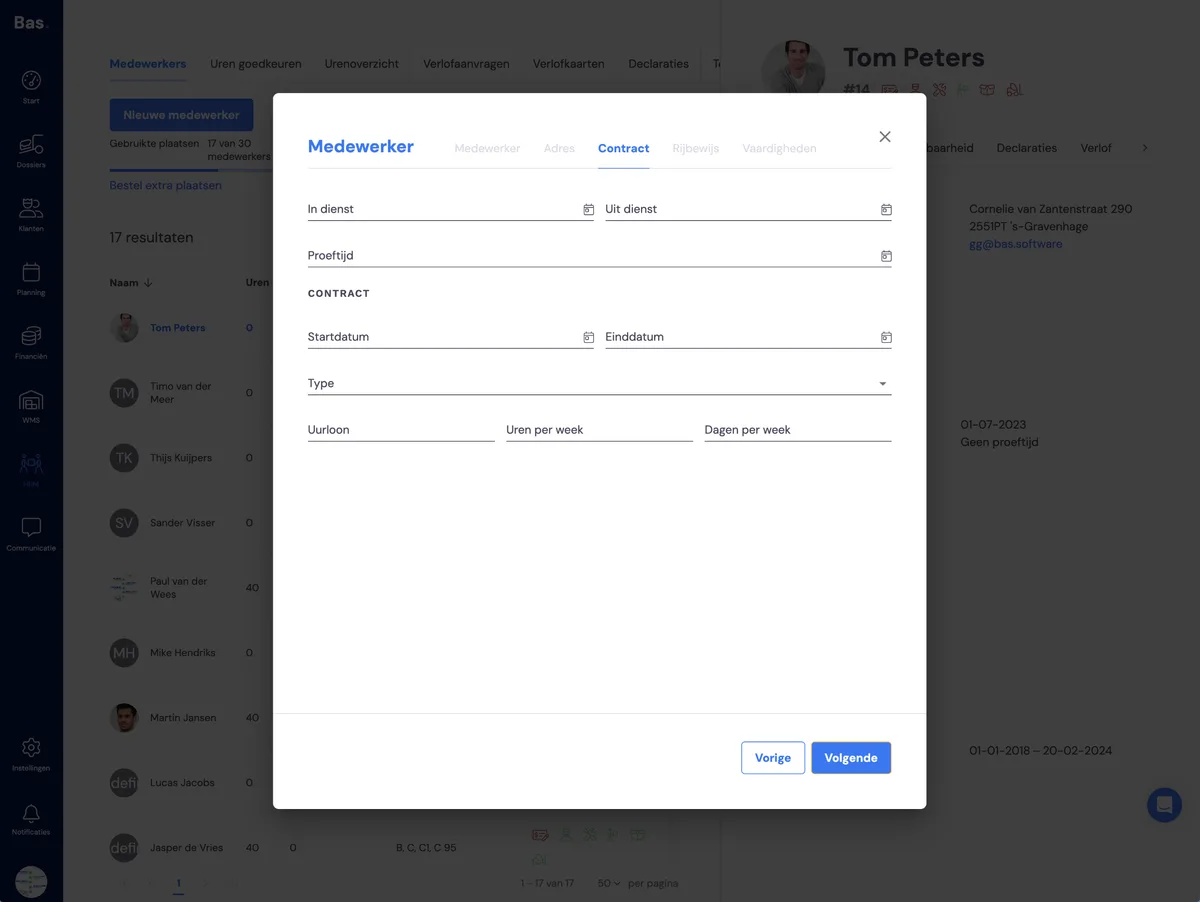
An employee can only log in if they are 'employed'. Therefore, enter a date that is not in the future.
Contract type
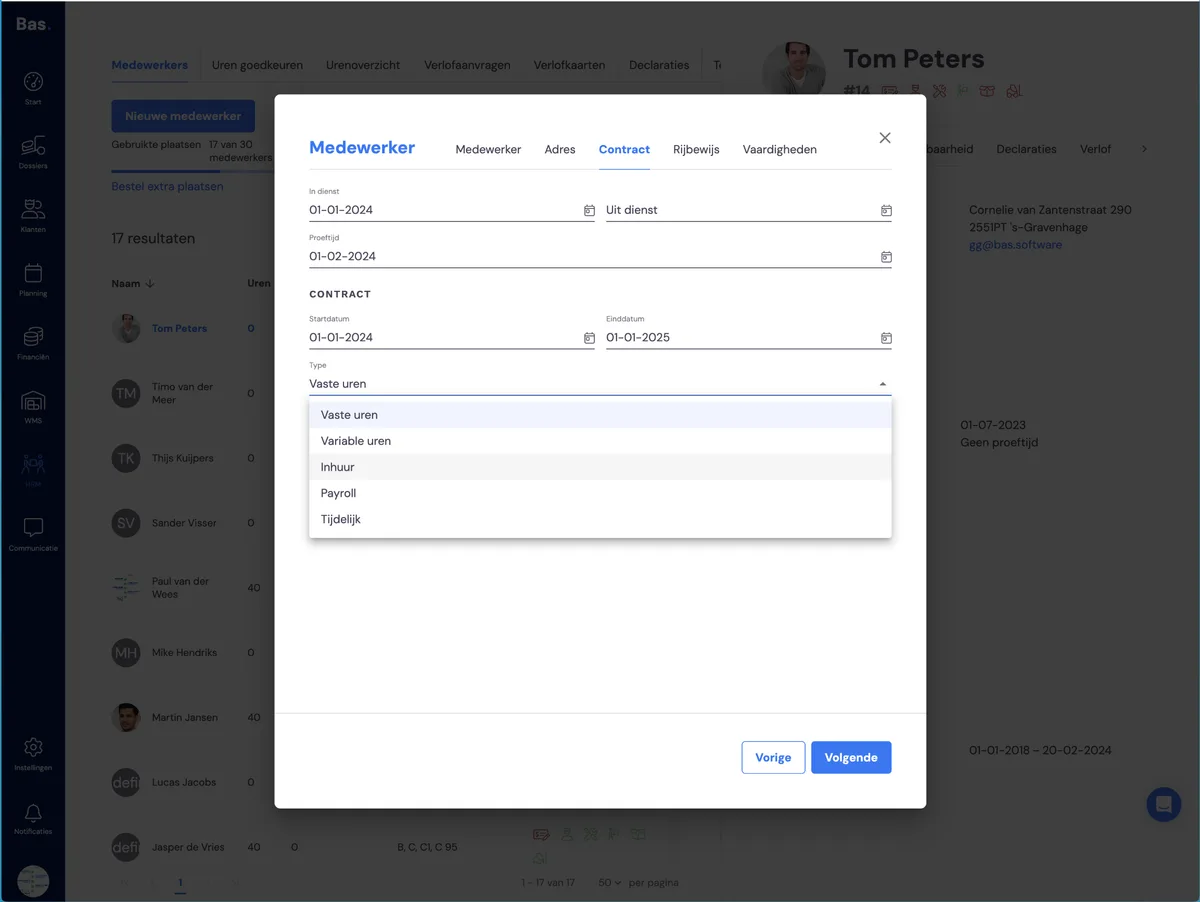
Choose the correct contract type. In the planning, employees with a permanent contract are shown in a separate overview so you can schedule them first, and only afterwards the agency workers.
Skills
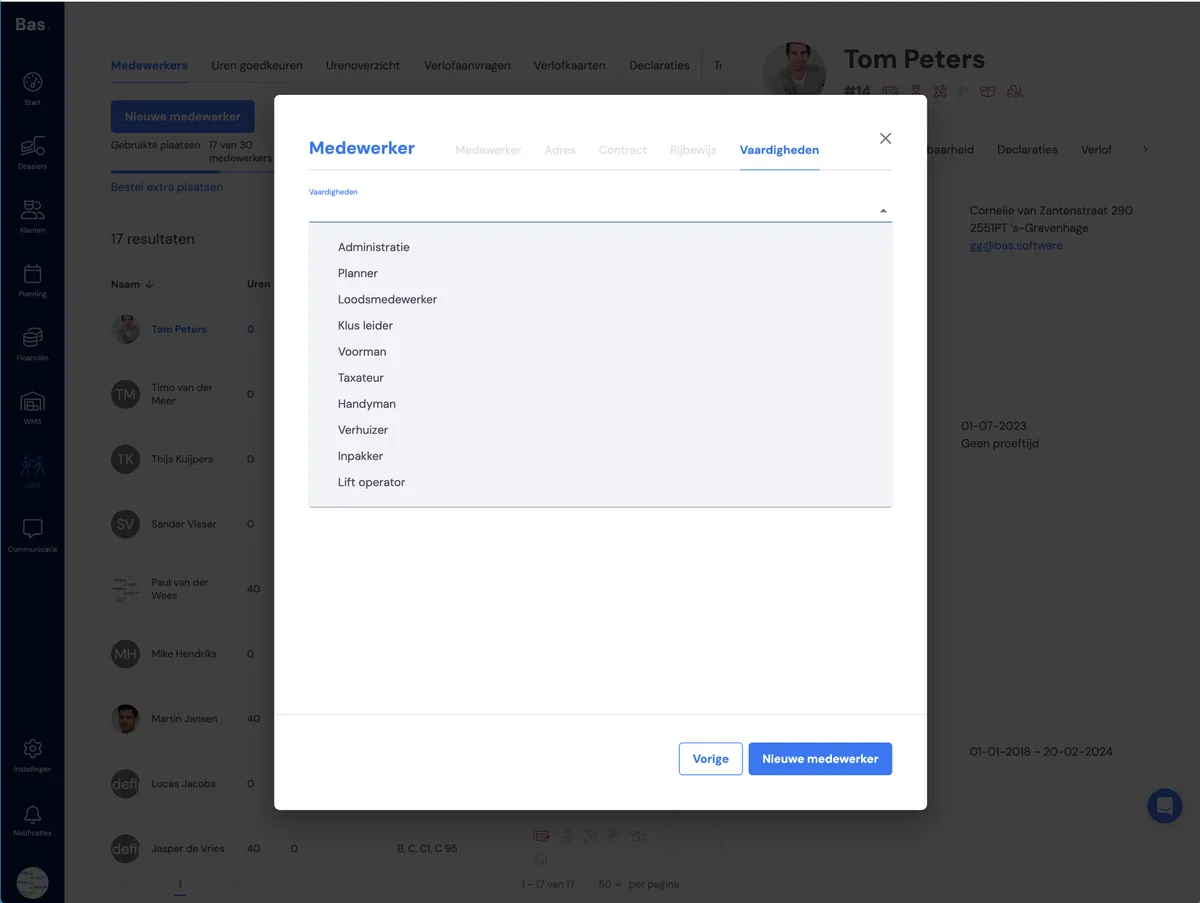
When entering the details, you'll also be asked about the employee's skills. The choices you make here affect what an employee is allowed to do and what they get access to in Bas.
Administration
Only has access to the back office.
If your company uses lead generators and these have been linked to Bas, they will end up in this employee's inbox. Every confirmation of an accepted quote also appears in the inbox.
Planner
Can only work in the back office
Project leader / foreman
Can only work in the employee app.
Has the option to have the customer sign and make a payment via our app.
Surveyor
Can work in the employee app and has the 'survey' option there, and can work in the back office
Warehouse employee
Can work in the warehouse tasks menu in the app and in the WMS in the back office.
Removal crew member
Can only work in the employee app
Handyman
Can only work in the employee app under warehouse tasks
Packer
Can only work in the employee app
Hoist operator
Can only work in the employee app
Invitation with a link valid for 24 hours
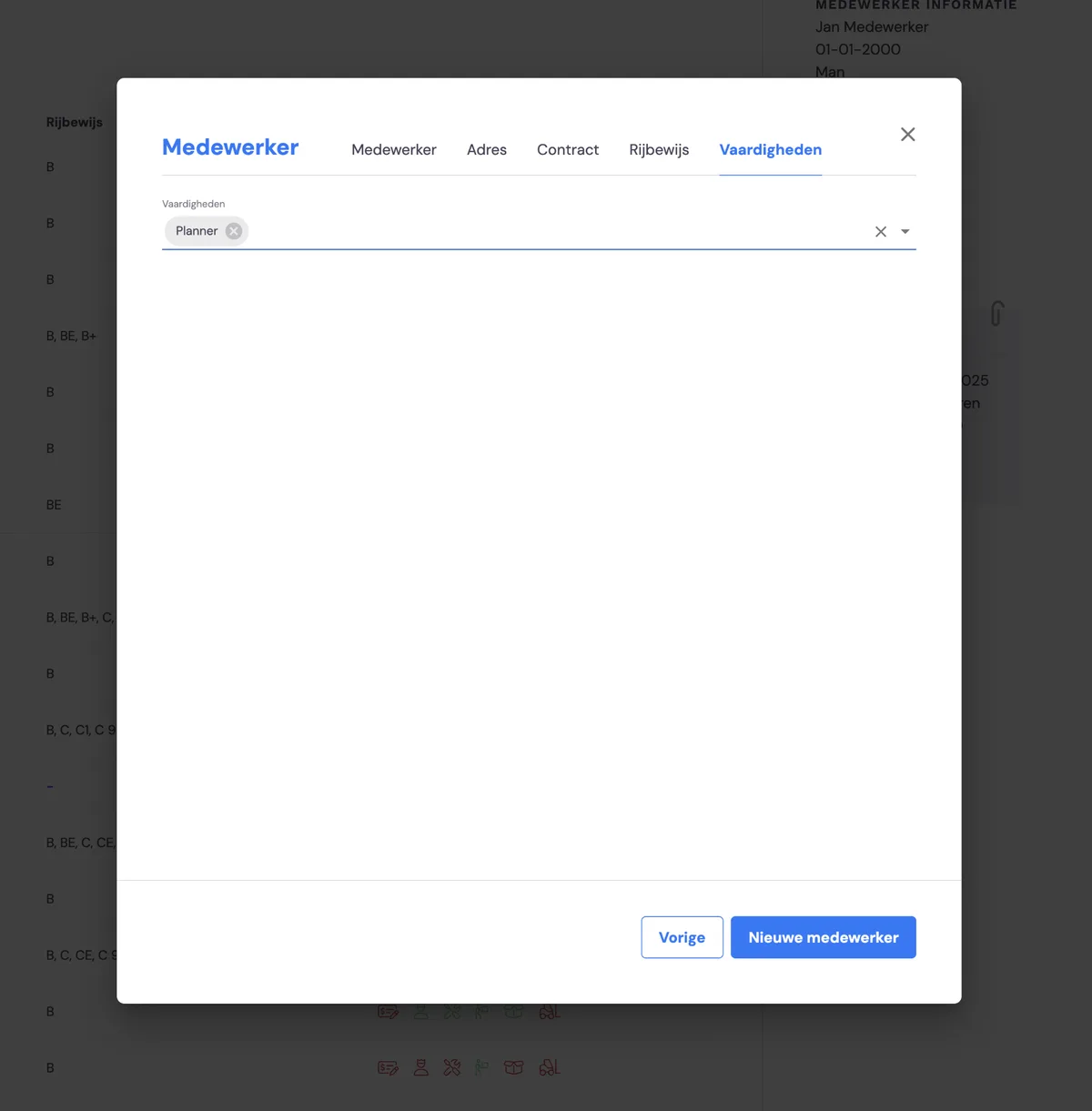
After entering the required information, click 'new employee'. The new employee will then receive an email with an invitation link. This link is valid for 24 hours.
If the invitation link no longer works
If logging in no longer works, your employee can first request a new password. They will then receive a new email with a new link. This is again valid for 24 hours.
Last step: entering the work schedule for the capacity calculation in the planning
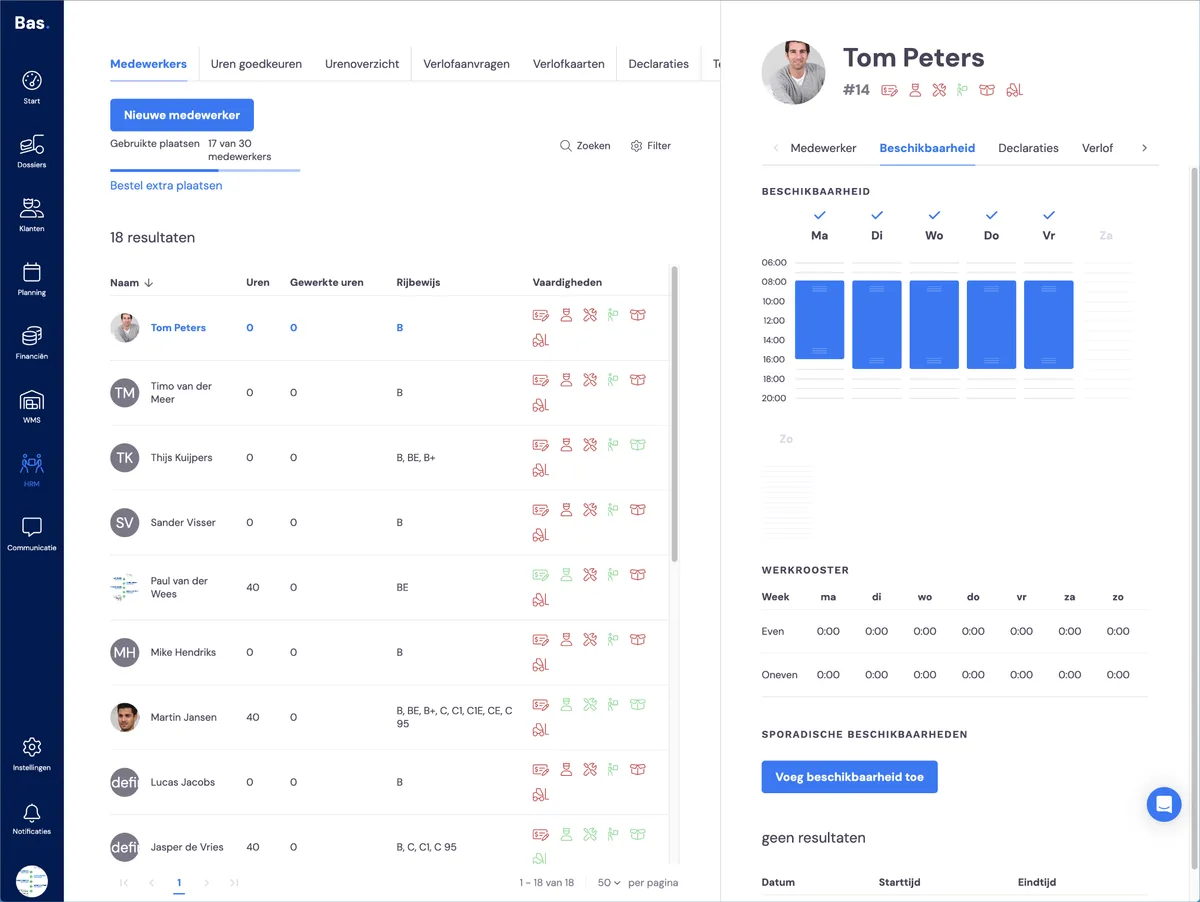
It may seem that you're done after this step, but don't forget to pass on the work schedule for the planner.
Go to the employee in the list. Enter the working hours under 'work schedule' for the employee.