
When an employee requests leave, Bas helps you process it, both from HR and from planning.
A new leave request
There are several ways to handle leave requests.
The first is via the task you receive when an employee submits a new leave request.
The second is via the overview of leave requests in HRM.
Task for a new leave request
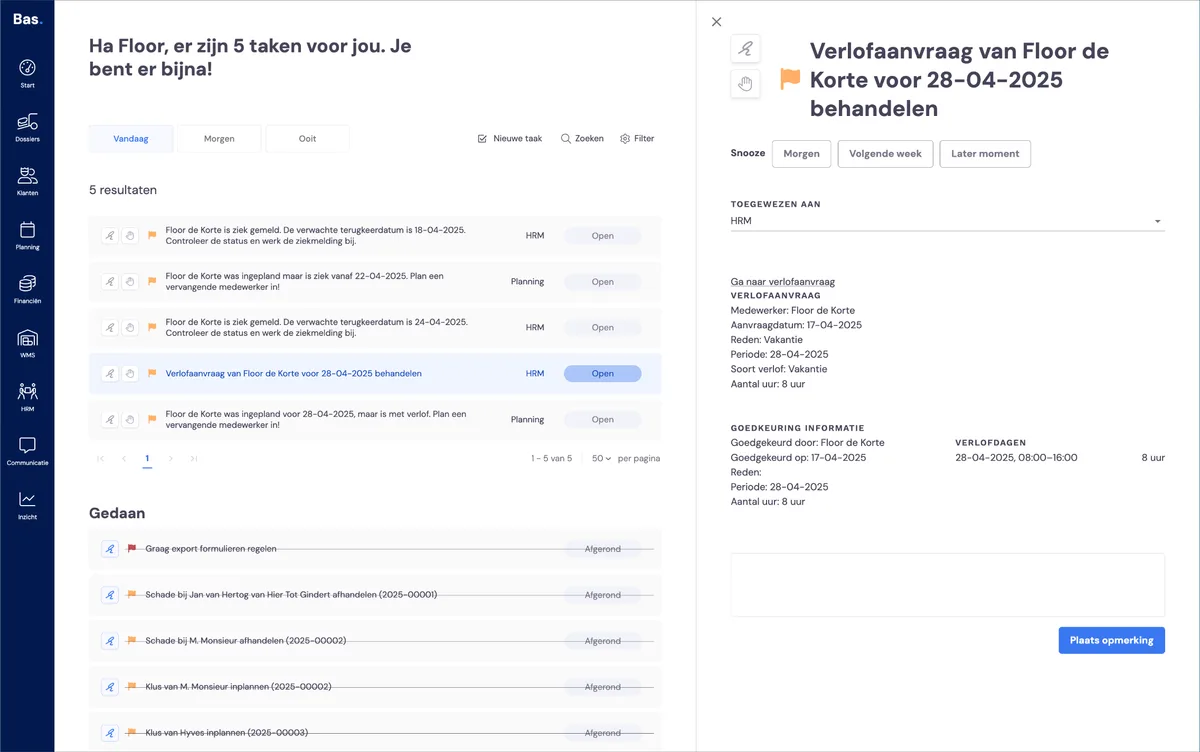
When an employee requests leave via the app, you'll receive a notification for this on the home page. Not receiving a task? Check via Settings > Way of working > Tasks whether the task is switched on and whether it's activated for you or the team you're assigned to.
Processing a leave request directly from the task
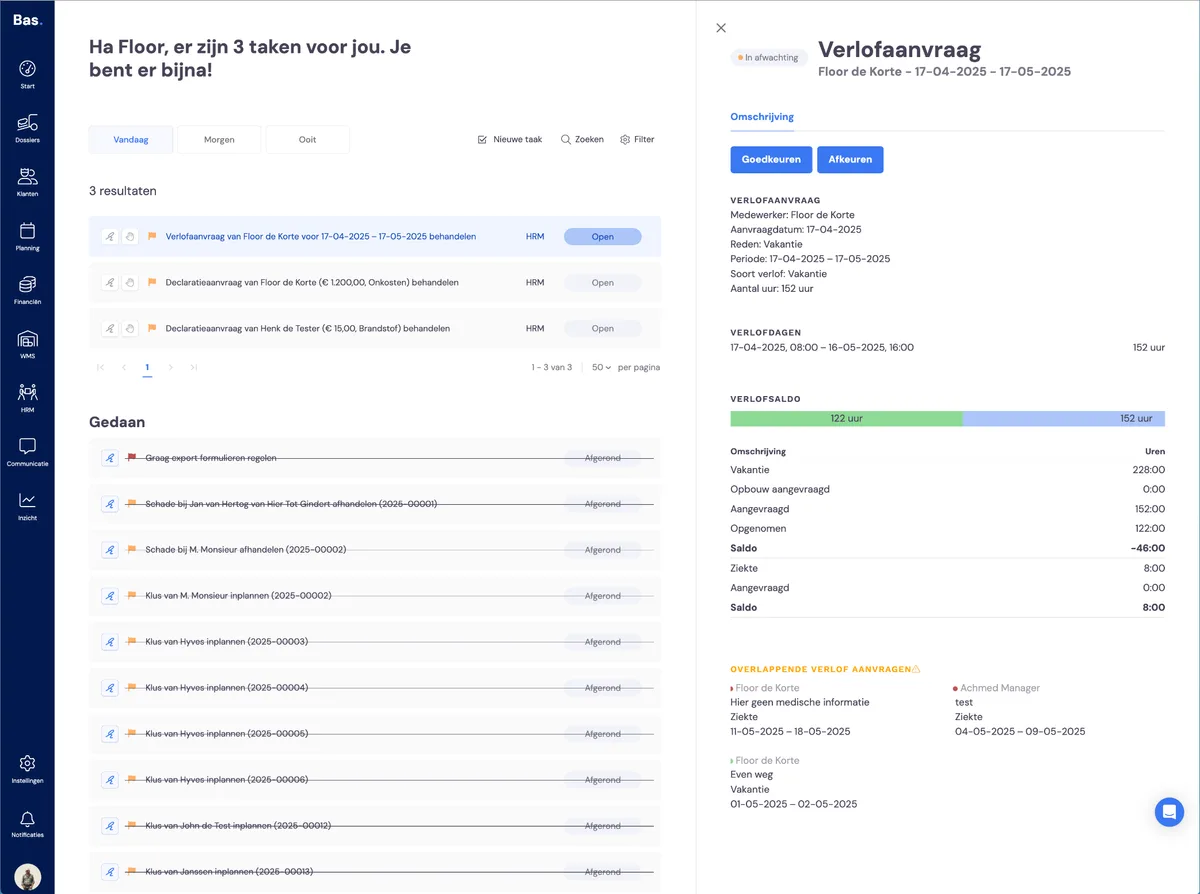
You can process the leave request directly from the task. Click on the task and you'll see the details on the right-hand side of the screen. Click approve or decline to process the request.
Update to the employee
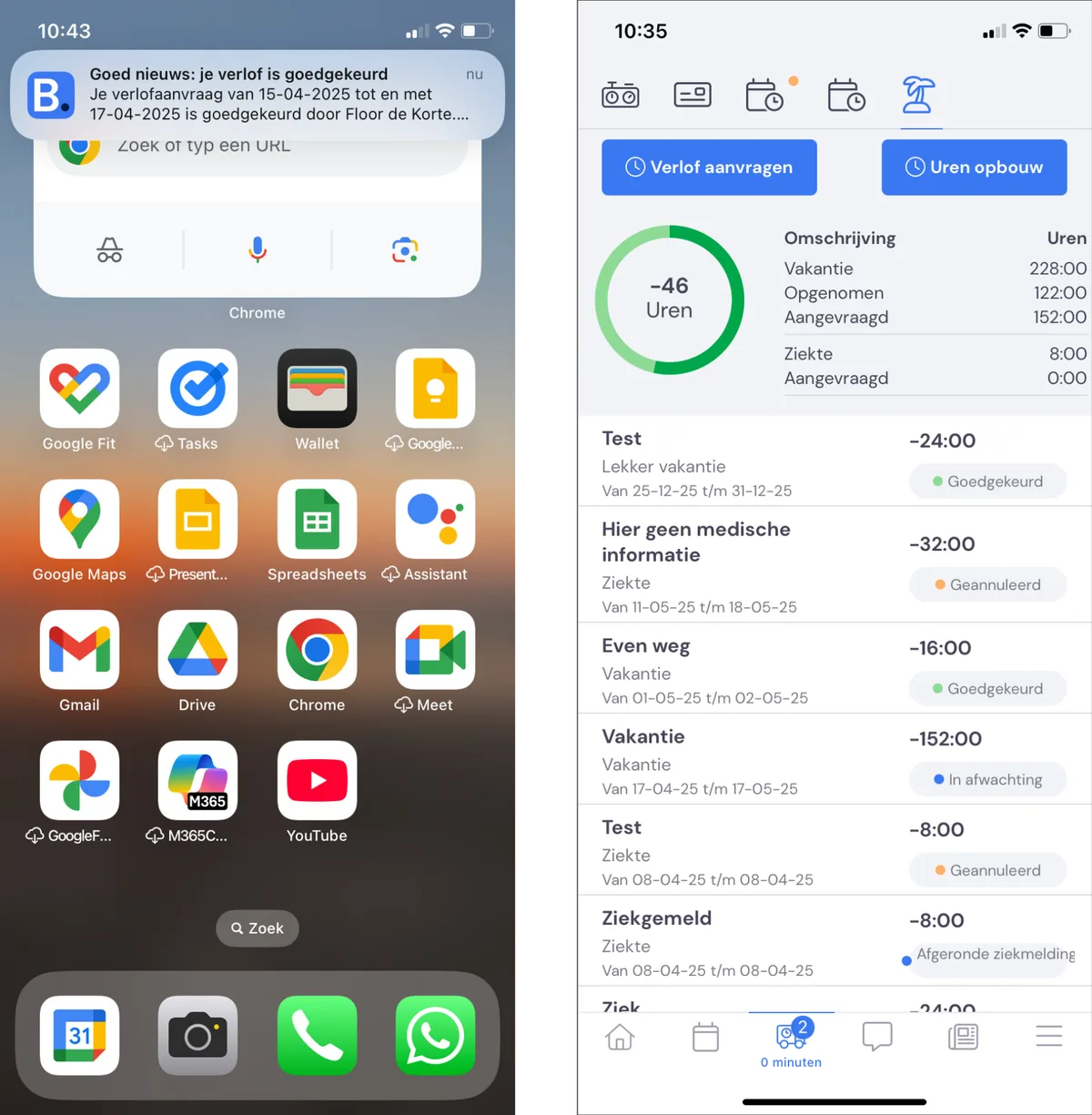
The employee immediately receives an update on the status of the leave request via a push notification. Clicking the push notification takes the employee to the list of leave requests and accrued hours.
Not receiving a push notification? Check whether the app is allowed to show notifications for the Bas app. If this is switched off, notifications won't be shown!
Working from HRM > Leave requests
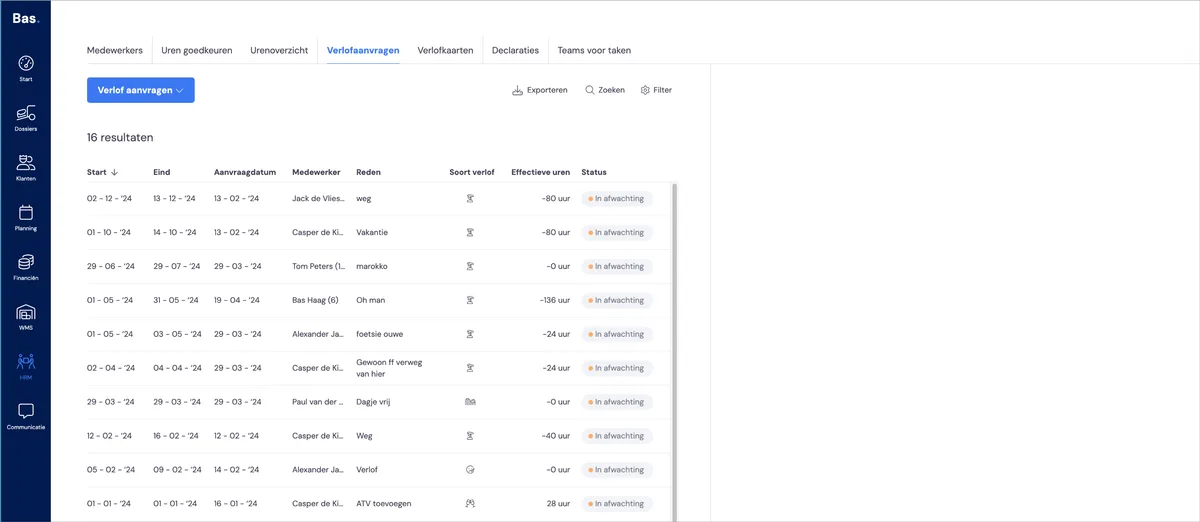
To handle leave, go to HR and then to Leave requests. Here you'll see an overview of all outstanding requests. Once you start working with Bas, you'll see all employees' leave requests here.
Approve (or decline) the request
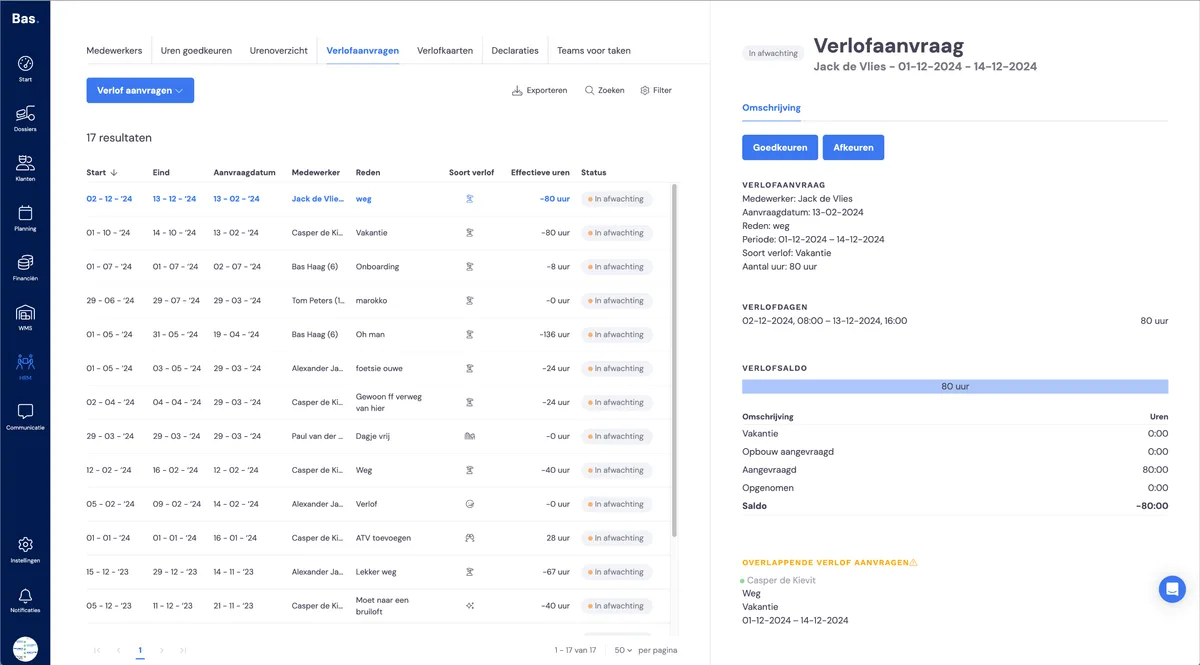
Click on the leave request you just created. On the right you'll see the details of the leave request. You can approve the leave request here. The request has been approved and has now disappeared from the list.
Use the filters
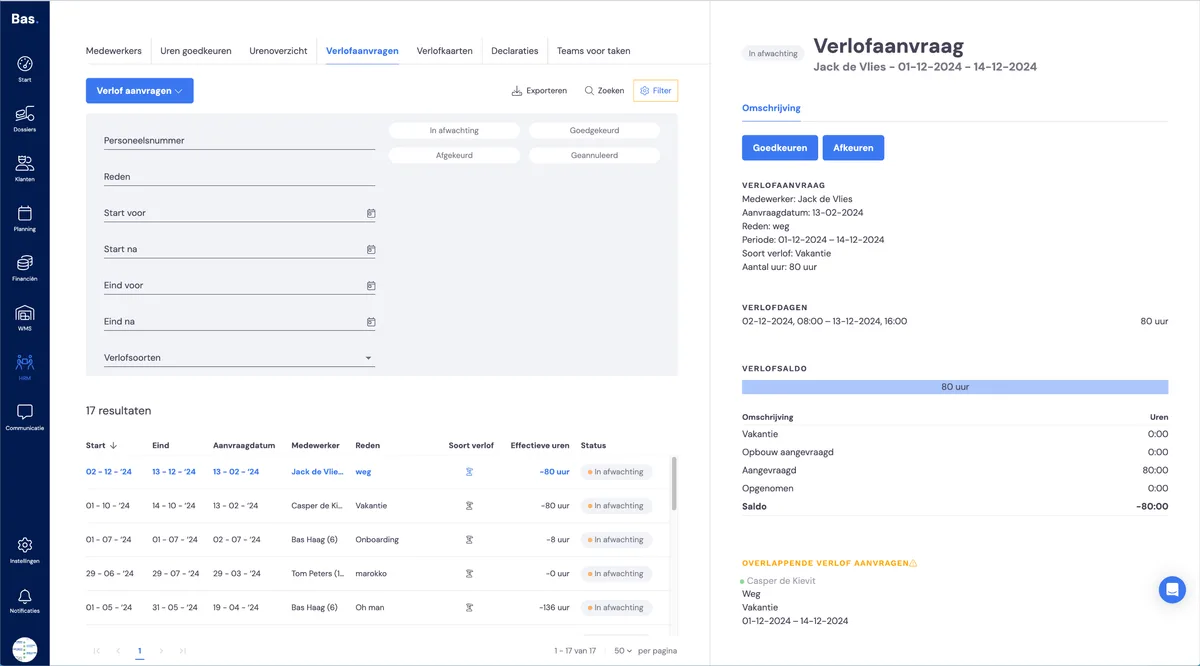
Want to see a previously approved request again in the list? Then adjust the filters. You can filter by status and search on various items.
View the leave overview
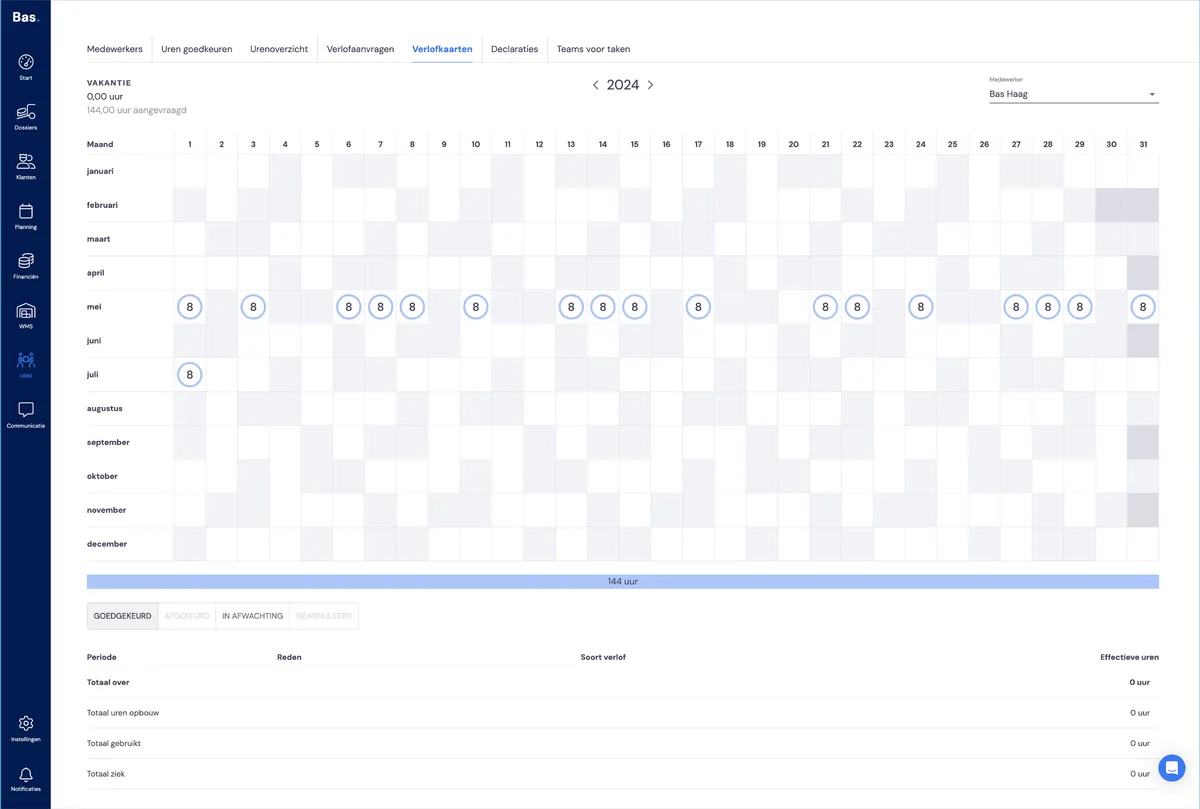
Now go to the leave overview. Here you'll see the result of your action. On the right, select the employee for whom you just processed the request to see it again.