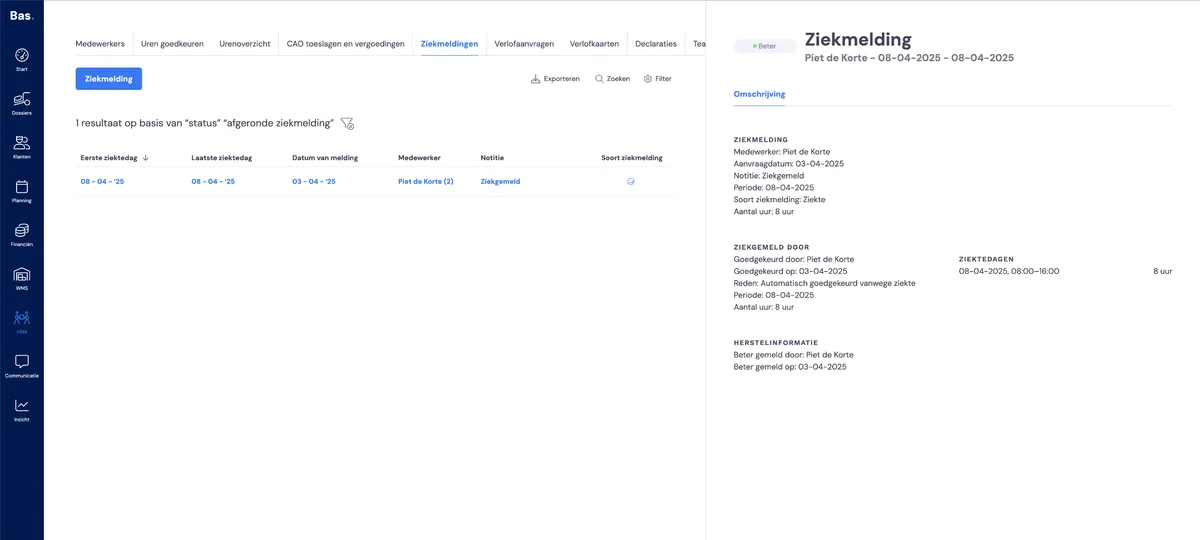
When an employee reports sick, you can easily register and process this in Bas. The employee is then registered as sick in Bas, the sickness is shown on the planning board, and the employee's sickness hours are recorded immediately.
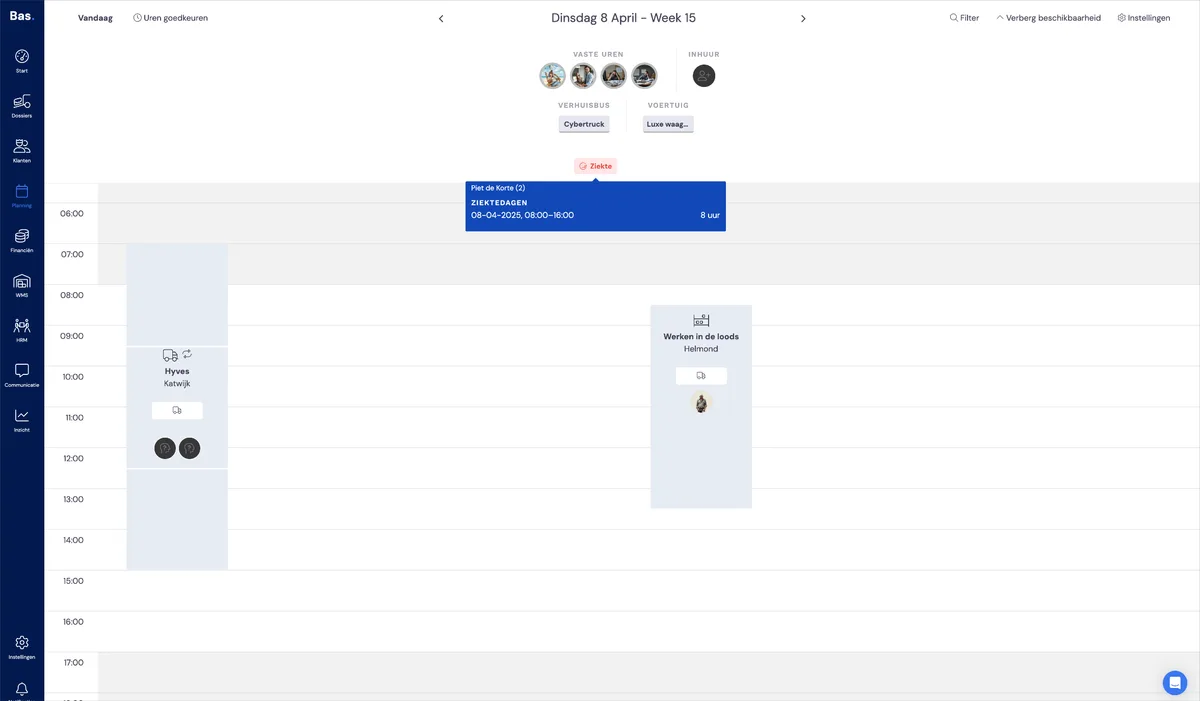
Overview of open sickness reports
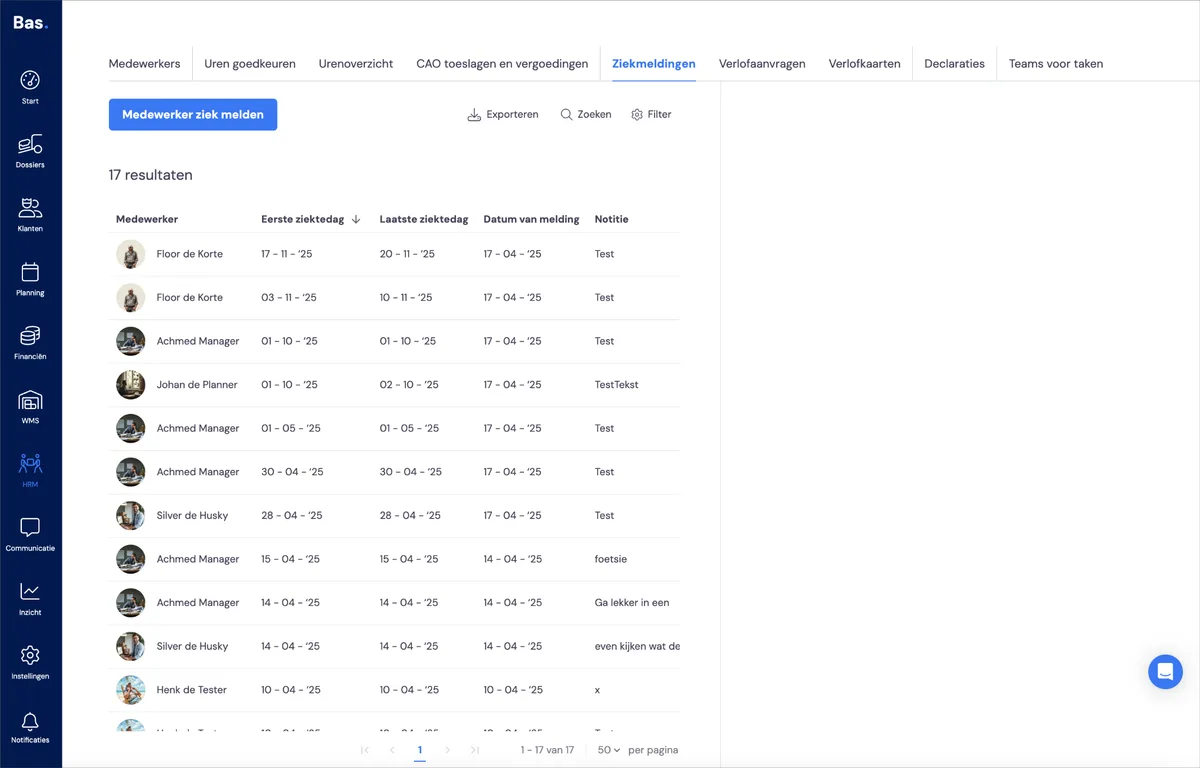
You always have an up-to-date overview of all open sickness reports under HRM and then 'Sickness reports'.
The list includes all employees who have been reported sick. You need to clear all sickness reports by marking the employees as recovered at some point. Until then, the report remains in the overview!
Click on an employee to view the details of the sickness report, mark the employee as recovered, or edit the sickness report if needed.
Reporting an employee sick
If you want to report an employee sick, go to HRM and then to 'Sickness reports'. Then click 'Report employee sick'.
Plays via YouTube, which sets cookies when it does.
You enter the following details:
Note
Here you can add a note about the sickness report.
Please note: you must not enter any medical information hereReport type
This is always 'sickness'.Employee
Select the employee you want to report sick here
First day of sickness
Select the first day the employee is sick
Last expected day of sickness
When do you expect the employee back?
Effective hours
these are calculated automatically
More about 'Last expected day of sickness'
When you report an employee sick, it's almost never certain when the employee will be back at work. That's why you enter the last expected day of sickness here; in the schedule, the employee is recorded as sick from the first day of sickness up to and including the last expected day of sickness.
You can change the last expected day of sickness at any time. So if you've had phone contact with the employee, and the employee expects to be sick for longer, you can update this straight away.
If the employee knows when they will be recovered, you can also mark the employee as recovered from that date. This immediately completes the sickness report in full.
Sickness report hours
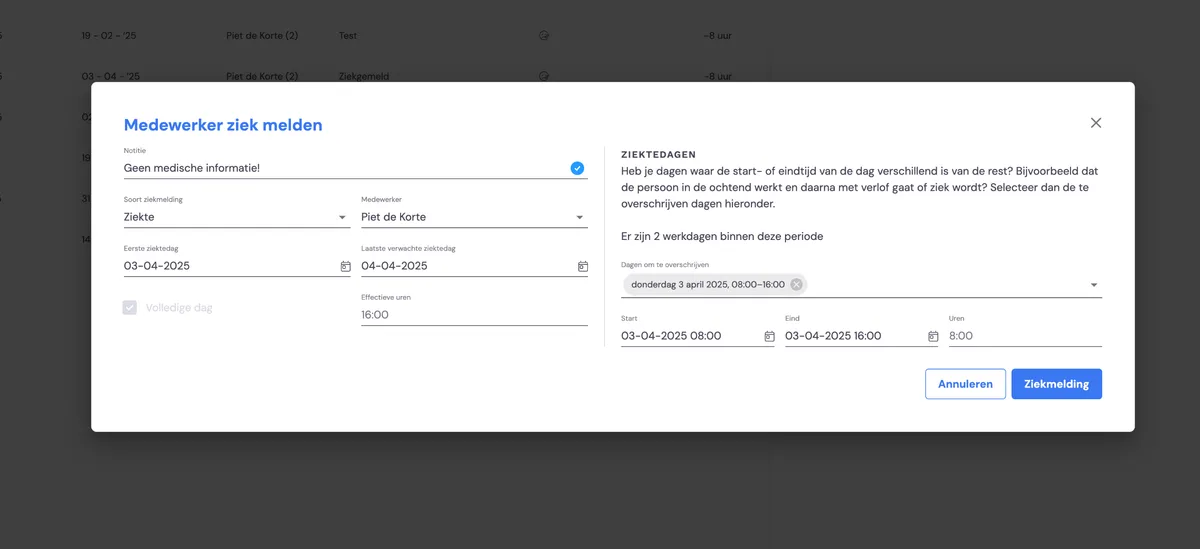
On the right-hand side of the screen you'll see the sickness days that are recorded. If you want to change something for one of the sickness days, click 'Days to override'. You can adjust the times for the selected days.
Reporting sickness for part of a day
You can report an employee sick for part of a day by selecting the day in the sickness report and adjusting the hours there. Choose the hours during which the employee was sick. Sickness hours are recorded for these; you add the remaining hours in the time tracking.
Marking an employee as recovered
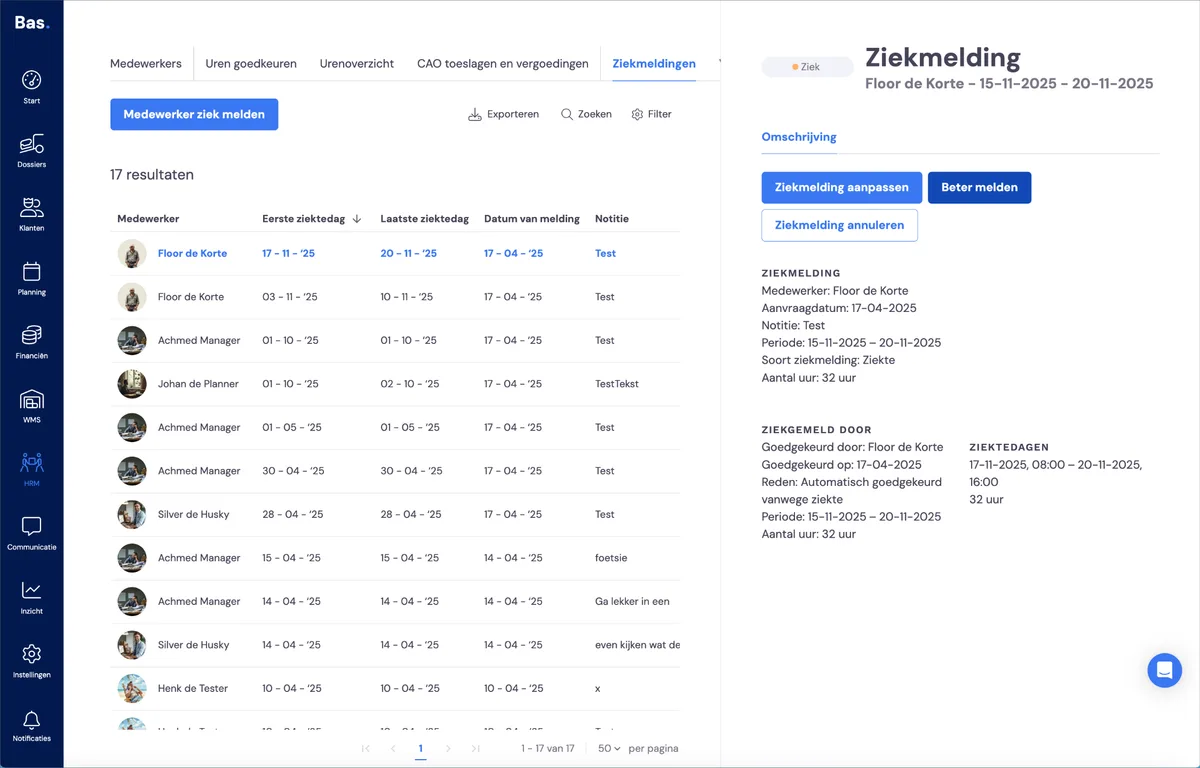
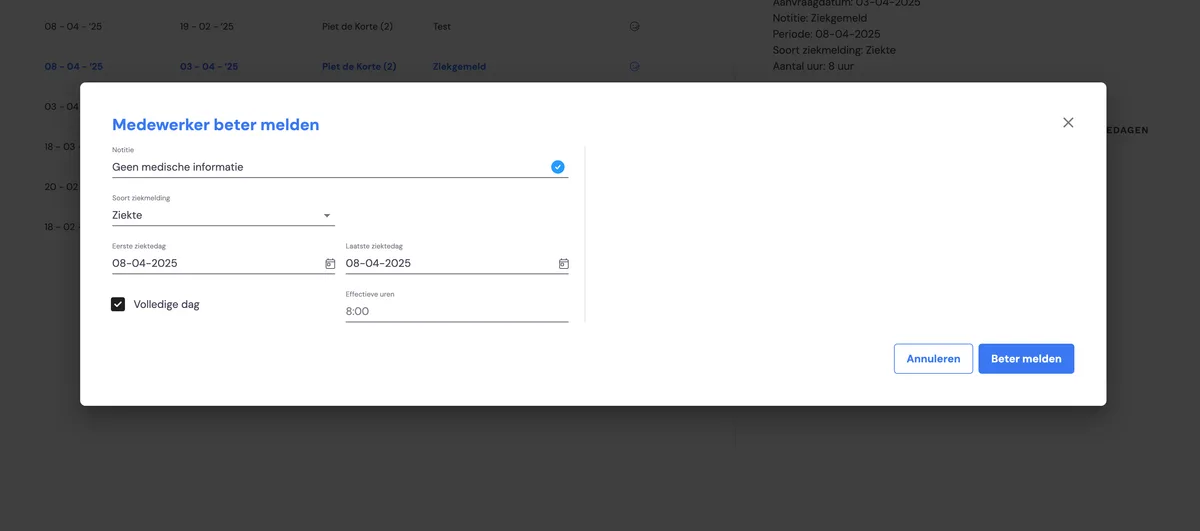
If you want to mark an employee as recovered, click the sickness report and then the 'Mark as recovered' button. If needed, you can still adjust the sickness days here, then click 'Mark as recovered'.
This completes the sickness report and it disappears from the list of open sickness reports.
Sickness reports on your dashboard
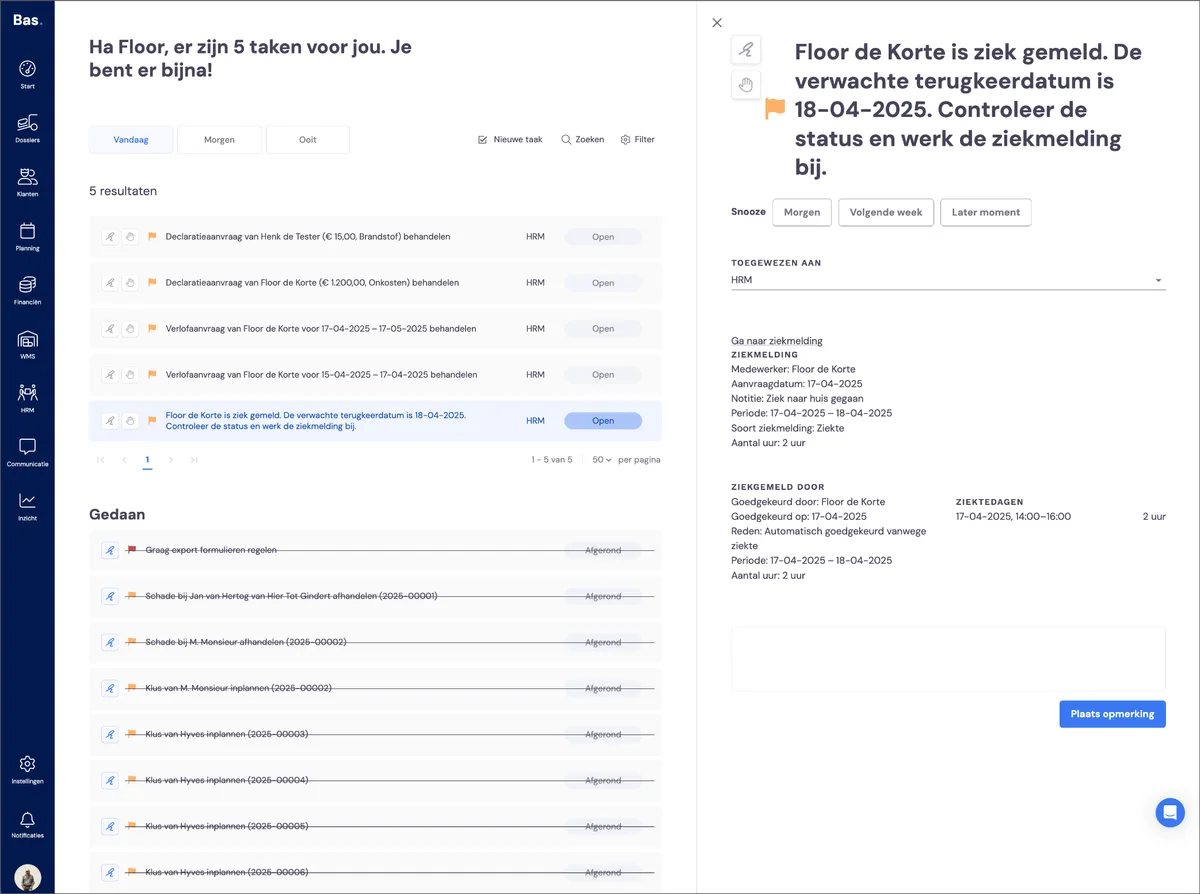
A task is created for every new sickness report. Through these tasks you see straight away who is sick, from what moment, and when the expected date is that the employee will be back at work. Click the link to the sickness report in the task to deal with the sickness report.
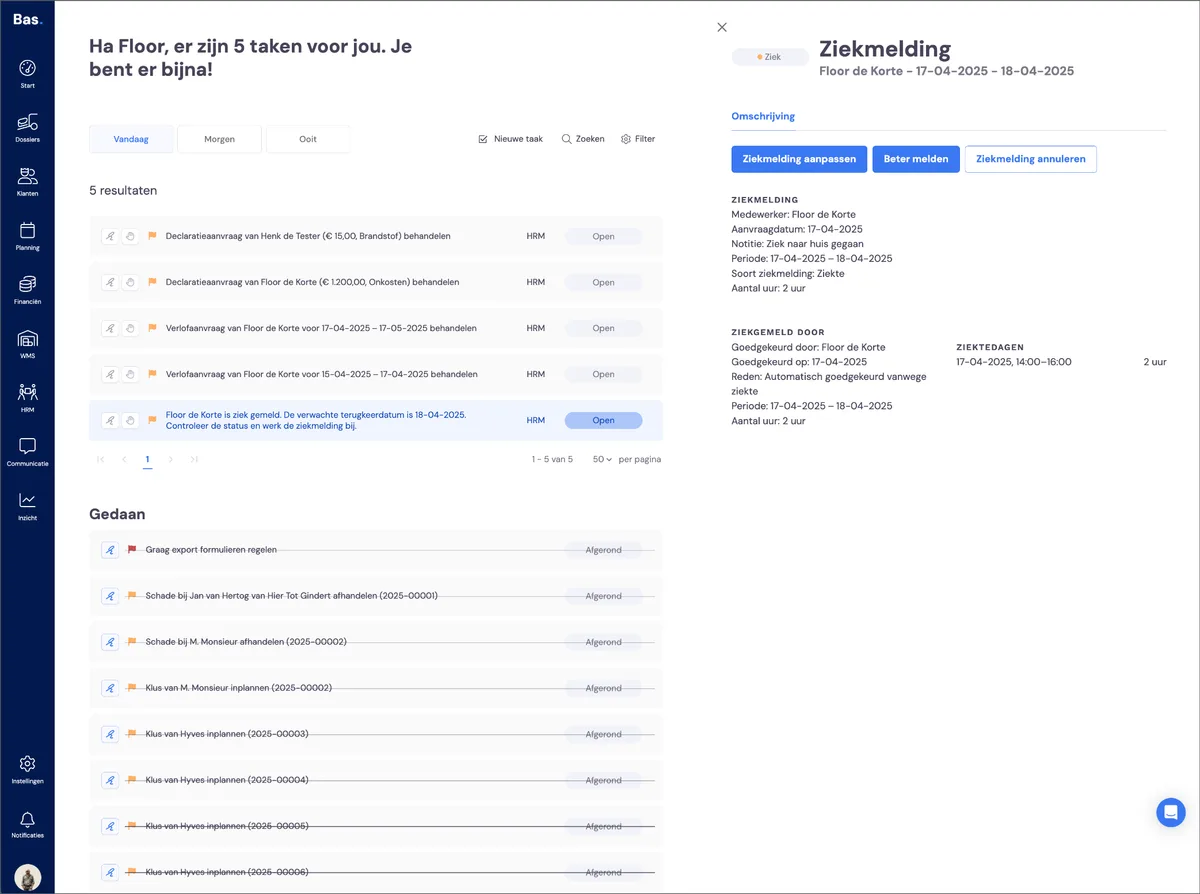
In the detail screen on the right you can edit the sickness report. You would do this, for example, if you expect the employee to remain sick for longer. You can also mark the employee as recovered straight away.
Overview of completed sickness reports
Once an employee has been marked as recovered, the sickness report is completed. After this action you don't need to do anything else with the sickness report, and by default it's no longer visible in the list.