
Introduction
With the settings under 'Process' you can determine the financial handling of jobs for each step in the removal process.

You can, for example:
set at which step(s) in the process you want to send an invoice
for example, if you want to work with a deposit, you add an invoice moment after acceptance of the quote you sent to the customerset signing moments for the customer
in every phase and for every appointment you can indicate whether the customer needs to sign to accept
set which payment term you want to use for your invoices
you can set this per document template
set which expiry term you want to use for your quotes
you can set this per document template
work with a process based on a fixed price or on actual-cost invoicing
set up a standard flow for fixed-price jobs and a standard flow for jobs billed on actual costs
set a standard discount
you can include a standard discount on the quote or on the invoice per packageinclude standard lines in quotes
a standard line for, for example, call-out costs
set whether you want to let the customer pay online when you send an invoice
you can then include a link in the message to the customer for payment via the Mollie integration
adjust the communication with your customer to match your house style
you can set up templates for quotes and invoices and the customer messages yourself; you can adjust logo, colour scheme, and standard texts so that it matches your companycreate tasks for the team
per phase you can set which team should pick up which task at which moment, for example the task to chase up a quote by phone
When do you use it?
There are various situations in which you'll want to adjust the process:
you can create a package for specific customers, where the financial handling is adjusted to the terms you've agreed with your customer
you can create different packages for private customers and for business customers, so that, for example, the VAT display is adjusted
Where do I find it?
You'll find all the settings relating to how you want to work in Bas under Settings > Process.
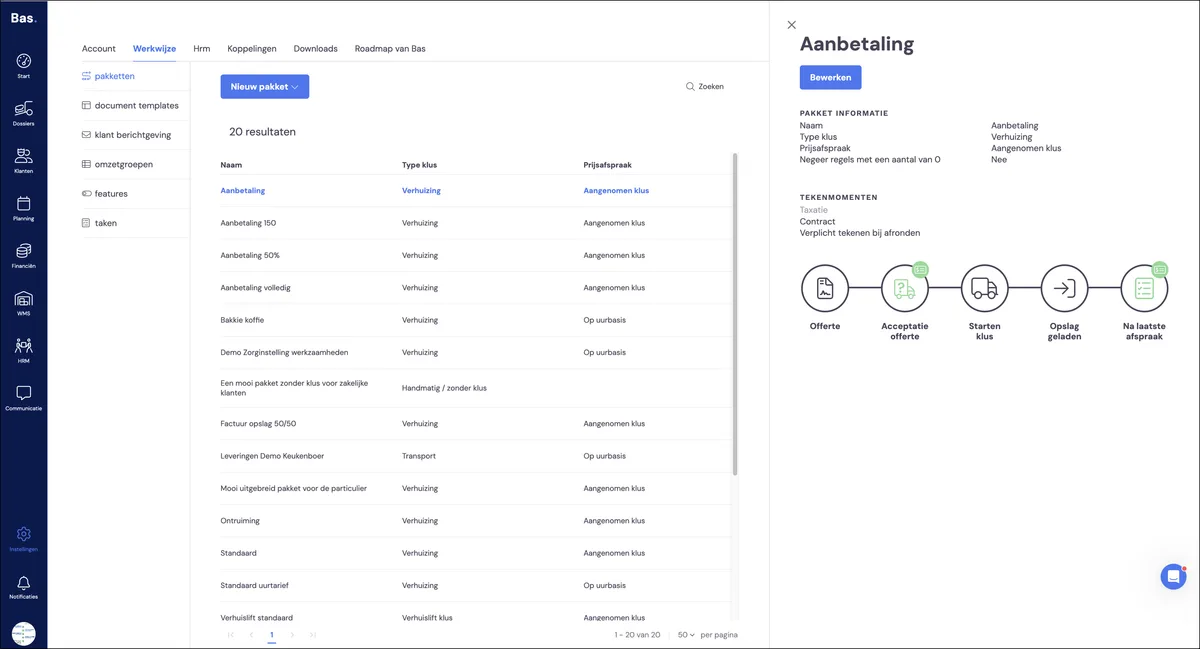
How does it work?
The package determines the process. In the package you choose what happens at which phase and you link to the desired document template; via the template you link the desired customer message.
Package
With a package you can set up how the financial handling is arranged for each phase of the removal process.
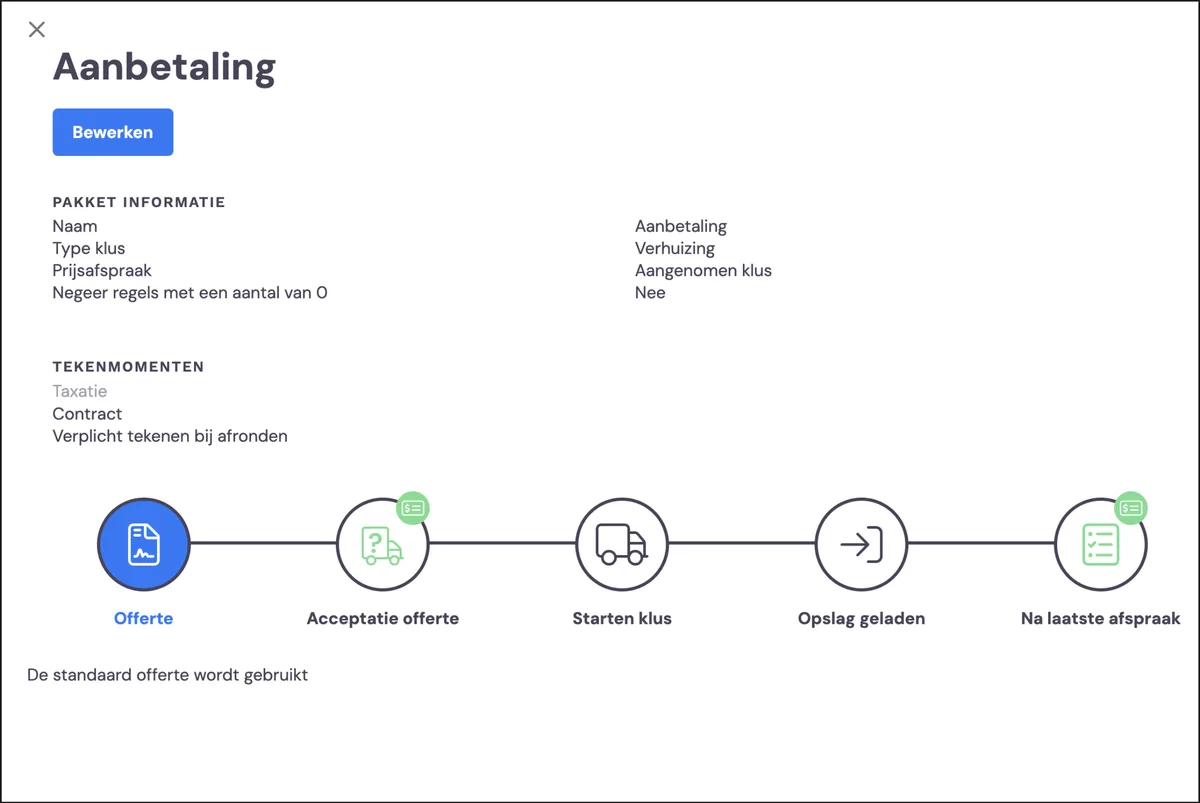
Click on edit and you can set various things per phase
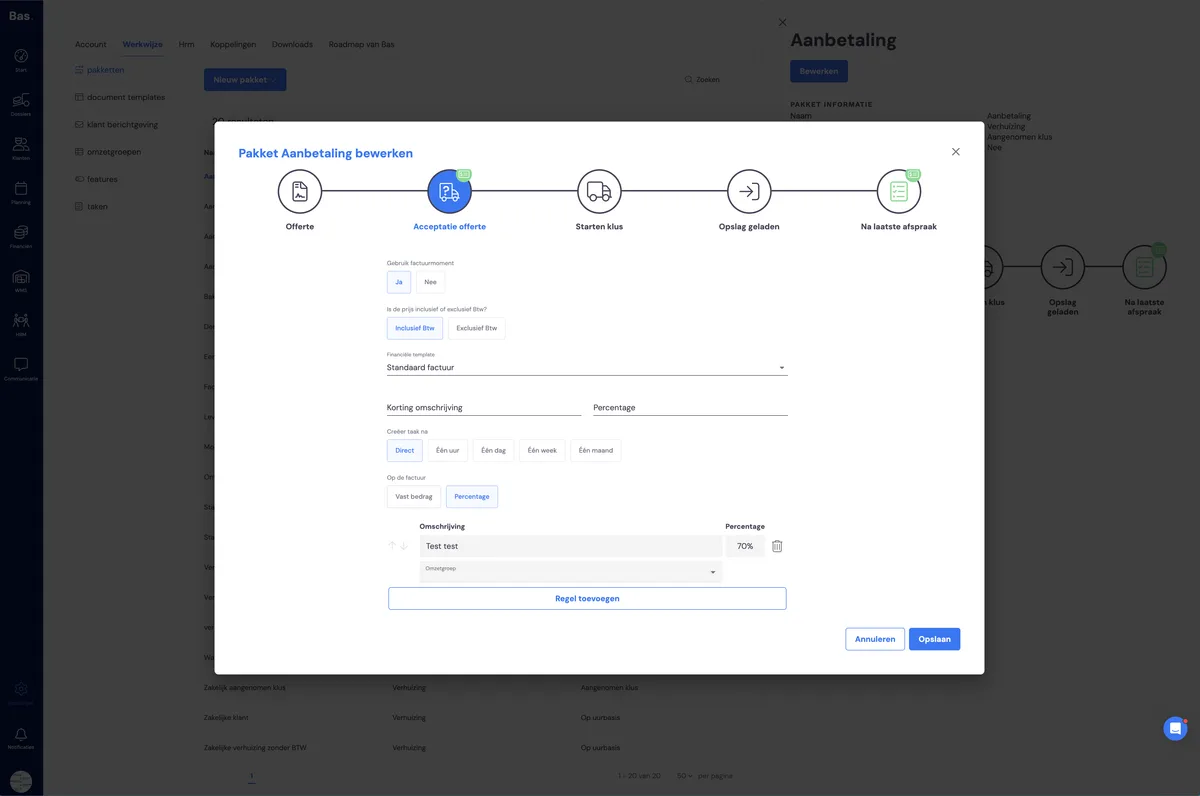
For all the information about setting up packages, go to everything about packages
Document template
In the various phases within the package you can indicate which document template should be used. With this template you can also set various things to establish the process:
For quotes you set the expiry date, for invoices you set the due date
You adjust the layout and content to your liking with the template editor
You link to the desired customer message (this is the e-mail that's sent to the customer)
You can create templates in multiple languages
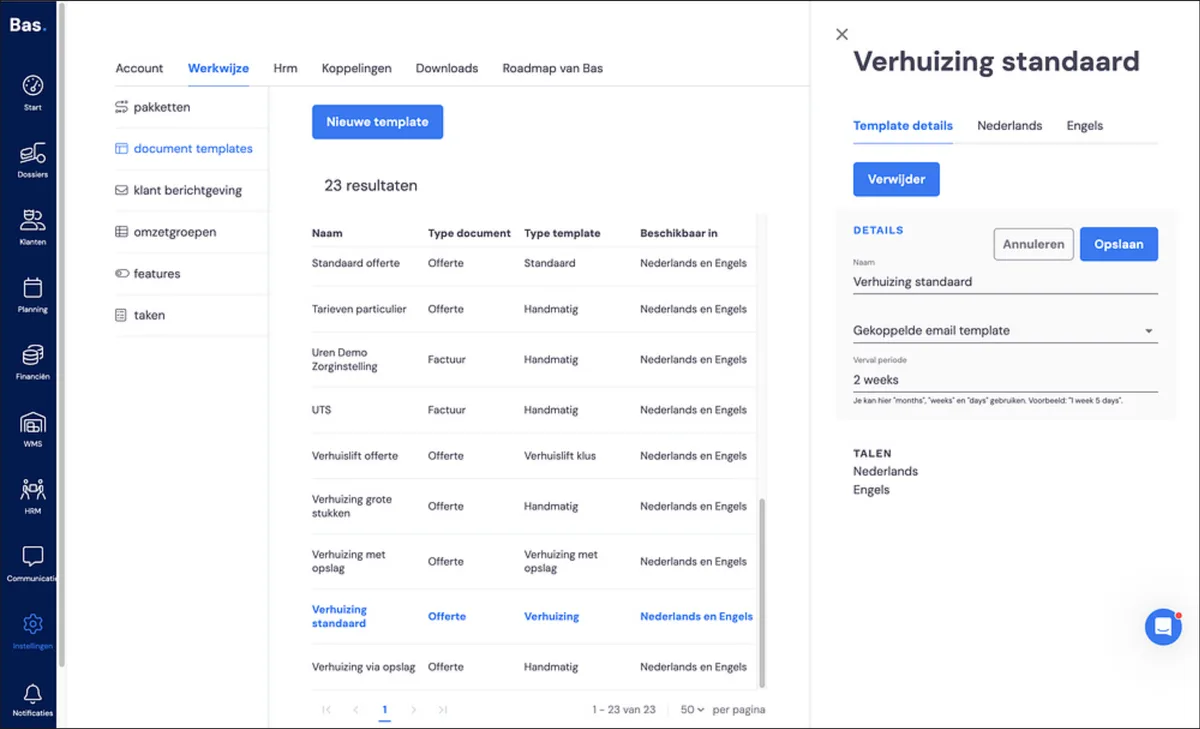
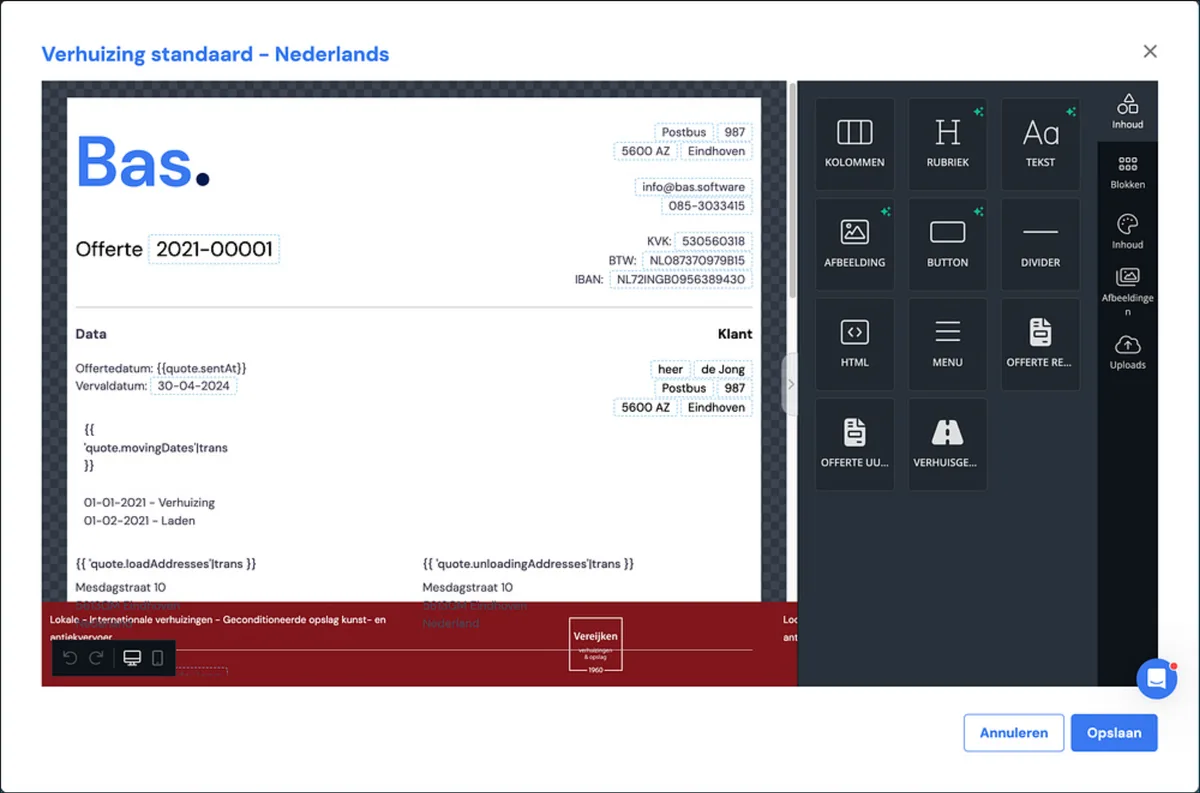
For all the information about setting up document templates, go to: everything about document templates
Customer message
Finally, a template is in turn linked to a customer message. This is a formatted e-mail that you send to customers.
You set the subject, sender, and bcc per customer message
You adjust the layout and content of the e-mail to your liking with the mail editor
You use the editor to add functions such as 'pay online'
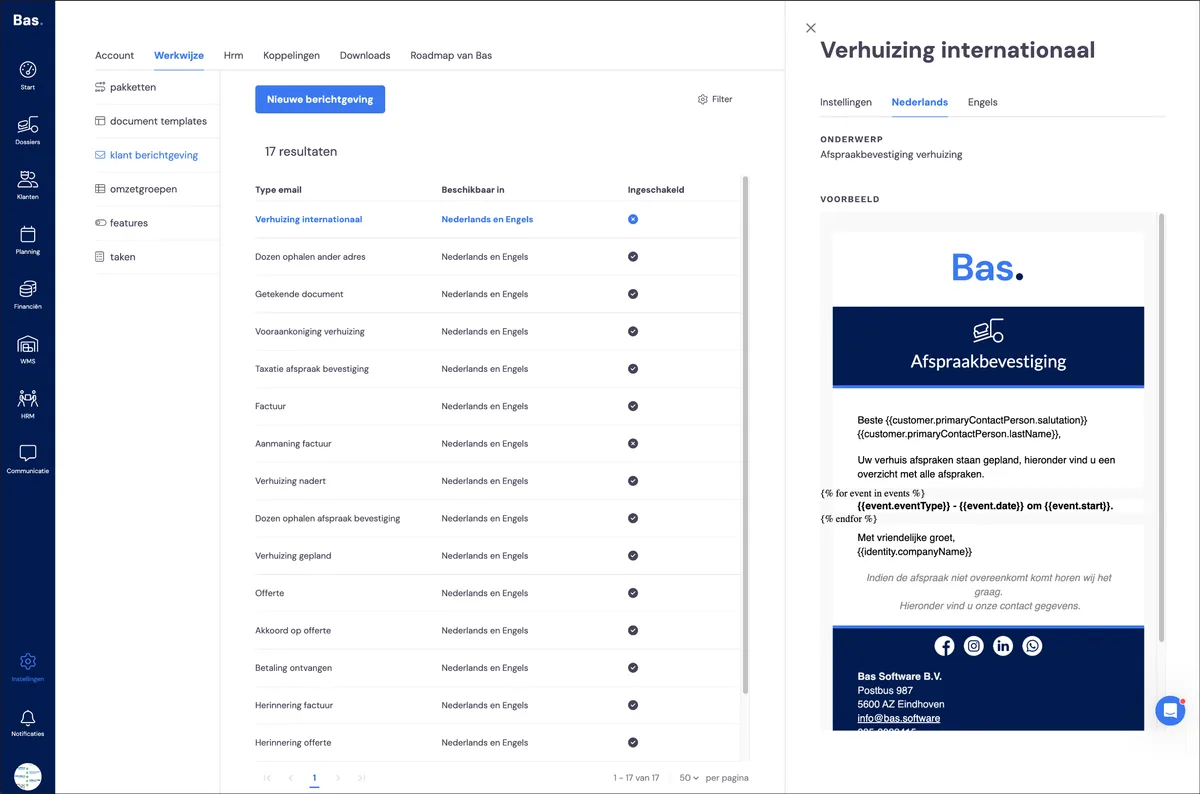
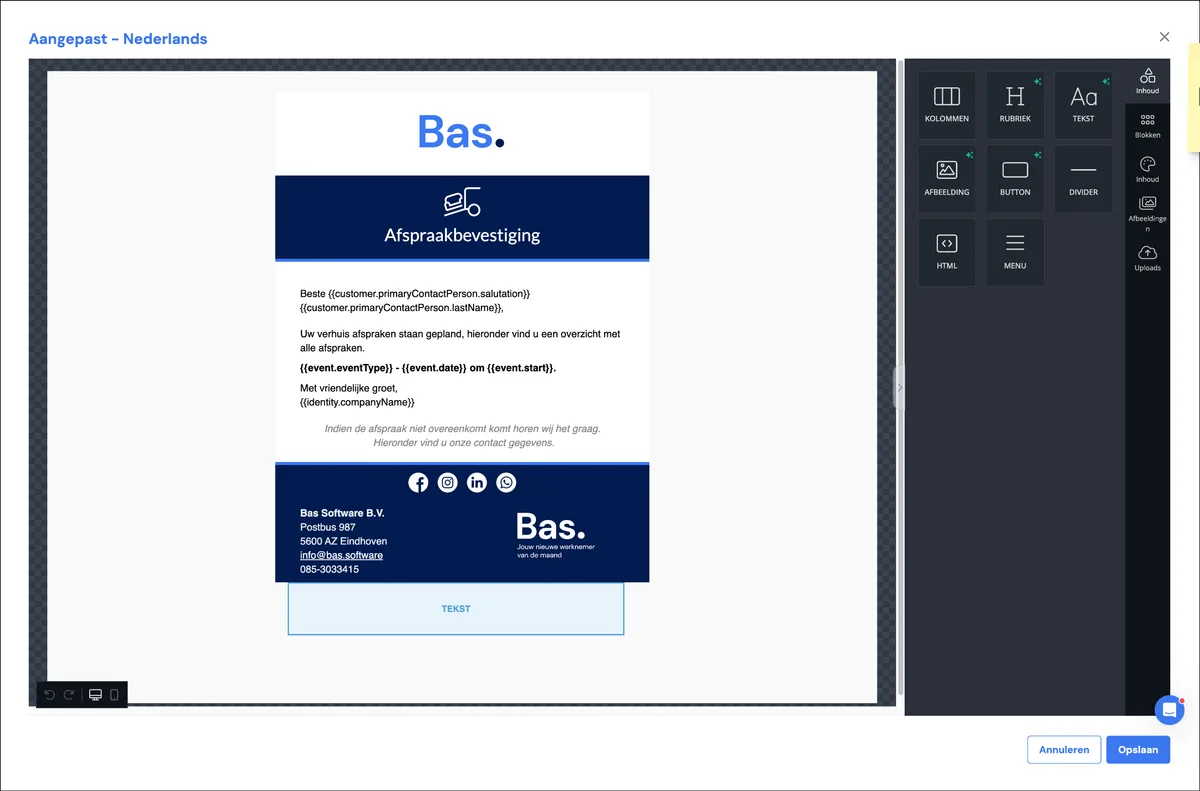
For all the information about setting up customer messages, go to: everything about customer messages