
Employees with the 'warehouse employee' skill can manage storage with the app. The condition is that your storage units have scannable stickers with QR codes. This article provides all the information you need to do this.
Get a suitable label printer
To print stickers, you need a Dymo label printer of the type Dymo 5xl. Use the XL sticker sheets with this.
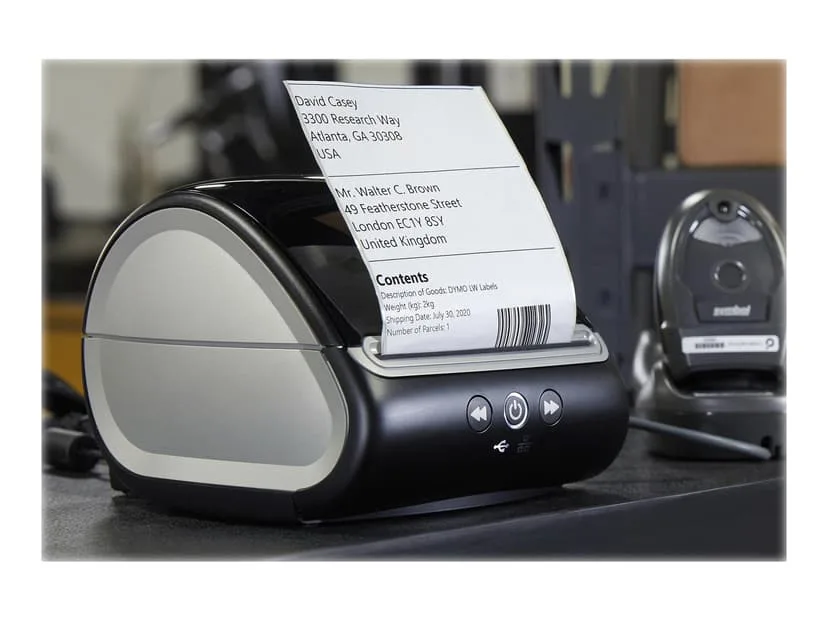
Install your label printer
To print QR codes for storage bays, storage units or items in your storage, you first need to purchase a suitable printer and install the software. The option to print stickers will then automatically appear in Bas.
Then print all the stickers
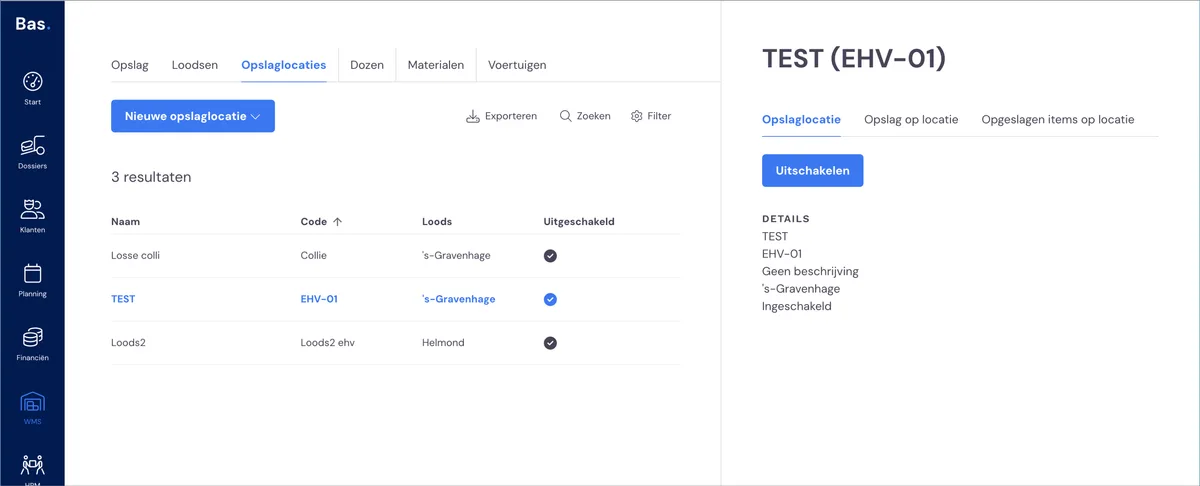
Go to storage and then to storage bays. Click on a storage bay and print the stickers.
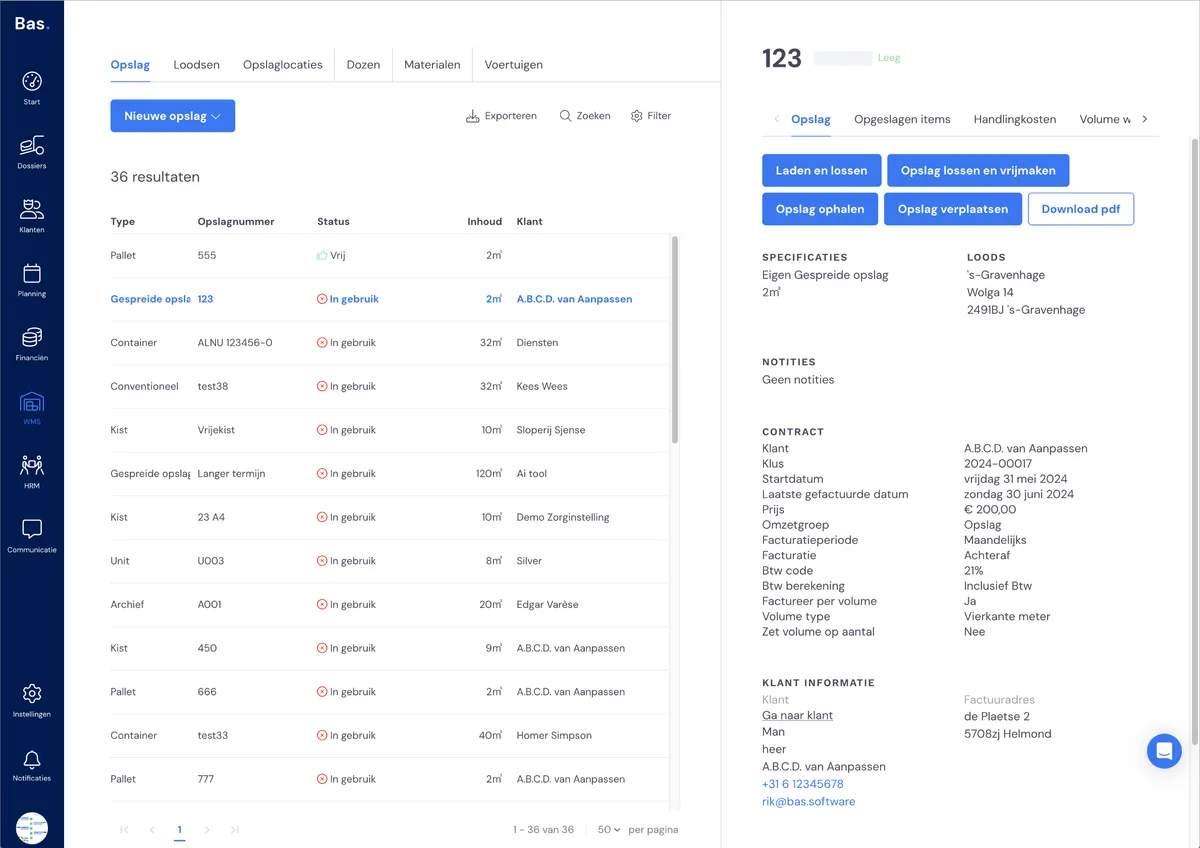
Go to storage. Click on the storage units and print the stickers
Stick on all the stickers. Ready to manage storage via the app!
Take all the stickers, stick them at the correct storage bays and on the correct storage units. You're ready to manage storage with the app!
Error message "Invalid label"
Do you get the "invalid label" message when printing? Then your Dymo printer has the wrong label size loaded.
Bas works with two label sizes:
LARGE label (104 mm × 159 mm): For storage units such as crates, containers, units, pallets etc.
SMALL label (57 mm × 32 mm): For items and locations in storage
Solution:
Check which size you need for what you want to print
Load the correct sheet into your Dymo printer
Try printing again
Print button not available? Restart your computer and try again.