
If you need to store items for a customer during a job, you can indicate this during the survey. This lets the surveyor prepare everything for the next steps: recording which items need to be stored, how many cubic metres this is, and which storage unit they're stored on.
The 'storage' service during the survey
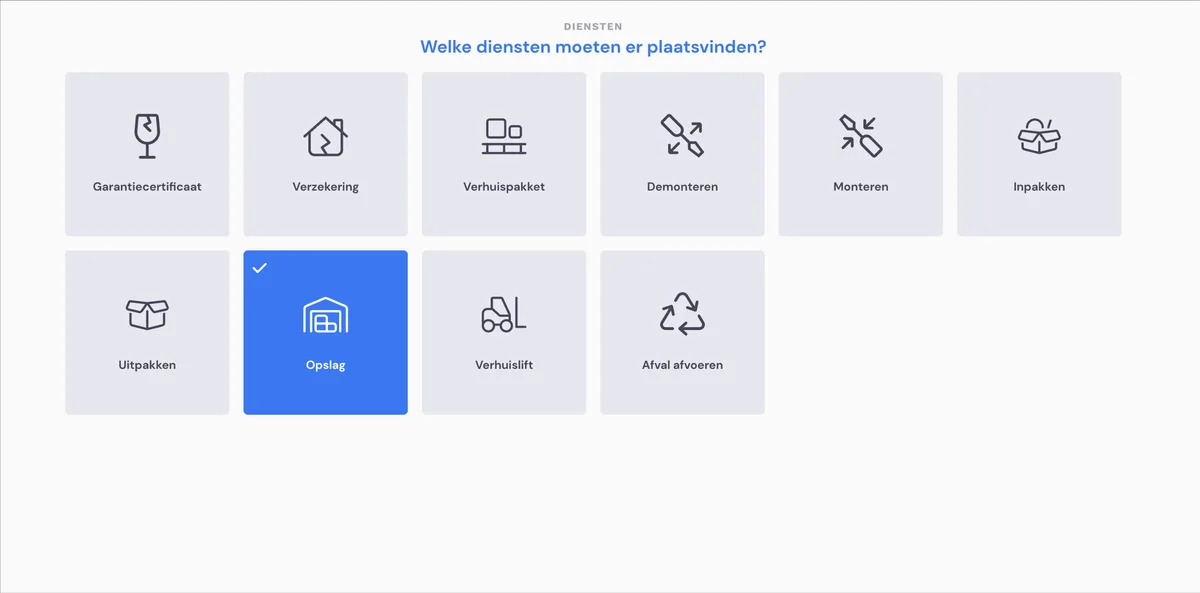
If you want to quote a job that includes storage as a service, you can already add this during the survey.
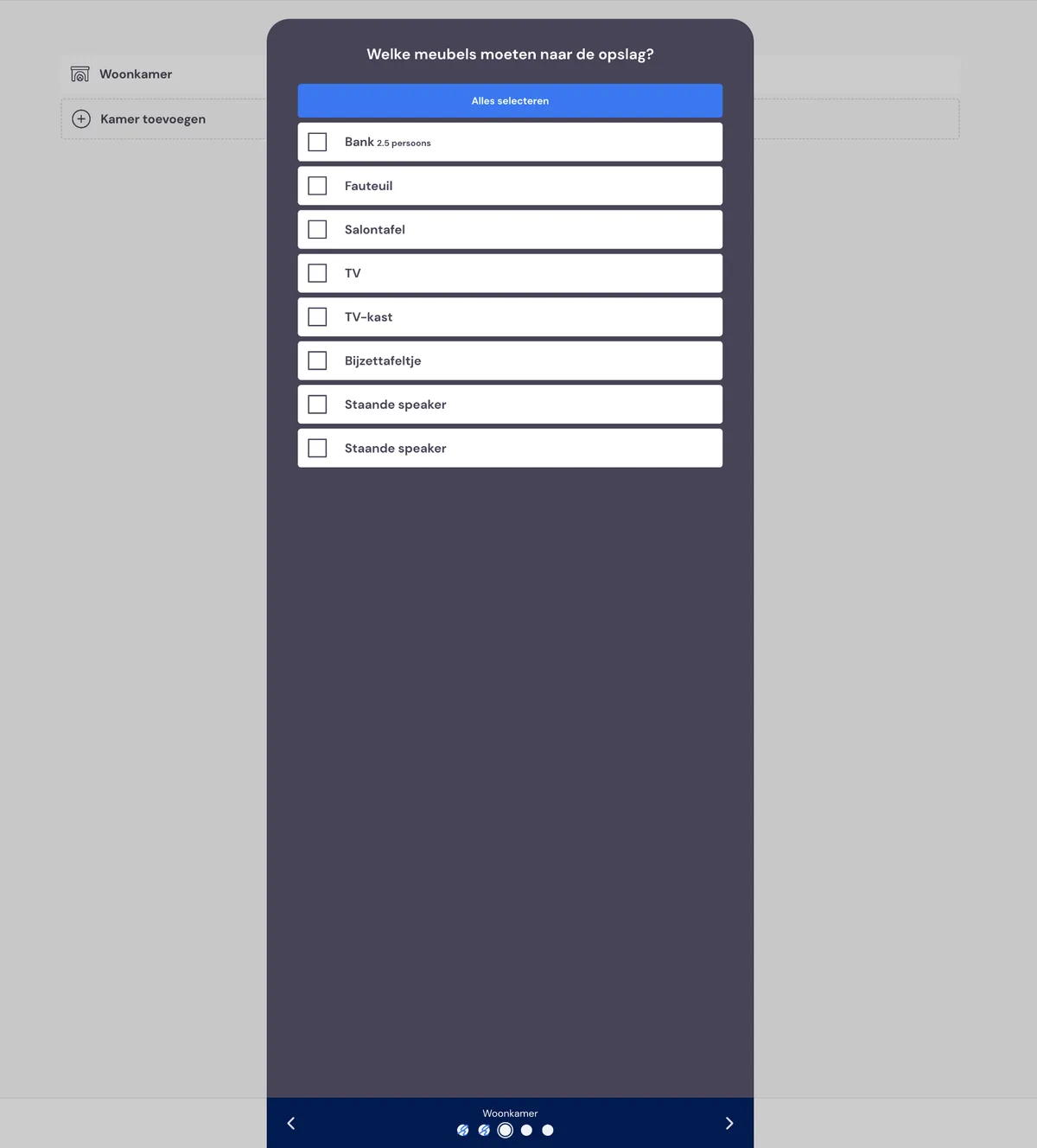
After selecting all the items you're going to move, you're asked which items need to be stored. Based on this list, the number of cubic metres to be stored is calculated.
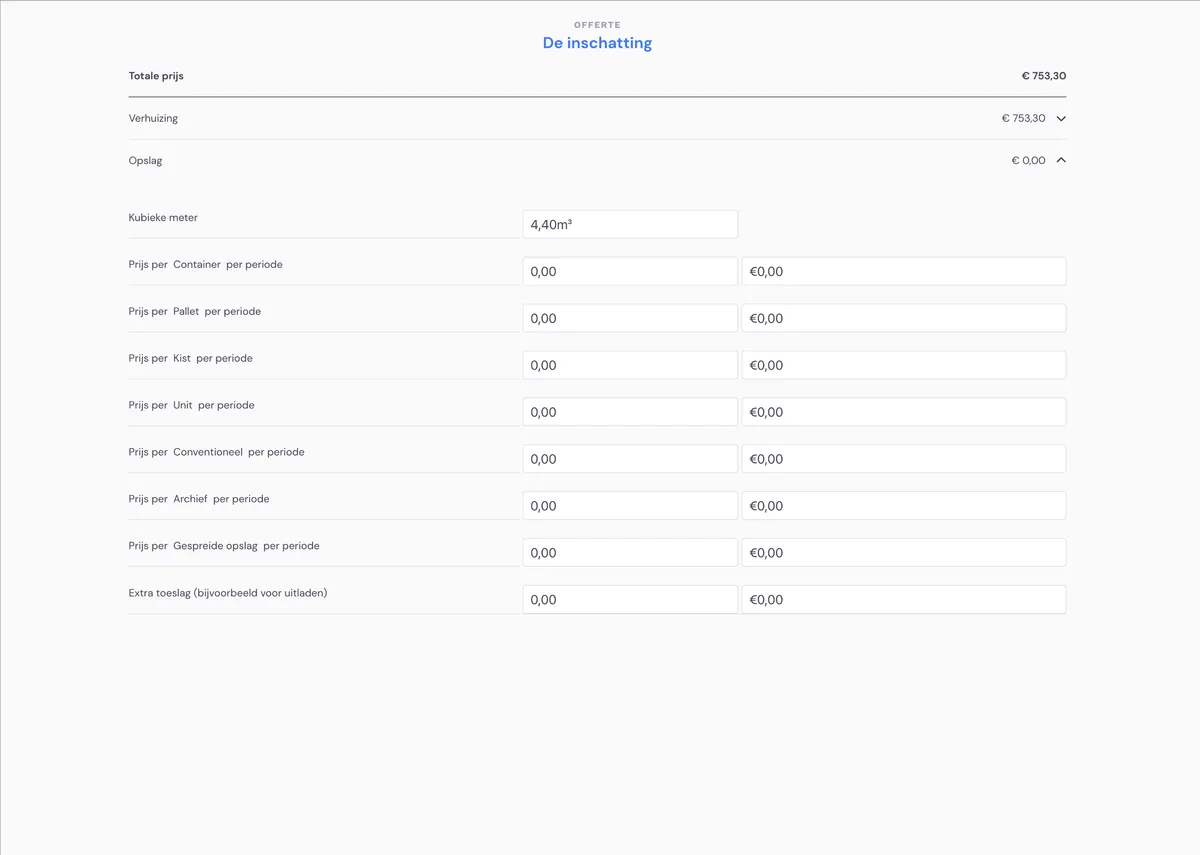
During the estimate, you're asked how you want to store the items: on a pallet, in a crate, etcetera. And what the costs are. You need to indicate yourself how many storage units you want to reserve based on the estimate in cubic metres.
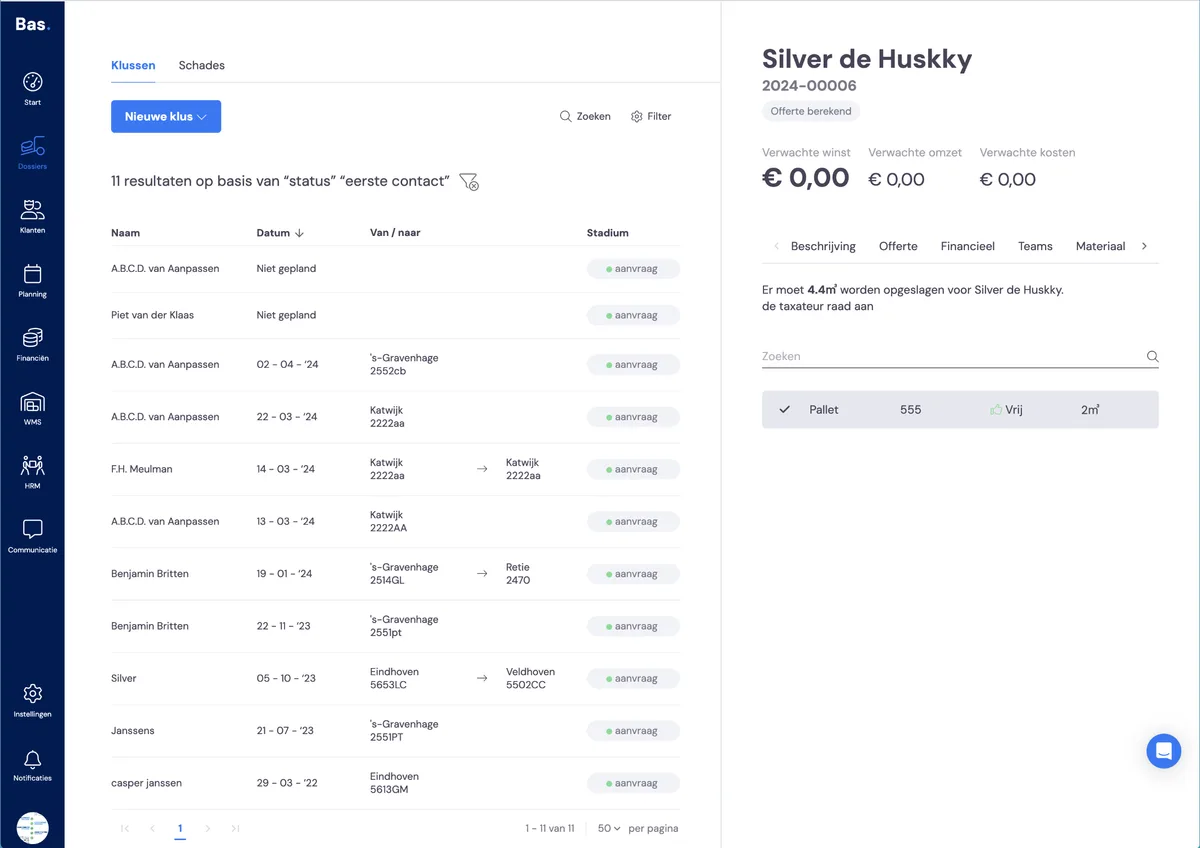
The result: the job now shows how many cubic metres need to be stored and which storage unit can be used.
Carrying out a job with storage
After adding the 'storage' service during the survey, a 'load storage' appointment must be created when scheduling the job. After this appointment has been carried out, a task appears to link this to the correct storage unit. The task shows which job it concerns. First, look up the job.
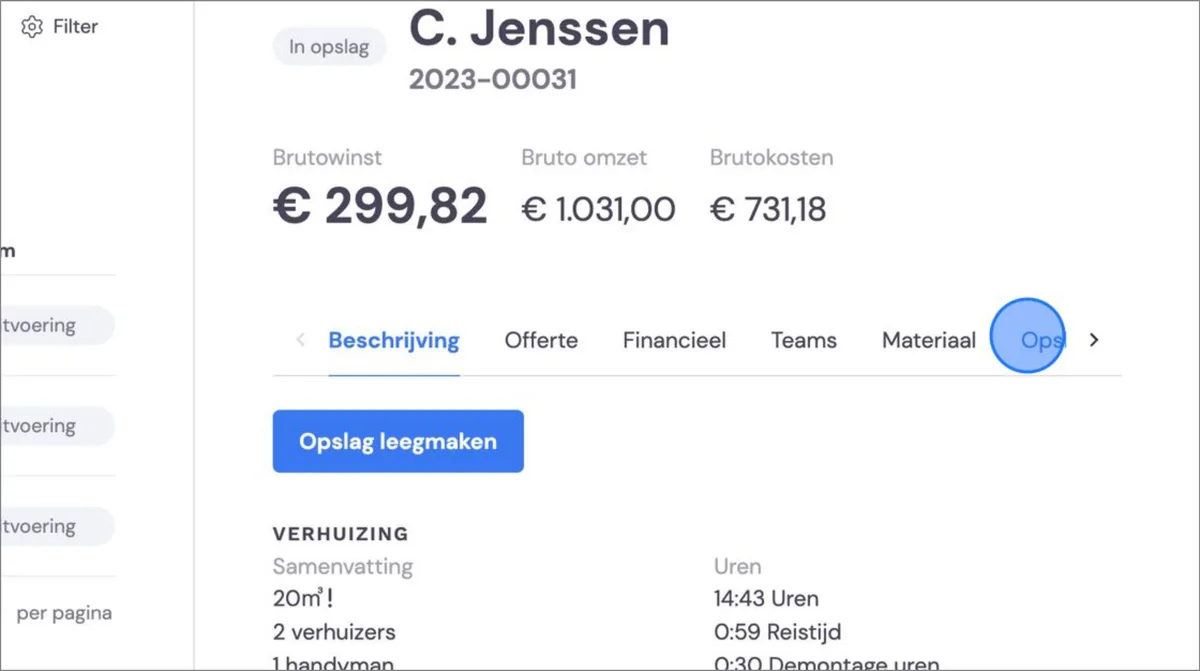
Click on the job in question and click on storage. Click on "Storage" on the right of your screen.
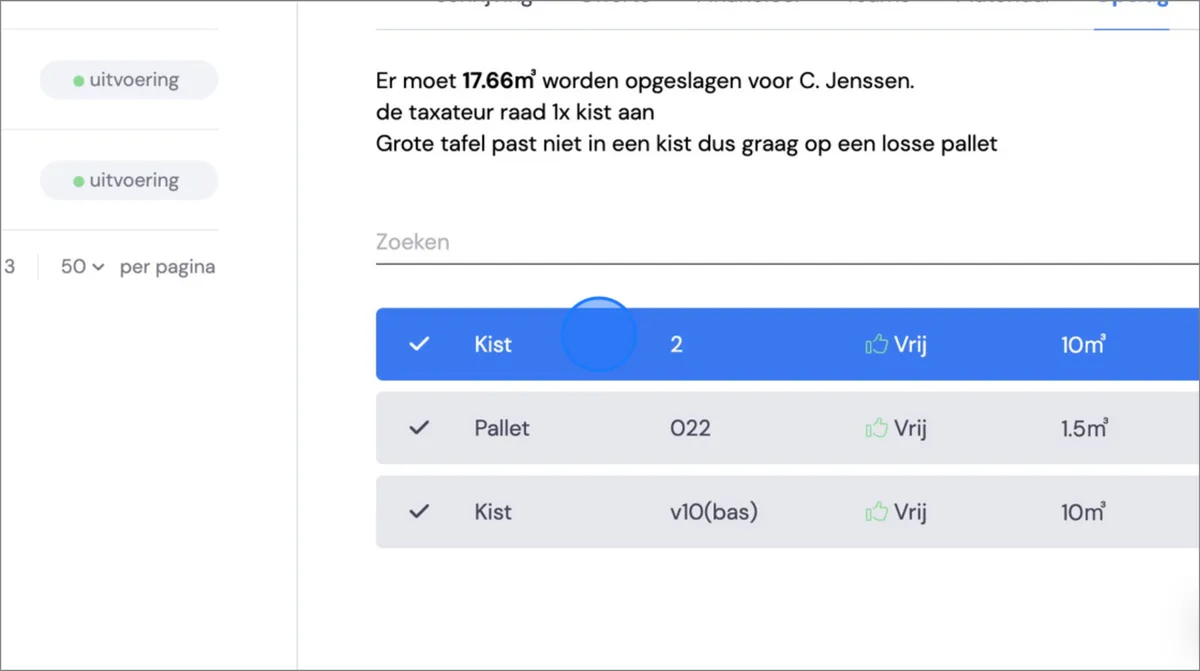
This shows what the surveyor indicated during the survey. Now click on the first storage unit to load the storage and arrange the invoicing.
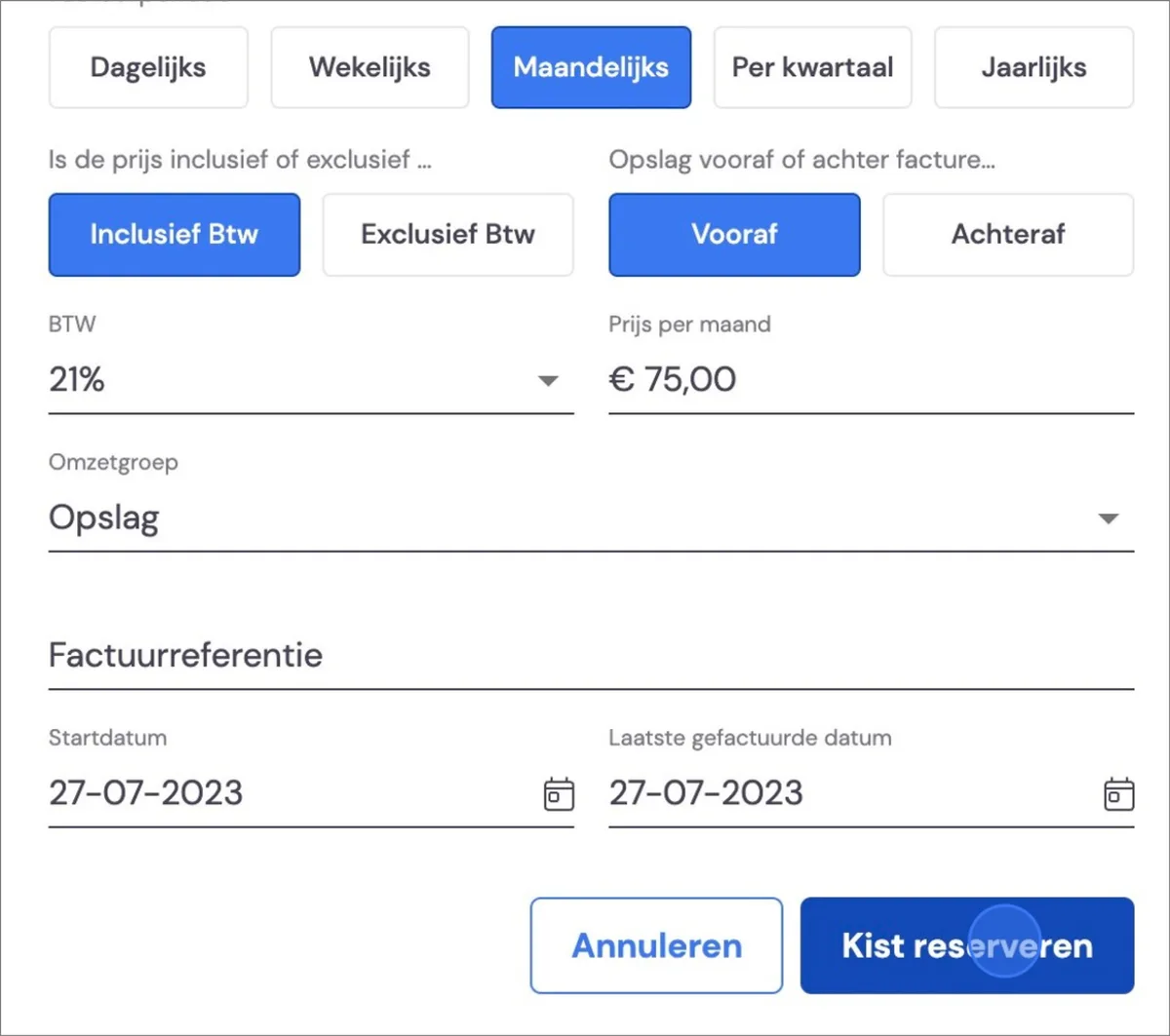
Fill in everything relating to the invoicing here. You can then continue by entering all the storage units. If you keep the invoicing frequency and start date the same, both storage units will be prepared for you as one draft invoice.
Keeping storage up to date
The storage is set up. The invoicing is arranged. Everything is ready to keep the storage up to date.
After these steps, the storage unit is loaded with the items selected during the survey, and the invoicing is arranged.
To view what's in the storage unit, who loaded it, and to register changes, go to "WMS" and search for the customer or storage unit.
Everything about keeping storage up to date >