
Once a storage unit is filled, linked to a customer and possibly a job, all that remains is to keep track of any changes. These can be changes to the contents of the storage unit, changes to customer details, pricing agreements, the inventory list.
Selecting storage
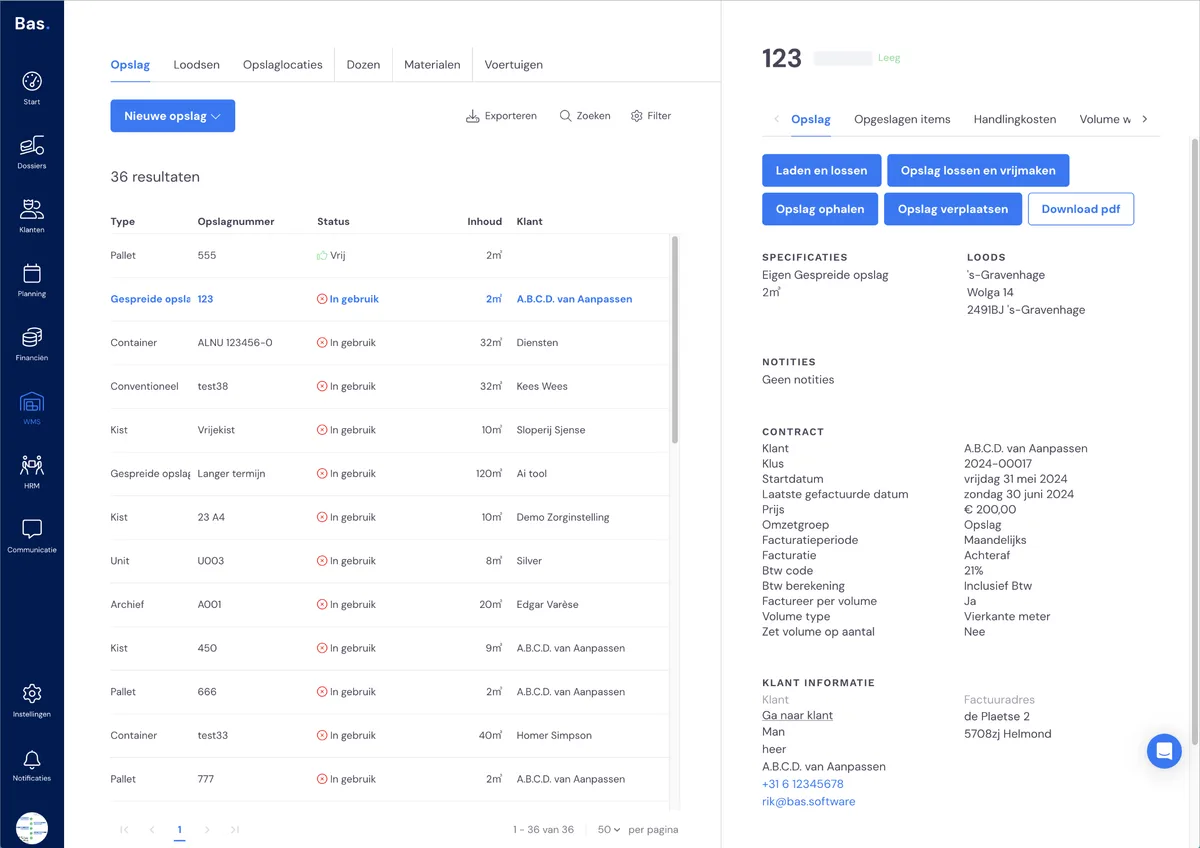
You keep track of storage for a customer via WMS > Storage. Here you click on the storage unit whose details you want to change. The storage unit's details and possible changes appear on the right-hand side of the screen.
Loading and unloading items
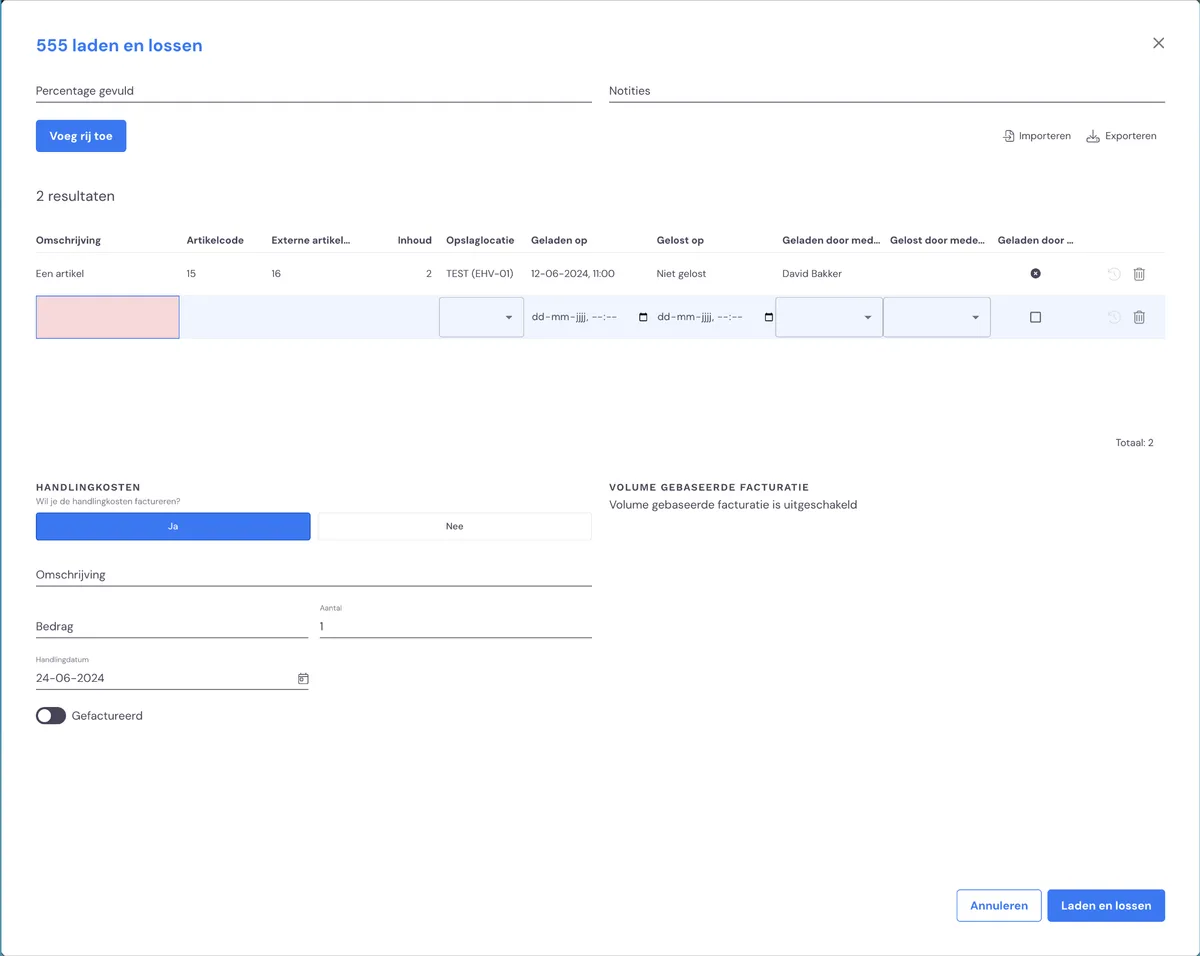
You can load and unload items from storage. Click on 'load and unload' on the right-hand side of the screen. Fill in the form: per line you can add or remove an item. Also indicate when and by whom this action was carried out.
You can optionally add handling costs. These will then be invoiced automatically.
Adjusting the stored volume
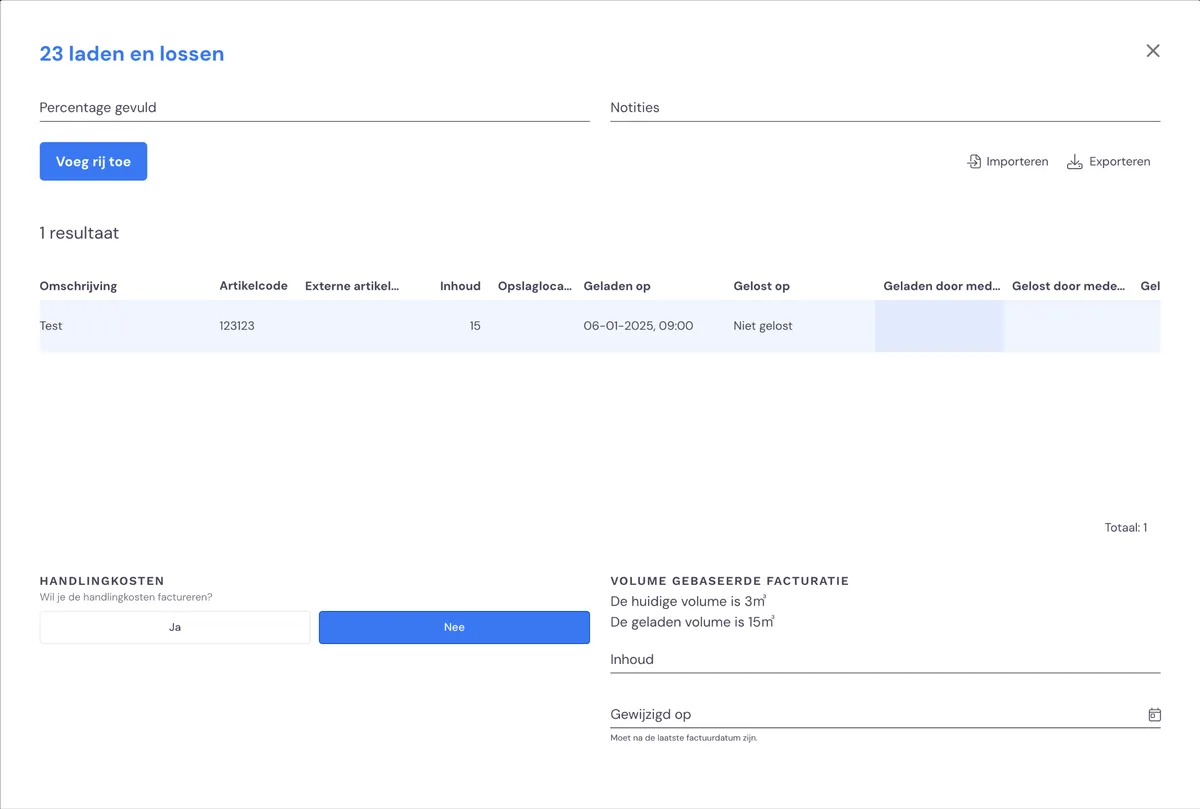
If you invoice based on volume, choose 'load'. You can adjust the stored volume so that it matches the new volume you've stored.
You also enter the change date, so this can be included in the cost calculation. You'll see the changes in the generated draft invoices.
You can enter the volume you're loading or unloading per line. Depending on the option you chose when initially loading the storage unit, the loaded volume is shown or calculated directly.
Unloading and releasing storage
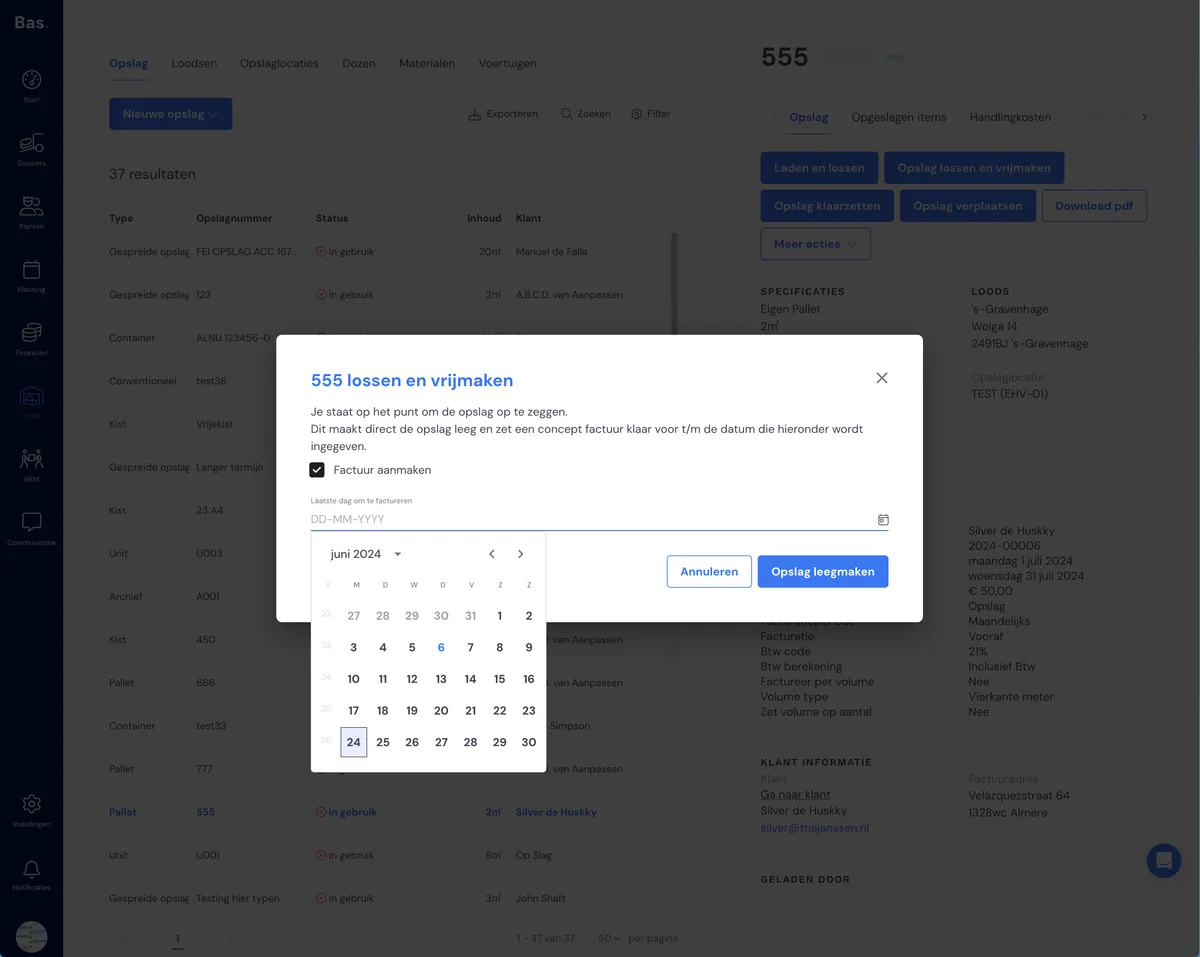
If you want to cancel a storage unit, you need to 'unload and release' it. This means you unlink the storage unit from the customer and it receives a final invoice. After this, the storage unit can be used for other customers and jobs.
Preparing and collecting storage
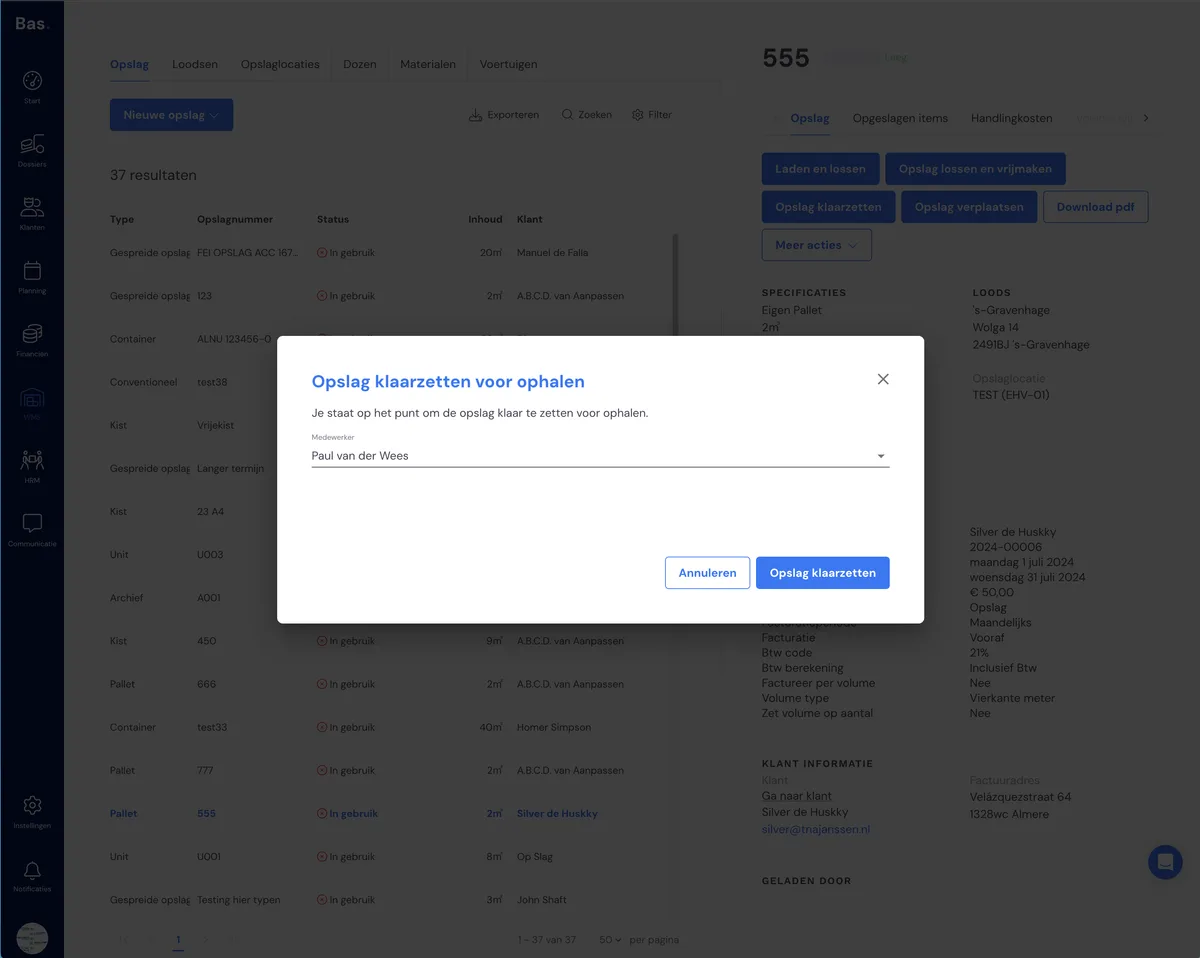
You can prepare a storage unit for collection, so the contents of the storage unit can be brought to the customer in the next step. After preparing it, the 'collect storage' button appears; this registers that the storage unit is ready to be collected.
Moving storage
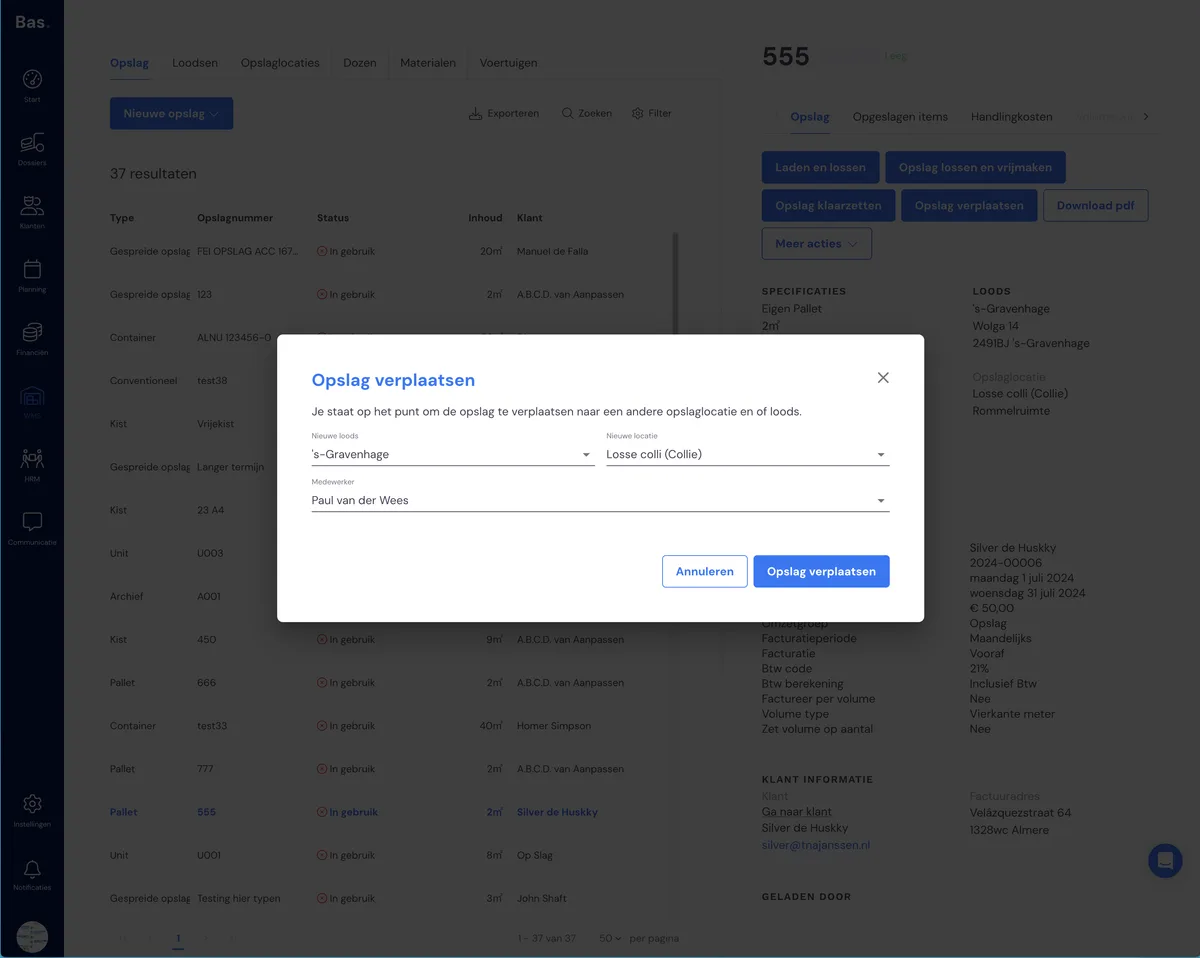
You can also move a storage unit to a different warehouse or storage bay. Click on move storage, select the new location and click 'move storage'.
If you want to move a storage unit within a warehouse, you can always do this. If you want to move a storage unit to a different warehouse, you first need to prepare it for collection.
Storage activity log
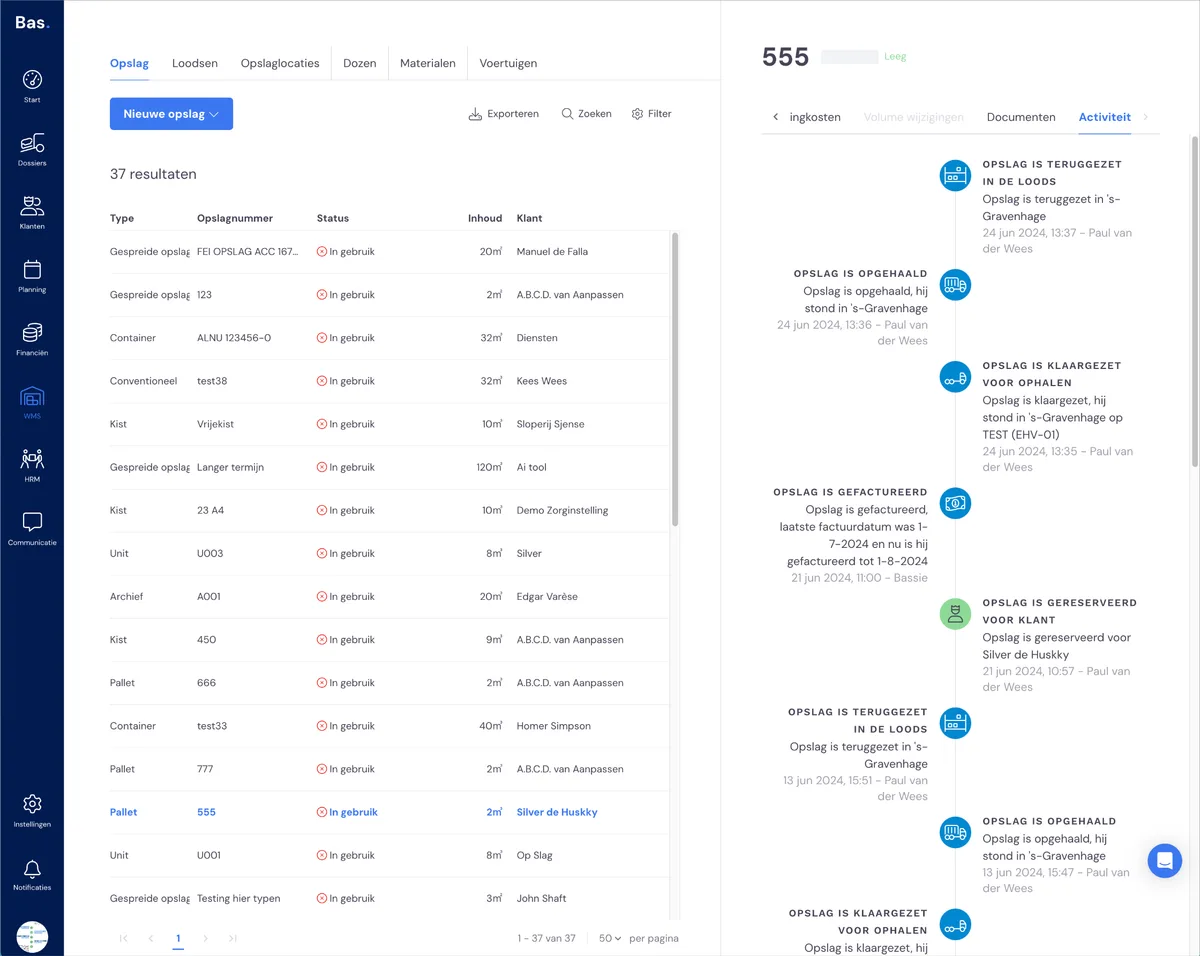
You can always look back at exactly what has happened with a storage unit. To do this, go to the storage unit and go to 'activities'.
Keeping storage up to date with the app
An employee with the 'Warehouse employee' skill gets access to managing storage via the app. However, the storage units must have stickers with QR codes that can be scanned with the app.
About adding stickers to storage >
Read everything about keeping storage up to date with the app >