
Transport jobs
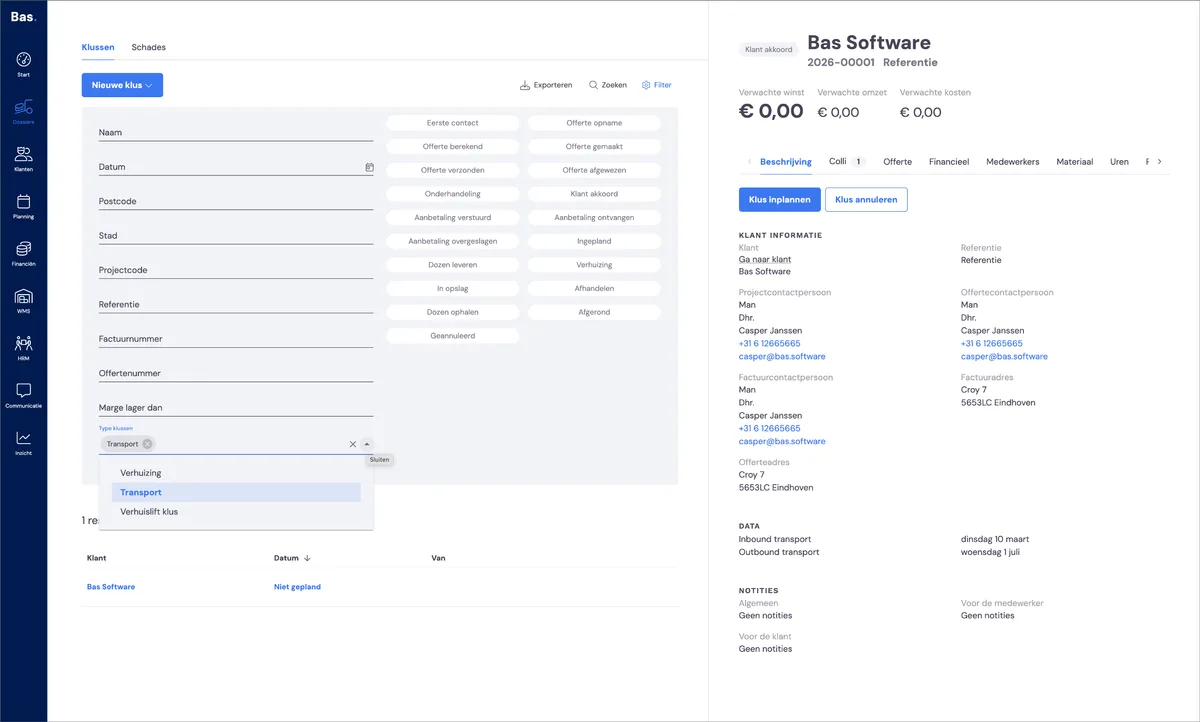
You can filter for jobs of the type 'transport' under case files. This lets you find all transport-type jobs for all customers.
Processing a new job that has come in via the portal
You can easily process a new transport job. The job is available in the back office as a new case file with the status 'customer approved'.
Task
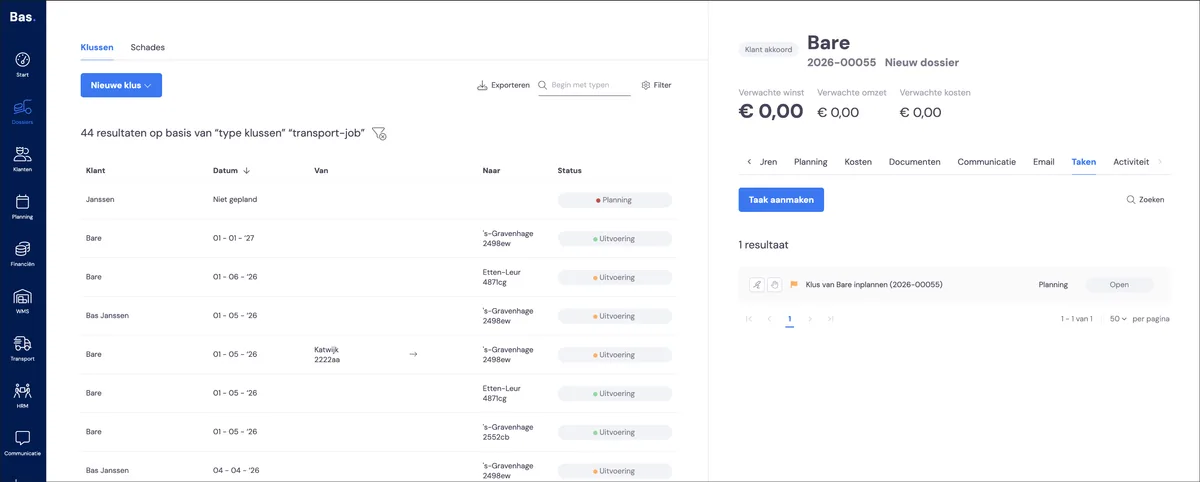
A new task is created for a new job. This task is available on your homepage. This way, you're always aware of all transport jobs.
Transport overview of all case files
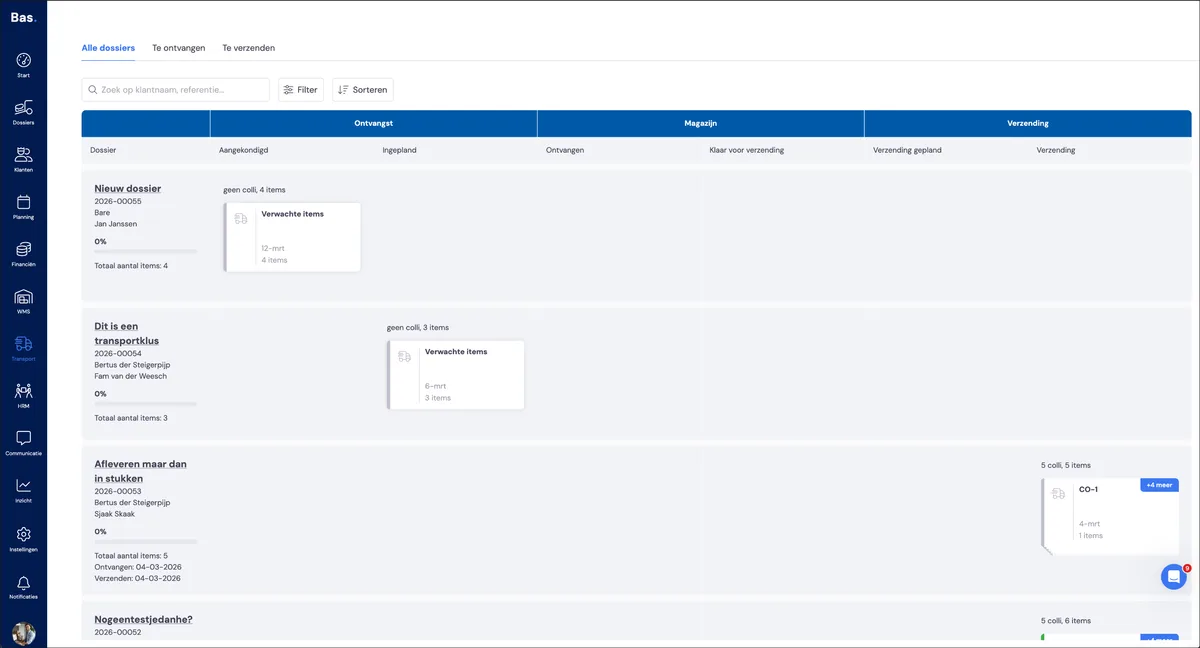
The newly created case file is also listed under 'Transport' and then 'All case files'. The newest transport job is at the top, with the status 'Announced'.
Scheduling the job
The next step is scheduling the job. This moves the case file into the next phase: receipt scheduled.
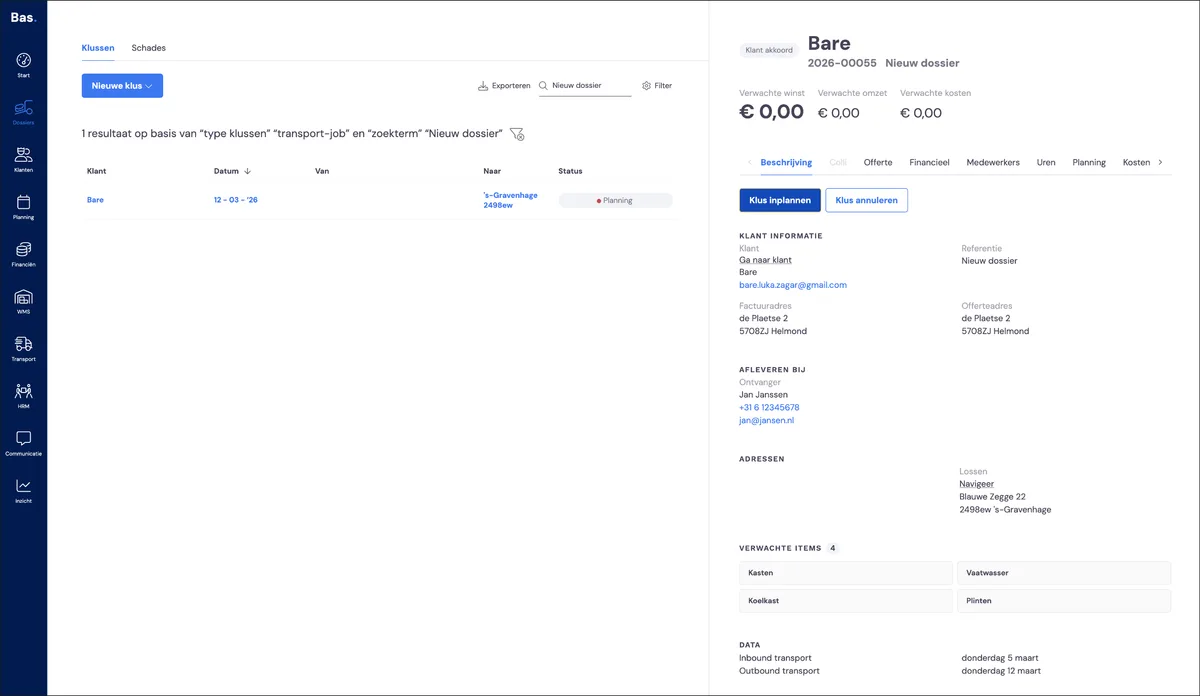
Inbound and outbound appointment
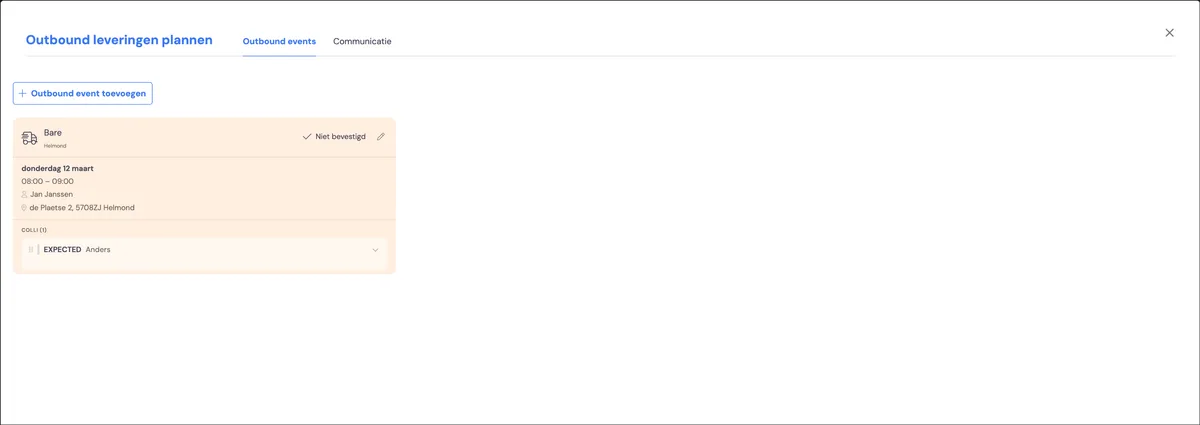
After clicking 'Schedule job', the outbound appointment appears on screen. This is scheduled provisionally. You'll see a first handling unit with the status 'Expected'; you can view the items by clicking on the handling unit.
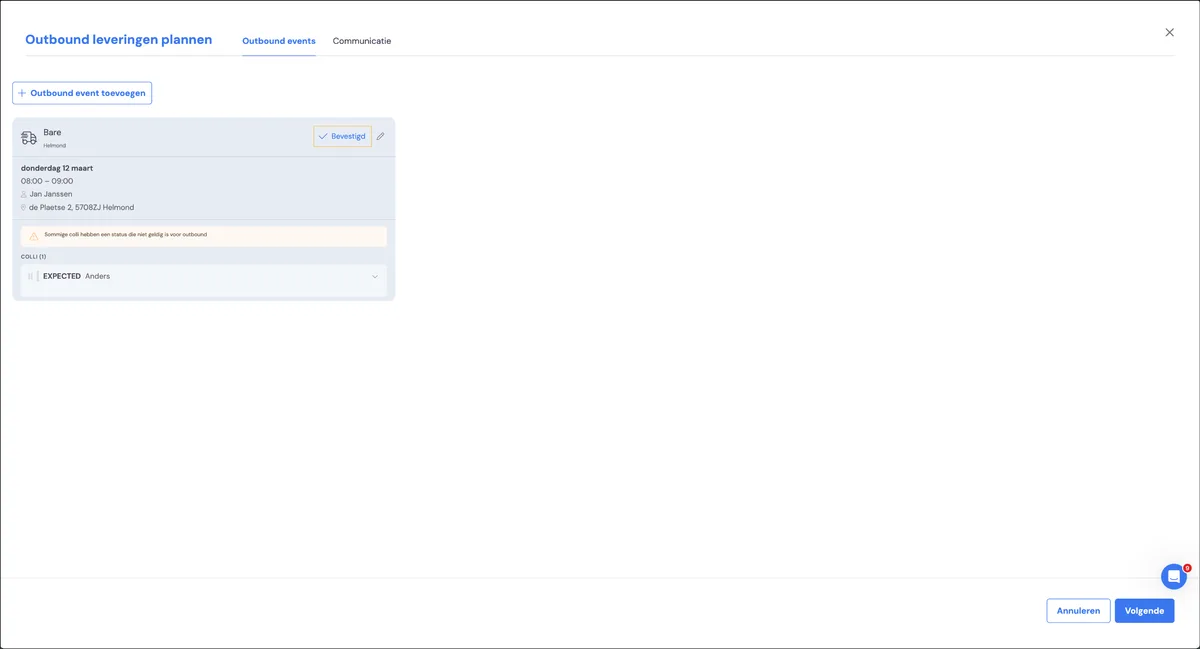
You can finalise the outbound appointment by clicking 'Confirmed'.
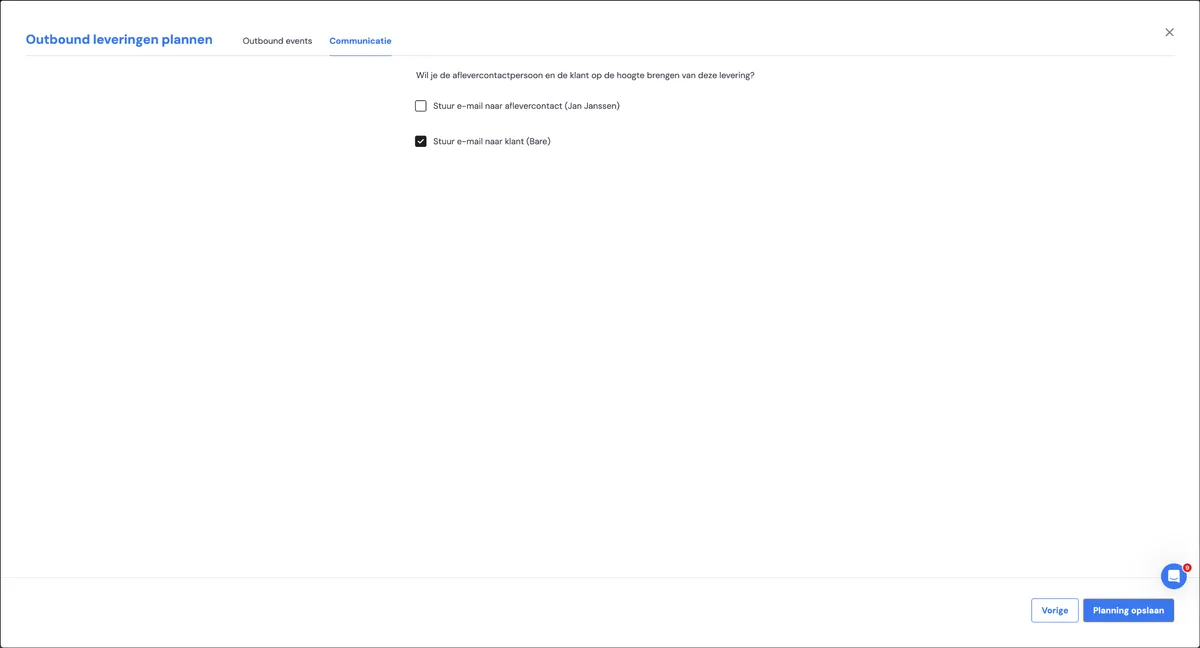
In the next step, you can send the emails that are ready, to confirm with the customer.
Case file moves to 'receipt scheduled'
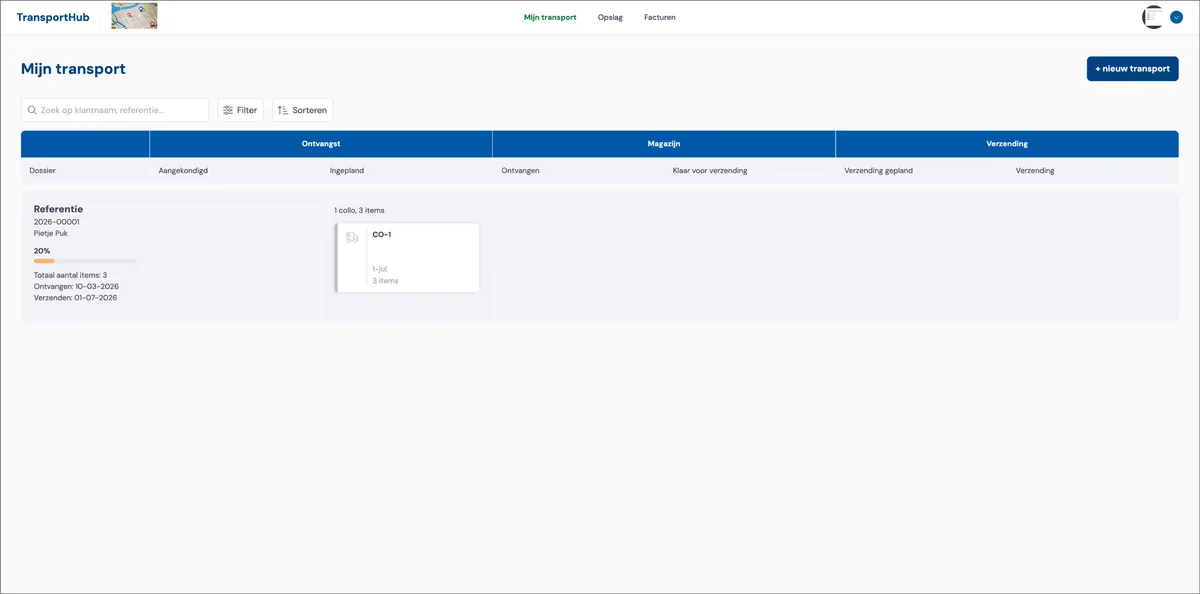
After clicking on schedule, the transport job has moved into the next phase. You'll see that the job shows as receipt scheduled on the portal.
Creating transport jobs yourself
In the back office, you can also create jobs yourself for your customer