
Giving a customer access
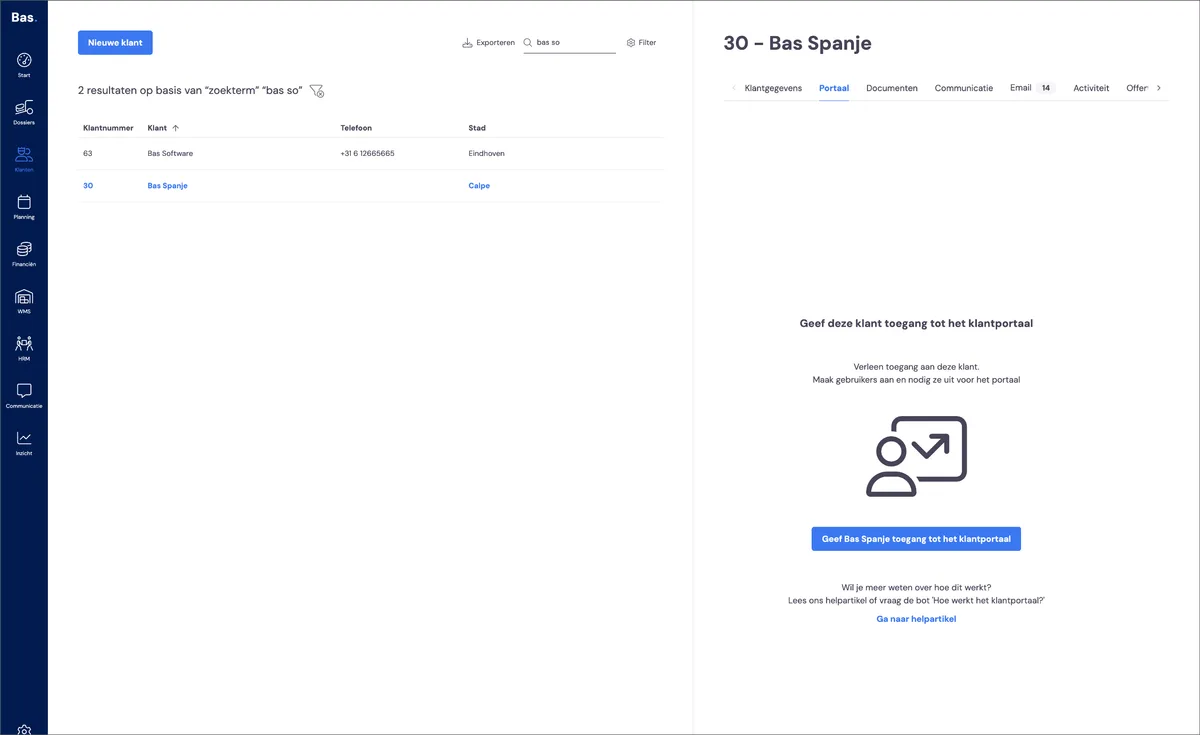
If you want to give a customer access to the customer portal, go to customers, then select the customer. Click on 'Portal'. If the customer doesn't have access yet, you can give it here.
Portal options
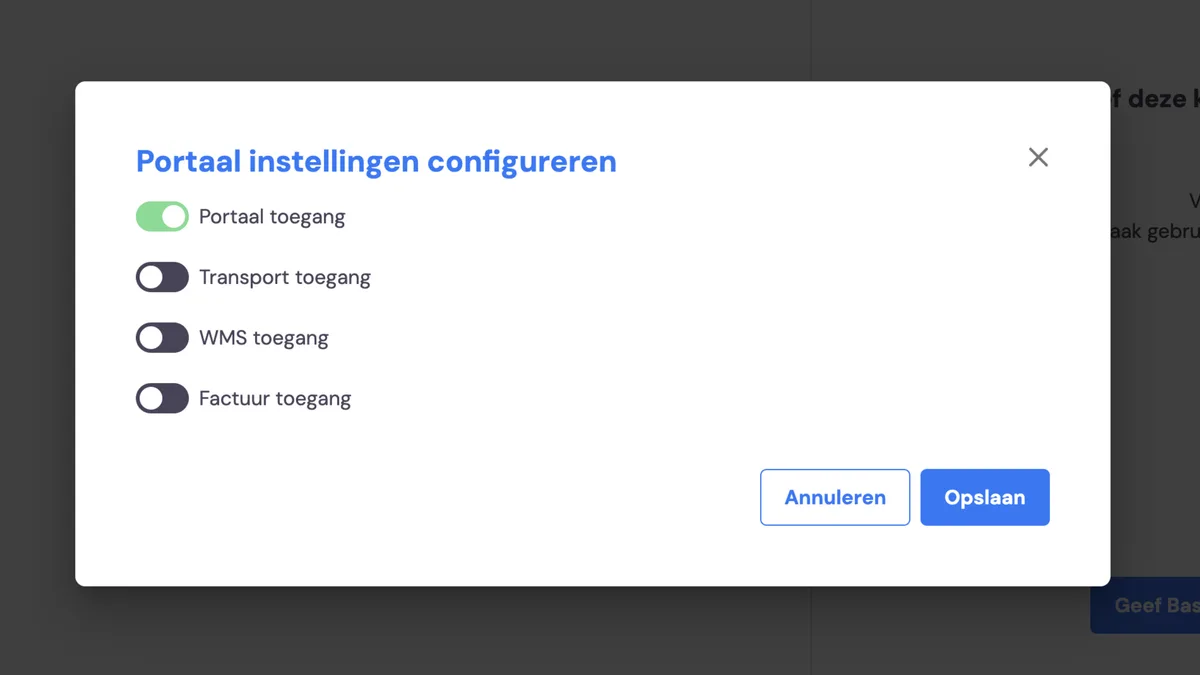
Click on 'Give [company] access to the portal'. A pop-up then appears where you can indicate what the company will get access to:
Portal access: access to the portal
Transport access: access to creating and viewing transport jobs
WMS access: access to items stored in the WMS, with the option to request and view transport for these items
Invoice access: insight into invoices and payment status
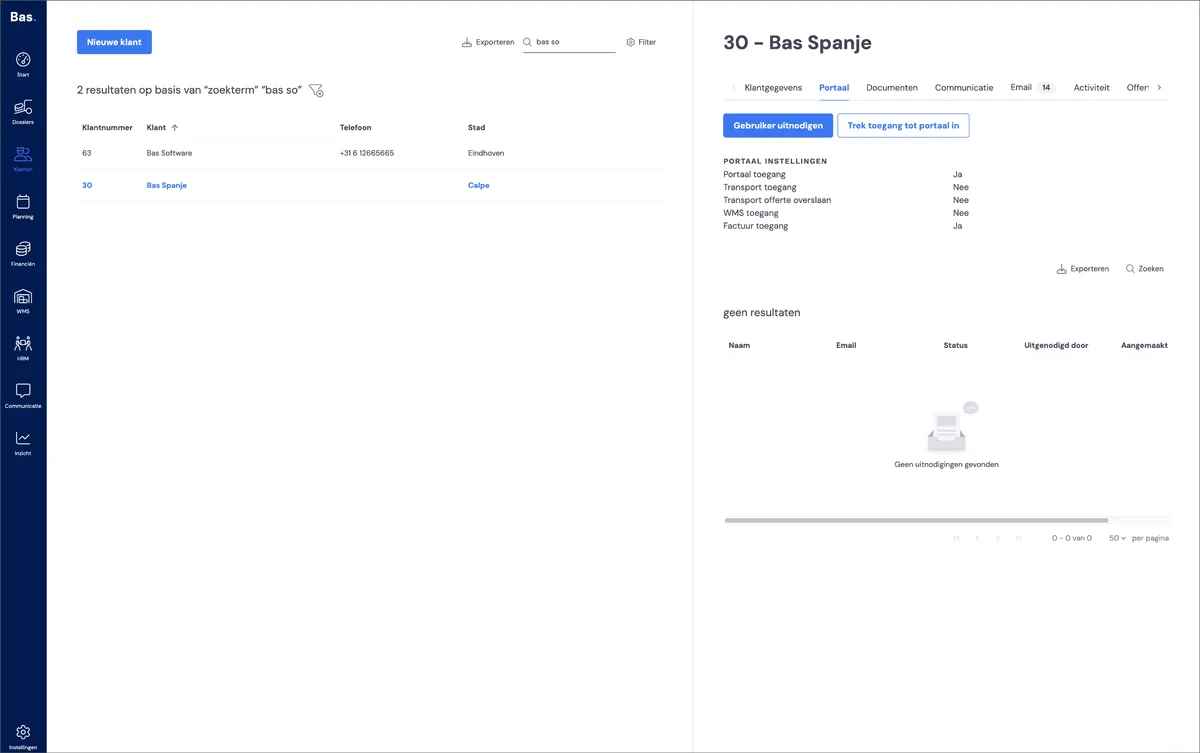
Once you've given the customer access, you'll see the status reflected against the customer. Next, you give individual people access to the portal.
Giving people access
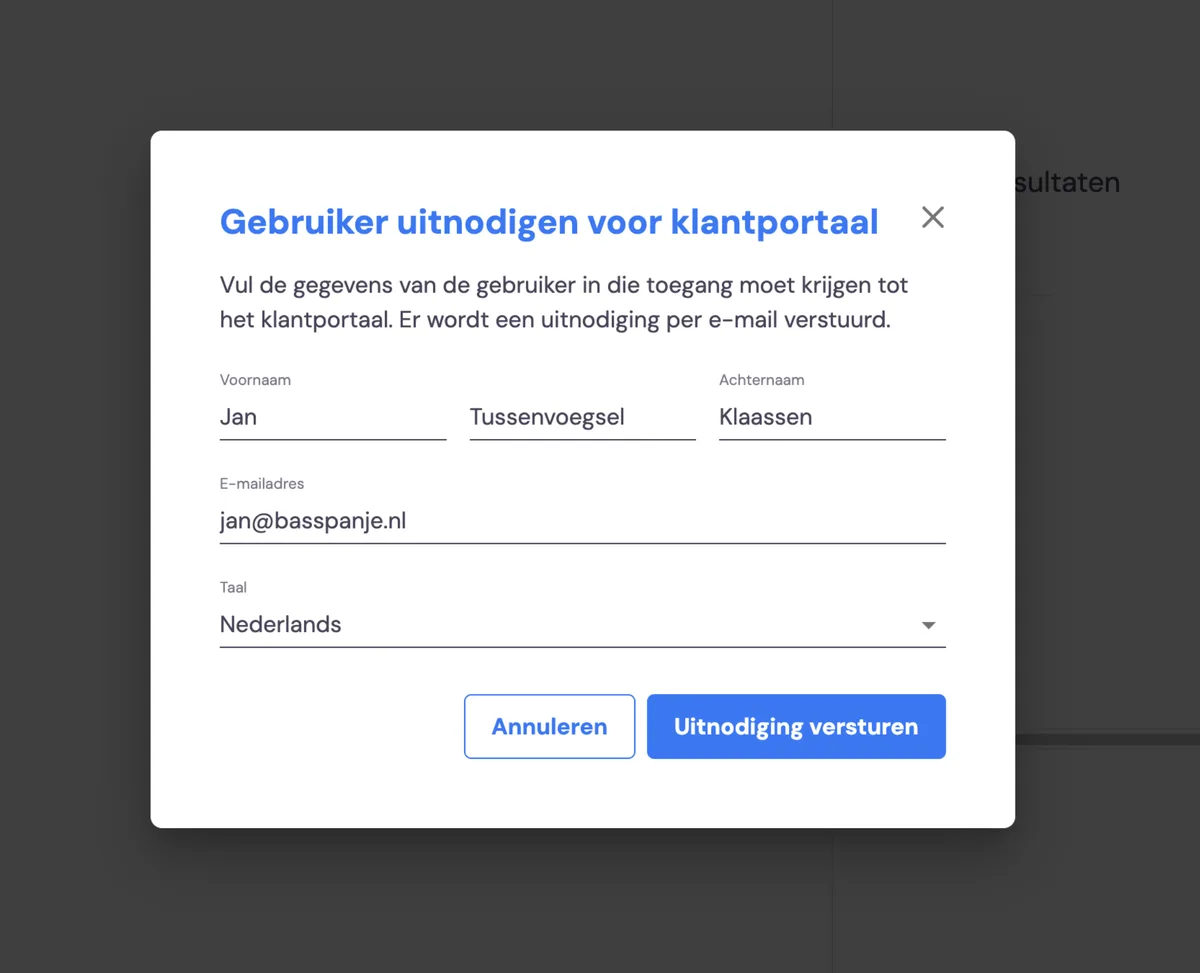
Once you've given your customer access, you can invite various employees. You do this with the 'Invite user' button. In the pop-up that appears, enter the name and email address.
After 'Send invitation', the invited person receives an email, based on the customer message you'll find under settings > process > customer messages.
Status of invited employees
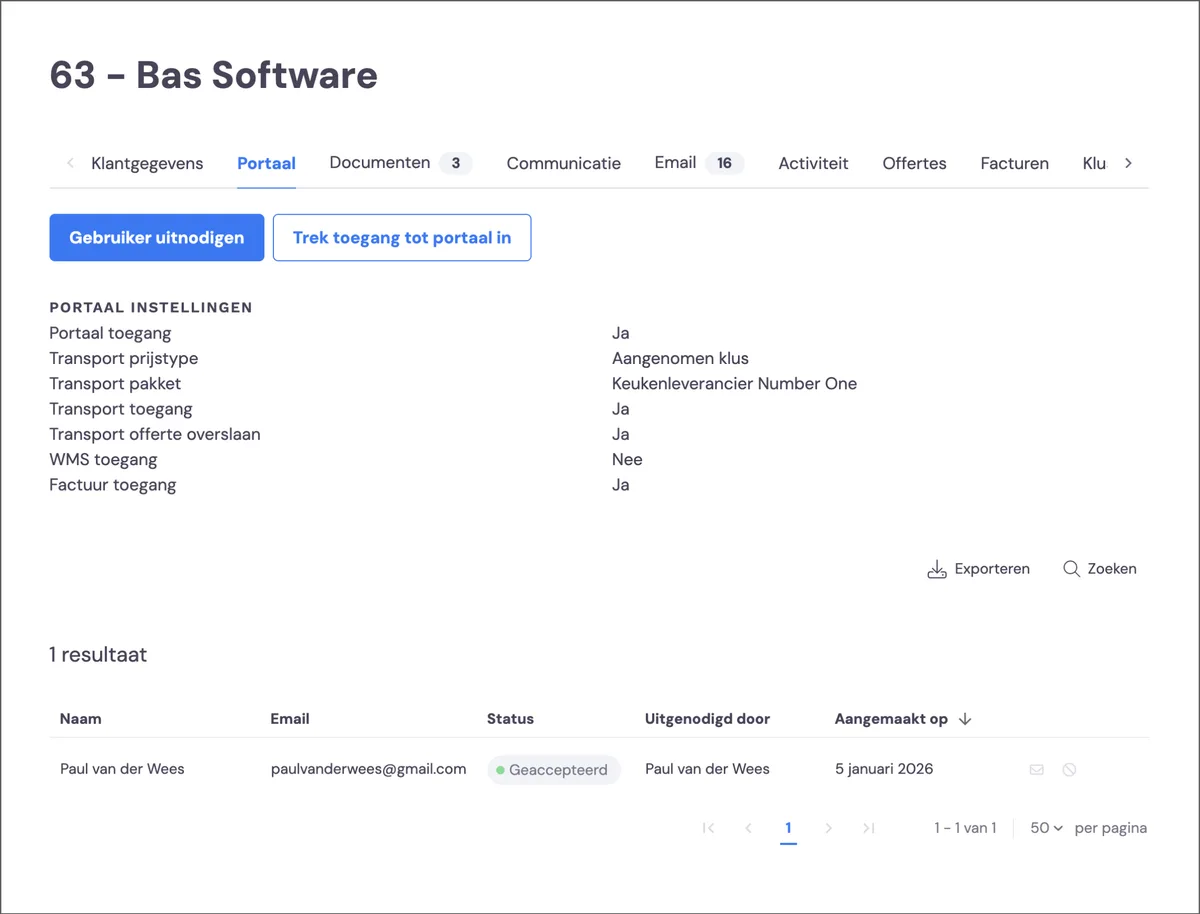
You can see the status of invited employees against the customer, and you can invite a person again using the mail button. You can remove access for that person by clicking the stop-sign icon.
Setting up communication and invoicing
Via process, you set up the communication and invoicing moments.