
After creating and printing the stickers with QR codes for the delivery, the warehouse employee can stick the stickers on the handling units on receipt, scan them and link the items. Receipt is then registered. Both the customer and back office employees can see which items have been received (and which haven't)
Overview of receipts
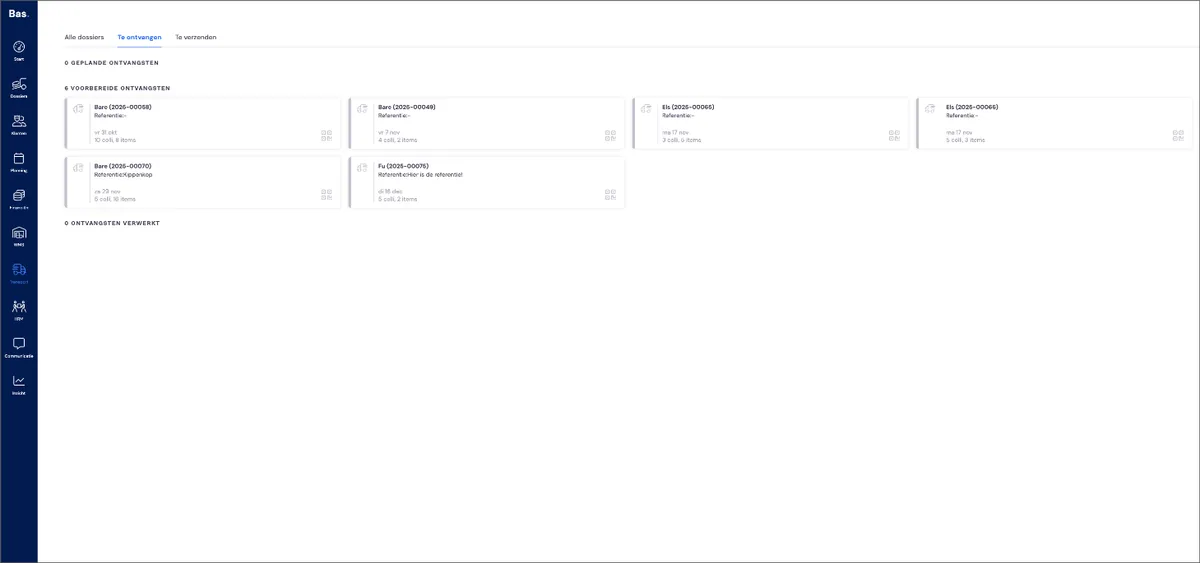
All deliveries that need to be received are listed in the back office under transport > to be received.
Receiving a partial delivery
When handling units are delivered, you take the printed stickers for the appointment and stick them onto the handling units. You then open the scheduled receipt on the iPad.
Select the receipt
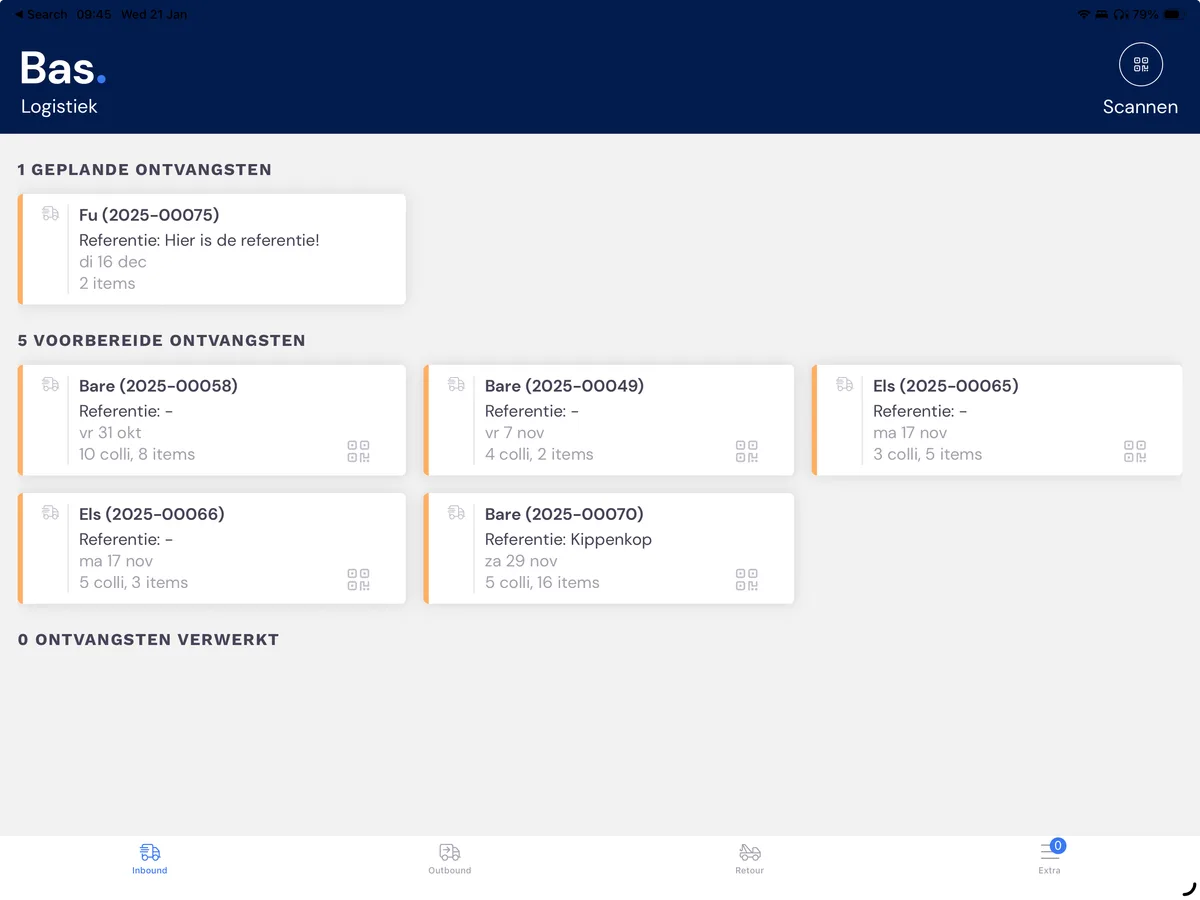
Select the correct case file to receive the items by clicking on the card
Scan the handling units
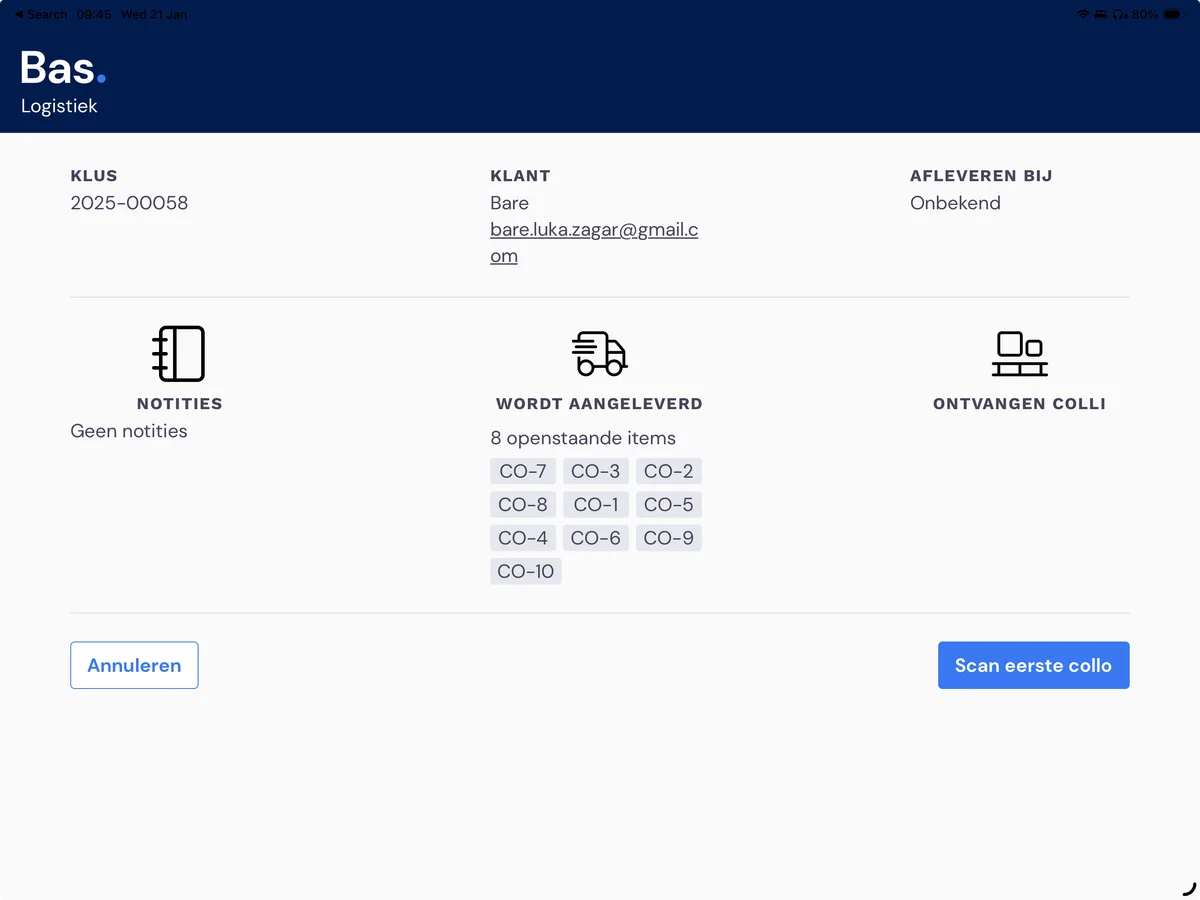
You'll see that 8 items need to be received for this delivery. Below the items are the stickers for the handling units (CO-07, CO-08, etc). Choose 'Scan first handling unit'
Link the items
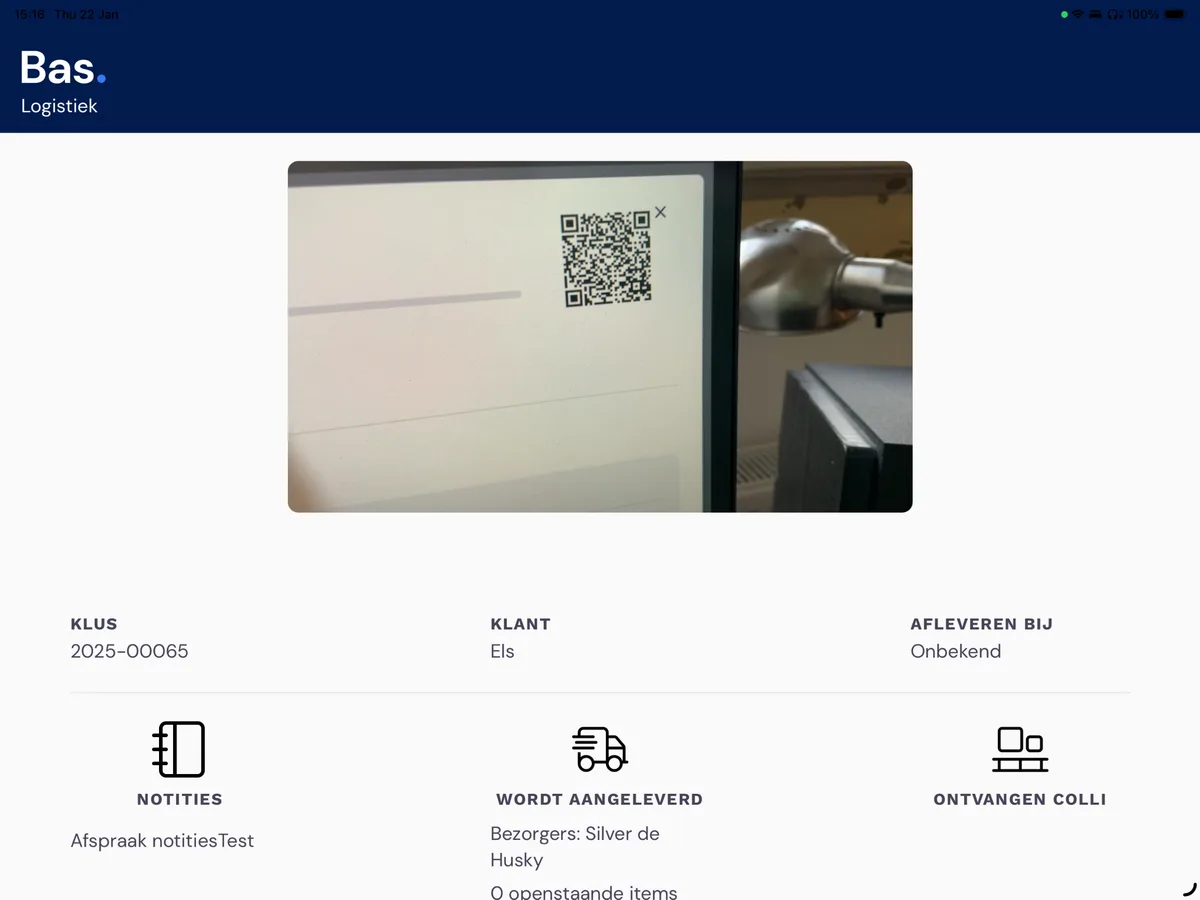
Once you've scanned the QR code of the handling unit, the overview of all the items in the case file that haven't yet been received appears.
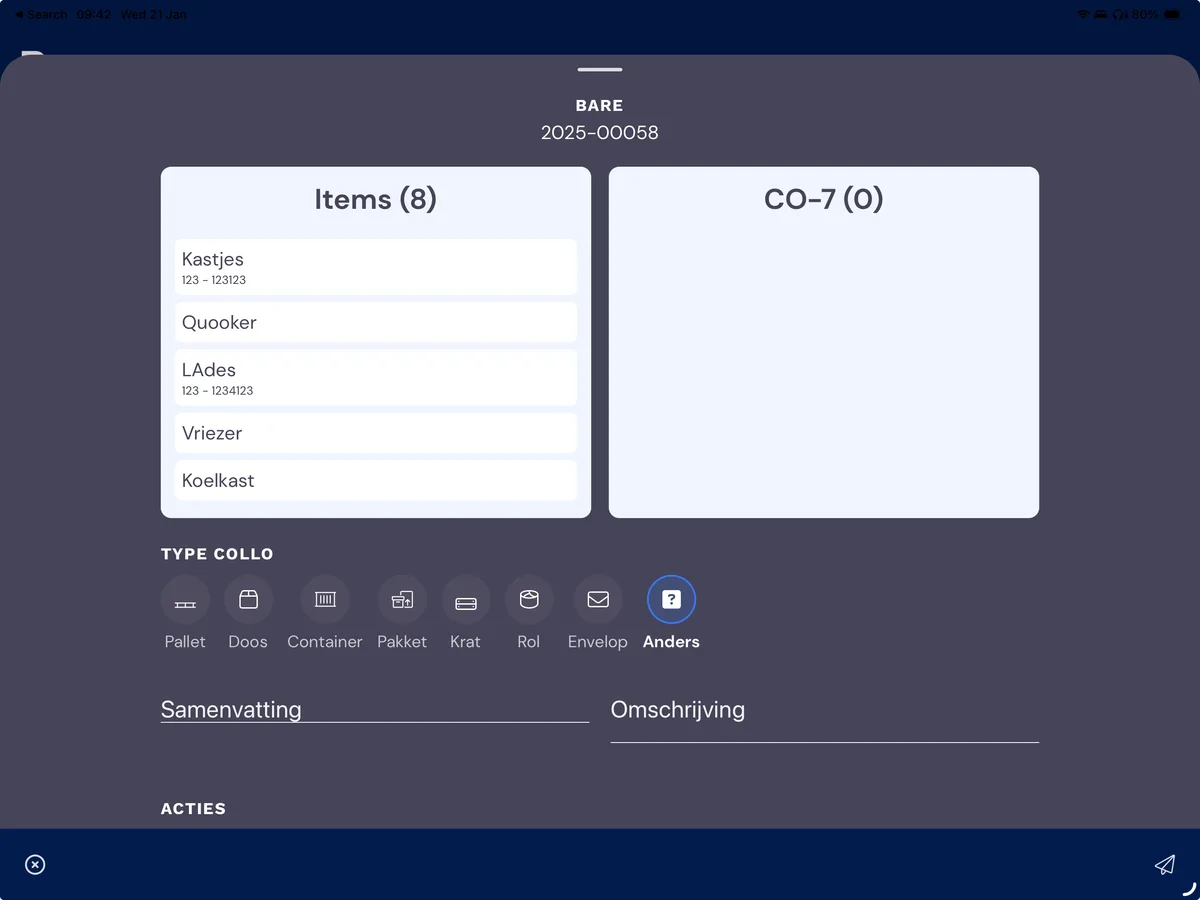
Drag the items that are on the handling unit to the right. Once all the items for the handling unit have been dragged over, choose the type of handling unit (Pallet) and you can enter text for the summary and description. Then click 'all items scanned'.
Do this for all handling units and then click 'All handling units scanned'. This completes the receipt!
Case file
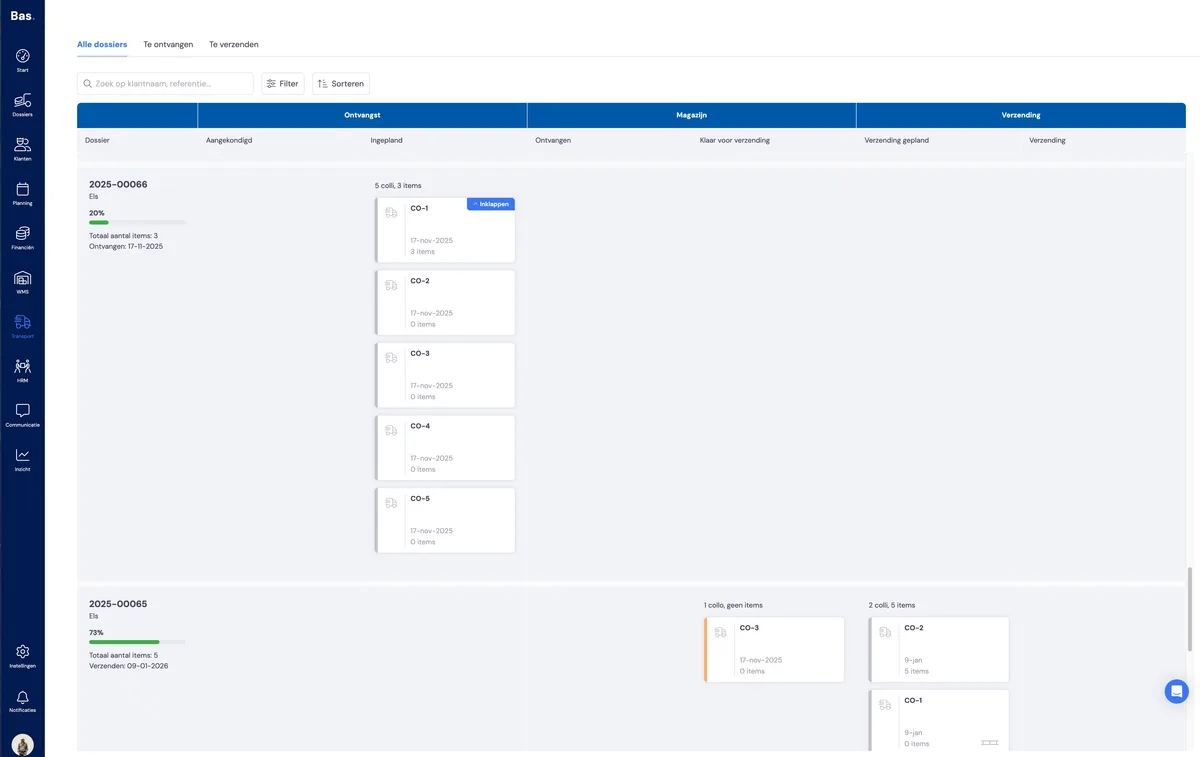
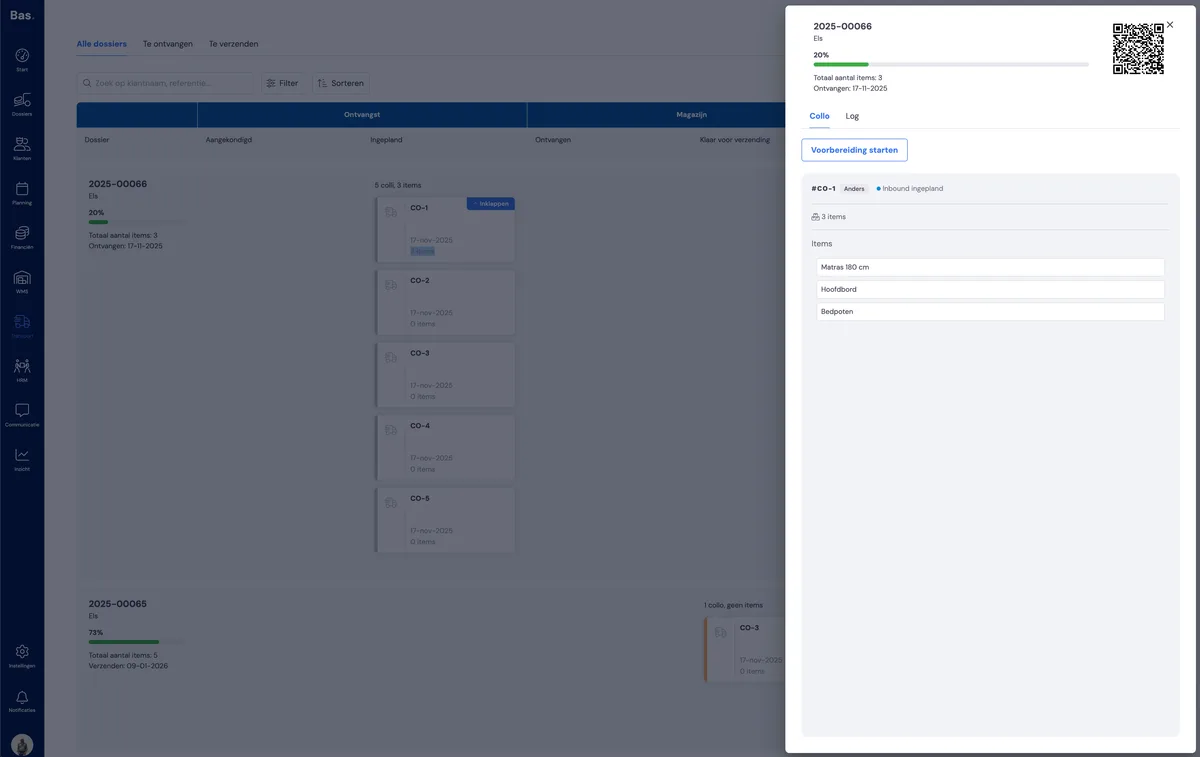
In the back office, you'll see the handling units and the items that have been received under 'Transport > All case files'. Each handling unit has its own card, and clicking on it shows the detailed information: handling unit, items and log entries.
Remaining items for the next delivery
If there are still items to be delivered in a subsequent delivery, a new appointment is automatically scheduled. You don't need to do anything for this. The stickers also remain usable.
Next step
The next step is 'getting ready for dispatch'. This sends an email to the planner to schedule the delivery. The customer also receives an email containing a link to the customer portal. The customer is then aware of the status and can get in touch if there are any questions or comments.