
About the transport portal
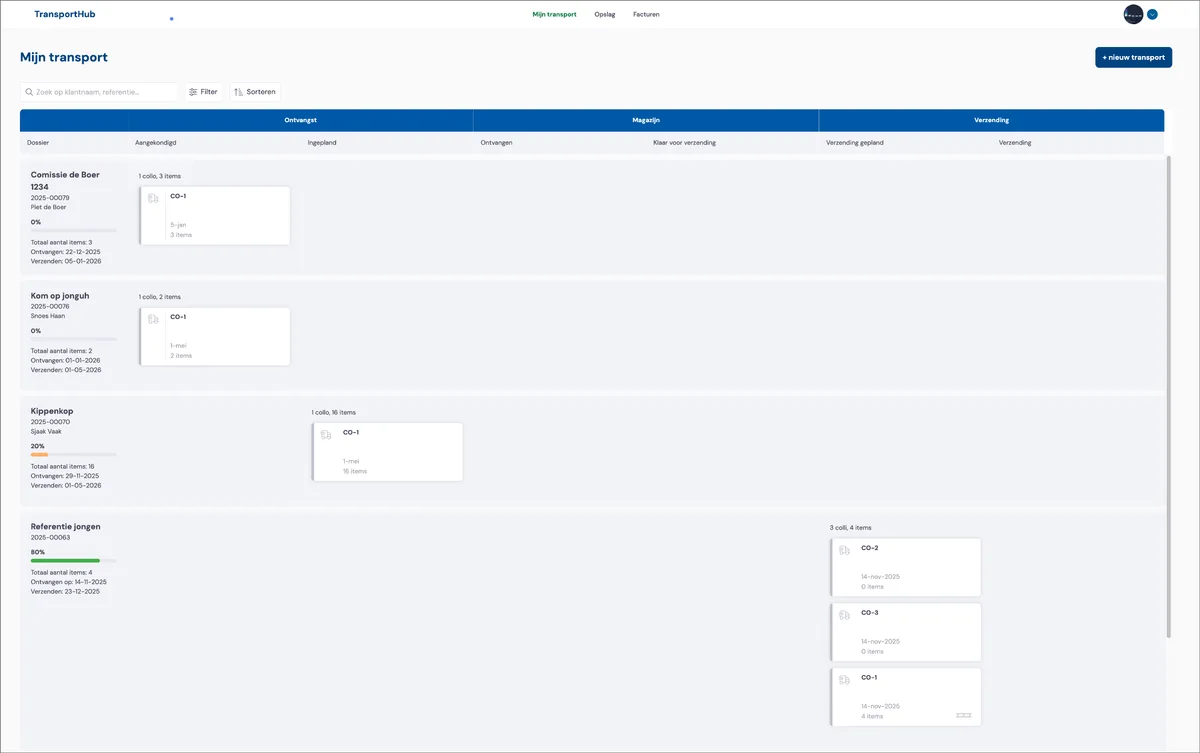
If you use the transport module, you can give your customers access to the customer portal. Through this portal, your customer can request new jobs and track the status of all requested and ongoing jobs.
Requesting a new job
With the '+ new transport' button, the customer can request a new transport job. The customer then enters all the details of the job via a wizard.
Customer
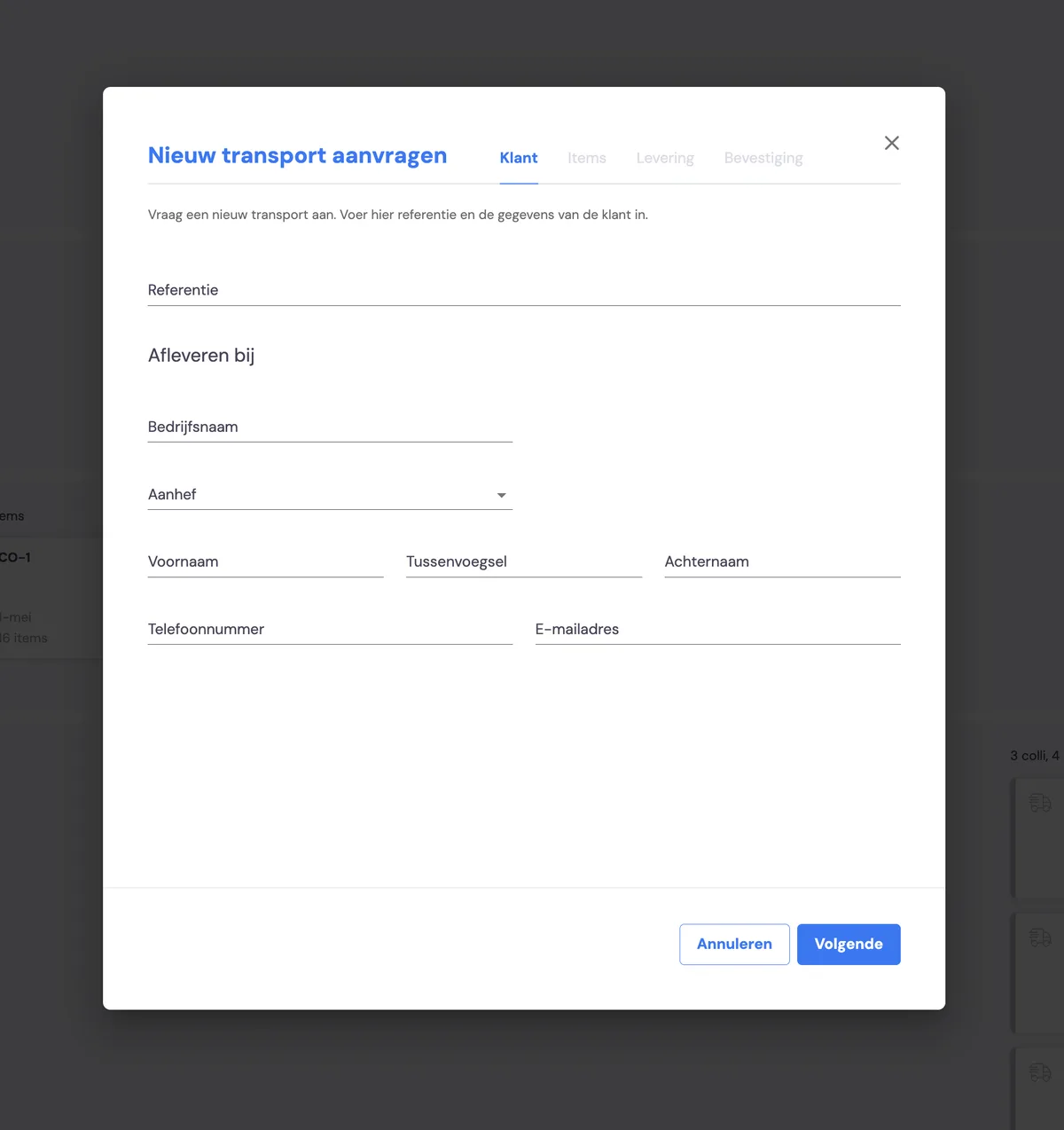
Here you enter the details of the end customer, the person to whom the items to be transported must be delivered.
Items
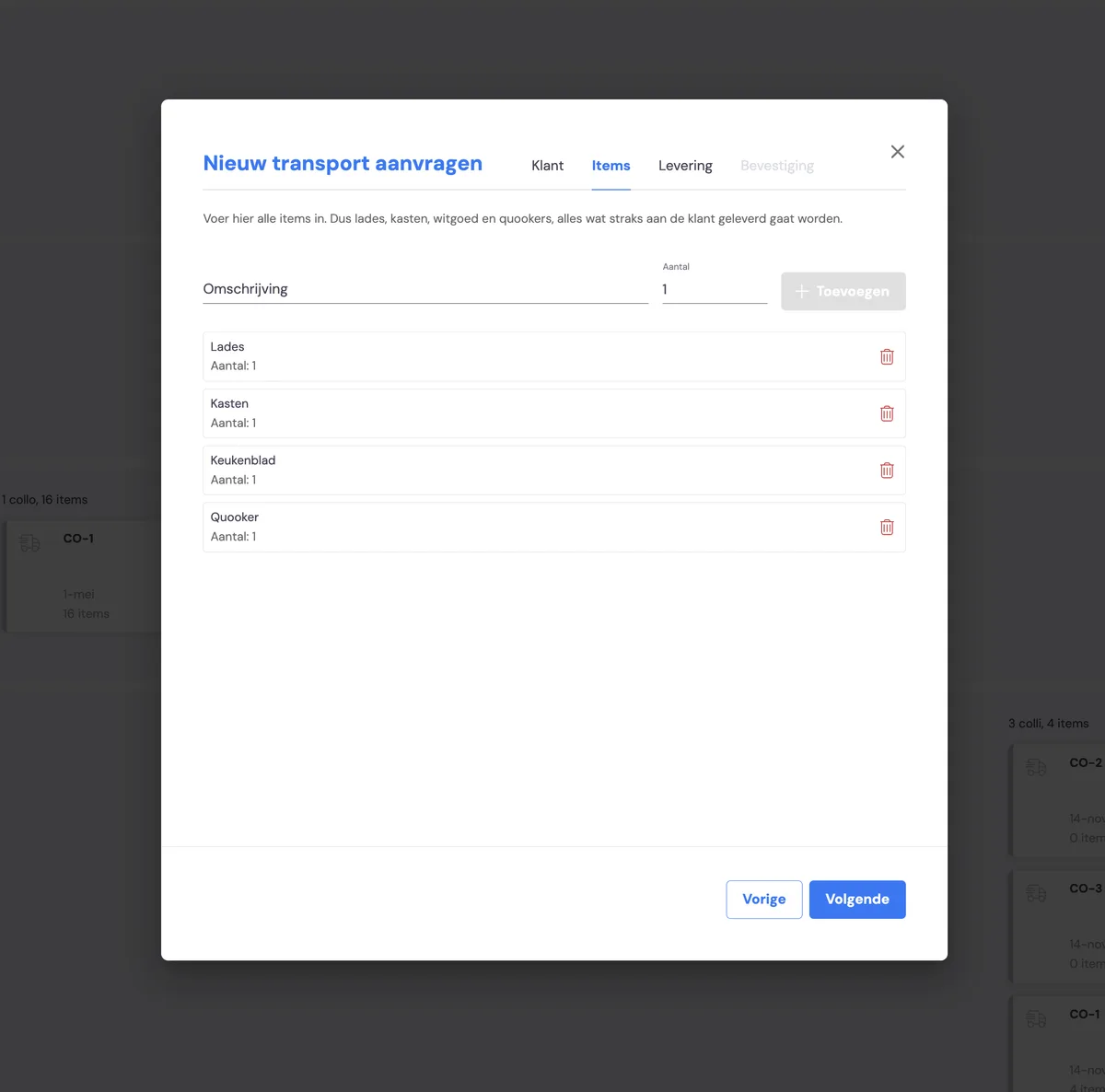
The customer adds all the items here. Items here means: drawers, cabinets, appliances for kitchen deliveries. For furniture transport, this could be chairs of a particular type, legs, etc. These items are used throughout the whole process, to register receipt, damage, etc.
Delivery
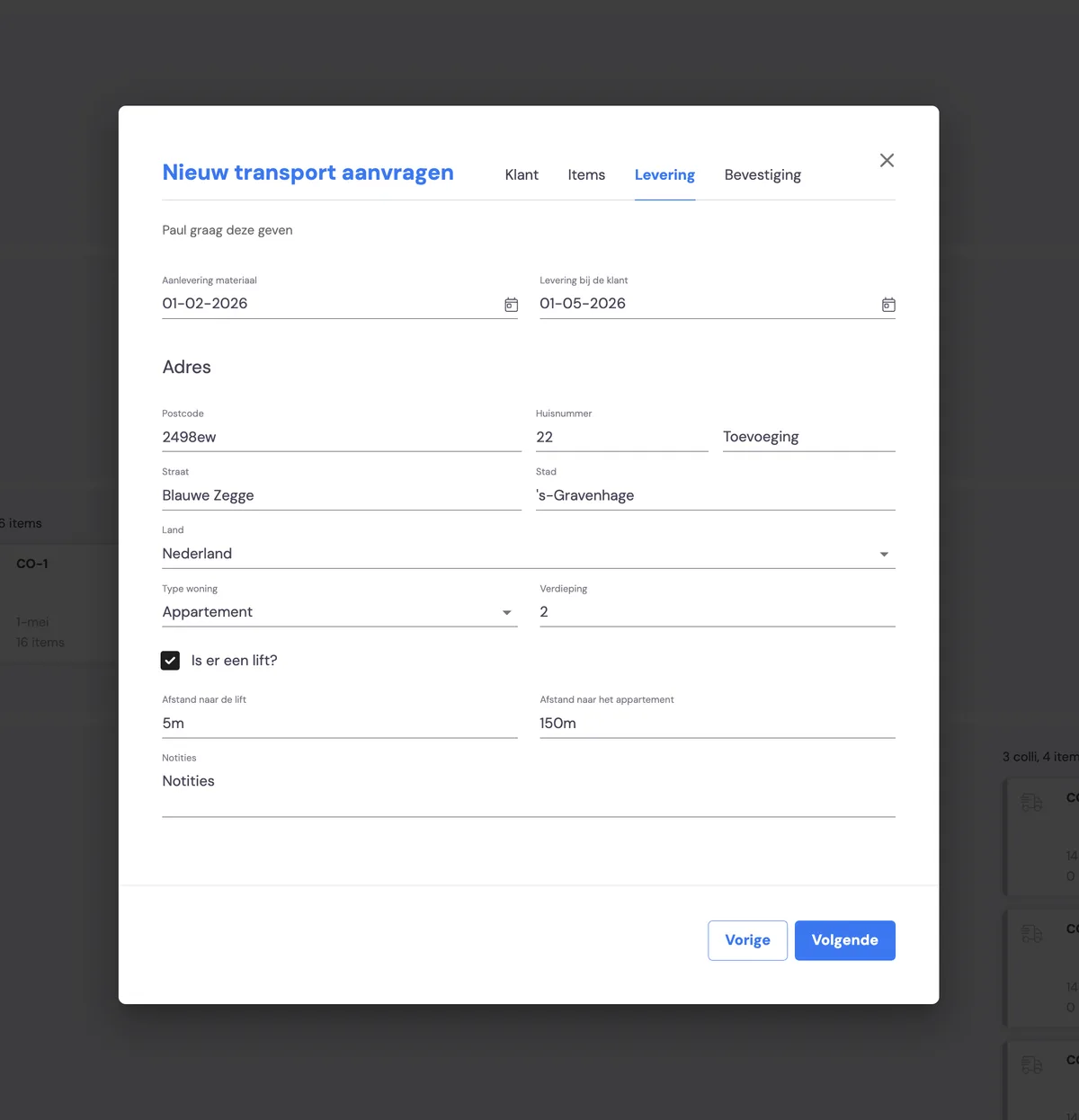
Under the delivery heading, the customer enters the expected delivery date of the first items (so that receipt can be scheduled for the warehouse employees), the date for the desired delivery to the customer, and the address details of the end customer.
Overview of requested jobs
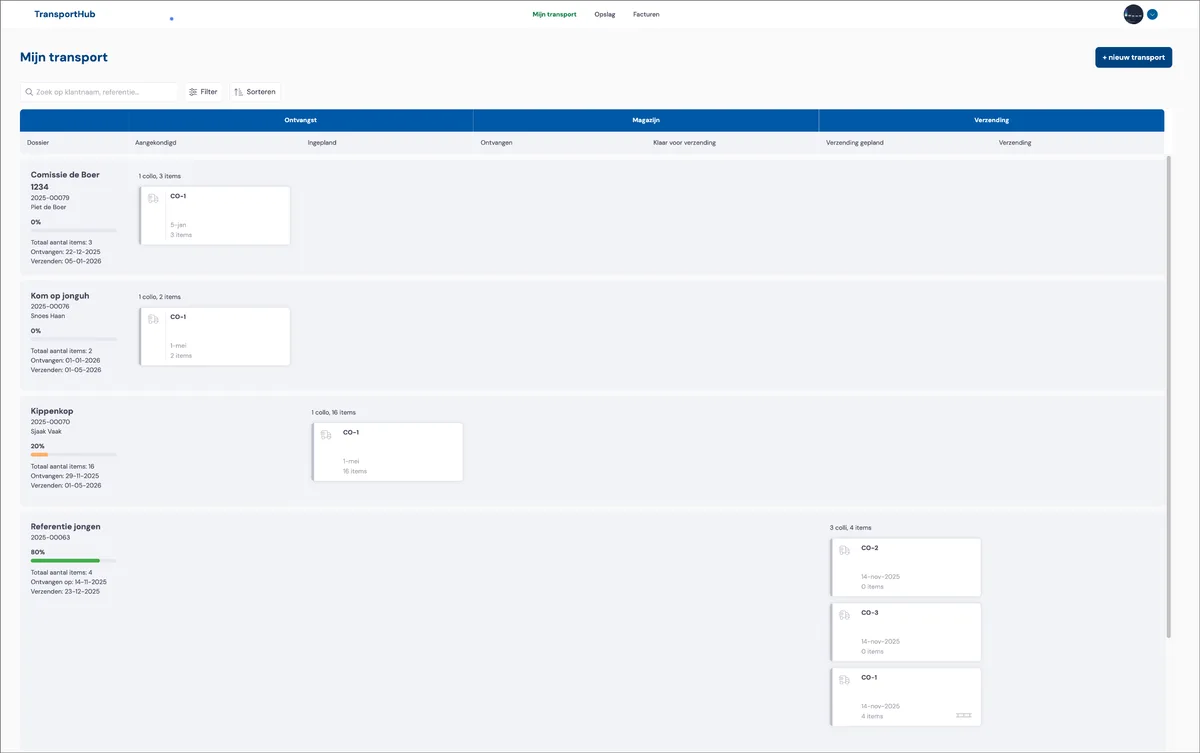
A newly requested job is shown as a new card on the left.
This card is in the 'announced' phase. The newly requested job is ready in Bas for the back office to pick up and schedule.
Overview of ongoing jobs
All the customer's transport jobs are shown on the portal, in the various phases:
Receiving
Announced
a newly requested job that hasn't yet been scheduled
Scheduled
receipt of the items has been scheduled, the warehouse employee can view and prepare the scheduled receipts
Warehouse
Received
This lists all the items that have been received, shown per handling unit
Ready for dispatch
All items and handling units that the warehouse employee has prepared for dispatch
Dispatch
Dispatch scheduled
All items and handling units for which dispatch has been scheduled
Dispatch
All items and handling units currently being dispatched or that have already been delivered
Detailed information per card
The customer can view detailed information per card in the portal.
Managing your details
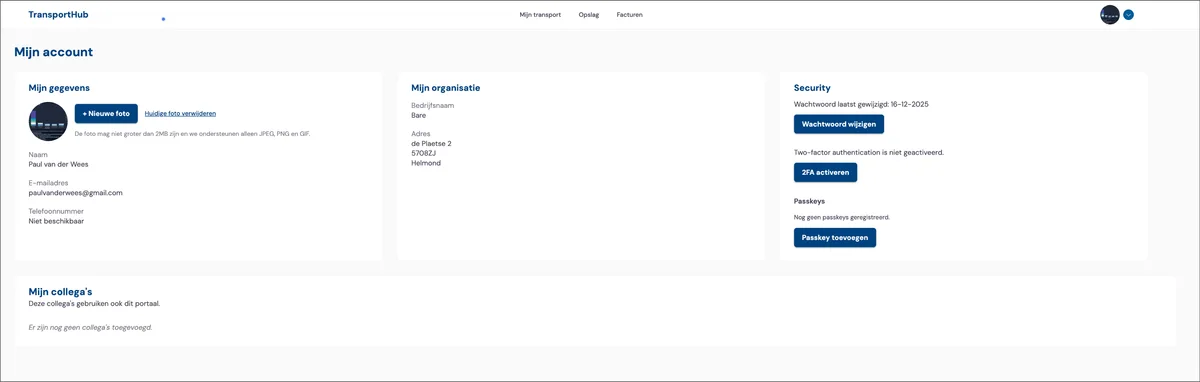
The logged-in customer can manage their own details. For example, the customer can
change their password
activate 2FA
set up login with a passkey
change their profile photo
The customer can also see if other users have been invited to the portal, under the heading 'My colleagues'.
Invoices
All invoices are listed under the invoices heading, including the payment status.
Giving access to the portal
Via the back office, you can give your customer access to the portal and send an invitation to the employees you want to make use of the portal.