
In this section you enter the vehicles you deploy for removals. You assign vehicles later via the planning, where you can drag a vehicle onto an appointment so that the foreman and the removal crew know which vehicle to use for which appointment.
Entering vehicles
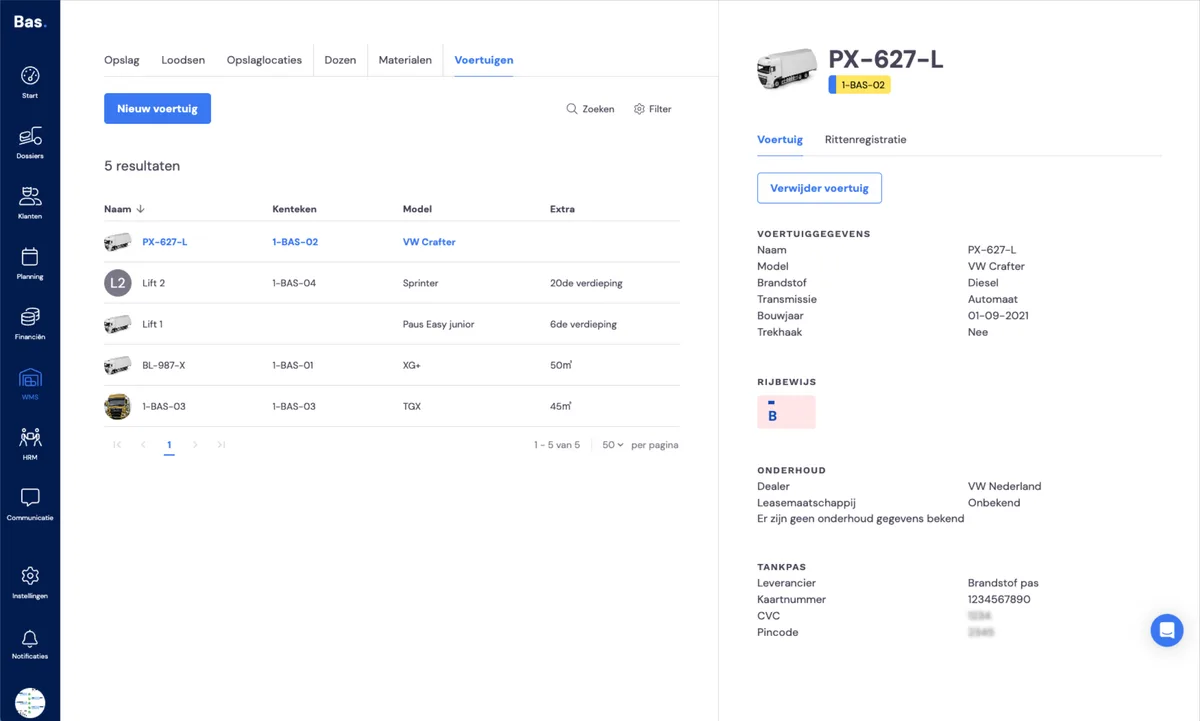
To enter a new vehicle, go to the WMS and then to Vehicles. Here you can enter, edit or delete vehicles.
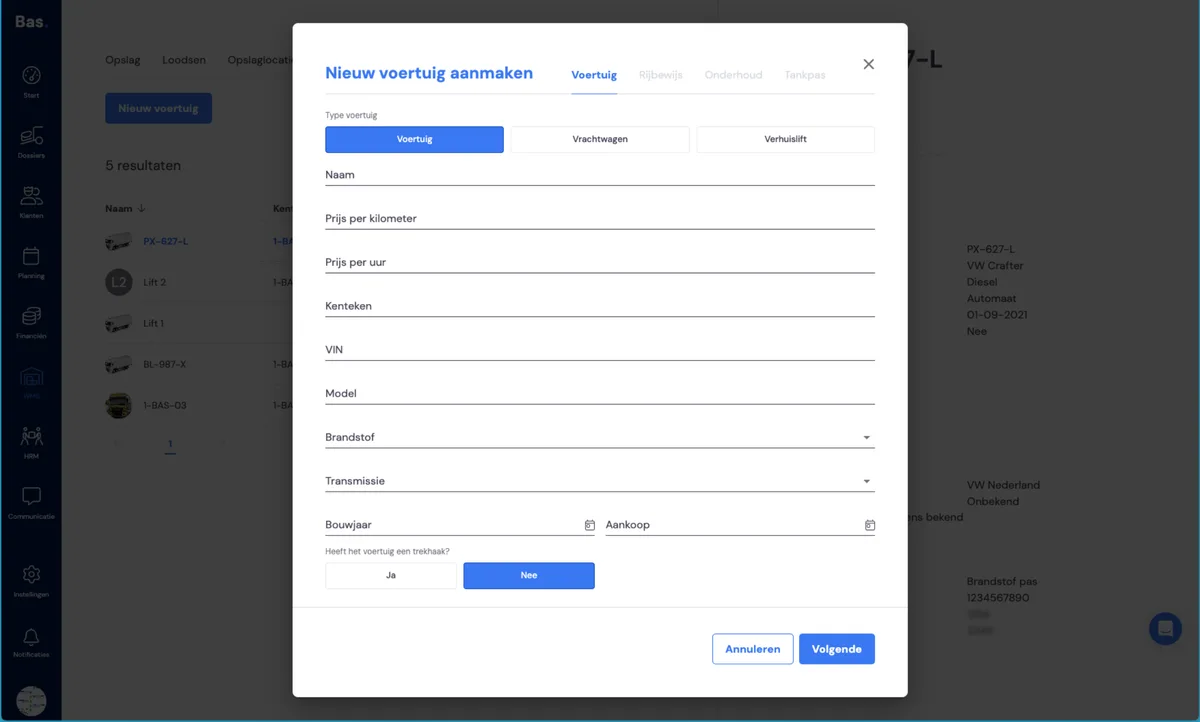
Click 'new vehicle'. Enter all the details of the vehicle here. Also details such as costs, dimensions, date for next service, payment card details, etc. Useful details for final costings.
Vehicle type
There are three vehicle types to choose from:
Lorry
has a volume; on removal appointments you can use this to determine whether you have enough volume for the household effects you need to move. This therefore includes lorries, box trucks, Sprinter-size vehicles, etc.
Vehicle
is intended as an aid during the removal. For example, to bring the removal crew to the loading or unloading address. A vehicle therefore has no volume. This also includes, for example, a Vito or a Kangoo.
Furniture hoist
This is for furniture hoist jobs
Next step
The next step is setting up your storage; you will create warehouses, storage locations and storage units >