
Besides Mollie, your accounting package and Schouten Zekerheid, there are a few more handy integrations that make your day-to-day work easier. In this article, you’ll find calendar sync, website/lead integration, WhatsApp Business and email forwarding.
Calendar sync
With calendar sync, you can synchronise the Bas schedule with your external calendar (Google Calendar, Outlook, Thunderbird or iCal). This way, you’ll also see your removals and appointments in the calendar you use every day.
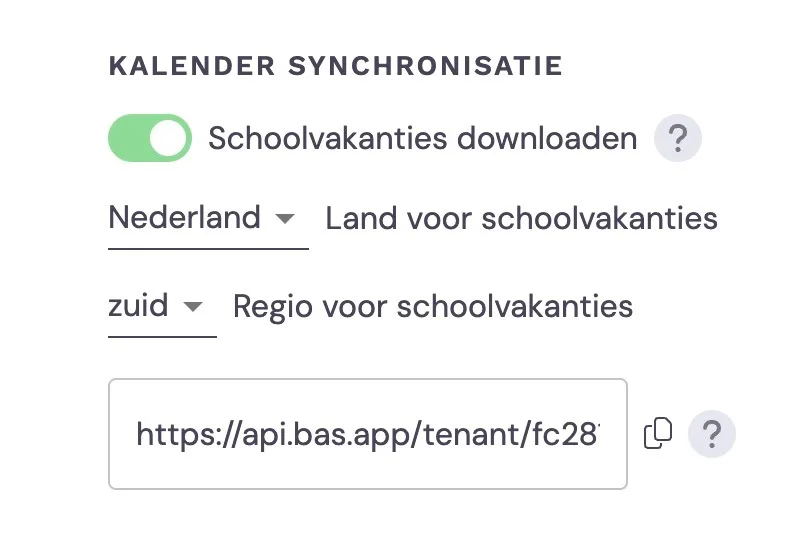
Step 1 - Copy the URL
Go to Settings > Method > Features and scroll all the way down
You’ll see a URL (a long web address)
Click Copy to copy the URL to your clipboard
Step 2 - Add the URL to your calendar
Google Calendar:
Open Google Calendar
Click the + next to “Other calendars”
Choose From URL
Paste the copied URL
Click Add calendar
Microsoft Outlook:
Open Outlook
Go to Calendar > Add calendar
Choose Subscribe from internet
Paste the copied URL
Click Import
This is a one-off action. Once added, the calendar syncs automatically.
Tip: The sync works in one direction: from Bas to your external calendar. Changes you make in Google Calendar or Outlook are not sent back to Bas.
Website and lead integration
If you receive leads through your website (contact form, quote request) and want these to automatically appear as a case file in Bas, you can set up an integration.
Available options
Method | How it works | Suitable for |
Zapier | An intermediary that forwards webhooks from your website to Bas | Websites with forms (Jimdo, WordPress, etc.) |
Email forwarding | Forward emails to a Bas inbox | No setup required, works with any website |
Recommendation
The website and lead integration is an optimisation step you don’t need to do in the first phase. Focus first on the basics: Mollie, accounting, and Schouten Zekerheid if applicable. You can set up the lead integration later, if needed with help from your onboarding specialist.
If you do want to get started with this, take a look at the article Connecting your website via Zapier on the Help Centre.
Email forwarding
With email forwarding, you can forward important emails to Bas. The email arrives under Communication > Email where you can link the message to a customer and/or case file. Useful for confirmations, contracts or other relevant correspondence.
This is useful if: - You don’t have a website integration - You receive leads by email - You want a simple solution without technical configuration
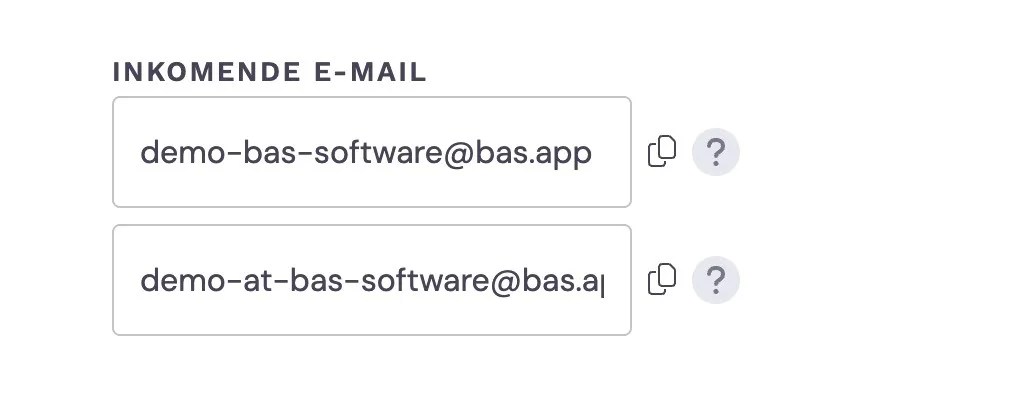
Go to Settings > Method > Features. At the bottom, you’ll find one or more email addresses. Copy this address and send your emails there. The email will then appear under Communication > Email where you can link it to a customer and/or case file.
Overview: which integration to set up when
Integration | When | Can you do it yourself? | Explanation |
Calendar sync | Whenever you like | Yes, fully self-service | 5 minutes, one-off action |
Website/leads | After going live | No, too technical | Zapier or API requires guidance |
Email forwarding | Whenever you like | Yes, with support documentation | No setup required |
Tips
Start with the calendar sync. This takes 5 minutes and gives you immediate insight in your day-to-day calendar.
The website integration comes later. Focus first on the basic features (sales, planning, invoicing). The website integration is an optimisation you can do later.
WhatsApp: wait for the new version. The old system is being replaced. Wait until the new version is available before getting started with this.
Want to know more?
Connecting your website via Zapier - Forward leads from your website to Bas
Next step: Peppol e-invoicing - send invoices automatically via the Peppol network.