
Based on the status of jobs and the team you're assigned to, tasks are automatically added to your home screen. By working through these tasks, you always stay in control of your work. You need to tick off tasks yourself once you've completed them. This does not happen automatically!
You can also create tasks for yourself or for colleagues, if you find that useful.
Automatically generated tasks
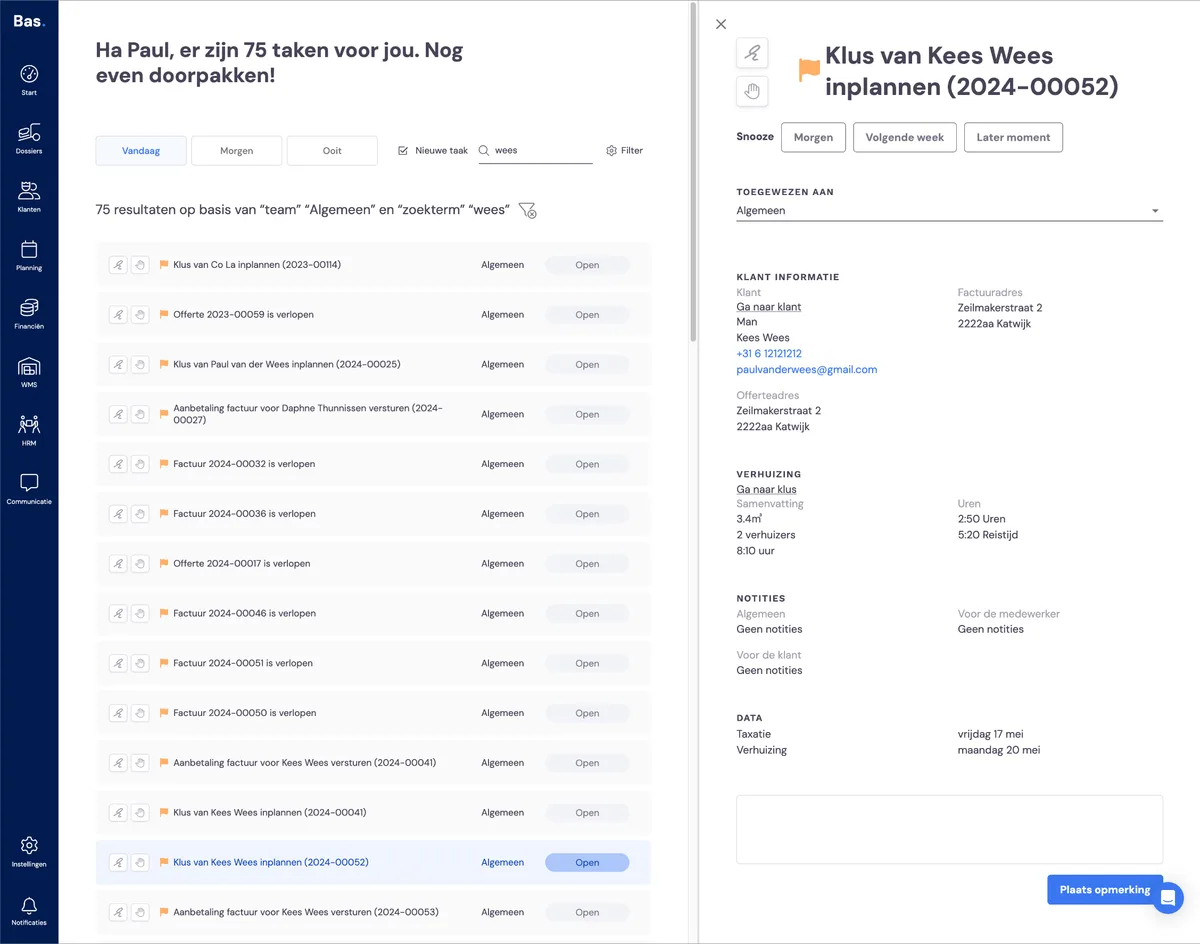
Tasks automatically appear on the home screen based on status changes of jobs. In the example above, you can see that a job has moved from the status 'quote' to 'schedule move'. Based on this, the task 'schedule job' has appeared.
Completing a task
To complete the task, click on it. The information related to the task appears on the right-hand side of the screen. From here, you can also go straight to the job and from there to the planning.
Manually creating tasks
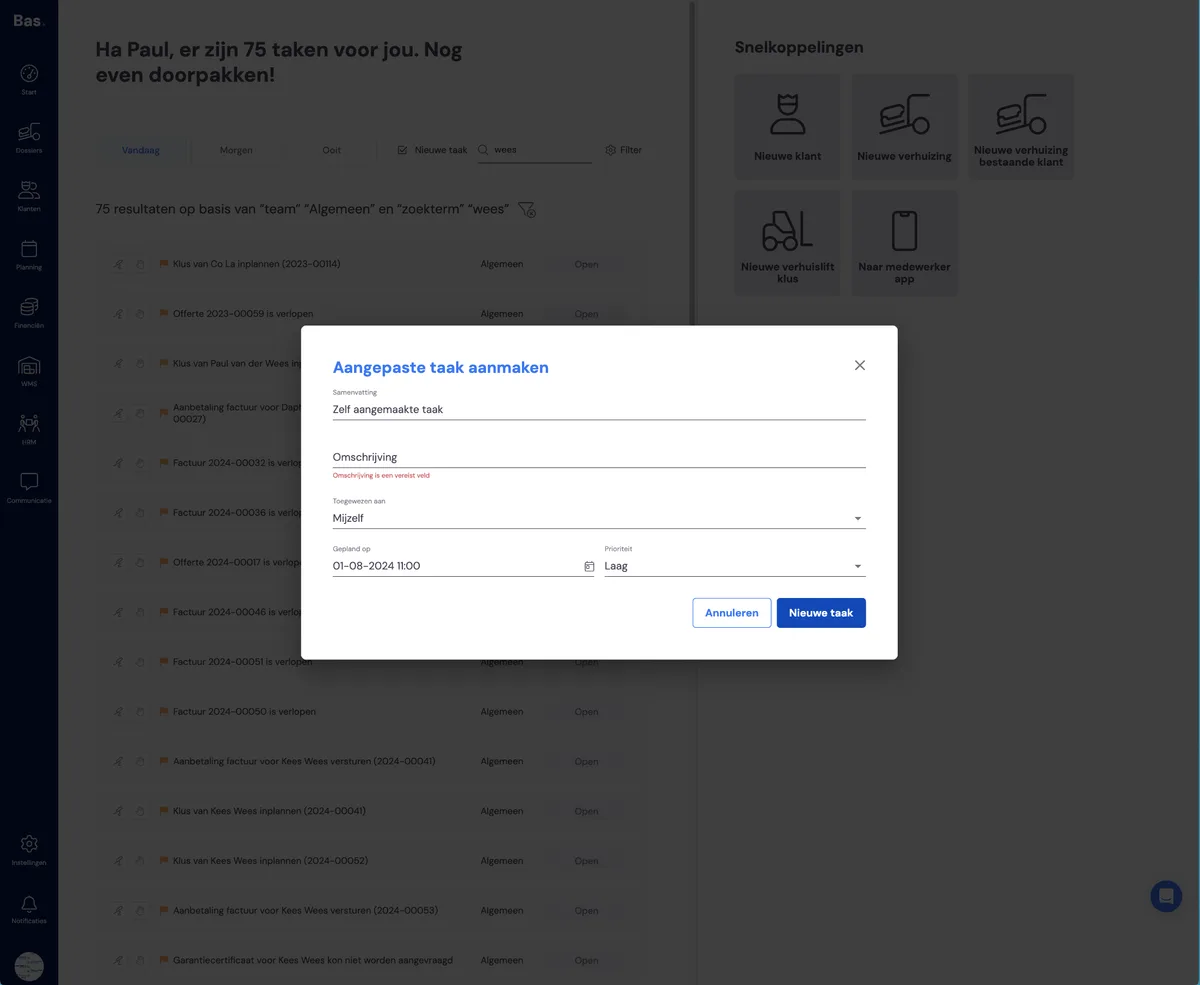
You can also create a task manually to keep more control over your work. Click 'new task' at the top of the screen. Enter a name and description, choose the person responsible, the deadline and the urgency, then click 'new task'. Your new task is now ready.
Ticking off a task

Once you've completed a task, you can tick it off by clicking the tick icon. The task then disappears from your task list.
Next step
In the next step we'll fill the storage >