
Jobs are the removals or furniture hoist jobs you carry out for your customers. In this step, you're going to create a new job of the type removal.
Creating a new job
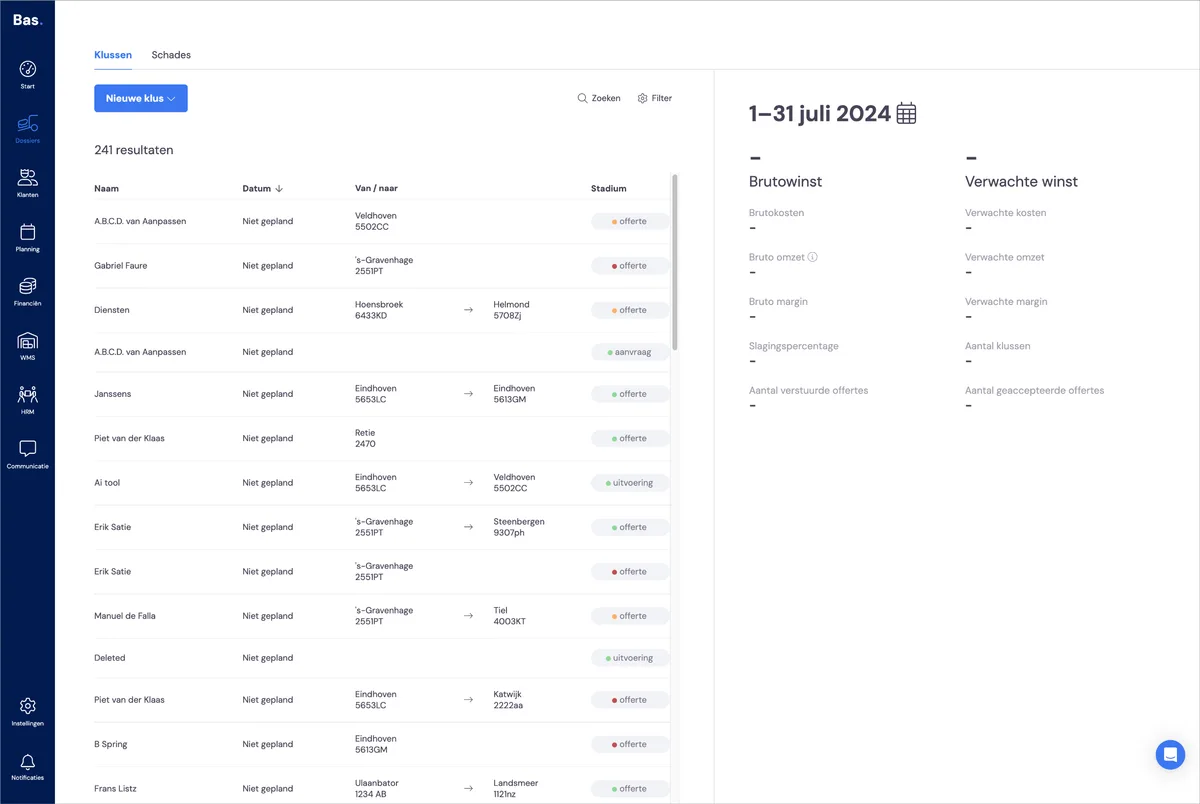
You'll find jobs in the navigation under 'case files'. Here you'll find the overview of all ongoing jobs. You create a new job with the 'new job' button.
Here you can create a job for an existing customer, a removal job for a new customer, or a furniture hoist job.
In the previous step you created yourself as a customer, so here you'll create a job for an existing customer, of the type removal.
Step 1 - choose the customer
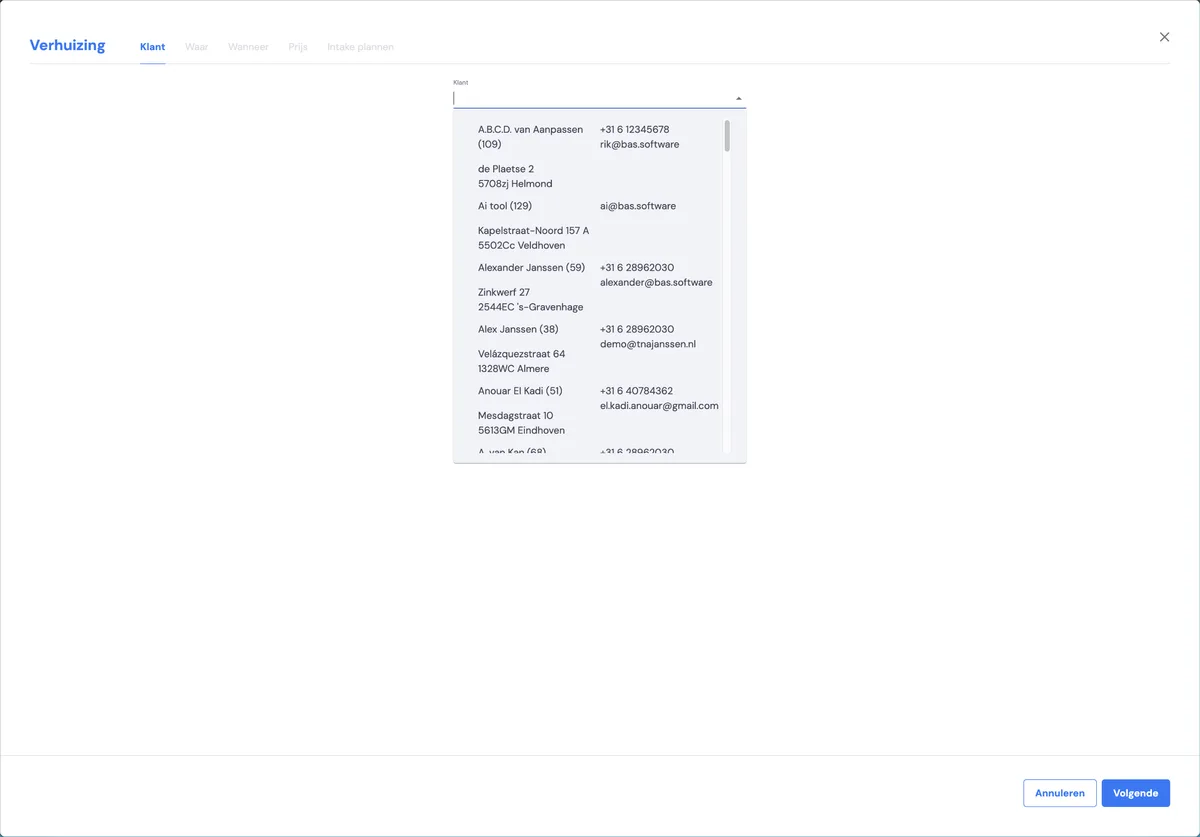
Under 'customer' you'll find all the customers you've entered previously. Choose yourself as the customer.
Step 2 - enter addresses
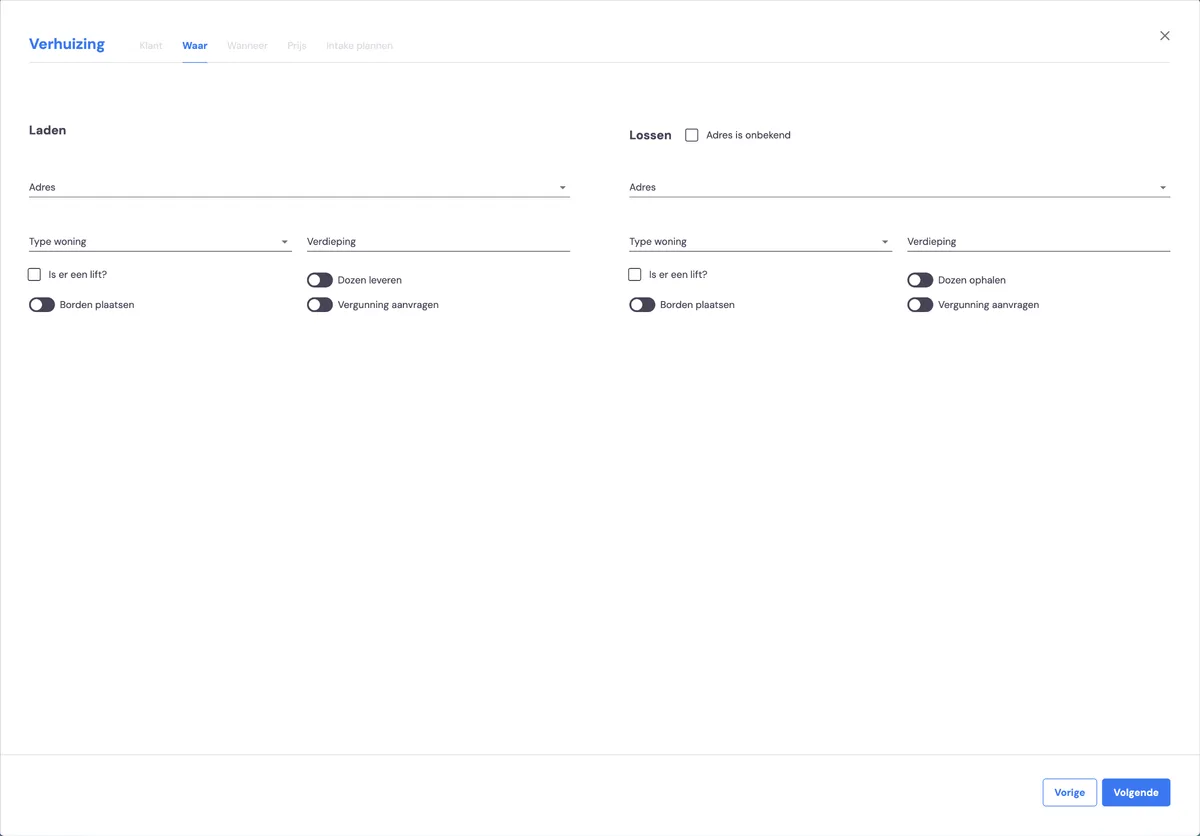
In the second step you enter the loading address and the unloading address. Choose fictional addresses, but make sure the postcode and house number combination is valid, so that Bas can perform all the calculations correctly.
Step 3 - schedule appointments
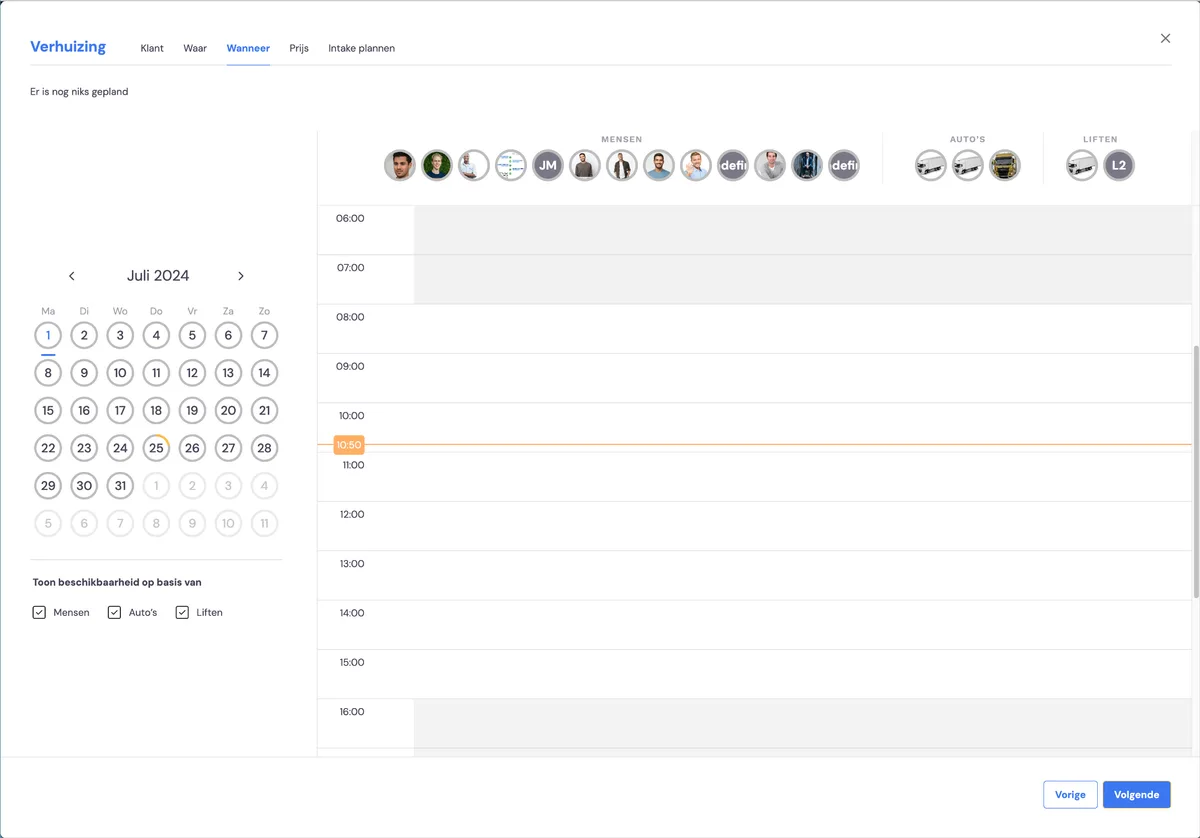
In this step you can enter all the appointments that belong to this job. So not just the removal itself, but also, for example, delivering boxes, collecting boxes, etc. Make sure to enter the removal appointment here.
Step 4 - choose the pricing agreement
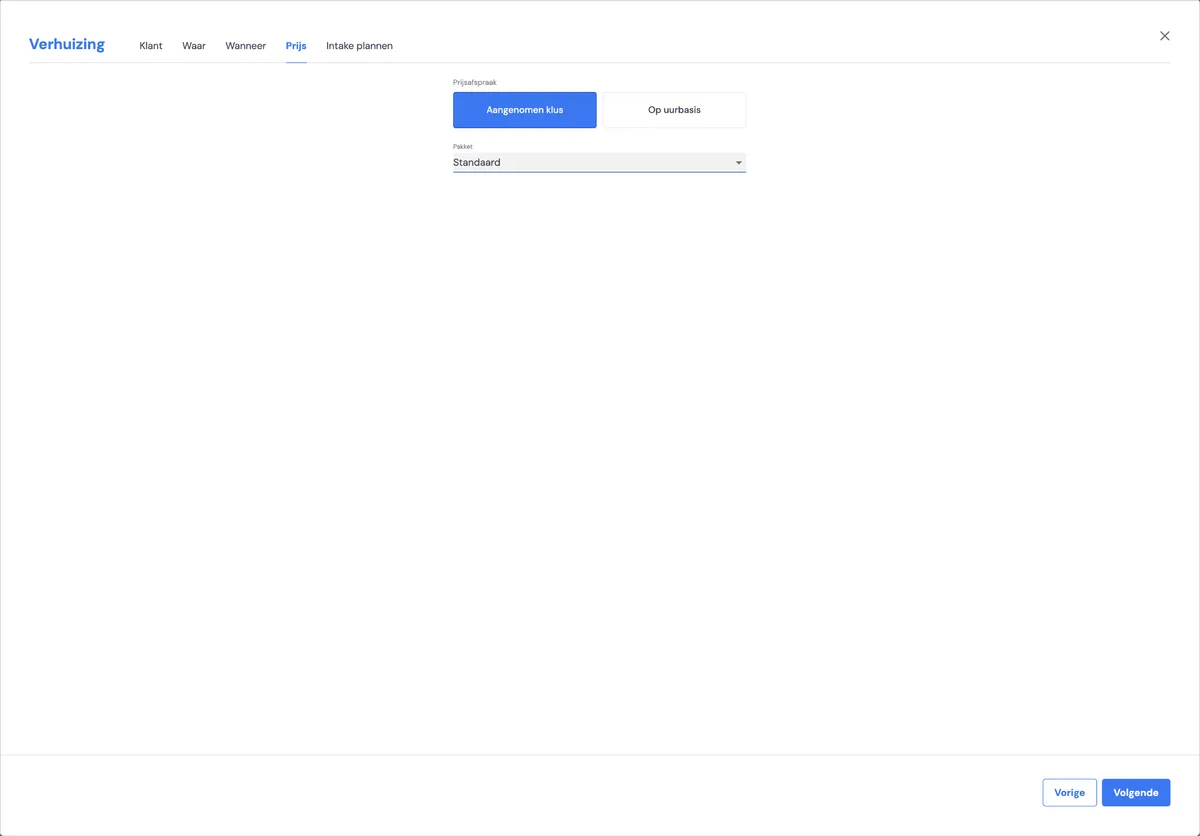
For the pricing agreement you have 2 options: fixed-price job or hourly job. Choose the type you want.
Step 5 - schedule the survey
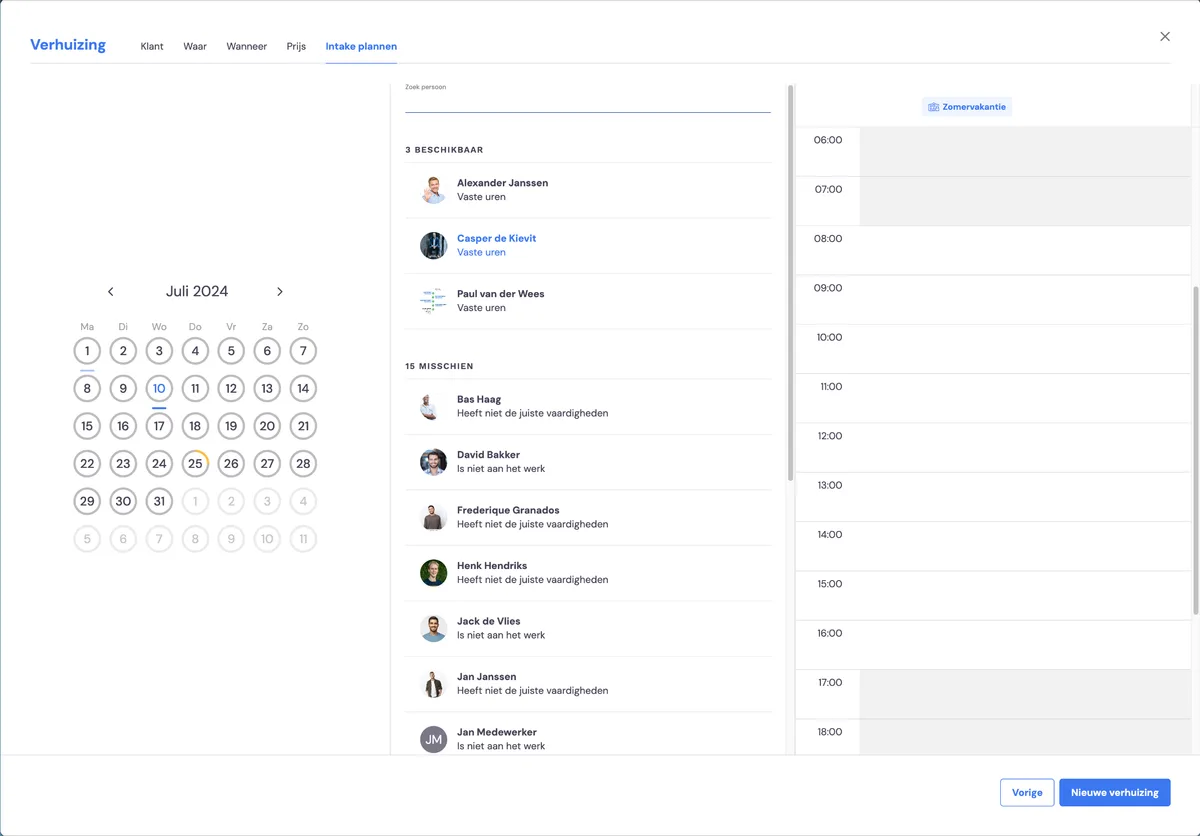
In the last step you schedule the survey. First you choose the day, then the surveyor, and then the time:
Choose date
Click the day you want to carry out the survey on, in the calendar on the left.
Choose the surveyor
Select the surveyor in the middle column
Make an appointment
Click in the timeline in the right-hand column, and choose a time slot by dragging. After this, the screen below appears, in which you can schedule the survey.
Then click 'new removal'. After this step, your job has been created! Your job is now in the list of all jobs.
Next step
In the next step you're going to carry out the survey for your move so that the quote can then be created >
Next step: Carry out a survey for your own move
Next step: Carry out a survey for your own move
Next step: Carry out a survey for your own move