
In this step, you'll create an initial schedule based on the first job whose quote has been accepted.
Scheduling the removal
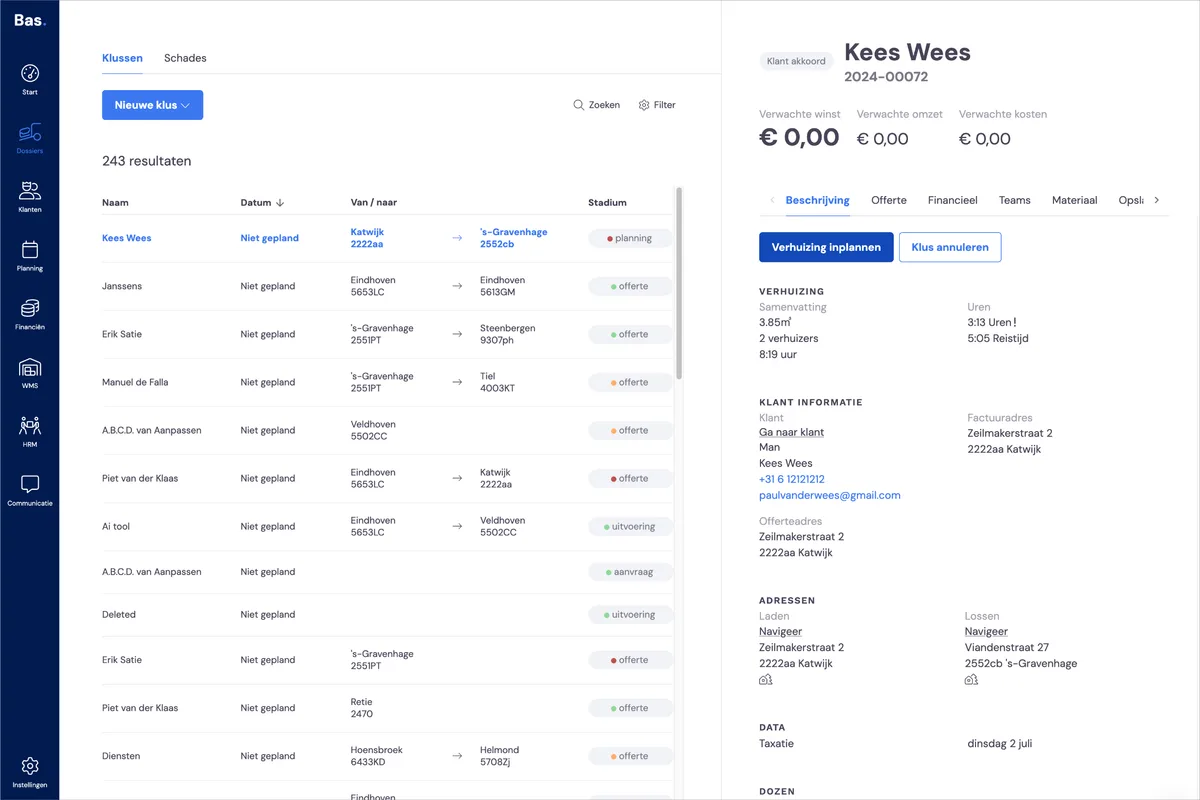
Go to Jobs and select the job you created earlier. The job must be in the status 'Schedule removal'. Click 'Schedule removal'. The scheduling screen opens.
Entering appointments
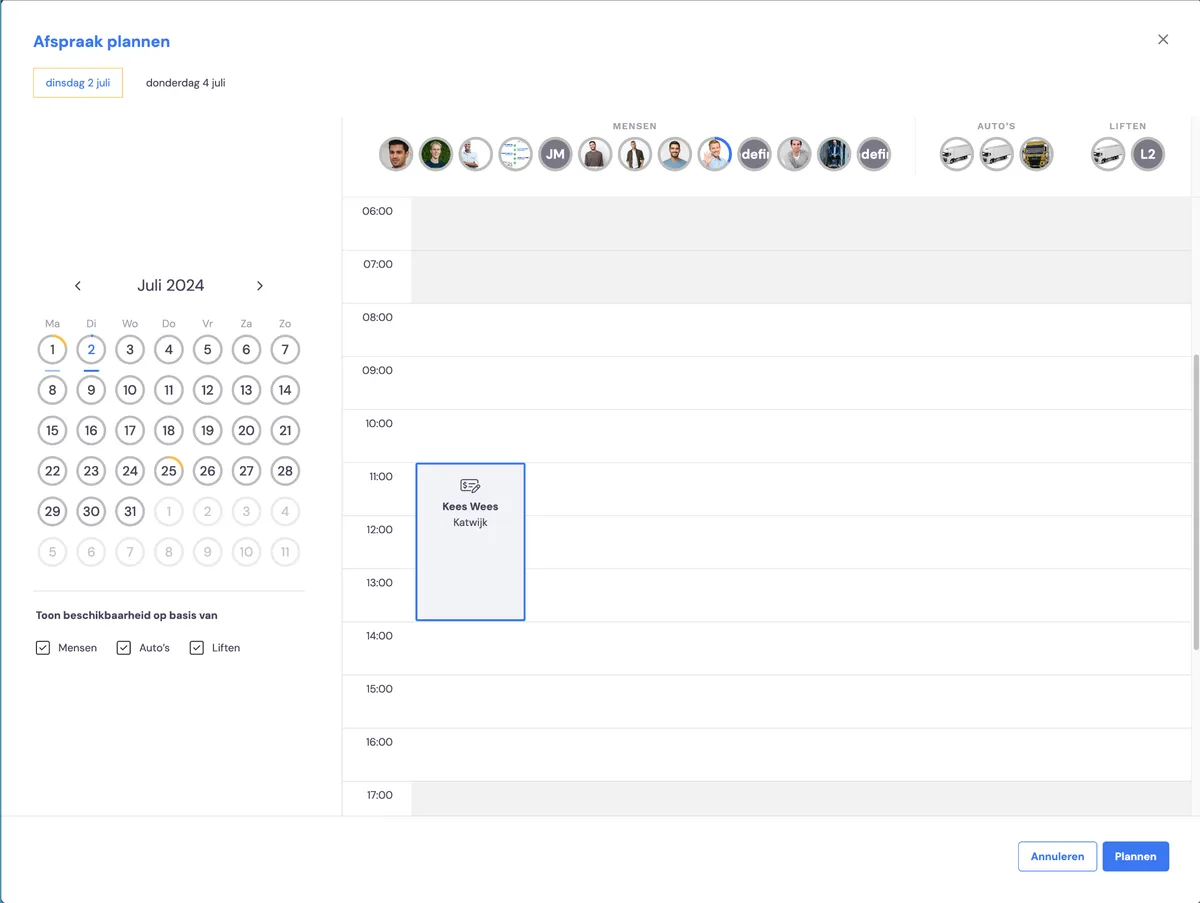
This overview shows all the appointments already created for the job. Complete the list by adding all the appointments you need. Do this by first clicking a day in the month view on the left, then clicking and dragging on the right to create a time slot.
At the top left, you'll see the dates of all the appointments you've created. You can click any date to amend the appointment. Click 'Schedule' once you've entered all the appointments.
Scheduling staff, vehicles and hoists for your appointments
You can schedule staff, vehicles and/or hoists either from the job or from the planning board.
From the job
From the job, you can schedule all appointments by dragging them from Teams; this lets you arrange the entire crew for the job in a single step.From the calendar
Here you schedule all appointments per day. You won't immediately see which job they're linked to, but you arrange the crew from all the appointments that have been scheduled.
Option 1: Assigning staff, vehicles and hoists from the job
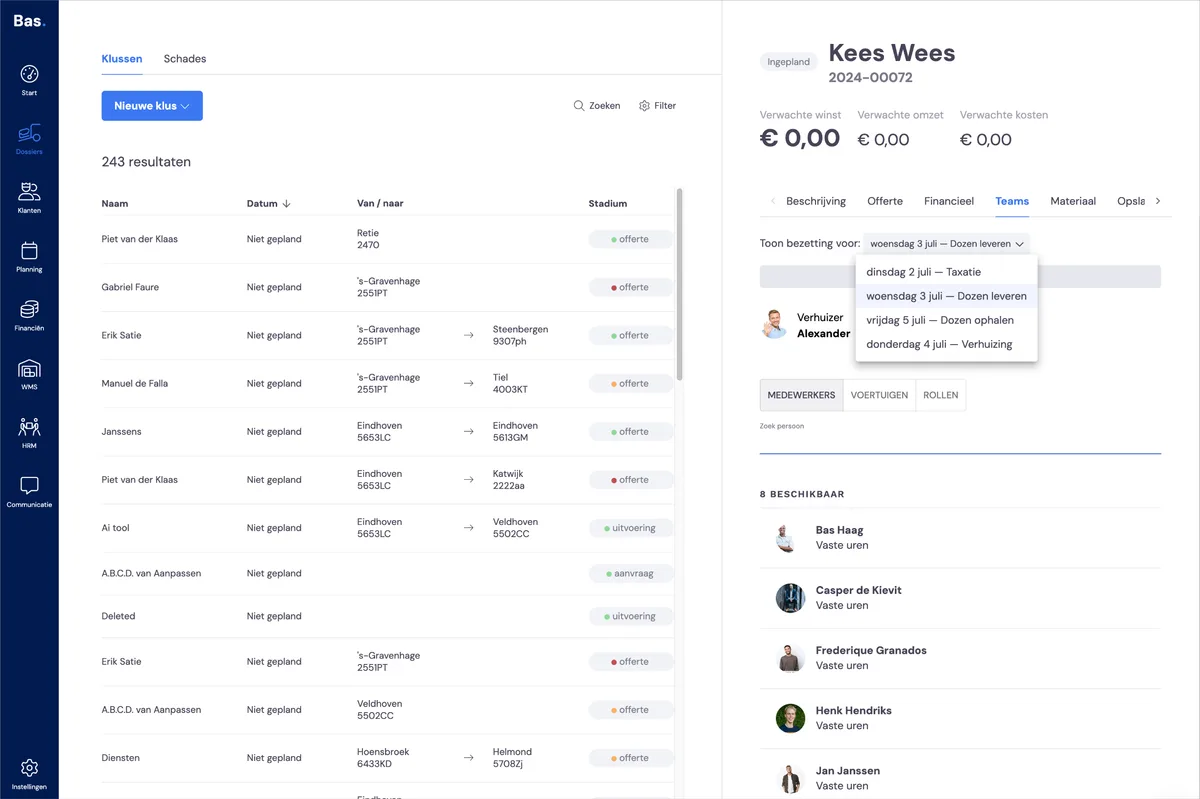
Schedule staff, vehicles and/or hoists for the job. Do this by going to Teams from within the job. Here, under 'Show crew for', select the appointment for which you want to schedule staff, vehicles or hoists. Drag the right staff, vehicles and/or hoists from the bottom of the screen onto the appointment.
Option 2: Assigning staff, vehicles and hoists from the planning board
Go to the planning board via the navigation on the left. Then choose a date on which you've scheduled an appointment for your removal. You can now fill in the crew by dragging staff, vehicles and hoists onto the appointment.
Job status changes to Aftercare
Once you've scheduled the appointments, the job status automatically changes to Aftercare.
Next step
The next step is sending an invoice for your removal >
Next step: Send the invoice and pay for your removal