
Entering the HRM settings in this step is simple. You check whether the correct time types, expense categories, leave types and public holidays are already set up for you.
Check time types
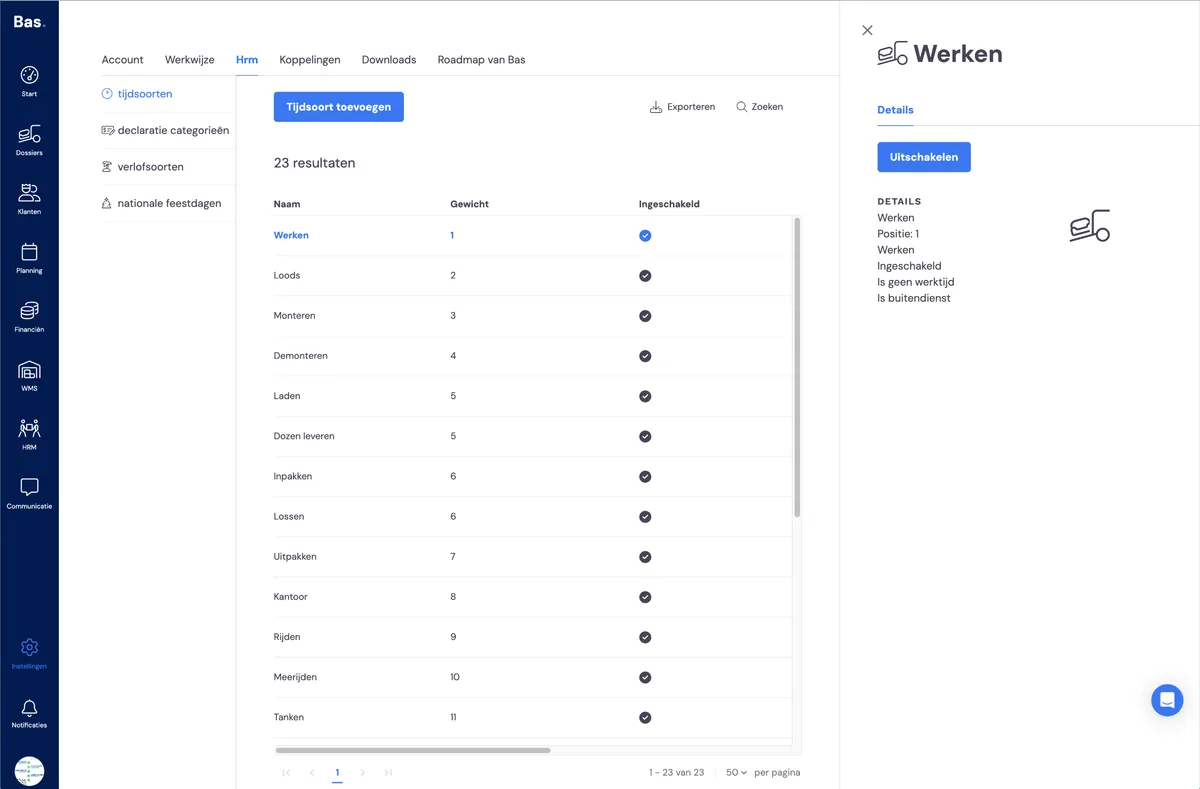
Time types are the hour types used in time registration. A list of time types is already set up for you, which you only need to check. You can disable or add time types to adjust the list.
Check expense categories
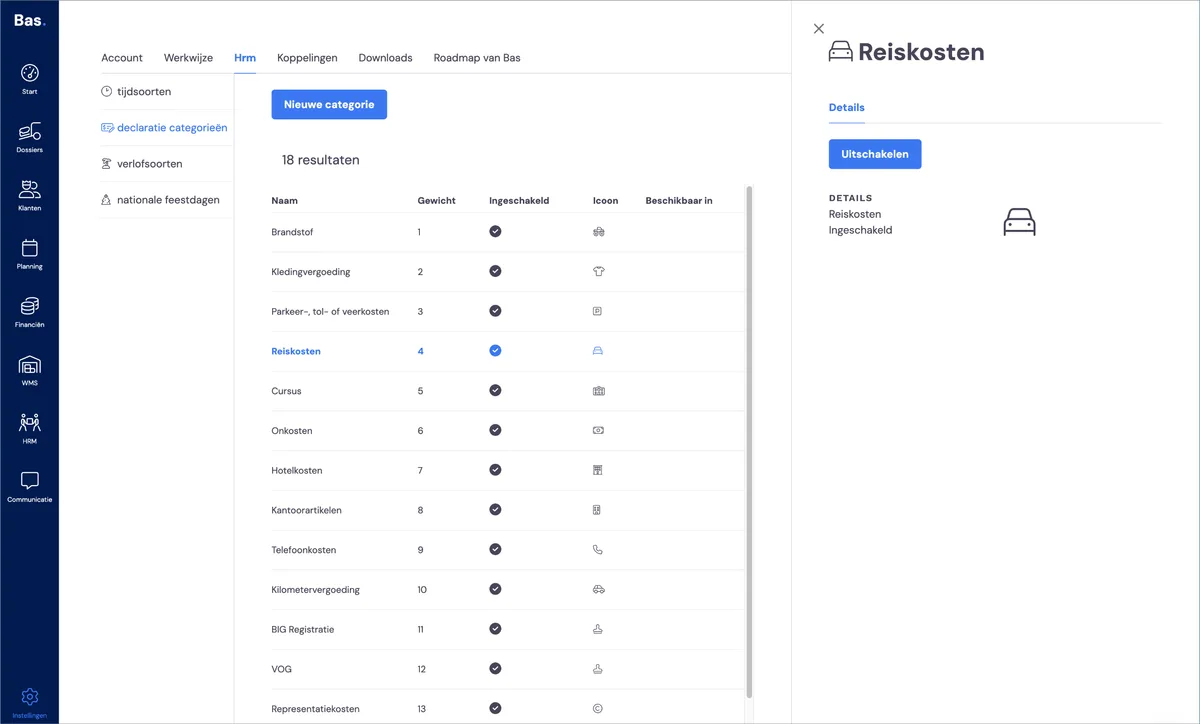
Expense categories are the categories an employee can use to submit expense claims. Here you only need to check the list and add or disable categories if necessary.
Check leave types
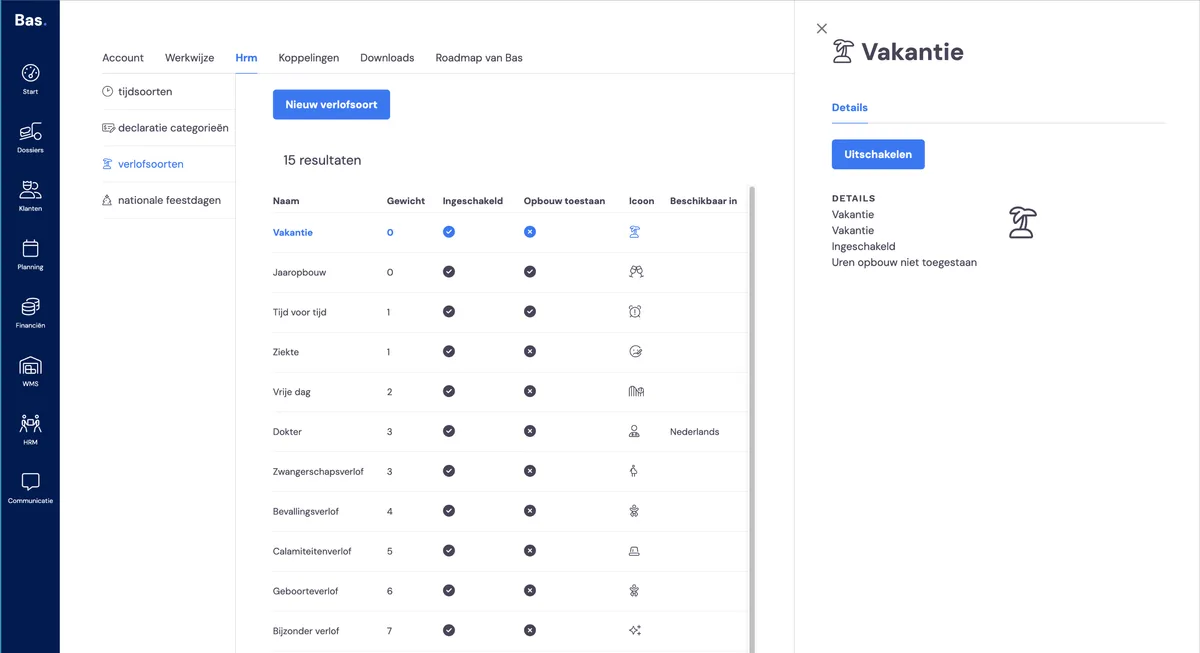
Leave types are the hour types used to register an employee's absence. Here you'll find leave hour types and sick leave hour types.
It's important to note that for some hour types 'accrual is allowed' — this applies to holiday leave, for example. A balance can be loaded in, for example at the start of each year. Over the course of the year, the balance is then drawn down. You'll enter these balances per employee at a later point in the onboarding.
Check public holidays
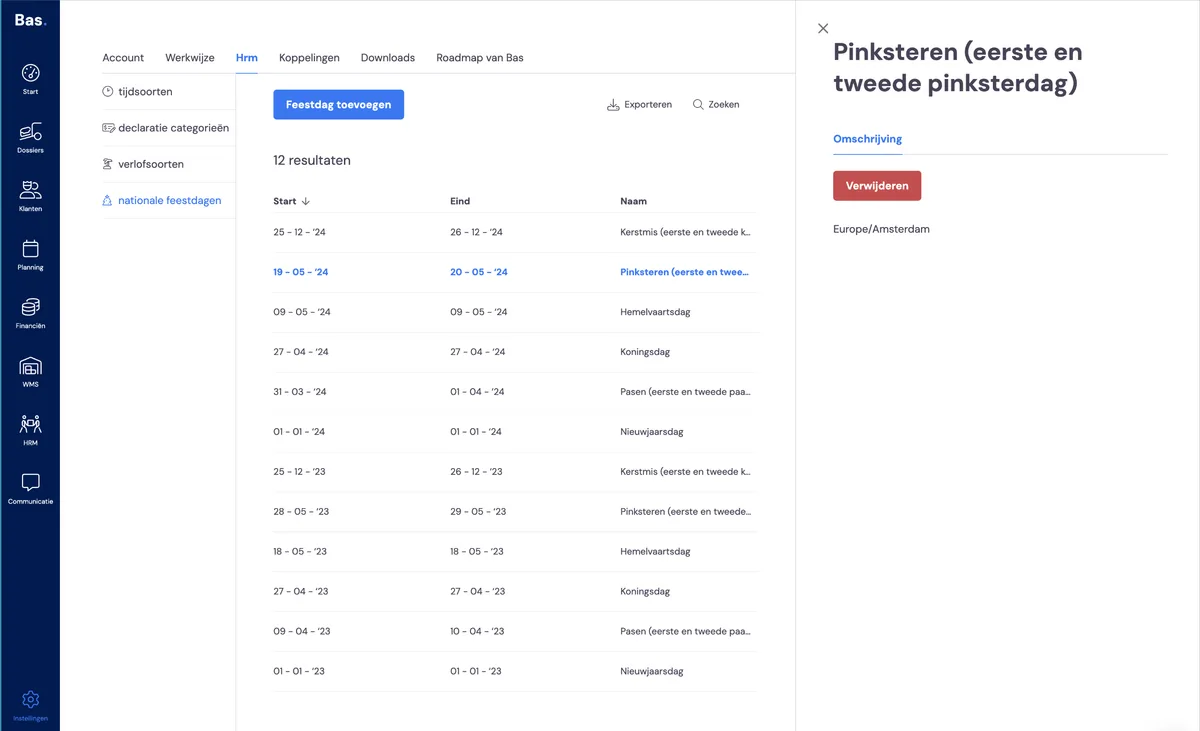
Bas comes with public holidays available by default. You only need to check whether these are also the holidays used in your company. You can add or remove a holiday if the list doesn't fully match.
Public holidays are shown in the schedule, and employees are set to 'not available' by default on these days, so you can't drag them directly onto appointments in the schedule. This makes it clear that, in principle, no removals are scheduled on these days. Leave also cannot be registered for an employee on a public holiday.
Next step
The next step is entering all the leave balances >