
The employee finds everything related to leave in the app. Leave balance, requested leave, days off and the option to request leave.
Leave in the app
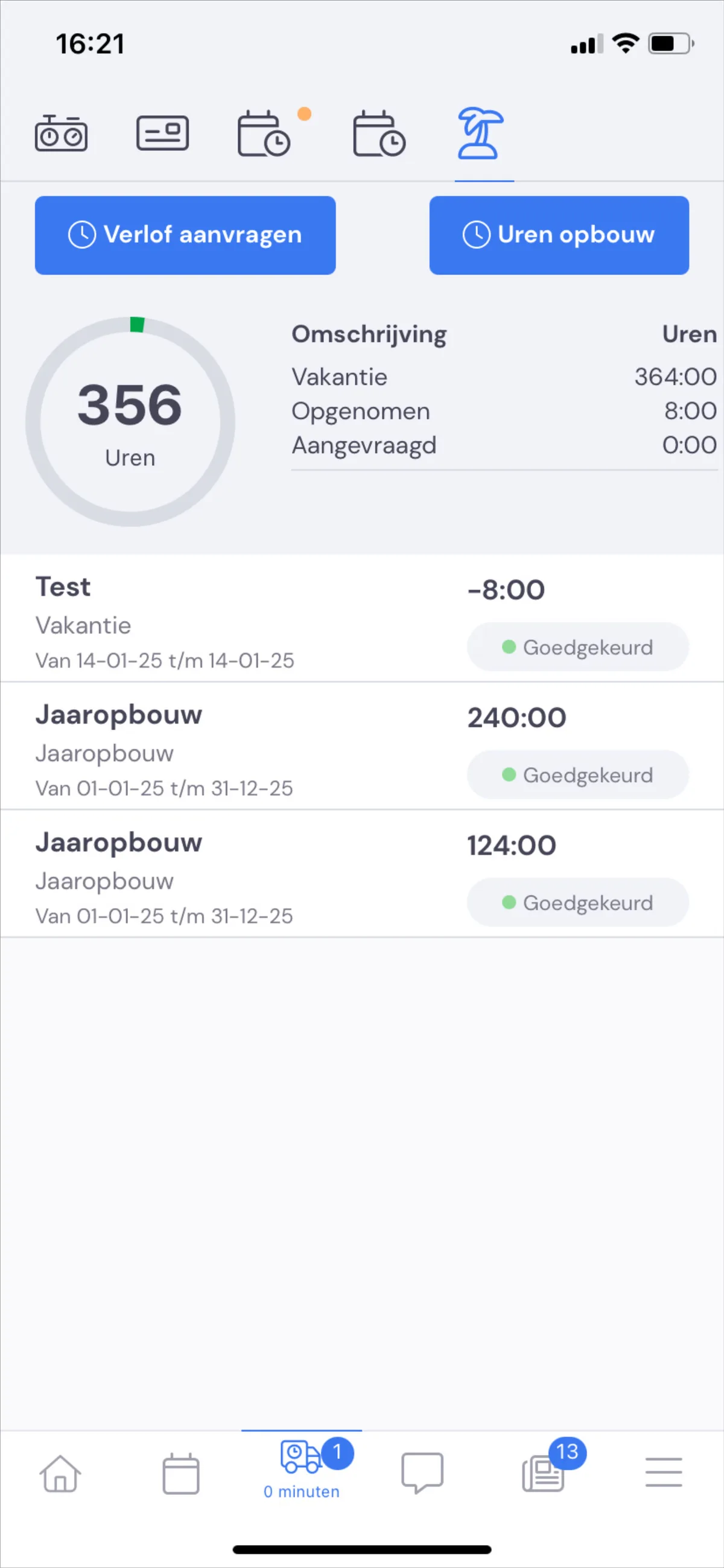
You'll find leave by clicking on the little truck, and then on the palm tree. Here you'll find a button to request leave, an overview of how many hours you still have available and, below that, a list of all your leave requests and their status (Approved, Declined, Pending and Cancelled)
Requesting leave
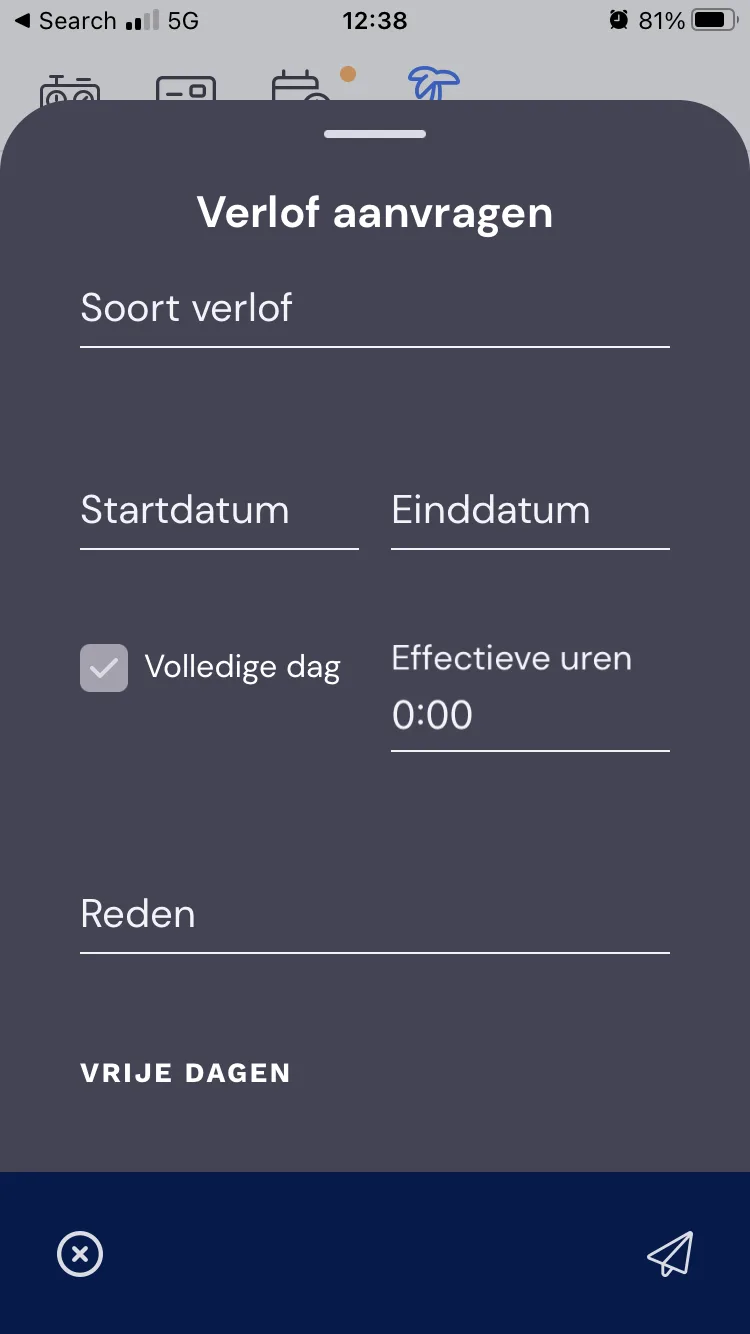
The 'Request leave' button brings up the list below, which you can fill in and send straight to the office. The overview will show you whether your request has been approved or not.
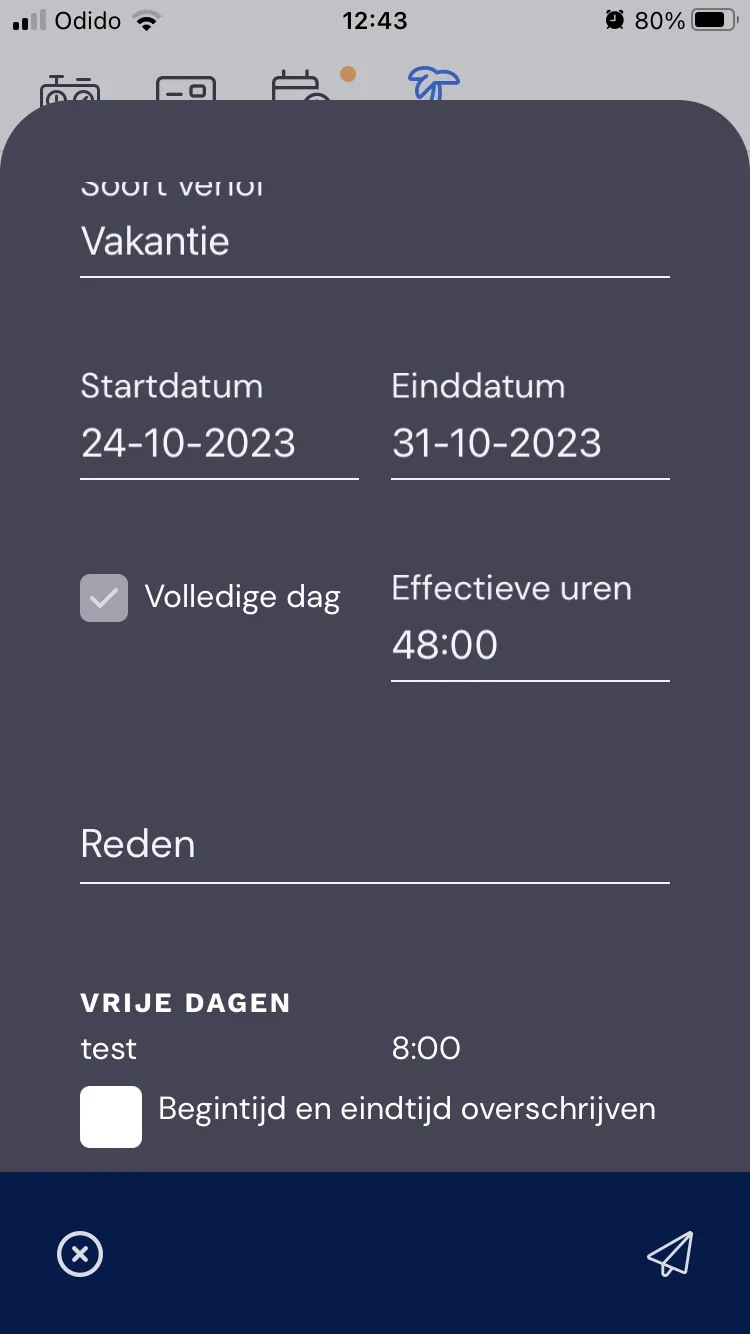
With a request, a list of the individual days for which you've requested leave appears at the bottom. Weekends and standard days on which you don't work should not be counted, and in principle 8 hours per working day will be filled in.
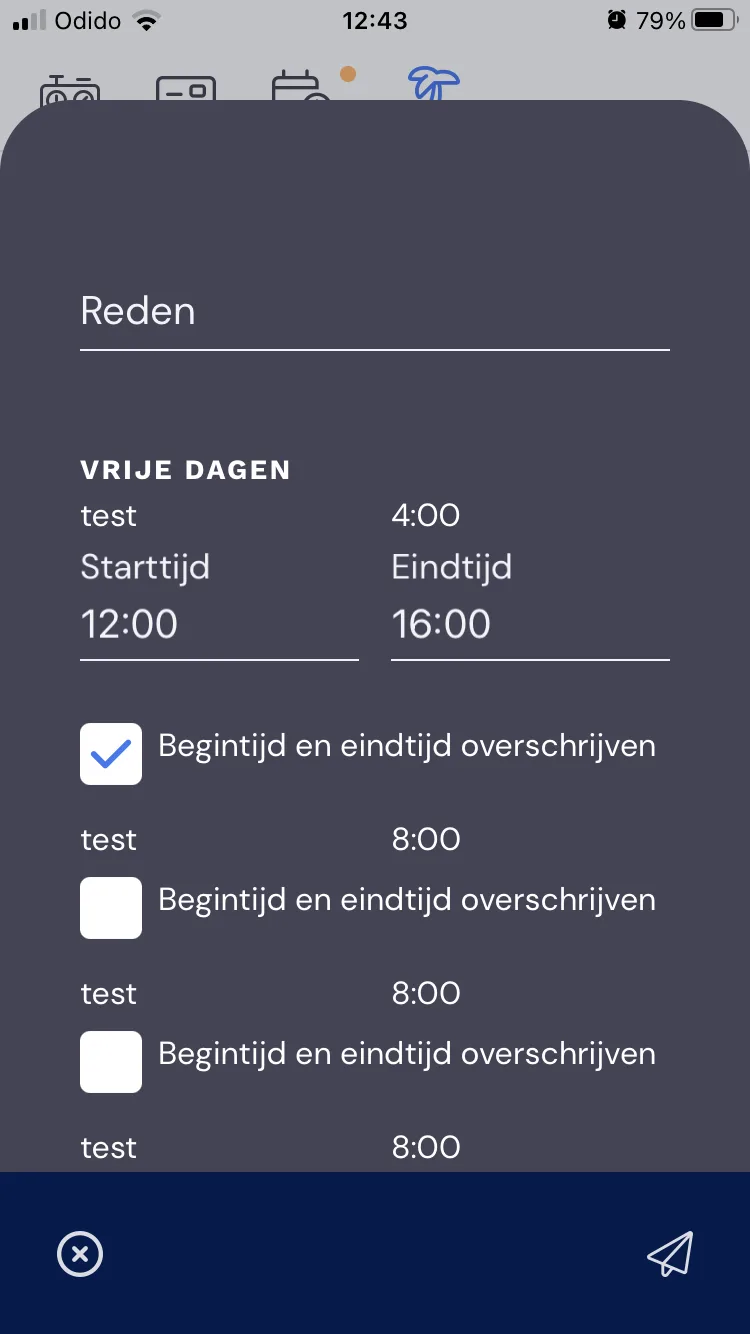
If there's a day on which you don't need to be off for the full day, you can indicate this as well, as shown below.
Leave request status
As soon as you request leave, it gets the status 'pending'. If the office approves it, it gets the status 'approved'. Should your holiday plans change, the office can still 'cancel' it. If a holiday request is declined for whatever reason, this will also be shown here with the status 'declined'. You can view the declined request and find the reason why. If necessary, you can make a change and submit a new request.
Updates to the employee
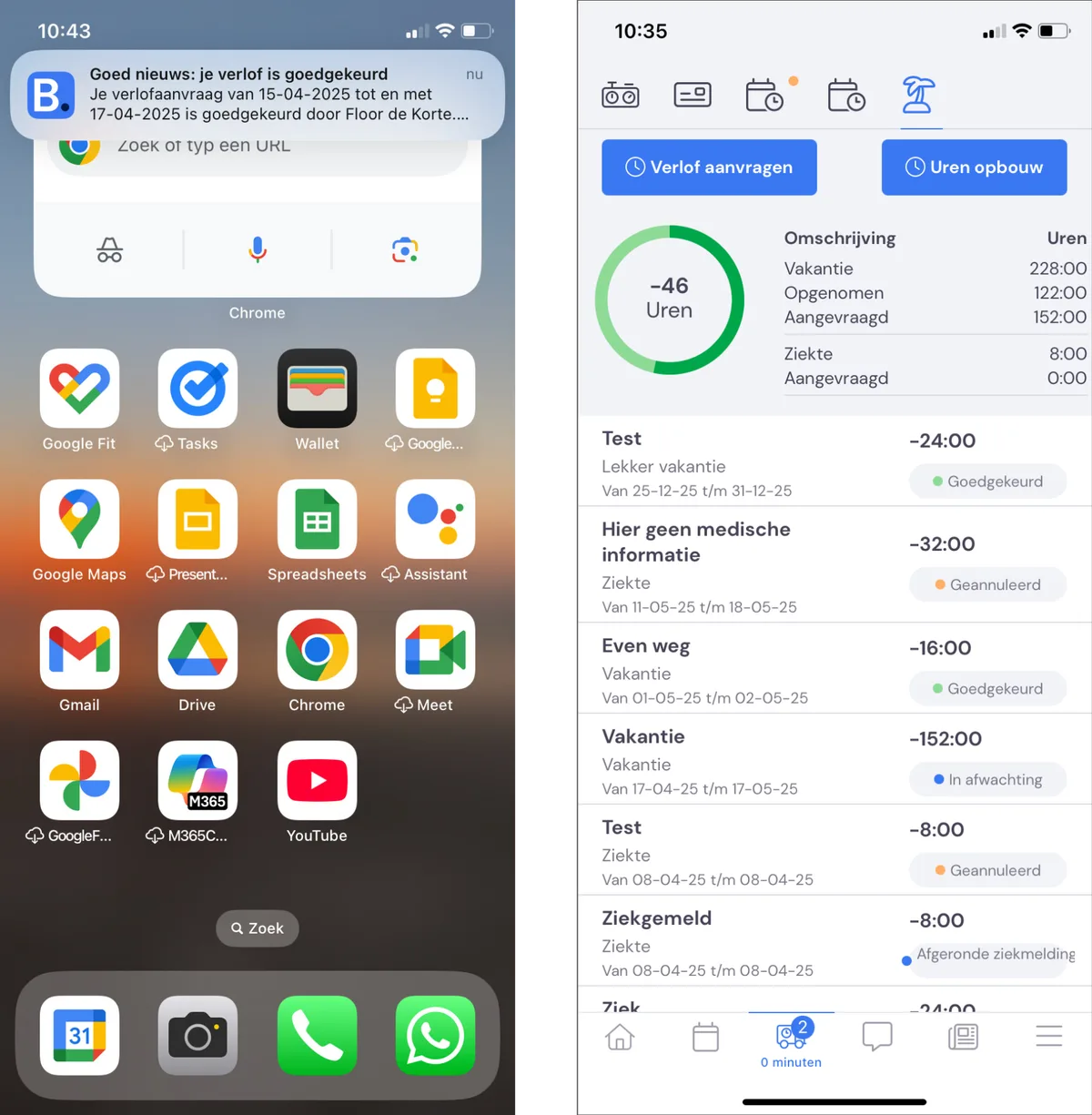
The employee immediately receives an update on the status of the leave request via a push notification. Clicking the push notification takes the employee to the list of leave requests and accrued hours.
Not receiving a push notification? Check whether the app is allowed to show notifications for the Bas app. If this is switched off, notifications won't be shown!
Processing the request via the back office
As a back office employee, you'll see all requests and can process them directly under: leave requests >