
You can adjust the hours registration to your own preferences. For example, you can adjust the mandatory break times if these differ from the standard CLA guidelines. Below, all the available settings are explained.
Hours registration start date
You can set the date on which your removal company starts using the hours registration. From the start date, the employee will receive reminders in their app to register hours, so choose a date after employees have been informed about how the hours registration works!
Hours registration proposal settings
Based on the hours registration settings, many of the manual actions you'd normally have to do are automated.
For example, you can set the minimum number of break minutes an employee must take. The hours registration then immediately checks whether the employee has reached the minimum number of minutes. If not, this is shown, and where possible, a break is proposed for the employee in the timeline.
You can also indicate at what point the break may be placed. This can be a number of hours after the start of work and a number of hours before the end of work.
A proposal is made in the hours registration based on scheduled hours; this also checks whether hours have been logged by the foreman and whether these match.
Finally, hours are supplemented. For example, office work hours for backoffice employees, if you've set this up.
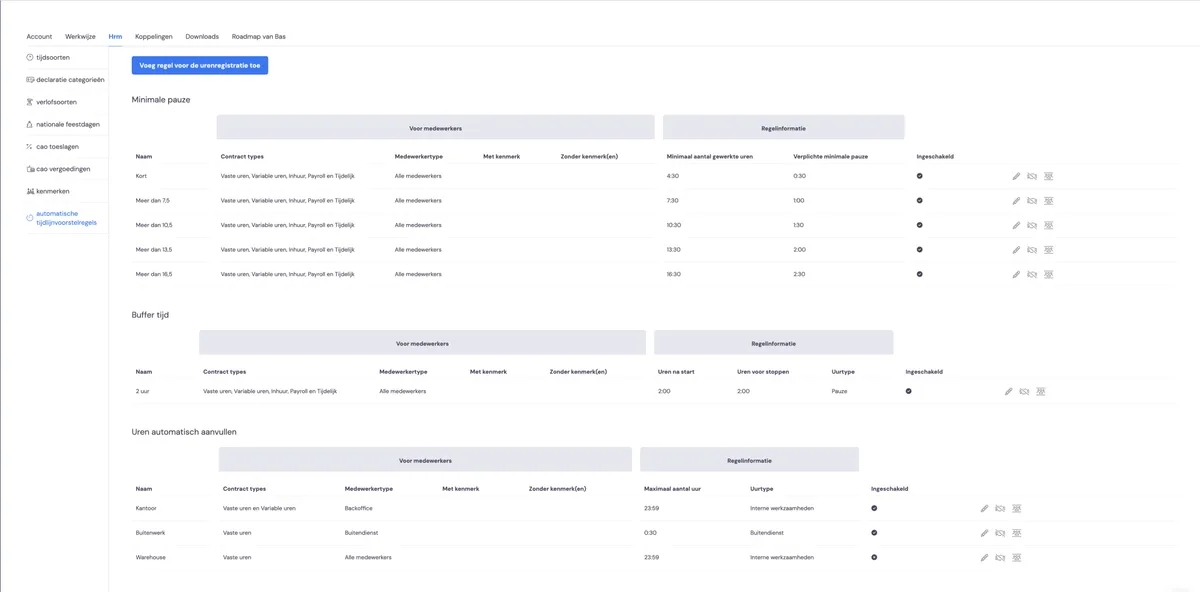
You'll find the settings under settings, then HRM, then hours registration.
Setting the minimum break time
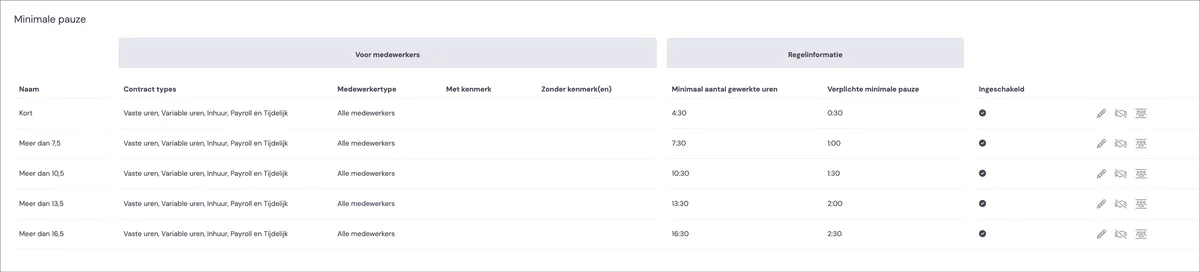
An employee is required to take a break. The number of minutes of break an employee must take depends on the number of hours they've worked.
The default settings for the number of break minutes are based on the CLA for road haulage.
You can
adjust existing rules
You do this by clicking the pencil icon; you can then adjust the name of the rule, who the rule is intended for, how many minutes of break should be taken per number of hours worked, and from what point the rule applies
add a new rule
if you want to create a new rule for, for example, a specific group of employees, you can create a new rule
Buffer time (placing breaks)

You've set how many minutes of break an employee must take for a certain number of working hours. If this break hasn't been registered by the employee, it's added to the timeline. You can decide for yourself how much time after the start of a working day the break may be placed, and how much time before the end of the day. You do this with buffer time.
Automatically supplementing hours (with a proposal)
It's known how many hours an employee should work, based on their contract or work schedule. If an employee hasn't registered any hours, or not enough hours, these are included in the proposal.
You can set yourself how many hours may be added as a proposal at most.
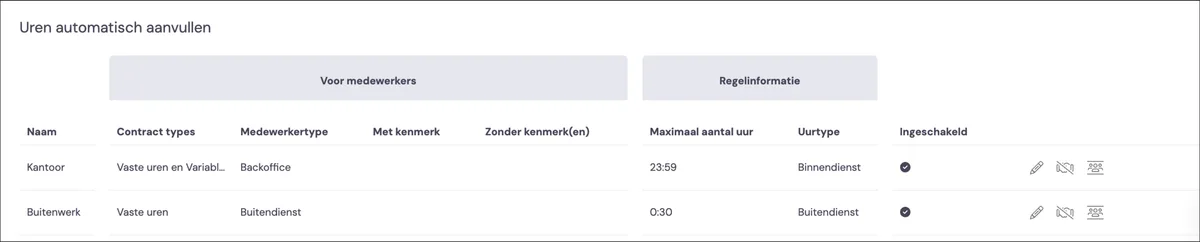
For example, for backoffice employees, you can allow the number of hours to be supplemented without limit with office work if they aren't scheduled and haven't registered any hours. For instance, if an employee has an 8-hour working day, office work is proposed for the entire working day.
For field work employees, you can set their field work hours to be topped up with office work hours. This way, you let the system supplement scheduled jobs with office work — making it easy to register, for example, the quarter of an hour worked in the warehouse before the removal.
Processing hours
Once everything is set up as you'd like, you can start processing the hours registered by the employees