
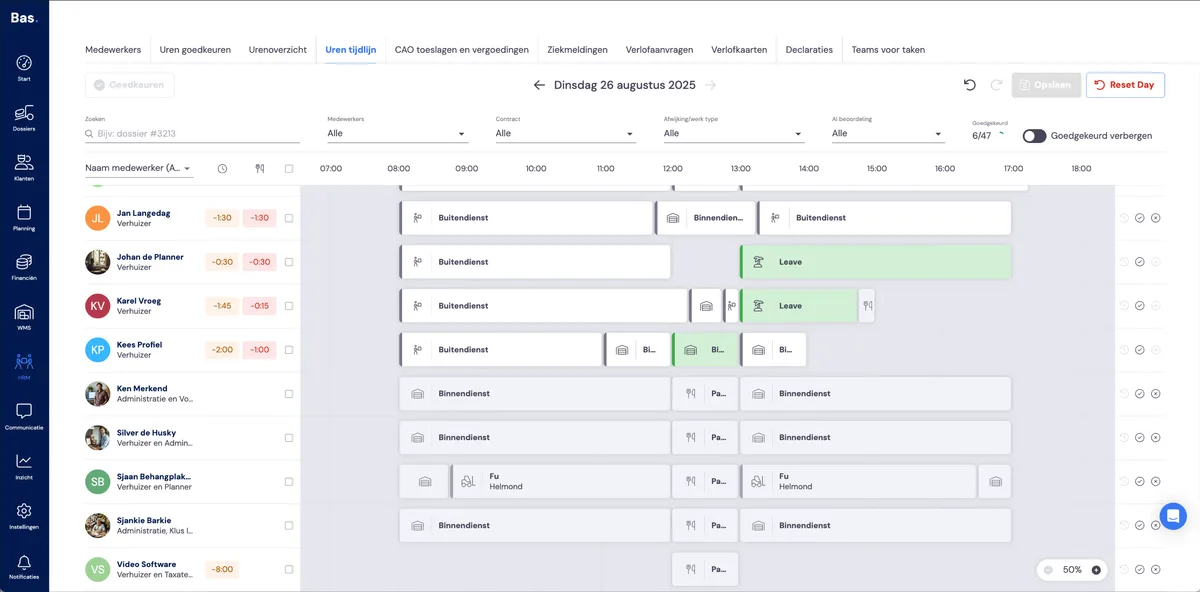
Approving all of an employee's hours
You can approve an employee's hours for a day using the checkbox icon to the right of the row with hours blocks. Each hours block then turns green. This means the day has been registered for this employee.
Approving multiple rows
If you want to approve multiple rows at once, you can select multiple employees via the checkboxes next to the employees, and approve the hours of all employees in one go using the 'Approve' button at the top left of the screen.
Processing per hours block
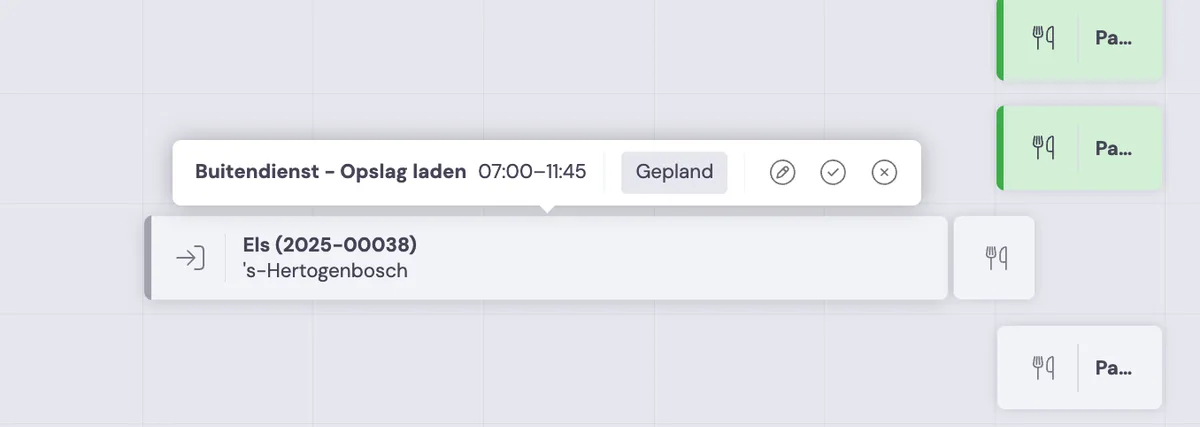
When you move your cursor over an hours block, you can process it directly:
You can edit the hours with the pencil icon
You can approve the hours with the tick
You can reject the hours with the cross
Adjusting an hours block
You can adjust the times of the hours block by moving it left or right, or by dragging to make the block larger or smaller
Hints: are the hours correct?
In the hours registration, the hours blocks indicate whether the hours are likely to be correct.
hours of other employees on the appointment
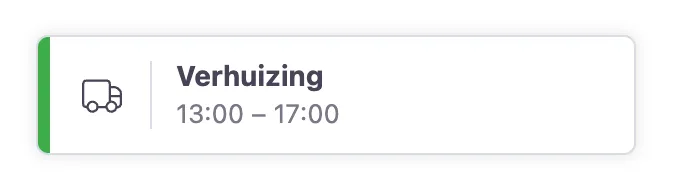
If an employee has registered hours on a job, and these match the hours of other employees on the same job, you'll see a green border on the left side of the hours block. This means it's likely that these hours are correct.
the foreman's hours
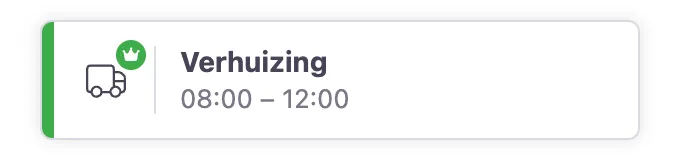
If the foreman has logged billable hours, and the employee's hours on the same job match, this is indicated with a green crown.
Details of a registered hours block
If you click on an hours block, you can view the details of the hours block. For example, if you click on an hours block for which hours were logged on a job, you'll see the registered hours of all employees who worked on the job, and you'll see all billable hours logged by the foreman.
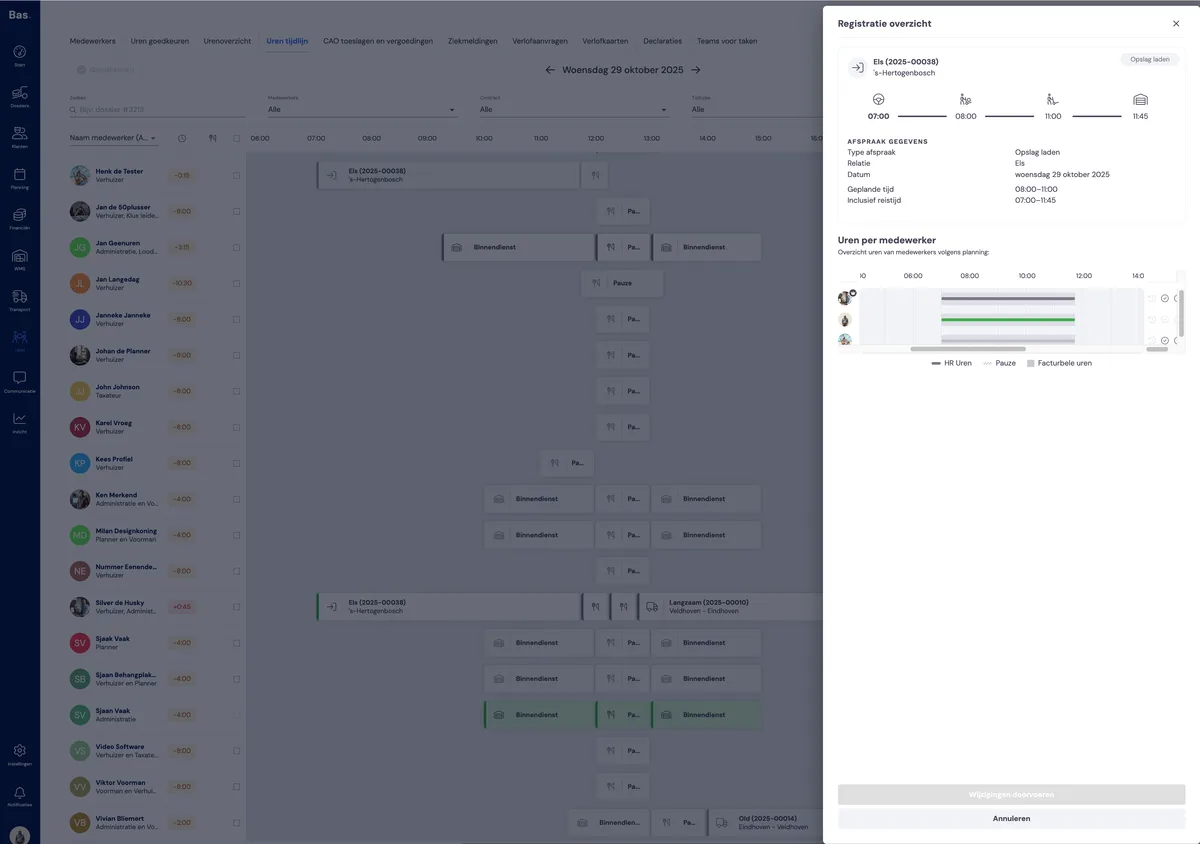
Checking hours
Once you've registered all the hours, the system also helps you check all the hours.