
With the new hours registration, we've made registering and processing hours even easier and faster.
Hours registration
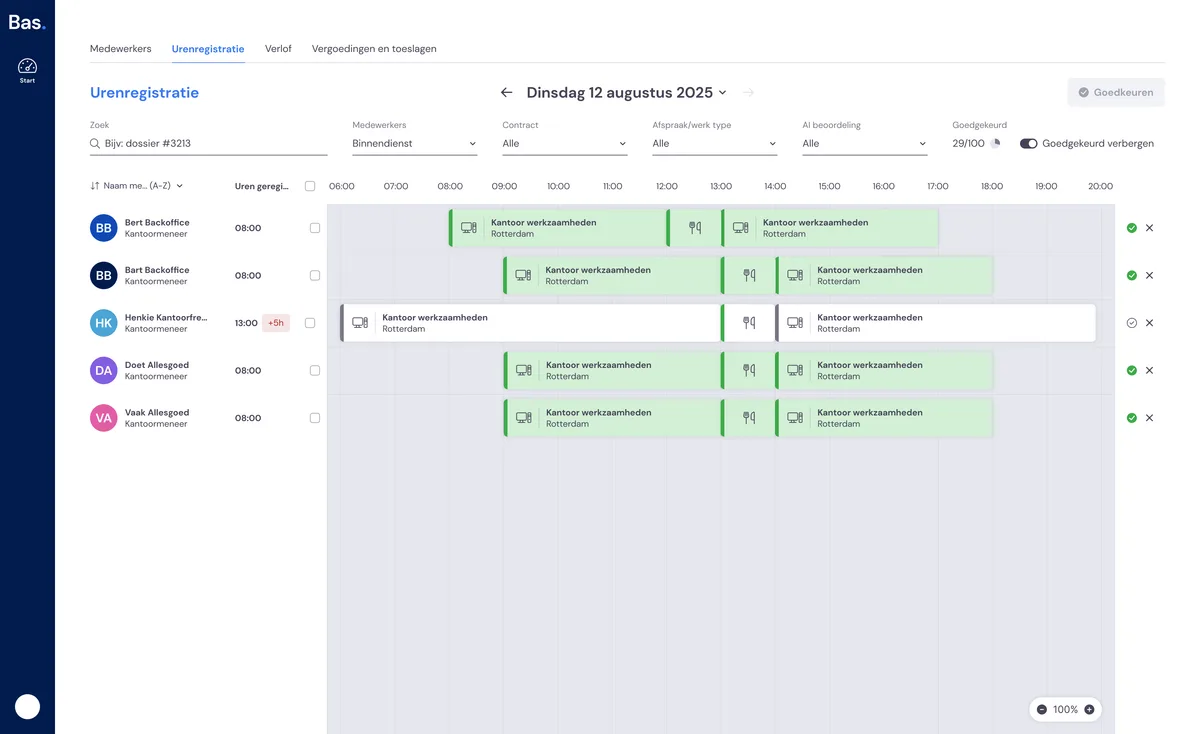
You'll find the new hours registration under HRM, then 'hours timeline'. In this screen, you'll see all employees and all the hours that have been registered.
Introduction: a complete hours registration
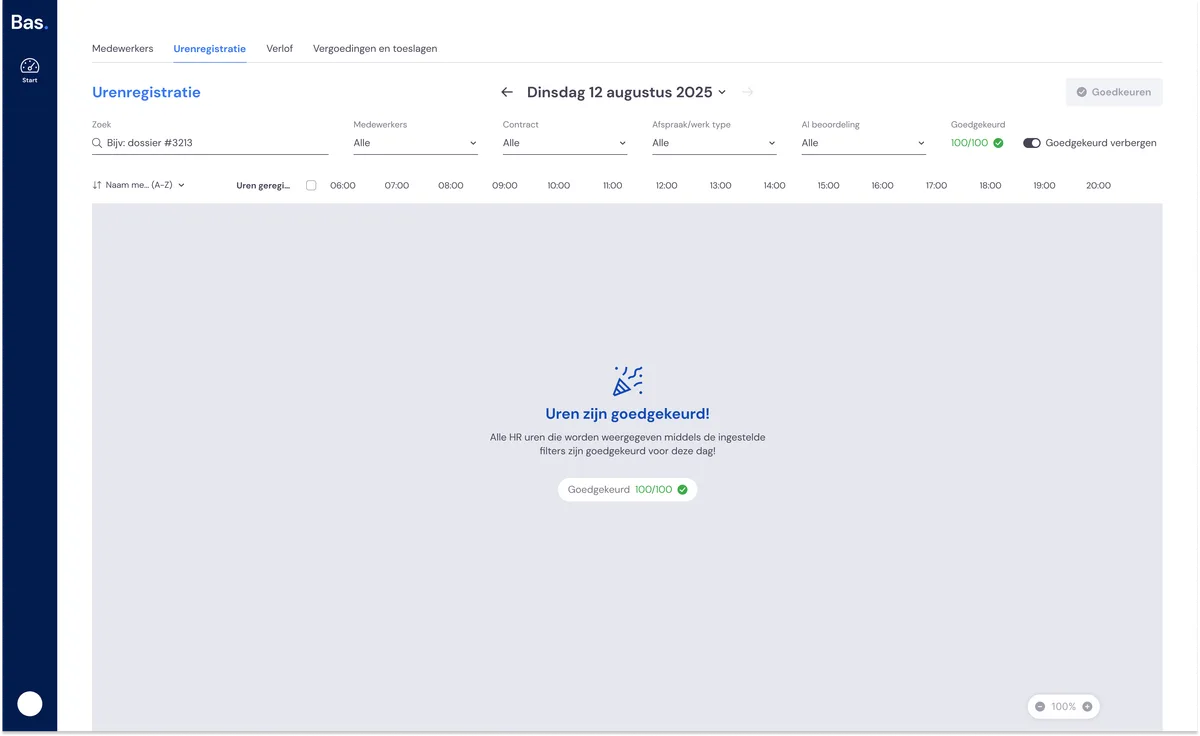
To achieve an accurate and complete hours registration, you need to:
Register and approve the number of contracted hours per week for all employees with a permanent contract. Each day, you register the number of hours worked, plus leave and sick leave.
For all employees on variable contracts, you register the number of hours they've worked.
You always register the number of break minutes as well
Once you've registered and approved the hours for all employees, you're done for that day.
Employees
In the overview, you'll find all employees for whom hours need to be registered on the selected day. These are:
all employees who have registered their own hours
all employees who are scheduled
all employees registered as sick or on leave
all employees with a permanent contract who should be working according to their work schedule
all employees marked as 'occasionally available'
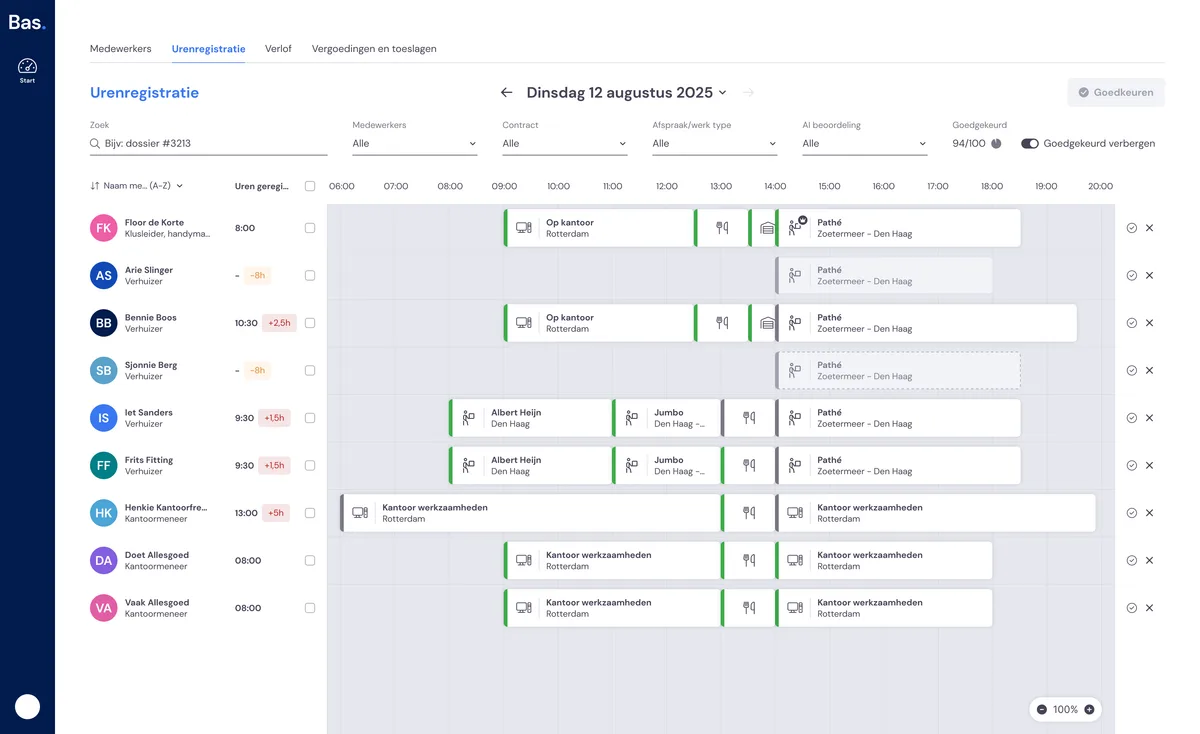
For each employee, you'll see their name, contract type, and the number of hours per day they're available.
Missing an employee from the overview?
Then, according to the information in Bas, this employee isn't working that day, and you don't need to register hours for them. You can change this by making the employee available for that day, scheduling them, adjusting their contract, or completing their work schedule.
Registering, editing and approving hours yourself
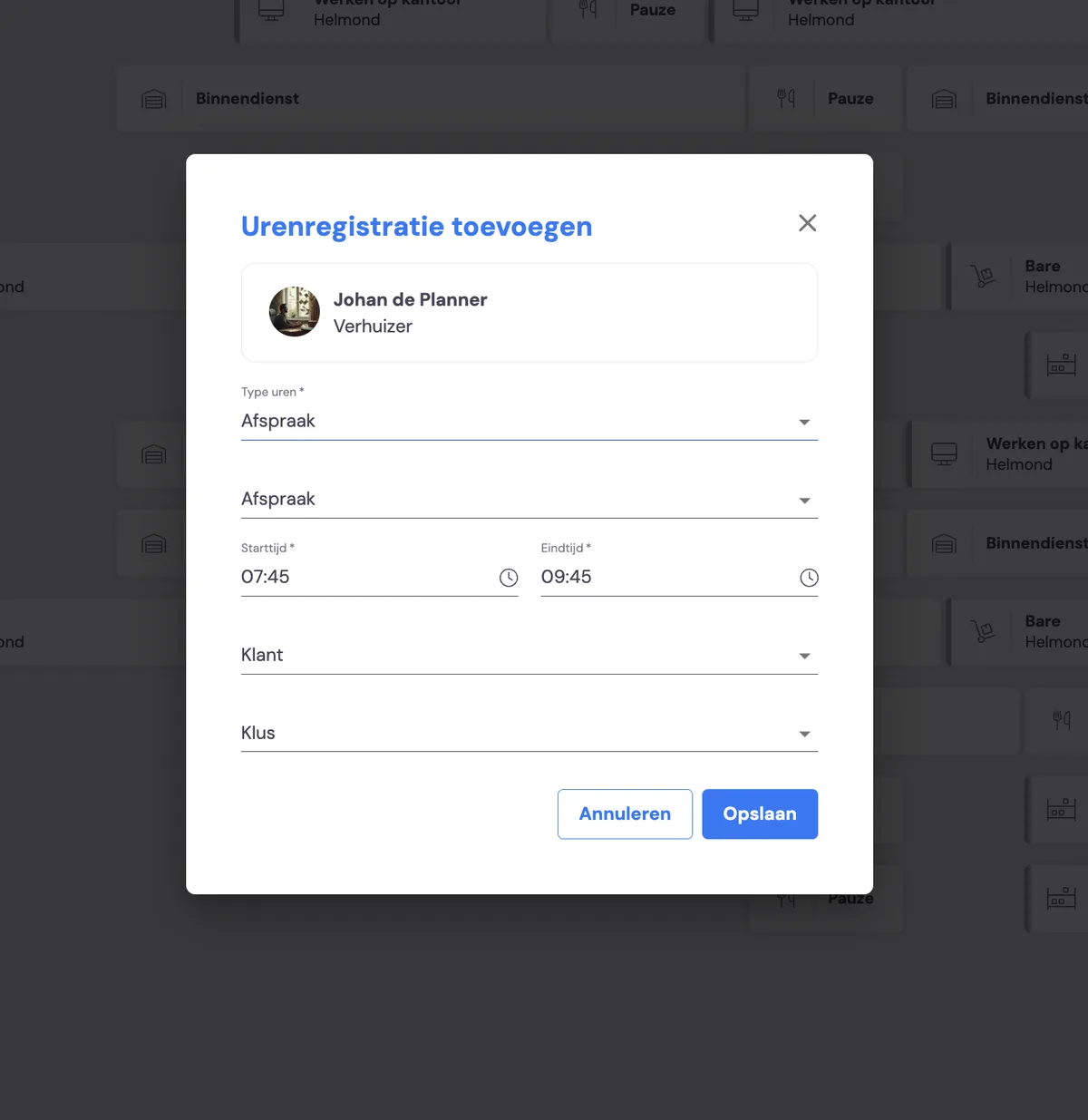
You can register hours yourself for each employee. You do this by clicking in the timeline next to the employee. This opens a pop-up where you:
choose to register hours for an appointment, or for office work, field work, sick leave, leave, or a break
choose the times for the hours block (start time and end time)
Once you've entered an employee's hours, you can approve them. You can do this per hours block or for the whole day.
When you hover the cursor over the hours block, you'll see the various options:
edit (pencil)
approve (tick)
reject (cross)
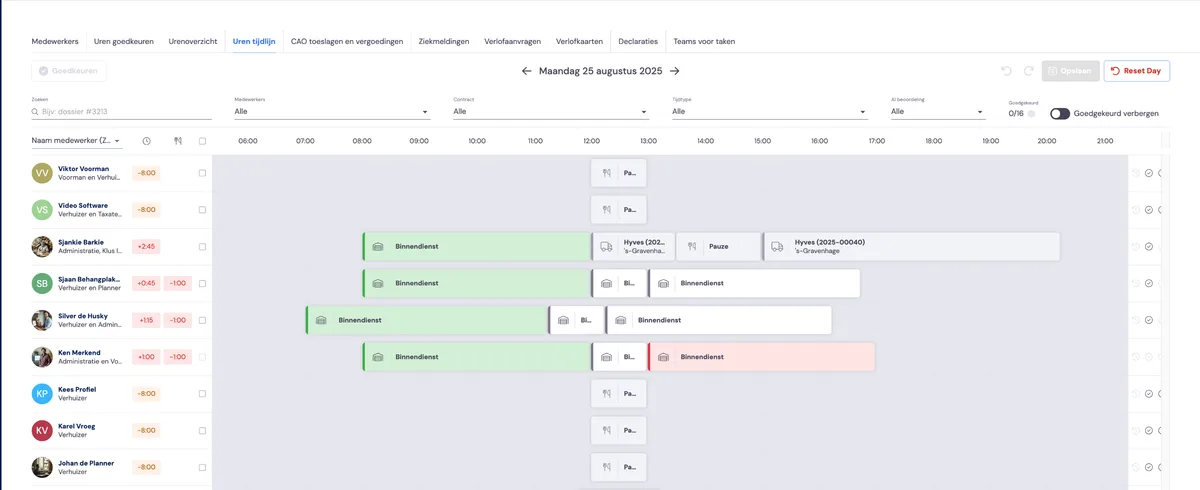
Different statuses of an hours block
You can see the status of an hours block based on the colour of the block:
Light grey: proposed hours block based on scheduling, work schedule or contract
White: registered hours
Green: approved hours
Editing an hours block
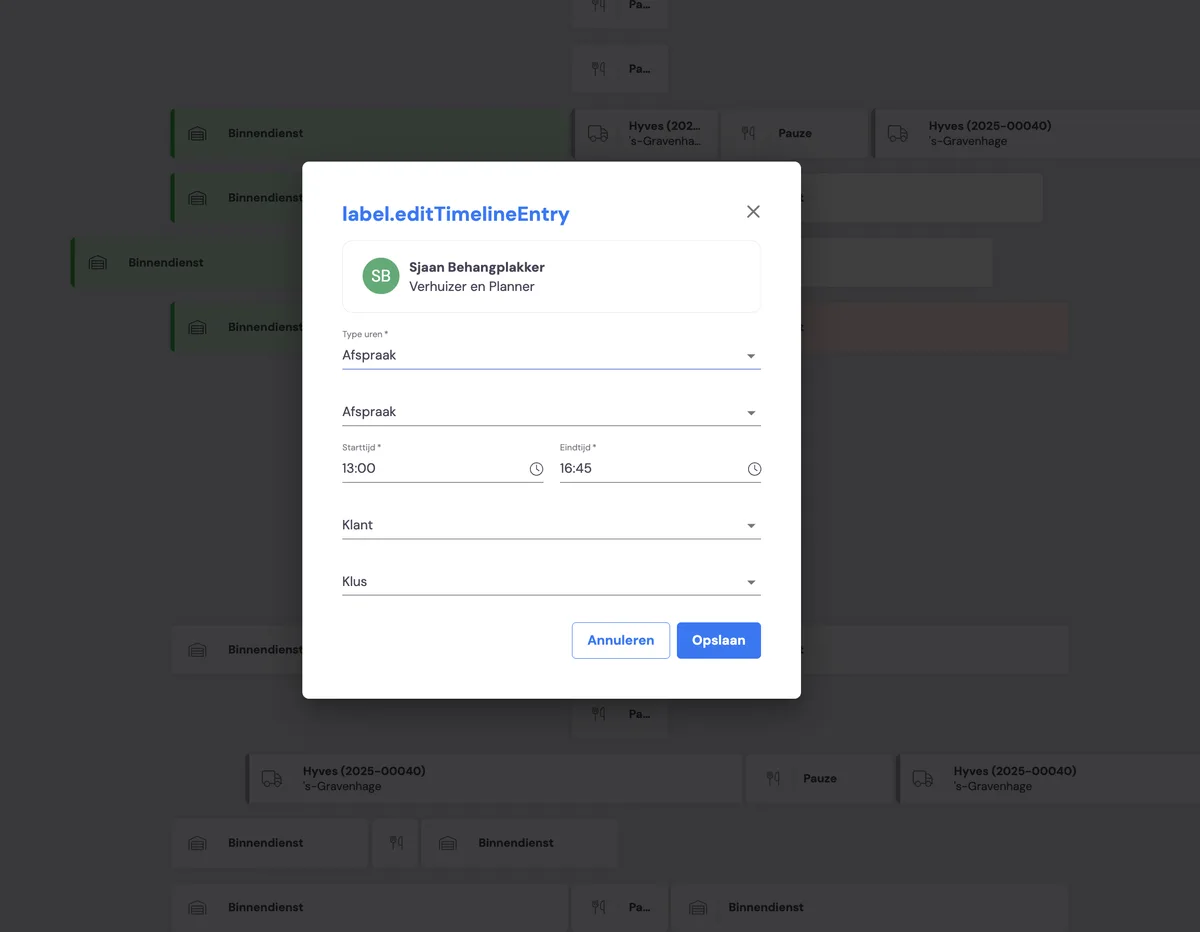
After clicking the pencil icon, you can adjust the registered hours. Here, too, you choose:
to register hours for an appointment, or for office work, field work, sick leave, leave, or a break
the times for the hours block (start time and end time)
AI proposal based on scheduling or registered hours
To make registering hours easier, the backoffice prepares a proposal for every employee who should be working, based on the data available.
For example, if an employee is scheduled for an appointment, the appointment times are automatically taken over, and the break is added automatically too. Below, you'll see the overview with the proposal for the hours based on the scheduling:
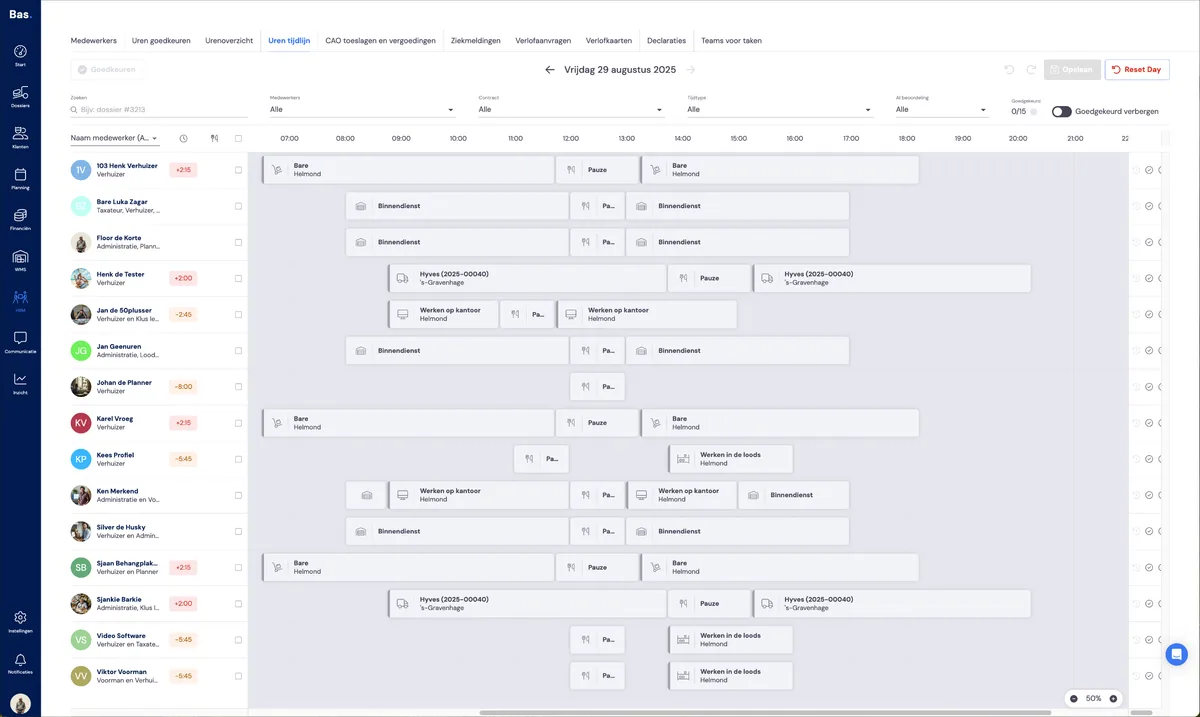
The proposals for the different situations
Different proposals are made for all situations, based on the data available, in the following order:
Foreman hours have been logged for the employee
If an employee is scheduled and the foreman has logged hours, these are taken over.
If the foreman hasn't logged enough hours, these are supplemented based on the rules you've set yourself.
The employee has logged their own hours
If an employee has logged their own hours via the app, these are shown. You only need to check these hours, adjust them if necessary, and then approve them.
If an employee hasn't logged enough hours, these are supplemented based on the rules you've set yourself.
Supplementing hours and inserting a break
If there aren't enough hours in the proposal, these are supplemented based on the rules you've set yourself. For example, if you've set up that for employees with only backoffice skills, all hours to be worked may be supplemented with 'office work hours', this is included in the proposal
If no break has been scheduled or registered, it's included in the proposal. The length of the break, based on the number of hours worked, is placed in the middle of the working day by default.
AI proposal based on contract, work schedule and opening hours
Employee has working times in their profile
If an employee has a permanent contract and working times in their profile, the start time is taken from this and supplemented with the number of hours the employee should work according to the contract
Employee has a completed work schedule
If an employee has a completed work schedule, a proposal is made based on the company's opening hours and the number of working hours
Employee has a permanent contract
If an employee has a permanent contract for 40 hours across 5 days, a proposal is made based on the company's opening hours and the number of working hours per day
Inserting a break
Even if no hours have been logged and there's no scheduling, the mandatory break is still included in the proposal.
Sickness and leave
If sickness or leave has been registered for an employee, this is shown in the hours registration.
Sick or off all day
If sickness or leave has been registered for an employee for the whole day via HRM or via scheduling, this is shown in the hours registration as an hours block for the entire day. This is already approved, and you don't need to change anything further.
If the sick note hasn't been registered correctly, you can add it as a sick note or as leave via the hours registration. The hours are registered immediately, and the leave and sickness are also visible via leave requests and sickness.
Sick or off for part of the day
If an employee is on leave or sick for part of the day, you'll see this reflected in the hours registration. You don't need to do anything with this registration — the hours are registered and approved immediately via the sick note or the leave request.
If the sickness or leave hasn't been registered, you can add it via the hours registration. Here too, a sick note or a leave request is created, which can be found in the employee's details and under leave requests and sickness.
Bank holiday leave
If an employee with a permanent contract would normally work on a weekday, but that particular day is a bank holiday (a weekday according to the work schedule), the employee is given bank holiday leave by default.
If an employee is scheduled to work, it's treated as a normal appointment. (The bank holiday surcharge is calculated according to the CLA.)
Adjusting hours registration to your needs
Read more about how the proposal that's prepared for you in the hours registration works in AI proposal for hours registration