If you have a customer for whom you don't intend to do a survey but want to work on an hourly rate or indicative price, you can follow the steps below to avoid having to do a survey.
You will, however, need to set up suitable packages for this with the corresponding quote templates. For that, we'd like to refer you to these articles as a guideline.
There are a few drawbacks to skipping the survey:
The removal crew and the customer don't get an inventory list of the move
In the case of storage, there is therefore also no list of items going into the storage unit.
The planner has to get their staffing information from elsewhere
Materials such as boxes and dollies will have to be listed manually and in a separate place.
To create the quote, you start with a new move or new job. This can be for an existing or a new customer.
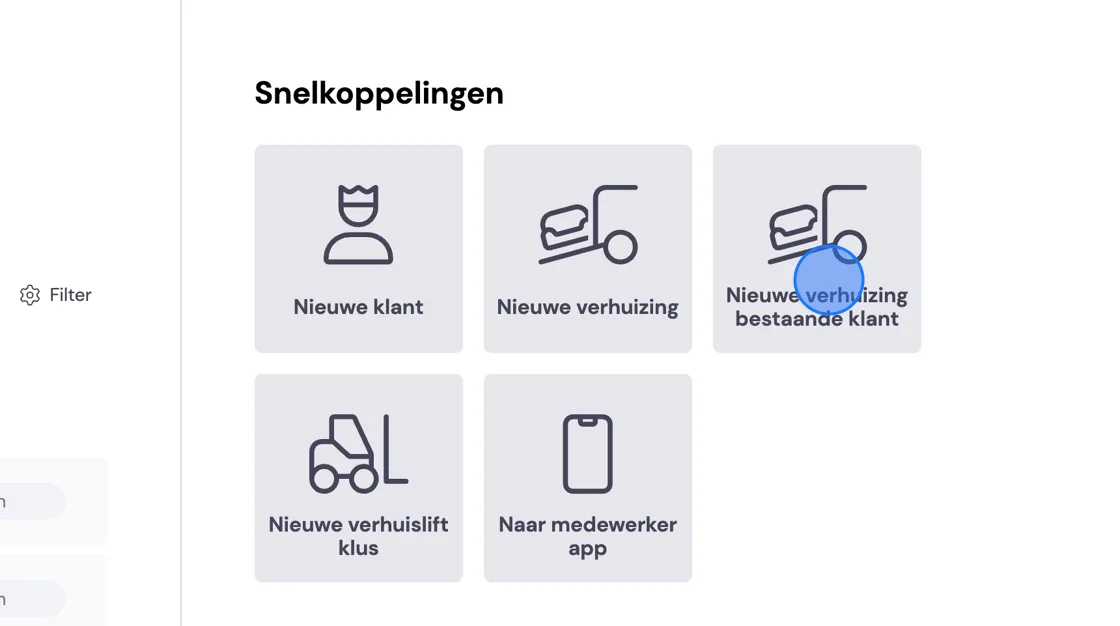
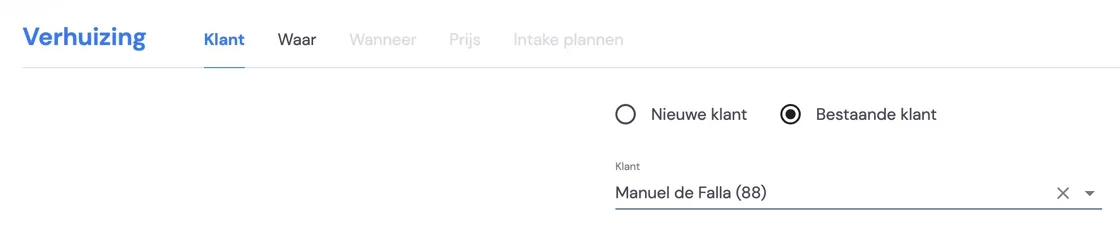
You go through all the steps.
A loading address is required. An unloading address is not.
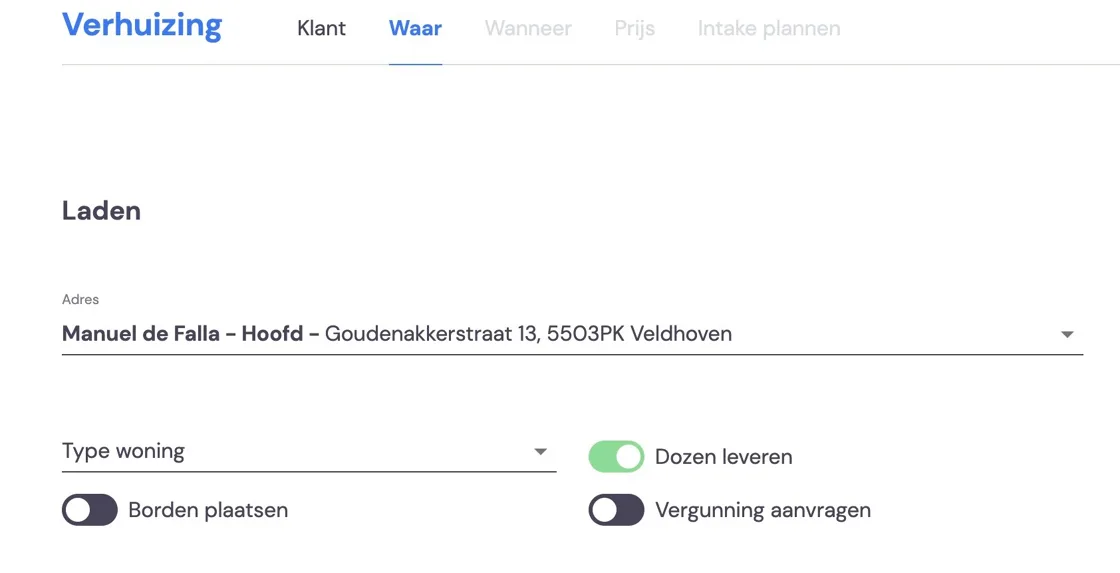
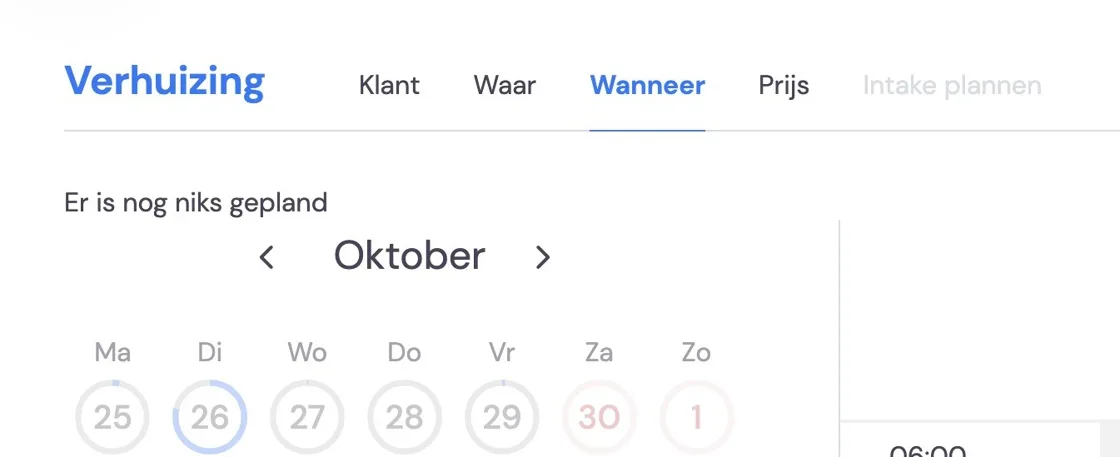
You can enter a moving date, but it's not yet required.
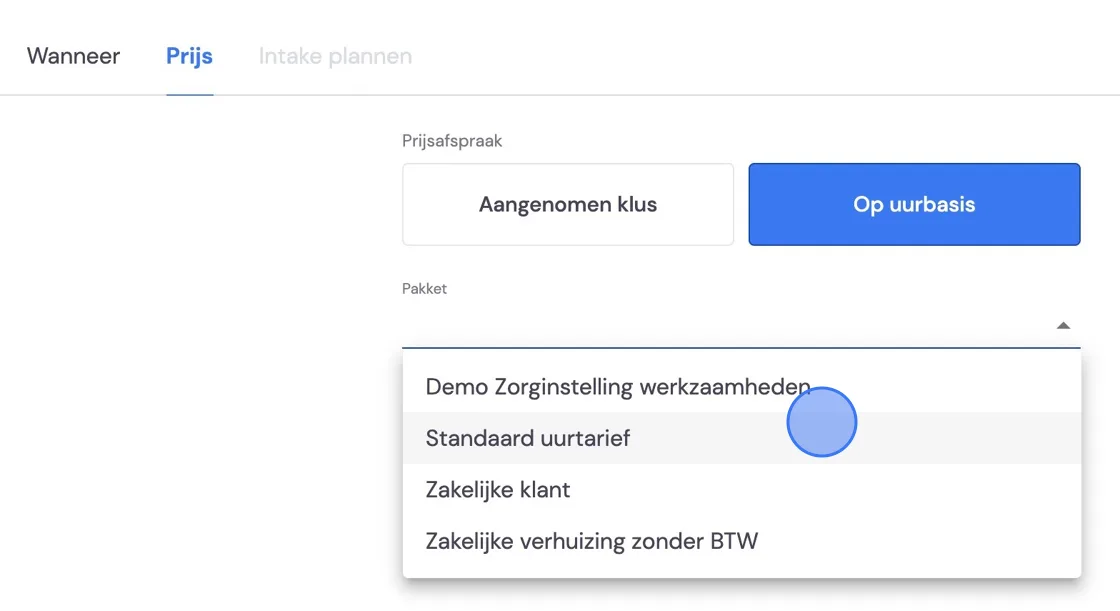
Choose your package with rates here.
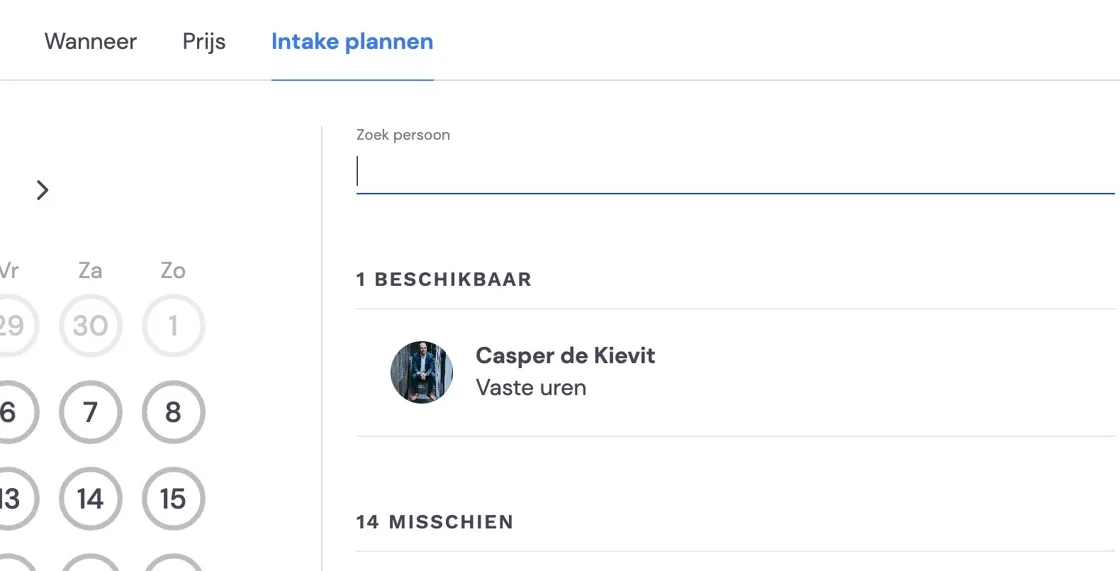
In the next step, Bas will ask you to schedule a survey. You can simply skip this step and press "New move" at the bottom right.
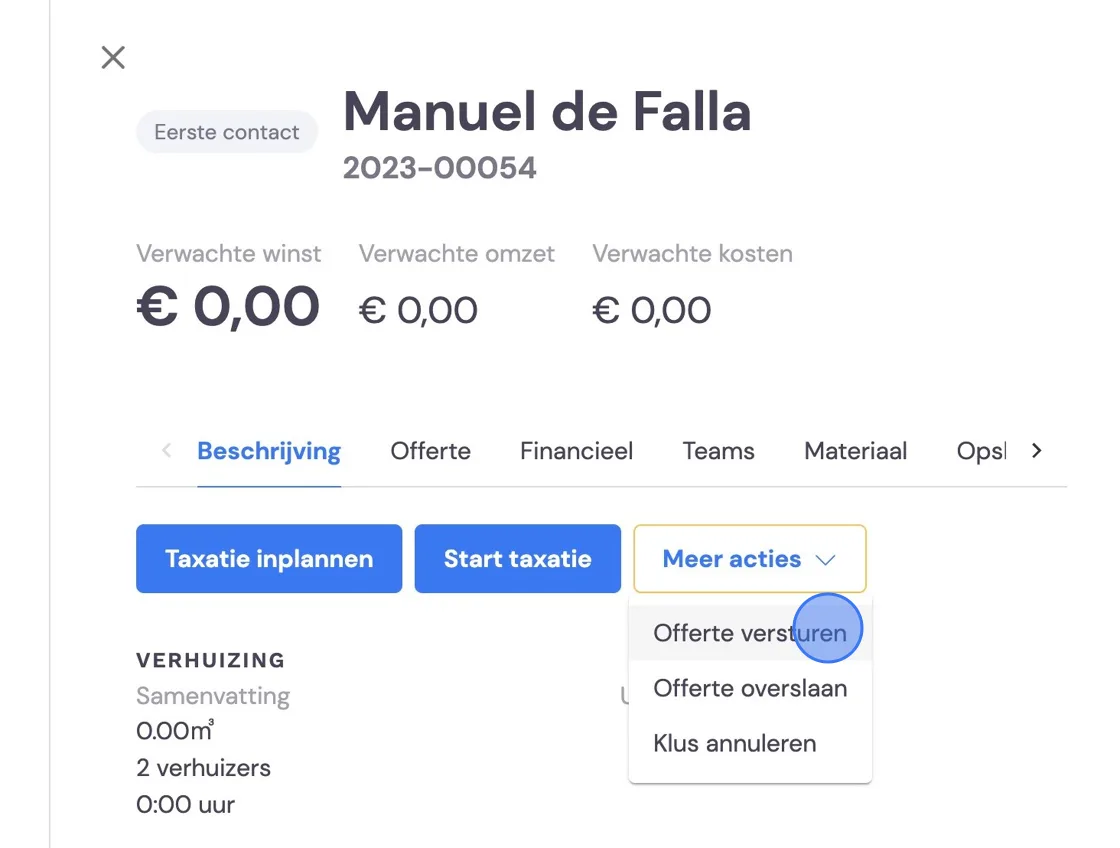
You'll then arrive at the new job. You can leave the buttons for Schedule survey and Start survey alone and go to More actions and choose send quote.
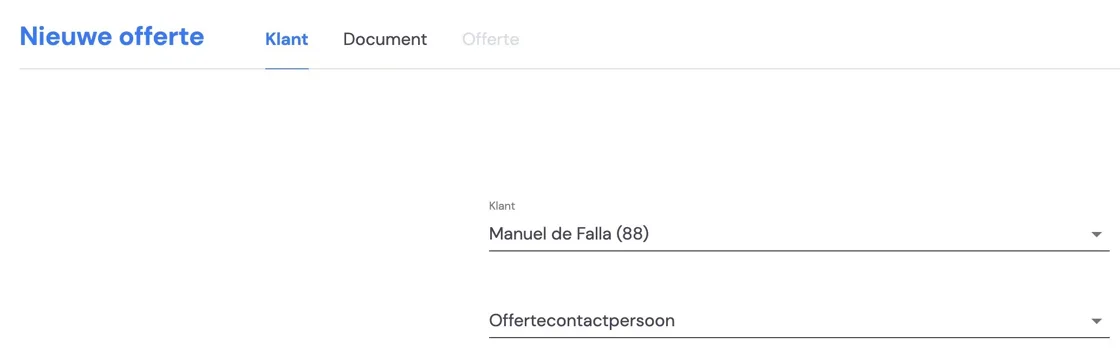
There you check the details once more in the first two steps.
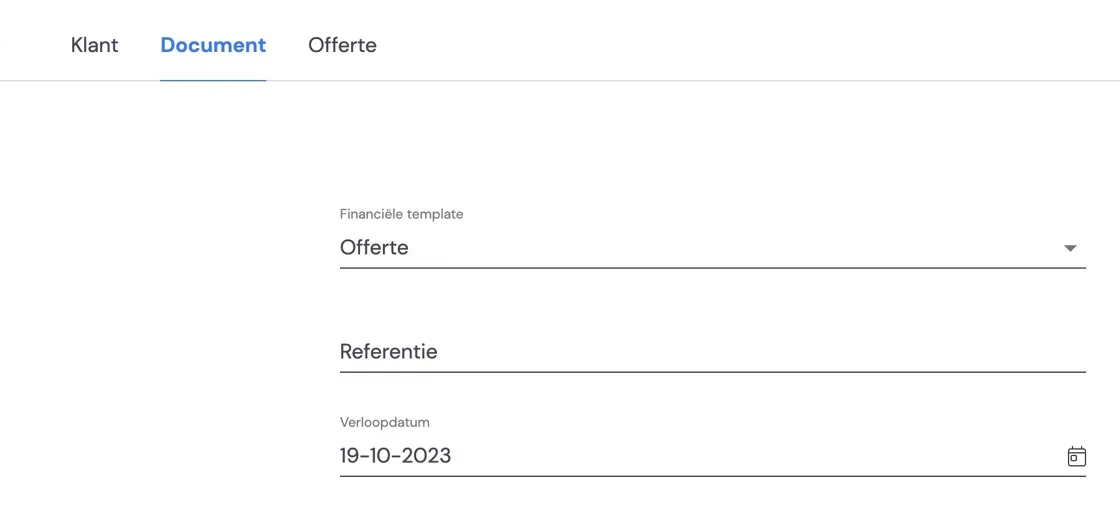
In the third step, you can see the price list that belongs to your chosen package and adjust it if necessary. Above that are all the text fields you've added to your quote template. There you can personalise your quote if you wish. You can read how to create text fields in quotes in:
On the right are note fields that may be important for the office and planning. You can also fill these in later, but it's not unwise to write down straight away what you've promised the customer.
You cannot adjust the crew summary. A survey is required for that. You can, however, pass on the size of the removal crew in the notes, and the planner can later adjust the size of their crew on their planning board.
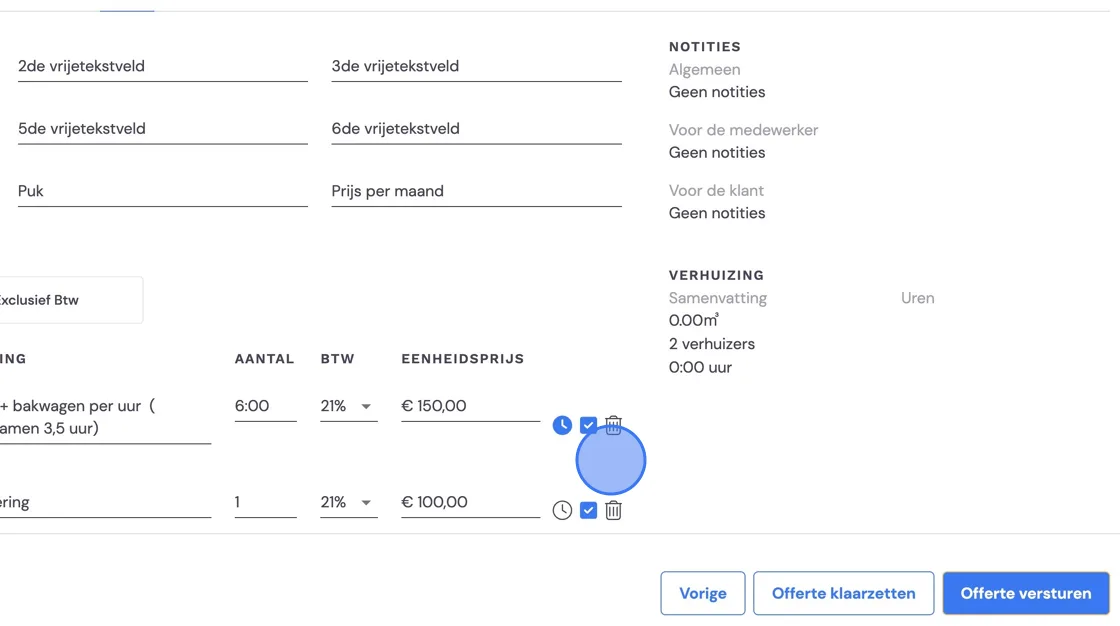
You can then prepare the quote so you can view it in PDF form before sending it.
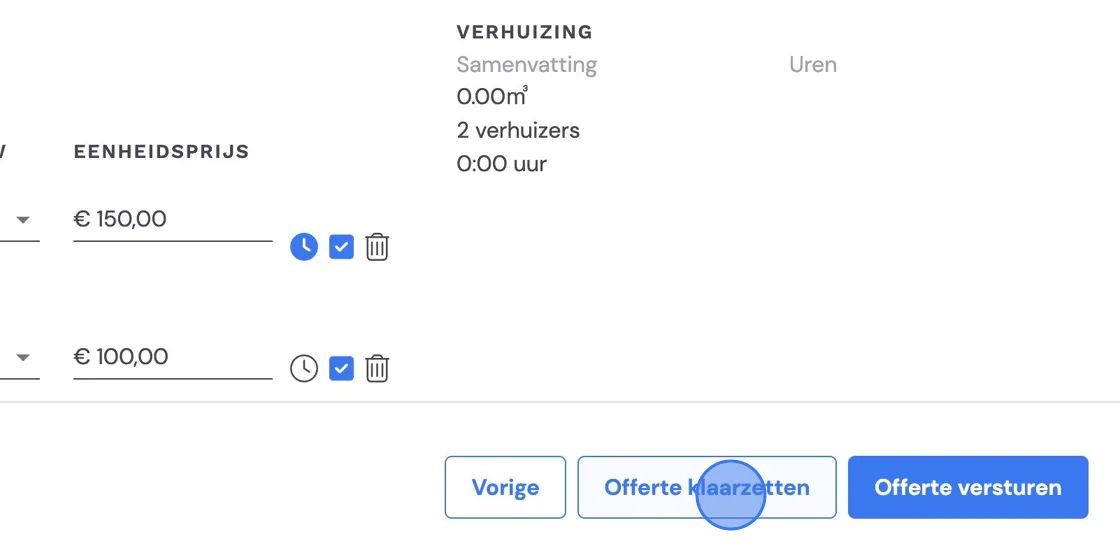
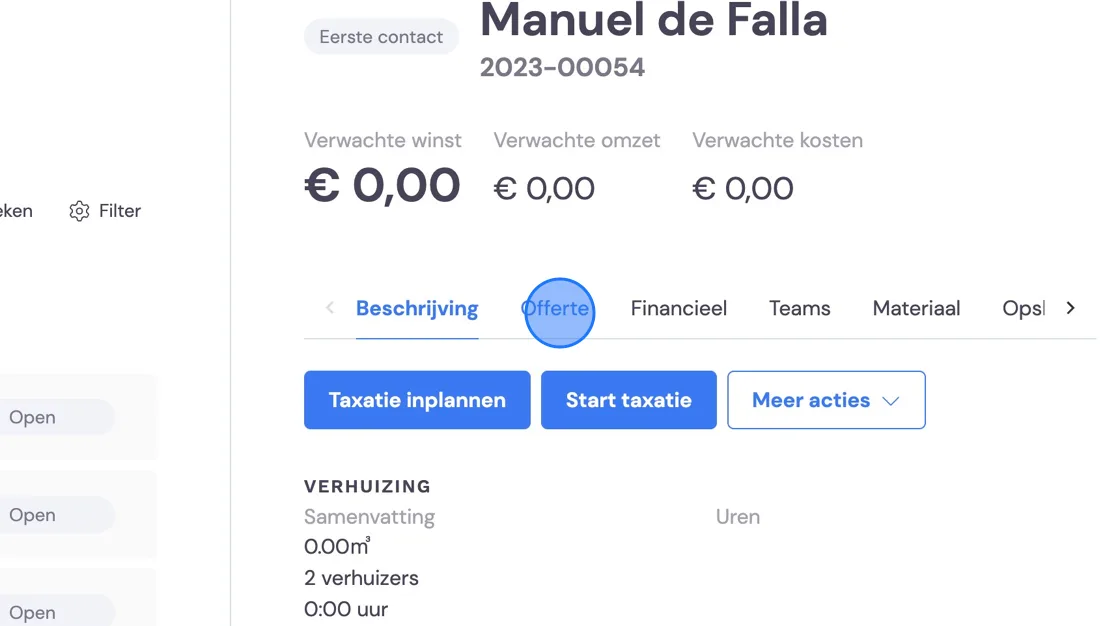
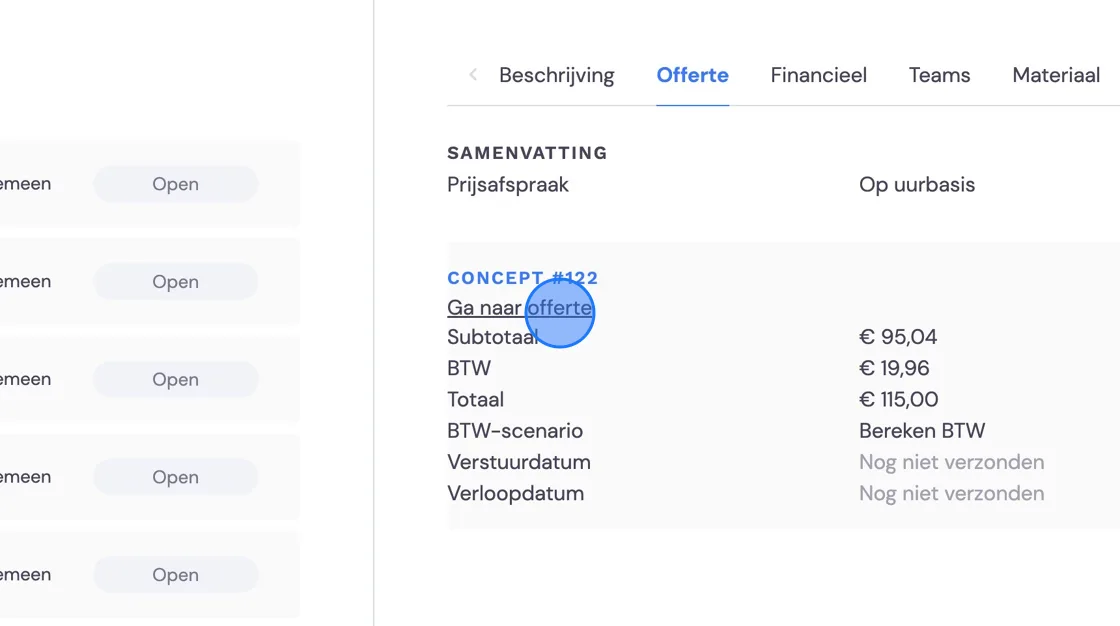
You'll find the draft quote under Quote.
Click the link below the draft.
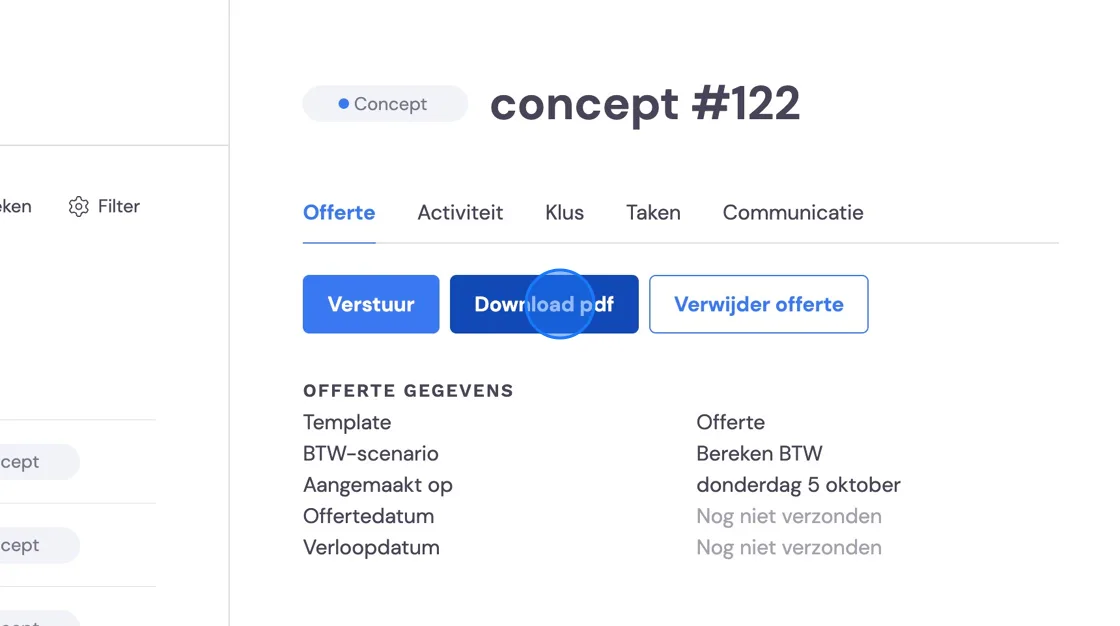
There you can download and check the PDF of the quote you've created.
Further down your screen, you can still adjust texts if needed.
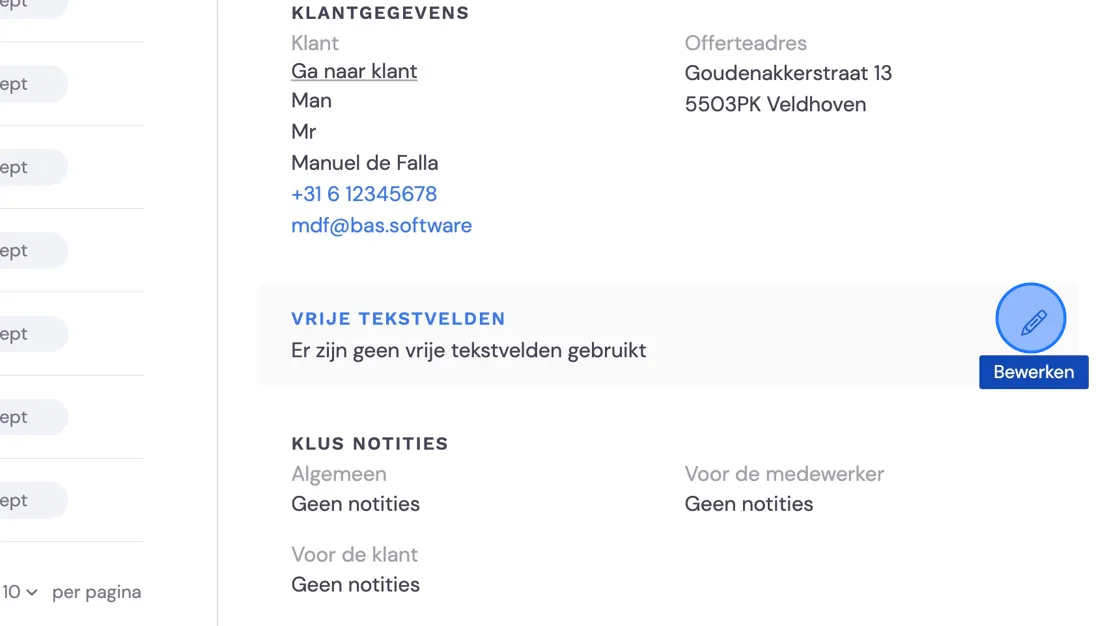
You can also adjust and add comments for the planner and removal crew here once more.
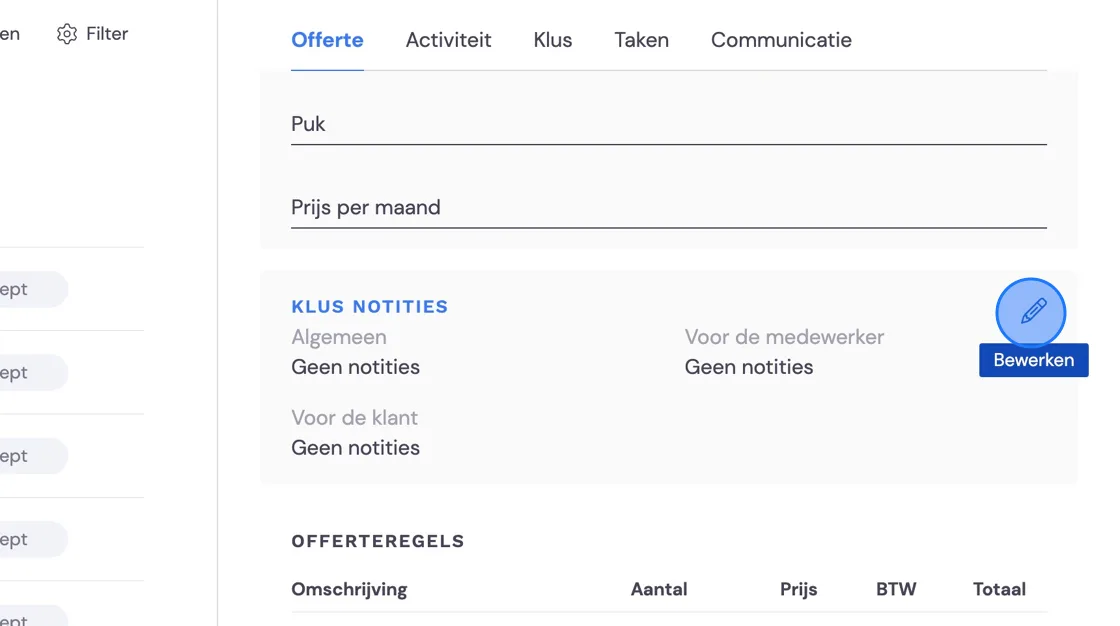
Always press save, otherwise the changes won't end up in your quote.
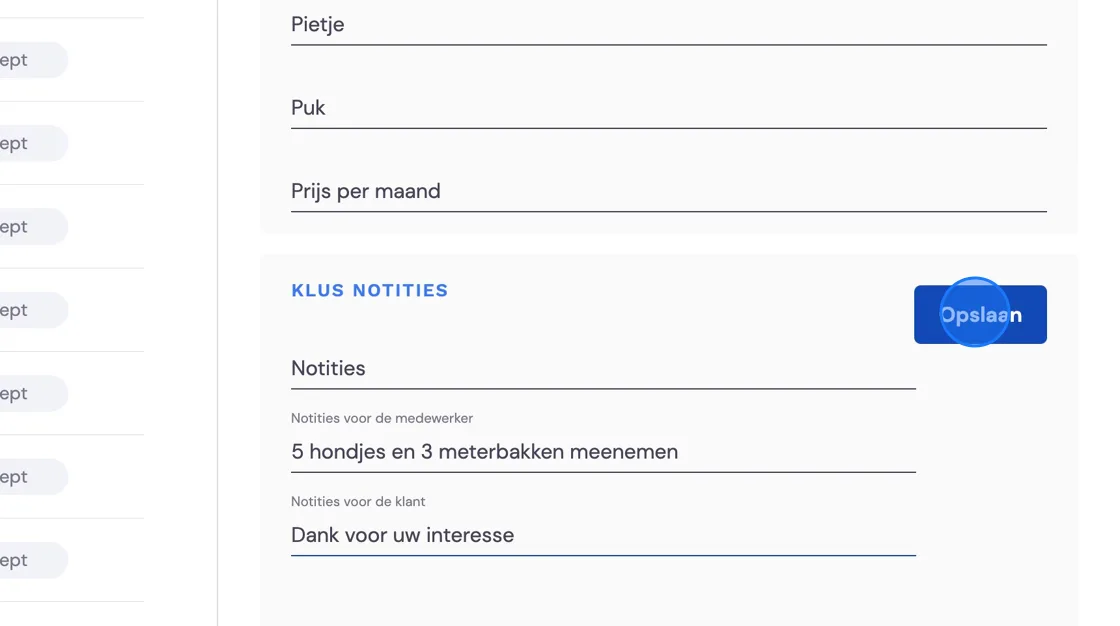
If you're satisfied, you can send the quote here.
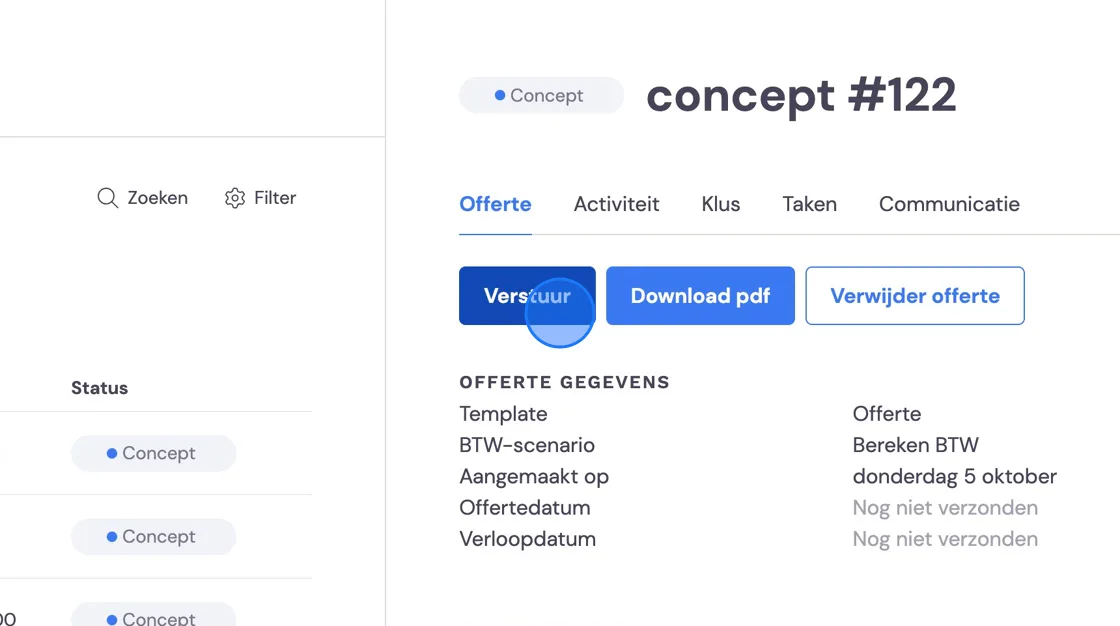
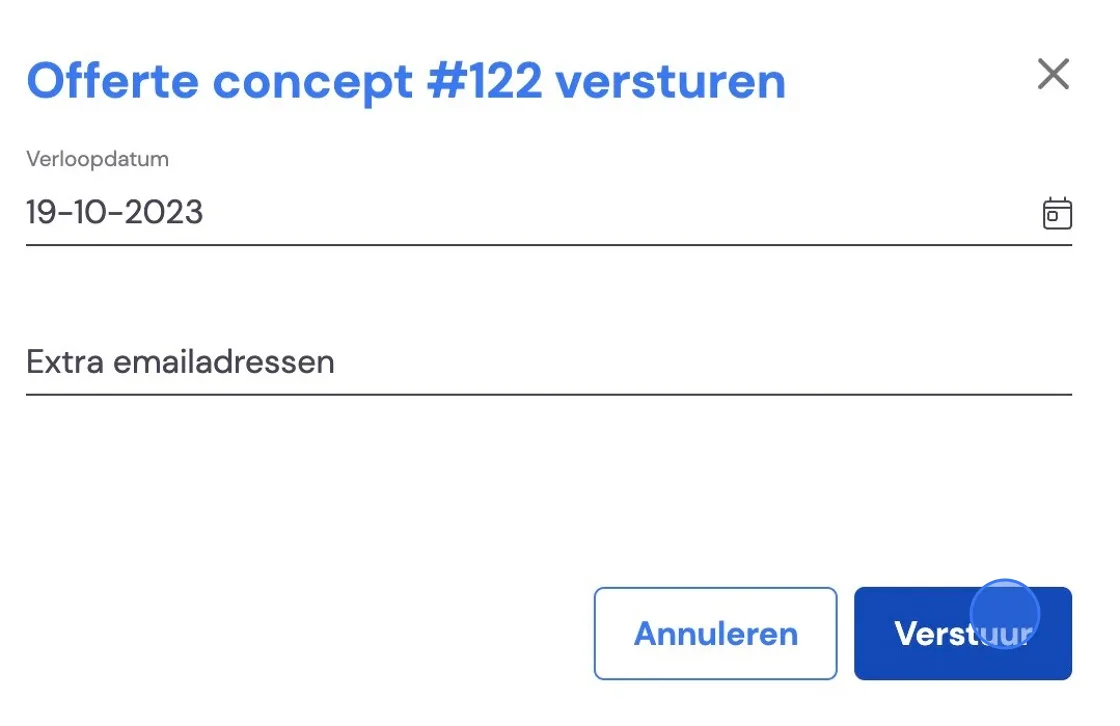
Here you can add extra email addresses if it needs to go to several people.
Suppose the customer agrees and the job goes to the planner. They will then schedule the move.
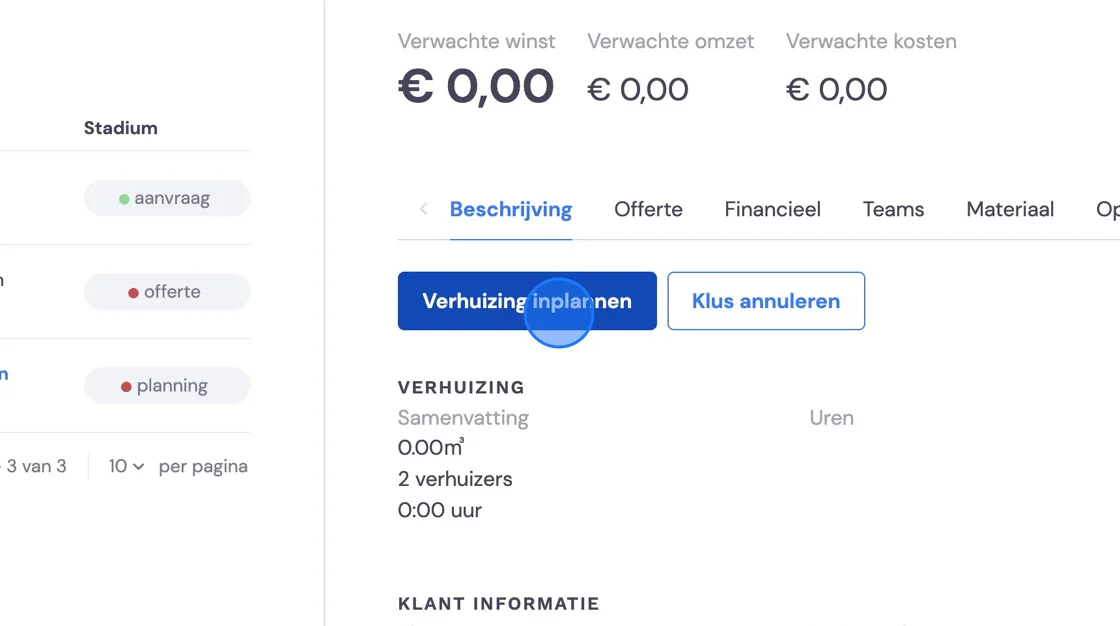
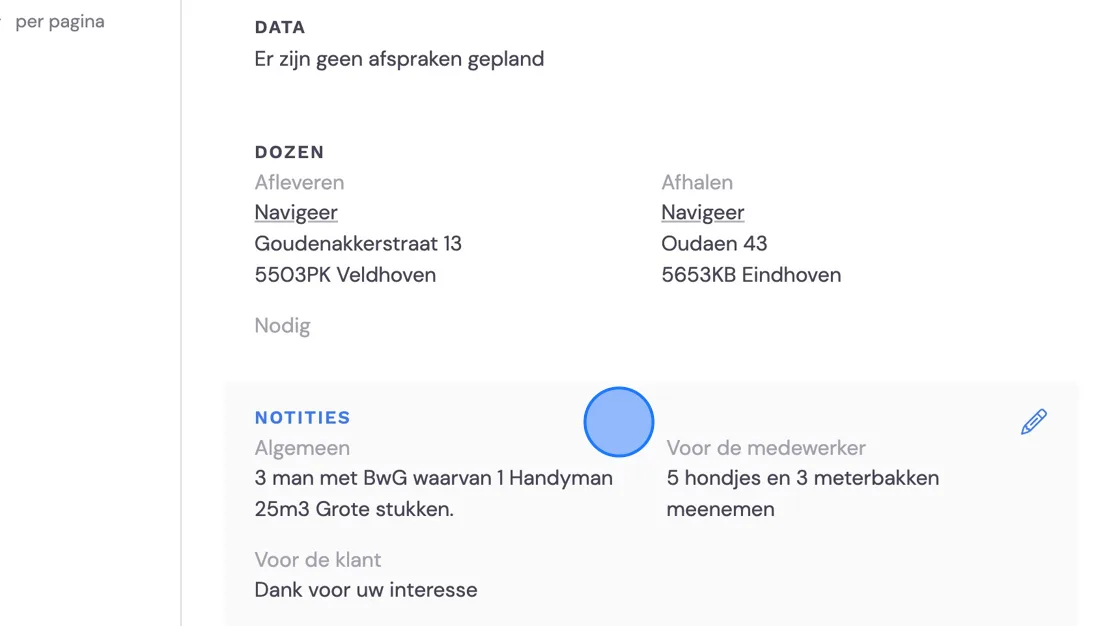
They can then get the details from here.
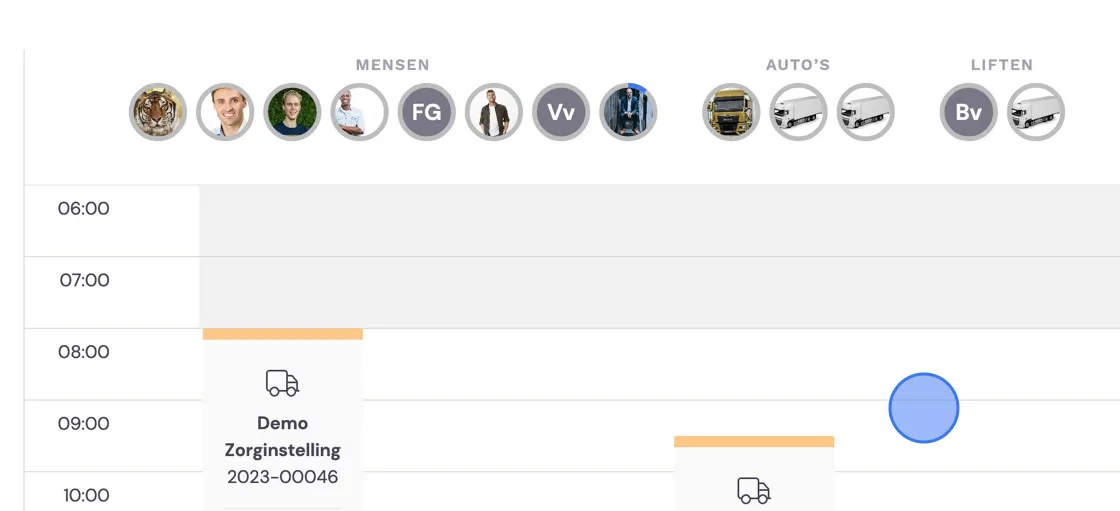
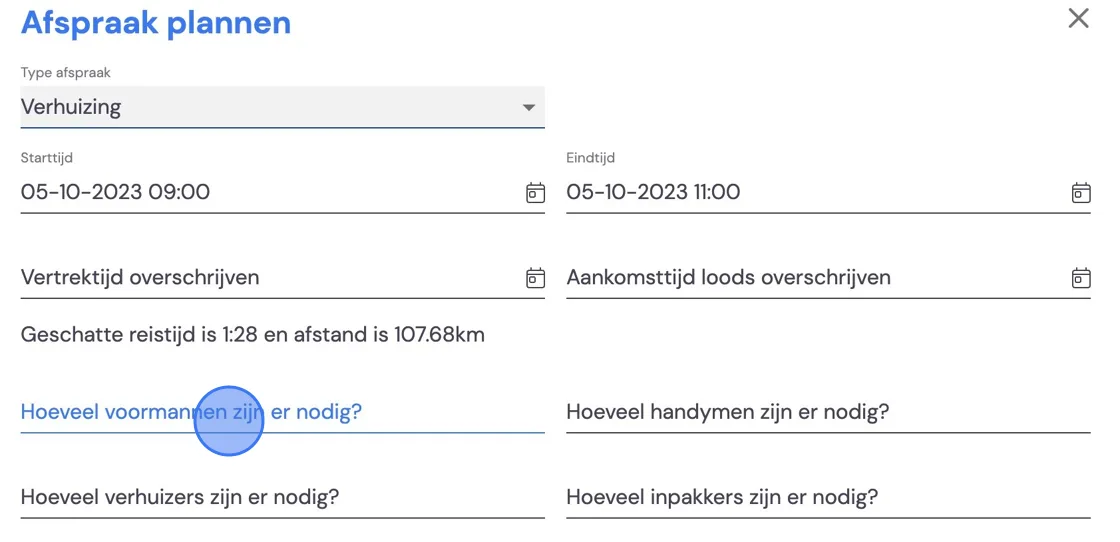
Next, they select the day of the move
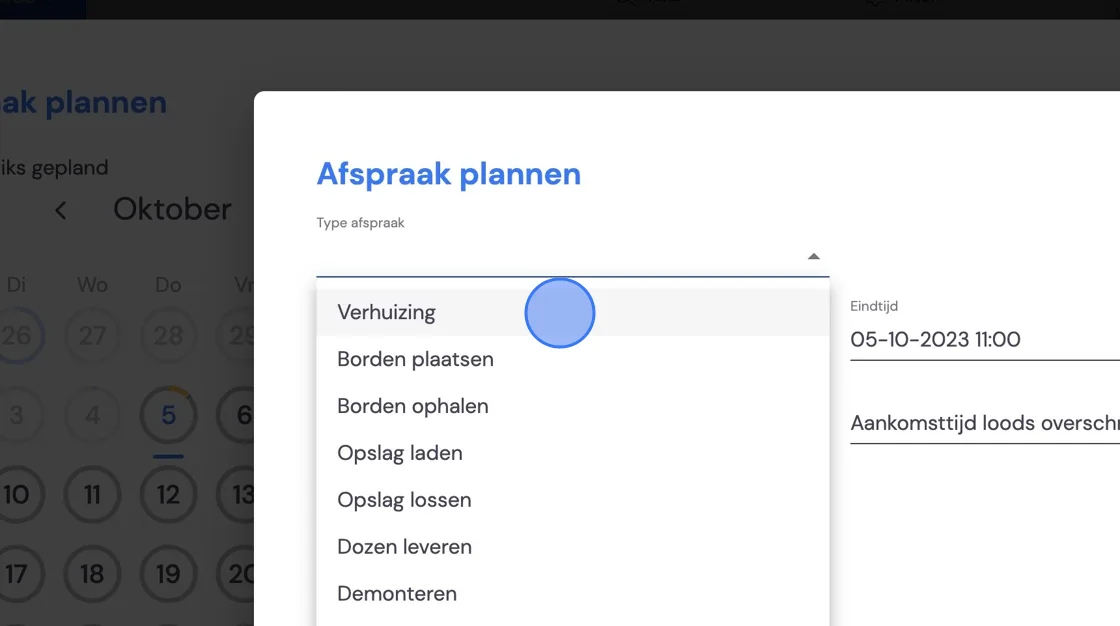
Chooses the type.
Here the planner can select the right number of people needed for this job.
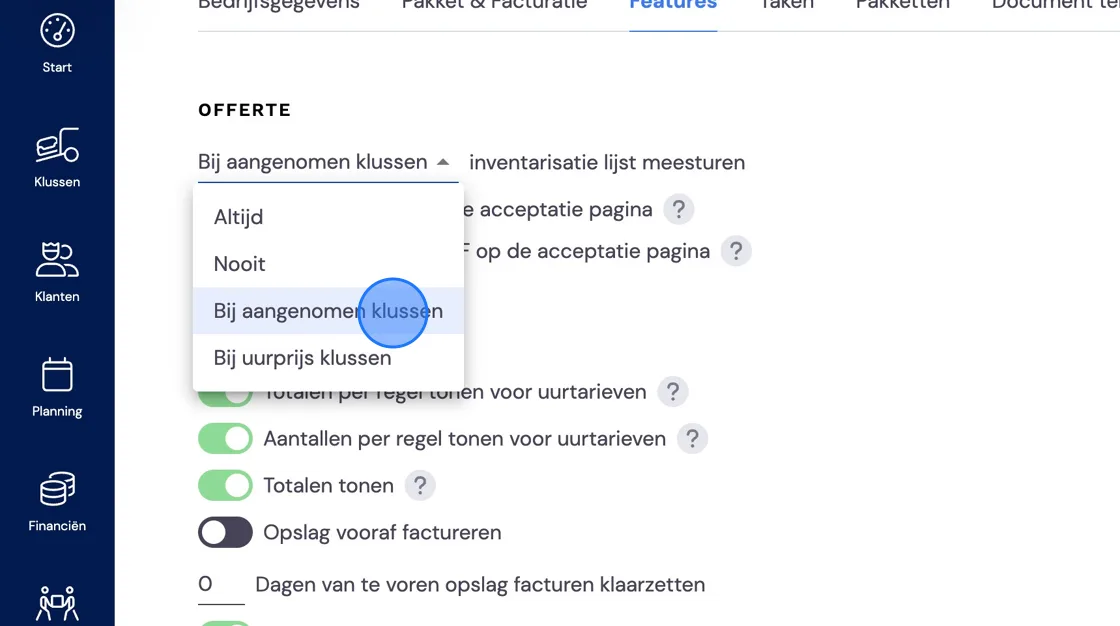
It's also good to realise that Bas has the option to include inventory lists. In the case of no survey, this will result in an empty page in your quote. You can adjust this option in the following steps.
Go to Features
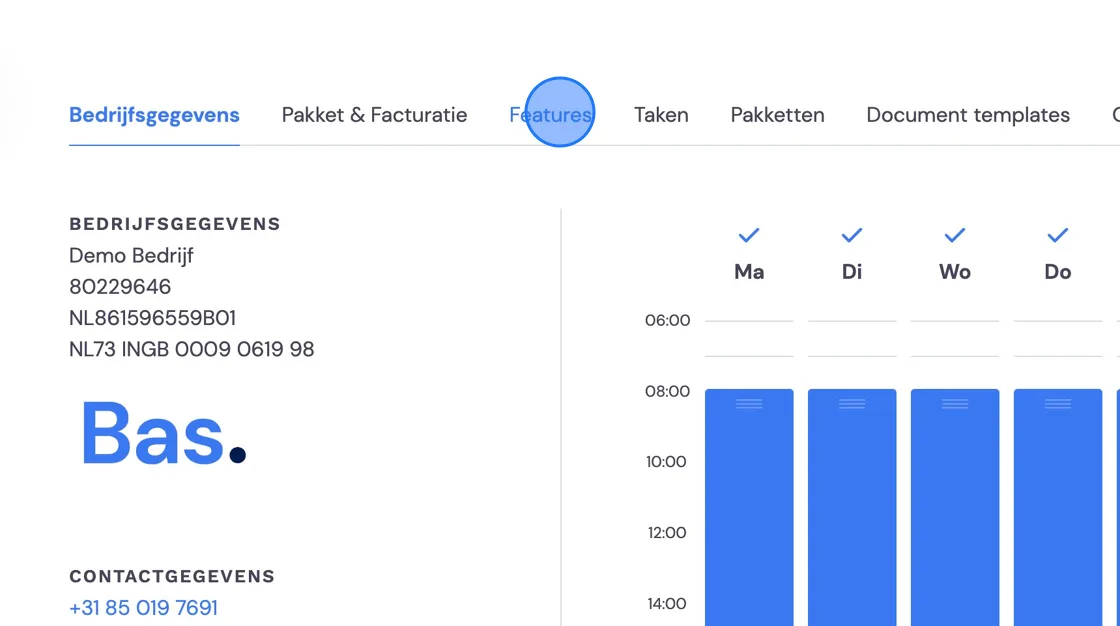
And choose, for example, only for accepted jobs where you do carry out a survey.