
Once you've created your warehouses and storage bays, it's time for the next step: the storage units. These are the physical containers, crates, pallets, etc in your storage. In this step, create multiple storage units so they become available in the WMS.
Below is an example, where the WMS consists of 36 storage units used to store items.
Setting up storage: adding storage units
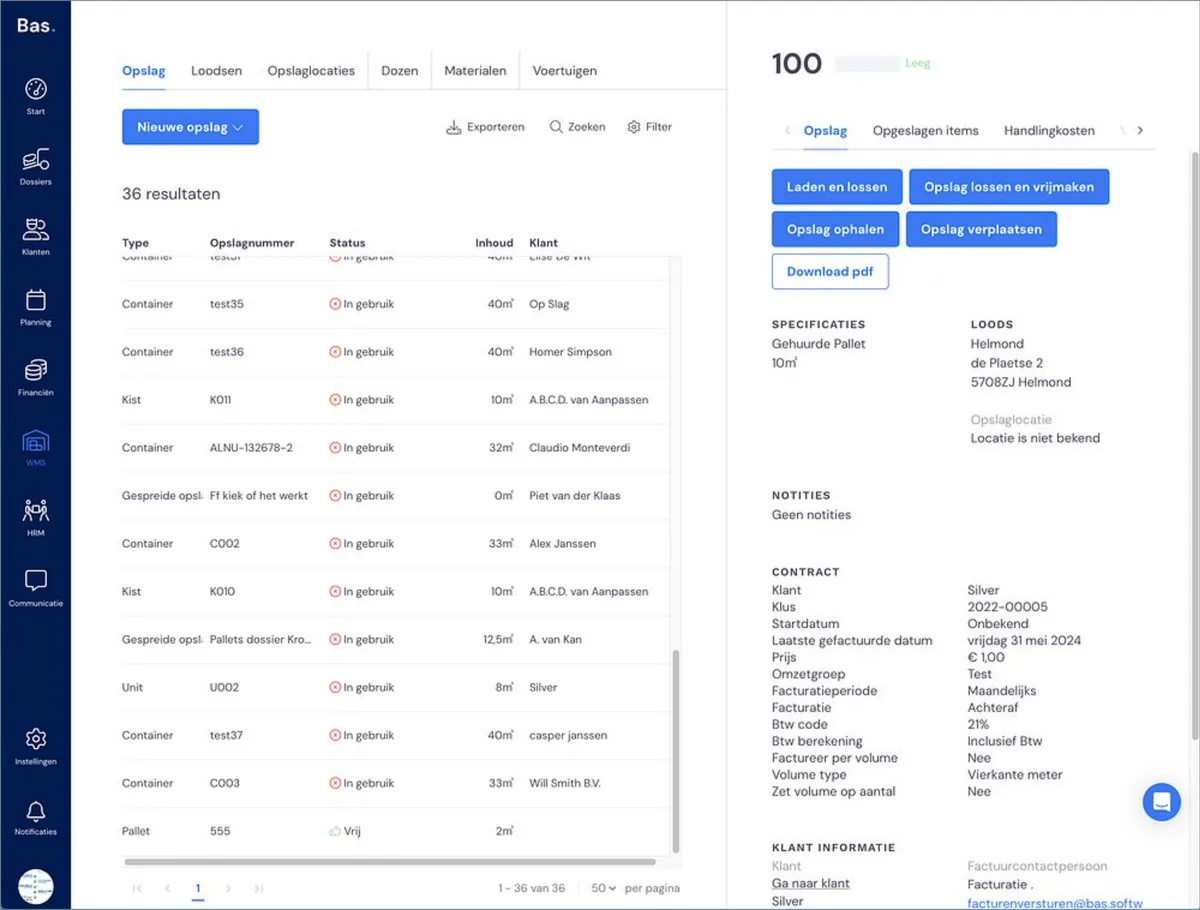
If you click on a storage unit, you'll see on the right-hand side of the screen everything you can do with it. You can load and unload it, unload and release it, etc.
Creating a new storage unit
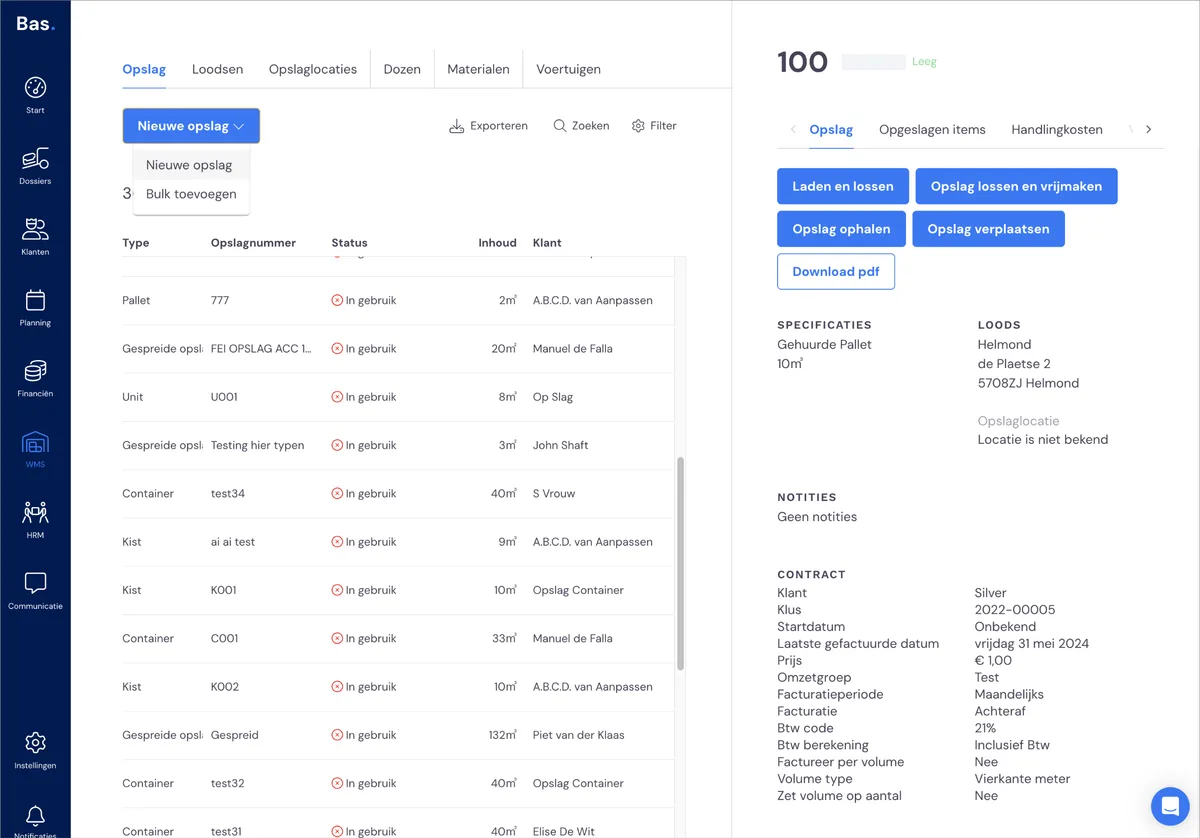
To create a new storage unit, click on 'New storage'
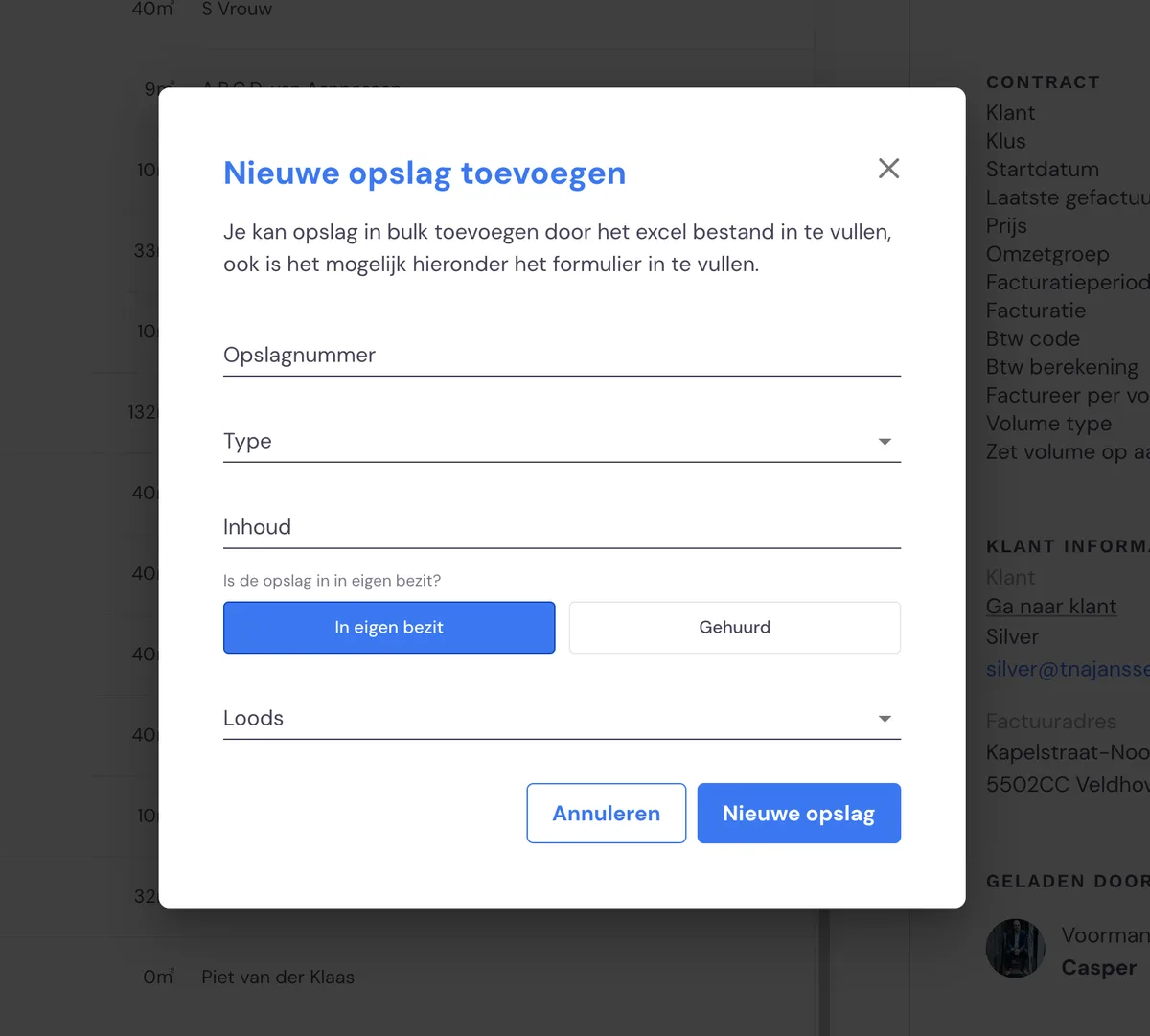
Here you enter the storage code, type and contents. You indicate whether the storage unit is owned or rented. Finally, choose the warehouse where the storage unit is located.
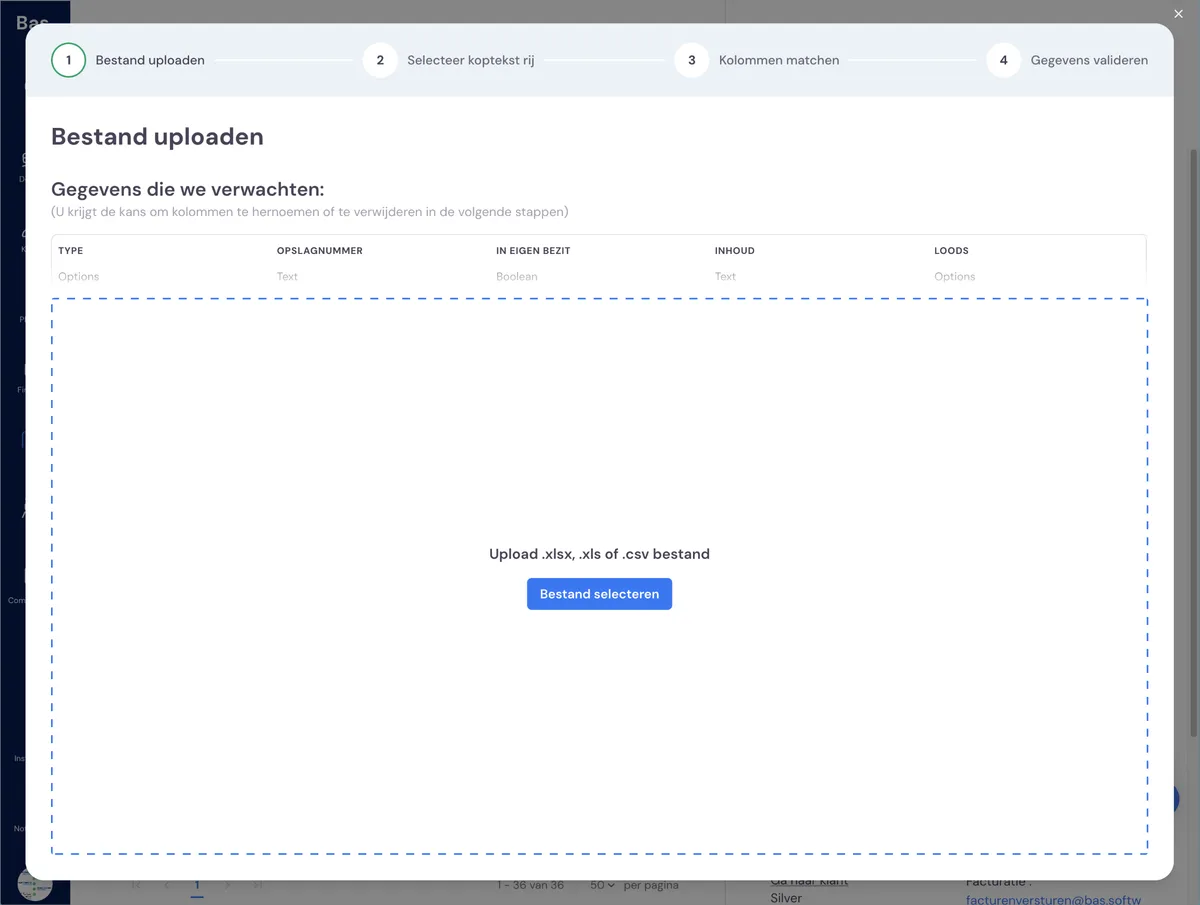
Adding new storage units in bulk
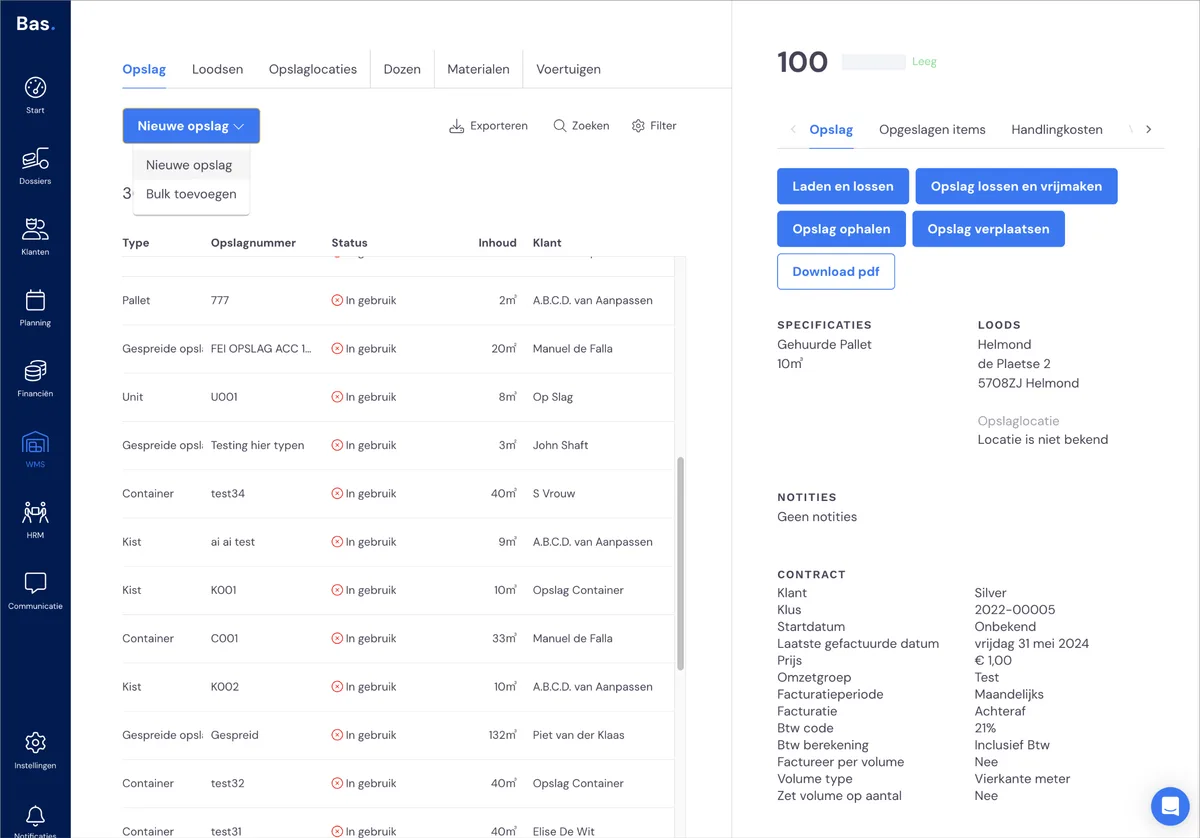
If you're setting up the WMS and want to enter your entire current storage stock at once, click "Bulk add".
Complete this action by clicking "New storage".
Using storage for customers and jobs
Once you've created your storage units, and your storage set-up is complete, you can start using storage for your customers.