
In this step you review the quote that resulted from the survey you carried out earlier, adjust its content, and send it by email.
Once the quote has been sent, it can be accepted by the customer and the job can be scheduled. In this case, you accept the quote yourself.
The quote
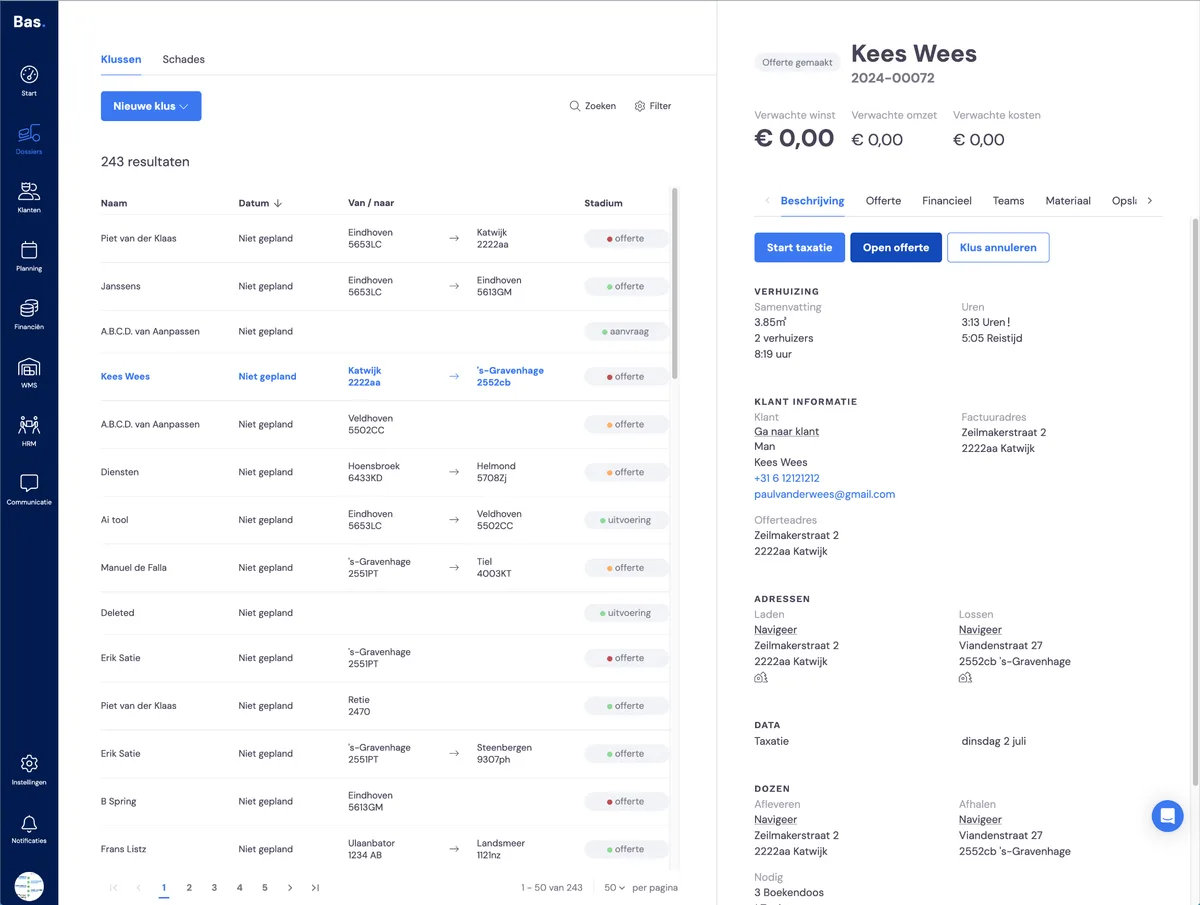
To check and send the quote, first go to the job. There you choose 'open quote'. (If needed, you can also change the survey here via the 'Start survey' button, until the quote has been sent).
Checking the quote
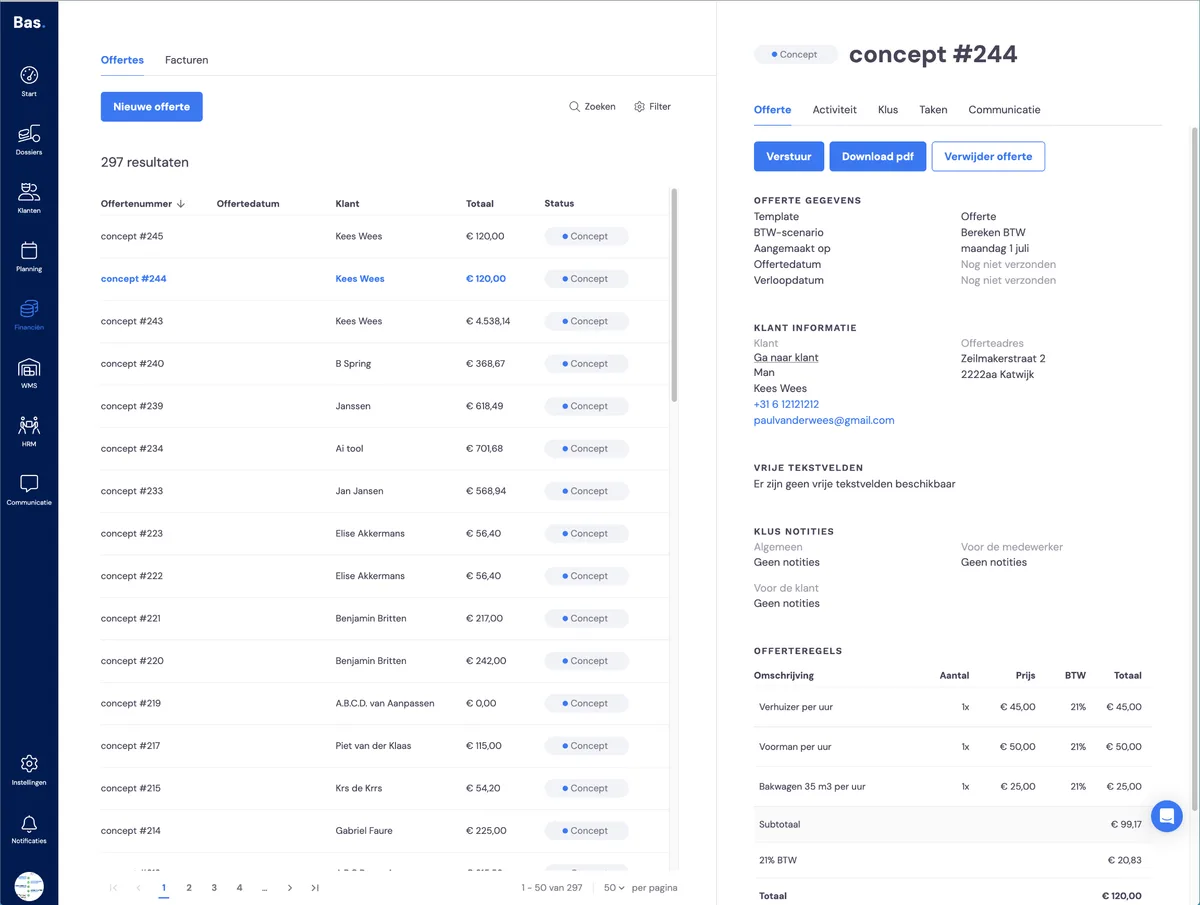
You can check the content of the quote by checking the quote details on the right-hand side. Here you'll find the quote details, the customer, and the lines in the quote.
Now check the content and layout of the quote by downloading it via 'Download PDF'. You'll get the file exactly as the customer receives it as a download.
Adjusting the quote
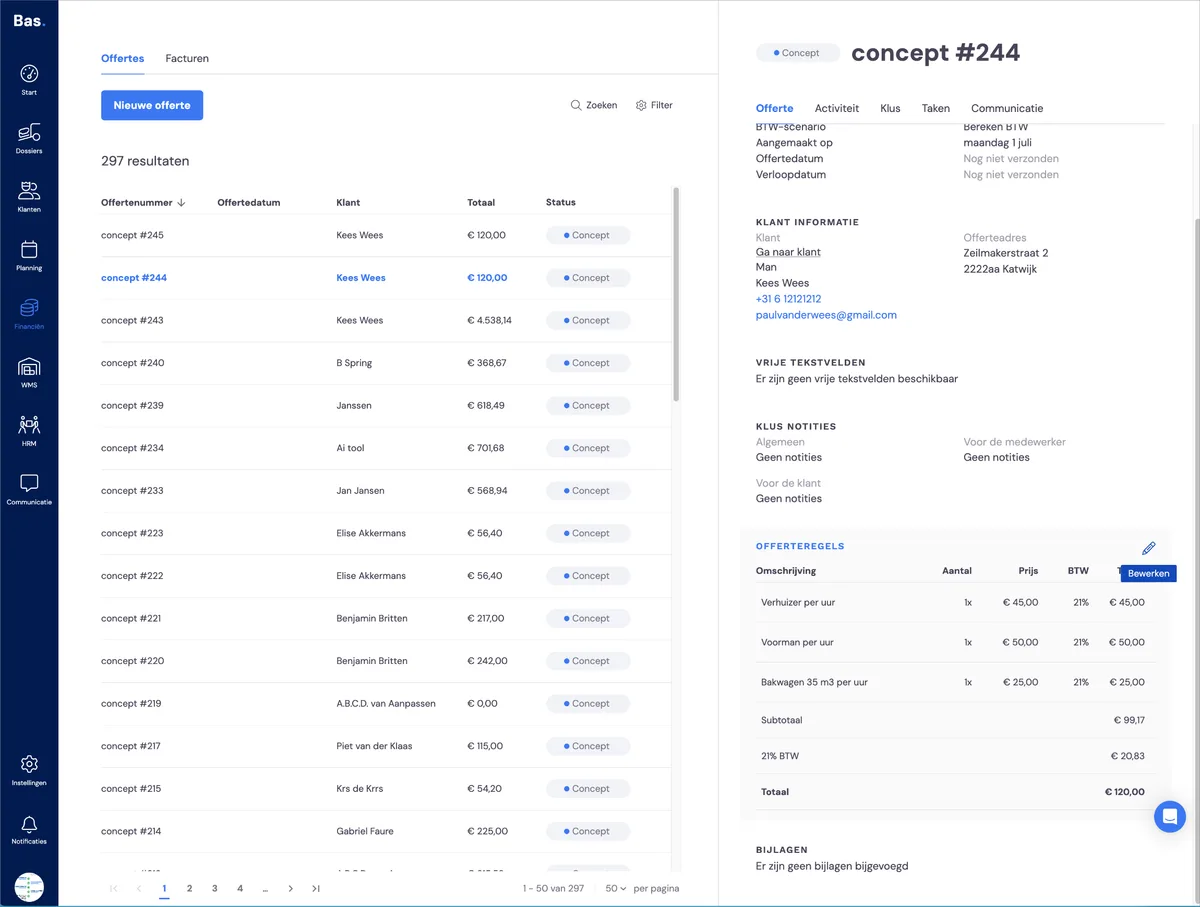
You can adjust the quote details by hovering over the different sections on the right-hand side of the screen. You can edit the various elements by clicking the pencil icon.
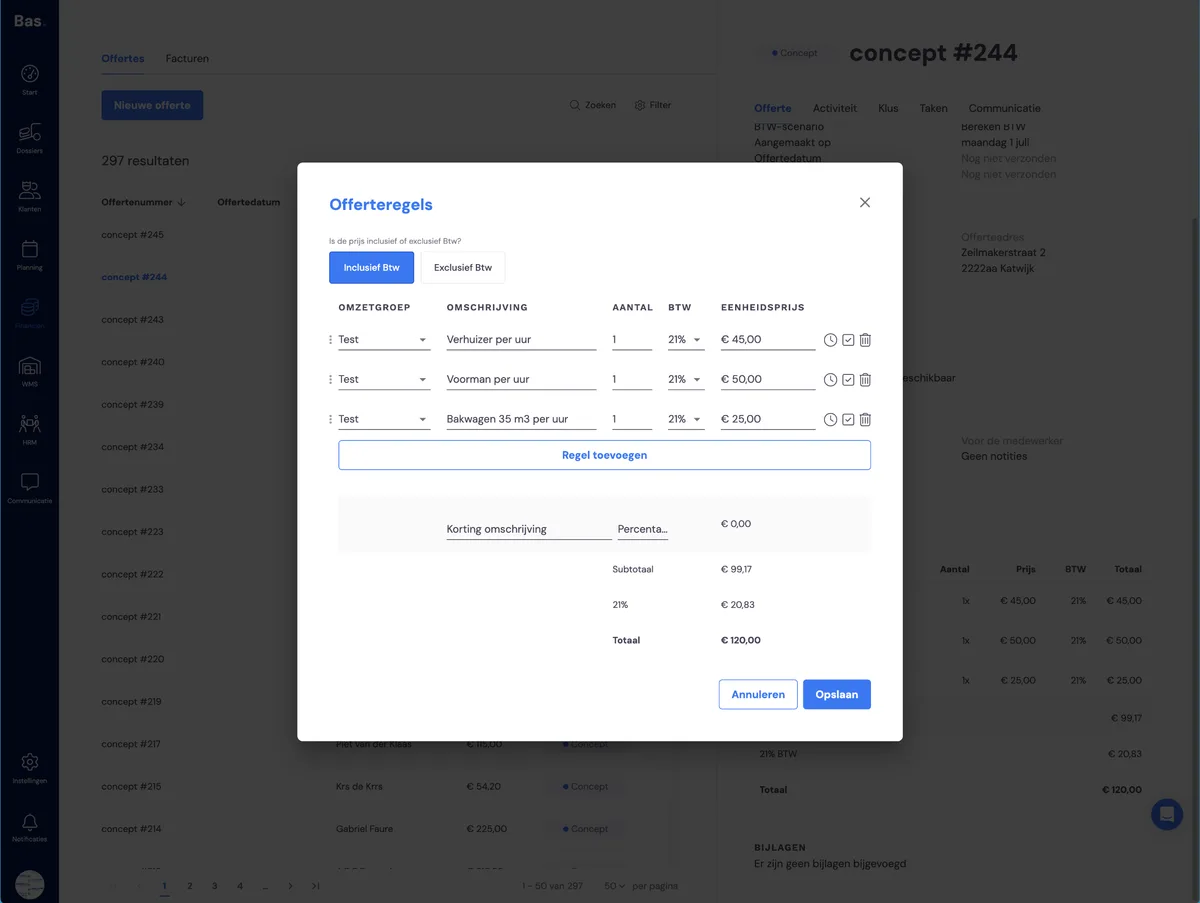
Then click quote lines. Add a line here. Save and view the result via 'Download quote'.
Sending the quote
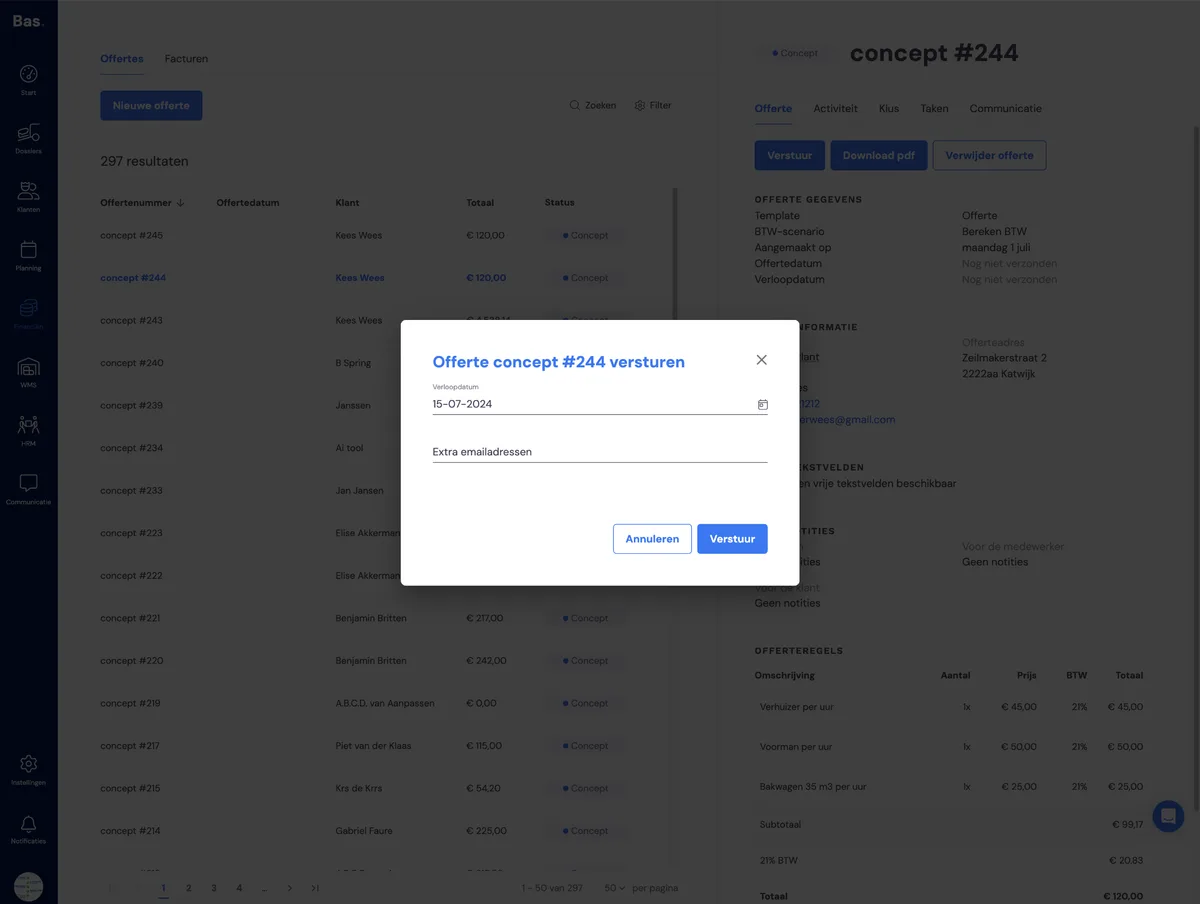
If the quote is correct, you can send it. The job then automatically moves to the next phase: sent. The quote can now be accepted by the customer.
Quote acceptance by the customer
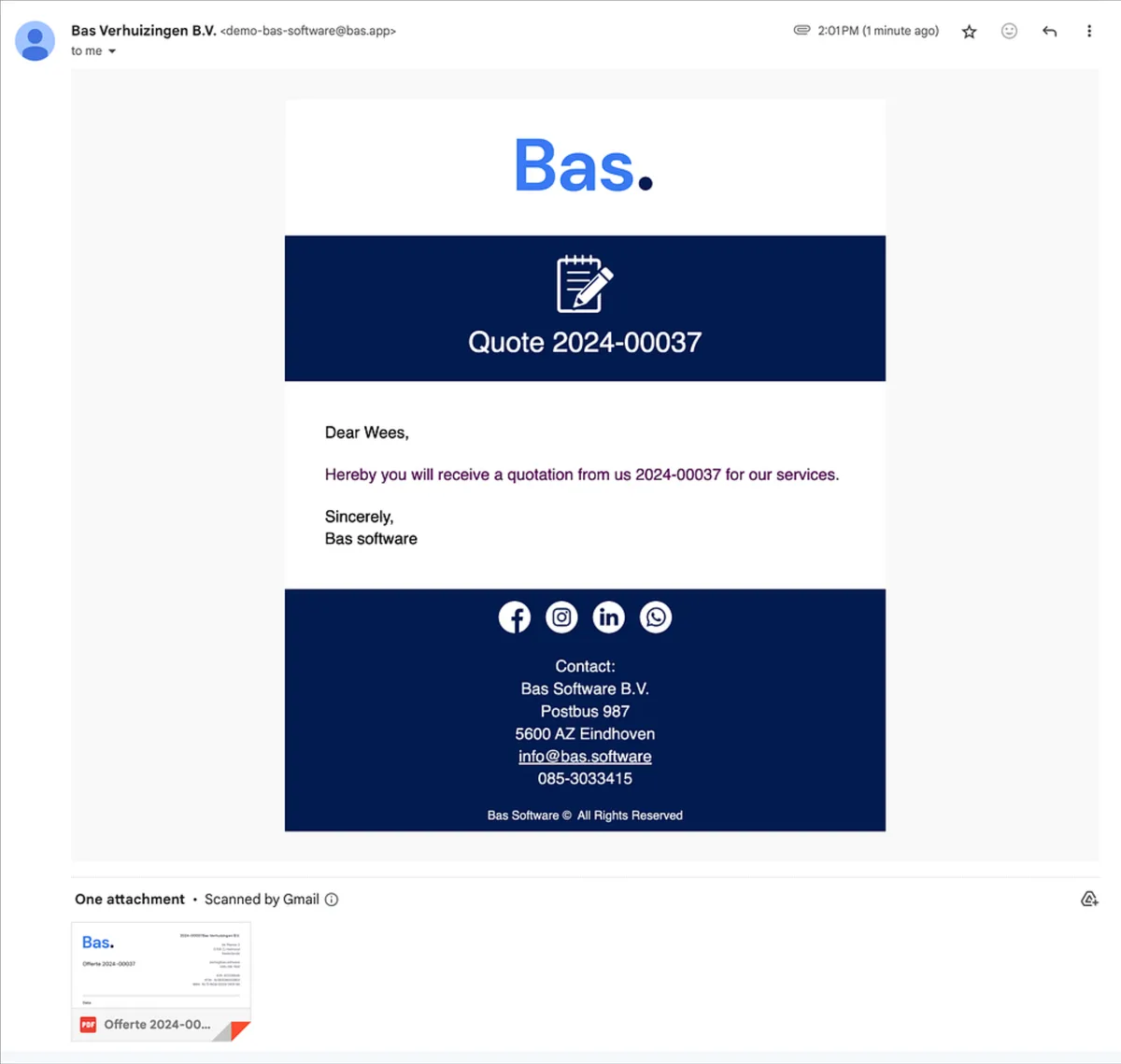
The customer receives an email with the content of the quote. If online acceptance is activated, the customer can accept the quote directly here. The job then automatically moves to the phase 'schedule move'.
Quote acceptance via the back office
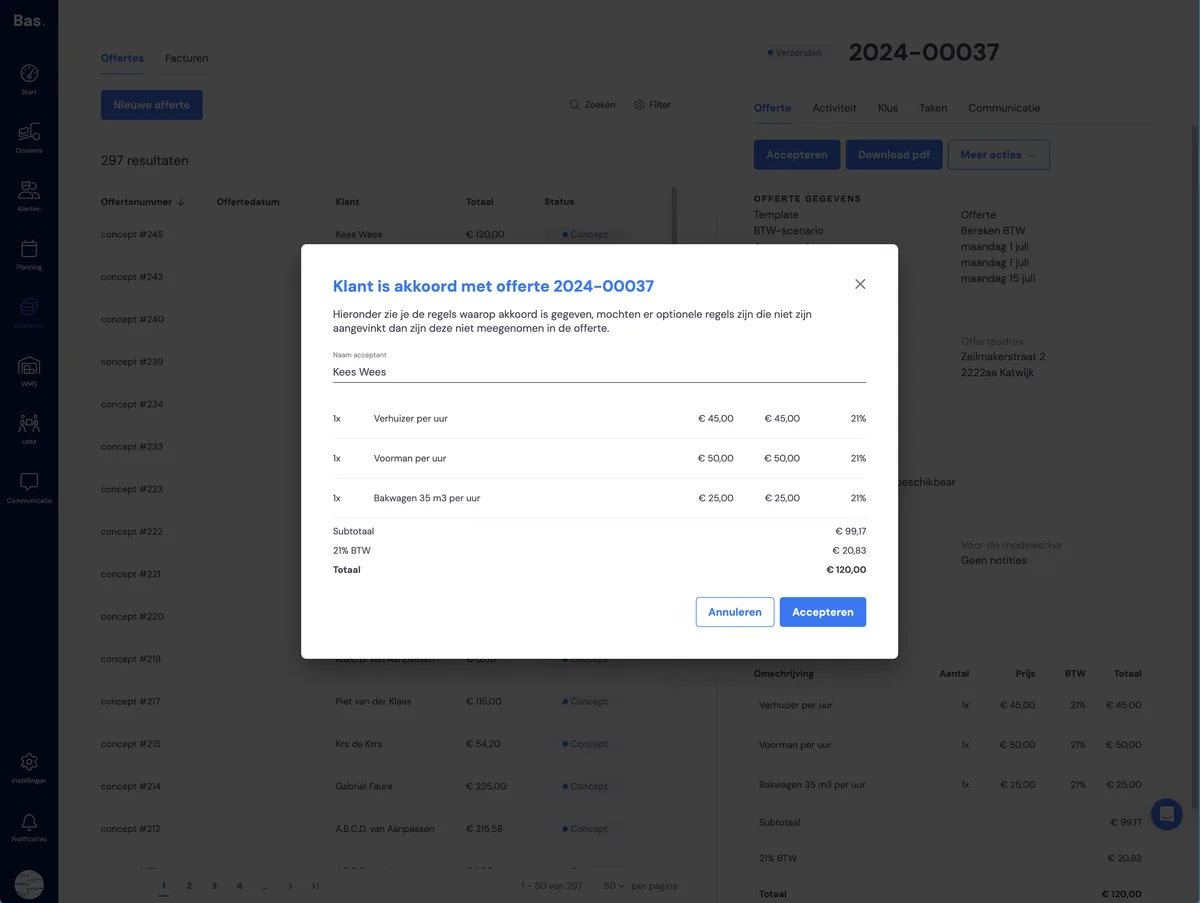
You can also accept the quote yourself, for example if you speak to the customer by phone. To do this, click 'Accept' on the quote. In this case too, the job automatically moves to the next phase.
Job in the scheduling status
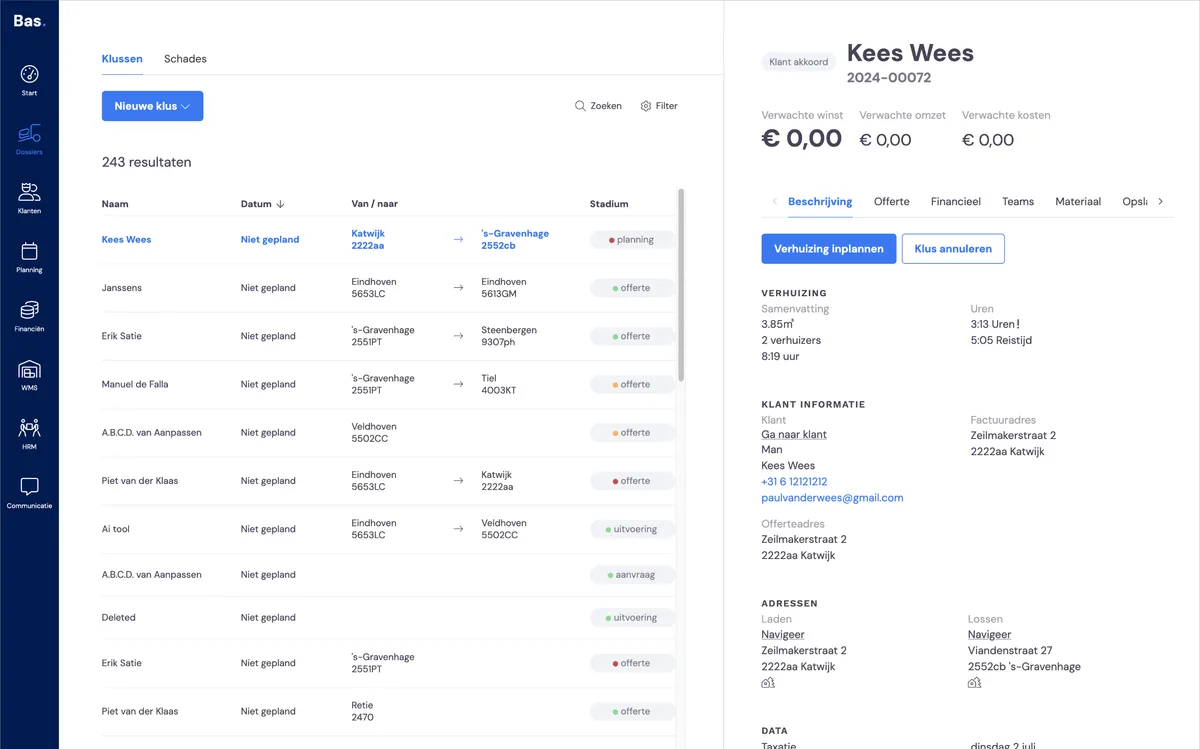
After the quote has been accepted, the job is in the status 'schedule move'. You'll notice that you can no longer start the survey and that the 'schedule move' button has appeared.
Next step
The next step is scheduling the job that the customer has commissioned >
Next step: Send the invoice and pay for your move
Next step: Send the invoice and pay for your move
Next step: Schedule your move