
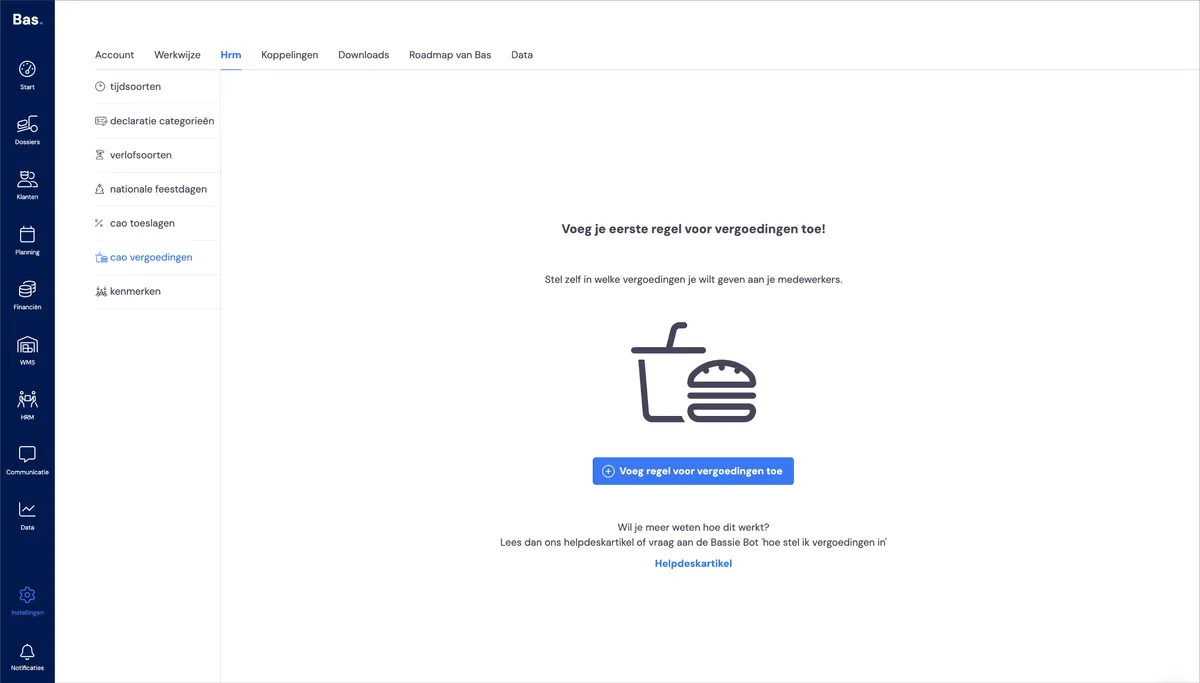
You'll find the overview of configured reimbursements under settings, then HR, then CLA reimbursements.
Creating a new reimbursement
You create a new reimbursement using the 'Add reimbursement' button. You'll then be guided through a wizard where you add all the attributes of the CLA rule.
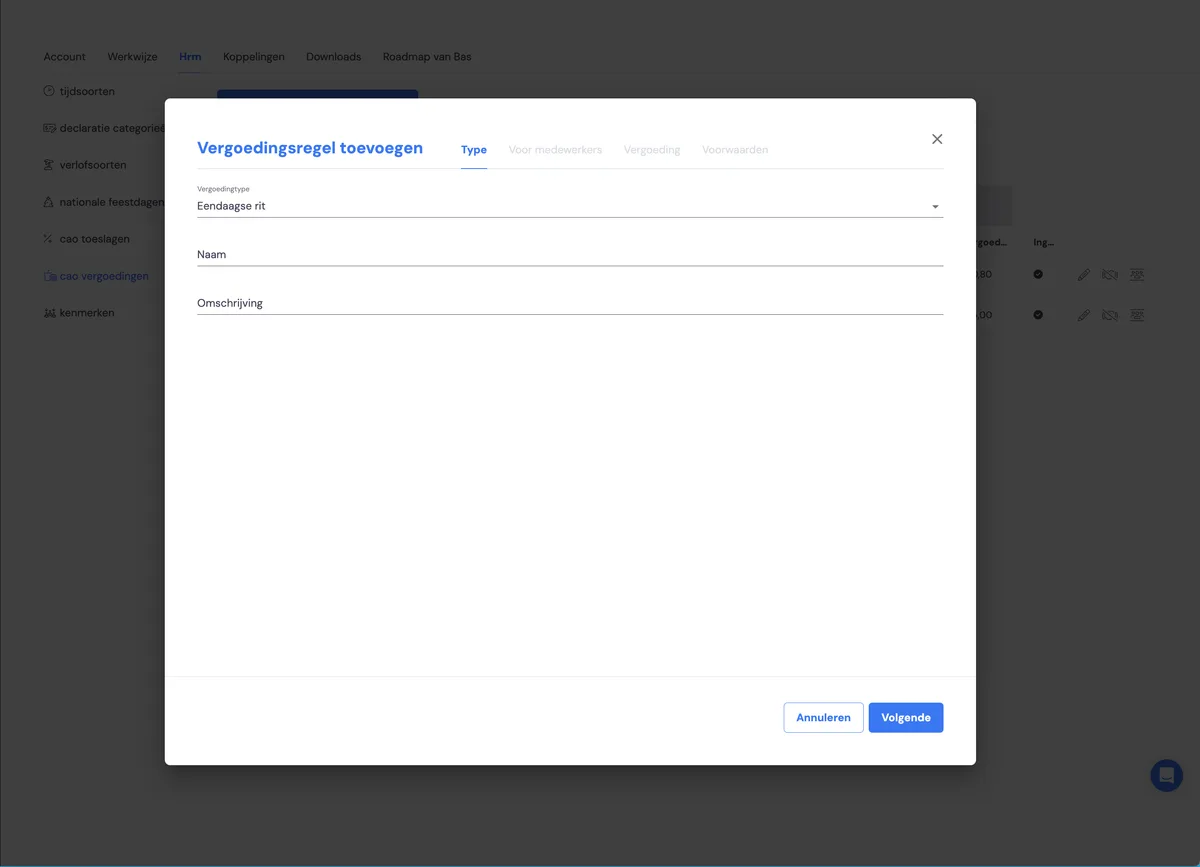
Enter the name and description here. These are purely for identification later in the process. Choose a name that's recognisable to you as a user.
Select employees
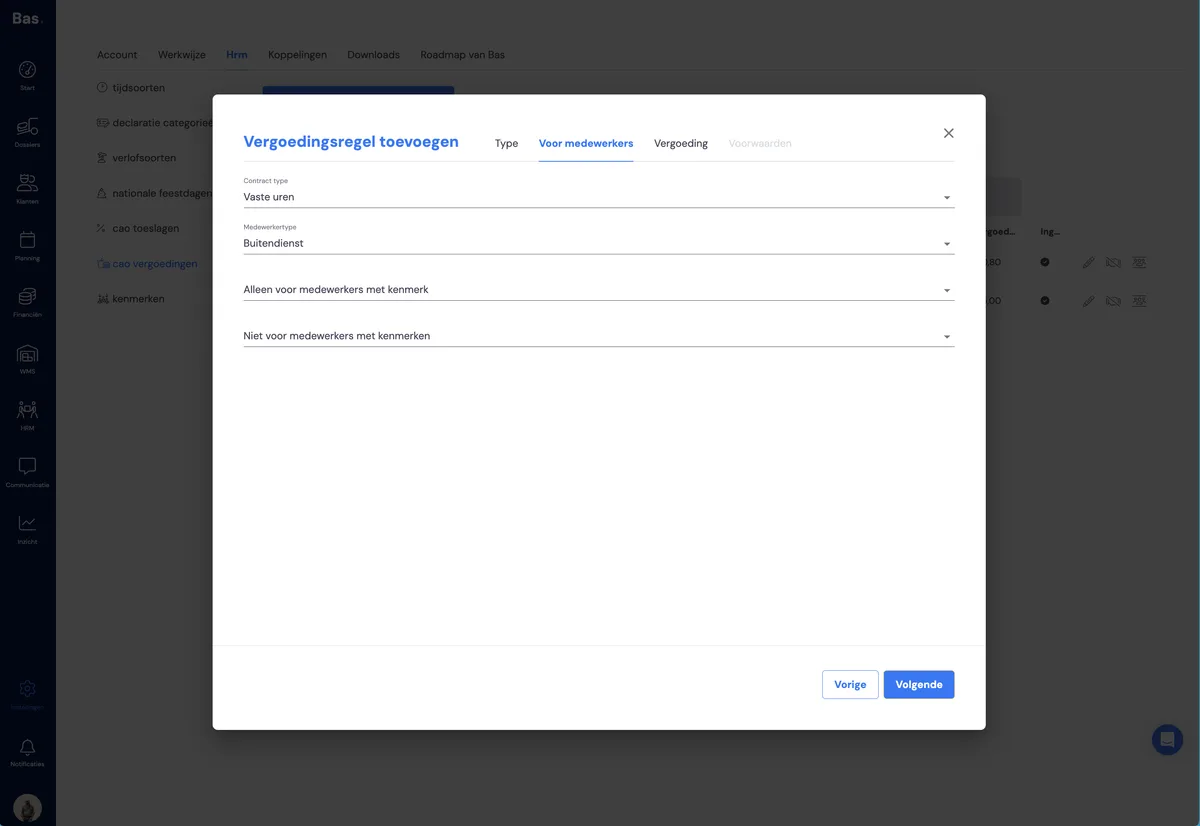
In this step, you select which employees the reimbursement should apply to. You have the following options:
contract: choose which type of contract the allowance should apply to
employee type: choose field-work employees (these are employees with a skill such as mover, handyman or foreman, etc.) or choose office-work employees (employees without any of these skills, such as planners)
only for employees with attribute: make the allowance apply only to employees with an attribute (that you've added to the employee via HR)
not for employees with attribute: exclude employees with a particular attribute
Set the reimbursement
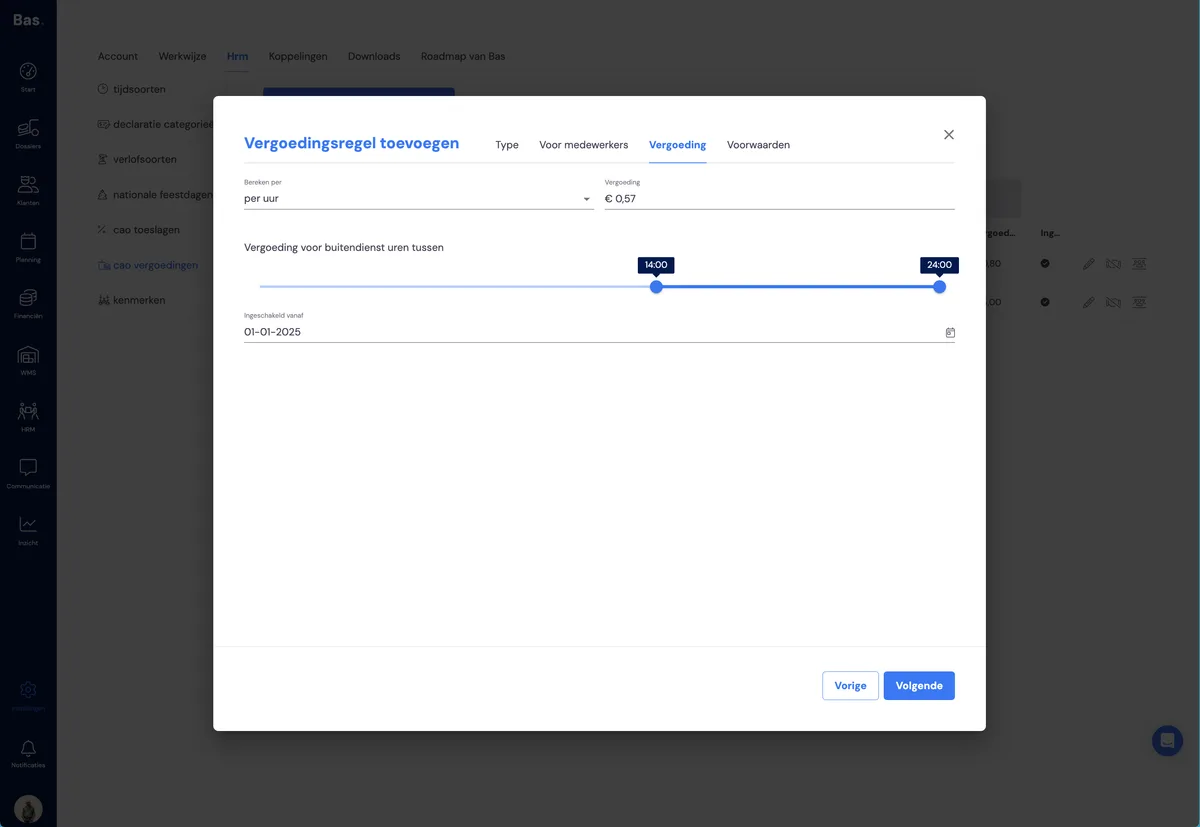
Determine the amount of the reimbursement:
per day or per hour: this determines whether the reimbursement is calculated per day or per hour
amount: the number of euros per hour or per day
reimbursement for hours between: if it doesn't matter which hours the allowance counts for, choose the whole day (from 00:00 to 24:00); if the reimbursement applies to specific hours, select these using the slider
start date: the date from which the reimbursement should take effect
Determine the conditions under which the reimbursement is given
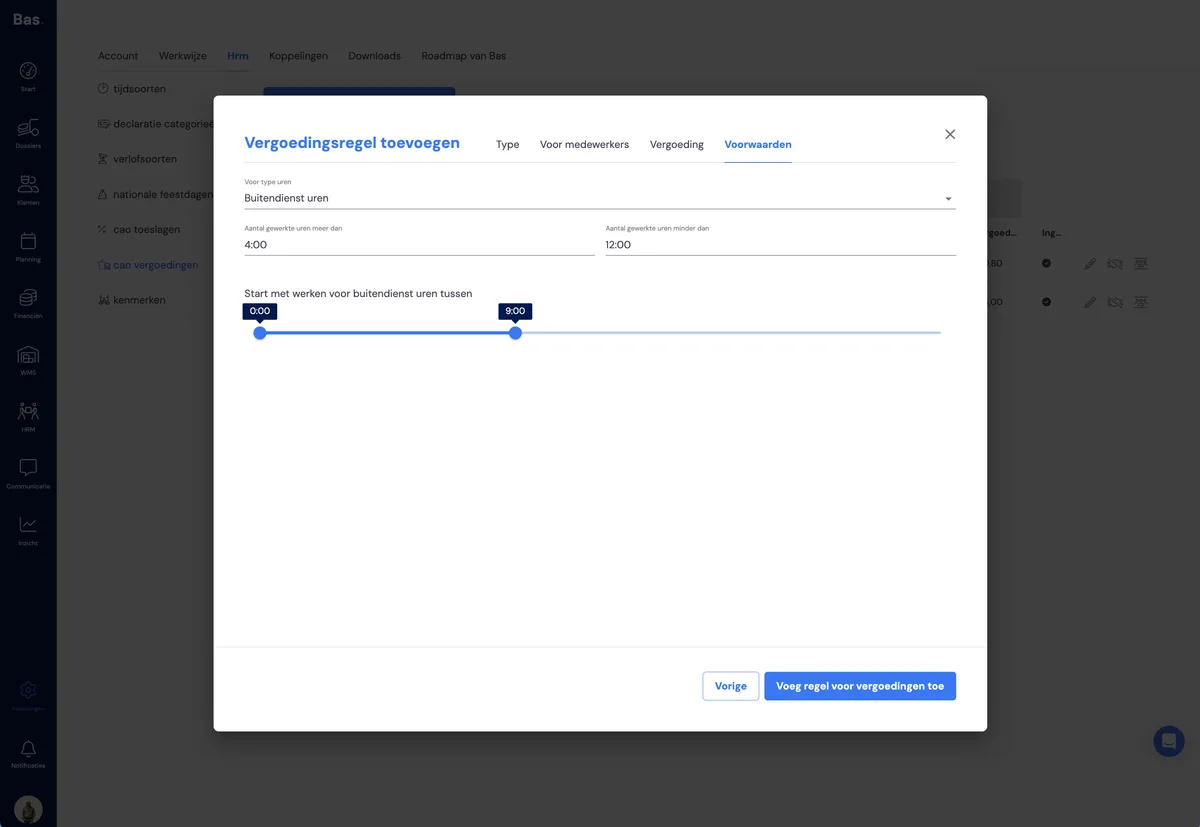
Choose the condition under which the reimbursement is given:
hour type: if the reimbursement only applies to field-work hours (such as moving), choose this hour type
number of hours worked more than / less than: for when you only provide the reimbursement if the employee has worked more than 4 hours a day, but less than 12 hours, because a different reimbursement applies in that case
start of work: use this to enter the time slot within which the employee must have started working
Editing an allowance rule
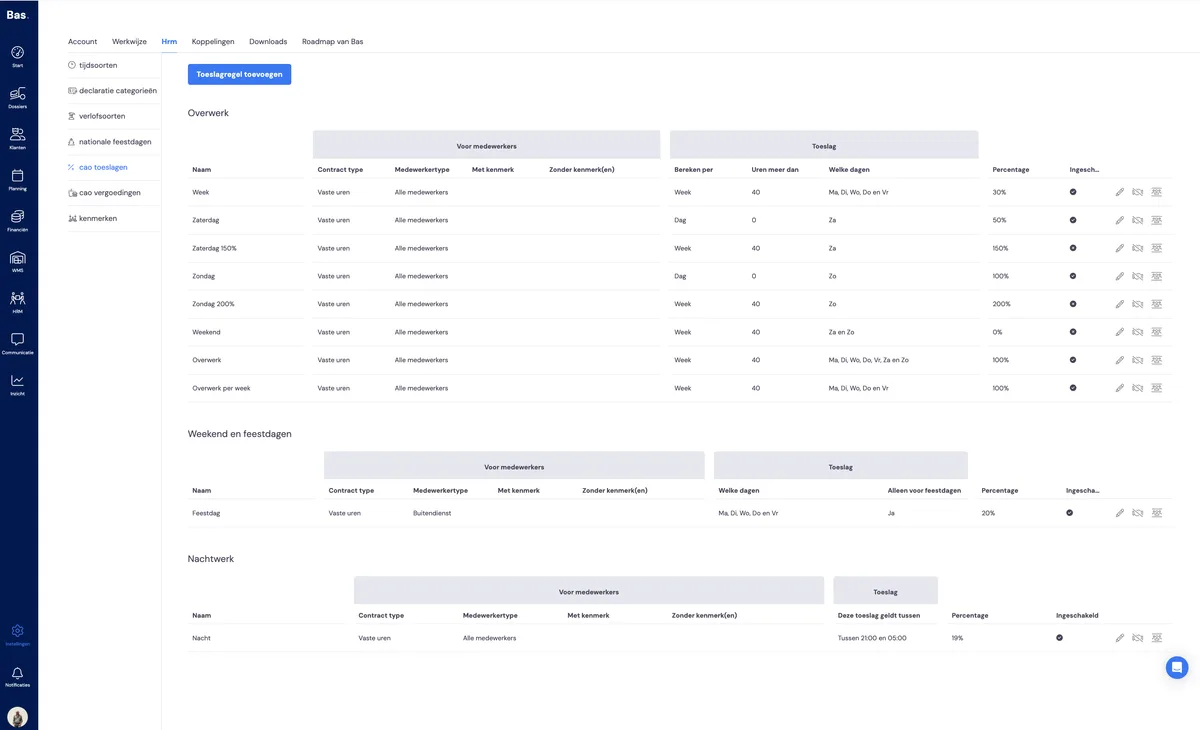
You can:
edit an allowance rule using the pencil icon on the right of the rule.
enable or disable it using the date icon.
Checking which employees a rule applies to
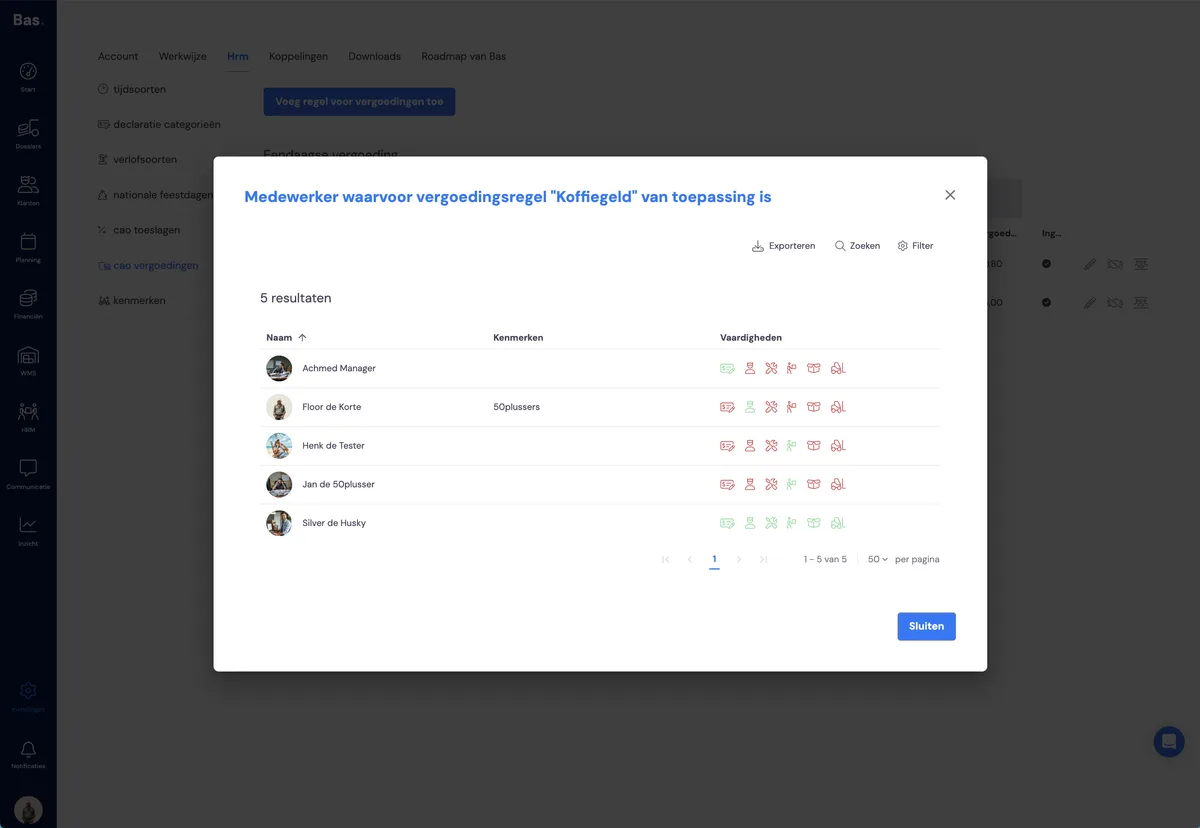
You can check which employees the allowance applies to by clicking the person icon.
What you can do
Set your own rules for allowances
Create specific attributes for employees and link them to CLA rules