
Getting started with registering hours
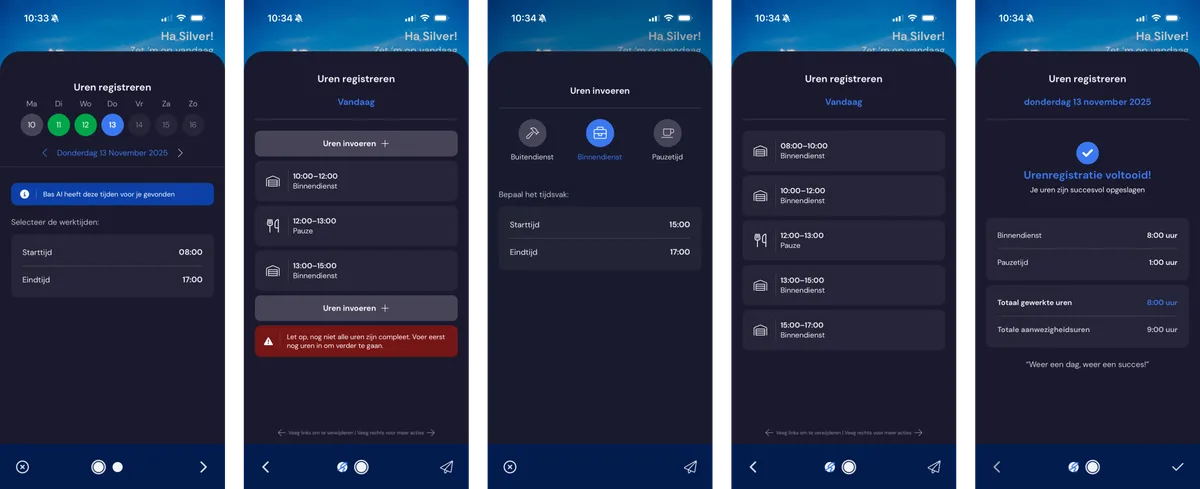
The employee starts the process with the 'register hours' button in the app.
Employees registering hours
The employee is guided through registering hours in a few quick steps:
The app then comes up with a proposal for the day that needs to be registered. This is a day for which no hours have been registered yet, but on which the employee should be working according to their contract or their schedule.
When the employee clicks through to the day, the app makes a proposal for the hours to be registered, starting with the start time and end time of the chosen working day.
In the next step, the app makes a proposal for the hours worked and the break. This is done based on the schedule and, where applicable, the hours registered by the foreman.
If there are gaps in the schedule, the employee can fill in these hours themselves until the day is registered. (The hours registration must be complete — a day can't be registered if it isn't complete).
In short: if an employee is scheduled, it's simply a matter of checking the hours and submitting them.
What the employee needs to do
Step 1: the employee chooses to register hours on the app's home screen. The app then comes up with a proposal for the day to be registered. Under 'Register hours', the employee can choose a different day if needed.
The employee checks whether the proposed start time and end time are correct. If this proposal isn't correct, the employee can adjust these times directly.
---
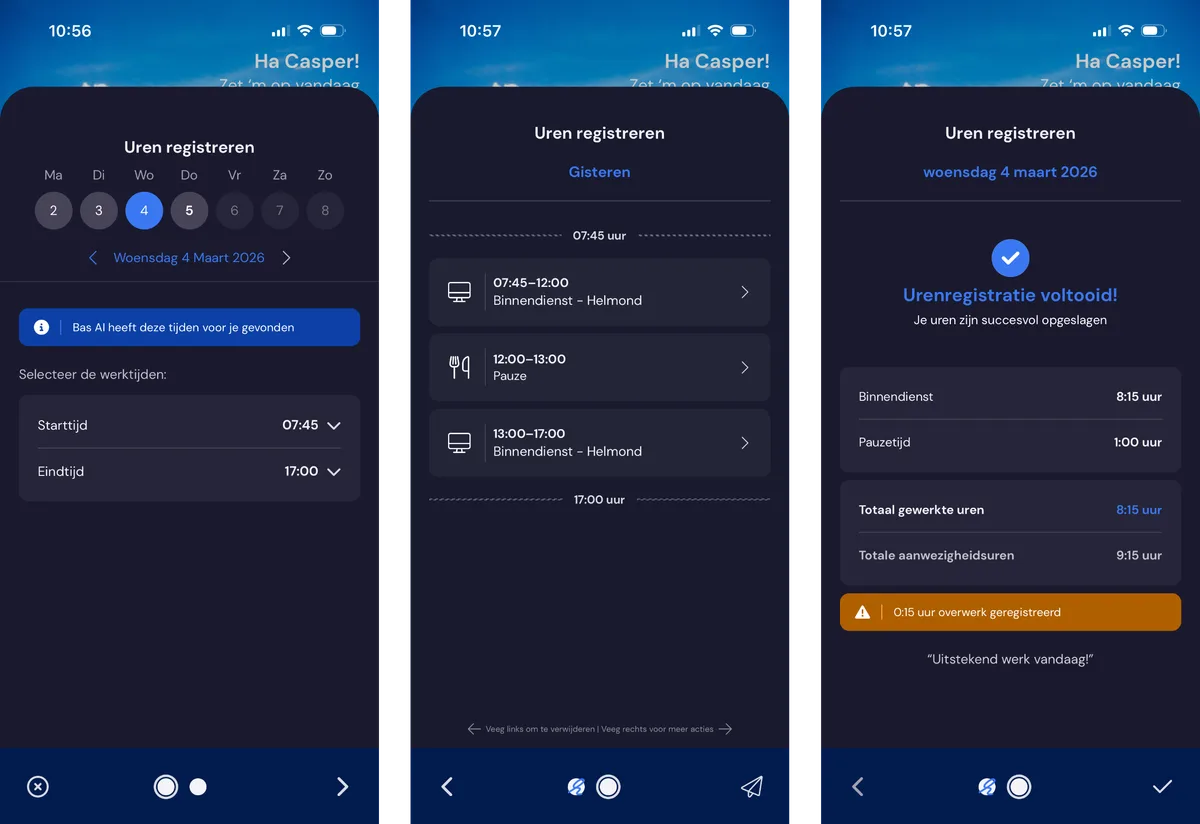
Step 2: check the proposal for hours worked and break. If the app has proposed the correct hours based on the schedule and settings, the employee clicks through.
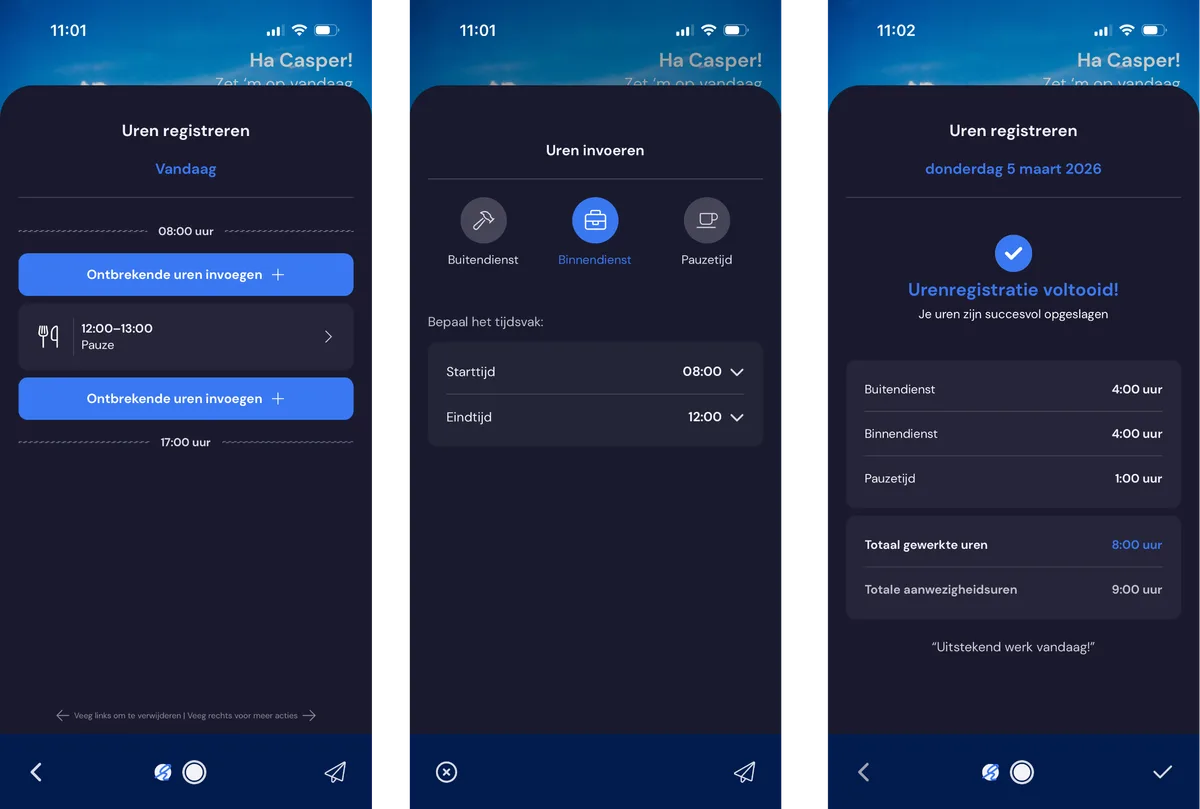
If hours are missing from the proposal, the employee can add hours themselves using the 'add missing hours' button, after which the employee can indicate what type of hours they worked: office work or field work. The employee can also register their break here.
Step 3: finishing up.
The employee clicks the tick and the hours are registered; the backoffice sees the registered hours and can view, adjust, approve or reject them.
Overview of days
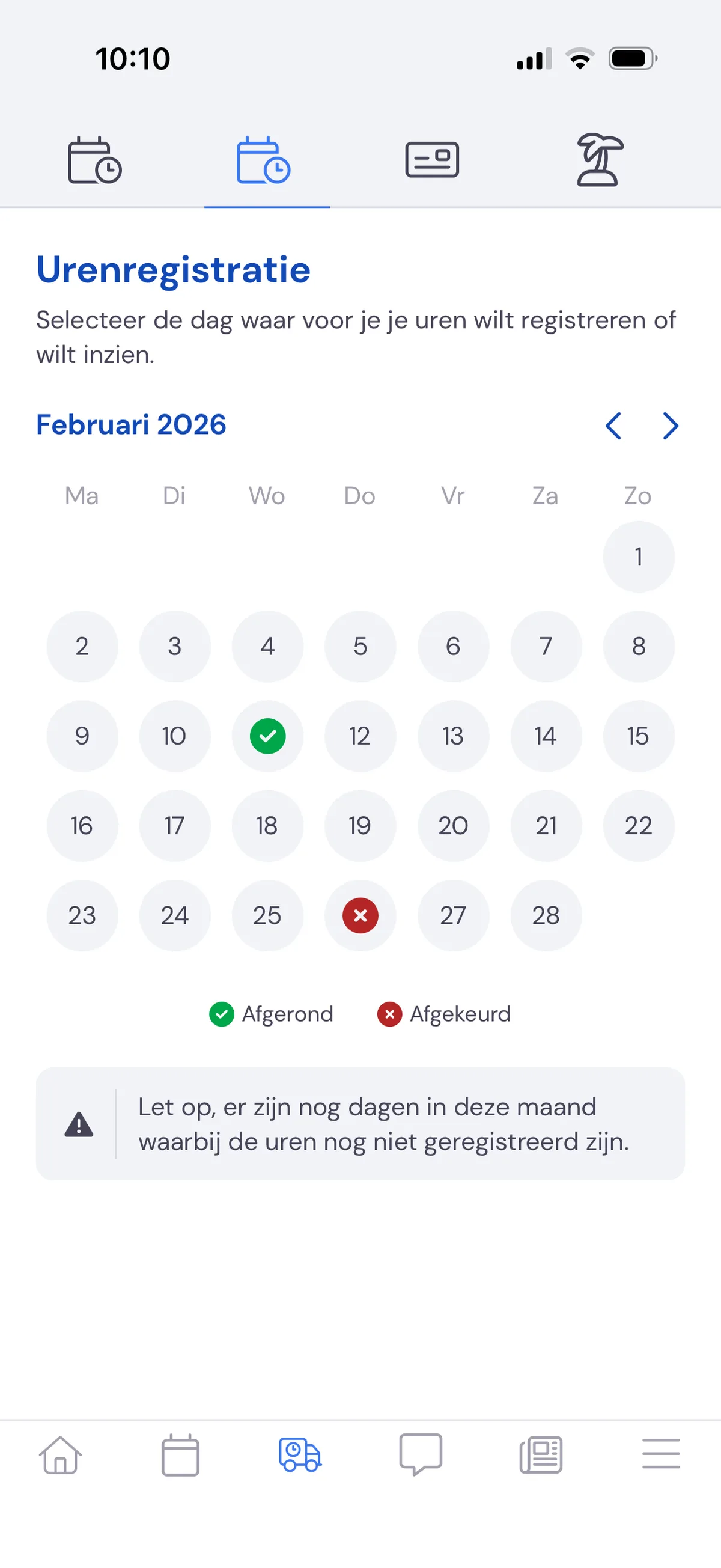
The employee sees for which days hours have already been registered and, where applicable, approved (the green tick). Days for which hours still need to be registered are coloured grey. By clicking on a day, the employee can register hours.
Rejected registration
If a registration has been rejected, the employee sees a red cross, and needs to make an adjustment. The employee then clicks on the day and can register hours again.
Days that don't need to be registered
If an employee has a leave day or is registered as sick, the employee doesn't need to register hours for that day. The app will show a notification for this.
What can the employee register?
The employee can't register hours for days in the future. The employee can register up to 8 hours in advance — in practice, this means the employee can register the whole working day at the start of the working day.
Processing registered hours
After the hours have been registered, they can be checked in the backoffice and, where necessary, adjusted.